Fix error 0xc0000005 by updating Windows and the crashing app first, then repairing or reinstalling that app if the error returns.
This guide covers what the access violation code means, how it differs from access is denied errors, and the system checks to run when one app is not the cause.
Fix error 0xc0000005 on Windows 11/10
Microsoft's crash guidance starts with the same two checks: the latest Windows updates and the latest version of the affected app.
- Save your work and close the app that shows the error.
- Select Start > Settings > Windows Update, then select Check for updates. On Windows 10, this page sits under Update & Security.
- Install the updates, then restart even if no update asks for it.
- Update the app from its own update option or from its maker's website.
- Open the app and repeat the action that crashed.
What does error 0xc0000005 mean?
| Question | Answer |
|---|---|
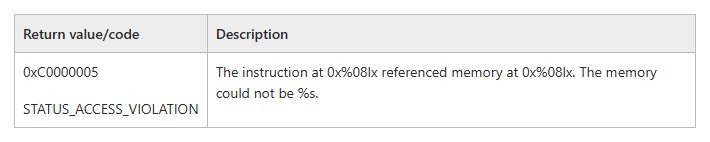
| What is the code's name? | STATUS_ACCESS_VIOLATION |
| What does Windows report? | "The instruction at 0x%08lx referenced memory at 0x%08lx. The memory could not be %s." |
| What happened in plain terms? | An application tried to read, write or execute an invalid memory address |
| What are the common causes? | A null pointer, memory corruption, use of memory after it was freed, or a rare RAM fault that flips bits |
| Does it point to a file permission problem? | No. Despite the "access" in its name, the code refers to memory addresses, not to file or folder permissions |
0xc0000005 in one program vs every program
The pattern of the crashes tells you where to start. Match your case to a row, then use the section it names.
| Your situation | Do this | Why |
|---|---|---|
| One app crashes and others work | Repair or reinstall that app | The fault most likely sits in that app's files or code |
| An older app crashes after a Windows upgrade | Run the Program Compatibility Troubleshooter | Microsoft's tool for older programs on current Windows |
| Crashes began after you added an app or service | Use a clean boot | It isolates interference from background software |
| Several Windows features or apps fail | Run DISM and SFC | Both repair corrupted system files |
| Crashes are random and move between apps | Run Windows Memory Diagnostic | RAM faults can flip bits in memory |
| Unknown programs or unusual behavior appear too | Run a Windows Security scan | An address can be overwritten maliciously as well as by mistake |
| Only Chrome or Edge shows the code | Treat it as a browser fault | You can fix STATUS_ACCESS_VIOLATION in Chrome or Edge inside the browser |
| The message says runtime error and shows no 0xc0000005 code | Use the Windows 11 runtime error fixes | A runtime error is a separate problem with its own fixes |
Error 5 access is denied vs 0xc0000005
These codes look alike in search results, but they have different fixes. Check the exact code in your message before you change anything.
| Code | Microsoft's name or message | What it means | Where to start |
|---|---|---|---|
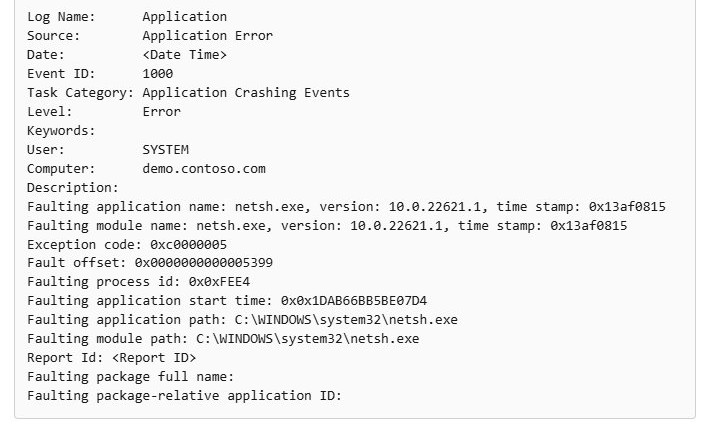
| 0xC0000005 | STATUS_ACCESS_VIOLATION |
An app used an invalid memory address | The fixes in this article |
| 0xC0000022 | STATUS_ACCESS_DENIED |
A process asked for access rights it was not granted | Check the account's rights and restore file access |
| Error 5 or 0x5 | "Access is denied." | Windows refused the requested action | Run the tool as administrator, then check permissions |
| 0x80070005 | E_ACCESSDENIED, a general access denied error |
The same kind of refusal, for example from a Windows activation command | Use an elevated window |
| 0xC000007B | STATUS_INVALID_IMAGE_FORMAT |
The program is not designed for Windows or contains an error | Use the steps to fix the 0xc000007b error |
How to find the faulting module for error 0xc0000005 in Event Viewer
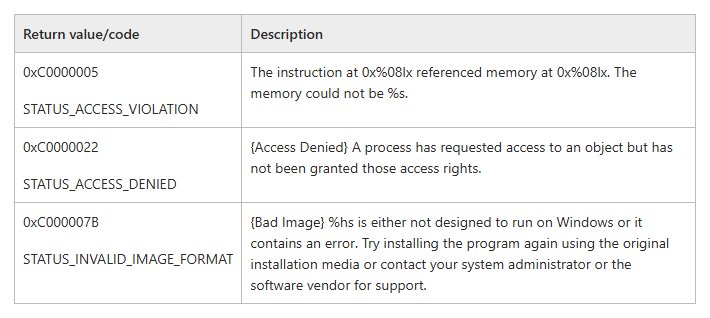
Event Viewer names the app and the file that were running when the crash happened. Read this before reinstalling anything, because the module often shows which product to update.
- Right-click Start and select Event Viewer.
- In the left pane, expand Windows Logs and select Application.
- Find an Error entry with the source Application Error and Event ID 1000 at the time of the crash.
- Check that Exception code reads 0xc0000005.
- Note the Faulting application name and the Faulting module name.
- Update, repair or remove the product that owns the module.
A Microsoft module such as ntdll.dll, kernel32.dll or kernelbase.dll is often a victim, not the cause. Microsoft says these busy files get caught by corruption that another module caused earlier.
How to repair or reinstall the app showing 0xc0000005
Not every app offers these options. Repair keeps the app in place, so try it before you uninstall.
- Select Start > Settings > Apps > Installed apps.
- Select the More icon next to the app.
- Select Advanced options, then select Repair if it appears.
- If Repair is missing or does not help, select Reset on the same page.
- For a desktop program with no such page, open Control Panel > Programs > Programs and Features.
- Right-click the program and select Repair, or select Change if Repair is missing.
- If the error remains, uninstall the app and install the current version from its maker's website.
Run DISM and SFC to fix error 0xc0000005
Corrupted system files can produce system errors across Windows. Microsoft says to run DISM first, because it provides the files that SFC uses for repairs.
- Type cmd in the Search box.
- Right-click Command Prompt and select Run as administrator.
- Select Yes, or enter an administrator password if asked.
- Run
DISM.exe /Online /Cleanup-image /Restorehealthand wait for it to finish. - Run
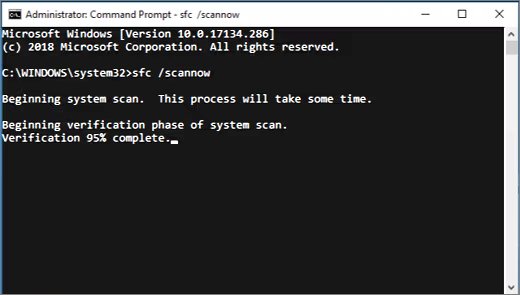
sfc /scannowand leave the window open until verification reaches 100%. - Restart the PC and test the app again.
sfc /scannow results explained
| Message | What it means | What to do |
|---|---|---|
| Windows Resource Protection did not find any integrity violations. | No system files are missing or corrupted | Move on to the memory test or a clean boot |
| Windows Resource Protection could not perform the requested operation. | The scan could not run in normal mode | Run SFC in safe mode |
| Windows Resource Protection found corrupt files and successfully repaired them. | The repair succeeded | Restart and test the app |
| Windows Resource Protection found corrupt files but was unable to fix some of them. | Some files remain damaged | Read the details with findstr /c:"[SR]" %windir%\Logs\CBS\CBS.log >"%userprofile%\Desktop\sfcdetails.txt", then replace the damaged file with a known good copy |
Windows Memory Diagnostic for error 0xc0000005
Microsoft lists flipped memory bits as a rare cause, so run this when crashes are random or appear in many apps. The PC restarts during the test.
- Save your work and close all apps.
- Press Windows key + R, type
mdschedand select OK. - Select Restart now and check for problems (recommended).
- Let the test finish. To run the longer test, press F1, change Test Mix to Extended and press F10.
- Sign in after the automatic restart and read the result notification.
- If you missed it, open Event Viewer and go to Application and Services Logs > Microsoft > Windows > MemoryDiagnostics-Results > Debug.
Event ID 2001 means no memory errors were found. A failed test points to hardware, so contact the PC or memory maker.
How to clean boot Windows to find the cause of 0xc0000005
A clean boot starts Windows with only essential drivers and startup programs. Some features can stop working until you return to normal startup.
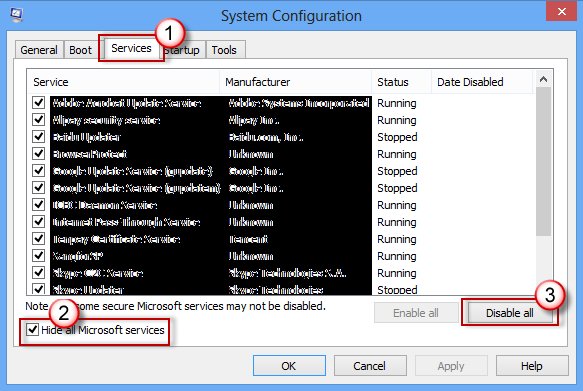
- Sign in as an administrator, select Search, type
msconfigand select System Configuration. - On the Services tab, select Hide all Microsoft services, then Disable all and Apply.
- On the Startup tab, select Open Task Manager.
- On the Startup apps tab, select each enabled item and select Disable. Write down each item you change.
- Close Task Manager, select OK on the Startup tab and restart the PC.
- Open the app that crashed. If it now works, another app or service is interfering.
- Turn half of the services and startup items back on, restart and test. Repeat with smaller groups until you isolate the item.
If the app still crashes in a clean boot, background software is not the cause. Contact the app's maker for support.
How to return to normal startup after a clean boot
- Select Search, type
msconfigand select System Configuration. - On the General tab, select Normal Startup.
- On the Services tab, clear Hide all Microsoft services, select Enable all, then select Apply.
- On the Startup tab, select Open Task Manager.
- Enable each startup program you disabled, then return and select OK.
- Select Restart when prompted.
Update drivers to fix 0xc0000005 errors
Microsoft names faulty or outdated drivers as a common source of invalid memory access. Use this when the faulting module belongs to a device, or when crashes began after a hardware change.
- Select Start > Settings > Windows Update > Advanced options.
- Under Additional options, select Optional updates.
- Select the driver updates shown, then select Download and install.
- Return to Windows Update and select Check for updates.
- Install what appears, then restart the PC.
- If Windows Update offers nothing, check the device maker's website for a current driver.
Program Compatibility Troubleshooter for 0xc0000005
Use this when an older program fails on a newer version of Windows. Check for an update from the program's maker first.
- On Windows 11, select Start > Settings > System > Troubleshoot > Other troubleshooters.
- Find Program Compatibility Troubleshooter and select Run.
- On Windows 10, select Start > Settings > Update & Security > Troubleshoot > Additional troubleshooters.
- Select Program Compatibility Troubleshooter, then Run the troubleshooter.
- Follow the on-screen instructions, then open the program again.
Run a Windows Security scan for error 0xc0000005
Microsoft notes that a memory address can be overwritten maliciously, so a scan is worth running when crashes come with other unusual behavior.
- Search for Windows Security in the Start menu and open it.
- Select Virus & threat protection > Quick scan.
- Follow any action the app recommends after the scan.
- If you use other antivirus software, update it to its latest version.
Data Execution Prevention and error 0xc0000005
Data Execution Prevention (DEP) marks memory regions as non-executable. If an app tries to run code from a protected data page, a memory access violation occurs, and an unhandled exception ends the process.
Leave Data Execution Prevention on, and get an updated build of the app instead. DEP makes buffer overrun attacks harder, so switching it off trades a crash for lower protection. A small number of programs do keep code in their data sections, and only the app's maker can correct that.
How to collect a crash dump for error 0xc0000005
Use this when an app keeps crashing and its maker asks for evidence. Replace app.exe with the file named in Event ID 1000, then run the commands in an elevated Command Prompt.
reg add "HKLM\SOFTWARE\Microsoft\Windows\Windows Error Reporting\LocalDumps\app.exe"
reg add "HKLM\SOFTWARE\Microsoft\Windows\Windows Error Reporting\LocalDumps\app.exe" /v DumpFolder /t REG_EXPAND_SZ /d "C:\WER" /f
md C:\WER
reg add "HKLM\SOFTWARE\Microsoft\Windows\Windows Error Reporting\LocalDumps\app.exe" /v DumpCount /t REG_DWORD /d 10 /f
reg add "HKLM\SOFTWARE\Microsoft\Windows\Windows Error Reporting\LocalDumps\app.exe" /v DumpType /t REG_DWORD /d 2 /f
reg add "HKLM\SOFTWARE\Wow6432Node\Microsoft\Windows\Windows Error Reporting\LocalDumps\app.exe"
reg add "HKLM\SOFTWARE\Wow6432Node\Microsoft\Windows\Windows Error Reporting\LocalDumps\app.exe" /v DumpFolder /t REG_EXPAND_SZ /d "C:\WER" /f
reg add "HKLM\SOFTWARE\Wow6432Node\Microsoft\Windows\Windows Error Reporting\LocalDumps\app.exe" /v DumpCount /t REG_DWORD /d 10 /f
reg add "HKLM\SOFTWARE\Wow6432Node\Microsoft\Windows\Windows Error Reporting\LocalDumps\app.exe" /v DumpType /t REG_DWORD /d 2 /f
These commands keep up to 10 full process dumps of that app in C:\WER. The Wow6432Node lines cover 32-bit apps on 64-bit Windows.
You should see: Dump files appear in C:\WER after the next crash. Send them to the app's maker, or to Microsoft Support for a Microsoft app.
Delete both registry keys named after the app when you finish, so Windows stops collecting dumps.
Reset this PC when 0xc0000005 keeps coming back
Use this only when several apps still crash after the fixes above. Keep my files reinstalls Windows and keeps your personal files, but it removes apps and settings.
- Back up your important files, and find your BitLocker recovery key if the device is encrypted.
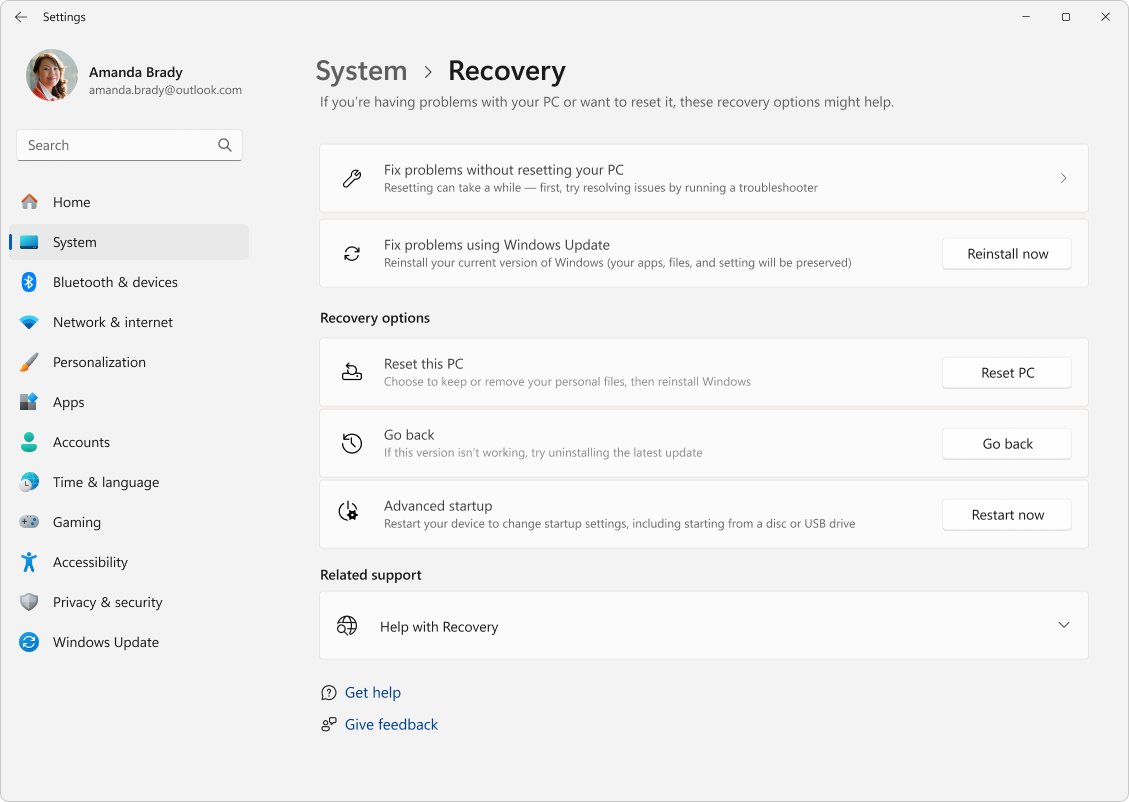
- In the Settings app, select System > Recovery.
- Under Recovery options, select Reset PC.
- Select Keep my files, then choose Cloud download or Local reinstall.
- Follow the on-screen instructions, and do not restart the PC by hand during the reset.
The screen can stay black for 15 minutes or more during a reset. Restarting manually at that point could make the reset fail.
How to tell if error 0xc0000005 is fixed
- Open the app and repeat the exact action that crashed it.
- Keep it running for as long as the crash usually takes to appear.
- Open Event Viewer > Windows Logs > Application.
- Check for new Event ID 1000 entries from that app with exception code 0xc0000005.
- If new entries appear, compare the Faulting module name with the earlier crash to see whether the cause has moved.
0xc0000005 and access is denied error troubleshooting
Error 5 access is denied
The tool is not running with administrator rights, or your account lacks permission to the item.
- Type cmd in the Search box, right-click Command Prompt and select Run as administrator.
- Run the command again in that window.
- If it still fails on a file or folder, check that item's permissions.
Access is denied 0x80070005 when you activate Windows
User Account Control blocks activation processes in a non-elevated Command Prompt window.
- Open the Start menu and search for Command Prompt.
- Right-click Command Prompt and select Run as administrator.
- Run the activation command again in that window.
SFC says it could not perform the requested operation
System File Checker could not complete the scan in normal mode.
- Start the PC in safe mode.
- Open Command Prompt with Run as administrator and run
sfc /scannowagain. - Check that the PendingDeletes and PendingRenames folders exist under
%WinDir%\WinSxS\Temp.
0xc0000005 error FAQ
Is 0xc0000005 an access is denied error?
No. 0xc0000005 is STATUS_ACCESS_VIOLATION, which means an app used an invalid memory address. Permission refusals use other codes, such as 0xC0000022 and error 5. Check the exact code first, because the fixes are different.
How do I fix error 5 access denied?
Run the tool again as administrator. Type cmd in the Search box, right-click Command Prompt and select Run as administrator. If it still fails on a file or folder, check that your account has permission to that item.
What is system error code 5 access is denied?
It is the Windows system error ERROR_ACCESS_DENIED, value 5 or 0x5, with the message "Access is denied." It means Windows refused the action. It has nothing to do with the memory fault behind 0xc0000005.
What does code 0x5 access is denied mean?
Code 0x5 is the hexadecimal form of system error 5, so it carries the same "Access is denied." message. Try the action again from an elevated window, then check the permissions on the item you are using.
What is error 0x80070005 access is denied?
0x80070005 is E_ACCESSDENIED, which Microsoft describes as a general access denied error. During Windows activation, it means the action needs elevated privileges. Open Command Prompt with Run as administrator and run the command again.
Can faulty RAM cause error 0xc0000005?
Yes, but Microsoft describes this as a rare cause. A RAM fault can flip bits and make a memory address invalid. Run Windows Memory Diagnostic with mdsched, and treat Event ID 2001 as a result with no memory errors.
Should I update antivirus software for error 0xc0000005?
Yes. Microsoft's crash guidance says to check that installed antivirus software is on its latest version. Keep it running while you test, and use a clean boot to see whether a background service is interfering with the app.
Should I turn off DEP to fix 0xc0000005?
No. Data Execution Prevention helps block attacks that rely on buffer overruns. If it stops an app from running code in a data page, get an updated version from the app's maker instead of lowering this protection.