Select View > Slide Master in PowerPoint, edit the top thumbnail or a layout below it, and then select Close Master View to apply the design.
These steps cover layouts, multiple masters, footers, templates and slide master changes that do not show up, plus three related PowerPoint problems.
How to use Slide Master in PowerPoint
Edit the slide master and its layouts before you add slides. Changes made afterward need to be reapplied to the slides that already exist.
- Open your presentation in the PowerPoint desktop app.
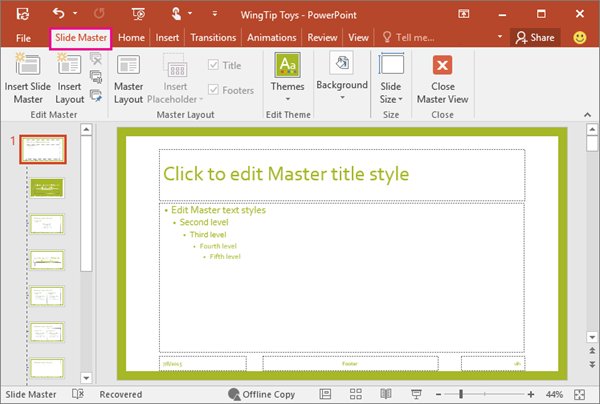
- On the View tab, in the Master Views group, select Slide Master.
- Select the top thumbnail in the left pane to edit the slide master itself.
- Select a smaller thumbnail beneath it to edit one layout.
- Change the fonts, logos, placeholders or backgrounds you want every slide to share.
- On the Slide Master tab, select Close Master View.
- In Normal view, reapply the layout to any existing slide that does not show the change.
What is a slide master in PowerPoint
A slide master controls the shared design elements, such as fonts and logos, for every slide based on it. Most edits happen on the layout masters beneath it.
| Part | What it controls | Where you change it |
|---|---|---|
| Slide master | Design shared by every slide based on it | Top thumbnail in Slide Master view |
| Layout master | Placeholder types and positions for one kind of slide | Smaller thumbnails beneath the master |
| Title Slide Layout | The opening slide design, which every slide master includes | Thumbnail in Slide Master view |
| Theme | A set of colors, fonts and special effects, with its own master and layouts | Design tab in Normal view, or Themes on the Slide Master tab |
Why use slide master in PowerPoint
| Reason | What it means for you |
|---|---|
| One edit reaches many slides | A change on the master applies to all slides based on it |
| Protection from accidental edits | Elements placed in Slide Master view cannot be deleted or edited by someone working in Normal view |
| Consistent new slides | A changed layout applies to slides you add afterward |
| Reusable design | You can copy a master to another presentation or save it as a template |
How to go to slide master
| Your PowerPoint | Path to the slide master | What to know |
|---|---|---|
| Windows desktop app | View > Slide Master | Close it with Close Master View |
| Mac desktop app | View > Slide Master | Close it with Close Master |
| PowerPoint for the web | No slide master view | Select Editing > Open in Desktop App |
PowerPoint for the web still lets you format slide backgrounds online one slide at a time, but master changes need the desktop app.
How to edit a slide layout in Slide Master view
- On the View tab, select Slide Master.
- In the thumbnail pane, select the layout closest to what you want.
- On the Slide Master tab, select Insert Placeholder and choose a placeholder type.
- Click a spot on the layout and drag to draw the placeholder.
- Right-click the layout in the thumbnail list, select Rename Layout, enter a name, and select Rename.
- Select Close Master View.
If text shrinks inside a placeholder as you type, you can turn off Autofit text resizing for the presentation.
Applying slide master to all slides
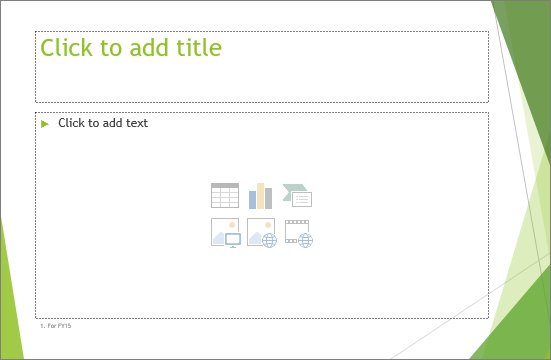
Slides that already exist keep their old design until you reapply the layout. This is also how to apply a slide master to one slide.
- Switch to Normal view.
- In the thumbnail pane, select the first slide.
- Hold Shift and select the last slide to select them all, or hold Ctrl and click individual slides.
- On the Home tab, in the Slides group, select Layout.
- Select the layout you updated.
Use different slide master in PowerPoint
Each slide master represents one theme, so a presentation with two themes needs two masters, each with its own set of layouts.
- On the View tab, select Slide Master.
- In the thumbnail pane, click where the new master should appear.
- On the Slide Master tab, in the Edit Master group, select Insert Slide Master.
- Give the new master a design with the options in the Background group, because it starts with no theme colors or effects.
- Select Close Master View.
When a presentation holds 25 or more slide masters and some are unused, Microsoft 365 subscribers on Windows get an offer to remove the unused ones.
How to add a logo to all slides with Slide Master
- Select View > Slide Master, and then select the first item at the top of the thumbnail pane.
- Select Insert > Shapes, and draw a shape about the size of your logo.
- Right-click the shape and select Format Shape.
- Under Fill, select Picture or texture fill.
- Under Picture source, select Insert and choose your logo image.
- Right-click the logo and select Outline > No Outline to remove the border.
- Exit Slide Master. The logo appears on all slides except title pages.
How to add a watermark in PowerPoint slide master on a Mac
- On the View tab, select Slide Master, and then select the top slide master.
- On the Slide Master tab, select Background Styles > Format Background.
- Select Picture or texture fill.
- Under Picture Source, select Insert and choose your image.
- Drag the Transparency slider to the right to fade the image into a watermark.
- To limit the image to certain layouts, select only those layouts in the thumbnail pane first.
How to change footers and orientation in the PowerPoint slide master
| What to change | Windows | Mac |
|---|---|---|
| Orientation | Slide Master > Slide Size > Custom Slide Size | Slide Master > Slide Size > Page Setup |
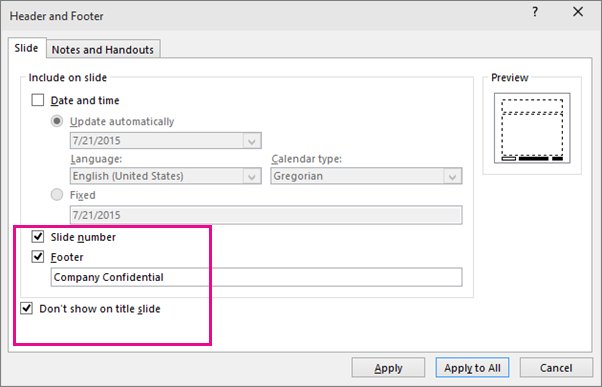
| Footers | Select a layout, and then select or clear Footers | Slide Size > Page Setup > Header/Footer |
| Footer text | Insert > Headers, and then select your options | Slide Size > Page Setup > Header/Footer |
| Remove a layout | Select the layout, and then select Delete | Select the layout, and then select Delete |
How to copy a slide master to another presentation
- Open the source and destination presentations.
- In the source, select View > Slide Master.
- Right-click the slide master, the larger image with a number beside it, and select Copy.
- On the View tab, select Switch Windows, and then select the destination presentation.
- Select View > Slide Master.
- Right-click the slide master in the thumbnail pane, and under Paste, choose Use Destination Theme or Keep Source Formatting.
- Select Close Master View.
How to save a slide master as a PowerPoint template
- Finish your changes in Slide Master view, and then close it.
- Select File > Save As. In Microsoft 365, select Save a Copy.
- Open the Save as type list and select PowerPoint Template.
- Keep the suggested Custom Office Templates folder.
- Enter a file name and select Save.
- To use the template, select File > New > Personal, and then double-click it.
You cannot create or save a template in PowerPoint for the web.
PowerPoint slide master changes not showing on slides
Existing slides do not pick up a layout change
A changed layout master applies to slides you add afterward, not to the slides already in the deck.
- Go to Normal view and select the slides.
- On the Home tab, select Layout, and then select the updated layout.
You cannot select or edit a logo or text box on a slide
The element is defined on the slide master or a layout master.
- Select View > Slide Master.
- Select the master or layout that holds the element, and edit it there.
- Select Close Master View.
Slide Master is missing from the View tab
PowerPoint for the web has no slide master view.
- Select Editing near your profile picture.
- Select Open in Desktop App, and then select View > Slide Master.
Cannot enable disabled add-ins in Excel, Word, PowerPoint
Office automatically disables an add-in that crashes the app, so a normal check box will not bring it back. Your organization may also control add-in security settings, so on a work PC some options can stay locked until your IT team changes them.
- In the Office app, select File > Options > Add-ins.
- Look for the add-in under Disabled Application Add-ins or Inactive Application Add-ins.
- If it is listed as disabled, select Disabled Items in the Manage box, and then select Go.
- Select the add-in, select Enable, and then select Close.
- If it is listed as inactive, select COM Add-ins in the Manage box, and then select Go.
- Select the check box next to the add-in, and then select OK.
- Restart the app and test the add-in.
An add-in that failed once can be disabled again if the original problem is not fixed. Check Trust Center > Trust Center Settings > Add-ins too, because Disable all Application Add-ins turns off every add-in until you restart the app with it cleared.
Unable to duplicate slides in PowerPoint [Fix]
Duplicate Slide lives on the right-click menu of the thumbnail pane. The copy appears immediately after the original.
Duplicate Slide is not on the menu
The command appears when you right-click a slide in the thumbnail pane.
- Select View > Normal.
- In the thumbnail pane on the left, right-click the slide.
- Select Duplicate Slide.
The presentation opened in Protected View
Protected View blocks changes until you allow editing.
- Select File > Info.
- Select Protect Presentation, and then select Enable Editing.
The presentation is read-only in PowerPoint for the web
A read-only file cannot be changed directly, so you need an editable copy.
- Select File > Create a copy > Download a copy.
- Open the downloaded file, and then duplicate the slide in the copy.
Duplicate Slide still does not work
Copy and paste reaches the same result by another route.
- Right-click the slide in the thumbnail pane and select Copy.
- Right-click where the copy should go, and under Paste Options, choose Keep Source Formatting or Use Destination Theme.
- To bring in slides from another local file, select Home > New Slide > Reuse Slides > Open a PowerPoint File.
How to open PPT without PowerPoint
PowerPoint Viewer was retired on April 30, 2018, and its download is no longer offered. PowerPoint for the web opens and edits presentations free in a browser, and it needs a Microsoft account. If you want the full app, there are also ways to get Microsoft PowerPoint for free.
- Sign in to a Microsoft account, or create a free one.
- Upload the PPT file to a cloud service such as OneDrive.
- Open the file there in PowerPoint for the web.
- View or edit it in your browser.
- On a phone or tablet, install the free PowerPoint app from Google Play or the App Store instead.
PowerPoint slide master FAQ
What is a slide master?
A slide master is the top-level slide that controls shared design elements, such as fonts and logos, for every slide based on it. It sits at the top of the thumbnail pane in Slide Master view, with its layouts beneath it.
What is the function of slide master?
Its function is to hold a presentation's design in one place. A change on the master reaches every slide based on it, and elements placed there cannot be accidentally edited or deleted by someone working in Normal view.
What are slide masters and why use them?
Slide masters store a presentation's theme and layouts. Use them to apply a logo or font across a deck with one edit, keep new slides consistent, and reuse the same design in other presentations or as a saved template.
How does slide master work?
PowerPoint builds each slide from a layout, and each layout belongs to a slide master. Editing the master changes its layouts and slides. A changed layout reaches new slides automatically, while existing slides need the layout reapplied in Normal view.
How to access the master slide?
Open the View tab in the PowerPoint desktop app and select Slide Master in the Master Views group. The master is the top thumbnail in the left pane. PowerPoint for the web has no slide master view, so open the file in the desktop app.
How to apply a slide master?
Close Master View, select the slides in Normal view, and then select Home > Layout and choose a layout from that master. New slides you add afterward use the changed layouts without any extra step.
How to use slide from slide master?
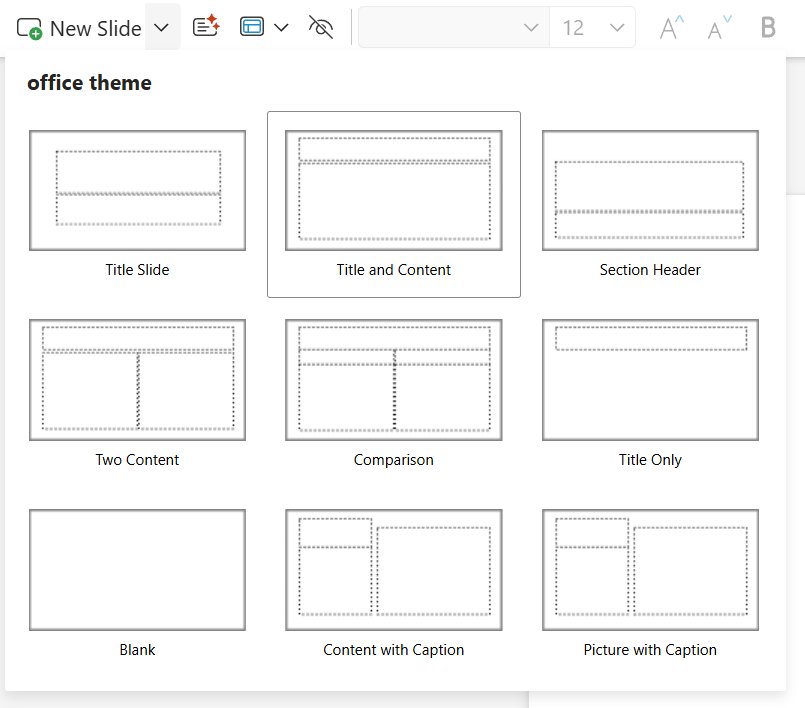
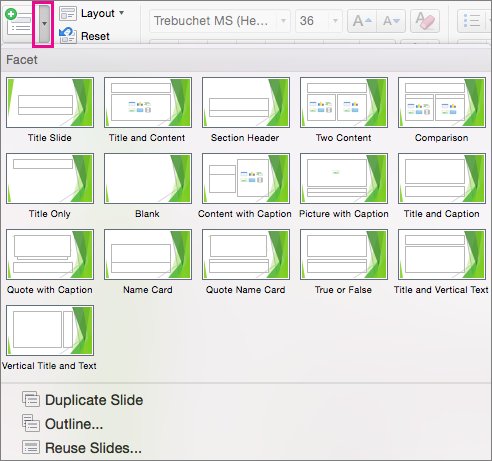
On the Home tab, select the arrow below New Slide, and then choose a layout from your slide master. To change an existing slide, select it and pick a different layout from Home > Layout.
Should I edit the slide master before adding slides?
Yes. Microsoft recommends editing the slide master and layouts before you add slides. If you edit them afterward, you need to reapply the changed layouts to the existing slides in Normal view.