Windows Search sits on the taskbar next to Start, and pressing Windows key + S opens it from anywhere in Windows 10 and Windows 11.
This guide covers where to find it, how to show or hide it, search filters, File Explorer search, indexing, privacy settings and what to do when search stops finding files.
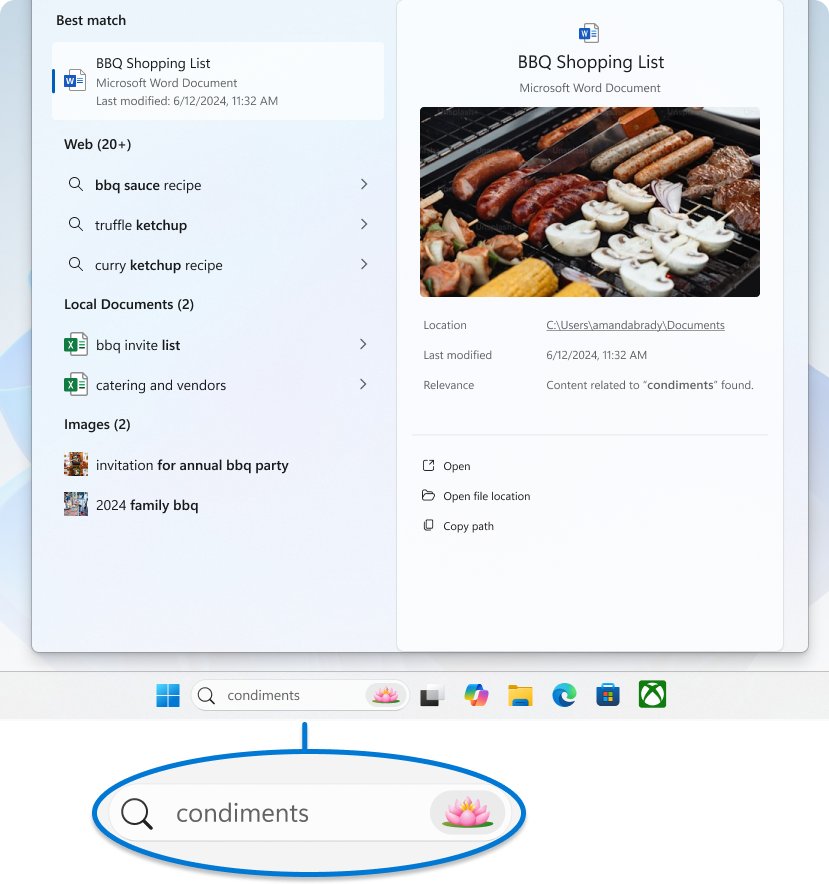
Where to find Windows Search
There are four ways in, and all of them open the same search panel except File Explorer, which searches the folder you are in.
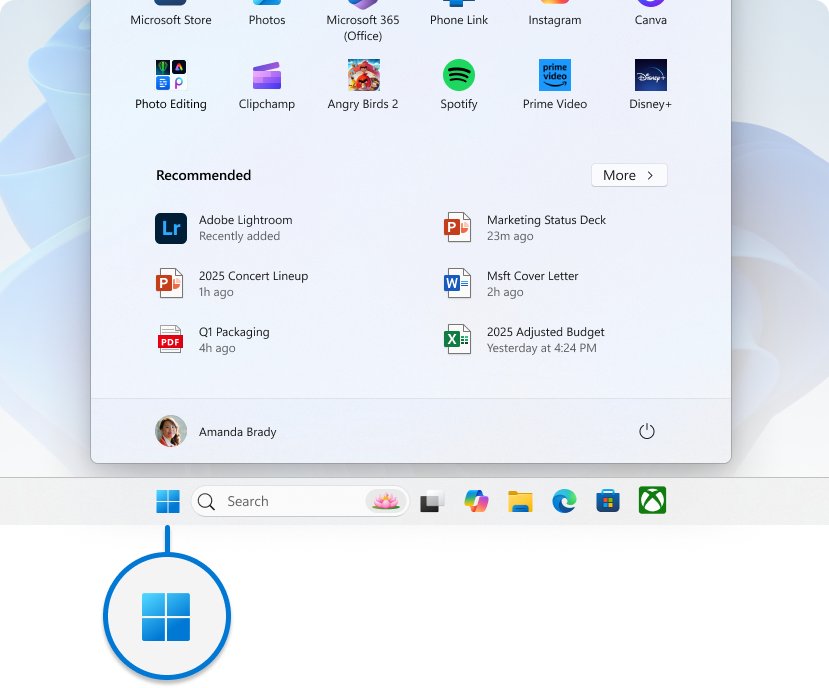
- Press Windows key + S (or Windows key + Q) to open search from anywhere.
- Or select the Search box or magnifying-glass icon on the taskbar, next to Start.
- Or press the Windows key to open Start and simply start typing. Start switches to search results as you type.
- Type the name of an app, setting, file or a web query, and select the result under Best match.
- To search files in one place, open File Explorer, go to the folder and press Ctrl + E, Ctrl + F or F3 to jump to its search box.
On keyboards with a Copilot key, that key opens Windows search when Copilot is not available or is turned off.
Which Windows Search route to use
| You want to | Use this | Why |
|---|---|---|
| Open an app or setting fast | Windows key + S or the taskbar search box | Apps and Settings pages appear as you type |
| Find a file whose name you know | Taskbar search, then the Documents tab | Shows files from the PC and OneDrive in one list |
| Find a file inside a known folder | File Explorer search box in that folder | Searches only that folder and its subfolders, so results are faster and cleaner |
| Find a file anywhere on every drive | File Explorer search from This PC | Slower but more thorough than indexed taskbar results |
| Search the web | Taskbar search | Web results and suggestions come from Bing |
| Search with the taskbar search hidden | Windows key + S | The shortcut works whatever the taskbar shows |
How to show or hide Search on the taskbar
Hiding the search box only removes it from the taskbar. Search keeps working through Windows key + S and Start.
| Windows version | Where the setting is | Options |
|---|---|---|
| Windows 11 | Right-click the taskbar > Taskbar settings > Taskbar items > Search dropdown | Search box, Search icon and label, Search icon only, Hide |
| Windows 10 | Right-click the taskbar > Search | Hidden, Show search icon only, Show search box, plus Show search highlights and Open on hover |
What you can find with Windows Search
Why use Windows Search? One box reaches apps, settings, files, cloud content and the web, so you rarely need to browse menus or folders.
| Result type | Where it comes from | Example search |
|---|---|---|
| Apps | Installed desktop and Microsoft Store apps | notepad, excel |
| Settings | Settings pages and Control Panel items | bluetooth, default apps, display |
| Files and folders | Indexed locations on the PC, plus OneDrive | invoice, tax 2025 |
| Email, cloud files and work results | Your Microsoft account (OneDrive, Outlook) and work or school account (OneDrive for Business, SharePoint) when Cloud content search is on | project plan |
| Web results | Bing, shown in a preview pane | weather new york |
Search history on the device also changes ranking, so an app you search for often moves higher in the results.
How to use search filters
Windows Search and File Explorer understand Advanced Query Syntax: a property name, a colon and a value. Type these in the File Explorer search box, where they work most reliably. To narrow your search, combine a word with one or more filters.
| Filter | Type this | What it finds |
|---|---|---|
| Exact phrase | "quarterly report" |
Only items containing that exact phrase |
| Exclude a word | budget NOT draft |
Items with budget but without draft |
| Either word | invoice OR receipt |
Items containing either word |
| File extension | System.FileExtension:=".pdf" |
Only files with the .pdf extension |
| Date | datemodified:today |
Files changed today; a range uses two dots, such as datemodified:1/1/2026..1/31/2026 |
| Size | size:>100000kb |
Files larger than about 100 MB; 5kb..10kb gives a range |
| File kind | System.Kind:picture or System.Kind:NOT picture |
Only pictures, or everything except pictures |
| File property | author:"Stephen King" |
Files whose author property matches; other properties work the same way |
| Wildcard file name | System.FileName:~"report*" |
Names starting with report; ? matches one character |
In the Windows 11 taskbar search panel, select a category tab at the top of the results; the Documents tab shows only documents from the PC and OneDrive.
How to search in File Explorer more effectively
File Explorer search starts from the folder you are in. Pick the narrowest folder you can, then widen the scope only if needed. Searching from This PC checks every drive, which is slower.
- Press Windows key + E to open File Explorer.
- Open the folder that most likely holds the file, such as Downloads or Documents. Use Home on Windows 11 to search across the PC and the cloud.
- Press Ctrl + E to put the cursor in the search box.
- Type a word from the file name or contents, and add a filter such as
datemodified:todayif you remember when you saved it. - Press Enter and wait for the results to finish loading.
- Switch the view to Details with Ctrl + Shift + 6 and sort by Date modified or Size to find the file faster.
- If nothing matches, expand the search: go up to This PC and run the same search again.
How Windows Search indexing works
Windows keeps an index, a local database of file names, paths, properties and the text inside documents. Taskbar search reads the index instead of scanning the disk, which is why results appear instantly.
The first full index can take a couple of hours. After that, Windows updates only changed files in the background.
| Part | What it does |
|---|---|
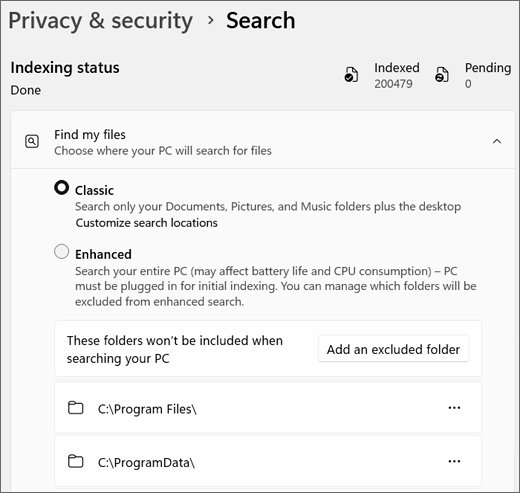
| Classic indexing | Indexes Documents, Pictures, Music and the desktop. Lighter on resources; add more folders with Customize search locations |
| Enhanced indexing | Indexes the entire PC, including all user folders. More complete results but more battery and CPU use |
| Indexed locations | Change under Customize search locations (or Advanced indexing options) > Modify |
| Excluded folders | Add an excluded folder keeps a folder out of the index and out of results |
| File types | Advanced > File Types sets whether each extension indexes properties only, or properties and file contents |
| Windows Search service (wsearch) | Runs the indexer (SearchIndexer.exe) with startup type Automatic (Delayed Start) |
| Search protocol host and filter host | Helper processes that read data stores and extract file text for the indexer, isolated for security and recycled regularly |
| Semantic indexing (Copilot+ PCs) | Runs alongside the classic index so related terms match, and is stored locally on the PC |
Microsoft says index data stays on the PC and is not used to train AI models. The index is usually under 10 percent of the size of the files it covers.
How to control search permissions and history
| Setting | Windows 11 path | Windows 10 path |
|---|---|---|
| SafeSearch (Strict, Moderate, Off) | Settings > Privacy & security > Search permissions | Settings > Search > Permissions & History |
| Cloud content search (Microsoft account, work or school account) | Settings > Privacy & security > Search permissions | Settings > Search > Permissions & History |
| Clear device search history | Search permissions > History > Clear device search history | Permissions & History > History > Clear device search history |
| Classic or Enhanced indexing, excluded folders | Settings > Privacy & security > Searching Windows | Settings > Search > Searching Windows |
| Accounts Windows Search can use | Settings > Accounts > Email & accounts > Accounts used by other apps | Same path |
Web search history saved to your Microsoft account is viewed and deleted on the Microsoft privacy dashboard, not in Windows Settings.
Practical ways to use Windows Search every day
| Task | Type this after Windows key + S | Result |
|---|---|---|
| Open system tools quickly | device manager, task manager, cmd, regedit |
Opens the tool; right-click a result for Run as administrator where offered |
| Find installed apps you forgot about | The first letters of the app name | Matching apps appear under Apps; Start > All lists every app alphabetically |
| Jump to Windows features | bluetooth, default apps, windows update, storage |
Opens the exact Settings page |
| Reopen a recent document | A word from its name | Documents from the PC and OneDrive |
| Pin an app to the taskbar | The app name | Right-click the result and select Pin to taskbar |
| Perform quick calculations | calculator |
Opens the Calculator app without leaving the keyboard |
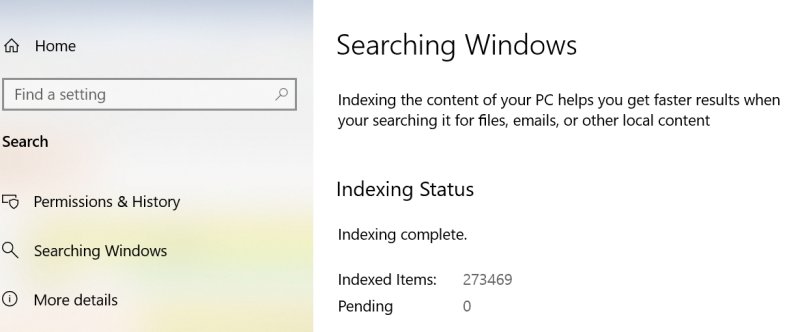
How to check Windows Search indexing is complete
- Open Settings with Windows key + I.
- Go to Privacy & security > Searching Windows on Windows 11, or Search > Searching Windows on Windows 10.
- Check the indexing status reads Indexing complete.
- Check the Indexed count (Windows 11) or Indexed Items (Windows 10). Typical PCs index fewer than 30,000 items.
- Search for a file you saved today. If it appears, the index is current.
What to do when Windows Search does not find files
A file exists but never shows in search results
Its folder is outside the indexed locations or is in an excluded folder.
- Open Settings > Privacy & security > Searching Windows (Windows 10: Settings > Search > Searching Windows).
- Select Enhanced, or open Advanced indexing options > Modify and tick the folder that holds the file.
- Check the excluded folders listed under Add an excluded folder and remove the folder if it is there.
- Wait for the status to return to Indexing complete.
Search finds file names but not words inside the file
That file type is set to index properties only.
- Open Advanced indexing options and select Advanced.
- Open the File Types tab and select the extension.
- Under How should this file be indexed?, choose the option that indexes properties and file contents, then select OK and Close.
Windows Search is so slow or results are incomplete
Indexing is still running, paused, or the index is damaged or oversized.
- Read the status on the Searching Windows page. Indexing in progress or paused to conserve battery power means you should plug in the PC and wait.
- If the status shows Indexing is paused by an external application, make sure Game mode is not holding it.
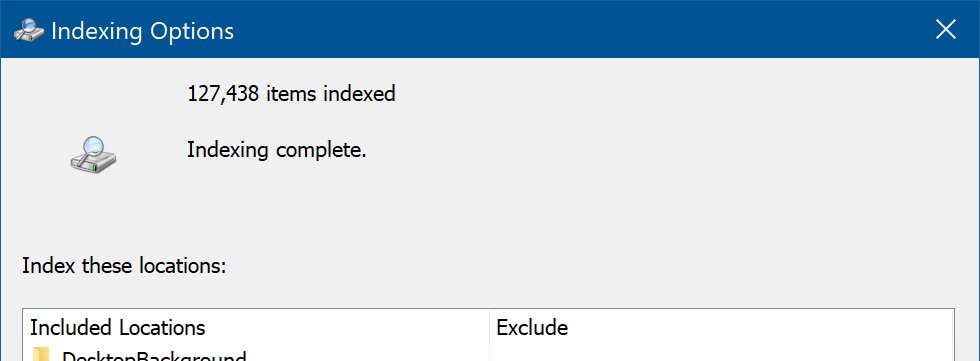
- To rebuild, open Advanced indexing options > Advanced > Rebuild and select OK.
- Leave the PC on for up to 24 hours while the index rebuilds.
- Exclude very large folders, such as code or archive folders, if the indexed item count goes past 400,000.
How to search when the taskbar search is not working
While you fix taskbar search, File Explorer search still works: press Windows key + E, then Ctrl + E, and type your search.
Windows search bar not working or you can't type in it
The search interface or the Windows shell has hung.
- Press Ctrl + Shift + Esc to open Task Manager.
- On the Processes tab, right-click Windows Explorer and select Restart.
- Press Windows key + S and try typing again.
- If it still fails, restart the PC and install any pending updates from Windows Update.
Search opens but shows "Indexing is not running" or the settings page is greyed out
The Windows Search service (wsearch) is stopped or set to the wrong startup type.
- Press Windows key + R, type
services.mscand press Enter. - Right-click Windows Search and select Properties.
- Set Startup type to Automatic (Delayed Start) and select Start if the service is stopped.
- Select OK. If you ran a PC optimizer app, check this setting again afterwards, because such apps can disable the service.
Windows search cannot be turned off from the taskbar
Hiding the box does not remove the feature; the keyboard shortcut and Start still open it.
- Hide the taskbar box with the Hide (Windows 11) or Hidden (Windows 10) option.
- Reduce what it indexes by choosing Classic and adding excluded folders.
- Turn off Cloud content search options under Search permissions if you want local results only.
Windows 10 vs. Windows 11 search: key differences
| Feature | Windows 11 | Windows 10 |
|---|---|---|
| Taskbar look options | Search box, icon and label, icon only, or hidden | Search box, icon only, or hidden, plus search highlights and open on hover |
| Where taskbar options live | Taskbar settings > Taskbar items | Right-click the taskbar > Search |
| Permissions and history | Privacy & security > Search permissions | Search > Permissions & History |
| Indexing settings | Privacy & security > Searching Windows | Search > Searching Windows |
| Index database file | Windows.db | Windows.edb |
| Does Search include AI features? | Semantic indexing on Copilot+ PCs, so a search for pasta can also return lasagna files and images | Not available |
| Support status | Supported | Support ended October 14, 2025 |
Tips for better search results
These habits improve your Windows Search experience over time.
- Search from the most specific folder you can in File Explorer rather than from This PC.
- Use search operators for more accurate results: put exact phrases in quotation marks and use
NOTto drop noisy matches. - Add a date or size filter when you remember roughly when you saved a file or how big it is.
- Give files descriptive names, because file names are always indexed.
- Switch to Enhanced indexing if your files live outside Documents, Pictures and Music, or add those folders to Classic.
- Keep the PC plugged in after a big file copy so indexing can finish.
- Clear device search history if old searches push the wrong apps to the top.
Windows Search FAQ
What is Windows Search?
Windows Search is the built-in search feature in Windows 10 and 11. It finds apps, settings, files, email and cloud files from your Microsoft or work account, and web results from Bing, all from the taskbar search box or Windows key + S.
Where is the Windows search bar?
The search bar sits on the taskbar next to the Start button. If you do not see it, it is hidden or shown as an icon only. Press Windows key + S to open search anyway, or change the taskbar search option in taskbar settings.
What is the Windows Search indexer?
The indexer is the Windows Search service process, SearchIndexer.exe, that builds a local database of file names, properties and contents. Taskbar and File Explorer searches read this index, which makes results appear far faster than scanning the drive.
What is the Windows Search service called?
The service is named Windows Search in services.msc, and its short name is wsearch. Its default startup type is Automatic (Delayed Start). Search results and the indexing status depend on this service running.
Can I disable the Windows Search indexer?
You can stop or disable the Windows Search service in services.msc, but taskbar and File Explorer searches then become slow and incomplete. Excluding large folders or switching to Classic indexing reduces its work without breaking search.
Why is Windows Search so slow?
Search is slow while indexing is still running, paused on battery, or when the index holds more than about 400,000 items. Plug the PC in, let indexing finish, exclude large folders, and rebuild the index from Advanced indexing options if it stays slow.
What is the Windows search engine called?
Web results and search suggestions in Windows Search are powered by Bing. Local results for apps, settings and files come from the Windows Search index on your PC, not from a web search engine.
Can I change the Windows search bar to Google?
Windows Search uses Bing for web results and suggestions. Changing your browser's default search engine changes searches typed in that browser, so open the browser and search there if you prefer Google.
What is Windows Search protocol host?
SearchProtocolHost.exe is a helper process that runs protocol handlers, which read data stores such as the file system or Outlook for the indexer. Windows runs it in an isolated process and recycles it regularly for security.
What is Windows Search filter host?
SearchFilterHost.exe hosts the filters that pull text and properties out of files for indexing. It runs with minimal rights and Windows recycles it if a filter uses too many resources.
Why can't I type in the Windows search bar?
The search interface or Windows shell has usually hung. Open Task Manager with Ctrl + Shift + Esc, restart Windows Explorer from the Processes tab, then try Windows key + S again. Restart the PC and install updates if it keeps happening.
Bottom line: Classic or Enhanced Windows Search?
Use Windows key + S for everyday searches, and switch to Enhanced indexing only if your files live outside Documents, Pictures, Music and the desktop. Classic indexing covers most people with less battery and CPU use, and File Explorer search from a specific folder fills the gaps when a file sits elsewhere.

![6 best free virtual webcam software for Windows [2026 update]](https://techdows.com/wp-content/uploads/2026/10/6-best-free-virtual-webcam-software-for-Windows-2026-update-600x338.jpg)