To change the display name on the Windows 11 lock screen, change the name of the account you sign in with: edit Your info on your Microsoft account, or change the account name in Control Panel > User Accounts for a local account.
The steps below cover both account types, the Local Users and Groups console, the net user and PowerShell commands, how to hide your email or name on the sign-in screen, and fixes when the old name keeps showing.
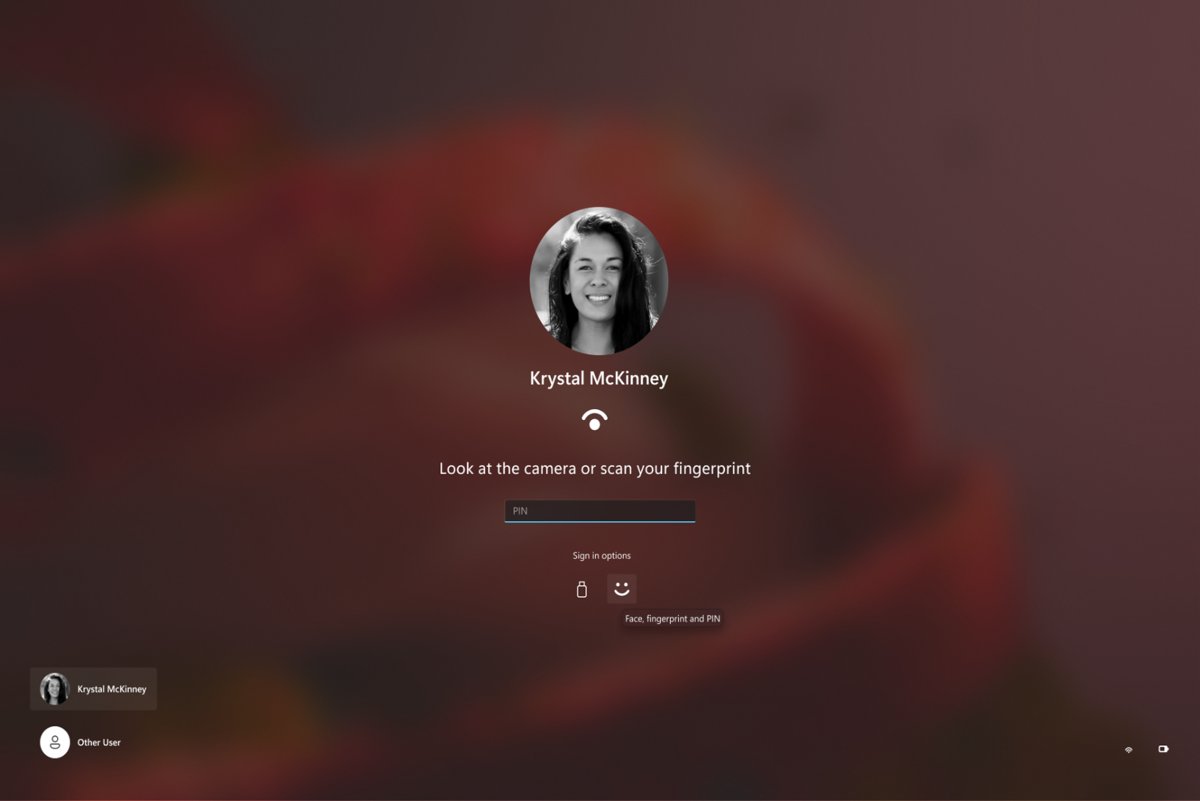
Change display name on Windows 11 lock screen
The name under your picture on the sign-in screen comes from your account, not from a lock screen setting. Find your account type in the left column and use the route next to it.
| You sign in with | Where to change the name | When it shows on the lock screen |
|---|---|---|
| A Microsoft account (Outlook, Hotmail or Live email) | Sign in to your Microsoft account, open Your info and select Edit name | Up to 24 hours, because the change syncs from Microsoft |
| A local account (no email address) | Control Panel > User Accounts > Change your account name | The next time you lock the PC or sign out |
| A work or school account | Your organization's account settings, if the admin allows name changes | Up to 24 hours after the change is accepted |
| Someone else's local account on this PC | Computer Management > Local Users and Groups, or net user from an admin prompt |
The next time that account appears on the sign-in screen |
Press Windows key + L after the change to lock the computer and check the name straight away.
Understanding the display name on the lock screen
Windows keeps two names for every local account: the user name you sign in with and an optional full name. When a full name exists, the sign-in screen shows it instead of the user name.
A Microsoft account shows the first and last name stored on the account, which is also the name people see when you send email from Outlook.com.
| Name | What it is | Where it appears |
|---|---|---|
| Microsoft account display name | First and last name on your Microsoft account | Windows sign-in screen, Microsoft sites and the From line in Outlook.com email |
| Local account full name | A descriptive name, separate from the user name | Windows sign-in screen when it is set |
| Local account user name | The sign-in name, up to 20 characters | Sign-in screen when no full name is set, and in commands such as net user |
| Email address or domain\user name | Extra account details under the display name | Sign-in screen only when account details are turned on or set by policy |
| Computer name | The name of the device on the network | Never on the lock screen; it is not your display name |
If the name you want to change is the device name rather than your own, rename your Windows 11 PC instead.
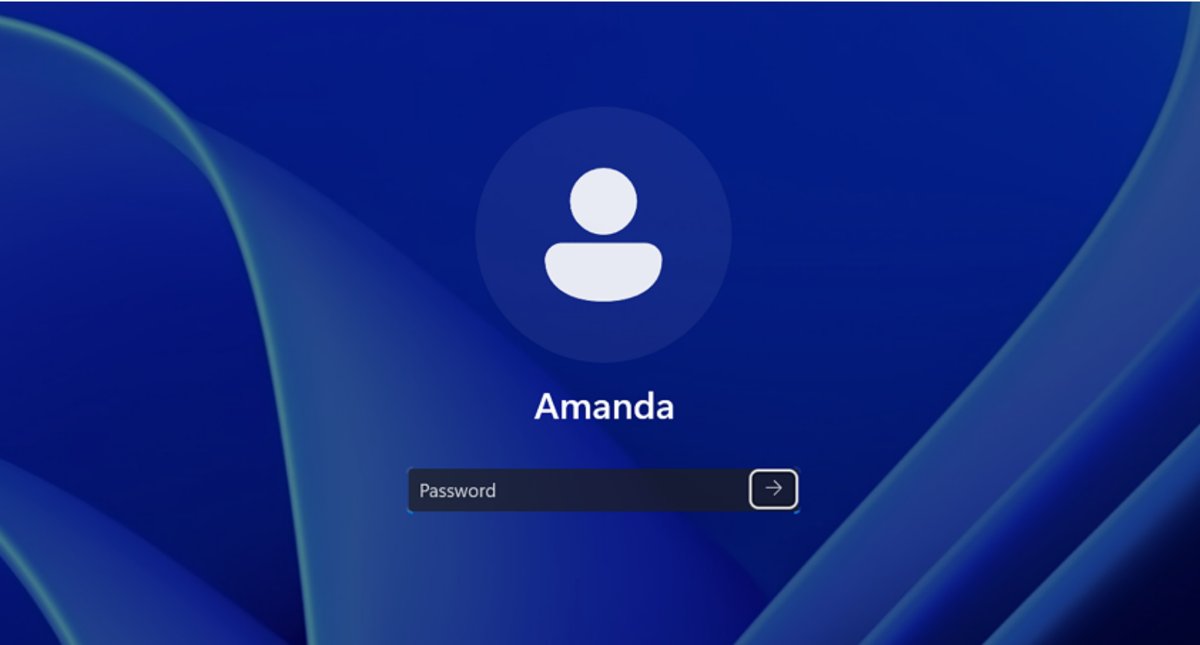
Method 1: Change your Microsoft account name
Use this if you sign in to Windows with an email address. The name lives on your Microsoft account, so you change it online and Windows picks it up.
- Open a browser and sign in at account.microsoft.com with the Microsoft account you use on the PC.
- Select Your info.
- Select Edit name.
- Type the first and last name you want Windows to show.
- Enter the Captcha characters and select Save.
- Wait for the change to sync, then press Windows key + L to check the lock screen.
A name change can take up to 24 hours to update everywhere. It does not change your Xbox gamertag, which has its own process.
Method 2: Change local account name
Use this for an account that signs in with a user name and password but no email address. Control Panel changes the name of the account you are signed in to.
- Select Start, type Control Panel, then select Open.
- Select User Accounts.
- If Change your account name is not listed yet, select User Accounts a second time.
- Select Change your account name.
- Type the new name and confirm the change.
- Press Windows key + L and check the name on the sign-in screen.
Renaming a local account in Windows 11 this way changes only the account you are signed in to; use Method 3 for other accounts.
Method 3: Change display name via the Local Users and Groups management console
The Local Users and Groups console lives inside Computer Management and lists every local account on the PC. It needs an administrator account, and it can rename accounts other than your own.
- Select Start, type Computer Management, and open it.
- In the left pane, expand System Tools > Local Users and Groups, then select Users.
- Right-click the account you want to change and select Rename.
- Type the new user name and press Enter.
- If the account also has a full name, right-click it, select Properties, and change the full name there, because the full name is what the sign-in screen shows.
- Close Computer Management and lock the PC to check the result.
A renamed account keeps its security identifier (SID), so its password, group memberships and user profile stay the same.
If Local Users and Groups does not appear in Computer Management on your edition of Windows, use Method 4 instead.
Method 4: Change display name using Windows Terminal or Command Prompt
The net user command sets the full name that the sign-in screen shows, without touching the user name. Run it in Windows Terminal or Command Prompt opened as administrator: search for it in Start, right-click it and select Run as administrator.
Replace UserName with the account's user name and New Name with the name you want on the lock screen. Keep the quotation marks.
net user UserName /fullname:"New Name"net user modifies a local account, and /fullname:"<Name>" sets the user's full name rather than the user name. Run net user on its own first to list the user names on the PC.
You should see: The command reports that it completed successfully, and net user UserName now shows the new full name. Lock the PC with Windows key + L to see it.
In PowerShell, Set-LocalUser -Name "UserName" -FullName "New Name" does the same job. Use 64-bit PowerShell, because the LocalAccounts module is not available in 32-bit PowerShell on a 64-bit system.
To change the sign-in user name itself, Rename-LocalUser -Name "OldName" -NewName "NewName" renames the account. Both commands work on local accounts only, not on a Microsoft account.
Method 5: Adjust user profile through User Account Control (UAC)
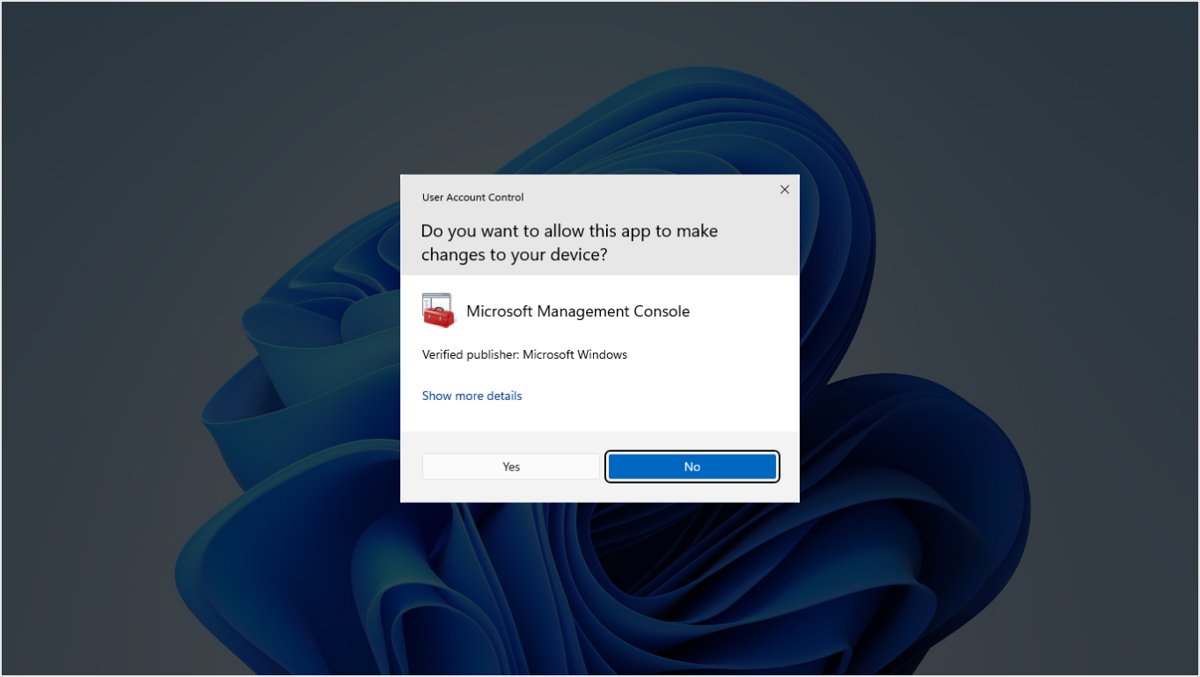
User Account Control has no name field of its own. Its role is to approve the change: when a tool needs administrator rights, UAC asks for permission or for an administrator's credentials before Windows saves the new name.
Match your situation to a row to see what the UAC prompt will ask for.
| Your situation | What UAC asks for | What to do |
|---|---|---|
| You are an administrator changing your own local account name in Control Panel | At most a Yes prompt | Approve the prompt and finish Method 2 |
| You are a standard user and the tool needs admin rights | An administrator's password | Ask the PC owner to type their credentials in the prompt |
You run Computer Management, net user or Set-LocalUser |
Permission to run with administrator rights | Select Yes; without it, the change fails with an access error |
| You use a Microsoft account | Nothing on the PC | Change the name online with Method 1 |
Never lower the UAC slider to make a name change go through. Approving the single prompt is enough.
How to hide email address on Windows 11 sign-in screen
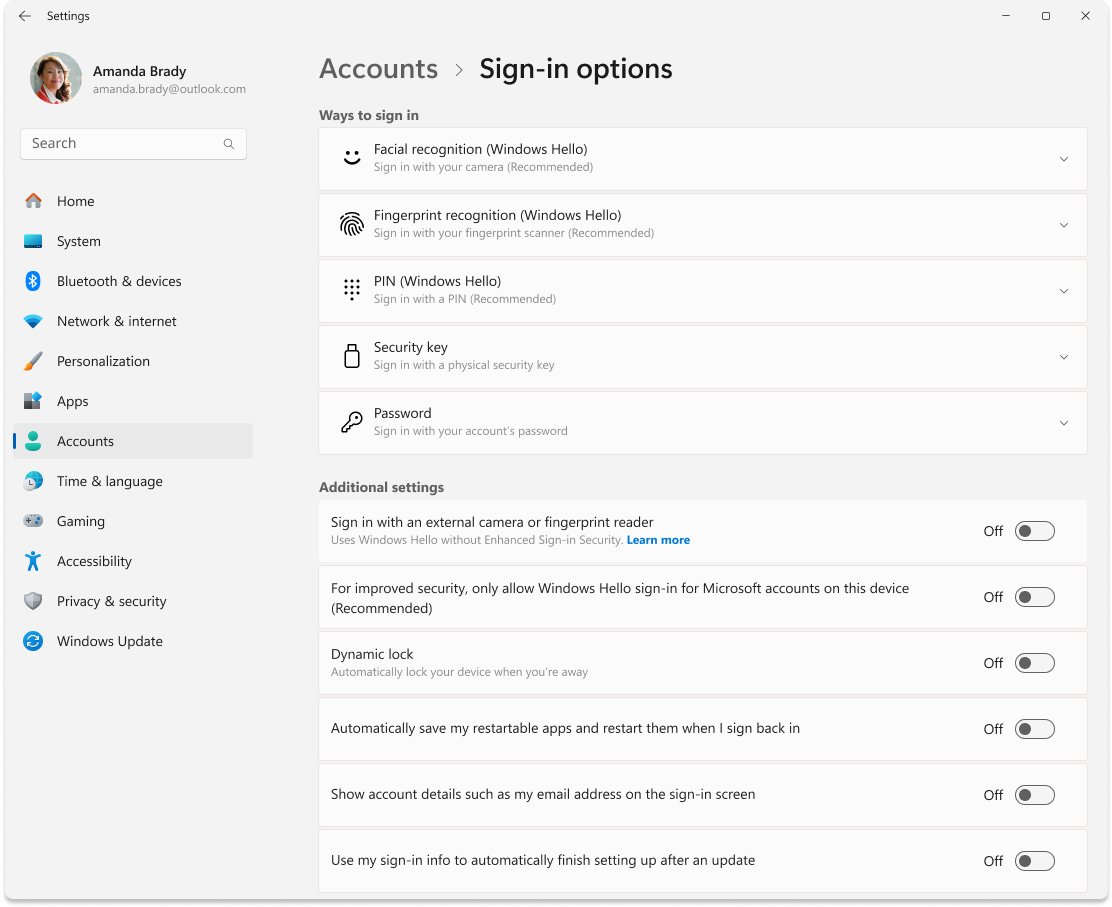
With a Microsoft account, Windows can show your email address under your name. It is hidden by default, and a toggle in Settings controls it.
- Select Start > Settings > Accounts > Sign-in options.
- Scroll to Additional settings.
- Turn off the option that starts Show account details to hide the email address, or turn it on to show it.
- Press Windows key + L and check what appears under your name.
If the toggle is greyed out, a policy on the PC decides it. Block user from showing account details on sign-in forces Windows to show only the display name.
How to remove name from Windows 11 lock screen
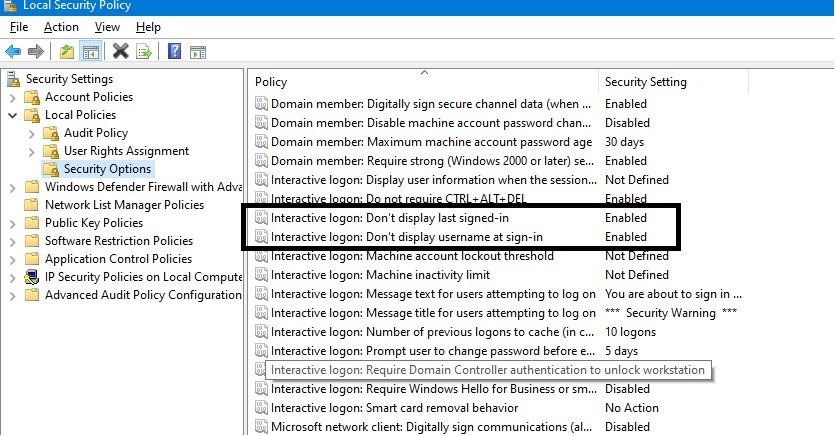
To show no name at all, enable the Interactive logon: Don't display last signed-in policy. Windows then hides the last user's full name and sign-in tile, and the sign-in screen asks for a user name and password instead.
The policy takes effect without a restart. It is set in the Local Security Policy tool, and you need an administrator account to change it.
- Select Start, type Local Security Policy, and open it.
- Go to Security Settings > Local Policies > Security Options.
- Double-click Interactive logon: Don't display last signed-in.
- Select Enabled, then select OK.
- Press Windows key + L to lock the PC and confirm that no name appears.
After this, you must type your user name every time you sign in. Set the policy back to Disabled to bring your name and tile back.
The related policy Interactive logon: Display user information when the session is locked controls whether the email address or domain\user name appears next to the name when the PC is locked.
How to see which name Windows 11 shows at sign-in
- Press Windows key + L to lock the computer.
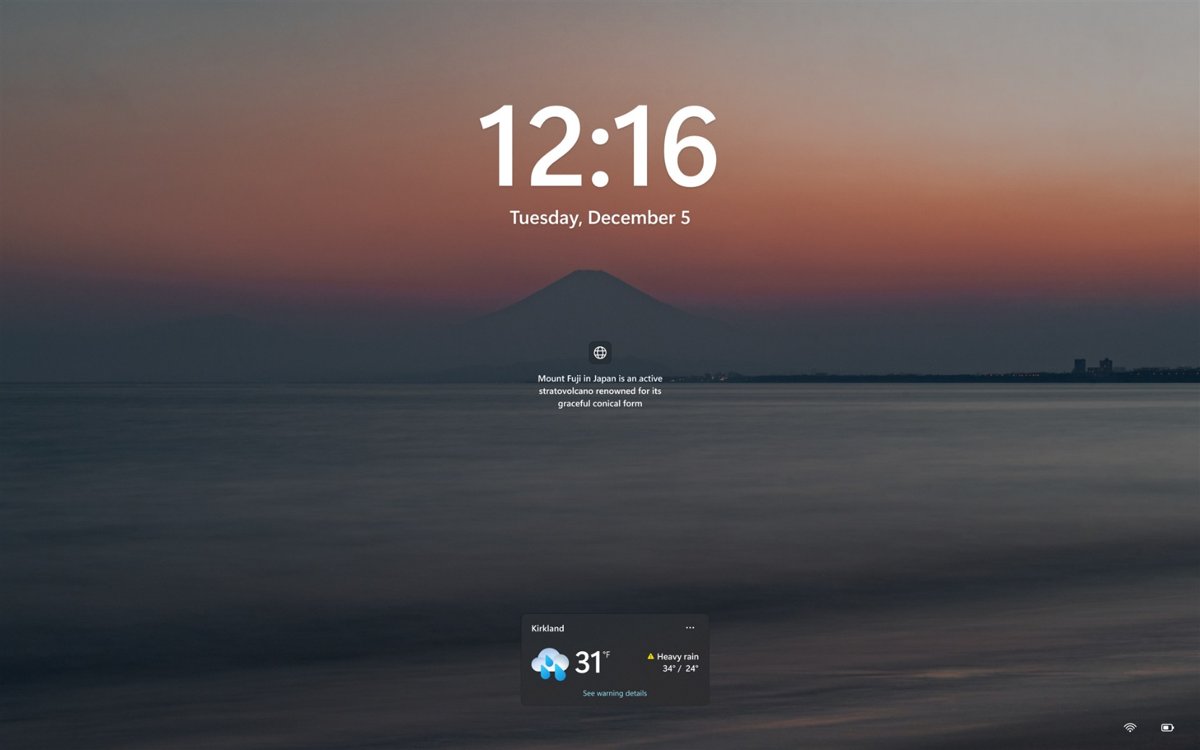
- Click or press a key to dismiss the lock screen picture and reach the sign-in screen.
- Read the name under your account picture; that is your current display name.
- For a local account, open Command Prompt and run
net user UserNameto compare the full name with the user name. - For a Microsoft account, open Your info on your Microsoft account and compare the name there.
The lock screen picture and widgets come from Personalization settings, so a new lock screen background has no effect on the name.
Common issues when changing display names
The old name still shows on the lock screen
A Microsoft account name change can take up to 24 hours to reach every device.
- Check that Your info on your Microsoft account shows the new name.
- Make sure the PC is online so the change can sync.
- Sign out of Windows and sign back in after the sync period.
- If you renamed a local account, check whether it also has a full name; the full name wins on the sign-in screen.
The sign-in screen shows an email address instead of a name
Account details are turned on, or a policy sets the display to user name and domain.
- Open Settings > Accounts > Sign-in options and turn off the Show account details option.
- If the option is greyed out, check Interactive logon: Display user information when the session is locked in Local Security Policy, or ask your IT admin.
Can't change name on a work or school account
Some organizations do not allow users to change their names.
- Sign in to your work or school account and look for an option to edit your name.
- If there is none, contact your IT admin, who manages the name for you.
net user or Set-LocalUser returns an access error
The command ran without administrator rights.
- Close the window.
- Select Start, type cmd, right-click Command Prompt and select Run as administrator.
- Select Yes in the User Account Control prompt.
- Run the command again.
Can't sign in after changing the name
Non-standard font characters, such as Wingdings, are not supported in a user name and can block sign-in.
- Sign in with another administrator account on the PC.
- Change the name back to plain letters and numbers with Method 3 or Method 4.
- For a Microsoft account, edit the name again in Your info using standard characters.
Best practices for display names on Windows 11 lock screen
The display name is visible to anyone who looks at the screen, so pick it with the location of the PC in mind.
| Practice | Why it matters |
|---|---|
| Use plain letters, numbers and spaces | Wingdings and other non-standard font characters are not supported and can block sign-in |
| Keep a local user name to 20 characters | Windows limits local user names to 20 characters and rejects " / \ [ ] : ; | = , + * ? < > @ |
| Avoid your full real name on a PC in a public place | Anyone at the screen can read it; a first name or role is enough |
| Hide the email address on shared or public PCs | It reveals your Microsoft account sign-in name |
| Change the full name, not the user name, when only the label matters | The full name changes what the lock screen shows and leaves sign-in and commands unchanged |
| Lock the PC whenever you step away | The name is then the only thing a passer-by sees |
There are several ways to lock your Windows computer quickly, and Windows key + L is the fastest.
Windows 11 lock screen display name FAQ
Why does my old name still show on the Windows 11 lock screen?
A Microsoft account name change can take up to 24 hours to update everywhere. Keep the PC online, then sign out and sign back in. For a local account, check whether a full name is set, because the sign-in screen shows the full name instead of the user name.
Can I change my lock screen name without a Microsoft account?
Yes. A local account keeps its name on the PC, so you change it in Control Panel under User Accounts, in Computer Management, or with the net user command. None of these routes needs an internet connection or a Microsoft account.
Does changing my Microsoft account name change my Xbox gamertag?
No. Changing the display name on your Microsoft account does not change your Xbox gamertag. The gamertag has a separate process, so you can keep a gamertag while Windows shows your real name, or the other way round.
How long does a Microsoft account name change take to show?
Microsoft says a name change may take up to 24 hours to update everywhere, including on Windows devices you sign in to with that account. A local account name change shows the next time you lock the PC or sign out.
How do I hide my email address on the Windows 11 sign-in screen?
Open Settings, go to Accounts and then Sign-in options, and turn off the Show account details option under Additional settings. The email address is hidden by default, so it only appears if someone turned that option on or a policy forces it.
Can I remove my name from the lock screen completely?
Yes, on editions with Local Security Policy. Enable Interactive logon: Don't display last signed-in under Security Options. Windows then hides the last user's name and tile, and everyone must type a user name and password to sign in.
What is the difference between the user name and the full name?
The user name is the account's sign-in name and can be up to 20 characters. The full name is a separate descriptive name that the net user /fullname option sets. When a full name exists, the Windows sign-in screen shows it instead of the user name.
Does renaming my account change my user folder or files?
No. A renamed local account keeps its security identifier, so its password, group memberships, user profile and permissions stay exactly as they were. Only the name changes, which makes renaming safe for an account that already holds your files and settings.
Why can't I change the name on my work or school account?
Some organizations do not allow users to change their names on work or school accounts. If there is no edit option when you sign in to the account, contact your IT admin, who can change the name for you. Updates can take up to 24 hours.
Is the lock screen name the same as my computer name?
No. The lock screen shows your account's display name, while the computer name identifies the device on a network. Renaming the PC does not change the name on the sign-in screen, and changing your account name does not rename the PC.