To log in to Apple Card online, go to card.apple.com, sign in with your Apple Account and password, then click Payments in the sidebar to pay your bill from a US bank account.
This guide covers one-time and recurring payments, Daily Cash and installment payments, statements, cancelling a scheduled payment, and what to do when the sign-in fails.
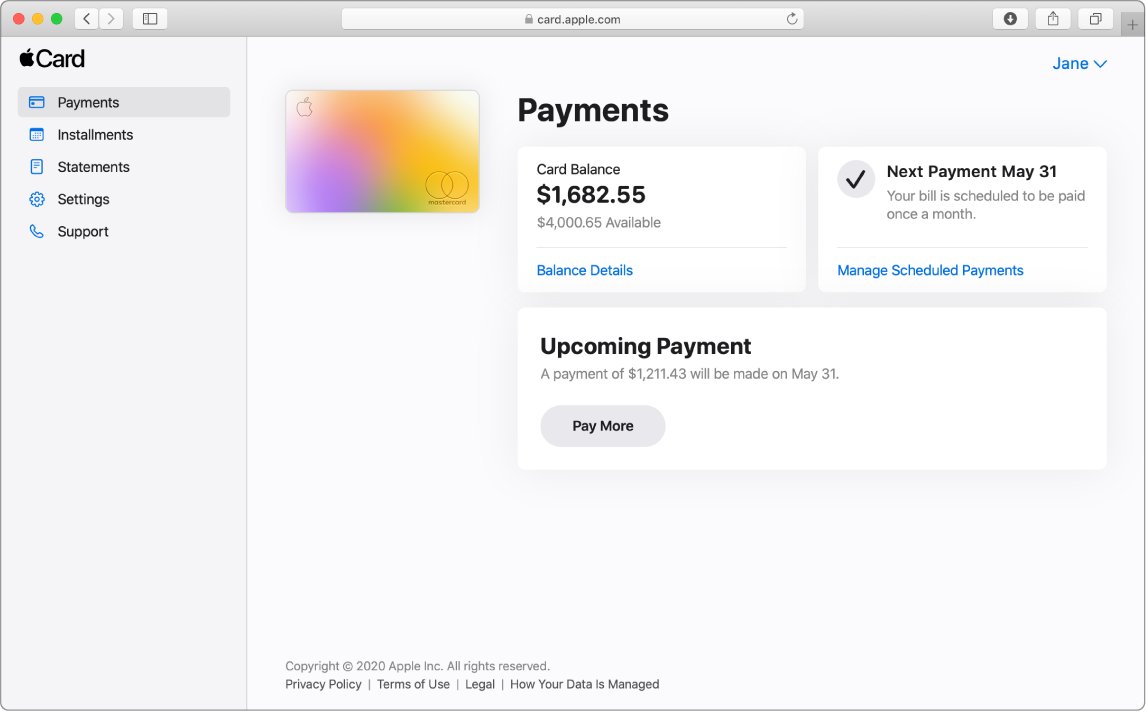
How to log in to Apple Card online and pay your bill
Apple Card on the Web works in a supported web browser, so you can pay from a computer without your iPhone at hand.
- Go to card.apple.com in your web browser.
- Sign in with your Apple Account and enter your password, plus the six-digit verification code if one is requested.
- Click Payments in the sidebar.
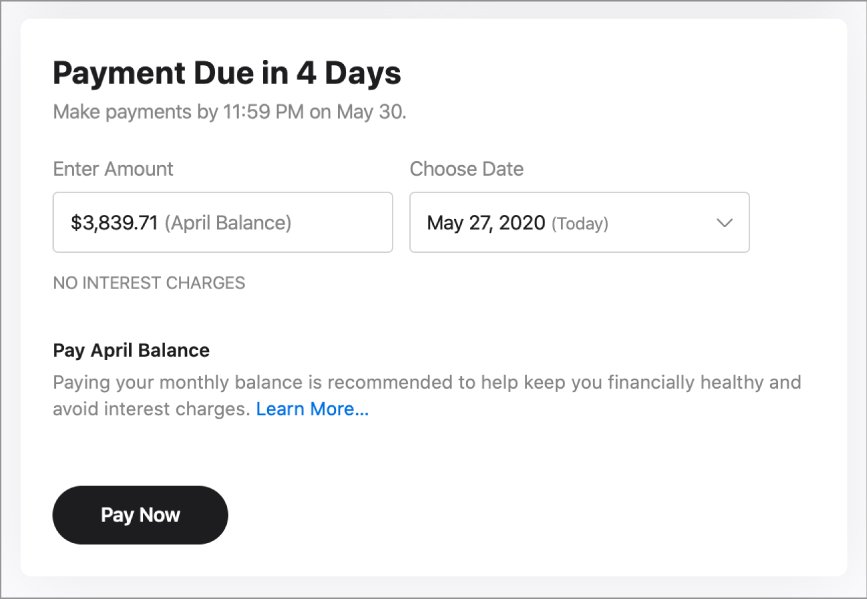
- At the bottom of the page, enter a payment amount or choose a suggested amount.
- If no bank account is on file, enter and confirm the routing number and account number when asked.
- Choose a payment date, then click Pay Now for today or Pay Later for a future date.
- Select the bank account if you have more than one, then click the Pay button again.
You can pay any amount, including the minimum payment or the full monthly balance. If you already made or scheduled a payment, click Pay Now, Pay More or Pay Installments Early before you can add an amount.
Who can sign in to card.apple.com
| Apple Card role | Can sign in to card.apple.com? | Where else to manage the card |
|---|---|---|
| Account owner | Yes | Wallet on iPhone, Settings on iPad |
| Apple Card Family co-owner | Yes | Wallet on iPhone, Settings on iPad |
| Apple Card Family participant | No | Views own transactions in Wallet on iPhone or iPad; not responsible for payments |
| No Apple Card yet | No account to sign in to | Apply in Wallet on an eligible iPhone or iPad |
If you have not been approved yet, apply for Apple Card on your iPhone first; card.apple.com only manages an existing account. Apple Card is available only to qualifying applicants in the United States.
Where to find Apple Card balance, statements and payments on card.apple.com
Every task on Apple Card on the Web starts from the sidebar. This table maps each job to its page.
| What you want | Sidebar item | What you see there |
|---|---|---|
| Pay now or later, set up Autopay | Payments | Payment box at the bottom, Set Up Now below Set Up Autopay |
| Card balance and available credit | Payments | Total balance and available credit below Card Balance; Balance Details for credit limit and installment balance |
| Apple Card Monthly Installments | Installments | Each device bought with installments, its progress and View Details |
| PDF statements | Statements | Monthly statements, most recent first, each with a download button |
| Bank accounts, scheduled payments, Daily Cash | Settings | Bank Accounts, the Payments list, Daily Cash Balance |
| Contact the card issuer | Support | How to reach Goldman Sachs |
How to add a bank account to Apple Card online
Online payments come from a bank account linked to Apple Card, and that account must be based in the US.
- Sign in at card.apple.com and click Settings in the sidebar.
- Below Bank Accounts, click Add Bank Account or Add Another Bank Account.
- Enter the routing number and the account number, then click Next.
- Confirm the routing number and the account number, then click Save.
To remove an account, click the button next to it below Bank Accounts, click Remove Bank, then click Remove. On an iPhone or iPad you can add a bank account in Wallet instead.
How to set up Apple Card autopay on card.apple.com
- At card.apple.com, click Payments in the sidebar.
- Below Set Up Autopay, click Set Up Now.
- Enter and confirm a routing number and account number if you have not added a bank account.
- Choose Monthly Balance, Minimum Payment Due or Other Amount.
- Click Next, enter the payment details, then click Next again.
- Select the bank account if you have several, then click Confirm.
Monthly Balance pays the whole monthly balance on a set date, Minimum Payment Due keeps the account up to date, and Other Amount pays a fixed sum weekly, every two weeks or monthly. To change an amount later, cancel the scheduled payment and create a new one.
How to pay Apple Card with Daily Cash online
The Daily Cash Balance section appears on the web only when you have a Daily Cash balance and have not set up Apple Cash.
- At card.apple.com, click Settings in the sidebar.
- Below Daily Cash Balance, click Apply to Apple Card Balance.
- Click Apply to credit the Daily Cash to your statement balance.
If you use Apple Cash, Daily Cash goes to Apple Cash automatically, and you pay the card with it from the Wallet app on iPhone instead.
How to pay Apple Card installments early online
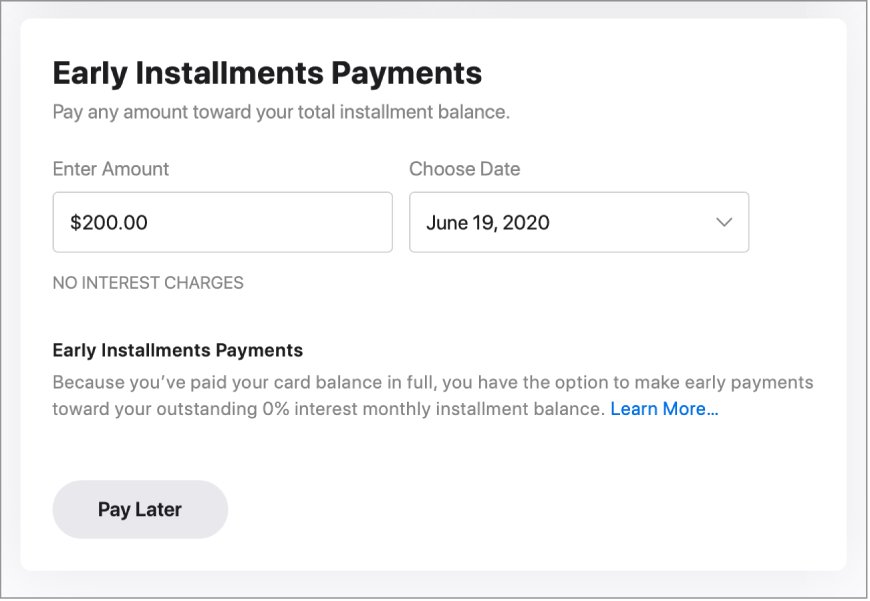
Early installment payments are available once your Apple Card balance is already paid.
- At card.apple.com, click Payments in the sidebar.
- Click Pay Installments Early at the bottom of the page.
- Enter the amount and choose a payment date.
- Click Pay Now for today or Pay Later for a future date.
- Select the bank account if you have more than one, then click the Pay button again.
Click Installments in the sidebar to see each device's progress bar, View Details and the Monthly Installment History. The page does not appear if you have never bought anything with Apple Card Monthly Installments.
How to download Apple Card statements online
- Sign in at card.apple.com and click Statements in the sidebar.
- Find the month you want; statements are listed with the most recent first.
- Click the download button next to that statement to save the PDF.
The web offers PDF statements only. Wallet on iPhone or iPad exports transaction history as CSV, OFX, QFX or QBO files.
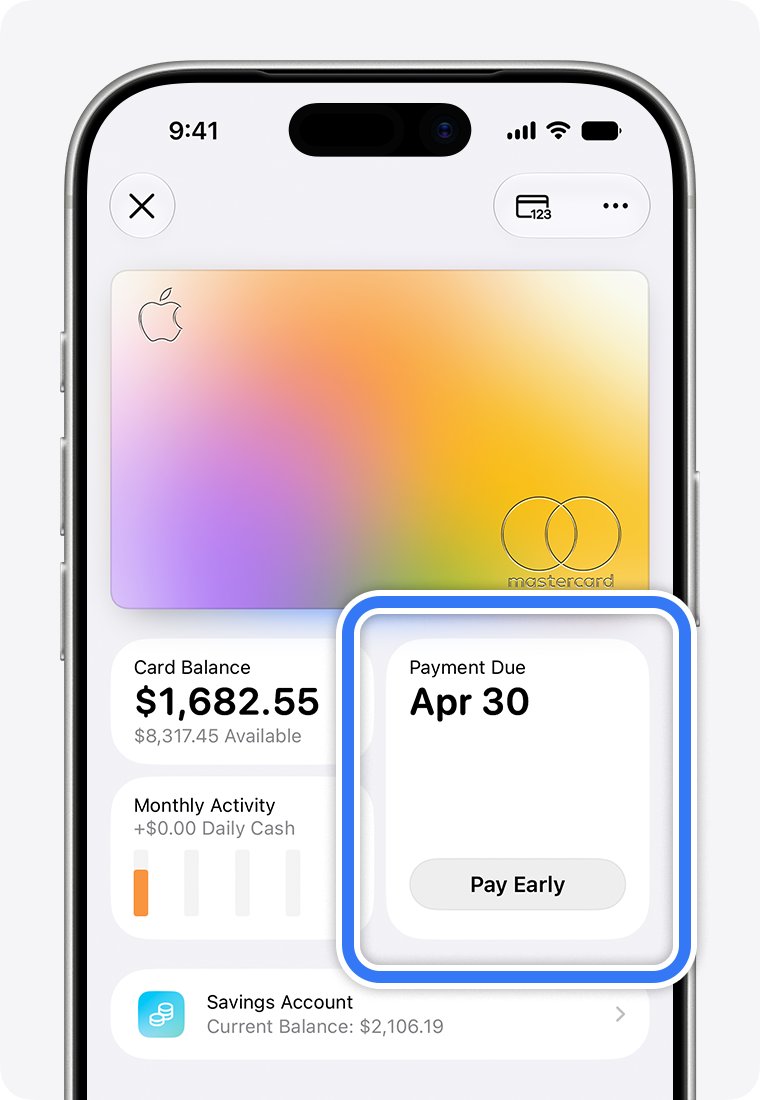
How to pay Apple Card bill in Wallet on iPhone
If your iPhone is nearby, the Wallet app pays the bill in a few taps without a browser.
- Open the Wallet app and tap your Apple Card.
- Tap the area to the right of Card Balance; your monthly balance is selected automatically.
- To pay a different amount, tap Other Amount and enter it with the keypad.
- Tap Pay [amount], then double-click the side button and confirm with Face ID, Touch ID or your passcode.
On iPad, go to Settings > Wallet & Apple Pay > Apple Card, tap the Info button, then tap Make a Payment. To set up Autopay on iPhone, tap the More button on the card, then tap Autopay.
How to cancel a scheduled Apple Card payment
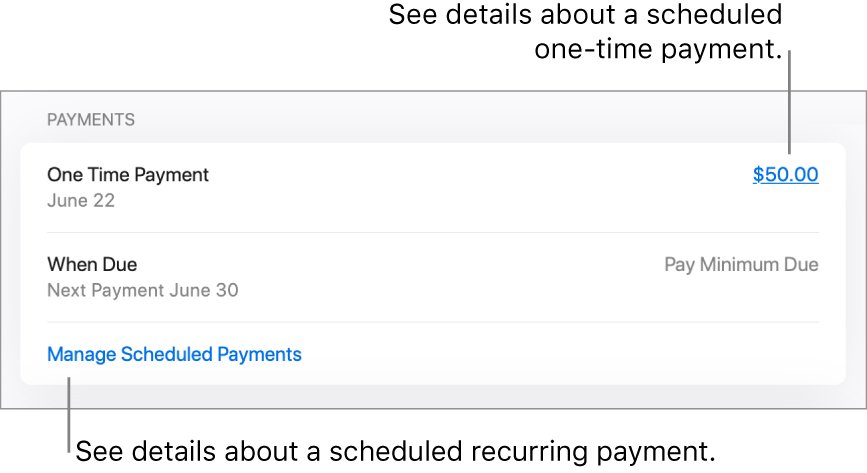
A cancellation must be received no later than 11:59 p.m. Eastern time on the day before the scheduled payment date.
- At card.apple.com, click Settings in the sidebar.
- Find the payment in the Payments section.
- Click the payment amount for a one-time payment, or click Manage Autopay for a recurring one.
- Click Cancel Payment in the payment details window.
In Wallet on iPhone, tap the payment under Latest Transactions, tap it again and tap Cancel Payment twice. If Cancel Payment is missing, the payment has already been processed.
Can't log in to Apple Card online
You forgot your Apple Account password
card.apple.com uses your Apple Account, so the password reset is Apple's standard Apple Account recovery process.
- Choose Forgot password? on the sign-in screen and follow the onscreen instructions.
- Use a trusted iPhone, iPad or Mac that is already signed in to change the password there instead.
- Without a trusted device or recovery factors, start account recovery at iforgot.apple.com; it can take several days or more.
No verification code arrives
Two-factor authentication needs a six-digit code the first time you sign in on a new browser.
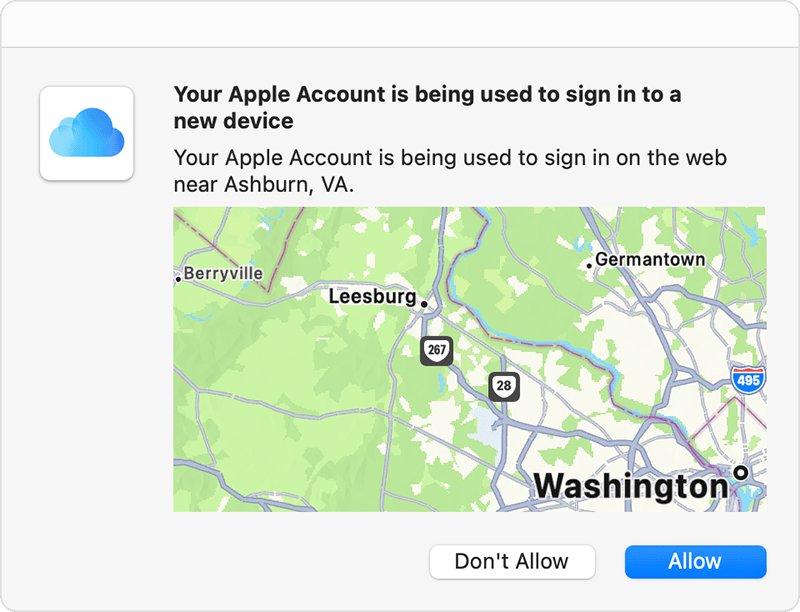
- Look for a sign-in notification on a trusted device and choose Allow to see the code.
- Select Didn't Get a Code? or Can't get to your devices? to get the code by text or phone call.
- If you screen Unknown Senders in Messages, check that filter for the text from Apple.
Sign-in works but there is no Apple Card account
Apple Card Family participants cannot use card.apple.com, or you signed in with a different Apple Account.
- Sign in with the Apple Account that owns or co-owns the card.
- As a participant, view your transactions in Wallet on iPhone or iPad; the owner makes the payments.
- Try other email addresses or phone numbers linked to your account; any of them signs you in.
The bank account is not accepted
Bank accounts added to Apple Card must be based in the US.
- Check the routing and account numbers and enter them again.
- Add a US-based bank account under Settings > Bank Accounts.
- Click Support in the sidebar to contact Goldman Sachs if a US account is still refused.
For account changes such as a new billing address, message an Apple Card Specialist from Wallet on iPhone, or contact Apple Support for Apple Account sign-in problems.
Apple Card online login FAQ
How do I log in to Apple Card?
Go to card.apple.com in a supported web browser and sign in with the Apple Account and password you use on the iPhone that holds your Apple Card. On iPhone, open the Wallet app and tap Apple Card to pay from there instead.
Why can't I log into my Apple Account on card.apple.com?
The usual causes are a forgotten password, a missing two-factor verification code, or signing in with an Apple Account that does not own the card. Reset the password with Forgot password?, request the code by text, or use the owner's account.
How do I log in to my Apple Account without my phone?
Select Didn't Get a Code? or Can't get to your devices? on the verification screen and have the code sent to your trusted phone number by text or call. Without any trusted number, follow the onscreen steps to start account recovery.
Why do I need an Apple Account to pay Apple Card online?
card.apple.com has no separate username; it signs you in with your Apple Account. Two-factor authentication on that account means a password alone is not enough, which keeps your card balance and bank details away from anyone who learns it.
Can Apple Card Family participants pay the bill online?
No. Only the account owner and co-owner can sign in at card.apple.com. Participants can spend on the account and view their own transactions in Wallet, but they are not responsible for payments, so the owner or co-owner pays the bill.
Can I change the amount of a scheduled Apple Card payment?
Not directly. Cancel the scheduled payment under Settings on card.apple.com, then create a new one with the amount you want. The cancellation must reach Apple by 11:59 p.m. Eastern time on the day before the payment date.
Can I pay Apple Card with Apple Cash on the website?
No. Apple Cash payments are made in the Wallet app on iPhone. On card.apple.com you pay from a linked US bank account, or apply Daily Cash to your balance under Settings if you have no Apple Cash account.
Can I see my Apple Card credit limit online?
Yes. Click Payments in the card.apple.com sidebar to see your total balance and available credit below Card Balance, then click Balance Details for the credit limit and total installment balance.