SmartByte Telemetry is a background part of SmartByte, the network optimization app Dell preinstalled on many Inspiron, Vostro, G-Series and XPS computers, and you remove it by uninstalling SmartByte from Settings or Control Panel.
This guide explains what SmartByte does to your connection, why updating it is no longer a fix, how to turn it off or remove it, and how to confirm the change helped.
How to uninstall SmartByte Telemetry on a Dell laptop
These steps work on Windows 11 and Windows 10. Remove every entry whose name starts with SmartByte, including any listed as Dell CinemaStream, which is the same software under another name.
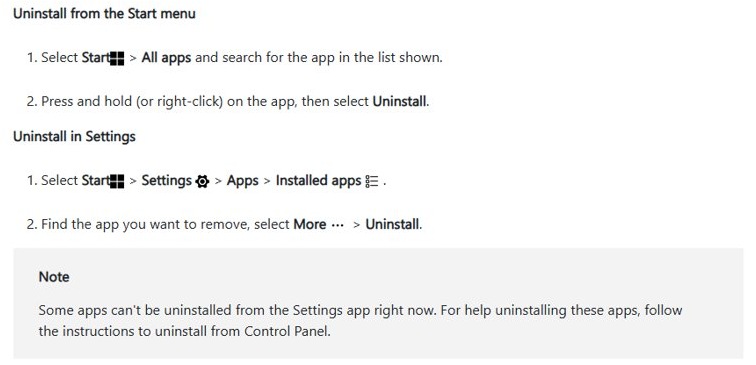
- Select Start > Settings > Apps > Installed apps.
- Type
SmartBytein the search box above the app list. - Select More (the three dots) next to the first SmartByte entry, then select Uninstall.
- Select Uninstall again to confirm, and follow any prompts in the uninstaller.
- Repeat for every remaining SmartByte or Dell CinemaStream entry.
- Select Start > Power > Restart to finish the removal.
If an entry has no Uninstall option in Settings, remove it from Control Panel instead, as shown further down.
What is SmartByte Telemetry?
SmartByte is Dell software for network optimization and bandwidth management. Dell shipped it as an optional application package on many consumer PCs, built from an app, a driver and Windows services.
SmartByte Telemetry is one of those background pieces, not a separate product. Dell documents no standalone uninstaller for it, so the way to remove it is to uninstall every SmartByte entry.
| Item | Detail |
|---|---|
| Publisher | Dell, delivered as an optional application package for Dell PCs |
| Purpose | Network optimization and bandwidth management |
| Other name | Dell CinemaStream powered by SmartByte |
| Found on | Dozens of Inspiron, Vostro, G-Series and XPS models, plus one Precision model |
| Security support | Ended on 30 September 2023 for SmartByte 3.1.1122 and earlier |
| Dell's suggested replacement | Intel Connectivity Performance Suite (ICPS), on supported Intel hardware only |
What else does SmartByte affect?
Dell states that SmartByte allocates a small percentage of the available network bandwidth to its own operation. On some PCs that lowers the overall speed you see.
| Area | What SmartByte does | What you may notice |
|---|---|---|
| Network speed | Reserves a share of bandwidth for its own operation | Lower results in a speed test than other devices on the same network |
| Installed components | Installs an app, a driver and services that talk to each other | SmartByte entries in Task Manager and an update error if that link breaks |
| Network settings | Manages bandwidth on your connection | A speed difference when you switch SmartByte off with its slider |
| Security | No security fixes for 3.1.1122 and earlier since 30 September 2023 | Any flaw found after that date stays unpatched |
Can I update SmartByte to fix it?
Dell's older troubleshooting article told owners to update SmartByte to the latest version before judging it. That advice predates the end of security support.
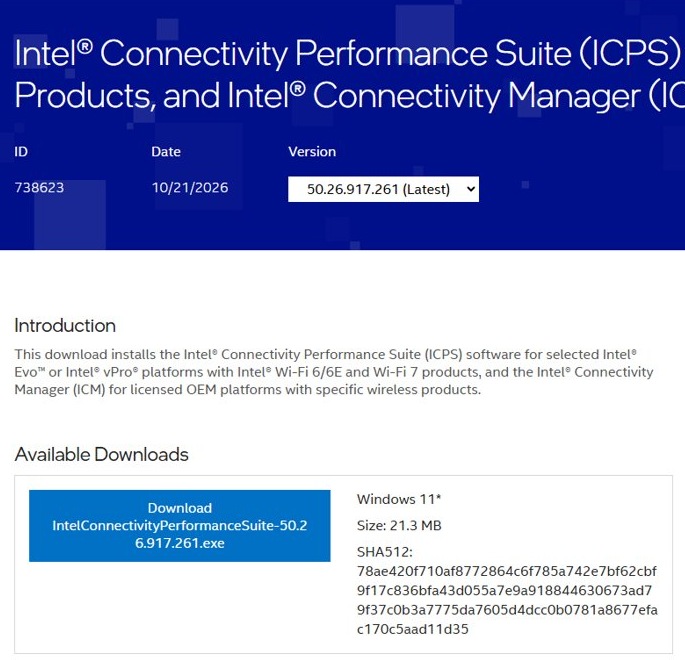
Dell now recommends moving to Intel Connectivity Performance Suite for the same features. Intel lists that suite only for selected Intel Evo or vPro PCs with 12th Gen Intel Core or newer, Intel Wi-Fi 6/6E or newer, and Windows 11. It does not support Intel Killer wireless cards.
Do not rely on an update. Uninstall SmartByte, and install Intel Connectivity Performance Suite from Intel only if your PC meets its hardware list and you want traffic prioritisation. Dell no longer ships security fixes for SmartByte 3.1.1122 and earlier, so an update cannot keep it supported.
How to disable SmartByte
Turning SmartByte off keeps it installed but stops it managing your traffic. Use this first if you want to test whether SmartByte is the cause before you remove it.
- Press Windows + Q to open search.
- Type
SmartByteand open the SmartByte app from the results. - Click the slider so SmartByte shows as off.
- Close the app and run a speed test to compare with your earlier result.
If the speed improves, leave SmartByte off or uninstall it. If nothing changes, Dell says SmartByte is not the cause of the slowdown.
How to uninstall SmartByte: Apps & Features method
Windows 11 calls this page Installed apps. You can also reach the uninstaller from the Start menu, which uses the same removal routine.
- Select Start, then All apps, and scroll to the S section.
- Right-click SmartByte (or press and hold it), then select Uninstall.
- If Settings opens, find SmartByte in the list, select More, then Uninstall.
- Confirm with Uninstall and wait for the uninstaller to close.
- Remove any other SmartByte or Dell CinemaStream entries the same way.
- Restart the PC.
How to uninstall SmartByte: Control Panel method
Microsoft notes that some apps cannot be uninstalled from Settings. Control Panel lists the desktop program and its driver package, and it also shows the installed SmartByte version, which is useful for the end-of-support check.
- Select the search box on the taskbar, type
Control Paneland open it. - Select Programs, then Programs and Features.
- Note the number in the Version column for SmartByte.
- Right-click SmartByte and select Uninstall or Uninstall/Change.
- Follow the on-screen prompts until the program disappears from the list.
- Repeat for any other SmartByte entry, then restart the PC.
Did removing SmartByte help you?
Dell's own test for SmartByte is a before-and-after speed comparison. Run it on the same network, at a similar time of day, with nothing else downloading.
- Open Task Manager with Ctrl + Shift + Esc and check the Processes tab for any entry containing SmartByte. None should remain after the restart.
- Open Control Panel > Programs > Programs and Features and confirm no SmartByte entry is listed.
- Run a speed test in your browser and note the download and upload results.
- Compare them with the result you recorded while SmartByte was installed.
- If the speed is the same, look at your Dell wireless driver, router or internet plan next, because SmartByte was not the bottleneck.
How do I fix the SmartByte issue?
Dell orders its network checks so that the cheapest fixes come first. Match your symptom below.
Slow internet on a Dell PC with SmartByte installed
SmartByte reserves part of the bandwidth for itself, or an outdated BIOS or network driver is the real limit.
- Run a speed test and write down the result.
- Update the BIOS and the wireless and Ethernet drivers from the Dell support site for your service tag.
- Install pending Windows updates from Settings > Windows Update.
- Turn SmartByte off with its slider and test again.
- If speed improves, uninstall SmartByte. If not, check the Wi-Fi adapter settings or troubleshoot the network instead.
"SmartByte Service requires an update. Launch browser?" with error code 1, 2 or 3
Communication between the SmartByte app, its driver and its services is corrupted.
- Uninstall SmartByte from Programs and Features if you no longer want it. The error stops with it.
- To keep it instead, select Yes in the message to open Dell's SmartByte driver page.
- Install the latest SmartByte driver Dell offers, even if the same version is already installed.
- Restart the PC and open SmartByte to confirm the error is gone.
SmartByte will not uninstall or the uninstaller fails
A running SmartByte service or a damaged install blocks the removal.
- Select Start > Power > Restart, then try the uninstall again before opening anything else.
- Try the other route: Control Panel if Settings failed, or Settings if Control Panel failed.
- In Settings > Apps > Installed apps, select SmartByte, then Advanced options > Repair if it is offered, and uninstall after the repair.
- If removal still fails, contact Dell support with your service tag.
Does removing SmartByte cause other problems?
Dell describes SmartByte as network optimization and bandwidth management software, and Windows manages Wi-Fi and Ethernet connections without it. Removing it ends that bandwidth management and nothing else Dell documents.
Removing SmartByte is safe and is the better choice for most Dell owners. It reached end of security support in 2023, it can lower your measured speed, and Windows connects to the network without it.
SmartByte Telemetry FAQ
Is it safe to uninstall SmartByte?
Yes. SmartByte is optional Dell software for bandwidth management, and Windows handles Wi-Fi and Ethernet without it. Dell ended its security support on 30 September 2023 for version 3.1.1122 and earlier, so removing it closes a component that no longer gets fixes.
Does SmartByte slow down internet speed?
It can. Dell states that SmartByte allocates a small percentage of available bandwidth to its own operation, which reduces overall speed on some PCs. Turn it off, run a speed test, and compare the result with the speed you measured while it was on.
Is SmartByte still supported by Dell?
No. Dell ended security support for SmartByte 3.1.1122 and earlier on 30 September 2023. Dell now points owners who want traffic prioritisation to Intel Connectivity Performance Suite instead.
What replaces SmartByte on Dell computers?
Dell recommends Intel Connectivity Performance Suite (ICPS). Intel supports it only on selected Intel Evo or vPro PCs with 12th Gen Intel Core or newer, Intel Wi-Fi 6/6E or newer, and Windows 11. Killer wireless cards are not supported.
Can I turn SmartByte off without uninstalling it?
Yes. Press Windows + Q, search for SmartByte, open the app and click the slider to switch it off. The software stays installed but stops managing your network traffic until you turn it back on.
What is Dell CinemaStream?
Dell CinemaStream is SmartByte under another name. Dell's support articles call it Dell CinemaStream powered by SmartByte, so uninstall any CinemaStream entry along with the SmartByte entries to remove the whole package.
Which Dell computers have SmartByte?
Dell's end-of-support notice lists dozens of Inspiron, Vostro, G-Series and XPS laptops, desktops and all-in-ones, plus one Precision model. Check Installed apps or Programs and Features on your PC to see whether it is present.