Windows 11 keeps the Windows 10 foundation and app compatibility but adds a redesigned Start menu, Snap layouts, Widgets, stricter hardware rules such as TPM 2.0, and features Windows 10 never gets, because Windows 10 reached end of support on October 14, 2025.
This comparison covers design, multitasking, performance, security, privacy, gaming, apps, accessibility, cost, hardware requirements and the Extended Security Updates option for PCs that stay on Windows 10.
Windows 10 vs Windows 11: key differences at a glance
The table lists the differences that change daily use. Every row reflects Microsoft's own comparison and lifecycle pages as of October 2026.
| Area | Windows 10 | Windows 11 |
|---|---|---|
| Support status | Ended October 14, 2025; security fixes only through paid or free ESU enrolment | In support; version 26H2 is supported until October 9, 2028 |
| Start menu | Resizable, with Live Tiles | Pinned apps and recommendations, fixed size, no Live Tiles |
| Taskbar | Can sit on any screen edge | Bottom of the screen only |
| Window snapping | Snap assist | Snap assist plus Snap layouts and Snap groups |
| Glanceable content | News & Interests | Widgets board |
| File Explorer | No tabs | Tabs and file recommendations |
| Security extras | Windows Security app, memory integrity | Adds Smart App Control, passkeys with Windows Hello, required TPM 2.0 |
| Gaming | DirectX 12, DirectStorage works | Adds Auto HDR and optimizations for windowed games |
| Phone Link | Android only | Android and iPhone |
| Hardware floor | Runs on older PCs | TPM 2.0, UEFI Secure Boot, 4 GB RAM, 64 GB storage, supported CPU |
Windows 10 and Windows 11 historical overview and release context
Microsoft describes Windows 11 as built on the same foundation as Windows 10. It is an evolution of the same system, not a rewrite.
| Milestone | Windows 10 | Windows 11 |
|---|---|---|
| Lifecycle start date (Home and Pro) | July 28, 2015 | October 3, 2021 |
| Final or current version | 22H2 is the final version | 26H2, released September 28, 2026 |
| Feature update rhythm | Twice-yearly releases in earlier years, ending with 22H2 | One feature update a year, in the second half of the year |
| Support per version (Home, Pro) | Version-specific; all versions ended October 14, 2025 | 24 months from release |
| Support per version (Enterprise, Education) | LTSC releases continue on their own lifecycles | 36 months from release |
| Retirement date | October 14, 2025 | No retirement date announced |
Windows 11 shipped an extra platform release in 2026. Version 26H1 started on February 9, 2026, before 26H2 arrived in September.
Windows 11 vs Windows 10 user interface and aesthetics
Microsoft calls the Windows 11 look a refinement of Windows 10. The biggest visual changes are the new Start menu, the Widgets board and the redesigned built-in apps.
| Element | Windows 10 | Windows 11 |
|---|---|---|
| Search | Taskbar search | Search bar also inside the Start menu |
| News and weather panel | News & Interests on the taskbar | Widgets board with a personalized feed |
| Touch layout | Tablet Mode switch | No Tablet Mode; designed for keyboard attach and detach postures |
| Microsoft Store | Older Store design | Redesigned Store with movies, TV and universal media search |
| Snipping | Snipping Tool and Snip & Sketch as separate apps | One Snipping Tool with screen recording and text actions |
Windows 11 Start menu and taskbar changes from Windows 10
The Start menu and taskbar changed more than anything else. Some Windows 10 options are gone, not hidden.
| Behaviour | Windows 10 | Windows 11 |
|---|---|---|
| Live Tiles | Yes | Removed; Widgets replace glanceable content |
| Resize the Start menu | Yes | Layout is not resizable |
| Pin and unpin apps to Start | Yes | Yes, plus recommendations for recent files |
| Taskbar position | Top, bottom, left or right | Bottom only |
| People on the taskbar | Yes | Removed |
| Apps customizing taskbar areas | Allowed | No longer allowed |
| System tray icons after upgrade | As configured | Some icons and customizations may not carry over |
| Organization lockdown of Start layout | Supported | Layout can be overridden but not locked against user changes |
Change Start and taskbar options in Settings > Personalization on Windows 11.
Windows 11 multitasking and window management vs Windows 10
Both systems snap windows into grids. Windows 11 adds ready-made layouts and remembers groups of snapped apps.
| Feature | Windows 10 | Windows 11 |
|---|---|---|
| Snap assist | Yes | Yes |
| Snap layouts | No | Hover over the maximize button, or drag a window to the top of the screen from 22H2 |
| Snap groups | No | Hover a taskbar app to reopen its whole layout |
| Three-column layouts | No | Needs a screen at least 1,920 effective pixels wide |
| Seamless redocking | No (Windows 11 only) | Windows return to their places when an external monitor reconnects |
| Where to change it | Settings > System > Multitasking | Settings > System > Multitasking |
Windows 11 vs Windows 10 performance enhancements
Microsoft does not publish a blanket speed figure for Windows 11. The measurable changes sit in updates, gaming paths and power settings.
| Area | What Windows 11 changes |
|---|---|
| Update size | Updates download only the source files that changed, so they are smaller |
| Windowed games | Optimizations cut latency and raise frame rates in 2,000+ DirectX 11 and later games |
| Hybrid-GPU laptops | Cross Adapter Scan Out (CASO) reduces latency on Intel Tiger Lake or AMD Rembrandt and later |
| Game loading | Latest DirectStorage storage optimizations are built in |
| Battery | Energy recommendations gather the settings with the largest power impact in one place |
| Browser | Microsoft Edge sleeping tabs save system resources |
| On-device AI | Copilot+ PCs run AI features on a 40+ TOPS NPU |
Performance still scales with hardware. Microsoft notes that a faster, more capable PC gives better results on either system.
Windows 11 vs Windows 10 security and privacy features
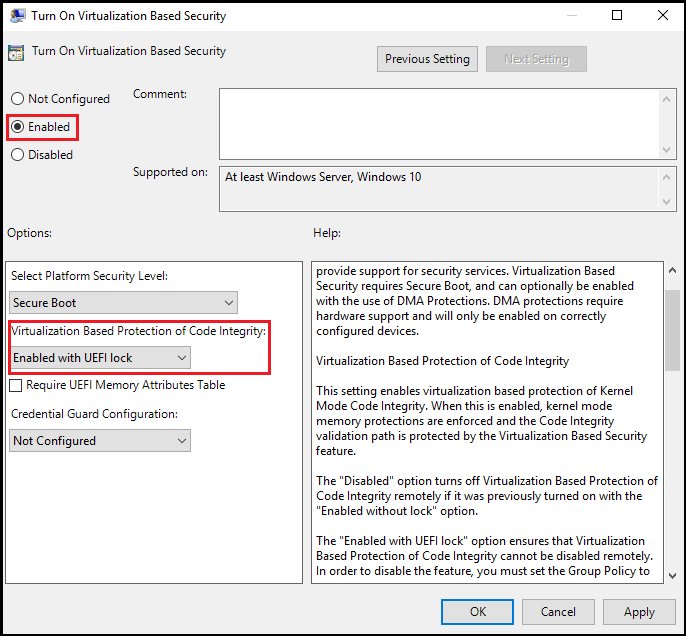
Microsoft says the security features in Windows 11 are similar to Windows 10. The difference is the hardware floor and a few Windows 11-only protections.
| Protection | Windows 10 | Windows 11 |
|---|---|---|
| Security updates | None after October 14, 2025 unless enrolled in ESU | Monthly |
| Windows Security app and Microsoft Defender Antivirus | Yes | Yes |
| TPM 2.0 | Not required | Required |
| Smart App Control | No | Yes; blocks malware, unwanted apps and unknown unsigned code; needs a fresh install or reset |
| Memory integrity | Yes | Yes; Windows Security warns when it is off from 22H2 |
| Passkeys managed in Windows Hello | Not listed | Yes, in Settings |
| Encrypted DNS and WPA3 Wi-Fi | Not listed by Microsoft | Listed as built-in |
| Recall (preview) | No | Copilot+ PCs only; requires Windows Hello Enhanced Sign-in Security |
Windows 11 hardware requirements compared with Windows 10
A Windows 10 PC must meet every line below to take the free upgrade. Run the PC Health Check app on Windows 10 to test it; the app skips the graphics and display checks.
| Component | Windows 11 minimum |
|---|---|
| Processor | 1 GHz or faster, 2 or more cores, compatible 64-bit CPU or SoC |
| RAM | 4 GB |
| Storage | 64 GB or larger |
| System firmware | UEFI, Secure Boot capable |
| TPM | Trusted Platform Module version 2.0 |
| Graphics | DirectX 12 or later with a WDDM 2.0 driver |
| Display | 720p, larger than 9 inches diagonally, 8 bits per color channel |
| Setup (Home, Pro for personal use) | Internet connection and a Microsoft account |
| Starting point for upgrade | Windows 10 version 2004 or later |
| Copilot+ PC extras | 40+ TOPS NPU, 16 GB DDR5 or LPDDR5, 256 GB SSD or UFS |
Windows 10 end of support and Windows 11 support lifecycle
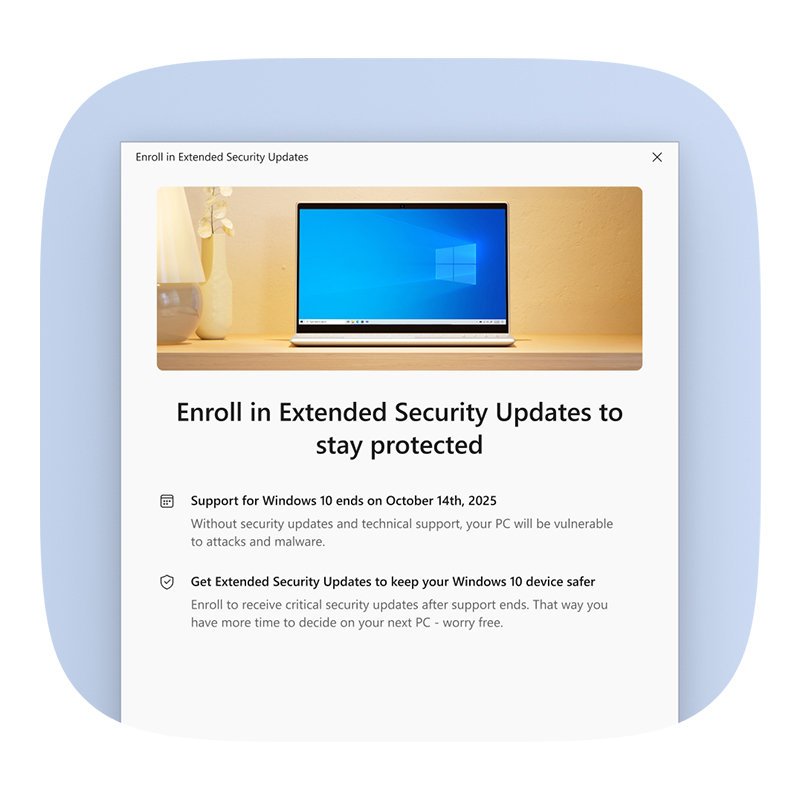
Windows 10 PCs keep working after end of support. They no longer get feature updates, quality fixes or technical support, and they get security fixes only through Extended Security Updates (ESU).
| Item | Status in October 2026 |
|---|---|
| Windows 10 Home and Pro | Retired October 14, 2025 |
| Windows 10 consumer ESU | Critical and important security updates through October 12, 2027 for version 22H2 personal-use PCs |
| Windows 10 LTSC releases | Continue on their own lifecycles |
| Microsoft 365 Apps on Windows 10 | Keep working; security updates until October 10, 2028 |
| Windows 11 version 24H2 (Home, Pro) | Ends October 13, 2026 |
| Windows 11 version 25H2 (Home, Pro) | Ends October 12, 2027 |
| Windows 11 version 26H1 (Home, Pro) | Ends March 14, 2028 |
| Windows 11 version 26H2 (Home, Pro) | Ends October 9, 2028 |
Windows 11 24H2 support ends in October 2026, so install the newest feature update from Windows Update. The differences between 26H2 and 25H2 matter if you choose which version to move to.
Windows 11 vs Windows 10 gaming and multimedia features
Both systems run the same PC games. Windows 11 adds display and latency features that Windows 10 does not get.
| Feature | Windows 10 | Windows 11 | Requirement |
|---|---|---|---|
| Auto HDR | No | Yes | HDR monitor; DirectX 11 or later games |
| DirectStorage | Supported | Supported with the latest storage optimizations | NVMe SSD and a DirectX 12 GPU with Shader Model 6.0 for optimized systems |
| DirectX 12 Ultimate | Hardware dependent | Hardware dependent | Supported games and graphics chips |
| Optimizations for windowed games | Not listed | Yes | Supported games |
| Controller bar | Not listed | Yes | Game Input compatible controller such as the Xbox Wireless Controller |
| Dynamic Lighting for RGB devices | Not listed | Yes | HID LampArray compatible devices |
| Clipchamp video editor | Not listed | Built in | Some effects need a paid plan |
| Windows Mixed Reality | Not affected by this change | Removed in 24H2 | Steam support on 23H2 ends November 2026 |
DirectStorage helps on any drive, though an NVMe SSD gives the most headroom. Games installed on an older disk are limited by the speed of each SATA generation.
Windows 11 system integration and connectivity vs Windows 10
| Feature | Windows 10 | Windows 11 |
|---|---|---|
| Phone Link | Android phones only | Android and iPhone (iOS 14 or later, Bluetooth) |
| Wi-Fi 7 | Not supported | Version 24H2 or later with a Wi-Fi 7 adapter and drivers |
| Wi-Fi 6E | Not listed | Needs a Wi-Fi 6E adapter, driver and router |
| Bluetooth | Not listed | Core Spec compliance up through version 5.3 |
| External monitors | No redocking memory | Remembers window arrangement when you reconnect |
| Presence sensing | Not listed | Wake on approach and lock on leave, with a presence sensor |
| Windows Backup | Back up only | Back up and restore on a new PC (22H2 and later) |
Windows 10 app compatibility and Microsoft Store migration on Windows 11
Microsoft carried its Windows 10 compatibility promise into Windows 11. App Assure data shows over 99.7% of enterprise apps work, including line-of-business apps.
| App type | What happens on Windows 11 |
|---|---|
| Win32, UWP, WPF and WinForms desktop apps | Run as on Windows 10; MSIX packages and Windows Package Manager still work |
| Android apps | Windows Subsystem for Android and the Amazon Appstore left the Microsoft Store on March 5, 2025 |
| Internet Explorer | Not available; use IE mode in Microsoft Edge |
| Mail, Calendar and People | Support ended December 31, 2024; export to the new Outlook |
| Windows Terminal | Included with the OS instead of a Store download |
| x64 apps on Arm PCs | Run on Windows 11 only |
| 32-bit Arm UWP apps | Affected on Arm devices only |
| 3D Viewer | Kept on upgrade, but not installed on new PCs; available from the Microsoft Store |
| Business app problems | App Assure fixes compatibility issues at no cost for eligible customers with 150+ devices |
Windows 11 vs Windows 10 customization and personalization options
Windows 11 removes several layout options from Windows 10 and adds new ones for lighting and widgets.
| Option | Windows 10 | Windows 11 |
|---|---|---|
| Move the taskbar to another edge | Yes | No |
| Resize Start, add Live Tiles | Yes | No |
| Widgets feed | No (News & Interests) | Yes |
| Dynamic Lighting for RGB keyboards and mice | No | Yes, in Settings |
| Contrast themes | Yes | Yes |
| Roam desktop wallpaper with a Microsoft account | Yes | No |
| Where to customize | Settings > Personalization | Settings > Personalization |
Windows 11 vs Windows 10 privacy and data collection settings
Both systems send required diagnostic data by default and let you add optional diagnostic data. Windows 11 drops the old Enhanced level and offers finer optional-data policies.
| Setting | Windows 10 | Windows 11 |
|---|---|---|
| Required diagnostic data | Default since version 1903 | Default |
| Optional diagnostic data | Available; includes browsing and device activity | Available; includes browsing and device activity |
| Enhanced level | Version 1809 and earlier only | Not available |
| Policies limiting optional data | Fewer | Two extra policies on Windows 11 only |
| Microsoft account at setup (Home, Pro for personal use) | Not listed as required | Required |
| Edge diagnostic data in the EEA | Separate from Windows on 22H2 and newer | Separate from Windows on 23H2 and newer |
Turning diagnostic data off entirely stops Windows Update failure reports, so Microsoft recommends at least required diagnostic data on managed PCs.
Windows 11 productivity enhancements over Windows 10
| Feature | What it does | Windows 10 equivalent |
|---|---|---|
| File Explorer tabs | Opens several folders in one window | None |
| Smart recommendations | Surfaces recent files in Start and File Explorer | Not listed |
| Snap groups | Reopens a whole set of snapped apps in one click | None |
| Windows Studio Effects | Background blur, eye contact, voice focus and auto framing on NPU devices | Not listed |
| Snipping Tool text actions | Copies or redacts text in a screenshot, records the screen | Image capture only |
| Click to Do and improved Windows search | AI actions and natural-language search on Copilot+ PCs | None |
| Windows Terminal | PowerShell, Command Prompt and Azure Cloud Shell in tabs | Separate download |
Windows 11 vs Windows 10 accessibility features
| Feature | Windows 10 | Windows 11 |
|---|---|---|
| Voice typing | Yes | Yes |
| Voice access (control the PC by voice) | No | Yes; open apps, minimize windows, scroll |
| Narrator natural voices | No | Yes, US English |
| Live Captions | Not listed | Yes; translation on Copilot+ PCs |
| Contrast themes | Yes | Yes |
| Digital pen and inking | Yes | Improved inking experience |
Windows 11 vs Windows 10 cost and licensing
The upgrade from Windows 10 Home or Pro to the same Windows 11 edition is free on eligible hardware.
| Option | Cost |
|---|---|
| Windows 10 to Windows 11 upgrade (same edition) | Free through Windows Update |
| Windows 11 Home license for a PC without one | $139.00 at the Microsoft Store, download or USB |
| Windows 10 consumer ESU | Free while syncing PC settings, 1,000 Microsoft Rewards points, or a one-time $30 plus tax |
| ESU license reach | Up to 10 devices on one Microsoft account |
| Microsoft 365 Apps | Same subscription works on either system |
| Features limited to Pro | BitLocker to Go and Client Hyper-V |
The retail Windows 11 Home license does not install on a Windows 10 PC that cannot take the free upgrade through Windows Update.
Should you upgrade to Windows 11 or stay on Windows 10?
| Your situation | Do this | Why |
|---|---|---|
| PC passes PC Health Check | Upgrade to Windows 11 now | It is free and restores monthly security updates |
| PC fails, but you need time | Enroll in Windows 10 ESU | Security fixes continue until October 12, 2027 |
| PC fails and is old | Buy a Windows 11 PC and move files with Windows Backup | No Windows 10 updates of any kind after ESU ends |
| You rely on an app that needs Windows 10 | Test it on Windows 11; businesses can use App Assure | Most Windows 10 apps run unchanged |
| You use a Windows Mixed Reality headset | Plan to replace it before you upgrade | Removed in 24H2, and 23H2 Home and Pro support ended November 11, 2025 |
Windows 10 to Windows 11 upgrade: transition and migration steps
Back up your files first. Files and data transfer by default during the upgrade, but a backup protects against a failed install.
- Run the PC Health Check app to confirm the PC meets the Windows 11 requirements.
- Open Windows Backup and back up files, settings and apps to your Microsoft account.
- Export mail and contacts if you still use the Mail and People apps, since both are unsupported.
- Select Start > Settings > Update & Security > Windows Update.
- Select Check for updates and wait for the Windows 11 upgrade offer.
- Choose the upgrade option, then restart when prompted.
- Sign in and reinstall any app that did not carry over from its original provider.
If the upgrade offer never appears, the PC is not eligible, and ESU or a new PC are the remaining options.
Windows 10 vs Windows 11 differences FAQ
How does Windows 11 differ from Windows 10?
Windows 11 runs on the same foundation as Windows 10 but adds a redesigned Start menu, Snap layouts, Widgets, File Explorer tabs, Auto HDR and Smart App Control. It also requires TPM 2.0 and a supported CPU, and it still receives updates, while Windows 10 support ended on October 14, 2025.
What are the main differences between Windows 10 and 11?
The main differences are support status, hardware requirements and the interface. Windows 11 needs TPM 2.0 and UEFI Secure Boot, moves the taskbar to the bottom only, removes Live Tiles and Timeline, and adds Snap groups, Widgets, voice access and Phone Link for iPhone.
Is the upgrade from Windows 10 to Windows 11 free?
Yes. Upgrading Windows 10 Home or Pro to the same Windows 11 edition is free on eligible PCs through Windows Update. A PC without a license needs to buy one, and Windows 11 Home costs $139.00 at the Microsoft Store.
Can I keep using Windows 10 after end of support?
Yes. Windows 10 PCs keep working, but they no longer get feature updates, quality fixes or technical support. Security updates continue only for 22H2 PCs enrolled in Extended Security Updates, which run through October 12, 2027.
How much does Windows 10 ESU cost for home users?
Consumer ESU is free if you sync PC settings with a Microsoft account, costs 1,000 Microsoft Rewards points, or costs a one-time $30 plus tax. One license covers up to 10 devices, and options can differ in the European Economic Area.
Do Windows 10 apps work on Windows 11?
Yes, almost all do. Microsoft kept its Windows 10 compatibility promise for Windows 11, and App Assure data shows over 99.7% compatibility for enterprise apps. Internet Explorer is the main exception; Microsoft Edge IE mode replaces it.
Is Windows 11 better than Windows 10 for gaming?
Windows 11 adds Auto HDR, optimizations for windowed games and the latest DirectStorage storage optimizations, which Microsoft recommends for gaming. The same games run on both systems, but Windows 10 receives no new gaming features after end of support.
Can Windows 11 run Android apps?
Not any more from the Microsoft Store. Windows Subsystem for Android and the Amazon Appstore stopped being available in the Microsoft Store on March 5, 2025. Phone Link still mirrors Android and iPhone notifications, calls and texts on Windows 11.
Does Windows 11 look different from Windows 10?
Yes. Windows 11 replaces Live Tiles with pinned apps and recommendations, swaps News & Interests for Widgets, and redesigns built-in apps such as the Microsoft Store, Snipping Tool and Photos.
Closing remarks: should you move from Windows 10 to Windows 11?
Move to Windows 11 on any PC that passes PC Health Check, and use Windows 10 ESU only as a bridge to a new PC. Windows 11 runs the same apps, adds Snap layouts, Smart App Control and Auto HDR, and gets monthly updates. Windows 10 is out of support, and its last security fixes stop on October 12, 2027.





What is AVG Secure Browser? Features, privacy, safety, and free vs. PRO - Techdows
[…] PC still on Windows 7 or 8.1 needs Windows 10 or later for current builds. You can compare Windows 10 and Windows 11 features before you […]