Open video playback settings in Windows 11 or Windows 10 from Start > Settings > Apps > Video playback.
This guide covers what each option changes, battery and HDR choices, captions, default video players, and fixes for video that stalls, stutters or will not play.
Video Playback Settings in Windows 11/10
The same page exists in Windows 11 and Windows 10, and it controls video in apps that use the video platform built into Windows.
- Select the Start button, type Settings and open it.
- Select Apps in the left pane.
- Select Video playback.
- Under Battery options, choose Optimize for video quality or Optimize for battery life.
- Change any other option on the page; each change applies as soon as you make it.
For a shortcut, press Windows + R, type ms-settings:videoplayback and press Enter. Microsoft lists this URI as the direct address of the Video playback page.
Which video playback setting fits your goal
Video settings are split across several Settings pages. Match your goal to a row and change only that setting.
| Your goal | Change this | Where it is |
|---|---|---|
| Longer battery life while watching video | Battery options > Optimize for battery life | Settings > Apps > Video playback |
| Save even more battery on a laptop | Tick Play video at a lower resolution when on battery | Settings > Apps > Video playback |
| Best picture on battery, including HDR | Battery options > Optimize for video quality | Settings > Apps > Video playback |
| Play streaming HDR video | Turn on HDR video streaming | Settings > System > Display > HDR |
| Smooth playback across two or more monitors | Give every monitor the same refresh rate under Choose a refresh rate | Settings > System > Display > Advanced display |
| Readable subtitles | Pick or edit a Caption style | Settings > Accessibility > Captions |
| Open video files in a different player | Set a default app for the file type, such as .mp4 | Settings > Apps > Default apps |
| Lower power use by one video app | Set the app to Power saving under Custom options for apps | Settings > System > Display > Graphics |
How to optimize video playback for battery life or quality
Microsoft ties HDR on battery to this choice. Optimize for battery life stops HDR video while the laptop runs on battery.
- Open Settings > Apps > Video playback.
- Open the dropdown next to Battery options.
- Select Optimize for battery life to stretch battery time, or Optimize for video quality for the best picture.
- To save more power, tick Play video at a lower resolution when on battery.
- Restart the video you are watching so the new setting takes effect.
Other power choices, such as power mode and energy saver, are covered in how to manage power management settings in Windows 11/10.
How to turn on HDR video streaming
Streaming HDR video needs a display that is optimized for HDR video and the setting turned on. It also uses more battery power.
- Select Start, search for Settings, then select System > Display.
- At the top, select the display you want to change.
- Select HDR.
- Under Display capabilities, check that HDR video streaming says Supported.
- On an SDR display, turn on the HDR video streaming toggle.
- On an HDR display, select the checkbox under the HDR toggle to allow HDR video streaming.
- To keep HDR on battery, expand the HDR video streaming section and clear Turn off HDR video streaming when my PC is running on battery.
If you move HDR video to a display that is not optimized for it, the app switches to an SDR stream when new content starts. Restart the app on the target display to switch sooner.
Where video settings live in Windows 11 and Windows 10
Every page below also opens from Windows + R with its ms-settings: address, which is the same on both versions.
| Setting | Path in Settings | Direct address |
|---|---|---|
| Video playback | Apps > Video playback | ms-settings:videoplayback |
| HDR and HDR video streaming | System > Display > HDR | ms-settings:display |
| Refresh rate | System > Display > Advanced display | ms-settings:display-advanced |
| Graphics per app | System > Display > Graphics | ms-settings:display-advancedgraphics |
| Captions | Accessibility > Captions | ms-settings:easeofaccess-closedcaptioning |
| Default apps | Apps > Default apps | ms-settings:defaultapps |
| Night light | System > Display > Night light | ms-settings:nightlight |
More ways to reach the display pages are in 10 ways to open display settings in Windows 11.
How to check your video settings took effect
- Reopen Settings > Apps > Video playback and confirm the Battery options value you picked is still shown.
- Open Settings > System > Display > HDR and confirm HDR video streaming shows Supported and is turned on.
- Play a video in a supported app full screen; on an SDR display, HDR video only appears full screen.
- For a hardware check, press Windows + R, type
dxdiagand select OK. - On the System tab, select Save All Information and open the saved text file.
- Look for AdvancedColorSupported and AdvancedColorEnabled, which show that the display driver supports HDR10 and that HDR is on.
Understanding Default Video Playback on Windows 10 and Windows 11
The Video playback page does not change every player on the PC. It applies to apps that use the video platform built into Windows.
| Item | What Microsoft states |
|---|---|
| Apps it affects | UWP apps that come with Windows, such as Photos and Movies & TV, plus many Microsoft Store video apps such as Hulu, Netflix and Vudu |
| Video processing | Your PC can process video to enhance it, depending on its hardware |
| Lower resolution | You can play video at a lower resolution to save network bandwidth |
| Battery options | Optimize for battery life, or optimize for video quality |
| HDR | Streaming HDR works only in certain apps and only on a display optimized for HDR video |
| Multiple monitors | Different refresh rates across monitors can make playback stall or start and stop |
Default Media Players and Their Settings
Windows 11 and Windows 10 ship with different players, and each handles formats differently.
| Player | Status | What to know |
|---|---|---|
| Media Player | Current Microsoft player | Microsoft recommends it for modern video features like 4K |
| Windows Media Player Legacy | Optional feature in Windows 10 and some Windows 11 editions | DVD playback is not included; add it from Optional features |
| Movies & TV | Microsoft Store app | Uses the Windows video playback settings |
| Photos | Built into Windows | Uses the Windows video playback settings |
| Store apps (Netflix, Hulu, Vudu) | Microsoft Store | Follow the video playback and HDR settings |
How to change the default video player
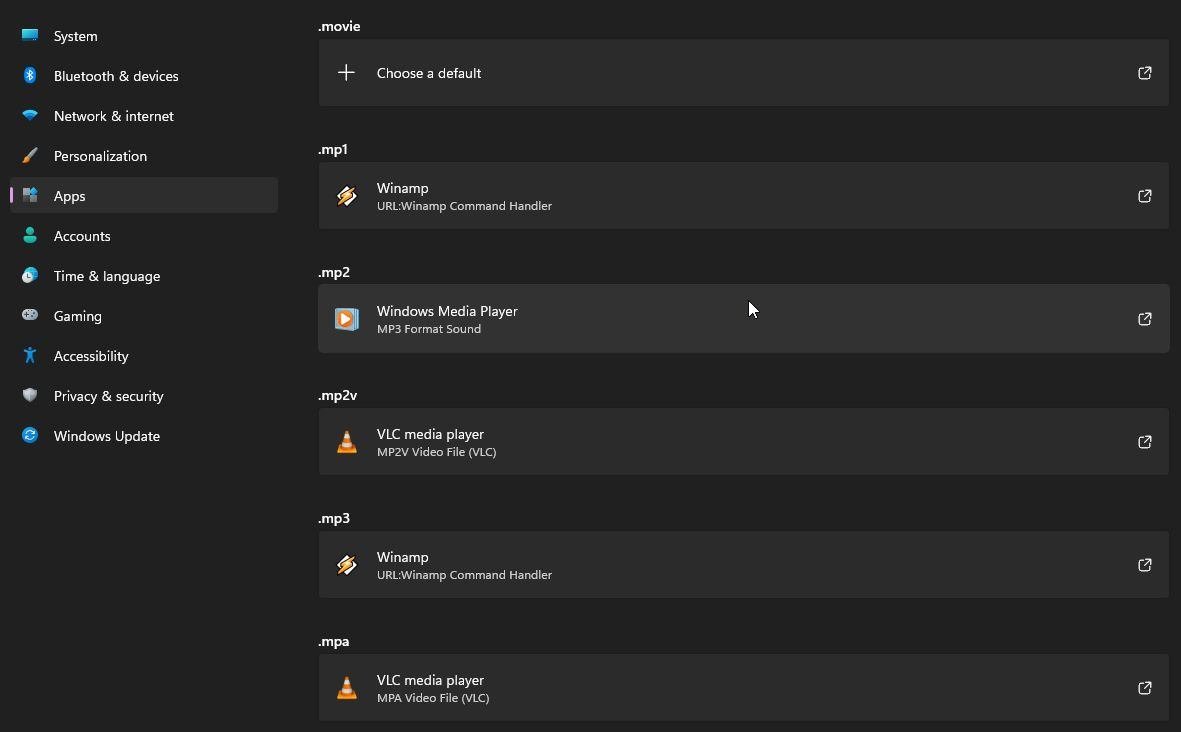
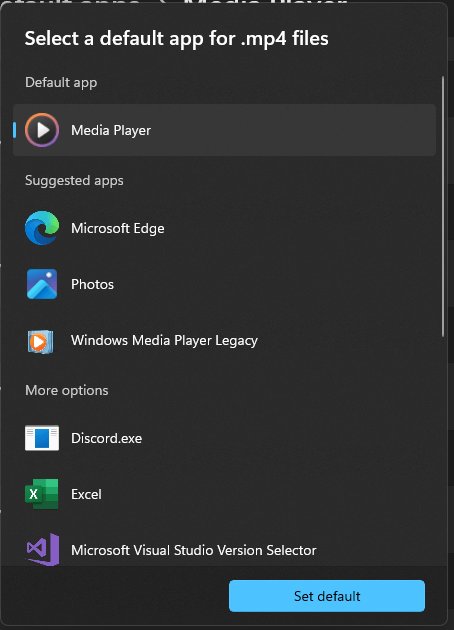
- Open Settings > Apps > Default apps.
- In the search bar, type the file extension you want to change, such as
.mp4. - Select the matching result.
- Choose the player you want to open that file type.
- Repeat for other formats such as
.mkvor.avi.
If a file type still opens in the wrong app, see how to reset Open With settings in Windows 10.
Customizing Video Playback Appearance and Accessibility
Captions, HDR brightness and night light change how video looks, and each lives on a different page.
| What you want | Setting | How to change it |
|---|---|---|
| Different subtitle look | Captions | Open Settings > Accessibility > Captions, pick a Caption style, then select Edit to customise it |
| Balance SDR and HDR brightness | SDR or HDR content brightness | Open System > Display > HDR and drag the SDR content brightness or HDR content brightness slider |
| No red tint on HDR video | Night light | Open System > Display > Night light and lower Strength or select Turn off now |
| Brighter HDR with Dolby Vision screens | Dolby Vision mode | Expand the HDR toggle section and clear Use Dolby Vision mode |
| Full brightness on energy saver | Energy saver brightness | Open System > Power & battery > Energy saver and turn off Lower screen brightness when using energy saver |
Troubleshooting Common Video Playback Issues
Video playback not working or not playing correctly in Windows 11
A setting, driver or app fault stops playback; the built-in troubleshooter checks the common ones.
- Open the Get Help app.
- In the search bar, enter Video playback troubleshooter.
- Follow the steps it shows, then replay the video.
- Install pending updates from Settings > Windows Update > Check for updates to get newer graphics drivers.
Video stalls, or starts and stops, with two monitors
Monitors running at different refresh rates, whether cabled or connected over Miracast.
- Open Settings > System > Display > Advanced display.
- Select the first monitor at the top and note its refresh rate.
- Select each other monitor and set the same rate under Choose a refresh rate.
- Replay the video.
"A codec is required to play this file"
The file uses a format Windows does not include by default.
- Check the file format; Windows plays MPEG-4 (H.264), H.263, VC-1, WMV, DV, VP8 and Motion JPEG out of the box.
- Open Microsoft Store and install the matching extension: HEVC Video Extension, AV1 Video Extension, VP9 Video Extension, MPEG-2 Video Extension or Web Media Extension.
- Avoid free codec packs from the web; Microsoft warns they can cause playback problems and system corruption.
- Replay the file.
Streaming video will not play in HDR
The app, window size or battery settings block HDR.
- Confirm the app supports HDR streaming and play it full screen.
- Set Battery options to Optimize for video quality under Apps > Video playback.
- Clear Turn off HDR video streaming when my PC is running on battery under System > Display > HDR.
- On an external screen, select Extend these displays in System > Display; HDR does not work when the desktop is duplicated.
- Restart the video.
Windows Media Player shows an error or stutters
A damaged library, cache or app install.
- In Windows Media Player, press Ctrl + M, then select Tools > Advanced > Restore Media Library.
- Press Ctrl + M, select Tools > Options > Privacy, then Clear History and OK.
- Open Get Help and run the Windows Media Player troubleshooter.
- Open Settings > Apps > Installed apps, select More next to the player, then Advanced options > Repair or Reset.
SystemSettings.exe suspended; stopped interacting with Windows 11
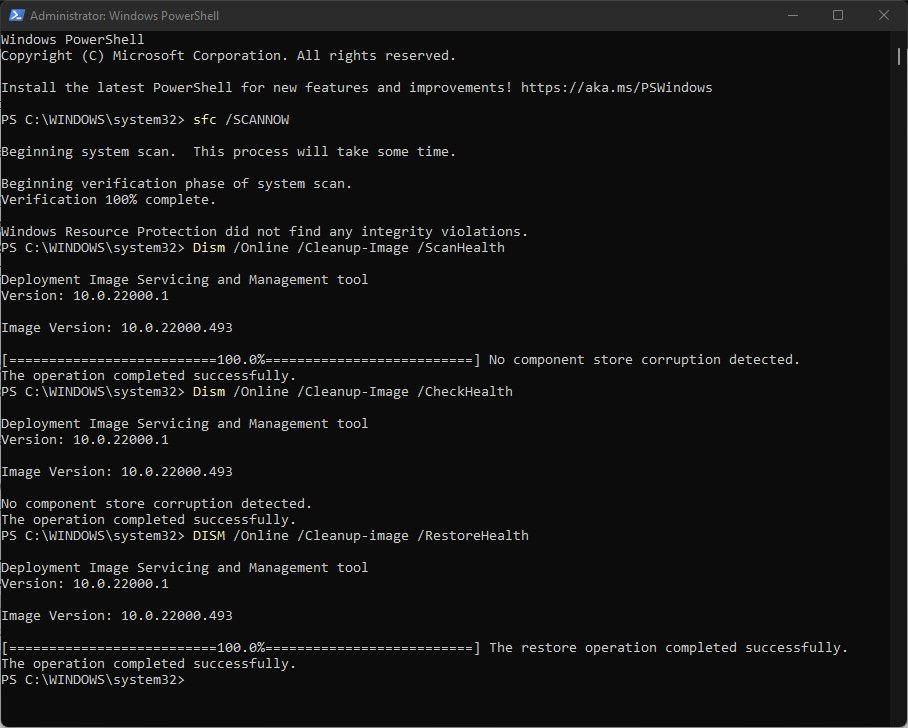
When the Settings app (SystemSettings.exe) freezes before Video playback opens, damaged system files are a common cause. Microsoft's System File Checker repairs them.
Settings freezes or stops responding when you open Video playback
Corrupt Windows system files that Settings depends on.
- Install the latest Windows updates, then restart the PC.
- Type command prompt in taskbar search, right-click Command Prompt and select Run as administrator, then Yes.
- Run
DISM.exe /Online /Cleanup-image /Restorehealthand wait for "The operation completed successfully". - Run
sfc /scannowand wait for "Verification 100% complete". - Type
exit, restart, and open Settings > Apps > Video playback again.
If Settings keeps misbehaving after repair, reset all settings in Windows 11 walks through the next step.
Enhancements and Trends in Windows Video Playback
Recent Windows releases changed how video plays. These are the documented changes, not predictions.
| Change | What it means for playback |
|---|---|
| Media Player replaces Windows Media Player Legacy | Legacy is now an optional feature; Microsoft points to Media Player for 4K |
| AC-3 (Dolby Digital) removed in Windows 11, version 24H2 | Clean installs lose AC-3 audio unless the PC maker adds it; upgraded PCs keep it |
| Codec extensions in Microsoft Store | HEVC, AV1, VP9, MPEG-2 and Web Media support install as separate extensions |
| Dynamic Refresh Rate in Windows 11 | Adjusts refresh rate to what you are doing; needs VRR and at least 120 Hz |
| Automatic Dolby Vision on certified monitors | Windows picks Dolby Vision when available; you can switch it off for HDR10 |
Frequently Asked Questions
How do I get to playback settings in Windows 11?
Select Start, open Settings, then select Apps > Video playback. You can also press Windows + R, type ms-settings:videoplayback and press Enter to jump straight to the page.
Where are video playback settings in Windows 10?
They sit in the same place as Windows 11: Settings > Apps > Video playback. The page controls apps that use the Windows video platform, such as Photos, Movies & TV and Store apps like Netflix.
How do I improve video quality in Windows 11?
Set Battery options to Optimize for video quality under Apps > Video playback. If your display supports it, turn on HDR video streaming under System > Display > HDR and play the video full screen.
How do I fix video playback problems on Windows 11?
Run the Video playback troubleshooter from the Get Help app first. Then install Windows updates for newer graphics drivers, match monitor refresh rates, and add a missing codec extension from Microsoft Store if a format will not play.
Is there a video playback troubleshooter in Windows 11?
Yes. Open the Get Help app, search for Video playback troubleshooter and follow the steps. It diagnoses videos that do not play correctly and suggests fixes.
Why is a video not playing in Windows 11?
The file most often uses a format Windows lacks by default, such as HEVC or AV1. Install the matching video extension from Microsoft Store, then play it again. Built-in support covers H.264, WMV, VP8 and a few others.
Does playing video at a lower resolution save battery?
Yes. Microsoft lists Play video at a lower resolution when on battery as a battery-saving option. Combine it with Optimize for battery life under Battery options for the longest run time.
Are audio playback settings in the same place as video playback?
No. Sound output lives on the Sound page, which opens with ms-settings:sound. The Video playback page only handles video processing, resolution and battery behaviour.
What is the best video player for Windows 11?
Microsoft recommends its Media Player app for modern video features like 4K. Windows Media Player Legacy remains an optional feature, but it does not include DVD playback.