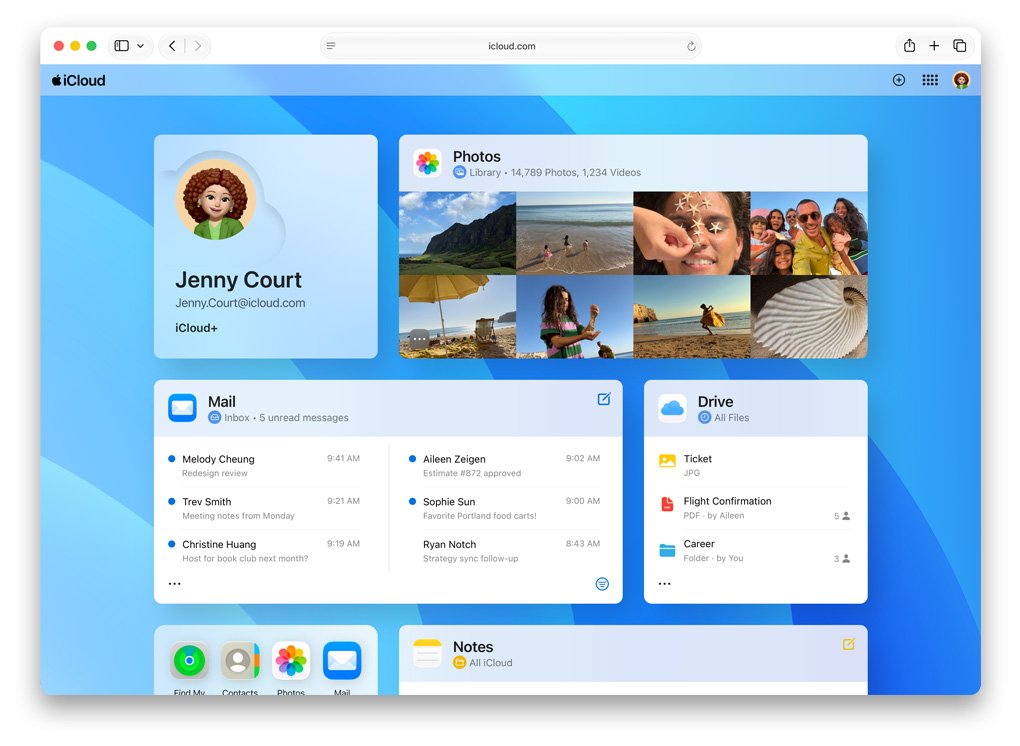
If you can't open iCloud email attachments, download the file from icloud.com/mail and open it with an app that supports its format, because Apple says a missing app is the usual cause.
This guide covers iPhone, Mac and Windows, Mail Drop links that expire, the 20MB message limit, and older devices that no longer meet iCloud Mail requirements.
How to fix iCloud email attachments that won't open
Downloading the file first separates a Mail problem from a file problem. If the downloaded file still will not open, the file type is the issue, not iCloud.
- On a computer, go to icloud.com/mail and sign in to your Apple Account.
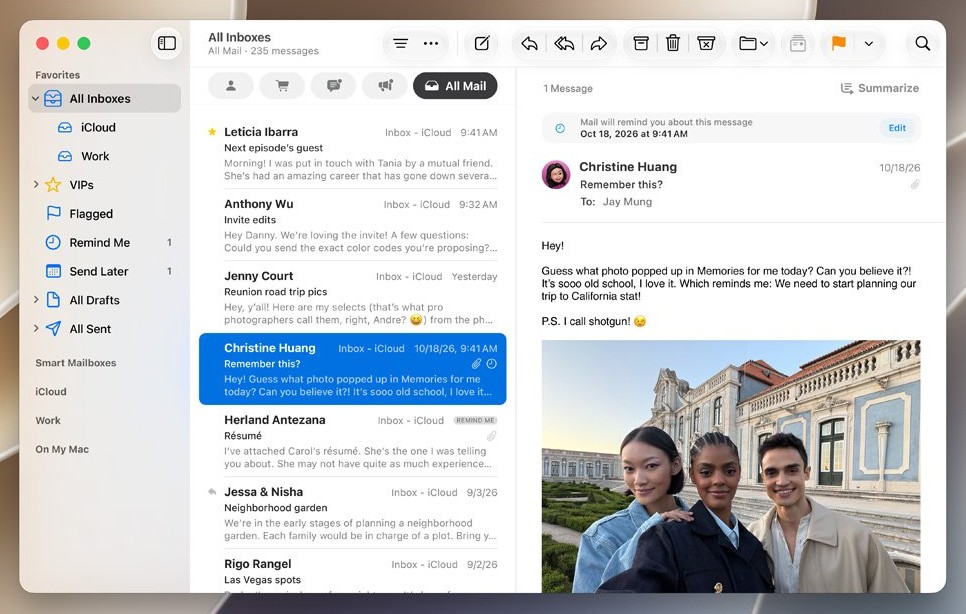
- Open the email; a message with an attachment shows a paper clip icon next to the sender's name.
- Select the file or image to download it to the location set in your browser's settings.
- Open the downloaded file from that folder.
- If it still will not open, check its file extension and install an app that opens that type.
- If no app you have opens it, ask the sender to resend the file in a compatible format.
Why can't I open attachments in iCloud Mail?
| What you see | Likely cause | What to do |
|---|---|---|
| The file downloads but nothing opens it | It was made with an app you do not have | Ask the sender for a compatible format |
| A Mail Drop link says the file is unavailable | Mail Drop files expire 30 days after sending | Ask the sender to send it again |
| A spreadsheet or zip file shows but never downloads on Mac | Download Attachments is set to None or Recent | Set it to All in Mail settings |
| Email with a big attachment never arrives | Messages over 20MB are refused unless sent with Mail Drop | Ask the sender to use Mail Drop or a smaller file |
| No new mail with attachments at all | Your iCloud storage is full | Free up iCloud storage or upgrade to iCloud+ |
| Mail on an old iPhone cannot load iCloud messages | iCloud Mail requires iOS 12 or later | Use icloud.com/mail on a supported browser |
How to open iCloud email attachments on iPhone
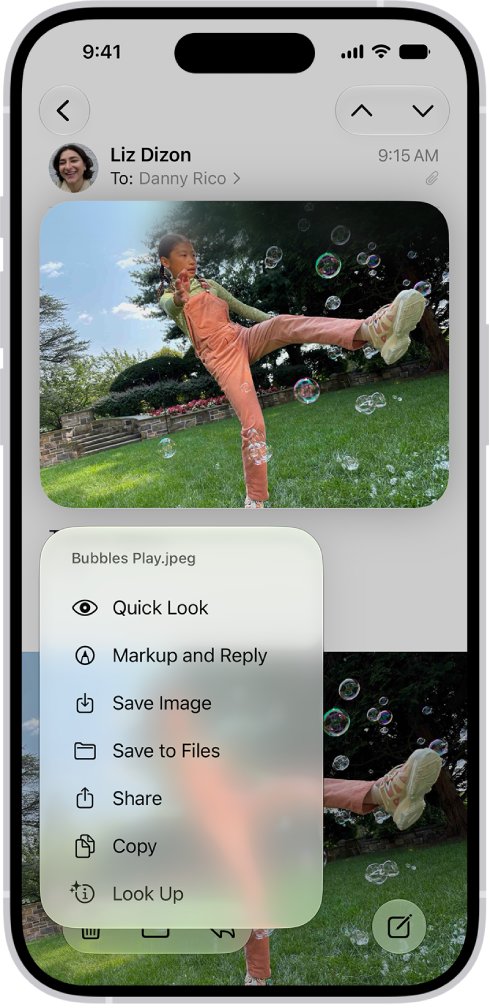
In the Mail app, a touch and hold on the attachment gives more options than a tap. Saving to Files or sharing to another app works for files the built-in viewer cannot show.
- Open the Mail app and open the message from your iCloud account.
- Tap the attachment to open it in Mail's viewer.
- If it does not open, touch and hold the attachment.
- Choose Save to Files to keep the file in the Files app, or Save Image for a photo.
- To use another app, tap Share, then choose the app that opens that file type.
- If you do not have a matching app, get one from the App Store or ask the sender for another format.
How to open iCloud email attachments on Mac
Mail on Mac always downloads media attachments such as images, PDF, video and audio. Other types, such as spreadsheets and zip files, follow the account's Download Attachments setting.
- In Mail, choose Mail > Settings, click Accounts, then select your iCloud account.
- Click Account Information and set Download Attachments to All.
- Select the message again so Mail downloads the file.
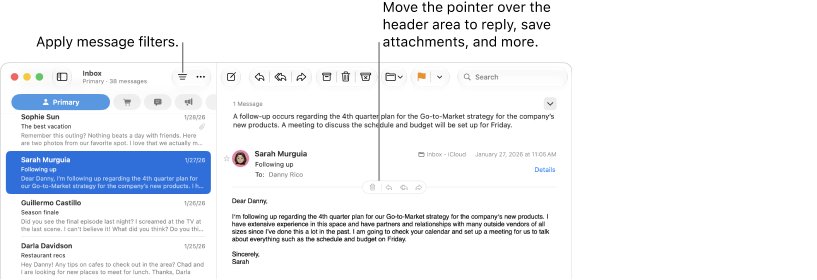
- Control-click the attachment, choose Open With, then choose an app.
- To preview it without opening an app, select the attachment and press the Space bar.
- To save it, choose File > Save Attachments, pick a folder and click Save.
The Recent option downloads only attachments of that type from the past 15 months, so older messages can show an attachment that never downloads.
How to download iCloud Mail attachments on Windows
On a PC, iCloud Mail on the web is the most direct route. Apple supports Firefox 128 or later, Google Chrome 130 or later in desktop mode, and Microsoft Edge 130 or later.
- Update your browser to a supported version.
- Go to icloud.com/mail and sign in to your Apple Account.
- Open the message and select the attachment to download it.
- Open your browser's downloads list and open the file from there.
- If Windows asks which app to use, choose one that supports that file type.
Mail in Outlook on Windows uses iCloud for Windows and Outlook 2021 or later, according to Apple's iCloud system requirements.
iCloud Mail Drop link not working
Mail Drop sends large files as a link stored in iCloud. Recipients see an attachment or a Mail Drop link and have 30 days to download the files.
- Check the date of the email; a Mail Drop link older than 30 days has expired.
- If it has expired, ask the sender to send the file again.
- If it is recent, wait and try later, because a link with heavy traffic or many downloads may not open.
- On a slow connection, give large files more time to download.
- Senders can turn Mail Drop on at icloud.com/mail: select the button at the top of the Mailboxes list, choose Settings, select Composing, then select Use Mail Drop when sending large attachments.
iCloud Mail attachment size limits
| Limit | Value | What happens when you exceed it |
|---|---|---|
| Incoming or outgoing message size | 20MB | The message is not delivered unless Mail Drop is used |
| Mail Drop message size | Up to 5GB | Split the files across messages or compress them |
| Mail Drop download window | 30 days after sending | The link stops working |
| Mail Drop storage | 1TB | New Mail Drop files wait until older ones expire |
| Free iCloud storage | 5GB | You cannot send or receive iCloud Mail when it is full |
Mail Drop files do not count against your iCloud storage, and an uncompressed folder cannot be sent with Mail Drop.
How to find emails with attachments in iCloud Mail
- On iPhone, open a mailbox in Mail and tap the filter button.
- Tap Filtered by, then turn on Only Mail with Attachments.
- Open the message you need and confirm the attachment appears below the text.
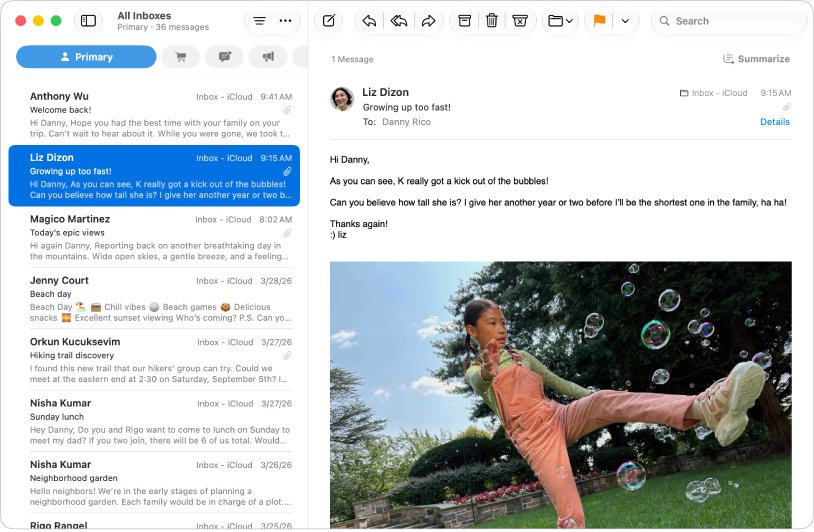
- On iCloud.com, look for the paper clip icon to the right of the sender's name in the message list.
- On Mac, look for the attachment icon below the date in the message list.
iCloud email not working: attachment problems
iCloud email not working on an old iPhone
Apple lists iOS 12 or later for iCloud Mail on iPhone, so older versions such as iOS 11 are unsupported.
- Update the iPhone to the latest version of iOS it can install.
- If none is available, read the attachment at icloud.com/mail on a supported computer.
Not getting emails with attachments on iCloud
A full iCloud storage plan stops all incoming mail, and messages over 20MB are refused.
- Check your iCloud storage and free space or upgrade to iCloud+.
- Ask the sender to resend large files with Mail Drop.
- If one sender's mail never arrives, unblock that email address in iCloud Mail.
Can't log into iCloud email to reach the attachment
The Apple Account sign-in is failing, so neither the web nor Mail can download it.
- Sign in at icloud.com/mail to test the account directly.
- If the account is locked, regain access to iCloud email before you try the attachment again.
Attachment shows as an icon on Mac instead of in the message
The attachment is set to display as an icon.
- Control-click the attachment.
- Choose View in Place from the shortcut menu.
There was a problem opening iCloud Mail in the browser
The browser is older than iCloud.com supports.
- Update the browser, or switch to a supported one such as Microsoft Edge 130 or later.
- Reload icloud.com/mail and sign in again.
iCloud email attachments FAQ
How do I open my iCloud email on a computer?
Go to icloud.com/mail in a supported browser and sign in with your Apple Account. On a Mac you can also use the Mail app, and on Windows you can use Outlook 2021 or later with iCloud for Windows.
How do I open iCloud email on Windows?
Use icloud.com/mail in Firefox 128, Chrome 130 or Edge 130 or later. Apple also supports iCloud Mail in Outlook 2021 or later through iCloud for Windows, which sets up the account for you.
Why can't I get my iCloud email?
A full iCloud storage plan stops sending and receiving, and a sign-in problem blocks every device. Messages larger than 20MB are also refused unless the sender uses Mail Drop.
Why isn't my iCloud email working on iPhone?
Check that the iPhone runs iOS 12 or later, which iCloud Mail requires, and that your iCloud storage is not full. Then test the same account at icloud.com/mail to see whether the problem is the device or the account.
How long do iCloud Mail Drop attachments last?
Recipients have 30 days from sending to download Mail Drop attachments. After that the link stops working, and the sender must send the files again.
What is the attachment size limit for iCloud Mail?
iCloud Mail accepts incoming and outgoing messages up to 20MB. With Mail Drop turned on, a sender can deliver attachments up to 5GB as a download link.
Where do iCloud attachments save on iPhone?
Touch and hold the attachment and choose Save to Files to put it in the Files app, or Save Image to put a photo in Photos. You can also tap Share to send it straight to another app.