To verify an Apple ID security alert email, ignore every link in it and check your account yourself in Settings on a trusted device or by typing account.apple.com into your browser.
If the account shows nothing you do not recognize, the email is almost certainly phishing, and this guide shows how to spot it, report it and lock the account down if you already clicked.
How to verify an Apple ID security alert email
Apple ID is now called Apple Account, but you still sign in with the same email address or phone number and password. The safe check takes about two minutes and never touches the email itself.
- Leave the email unopened or closed. Do not tap any button, link or attachment in it.
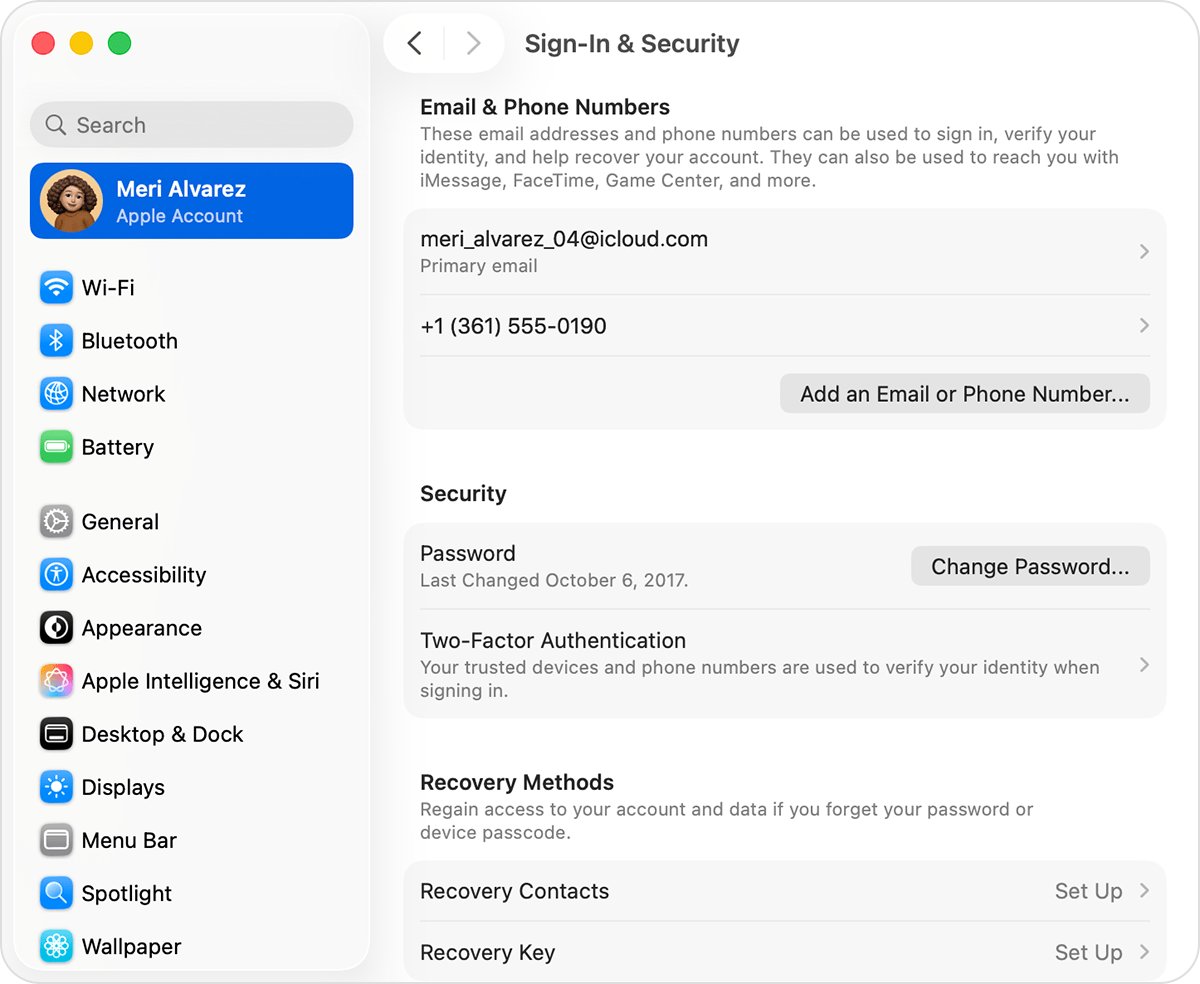
- On your iPhone or iPad, open Settings and tap [your name]. On a Mac, choose the Apple menu, then System Settings, then click [your name].
- Confirm the email address shown under your name is the one you use for your Apple Account.
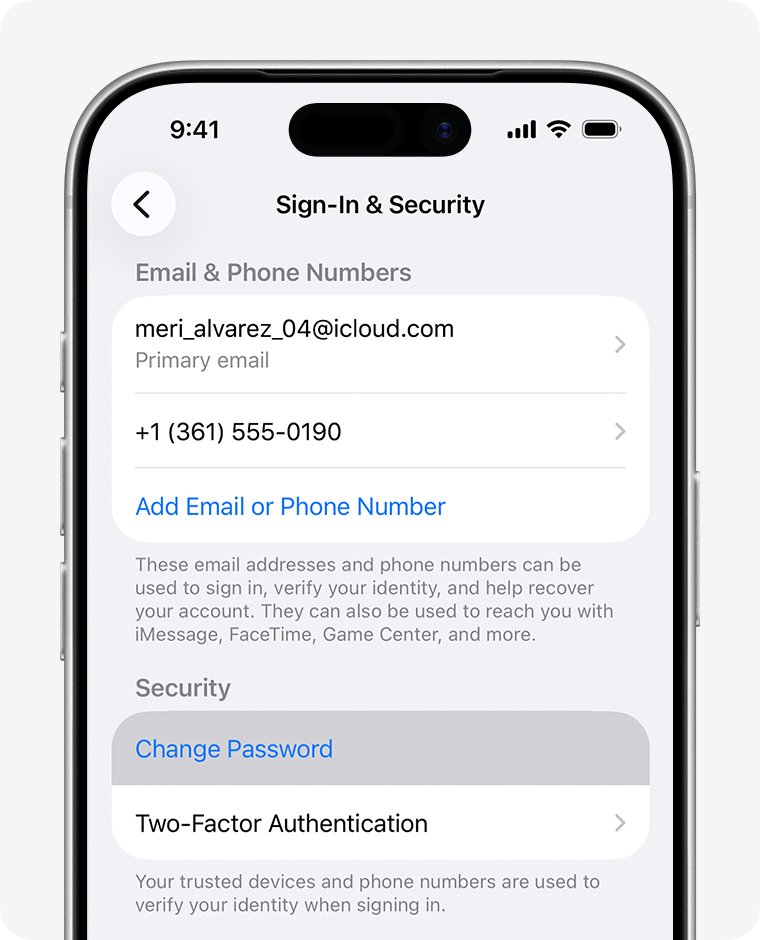
- Tap Sign-In & Security and check that your email addresses and phone numbers are all yours.
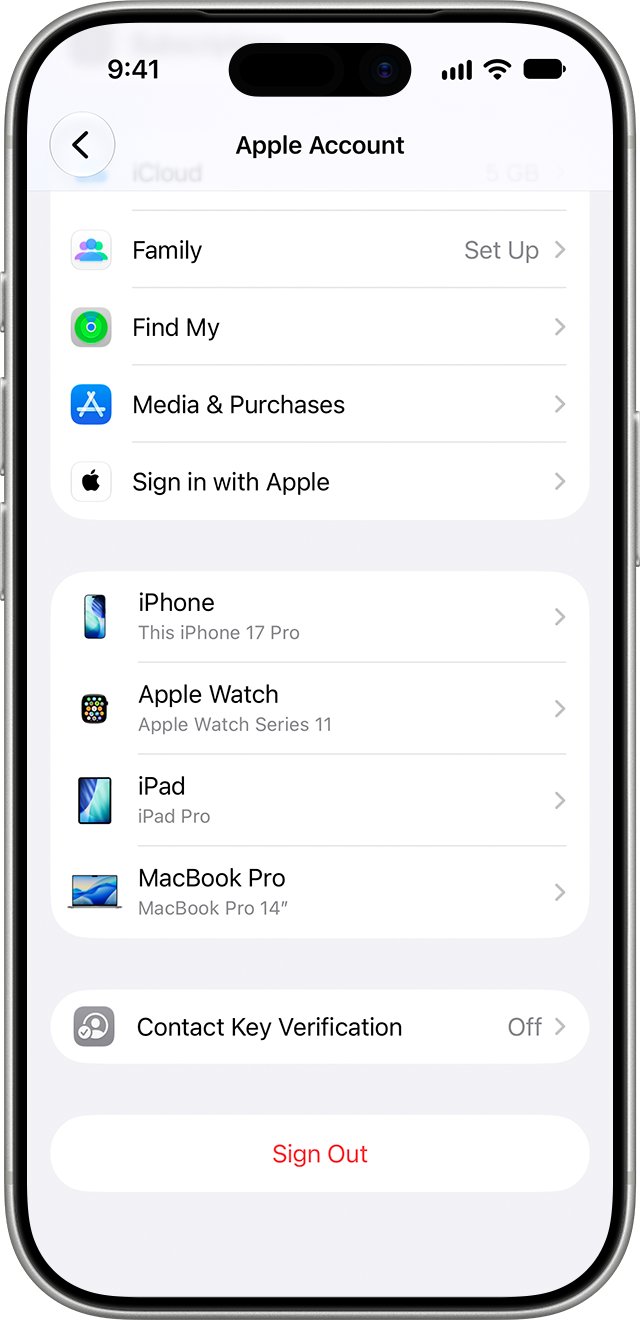
- Go back and scroll down to the device list. Every device listed should be one you own and use.
- If everything matches, delete the email and forward a copy to [email protected] first if you want to report it.
- If something does not match, change your password straight away using the steps in the section on clicked links below.
Without an Apple device, type account.apple.com into the address bar yourself and run the same checks there.
Apple ID security alert scam signs
Apple lists the signs that separate a phishing email from a real one. A single sign is enough to treat the message as fake.
| Sign | What it looks like in an Apple ID alert | What to do |
|---|---|---|
| Sender does not match | The From address is not an Apple domain, or the display name says Apple over a random address | Treat it as phishing |
| Wrong recipient address | It arrived at an email address that is not the one on your Apple Account | Delete it; Apple writes to your account address |
| Link URL does not match | The button text says Apple, but the real link points to another site | Do not click; check the URL first |
| Looks different | Layout, logo or wording differs from earlier Apple emails you received | Compare with a known real Apple email |
| Asks for personal data | Requests your password, verification code, card number or a reply with details | Never supply them; Apple does not ask for these |
| Unexpected attachment | An unsolicited PDF, zip or invoice file is attached | Do not open or save it |
| Pressure and urgency | Says the account will be locked or deleted within hours unless you act | Slow down and check the account yourself |
To see where a link really goes on a Mac, hover the pointer over it and read the URL in the status bar. In Safari, choose View then Show Status Bar if the bar is hidden. On iPhone or iPad, touch and hold the link to preview its address.
What a real Apple Account security alert looks like
Apple does send genuine notifications, as a notification on your devices or an email, when it sees account activity you may not recognize. The difference is in what it asks you to do.
| Real Apple alerts can | Apple never asks you to |
|---|---|
| Tell you your account was signed in to on a new device | Sign in to a website through a link it sends |
| Tell you your password was changed | Give your password, device passcode or verification code to anyone |
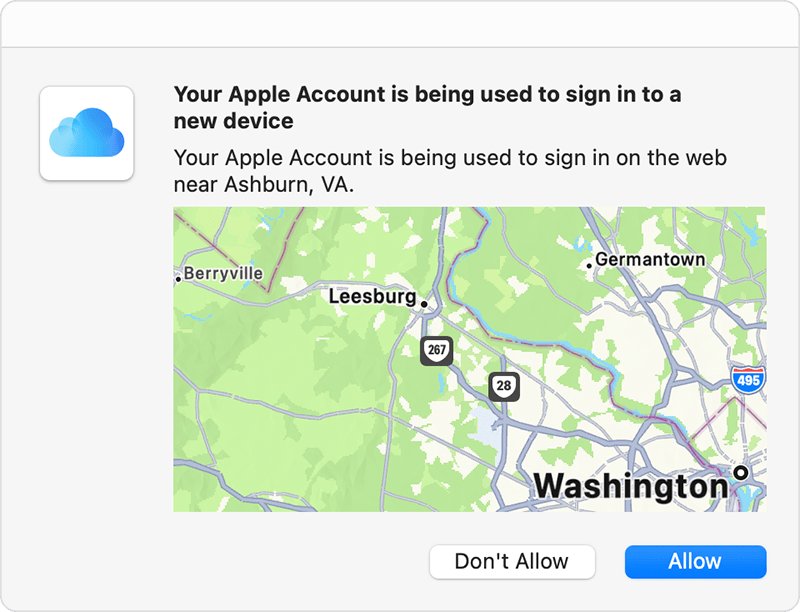
| Show a sign-in notification with an approximate location map | Tap Allow or Accept for a sign-in you did not start |
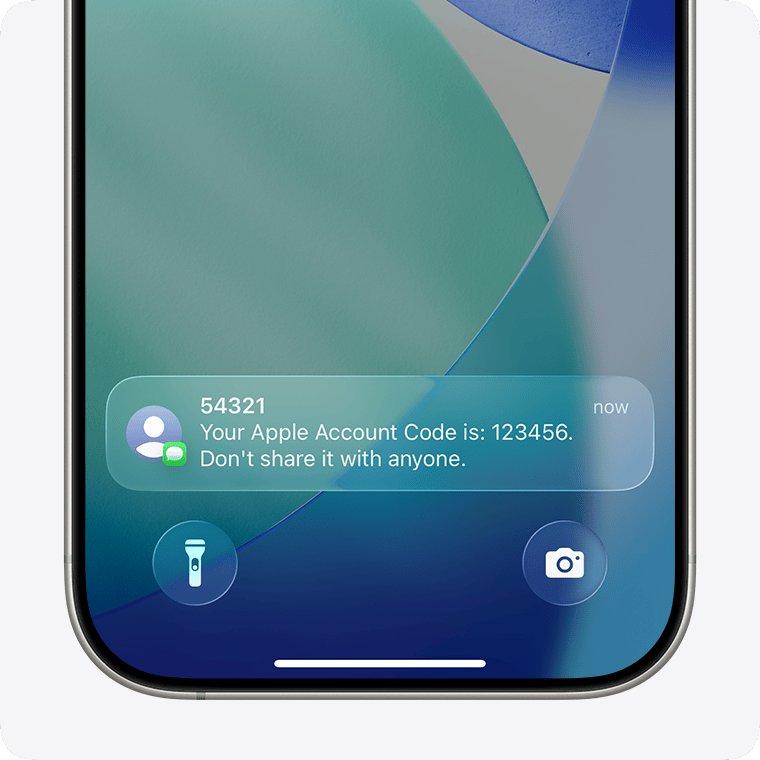
| Display a six-digit code on your trusted devices when you sign in | Turn off two-factor authentication or Stolen Device Protection |
| Send a code to your trusted phone number as a text or call | Pay with Apple Gift Cards or move money to fix your account |
A real alert never needs the email to fix anything. Every action it describes can be taken from Settings or account.apple.com directly.
Check Apple ID sign-in activity on iPhone, iPad or Mac
The device list is the clearest proof of whether someone else signed in. Every device using your Apple Account appears there, including Windows PCs, Android phones and streaming devices used with Apple Music or Apple TV.
- On iPhone or iPad, open Settings and tap [your name]. On a Mac, choose the Apple menu, then System Settings, then click [your name].
- Scroll down to the list of devices.
- Tap or click each device name to see its model and details.
- For a device you do not recognize, select Remove from Account.
- Review the message that appears and confirm the removal.
- Change your password afterwards so the removed device cannot sign back in.
A removed device loses access to iCloud, Find My and other Apple services and stops displaying verification codes. It reappears only if someone signs in on it again.
Check your Apple Account security on account.apple.com
Use the web route on a Windows PC, an Android phone, or when you have no Apple device with you. Type the address yourself rather than following any link in the alert.
- Type account.apple.com into the browser address bar and sign in.
- Enter the verification code shown on your trusted device or sent to your trusted phone number.
- Open Sign-In and Security and check the email addresses, phone numbers and password details.
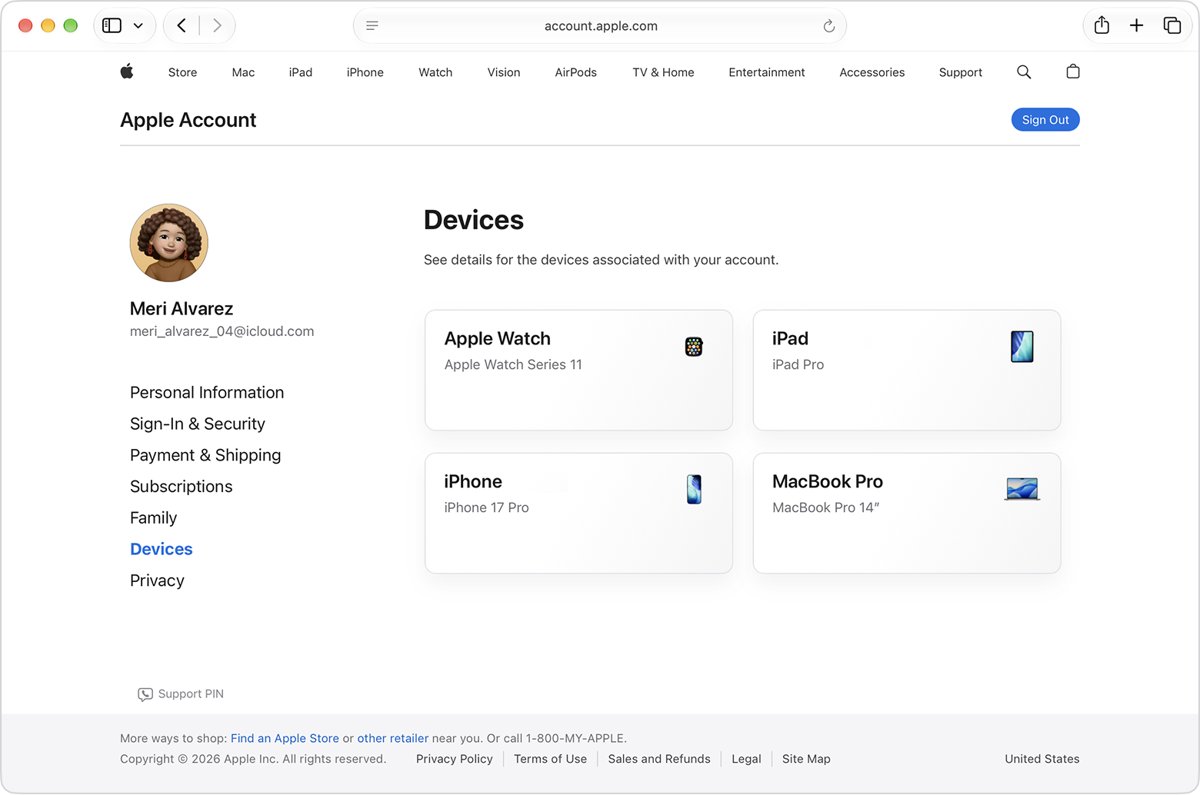
- Select Devices. Click View Details if the list does not appear straight away.
- Click any device you do not recognize and choose Remove from Account.
- Correct any personal or security information that is wrong or unfamiliar.
How to report an Apple ID phishing email
Reporting a fake Apple security alert helps Apple take the phishing site down. It takes a minute and does not need you to open any link.
- Forward the suspicious email to [email protected].
- In Mail on a Mac, select the message and choose Message then Forward As Attachment so the header information goes with it.
- For a fake Apple security alert text message, take a screenshot of it and email the screenshot to [email protected].
- In Messages, tap Report Junk under the text, and block the sender if you want.
- If the email reached an iCloud.com, me.com or mac.com inbox, mark it as Junk or move it to the iCloud Junk folder.
- Delete the original message once it is reported.
Report scam phone calls that claim to be Apple to the Federal Trade Commission at reportfraud.ftc.gov (U.S. only) or to local law enforcement.
What to do if you clicked an Apple ID security alert link
Apple's advice is direct: if you may have entered your password or other details on a scam site, change your Apple Account password immediately and make sure two-factor authentication is on.
- On iPhone or iPad, open Settings, tap [your name], then Sign-In & Security, then Change Password.
- On a Mac, open System Settings, click [your name], then Sign-In & Security, then Change Password, and enter your Mac login password.
- Choose a strong password you do not use anywhere else and follow the onscreen prompts.
- When asked about other devices, tap Remove Other Devices if you saw any device you do not recognize.
- Check Sign-In & Security and confirm two-factor authentication is turned on.
- Remove unknown devices from the device list.
- Contact your email provider and mobile carrier to confirm you control every address and number on the account, and that no SMS forwarding has been set up.
- If you typed card details into the fake page, contact your bank or card issuer.
With Stolen Device Protection on, an iPhone may make you wait one hour before the password change goes through. If the password was already changed by someone else, reset it instead, or start account recovery at iforgot.apple.com.
How to confirm your Apple Account is secure
Once you have checked the alert, or changed your password, run through these signs. All of them should hold.
- Open Settings and confirm your own name and email address appear at the top.
- Check Sign-In & Security shows only your email addresses and phone numbers, with two-factor authentication on.
- Confirm the device list contains only devices you own.
- Check the services that use your Apple Account on each device, including FaceTime, Messages, Media & Purchases, Mail and Calendar.
- Look for purchases you did not make and messages you did not send.
- Watch for unrequested verification codes over the next few days. None should arrive.
To check purchases, you can view your Apple ID purchase history and match each item to something you bought. For extra protection against phishing, Apple also supports security keys for your Apple Account.
Apple ID security alert text, code and verification problems
Apple ID security alert text message on your iPhone
A text that says your Apple ID is locked or used elsewhere and includes a link is a phishing text, not an Apple notification.
- Do not tap the link or reply.
- Take a screenshot and email it to [email protected].
- Tap Report Junk under the message.
- Check your account in Settings as described above.
You received a verification code you did not request
Someone tried to sign in with your Apple Account password, which Apple lists as a sign the account may be compromised.
- Do not share the code or tap Allow on the sign-in prompt.
- Change your Apple Account password straight away.
- Remove any device you do not recognize from the device list.
- Hang up on anyone who calls asking you to read the code to them.
Where to enter the Apple ID verification code
The code goes on the new device or browser you are signing in to, never into a page an email or caller sends you to.
- Start the sign-in yourself on the new device or at account.apple.com.
- Look for the sign-in notification on a trusted device and choose Allow.
- Type the six-digit code into the sign-in screen on the new device.
- If no notification appears, select Didn't Get a Code? or Can't get to your devices? to get a text or call.
Apple ID not verifying or the code never arrives
Texts from Apple can be sorted into Unknown Senders, or your trusted device is not to hand.
- In Messages, check the Unknown Senders filter for the code.
- Open Settings, tap Apps, tap Messages, then under Unknown Senders tap Allow Notifications and turn on Time Sensitive messages.
- Select Didn't Get a Code? and choose a text or call to your trusted number.
- If you have lost every trusted device and number for good, choose Can't use [phone number] and follow the account recovery steps.
Your Apple Account password no longer works
Someone else may have changed it, which is a sign of a compromised account.
- Go to iforgot.apple.com and reset the password.
- If the reset fails, start account recovery there and wait for the recovery period to end.
- After you regain access, update any security details you do not recognize at account.apple.com.
Apple ID security alert email FAQ
How do I verify my Apple ID?
Sign in on the device or browser you want to use, then enter the six-digit verification code shown on a trusted device or sent to your trusted phone number. You can also confirm your details in Settings under your name and Sign-In & Security, without using any emailed link.
Is there an Apple security alert I should worry about?
Apple does send real alerts when your account signs in on a new device or your password changes. If the alert asks you to click a link, sign in on a website or share a code, it is a scam. Check Settings or account.apple.com yourself to confirm.
How do I verify my Apple ID password?
Your password is verified each time you sign in to your Apple Account on a new device, together with a verification code. To check it still works, sign in at account.apple.com by typing the address yourself. Never enter it on a page reached from an email link.
Where do I enter the Apple ID verification code?
Enter the code on the sign-in screen of the new device or browser you are signing in to. Apple shows the code on your trusted devices after you choose Allow. Never type it into a website, email reply or text that someone else sent you.
Is an Apple ID security alert text a scam?
A text claiming to be an Apple ID security alert with a link to verify or unlock your account is a scam, because Apple never asks you to sign in to a website through a link. Screenshot the text, email it to [email protected] and tap Report Junk.
Does Apple send security alert emails?
Yes. Apple can notify you by notification or email about account activity you may not recognize, such as a sign-in on an unfamiliar device or a password change. A genuine email never needs you to sign in through its link to fix anything.
Will Apple ever ask me to turn off two-factor authentication?
No. Apple states it will never ask you to disable two-factor authentication, Stolen Device Protection or any other security feature. A message or caller asking for this is trying to weaken your account so they can take it over.
What should I do if I entered my password on a fake Apple page?
Change your Apple Account password immediately from Settings or account.apple.com, confirm two-factor authentication is on and remove unknown devices. Then forward the phishing email to [email protected] and contact your bank if you entered card details.