To add spoiler text on Discord, wrap the words in two vertical bars on each side, ||like this||, or type /spoiler before your message and send it.
This guide covers the bar syntax, the eye icon, the mobile app, image and link spoilers, the settings that control how spoilers display, and fixes when a spoiler does not hide.
Step-by-step guide to adding spoiler text
This works the same in the Discord app for Windows and Mac, in a web browser, and in the iPhone and Android apps. Everyone in the channel sees a dark box until they click or tap it.
- Open the server channel or direct message where you want to post.
- Click the message box and type the part that is safe to read, such as
Finale talk:. - Type two vertical bars
||, then the spoiler itself, then two more bars||. - Check that there is no backtick around the text, because a code block shows spoilers in plain view.
- Press Enter on a computer, or tap the send arrow on a phone.
- Look at the sent message: the text between the bars now appears as a dark box that reveals on click.
Understanding the importance of spoiler tags
A spoiler tag hides part or all of a message behind a box, so readers decide for themselves when to see it. It keeps plot twists, puzzle answers and game endings out of sight in busy channels.
| What a spoiler tag does | What it does not do |
|---|---|
| Hides the marked text until each reader clicks or taps it | Hide text inside a code block, which stays readable |
| Works on a few words or the whole message | Hide Discord server invite embeds |
| Covers images, videos and links you attach or paste | Encrypt or delete anything, so moderators and anyone who clicks can still read it |
| Lets each reader choose to reveal it | Re-hide on its own once revealed, until the reader leaves the channel |
1. Using double vertical bars
The double-bar code is Discord's Markdown syntax for spoilers. On a US keyboard the vertical bar sits on the backslash key, so hold Shift and press it twice.
- Click the message box in any channel or DM.
- Hold Shift and press the \ key twice to type
||. - Type the text you want to hide.
- Type
||again directly after the last word, with no line break in between. - Press Enter to send the message.
The finished line looks like The killer is ||the butler||, and only the butler is hidden.
2. Using the context menu
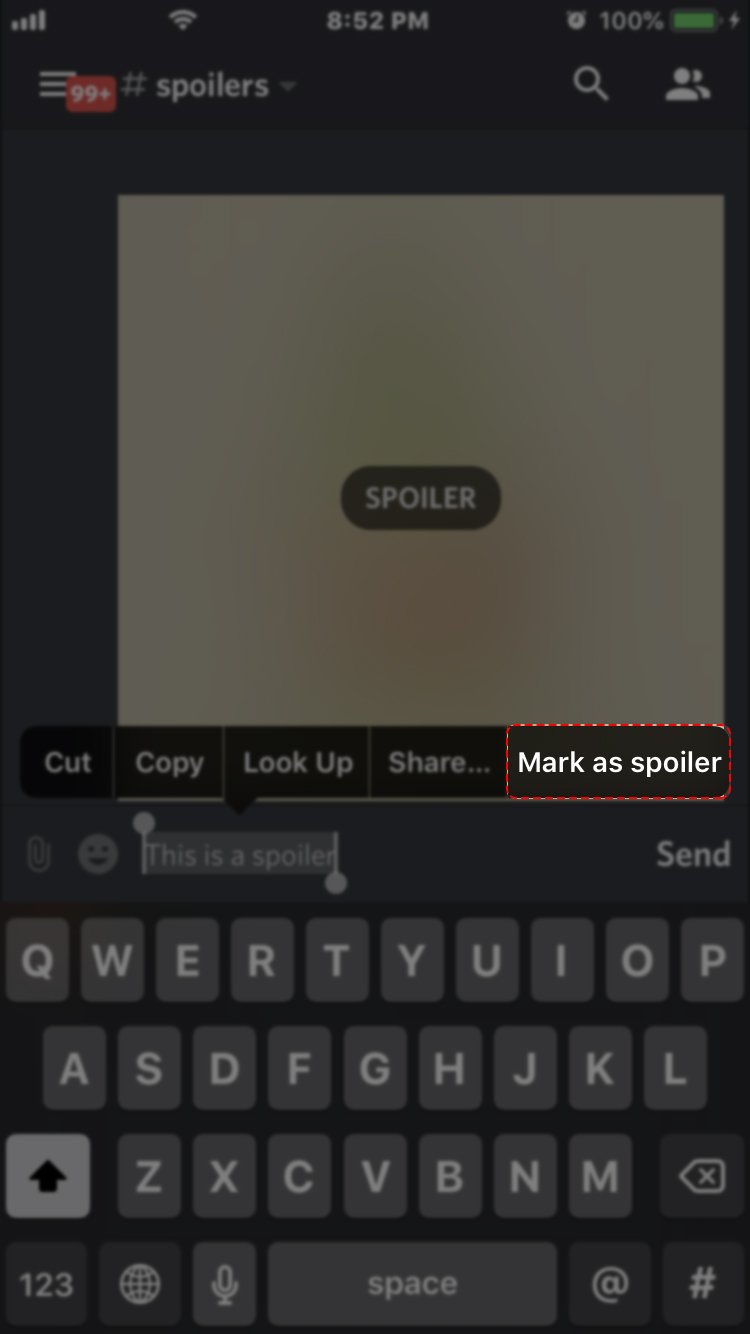
If you would rather not type the bars, select the text first and let Discord add them. On a computer a small formatting menu appears over the selection; on an iPhone the text menu has a spoiler option.
- Type your whole message in the message box without sending it.
- On a computer, drag across the words you want to hide so they are highlighted.
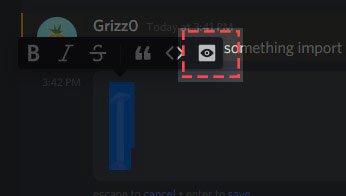
- Click the eye icon in the formatting menu that appears above the selection.
- On an iPhone, select the words in the text box, tap the selection to open the context menu, and tap Mark as Spoiler.
- Check that two bars now sit before and after the selected words.
- Send the message.
3. Using Discord mobile app
The Discord app for iPhone and Android uses the same Markdown as the desktop app, so the bars work on any phone keyboard. On most phone keyboards the vertical bar is on the second symbols page.
- Open the Discord app and tap the channel or DM you want to post in.
- Tap the message box to open the keyboard.
- Switch to the symbols page of your keyboard and tap the vertical bar
|twice. - Type the spoiler text, then add
||again at the end. - Tap the send arrow, and check that the text shows as a dark box.
How to use the /spoiler command on Discord
Discord also accepts /spoiler at the start of a message. It hides the whole message, which suits a short reveal with no safe lead-in.
/spoiler The ending is a dream sequenceTyping /spoiler before the message tells Discord to post everything after it as one spoiler.
You should see: The sent message appears as a single dark box that reveals the full text when clicked.
Using markdown syntax for spoilers
Discord formats chat with Markdown, a set of characters you place before and after text. Spoilers are one more Markdown format, alongside bold and strikethrough.
| Format | What you type | Result |
|---|---|---|
| Spoiler | ||hidden text|| |
A dark box that reveals on click |
| Bold | bold |
Bold text |
| Italics | *italics* or _italics_ |
Slanted text |
| Underline | __underline__ |
Underlined text |
| Strikethrough | ~~struck~~ |
Text with a line through it |
| Inline code | ` code ` |
Monospace text that cancels any spoiler inside it |
Basic spoiler syntax
The rule is two bars on each side of the text, with nothing else needed. The bars disappear from the sent message; readers only see the box.
||Insert spoilers here||Two vertical bars open the spoiler and two more close it. Anything between them is hidden.
You should see: After you send it, the bars are gone and the words show as a dark box.
Using spoiler tags in messages
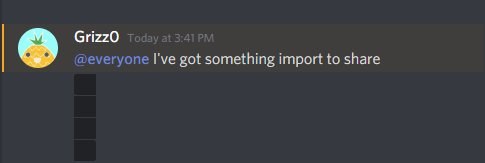
You can hide one word, one sentence, or several separate parts of the same message. Each pair of bars makes its own box, and readers reveal each box separately.
- Write the full message, including the parts that are safe to read.
- Wrap the first secret in bars, for example
Round 1 winner: ||Team Blue||. - Wrap each further secret in its own bars, for example
Round 2 winner: ||Team Red||. - Leave the context words outside the bars so readers know what each box hides.
- Send the message and click each box to check it reveals the right words.
Inserting spoilers in rich text
The desktop and web apps show a formatting menu whenever you highlight text in the message box. Its eye icon is the rich text way to insert a spoiler without typing any symbols.
- Type the message in the message box.
- Highlight only the words to hide.
- Click the eye icon in the menu above the highlight.
- Repeat for any other part you want hidden.
- Press Enter to send.
The icon simply adds || on each side of the highlight, so you can delete the bars by hand to undo it before sending.
How to spoiler an image on Discord
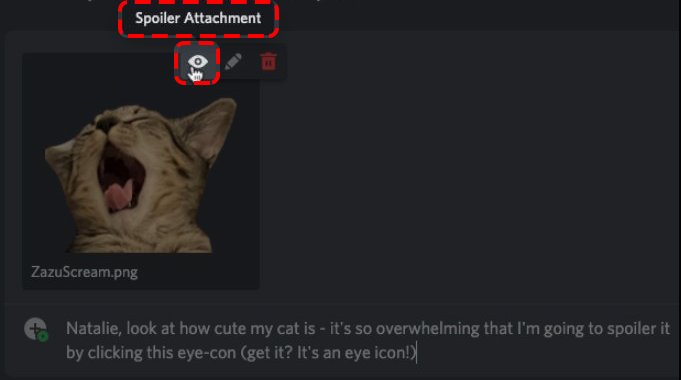
Images, videos and other attachments get their own spoiler switch, which you set before sending. Links take the same double bars as text.
- Drag the file into the chat, or use the attach button beside the message box.
- Wait for the attachment preview to appear above the message box.
- Click the Mark as Spoiler eye icon on the preview.
- To hide a link instead, paste it and add
||before and after the URL. - Press Enter to send. The image or link preview now appears blurred or covered until clicked.
Discord server invite embeds are the exception: spoiler tags cannot hide them.
Adding spoiler text in different Discord interfaces
All versions read the double bars, but the shortcuts and settings differ between them.
| Where you use Discord | Fastest way to add a spoiler | Can you change spoiler display settings? |
|---|---|---|
| Desktop app on Windows or Mac | Highlight text and click the eye icon, or type || |
Yes, under Text & Images |
| Web browser | Highlight text and click the eye icon, or type || |
Yes, under Text & Images |
| iPhone or iPad app | Select text and tap Mark as Spoiler, or type || |
No |
| Android app | Type || before and after the text |
No |
Discord desktop application
The Windows and Mac app supports every spoiler route: bars, /spoiler, the eye icon, and attachment spoilers.
- Open the Discord app and select a server, then a text channel.
- Type your message in the box at the bottom of the window.
- Highlight the secret part and click the eye icon, or type
||around it. - Attach any image and click its Mark as Spoiler icon before sending.
- Press Enter to send.
Discord web interface
Discord in a browser behaves like the desktop app for spoilers, so the same eye icon and settings are there. To get set up, you can open Discord in a web browser without installing anything.
- Go to discord.com in your browser and sign in to your account.
- Open the channel or DM you want to post in.
- Type the message, highlight the spoiler words, and click the eye icon.
- Press Enter to send the message.
Discord mobile app (iOS and Android)
The phone apps post and reveal spoilers fine, but they have fewer controls than the computer versions.
| Feature | iPhone and iPad | Android |
|---|---|---|
Type || around text |
Yes | Yes |
| Spoiler a link with bars | Yes | Yes |
| Mark as Spoiler in the text selection menu | Yes | Not listed by Discord |
| Tap a spoiler box to reveal it | Yes | Yes |
| Turn off spoiler hiding | No, use the desktop or browser app | No, use the desktop or browser app |
Customizing and managing spoiler tags
Control over spoilers splits into what the sender does and what each reader sets for their own account.
| Who | What they control | Where |
|---|---|---|
| The sender | Which words, images or links are hidden | Bars, /spoiler, eye icon, or Mark as Spoiler |
| The sender | Adding or removing a spoiler after posting | Edit the message |
| Each reader | Whether spoilers hide at all on their screen | User Settings > Text & Images |
| Each reader | Hiding spoilers again after revealing them | Leave the channel and come back |
Applying spoiler tags
Forgot to hide something? You can apply spoiler tags to a message you already sent by editing it, as long as you are its author.
- Hover over your sent message on a computer, or press and hold it on a phone.
- Choose the option to edit the message.
- Add
||before and after the words that need hiding. - Save the edit.
- Check the message: the edited words now show as a spoiler box.
Anyone who read the message before your edit has already seen it, so add spoilers before you send whenever you can.
Customizing spoiler behavior
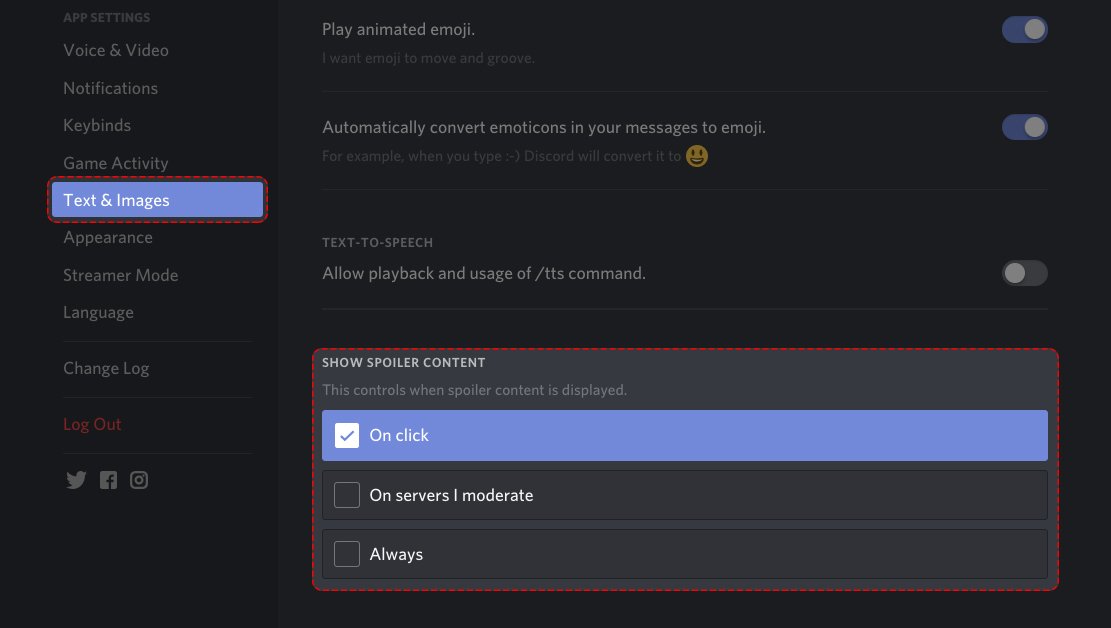
Each person chooses how spoilers display on their own screen. This setting is only available in the desktop and browser apps.
- Open Discord on a computer or in a browser.
- Open User Settings from the settings icon beside your name.
- Select Text & Images in the left column.
- Find the spoiler content options and choose On click to keep every spoiler hidden until clicked.
- Choose On servers I moderate to see spoilers uncovered on servers where you have a role with Manage Messages.
- Choose Always to show all spoiler content uncovered everywhere.
- Close User Settings and return to your channels.
Managing spoiler content
Spoiler tags hide content visually; they are not a privacy tool. Anyone in the channel can click the box, and moderators with Manage Messages may have them showing uncovered.
Treat a spoiler as a courtesy, not a lock: keep private details out of public channels entirely, and leave the channel and return if you revealed a spoiler you wish you had not. Revealed spoilers only re-hide when you leave the channel, the setting can uncover them for some readers, and server invite embeds and code blocks never hide at all.
Common issues and troubleshooting when adding spoiler text on Discord
The bars show up and the text is not hidden
The text sits inside a code block, which cancels spoiler formatting.
- Edit the message.
- Remove the backticks
`` or``“ around the spoiler. - Keep the
||pairs and save the edit.
Only part of the spoiler is hidden, or nothing is
One bar is missing, or a single bar was typed instead of two.
- Check that the text starts with
||and ends with||. - Remove any line break between the opening and closing bars.
- Send the message again or edit it.
A server invite still shows its preview card
Discord server invite embeds cannot be hidden with spoiler tags.
- Delete the invite message if the server should stay secret.
- Share the invite in a direct message instead of a public channel.
Spoilers from other people always appear uncovered
Your Text & Images setting is on Always or On servers I moderate.
- Open User Settings on a computer or in a browser.
- Select Text & Images.
- Choose On click for the spoiler content option.
There is no spoiler setting on my phone
Discord only offers the spoiler display setting in the desktop and browser apps.
- Sign in to Discord on a computer or at discord.com in a browser.
- Change the option under User Settings > Text & Images.
A revealed spoiler will not hide again
Revealed spoilers stay open until you leave the channel.
- Switch to another channel or DM.
- Return to the original channel; the spoilers are covered again.
Tips for effective spoiler use
A good spoiler tells readers what is hidden without giving it away.
| Tip | Example |
|---|---|
| Label the spoiler outside the bars | Season 2 finale: ||she survives|| |
| Hide only the reveal, not the whole message | The boss is weak to ||fire|| |
| Use separate boxes for separate answers | Q1: ||B|| Q2: ||D|| |
| Mark images before you send them | Click Mark as Spoiler on the attachment preview |
| Avoid code formatting around spoilers | Write ||text||, never ` ||text|| ` |
Additional tips for Discord spoilers
| Situation | What to do |
|---|---|
| Hiding a link and its preview | Put || on both sides of the full URL |
| Hiding a video clip | Attach it and click the Mark as Spoiler eye icon before sending |
| Hiding a whole message quickly | Start the message with /spoiler |
| Posting from an iPhone without typing symbols | Select the text and tap Mark as Spoiler |
| Checking what others will see | Look at your sent message: the hidden parts show as boxes for you too |
Spoilers work the same way in every server, channel and DM, so it helps to know how Discord servers and channels work before you post.

Best practices for using spoilers on Discord
Type || around only the reveal, label it outside the bars, and mark images with the eye icon before you post. That keeps context readable, works in every Discord app, and avoids the two cases where spoilers fail: code blocks and edits made after people have already read the message.
Discord spoiler text FAQ
What is the code for spoiler text on Discord?
Type two vertical bars before and after the text, like ||spoiler||. Discord hides everything between the bars behind a dark box until a reader clicks or taps it. You can also start a message with /spoiler to hide the whole message.
How do you spoiler an image on Discord?
Attach the image to your message, then click the Mark as Spoiler eye icon on its preview before sending. The image appears covered in the chat until someone clicks it. The same icon works for videos and other attachments.
Can you add spoiler text on Discord mobile?
Yes. Type || before and after the text in the iPhone or Android app and send it. On an iPhone you can also select the text, tap it to open the context menu, and tap Mark as Spoiler.
How do you turn off spoilers on Discord?
Open User Settings > Text & Images in the desktop or browser app and choose Always to show spoilers uncovered. Choose On servers I moderate to uncover them only where you have Manage Messages. The phone apps do not have this setting.
Why is my Discord spoiler not working?
The most common cause is a code block: text inside backticks shows plainly even with bars around it. A missing bar is the other cause. Remove the backticks and make sure the text starts and ends with two bars.
Can you spoiler a link on Discord?
Yes. Put two vertical bars before and after the full URL, like ||https://example.com||, and the link is hidden until clicked. Discord server invite embeds are the exception and cannot be hidden this way.
How do you hide a spoiler again after opening it?
Leave the channel and come back. Discord re-hides every spoiler you revealed in that channel once you switch away, but there is no button to cover a single spoiler again.