To change keyboard settings in Windows 11, press Windows key + I and open Time & language > Typing for typing options, Time & language > Language & region for layouts, or Accessibility > Keyboard for Sticky keys, Filter keys and repeat speed.
This tutorial covers every keyboard setting Windows 11 offers: layouts and the default input method, text suggestions, the touch keyboard, repeat delay and rate, the text cursor, accessibility keys, key remapping, Fn keys, the sign-in screen language and fixes for the common problems.
Open the main keyboard settings in Windows 11
Windows 11 has no single Keyboard page. The settings are split across three Settings pages, and the Typing page is the usual starting point.
- Press Windows key + I to open Settings.
- Select Time & language in the left pane.
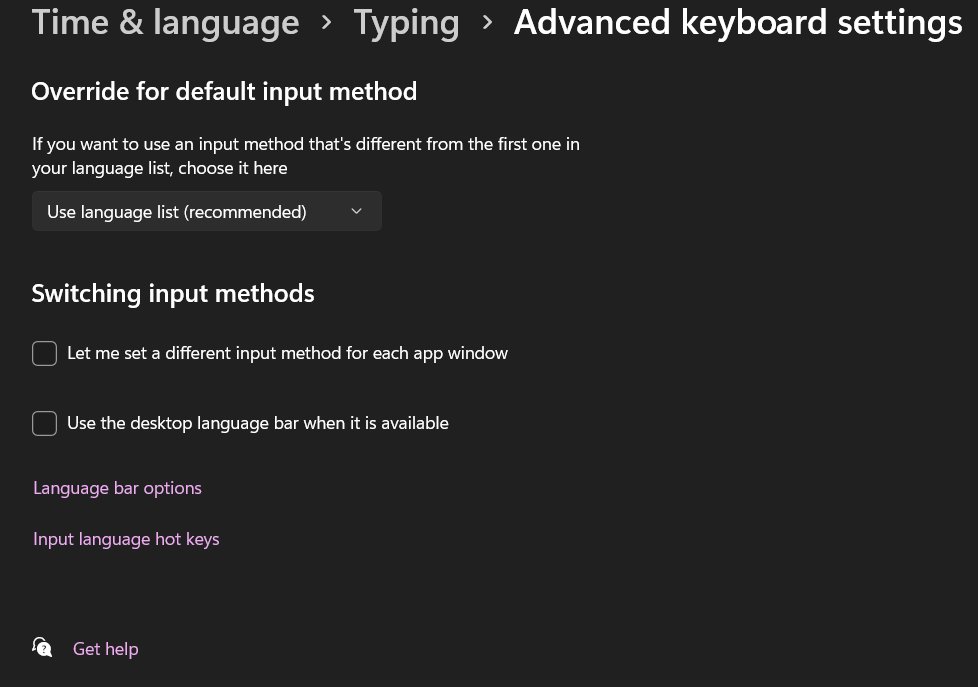
- Select Typing to reach text suggestions, the touch keyboard options and Advanced keyboard settings.
- Go back and select Language & region to add, remove or switch keyboard layouts.
- Press Windows key + U to jump straight to Accessibility, then select Keyboard for Sticky keys, Filter keys, Toggle keys and the On-screen keyboard.
- To open a page directly, press Windows key + R, type
ms-settings:typingand press Enter.
Understanding your keyboard settings
Each keyboard setting lives on a specific page. The ms-settings: links in the last column open that page from the Run box or the address bar of File Explorer.
| What you want to change | Settings page | Direct link |
|---|---|---|
| Add, remove or switch keyboard layouts | Time & language > Language & region > language … > Language options | ms-settings:regionlanguage |
| Text suggestions, multilingual suggestions | Time & language > Typing | ms-settings:typing |
| Default input method, language bar, switching | Time & language > Typing > Advanced keyboard settings | ms-settings:keyboard-advanced |
| Sticky keys, Filter keys, Toggle keys, On-screen keyboard, repeat delay and rate | Accessibility > Keyboard | ms-settings:easeofaccess-keyboard |
| Text cursor thickness, indicator, blink rate | Accessibility > Text cursor | ms-settings:easeofaccess-cursor |
| Touch keyboard icon on the taskbar | Personalization > Taskbar > System tray icons | ms-settings:taskbar |
| Touch keyboard look, Copilot key | Personalization > Text input | ms-settings:personalization-textinput |
| Clipboard history | System > Clipboard | ms-settings:clipboard |
Keyboard backlight options are set separately by your PC maker or on the Dynamic Lighting page; you can change the keyboard backlit timeout or change the keyboard backlight color without touching the typing settings above.
Best keyboard settings to check first
Most keyboard complaints trace back to a handful of settings. Match your problem to a row and start there.
| Your problem | Setting to check | Where |
|---|---|---|
| Keys type the wrong symbols, such as @ and " swapped | Active keyboard layout | Input language icon on the taskbar, or Windows key + Spacebar |
| Layout changes by itself between apps | Extra installed layouts and per-app switching | Language & region and Advanced keyboard settings |
| Keys need to be held before they register | Filter keys | Accessibility > Keyboard |
| Shift or Ctrl stays pressed after one tap | Sticky keys | Accessibility > Keyboard |
| Holding a key repeats too slowly or too fast | Character repeat delay and rate | Accessibility > Keyboard (newer builds) or Keyboard in Control Panel |
| F1 to F12 change volume or brightness instead | Fn lock | Your keyboard's Fn or F Lock key |
| A key does the wrong thing everywhere | A remap in PowerToys Keyboard Manager | PowerToys Settings > Keyboard Manager |
Change your keyboard layout in Windows 11
A keyboard layout decides which character each key types. You do not need the full language pack to add a layout: every language includes layouts for other languages too.
- Select Start > Settings > Time & language > Language & region.
- Select the … button next to your language and choose Language options.
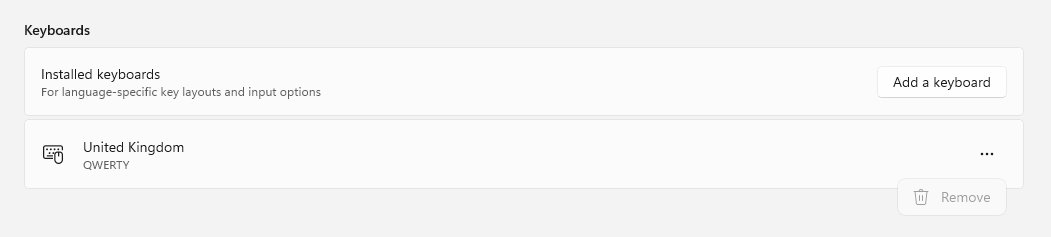
- Under Keyboards, select Add a keyboard next to Installed keyboards.
- Pick the layout you want from the list; layouts for the selected language appear first.
- Select the input language icon in the system tray of the taskbar and choose the new layout to switch to it.
- To cycle between installed layouts, hold Windows key and press Spacebar; add Shift to cycle backward.
- To remove a layout, return to Language options, select … next to the keyboard under Keyboards and choose Remove.
If Remove is greyed out, that layout is the only one for the display language, so add another layout first. If the layout you need is not listed, add the matching language and look under its options instead. For Arabic, Dvorak and other scripts, the same steps let you add another language to the keyboard.
Set a default keyboard layout
Windows picks the default input method from the top of your language list unless you set an override. The override forces one layout at every sign-in, whatever the language order.
- Open Settings > Time & language > Typing and select Advanced keyboard settings.
- Choose the layout you want in the default input method override list at the top of the page.
- For a scripted change, right-click Start, select Terminal, and run
(Get-WinUserLanguageList)[0].InputMethodTipsto list the input tip codes for your first language. - Run
Set-WinDefaultInputMethodOverride -InputTip "0409:00000409", replacing the code with the one you want;0409:00000409is English (United States) – US. - Run
Get-WinDefaultInputMethodOverrideto confirm the override is saved for your account.
The override applies to the current user account only. To change the layout other people see at the sign-in screen, copy your settings to the system as shown in the sign-in screen section below.
Stop Windows 11 from switching keyboard layouts unexpectedly
Unwanted switching has three usual causes: an extra layout you never use, a hotkey pressed by accident, or Windows remembering a separate layout for each app window.
- Remove every layout you do not use from Language & region > language … > Language options > Keyboards; with one layout left, nothing can switch.
- Remember that Windows key + Spacebar and Alt + Shift both switch layouts, so a stray press while gaming or typing changes the layout.
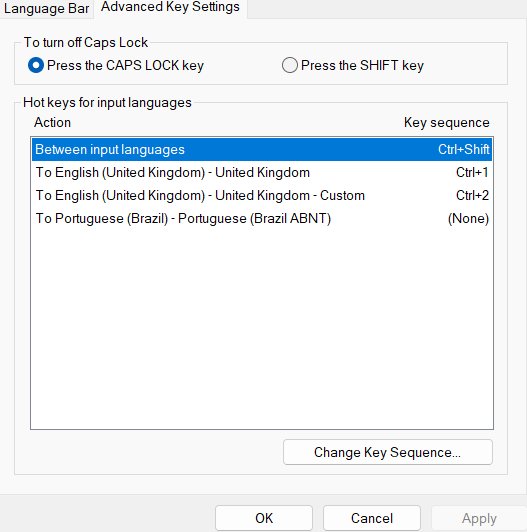
- Open Settings > Time & language > Typing > Advanced keyboard settings and review the Switching input methods options.
- Select Language bar options on that page to open the Text Services and Input Languages dialog, then change or clear the key sequence on its key settings tab.
- To return switching to one layout for the whole account instead of per app window, run
Set-WinLanguageBarOptionin PowerShell with no parameters; this resets both language bar options to the default per-user mode. - Sign out and back in, then check the input language icon on the taskbar.
The -UseLegacySwitchMode parameter of the same cmdlet does the opposite and turns on per-app (per-thread) switching, which is useful if you want a different layout in each window.
Change typing suggestions and autocorrect
Windows 11 can suggest words above the text box while you type on a physical keyboard, in the same way the touch keyboard does.
- Press Windows key + I and select Time & language > Typing.
- Turn on Show text suggestions when typing on the physical keyboard.
- Turn on Multilingual text suggestions if you type in more than one installed language.
- Type in Teams, Word or a browser to test it.
- Accept a suggestion by pressing Up arrow, choosing it with Left or Right, and pressing Enter; press Esc to dismiss the list.
- Turn the same switches off to stop suggestions.
Autocorrect in Word and Outlook is a separate feature kept in each app's own options, so changing the Windows Typing page does not turn it on or off there.
Change touch keyboard settings
The touch keyboard is meant for tablets and 2-in-1 PCs. Whether its icon appears is set on the Taskbar page; its layout is chosen from the keyboard itself.
- Right-click the taskbar and select Taskbar settings; on a touch screen, press and hold the taskbar instead.
- Under System tray icons, open the drop-down next to Touch keyboard.
- Select Always to keep the icon on the taskbar, When no keyboard is attached to show it only without a keyboard, or Never to hide it and stop the touch keyboard appearing.
- Select the touch keyboard icon to open the keyboard.
- Select the settings icon in the upper-left corner of the touch keyboard and pick Default keyboard, Split keyboard, Small keyboard, Traditional keyboard or Handwriting panel.
- Open Settings > Personalization > Text input to change how the touch keyboard looks.
Split and Small layouts are not available in every language. An undocked Default, Split or Traditional keyboard switches to the Small layout.
Adjust keyboard repeat delay and repeat rate
Repeat delay is how long you hold a key before it starts repeating; repeat rate is how fast it repeats after that. Microsoft moved both controls from Control Panel to Settings in the December 2025 non-security preview update (KB5070311, OS builds 26100.7309 and 26200.7309).
- On an updated PC, press Windows key + U and select Keyboard.
- Find the character repeat delay and rate controls on that page and move them toward shorter or faster as needed.
- On an older build, press Windows key + R, type
control /name Microsoft.Keyboardand press Enter to open Keyboard in Control Panel. - Move the repeat delay and repeat rate sliders, then test in the box provided by holding down a key.
- Select Apply and OK.
The delay setting runs from roughly 250 milliseconds to about one second, and the rate from about 2.5 to 30 repeats per second. Actual values vary with the keyboard hardware by as much as 20%.
Change cursor blink rate
The blinking text cursor can be slowed, sped up or stopped entirely, which helps if the blinking is distracting.
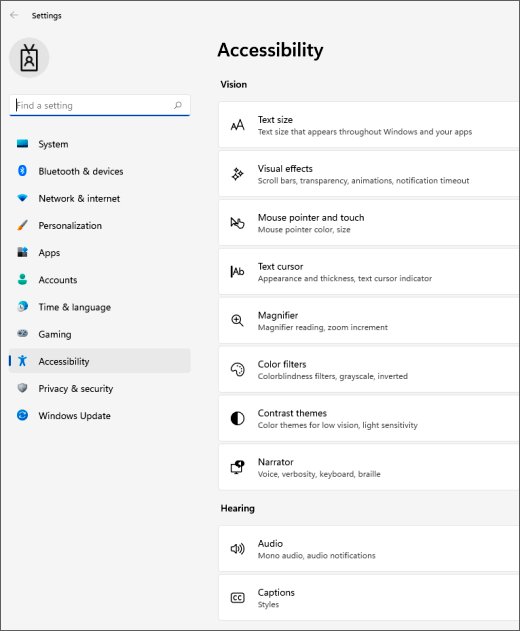
- Press Windows key + U to open Accessibility.
- Select Text cursor.
- Use Cursor blink rate to set the speed, from None (no blinking) to Fast.
- Click in any text box to see the new rate.
Builds older than the December 2025 preview update keep the cursor blink rate in Keyboard in Control Panel, next to the repeat sliders.
Change text cursor size and color
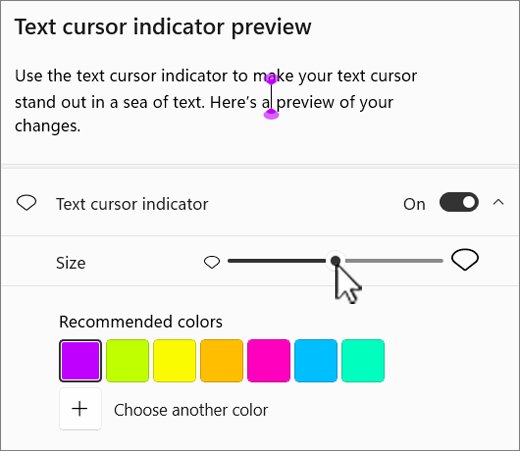
Windows 11 can make the typing cursor thicker and add a colored indicator to both ends of it so it is easier to find.
- Press Windows key + U and select Text cursor.
- Drag the Text cursor thickness slider until the preview looks right.
- Turn on the Text cursor indicator switch.
- Adjust the Size slider for the indicator.
- Pick a color from Recommended colors, or select Choose another color for a custom one.
Use accessibility keyboard settings
All of these switches are on Settings > Accessibility > Keyboard, and most have a shortcut that turns them on from anywhere.
| Setting | What it does | Shortcut |
|---|---|---|
| Sticky keys | Lets you press shortcuts such as Ctrl+S one key at a time | Press Shift five times |
| Filter keys | Ignores brief or repeated keystrokes | Hold right Shift for eight seconds |
| Toggle keys | Plays a sound when you press Caps lock, Num lock or Scroll lock | Hold Num lock for five seconds |
| On-screen keyboard | Shows a full keyboard you use with a mouse, pointer or switch | Windows key + Ctrl + O |
| Underline access keys | Underlines access keys in menus when available | None |
| Use the Print screen key to open screen capture | Makes PrtScn open screen snipping | None |
If a shortcut turned one of these on by accident, switch it off on the same page. The On-screen keyboard is also on the sign-in screen through the Accessibility button; you can also enable the On-Screen Keyboard from Settings.
Remap keys in Windows 11
Windows 11 Settings has no key remapping page. Microsoft's own tool for it is Keyboard Manager in PowerToys, which needs Windows 11 or Windows 10 version 2004 or newer.
- Install Microsoft PowerToys from the Microsoft Store.
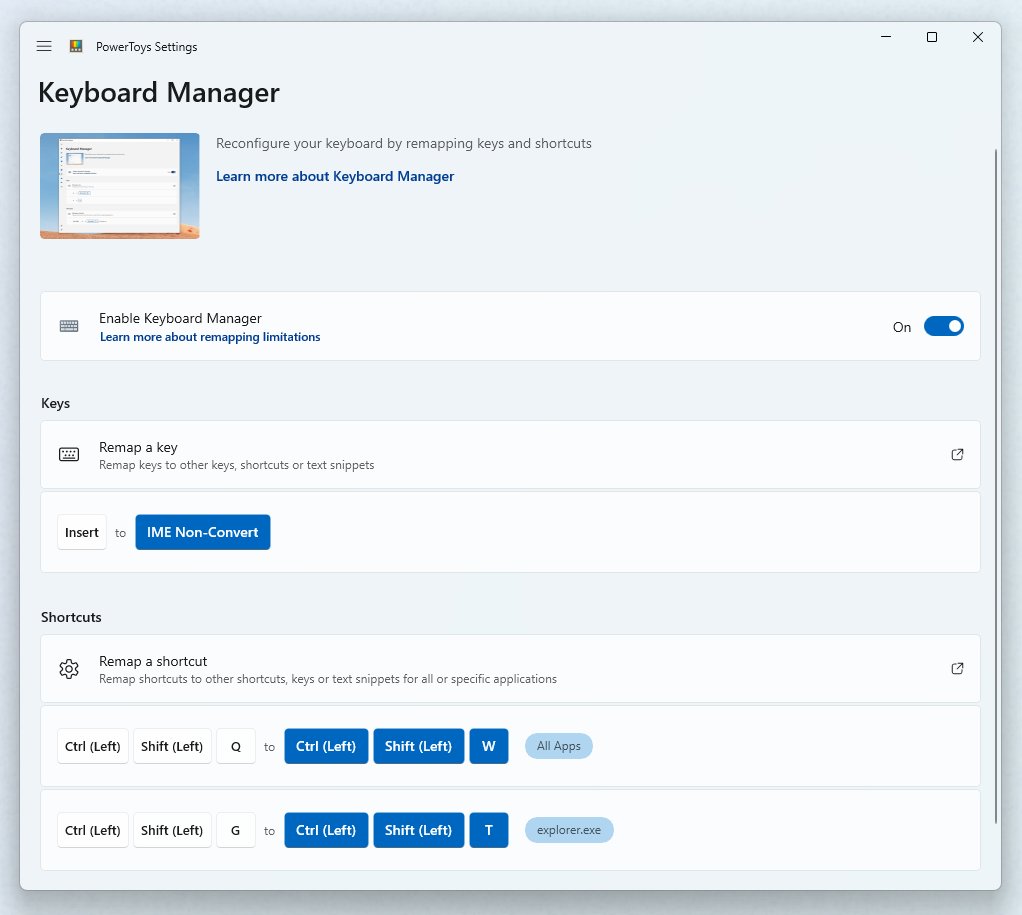
- Open PowerToys Settings and select Keyboard Manager.
- Make sure Keyboard Manager is turned on.
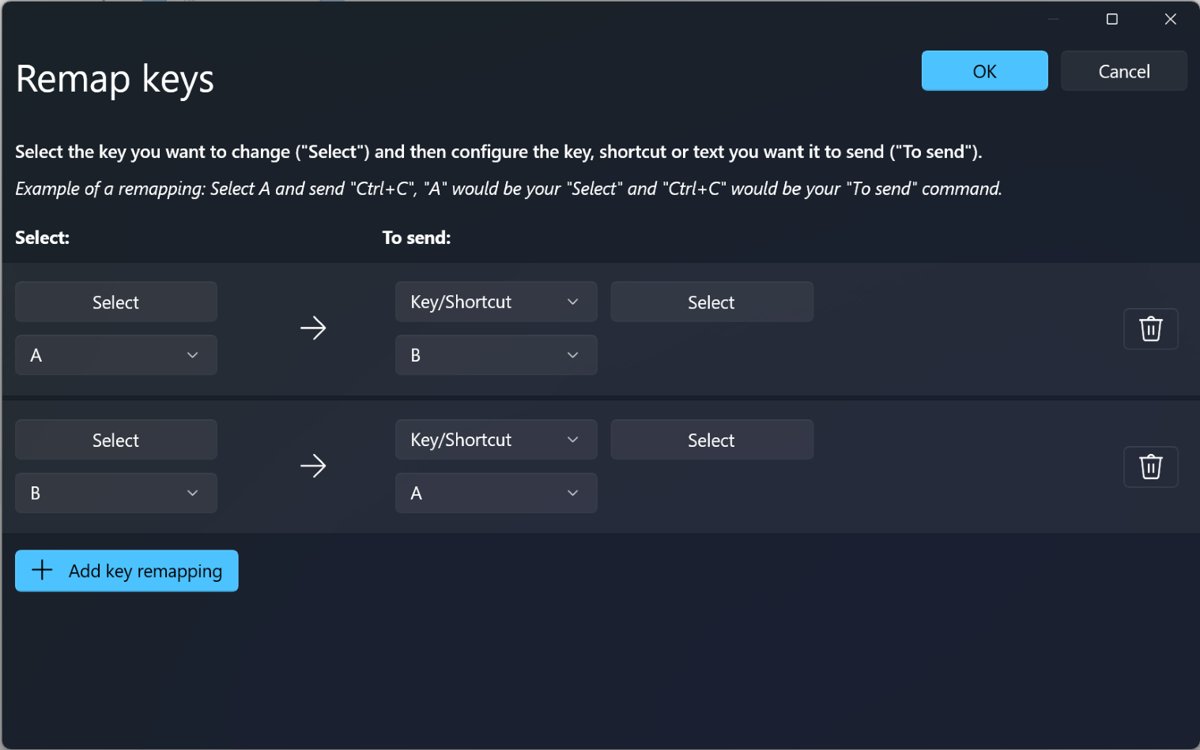
- Select Remap a key, then Add key remapping.
- In the Select column, pick the key you press; in the To send column, pick the key, shortcut or text it should produce.
- Select OK; the remap works immediately with no restart.
- To swap shortcuts instead of single keys, select Remap a shortcut and optionally set a Target app by its process name, such as
msedge.
Remaps work only while PowerToys is running, never on the sign-in or password screen, and not in an elevated window unless PowerToys runs as administrator. Windows key + L, Ctrl + Alt + Del and, in most cases, the Fn key cannot be remapped. Users who want a different role for the Copilot key can remap the Copilot key with Keyboard Manager or set it in Personalization > Text input.
Change function key behavior
Keyboards with an Fn or F Lock key give the top row two jobs: standard F1 to F12 commands and alternate commands such as volume, brightness or Help. Windows does not control this switch; the keyboard does.
- To use the alternate command once, hold Fn and press the top-row key.
- If your keyboard has an F Lock key, press it to toggle the whole row: light on means standard F1 to F12, light off means alternate commands.
- On a Surface keyboard or Type Cover, press Fn so its LED lights to make the top row act as F1 to F12, and press it again to turn them off.
- On a Surface device that supports it, open the Surface app to customize how the top-row keys and the Copilot key behave.
- On other laptops, check the PC maker's keyboard app or support page for its Fn lock combination or firmware option.
Microsoft Mouse and Keyboard Center can reassign many alternate command keys on Microsoft keyboards.
Change Caps Lock, Num Lock, and Scroll Lock behavior
Windows can warn you when a lock key changes, and PowerToys can move Caps Lock to a more useful job.
- Press Windows key + U, select Keyboard and turn on Toggle keys to hear a tone each time Caps lock, Num lock or Scroll lock is pressed.
- To stop Caps Lock getting in the way, open PowerToys Settings > Keyboard Manager > Remap a key.
- Select Add key remapping, choose Caps Lock in Select and the key you want, such as Ctrl, in To send.
- Select OK and test it in a text box.
- Close PowerToys or turn off Keyboard Manager to bring the original key back.
Keyboard Manager warns you when a remap leaves a key orphaned, for example if Caps Lock no longer exists anywhere on the keyboard after the change.
Change keyboard language for the sign-in screen and new users
Your layout and language choices apply to your account only. The sign-in screen and accounts created later use the system copy, which an administrator updates from a running session.
At the sign-in screen itself, select the input language icon to switch layouts before typing your password, and use the password reveal icon to check what you typed.
Copy-UserInternationalSettingsToSystem -WelcomeScreen $True -NewUser $TrueRun in an administrator PowerShell window on Windows 11. It copies your Windows display language, input language, regional format and location to the Welcome screen and system accounts (-WelcomeScreen) and to new user accounts (-NewUser). Set either parameter to $False to skip that target.
You should see: After a restart, the sign-in screen opens with your keyboard layout, and any account created afterwards starts with the same language settings.
Use the emoji panel, clipboard, and voice typing shortcuts
These built-in typing tools work in almost any text box and need no setup, apart from clipboard history.
| Shortcut | What it opens | Notes |
|---|---|---|
| Windows key + . or Windows key + ; | Emoji panel | Also has GIFs, kaomoji and a Symbols tab |
| Windows key + V | Clipboard history | Off by default; turn it on from the prompt or System > Clipboard |
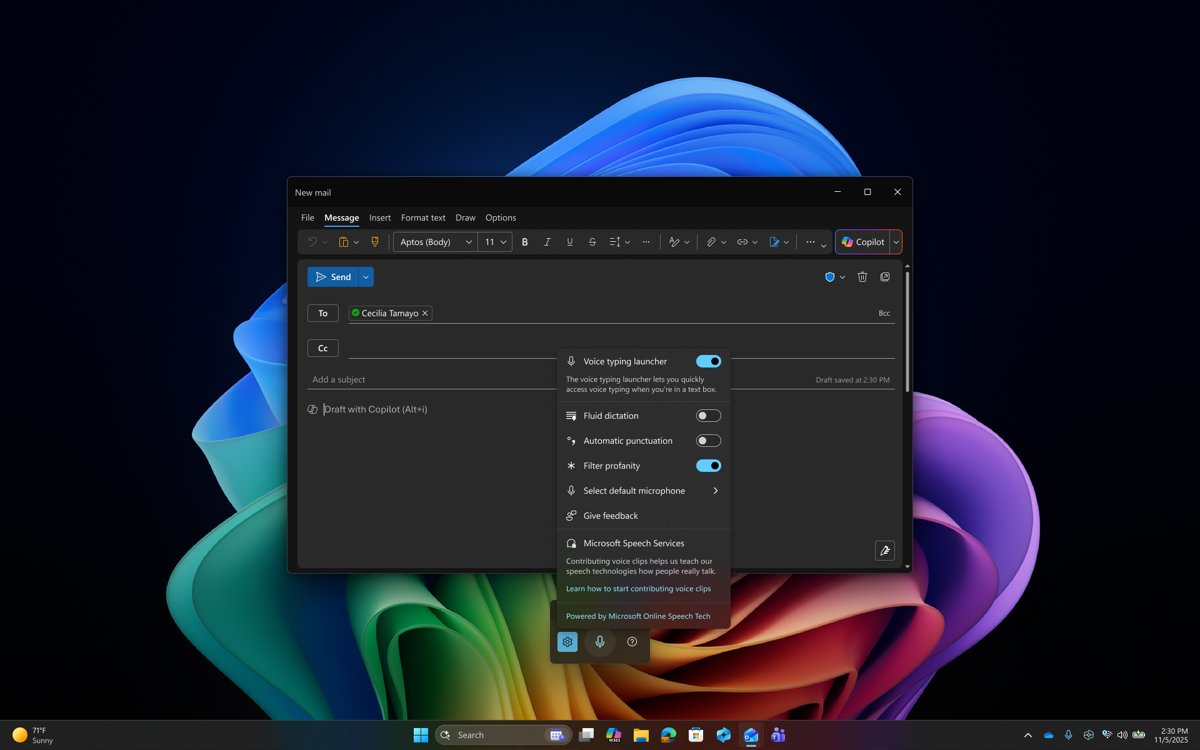
| Windows key + H | Voice typing | Windows key + Alt + H moves focus to the voice typing menu |
| Windows key + Spacebar | Next keyboard layout | Windows key + Shift + Spacebar goes backward |
| Windows key + Ctrl + Spacebar | Previously selected input option | Useful with two layouts |
| Alt + numeric keypad code | Special characters, such as Alt + 0169 for © | Works only with the numeric keypad, not the top number row |
Voice typing settings such as automatic punctuation and the voice typing launcher open from the gear icon on the voice typing flyout. The emoji panel shortcut works in Windows 10 as well.
How to check which keyboard layout Windows 11 is using
The active layout is always shown on the taskbar, and PowerShell lists everything configured for your account.
- Look at the input language icon in the system tray, next to the clock; it shows the active layout, such as ENG US.
- Select the icon to see every installed layout, with the active one highlighted.
- Open Terminal and run
Get-WinUserLanguageListto see each language and its InputMethodTips codes. - Run
Get-WinDefaultInputMethodOverrideto see whether a default override is set. - Type a few symbol keys, such as Shift + 2, in Notepad to confirm the layout produces what is printed on your keys.
If the input language icon is missing, the legacy language bar may be on. Clear Use the desktop language bar when it's available under Advanced keyboard settings to bring the icon back.
Troubleshoot keyboard settings problems in Windows 11
Keyboard is typing the wrong characters
Another keyboard layout is active, often after a display language change or an accidental Windows key + Spacebar.
- Select the input language icon on the taskbar and pick the layout that matches your keyboard.
- Remove layouts you never use from Language & region > Language options > Keyboards.
- Set a default override so the right layout loads at sign-in.
- If one key types another key's character everywhere, check PowerToys Keyboard Manager for a remap.
Keyboard shortcuts are not working
Fn lock, a PowerToys remap or Sticky keys changes what the keys send.
- Press Fn or F Lock to switch the top row between F1 to F12 and media keys.
- Turn off Keyboard Manager in PowerToys and test the shortcut again.
- If the shortcut fails only in an app running as administrator, run PowerToys as administrator.
- Open Accessibility > Keyboard and turn off Sticky keys if modifier keys stay pressed.
Keyboard feels slow or ignores repeated keys
Filter keys is on, usually after right Shift was held for eight seconds, or the repeat delay is set long.
- Press Windows key + U, select Keyboard and turn off Filter keys.
- Shorten the character repeat delay on the same page, or in Keyboard in Control Panel on older builds.
- Restart and type in Notepad to test.
Keyboard does not respond at all
A loose connection, a flat battery or a driver problem rather than a setting.
- Unplug the USB cable or receiver, wait about 10 seconds, and plug it into a different USB port directly on the PC.
- Replace or charge the batteries in a wireless keyboard, and press its Reset button if it has one.
- Open Settings > Windows Update and select Check for updates to install driver updates.
- In Device Manager, double-click the keyboard, open the Driver tab and select Update Driver.
- Test the keyboard on another PC; if it fails there too, the keyboard needs replacing.
For hardware faults beyond these steps, work through the full list of fixes for a keyboard that is not typing.
How to reset keyboard settings in Windows 11
There is no single reset button for the keyboard. Undo each change where you made it.
- Turn off Sticky keys, Filter keys and Toggle keys under Accessibility > Keyboard.
- Close PowerToys or turn off Keyboard Manager to remove every key and shortcut remap at once.
- Remove extra layouts under Language & region > Language options > Keyboards, keeping the one that matches your keyboard.
- Run
Set-WinLanguageBarOptionwith no parameters to restore the default language bar and switching mode. - Return the repeat delay, repeat rate and cursor blink rate controls to the middle of their range.
- Sign out and back in so every change applies.
Windows 11 keyboard settings FAQ
Where are keyboard settings in Windows 11?
Keyboard settings are split across three Settings pages: Time & language > Typing for suggestions and advanced options, Time & language > Language & region for layouts, and Accessibility > Keyboard for Sticky keys, Filter keys and repeat speed. Press Windows key + I to open Settings.
How do I change my keyboard back to normal in Windows 11?
Select the input language icon on the taskbar and choose the layout that matches your keys, then turn off Sticky keys and Filter keys under Accessibility > Keyboard. If a key still misbehaves, turn off Keyboard Manager in PowerToys, which removes any remaps.
How do I change the keyboard layout from QWERTY to another layout?
Open Settings > Time & language > Language & region, select the three dots next to your language, choose Language options, then Add a keyboard. Pick a layout such as Dvorak or AZERTY and switch to it with Windows key + Spacebar or the taskbar language icon.
What is the shortcut to switch keyboard language in Windows 11?
Press Windows key + Spacebar to cycle forward through installed keyboard layouts and Windows key + Shift + Spacebar to go backward. Alt + Shift also switches layouts. If nothing happens, only one layout is installed.
How do I change keyboard repeat speed in Windows 11?
On Windows 11 builds with the December 2025 preview update or later, open Settings > Accessibility > Keyboard and adjust the character repeat delay and rate. On older builds, run control /name Microsoft.Keyboard to open Keyboard in Control Panel and move the repeat sliders.
Can I remap keys in Windows 11 without third-party software?
Windows 11 Settings has no remapping option, but Microsoft's free PowerToys includes Keyboard Manager for remapping keys and shortcuts. Install it from the Microsoft Store; remaps apply only while PowerToys is running and never on the sign-in screen.
How do I turn off Sticky Keys in Windows 11?
Press Windows key + U, select Keyboard and turn off the Sticky keys switch. Pressing Shift five times also turns Sticky keys on or off, which is the usual way it gets switched on by accident.
Why does my keyboard layout change by itself?
Windows switches layouts when a hotkey such as Windows key + Spacebar or Alt + Shift is pressed, or when it keeps a separate layout for each app window. Remove layouts you do not use and set a default input method override to stop it.
How do I make F1 to F12 work without pressing Fn?
Press the Fn lock or F Lock key on your keyboard so the top row sends F1 to F12 by default. On Surface keyboards, press Fn until its light turns on. Other laptops set Fn lock with a key combination or firmware option listed by the PC maker.