To open the app menu on Apple TV, highlight an app on the Home Screen and press and hold the clickpad center (or the touch surface on a 1st-generation Siri Remote) until the menu appears.
This guide covers every menu on Apple TV 4K, the Apple TV app sidebar, the iPhone remote as a backup, and fixes for a remote that will not open the menu.
How to open the app menu on Apple TV
The app menu is a pop-up, not a button. A short press opens the app, so the press has to be held.
- Press the Back button (or Menu on a 1st-generation Siri Remote) and hold it to return to the Home Screen.
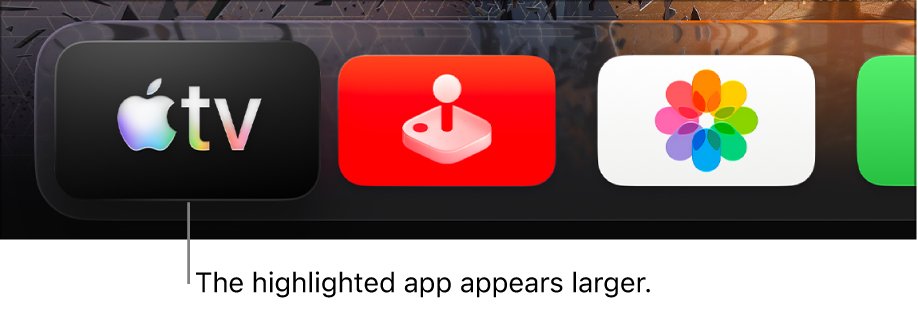
- Swipe on the clickpad or touch surface until the app you want is highlighted. A highlighted app expands slightly.
- Press and hold the clickpad center (Siri Remote 2nd generation or later) or the touch surface (Siri Remote 1st generation). Keep holding until the menu appears.
- Select Edit Home Screen, Move to, or Delete App from the menu.
- Press Back to close the menu without changing anything.
Press and hold a folder instead of an app to get Rename Folder. Press and hold a movie, show, song or podcast to see its own pop-up menu of options.
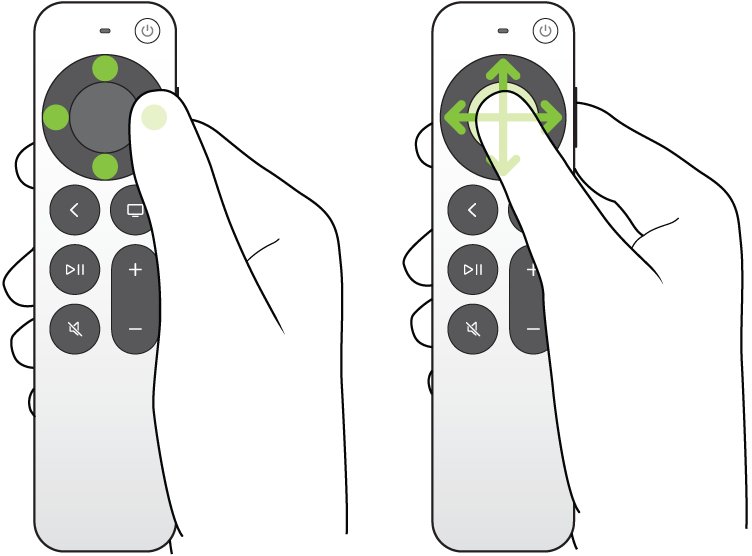
Where is the app menu on Apple TV?
Apple TV has several menus that people call the app menu. Each one opens with a different press on the remote.
| Menu you want | Where it is | How to open it |
|---|---|---|
| App options (Edit Home Screen, Move to, Delete App) | Home Screen | Highlight the app, then press and hold the clickpad center or touch surface |
| Sidebar inside the Apple TV app | Apple TV app | Press Back (or Menu), or swipe up on the clickpad; repeat if needed |
| Open apps (app switcher) | Anywhere | Press the TV button twice quickly |
| Control Center (profiles, sleep, restrictions) | Anywhere | Press and hold the TV button |
| Settings for one app | Settings app | Open Settings, then go to Apps and pick the app |
How to open the sidebar in the Apple TV app
Since tvOS 17, the Apple TV app keeps its categories in a sidebar that stays hidden until you call it with the remote.
- Open the Apple TV app, or press the TV button on the remote.
- Press Back (or Menu on a 1st-generation remote). If the sidebar does not appear, press it again.
- Or swipe up on the clickpad or touch surface, more than once if needed.
- Select Search, Home, Store, Library, or a channel or app in the sidebar.
- Swipe right, or select a category, to close the sidebar.
The profile name sits at the top of the sidebar. Select it to switch Apple TV profiles so each person gets their own watchlist.
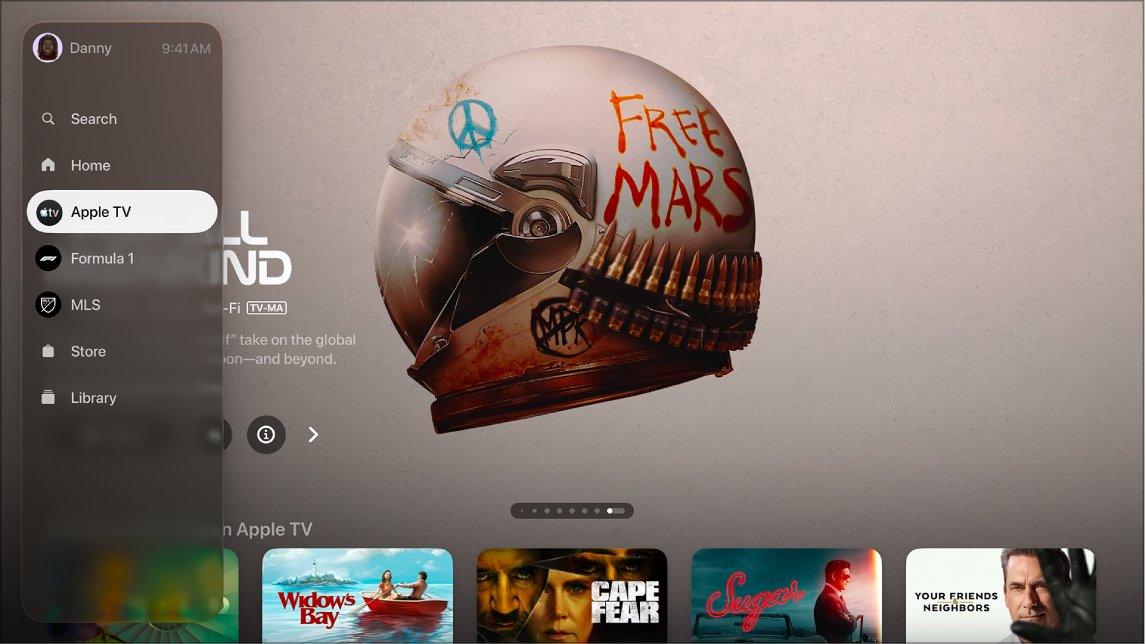
Missing apps in the Apple TV app sidebar
An app only shows in the sidebar when it is connected to the Apple TV app. Hidden channels also stay out of the list until you play something from them again.
- Go to Settings on Apple TV 4K.
- Go to Apps > TV.
- Scroll down to the Connect to TV list.
- Turn on the apps you want to appear in the sidebar.
- Open the Apple TV app and the sidebar again to check the Channels & Apps list.
To pin a channel to the top of that list, highlight it in the sidebar, press and hold the clickpad, then select Pin. Select Hide to drop it from the sidebar until you next use it.
Use the iPhone Apple TV Remote to open the app menu
If the Siri Remote clickpad will not register a long press, an iPhone or iPad can do the same job. iPhones on iOS 12 or later turn on remote controls automatically when connected to the Apple TV.
- On the iPhone or iPad, open Control Center and tap the Apple TV Remote icon, or open the Apple TV Remote app.
- Choose your Apple TV if the app asks.
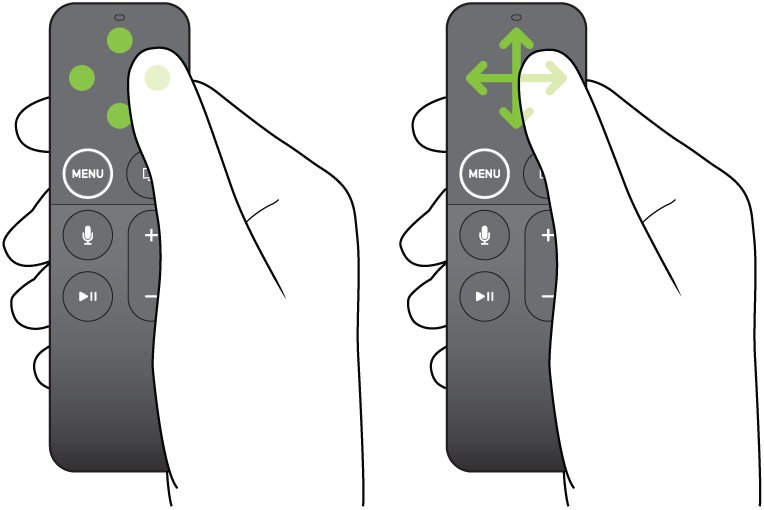
- Swipe in the touch area to highlight the app on the Apple TV Home Screen.
- Touch and hold the touch area to open the menu for the highlighted app.
- Tap the back control to close the menu, or touch and hold it to return to the Home Screen.
Get the Apple TV Remote app from the App Store if it is not on the device. Settings > Remotes and Devices > Remote App and Devices on the Apple TV lists every device allowed to control it.
How to edit the Home Screen on Apple TV
Every Home Screen change starts from the same press-and-hold menu. Once it opens, these are the routes through it.
| What you want | Menu choice | Finish |
|---|---|---|
| Move an app | Edit Home Screen, then drag the app | Press the clickpad center to save the new arrangement |
| Make a folder | Move to > New Folder | Select the folder name to rename it, then select Done |
| Put an app in a folder | Move to > the folder name | Press the clickpad center to save |
| Remove a folder | Move to > Home Screen for each app inside | The folder disappears when its last app leaves |
| Remove an app and its data | Delete App > Delete | Download it again free from the App Store if purchased |
| Free storage but keep app data | Delete App > Offload | The data stays for a reinstall |
Place your favourite apps in the top row. When a top-row app is highlighted, a preview of its content plays in the background.
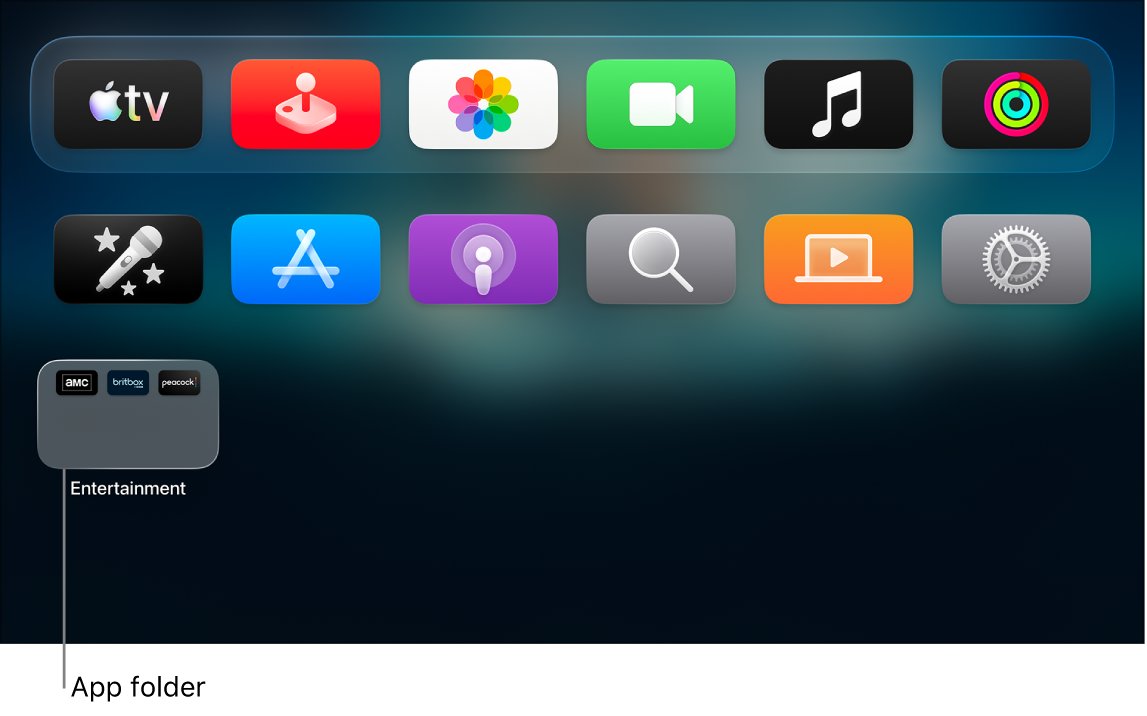
How to force quit an app on Apple TV
An app that has frozen will not respond to the Back button or its own menus. Close it from the app switcher, then open it again.
- Press the TV button twice quickly. A row of open app windows appears.
- Swipe to the app that is stuck.
- Swipe up on the clickpad or touch surface to quit it.
- Press Back (or Menu) to leave the app switcher.
- Open the app again from the Home Screen.
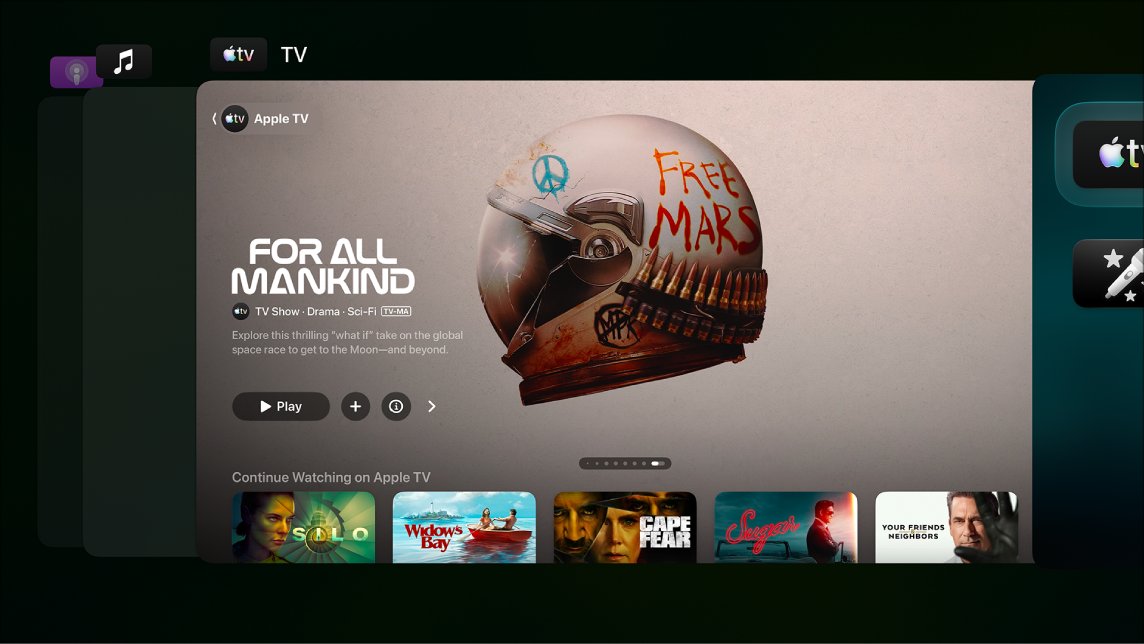
How to see Siri Remote battery level on Apple TV
A remote that is low on charge or not paired often fails on long presses first. Apple TV shows the remote's status in Settings.
- Go to Settings on Apple TV 4K.
- Go to Remotes and Devices, then select Remote.
- Read Battery Level on the information screen.
- If it is low, connect a USB-C or Lightning cable (depending on the model) to the port on the bottom of the remote and to a USB power source.
- Leave it about three hours for a full charge. The remote keeps working while it charges.
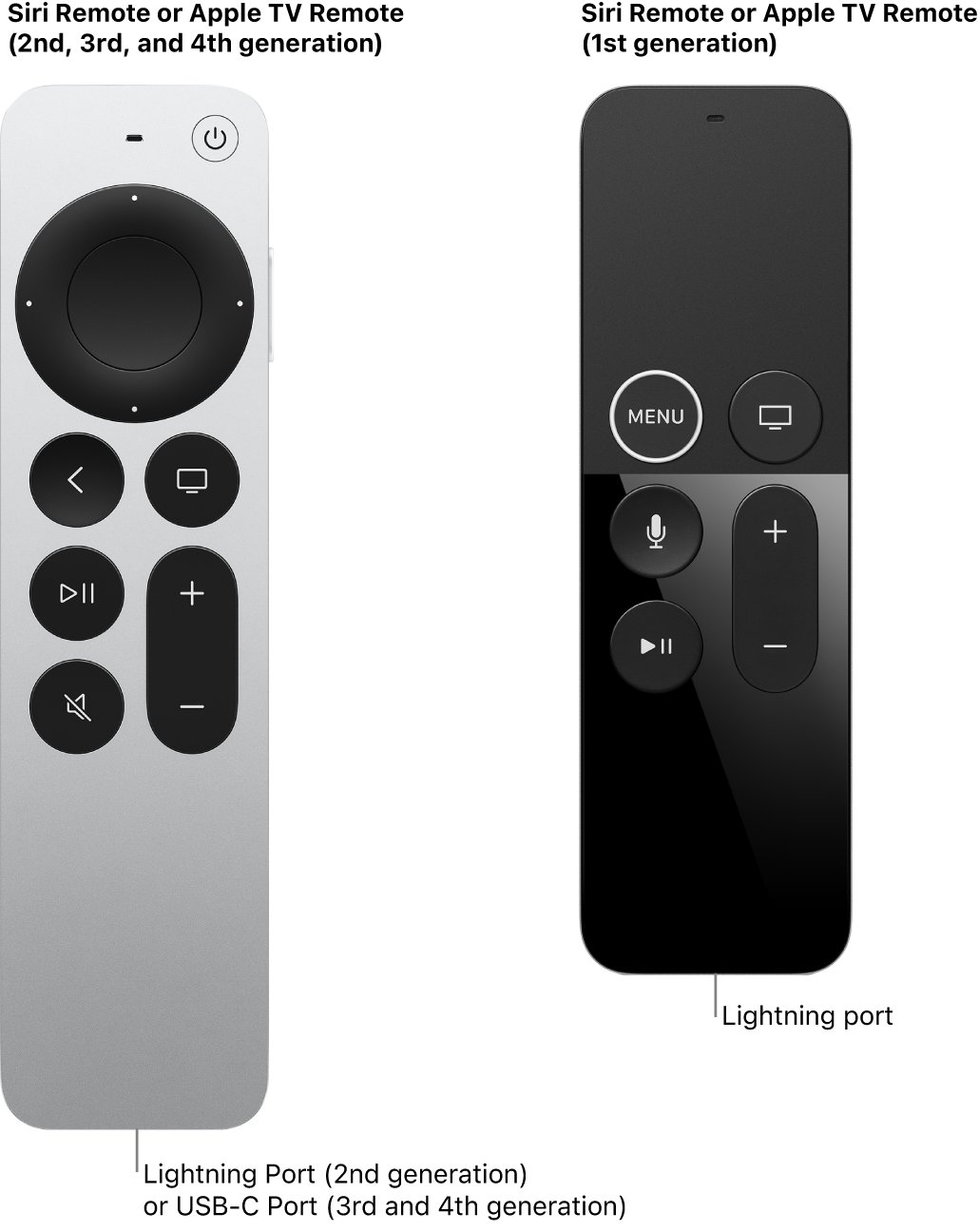
Apple TV remote not opening the app menu
Pressing the clickpad opens the app instead of the menu
The press is released too early, so tvOS reads it as a select.
- Highlight the app on the Home Screen.
- Press the clickpad center and keep holding it until the menu appears.
- On a 1st-generation Siri Remote, press and hold the touch surface itself.
Swiping on the clickpad does nothing
The silver remote's clickpad is set to Click Only, which turns off touch tracking.
- Go to Settings > Remotes and Devices.
- Select Clickpad, then choose Click and Touch.
- Set Touch Surface Tracking to Medium or Fast if swipes feel slow.
The remote does not respond at all
The remote is out of charge or has lost its pairing.
- Charge the remote with its cable for a few minutes.
- Press and hold the TV button and Volume Down for at least 5 seconds to reset the remote.
- Hold the remote 3 to 4 inches from the front of the Apple TV.
- Press and hold Back (or Menu) and Volume Up for 2 seconds to pair the Apple TV remote again.
- Wait for the onscreen message that confirms pairing.
Apple TV freezes on the Home Screen
tvOS itself has stopped responding, so no menu can open.
- Press and hold the TV button and Back (or Menu) until the status light blinks rapidly.
- If the remote does nothing, unplug the Apple TV, wait five seconds, and plug it back in.
- Once it responds, go to Settings > System > Software Updates and select Update Software.
The TV button opens the Apple TV app instead of the Home Screen
The TV Button setting is set to the Apple TV app, which is the default.
- Go to Settings > Remotes and Devices.
- Select TV Button.
- Choose Home Screen.
A passcode prompt blocks apps or purchases
Restrictions are on, so restricted apps and purchases need the 4-digit passcode.
- Go to Settings > General > Restrictions.
- Enter the restrictions passcode.
- Change the blocked activity, or set Restrictions to Off. Your earlier choices return when you turn it back on.
Apple TV app menu FAQ
Where is the app menu on Apple TV?
There is no separate menu button for apps. Highlight an app on the Home Screen and press and hold the clickpad center or touch surface. A pop-up appears with Edit Home Screen, Move to and Delete App.
How do you open an app's menu on Apple TV?
On the Home Screen, press and hold the clickpad on the app to open its options. Inside the Apple TV app, press the Back button or swipe up on the clickpad to open the sidebar, pressing more than once if needed.
Why can't I access my apps on Apple TV?
The usual causes are a remote that is not paired or charged, a frozen app, or restrictions set with a passcode. Charge or re-pair the remote, force quit the app from the app switcher, and check Settings > General > Restrictions.
Why can't I access the App Store on Apple TV?
Restrictions can block purchases and app downloads until the passcode is entered. Go to Settings > General > Restrictions, enter the passcode, and allow the purchase or download. Restrictions may not cover settings inside apps downloaded from the App Store.
How do you get back to the Home Screen on Apple TV?
Press and hold the Back button on the Siri Remote, or the Menu button on a 1st-generation remote. You can also change Settings > Remotes and Devices > TV Button to Home Screen so a single press of the TV button goes there.
How do you see all open apps on Apple TV?
Press the TV button twice quickly to open the app switcher. Swipe to an app and select it to switch, or swipe up on it to force it to quit. Press Back to close the switcher.
Can you delete apps from the Apple TV Home Screen?
Yes. Highlight the app, press and hold the clickpad center, select Delete App, then choose Delete or Offload. Offload keeps the app's data for a later reinstall; Delete removes the data too.