An iCloud login alert means someone entered your Apple Account password on a new device or browser; if it was not you, do not approve it, then change your password and remove unknown devices at account.apple.com.
This guide covers how to read the sign-in notification, how to spot a fake alert, how to lock down a compromised account, and why iCloud keeps asking you to log in again.
What to do when you get an iCloud login alert you did not expect
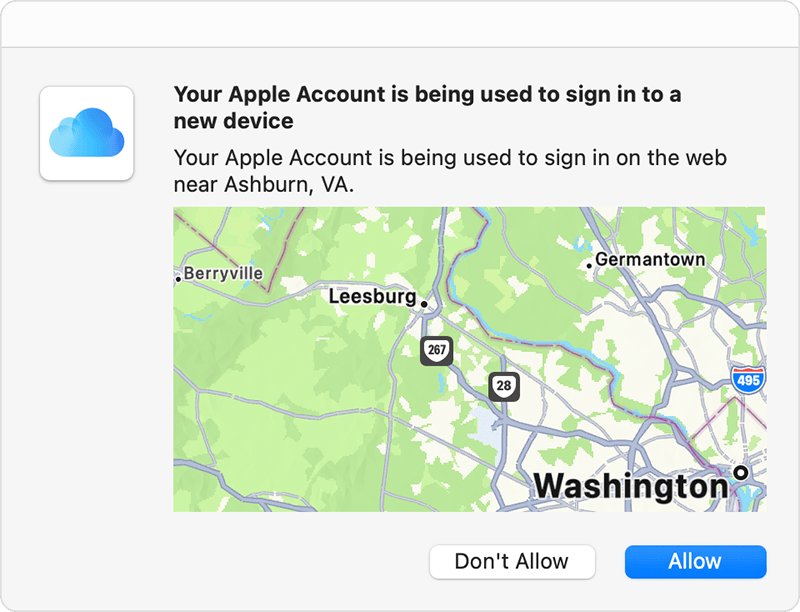
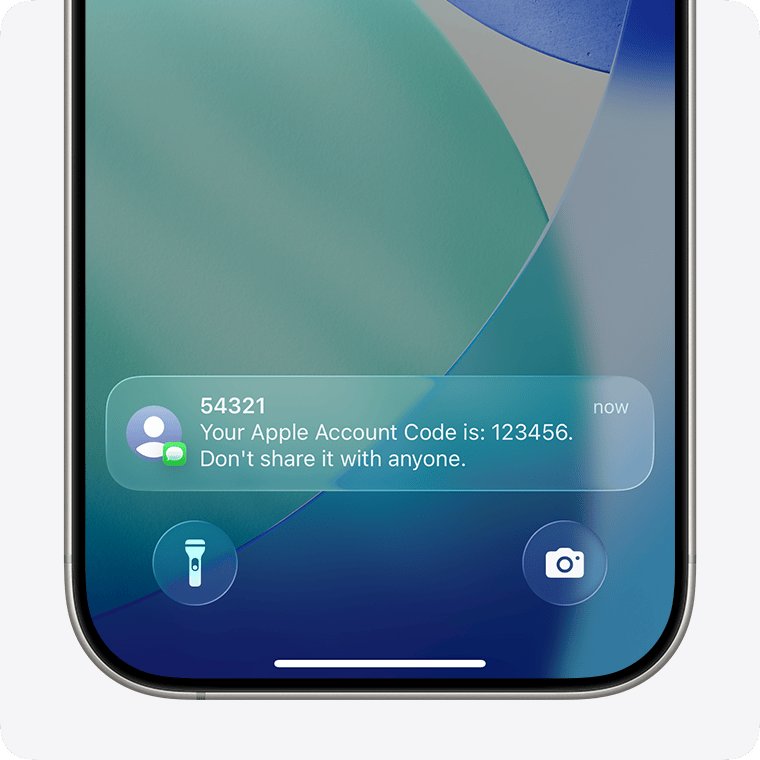
With two-factor authentication, a new device or browser needs your password and a six-digit code shown on your trusted devices. An alert you did not trigger means someone may know your password, but the code still stops them while you do not approve it.
- Do not tap Allow on the sign-in notification, and never share the six-digit code it would show.
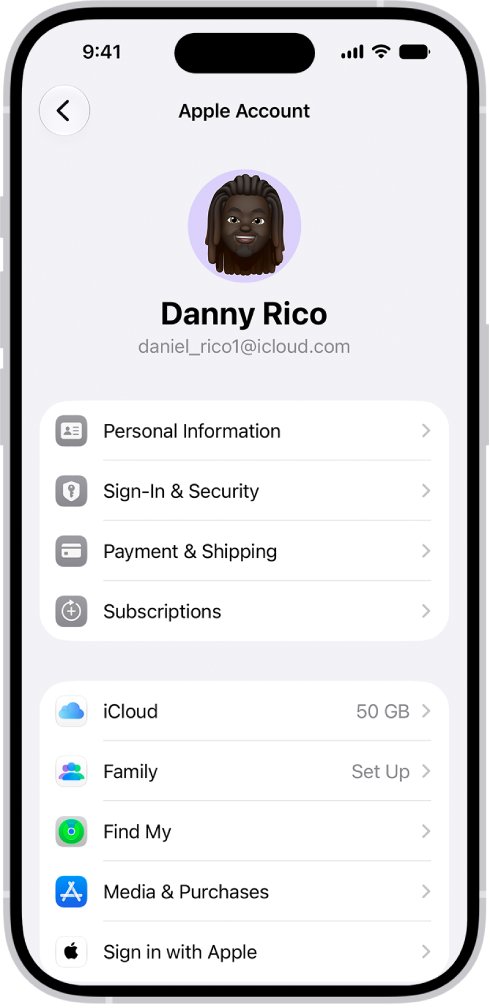
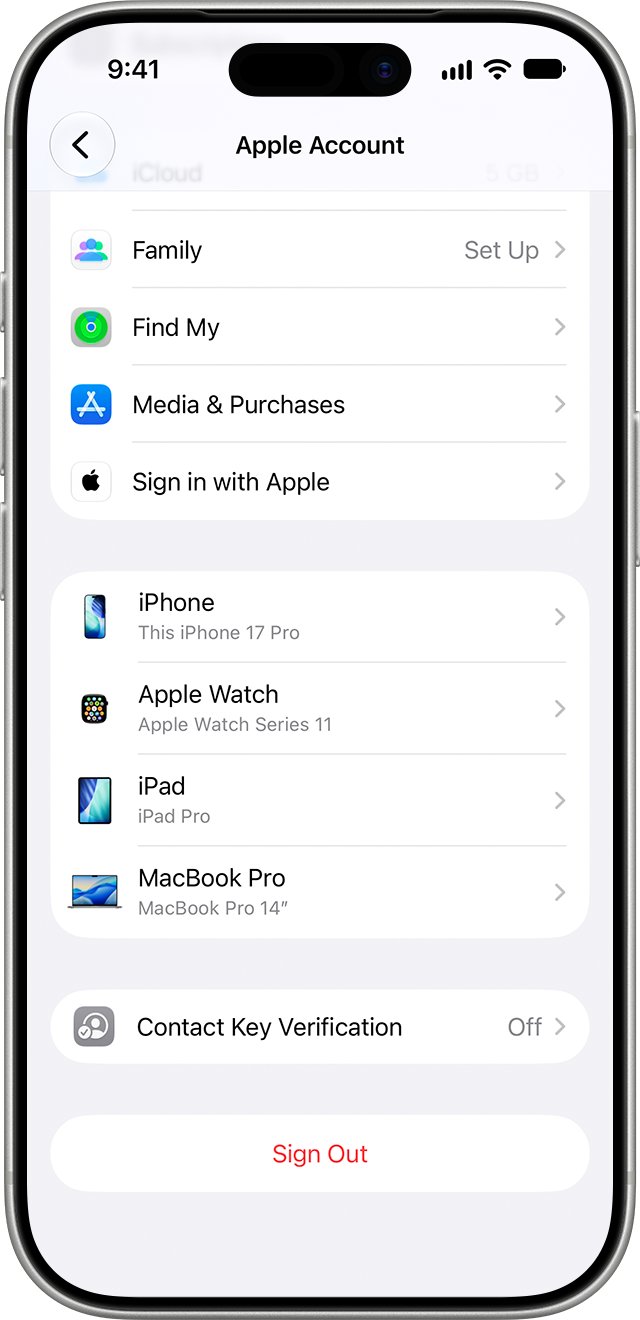
- On your iPhone, open Settings, tap your name, then tap Sign-In & Security and change your Apple Account password.
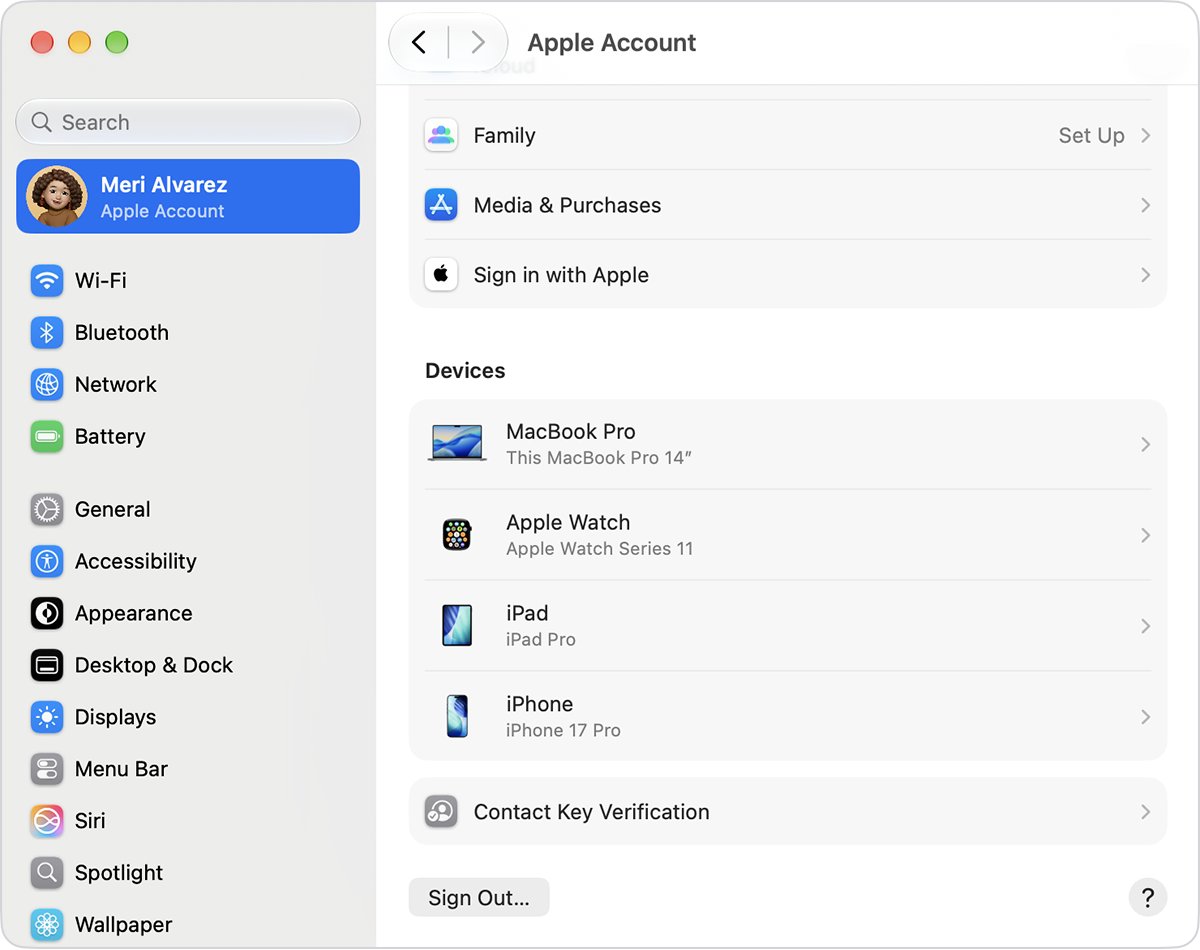
- Use a strong password that you do not use for any other online account; on a Mac, you can change the Apple Account password in System Settings instead.
- Go back to Settings > your name and scroll to the list of devices.
- Tap any device you do not recognize and tap Remove from Account, then confirm.
- Check that the email addresses and phone numbers under Sign-In & Security all belong to you.
If the alert arrived as an email or text with a link instead of a notification on your own device, do not use the link. Treat it as possible phishing, as covered below.
Real iCloud sign-in notification or scam alert?
| What you see | Likely what it is | What to do |
|---|---|---|
| A sign-in notification on your own iPhone, iPad or Mac, with a map, right after you signed in somewhere | The real two-factor prompt for your own sign-in | Tap Allow and enter the code on the other device |
| The same notification when you were not signing in | Someone has your password | Do not allow it; change your password and review your device list |
| A six-digit verification code you did not request | A sign of a compromised account | Change your password and follow the account recovery steps below |
| An email or text with a link asking you to sign in or verify your account | Possible phishing | Do not click; check your account yourself at account.apple.com and report it |
| A browser pop-up warning that iCloud has a virus or security problem | A fraudulent ad | Close the tab; do not call the number or follow the links |
| A caller saying they are from Apple and asking for a code | A scam call | Hang up; Apple never asks for your password or verification code |
Why the iCloud login alert shows the wrong location
The sign-in notification can include a map of the approximate location of the attempt. Apple bases that location on the new device's IP address, so it can reflect the network the device uses rather than where the person is.
| Situation | Why the location looks wrong |
|---|---|
| Signing in on cellular data | The map can show the carrier's network location |
| Signing in through a VPN or work network | The map shows where that network connects, not your home |
| Signing in from public Wi-Fi | The map follows the network's IP address |
If you know you are the person signing in, Apple says you can still tap Allow and view the code even when you do not recognize the location.
Check devices signed in to your iCloud account
Every device you sign in to with your Apple Account joins its device list, including Windows PCs running iCloud for Windows, Android phones and streaming devices. A device on that list can receive verification codes and sync with iCloud.
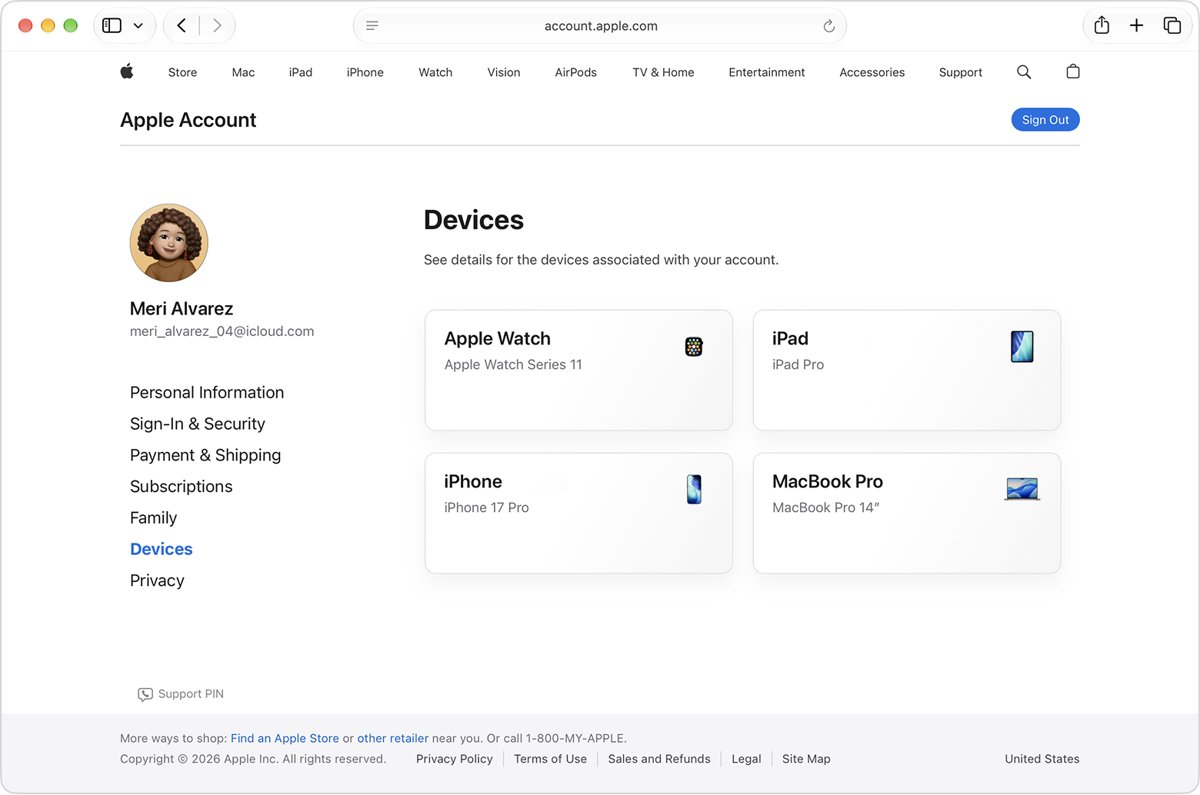
- Sign in to your Apple Account at account.apple.com, or open Settings and tap your name on an iPhone.
- Select Devices; on the web, click View Details if the devices do not appear right away.
- Click each device name to see its model and details.
- Click Remove from Account on any device you do not recognize.
- Review the message and confirm the removal.
A removed device loses access to iCloud and Find My and stops showing verification codes. It reappears only if someone signs in on it again with your password, so change the password first.
Secure a compromised iCloud account after a login alert
Apple lists the warning signs: a verification code you did not request, messages you did not send, account details or trusted devices you did not add, a password that no longer works, or a device locked by someone else.
- Change your Apple Account password; if it was already changed by someone else, reset it.
- If you cannot reset it or sign in, go to iforgot.apple.com and start account recovery.
- At account.apple.com, correct any personal or security information you do not recognize.
- Select Devices and remove any device you do not recognize.
- Ask your email provider and cellular carrier to confirm you control every address and number on the account, and that SMS forwarding is not set up.
- On each of your devices, open Settings, tap your name and confirm the email address is yours.
- Check FaceTime, Messages, Media & Purchases, Mail and Calendar for the Apple Account each one uses.
Account recovery can take a few days or longer, and contacting Apple cannot speed it up. In the meantime, check your bank statement for unfamiliar Apple charges made with the account.
Report a fake iCloud login alert to Apple
Fake alerts copy Apple's look, then send you to a sign-in page that captures your password and code. Apple never asks you to log in to a website, tap Allow for someone else, or hand over a verification code.
- Check the sender address and the link destination; touch and hold a link on iPhone to preview its URL without opening it.
- Forward a suspicious email that claims to be from Apple to [email protected].
- In Mail on a Mac, select the message and choose Forward As Attachment from the Message menu so the headers go too.
- For a fake text message, take a screenshot and email it to [email protected].
- In the Messages app, tap Report Junk under the message.
- If you entered your password on the fake page, change your Apple Account password straight away.
Sign out of iCloud on all browsers
If the alert points to a web sign-in you do not recognize, end every iCloud.com browser session at once.
- Sign in at iCloud.com with your Apple Account.
- Select your Apple Account photo in the top-right corner of the window.
- Select iCloud Settings.
- Select Sign Out Of All Browsers.
- Select Sign Out to confirm.
To leave only the browser you are using, choose Sign Out from the same menu instead.
Turn on two-factor authentication for iCloud sign-in
Two-factor authentication is what turns a stolen password into a login alert instead of a break-in. Most accounts already use it.
- Open Settings on your iPhone or iPad, or System Settings on your Mac.
- Tap your name, then tap Sign-In & Security.
- Turn on two-factor authentication and follow the onscreen instructions.
- Without an Apple device, sign in at account.apple.com, select Upgrade Account Security and follow the instructions.
For extra protection against phishing, Apple also supports physical security keys for Apple Account, and Stolen Device Protection on iPhone.
Check that your iCloud account is secure
- Sign in to account.apple.com with your new password and confirm the old one no longer works.
- Confirm every device under Devices is one you own.
- Confirm every email address and phone number under Sign-In & Security is yours.
- Confirm two-factor authentication is on.
- Watch for further sign-in notifications; no new ones should appear unless you sign in yourself.
Fix iCloud login alerts and sign-in problems
Why am I getting iCloud login notifications?
A device or browser entered your Apple Account password and asked for a verification code.
- If you were signing in somewhere, tap Allow and finish the sign-in.
- If you were not, ignore the notification and change your password.
- Remove unknown devices from your account.
iCloud keeps logging me out and asking for my password
A device asks for a verification code again after you sign out completely, erase it, or change your password for security reasons.
- Sign in again with your password and the six-digit code from a trusted device.
- Check whether someone changed your password; a password that no longer works is a sign of compromise.
- Reset the password if it was changed without you.
The verification code never arrives
No trusted device is nearby, or the text is filtered as an unknown sender.
- Select Didn't Get a Code? or Can't get to your devices? on the verification code screen.
- Choose a text message or phone call to your trusted phone number.
- Check the Unknown Senders filter in Messages for the code.
- If your trusted iPhone is missing, track the lost iPhone at icloud.com/find, which does not need a code.
An iCloud security alert pop-up appears in the browser
Pop-ups warning about viruses or security problems are usually fraudulent ads.
- Do not call the number or follow the links.
- Close the tab or the whole browser window.
- Check your account status yourself at account.apple.com if you are worried.
iCloud login alert FAQ
Why am I getting iCloud login notifications?
Your Apple Account password was entered on a new device or browser, and two-factor authentication is asking a trusted device to approve it. If you were signing in, tap Allow. If not, do not approve it and change your Apple Account password.
Is the iCloud login alert a scam?
A sign-in notification that appears on your own iPhone, iPad or Mac is Apple's real two-factor prompt. An email or text with a link asking you to sign in or verify your account may be phishing. Check your account yourself at account.apple.com instead of using the link.
Should I tap Allow on an iCloud sign-in request I did not make?
No. Tapping Allow shows the verification code that completes the sign-in. If you are not the one signing in, leave it unapproved, change your password and remove any device you do not recognize from your Apple Account.
Why does my iCloud keep signing out?
Apple asks for a new verification code after you sign out completely, erase a device, or change your password. If you did none of these, someone may have changed your password, so reset it and review your trusted devices and phone numbers.
How do I log into iCloud?
Go to iCloud.com and sign in with your Apple Account email or phone number and password, Face ID or Touch ID, or a passkey. Enter the verification code sent to a trusted device or phone number if you are asked for it.
How do I log out of iCloud on every browser?
Sign in at iCloud.com, select your Apple Account photo in the top-right corner, then select iCloud Settings, Sign Out Of All Browsers and Sign Out. That ends every iCloud.com browser session where you are signed in.
Does Apple send virus alerts for iCloud?
Treat browser pop-ups that warn of viruses or security problems as fraudulent ads. Apple's guidance is to ignore them, not call the number or follow the links, and close the tab or window.
What is my iCloud login?
Your iCloud login is your Apple Account, usually an email address and password. On an iPhone, open Settings and tap your name to see the email address the device uses. Apple's Reset your password website helps if you forgot the password.
Bottom line: handling an unexpected iCloud login alert
Leave an unexpected sign-in request unapproved, change your Apple Account password, and remove unknown devices at account.apple.com. The alert means the password is known but the verification code is still yours; those three steps close the gap before anyone gets in.