Stereo Mix is usually hidden, not removed: open control mmsys.cpl, right-click the Recording list, tick Show Disabled Devices, then right-click Stereo Mix and select Enable.
If it still does not appear, the audio driver in use does not provide it, so this guide shows how to get the right 64-bit Realtek audio driver, fix silent recordings and record PC audio without Stereo Mix.
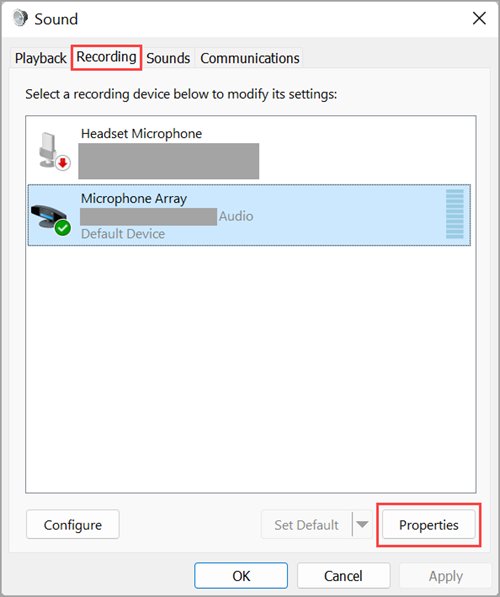
Fix 1: Stereo Mix missing in Windows 10 or 11
A disabled Stereo Mix does not appear in the Recording list until disabled devices are shown. These steps work the same on Windows 11 and Windows 10.
- Press Windows + R, type
control mmsys.cpland press Enter to open the Sound window. - Select the Recording tab.
- Right-click an empty part of the device list and make sure Show Disabled Devices has a tick next to it.
- Find Stereo Mix in the list of recording devices.
- Right-click Stereo Mix and select Enable.
- Right-click it again and select Set as Default Device if you want every recording app to use it.
- Select OK to close the window.
If no Stereo Mix entry appears even with disabled devices shown, the audio driver in use does not expose one. Move on to the Realtek driver fix below.
What is Stereo Mix in Windows 11 and Windows 10?
Stereo Mix is not a Windows feature. Microsoft describes it as a hardware loopback device that some audio adapters provide, which records whatever the adapter is playing.
| Question | Answer |
|---|---|
| Who provides it | The audio adapter's driver, such as a Realtek driver, not Windows itself |
| Other names for the same device | Waveout Mix, Mixed Output and What You Hear, depending on the hardware vendor |
| Device type | A capture (recording) device, so apps record from it like a microphone |
| Is it on every PC? | No. Not all audio adapters have a loopback device |
| Why it seems missing | A disabled loopback device stays out of the Recording list until Show Disabled Devices is ticked |
| What it will not record | Protected streams: a trusted audio driver blocks loopback capture of DRM-protected content |
Because the vendor's driver supplies it, Stereo Mix can vanish when Windows switches the adapter to a different driver.
Open Stereo Mix recording devices with control mmsys.cpl
The classic Sound control panel is the only place that lists Stereo Mix with its enable and default options. You can open it from Command Prompt, PowerShell or the Run box.
control mmsys.cplOpens the Sound control panel (Mmsys.cpl) with its Playback, Recording, Sounds and Communications tabs.
You should see: The Sound window opens. Select the Recording tab to see Stereo Mix, microphones and other capture devices.
On Windows 11 you can also reach it from Start > Settings > System > Sound, then More sound settings under Advanced. In Windows 10 and 11, Control Panel > Hardware and Sound > Sound opens the same window.
Enable Stereo Mix from Windows 11 Sound settings
Use this route when Stereo Mix is listed but recording apps still cannot use it. Its Device usage setting must be set to use the device.
- Select Start > Settings > System > Sound.
- Under Advanced, select More sound settings.
- Select the Recording tab, then select Stereo Mix.
- Select Properties.
- Next to Device usage, choose Use this device (enable).
- Select OK, then select OK again to close the Sound window.

Fix 2: Stereo Mix Windows 10 or 11 download Realtek codec 64-bit or 32-bit
When Stereo Mix is missing entirely, install the Realtek audio driver made for your PC. Microsoft recommends Windows Update first and your PC manufacturer's support site second, because some audio drivers come directly from the PC maker.
Windows 11 is 64-bit only, so every Windows 11 PC needs the 64-bit driver. The 32-bit driver only applies to a 32-bit installation of Windows 10.
- Select Start > Settings > Windows Update > Advanced options.
- Turn on Receive updates for other Microsoft products.
- Under Additional options, select Optional updates.
- If a Realtek audio driver is listed, select it and choose Download and install, then restart the PC.
- If nothing is listed, go to your PC or motherboard manufacturer's support website and search for your exact model.
- Download the latest audio driver for your Windows version and system type, 64-bit for Windows 11.
- Install it by following the manufacturer's instructions, restart the PC, then repeat Fix 1 to show and enable Stereo Mix.
On HP machines, the model-specific HP audio drivers for Windows 11 come from HP's own support pages. If the Realtek control app also went missing, you can reinstall Realtek HD Audio Manager at the same time.
Not every audio adapter has a loopback device. If the latest driver from your PC maker still shows no Stereo Mix, use one of the alternatives further down.
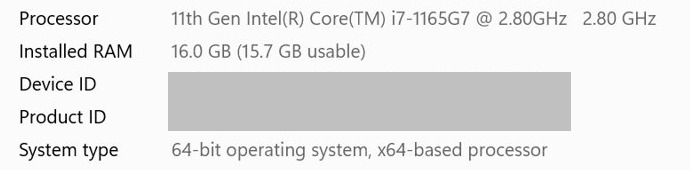
How to check if Windows 10 is 64-bit or 32-bit for the Realtek driver
Pick the driver that matches your system type. A 32-bit driver will not install on 64-bit Windows, and the reverse also fails.
- Select Start > Settings > System > About.
- Under Device specifications, read the line next to System type.
- Choose the 64-bit Realtek driver if it says 64-bit operating system.
- Choose the 32-bit driver only if it says 32-bit operating system on Windows 10.
Moving from 32-bit to 64-bit Windows requires a clean install, so match the driver to the system rather than the other way round.
Update the Realtek audio driver in Device Manager to get Stereo Mix back
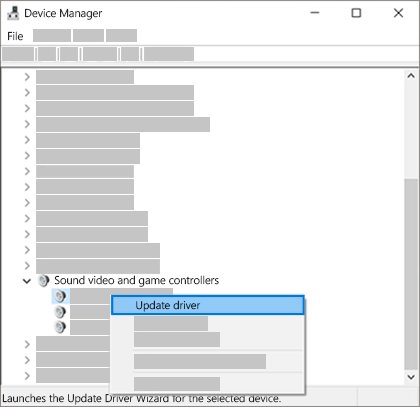
Device Manager can pull a newer Realtek driver, or reinstall a damaged one, without visiting any website.
- Right-click Start and select Device Manager.
- Expand Sound, video and game controllers.
- Right-click your Realtek audio device, select Update driver, then select Search automatically for drivers.
- If Windows says the best driver is already installed, right-click the device again and select Uninstall device.
- Confirm the uninstall, then restart the PC so Windows reinstalls the audio driver.
- If the device does not return, open Device Manager, right-click Sound, video and game controllers and select Scan for hardware changes.
After the restart, open control mmsys.cpl and check the Recording tab with disabled devices shown, because a reinstalled driver can leave Stereo Mix disabled again.
Stereo Mix disappeared after Windows update: roll back the Realtek driver
An update can swap the vendor driver for an incompatible or generic one. Rolling back restores the previous driver, and its Stereo Mix device with it.
- Right-click Start and select Device Manager.
- Expand Sound, video and game controllers.
- Right-click your audio device and select Properties.
- Select the Driver tab, then select Roll Back Driver.
- Follow the prompts, select Yes, then restart the PC.
- Open
control mmsys.cpland enable Stereo Mix on the Recording tab.
Roll Back Driver is greyed out when no previous driver version is stored. In that case, install the manufacturer's driver from Fix 2.
How to test Stereo Mix recording in Windows 11
Stereo Mix appears as an input device once it is enabled, so the built-in input test shows whether it captures PC sound.
- Start playing music or a video through your Realtek speakers or headphone jack.
- Select Start > Settings > System > Sound.
- Under Input, select Stereo Mix to open its properties page.
- Under Input settings, select Start test, let the audio play for a few seconds, then select Stop test.
- Select Play to hear the sample. You should hear the music, not silence or room noise.
- Adjust the Input volume slider if the sample is too quiet or distorted.
Stereo Mix no sound or seems not working
Stereo Mix that is enabled but records silence usually has one of these causes.
Stereo Mix records silence from every source
Stereo Mix is set to not be used, or its input volume is at zero.
- Open Start > Settings > System > Sound and select Stereo Mix under Input.
- Raise the Input volume slider.
- Open More sound settings, select Stereo Mix on the Recording tab, select Properties and set Device usage to Use this device (enable).
Stereo Mix works in Settings but a recording app hears nothing
The app is set to a different input, or Windows blocks desktop apps from using recording devices.
- Select Stereo Mix as the input device inside the recording app's own audio settings.
- Select Start > Settings > Privacy & security > Microphone.
- Turn on Microphone access and Let desktop apps access your microphone.
- Restart the recording app.
Stereo Mix records silence from streaming video or music services
Trusted audio drivers block loopback capture of DRM-protected content, so the silence is by design.
- Test with an unprotected source, such as a local MP3 file, to confirm Stereo Mix itself works.
- Record only content you are allowed to capture.
Stereo Mix stopped working after a Windows update
The update replaced or partly installed the audio driver, or the audio services did not start correctly.
- Press Windows + R, type
services.mscand press Enter. - Right-click Windows Audio and select Restart.
- Right-click Windows Audio Endpoint Builder and select Restart.
- If it is still silent, roll back the Realtek driver as shown above.
Stereo Mix captures nothing when you listen through a USB or Bluetooth headset
Stereo Mix is part of the Realtek adapter, so it records that adapter's own output.
- Select the speaker icon on the taskbar, then the arrow next to the volume slider.
- Choose the Realtek speakers or headphone output as the playback device.
- Record again, or use a loopback-capable app that records your headset output instead.
Stereo Mix alternative for Windows 11 or 10
Windows can capture system audio even when the adapter has no Stereo Mix. Microsoft notes that WASAPI loopback recording works whether or not the hardware has a loopback device.
| Alternative | What it records | Best for |
|---|---|---|
| Xbox Game Bar (built in) | Video plus the audio you choose: game only, or all PC audio | Quick clips of an app or game with its sound, saved as MP4 |
| Recording apps with WASAPI loopback | The mix playing on any output device, including USB and Bluetooth headsets | Audio-only recordings when Stereo Mix is missing |
| Sound Recorder with Stereo Mix | Whatever the Realtek adapter plays | PCs where Stereo Mix is available and enabled |
| A different audio driver from the PC maker | Restores Stereo Mix on supported hardware | Systems where the generic driver replaced the Realtek one |
If Stereo Mix works on your PC, you can set Sound Recorder to capture internal PC sounds without extra software.
Record PC audio without Stereo Mix using Xbox Game Bar
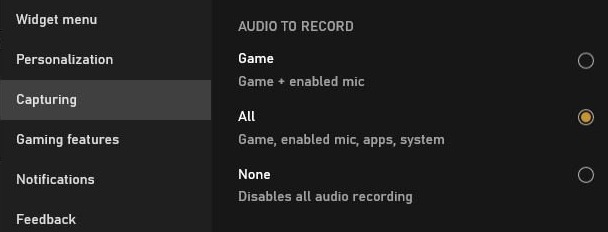
Game Bar records the active app or game with its sound, which covers most cases where people look for Stereo Mix. You need to enable Xbox Game Bar first if it is turned off.
- Press Windows + G to open the Game Bar controls.
- Select the Settings button, then select Capturing.
- Under the audio options, select All to include every PC sound rather than only the game.
- Press Windows + G to close Game Bar, then switch to the app you want to record.
- Press Windows + Alt + R to start recording, and press it again to stop.
- Open Videos > Captures to find the MP4 file.
Press Windows + Alt + M during a recording to turn your microphone on or off.
Stereo Mix and Realtek driver FAQ
Why is Stereo Mix not showing in Windows 11?
Stereo Mix is hidden while disabled. Open control mmsys.cpl, right-click the Recording list and tick Show Disabled Devices. If it still does not appear, the current audio driver does not provide one, so install the Realtek driver from Windows Update or your PC maker.
Does Windows 11 have Stereo Mix built in?
No. Stereo Mix is a hardware loopback device supplied by the audio adapter's driver, such as Realtek's. Windows only lists it. If your adapter or driver does not include one, Windows cannot add it, but WASAPI loopback apps and Xbox Game Bar can still record system audio.
Do I need the 64-bit or 32-bit Realtek driver?
Windows 11 is 64-bit only, so it always needs the 64-bit Realtek driver. On Windows 10, open Settings > System > About and read System type under Device specifications. Install the 32-bit driver only if it says 32-bit operating system.
Where should I download the Realtek audio driver?
Check Windows Update optional updates first, then your PC or motherboard manufacturer's support site for your exact model. Microsoft recommends both routes because some audio drivers come directly from the PC maker. Avoid driver download portals and driver updater tools.
Why did Stereo Mix disappear after a Windows update?
The update most likely installed a different audio driver that does not provide the loopback device. Open Device Manager, open your audio device's Properties, and select Roll Back Driver on the Driver tab. If that option is greyed out, install the manufacturer's driver.
Why does Stereo Mix record silence from Netflix or Spotify?
Trusted audio drivers block loopback capture of DRM-protected content, so Stereo Mix records silence from protected streams by design. Test with an unprotected local file to check that Stereo Mix itself works.
Can I record computer audio without Stereo Mix?
Yes. Xbox Game Bar records apps and games with all PC audio when you set its capture audio to All, and recording apps that use WASAPI loopback capture the output of any playback device without needing a Stereo Mix device.
Should Stereo Mix be the default recording device?
Only if every recording app should capture PC sound. Setting Stereo Mix as the default device also makes calls and voice apps use it instead of your microphone, so most people pick it inside the recording app and leave the microphone as default.