The safest way to get HP audio drivers on Windows 11 is Settings > Windows Update > Check for updates, then your model's page on HP Software and Drivers if Windows offers nothing newer.
This guide covers identifying your HP model, the three official download routes, reinstalling the driver in Device Manager, and fixes for no sound, microphones and headphones.
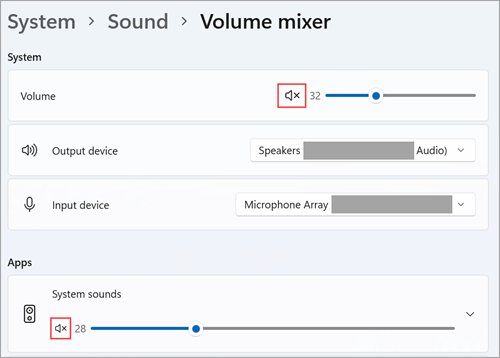
The fastest way to update the HP audio driver
Microsoft names Windows Update as the recommended source for audio drivers. Audio driver updates often arrive as optional updates, so check that list too.
- Select Start > Settings > Windows Update and select Check for updates.
- Install any updates offered.
- Select Advanced options, then Optional updates under Additional options.
- If an audio driver is listed, select it and then Download and install.
- Restart the PC, even if Windows does not ask you to.
Optional drivers are never installed automatically. If nothing appears here, use HP's own driver page in the next sections.
The Safest Ways to Get HP Audio Drivers for Windows 11
Only three sources are safe for an HP audio driver: Windows Update, HP itself, and HP's own app. Avoid third-party driver download sites and driver updater tools.
| Your situation | Use this | Why |
|---|---|---|
| You want the least effort | Windows Update, including Optional updates | Microsoft's recommended route; drivers are matched to your hardware |
| Windows Update says you are up to date but sound still fails | HP Software and Drivers for your exact model | HP may publish a newer or model-specific driver |
| You want HP to keep drivers current | HP Support Assistant | Installs or notifies you about driver and firmware updates |
| The driver is corrupted | Uninstall in Device Manager and restart | Windows reinstalls the driver on its own |
| Nothing else works | Generic High Definition Audio Device driver | Built into Windows as a fallback |
What HP Audio Drivers Do in Windows 11
A driver is the software that lets Windows talk to a hardware device. Without the audio driver, Windows cannot send sound to the speakers or read the microphone.
| Part | What it handles | Where you see it |
|---|---|---|
| Audio codec driver | Speakers, headphone jack and built-in microphone | Device Manager > Sound, video and game controllers |
| Audio controller driver | The bus the codec connects through, such as Intel SST on many Intel laptops | Device Manager > System devices |
| Audio endpoints | Each output and input Windows can use | Settings > System > Sound, under Output and Input |
| HP audio software | Extra tuning and settings on some models | Your model's HP Software and Drivers page |
Common Signs You Need an HP Audio Driver Update
| Sign | Likely cause | Go to |
|---|---|---|
| "No audio output device is installed" | Driver missing, disabled or not loading | Fix headphones not detected section |
| Sound stopped right after a Windows update | Incompatible or partly installed driver | Fix no sound after a Windows 11 update |
| Crackling or distorted sound | Outdated driver or enhancements | Fastest way to update, then turn off Audio enhancements |
| Microphone not detected | Driver or privacy setting | Fix microphone problems on HP PCs |
| Yellow warning icon in Device Manager | Driver failed to start | Reinstall the driver in Device Manager |
| Sound settings greyed out | No working audio driver loaded | Reinstall, then HP Software and Drivers |
Before You Download: Identify Your HP Computer Model
HP drivers are listed per model, and a driver for another model can install the wrong codec software. Identify the exact product before you download anything.
- Open HP Software and Drivers at support.hp.com/us-en/drivers.
- Select your product type, such as Laptop or Desktop.
- Complete the Identify step so HP matches the page to your exact product.
- Confirm the model shown matches your PC, then choose Windows 11 as the operating system.
- Find the audio driver in the list and download it.
HP Support Assistant, which comes on new HP desktops and notebooks, also identifies the PC for you. It does not run on PCs with an ARM processor.
How to Reinstall the HP Audio Driver in Device Manager
Reinstalling replaces a corrupted or half-installed driver. Windows puts the driver back automatically after a restart.
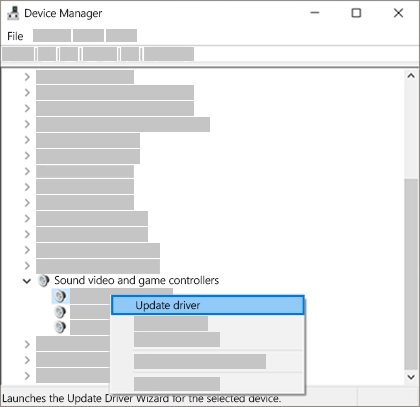
- Save your work, then right-click Start and select Device Manager.
- Expand Sound, video and game controllers.
- Right-click your audio device and select Uninstall device.
- Tick Attempt to remove the driver for this device, then select Uninstall.
- Restart the PC from Start > Power > Restart.
- If the device does not return, open Device Manager, right-click Sound, video and game controllers and select Scan for hardware changes.
Realtek, Intel Smart Sound, and HP Audio Control Explained
Several names can appear for one sound system on an HP PC. Knowing which is which tells you which driver to update.
| Name you see | What it is | Where it comes from |
|---|---|---|
| Realtek audio | The audio codec driver on many PCs, often with its own settings console | Windows Update or your model's HP driver page |
| Intel Smart Sound Technology (Intel SST) Audio Controller | Intel's audio controller driver, file IntcAudioBus.sys |
Listed under System devices; updated by Windows Update or HP |
| High Definition Audio Device | Microsoft's generic audio driver | Built into Windows |
| HP Audio Control and similar HP apps | HP's audio settings software on some models | Your model's HP Software and Drivers page |
If your PC uses Realtek's settings app, see how to get the Realtek Audio Console on Windows 11.
Microsoft and Intel found that Intel SST driver versions 10.29.0.5152 and 10.30.0.5152 can cause a blue screen on 11th Gen Intel Core PCs running Windows 11 24H2. Versions 10.30.00.5714 and 10.29.00.5714 or later fix it.
Fix No Sound After a Windows 11 Update
Incompatible or partly installed audio drivers are the usual cause when sound dies after an update. Work through the fixes in order.
Sound stopped right after a Windows update
The update changed the audio driver to a version that does not suit your HP model.
- Open Device Manager and expand Sound, video and game controllers.
- Right-click your audio device and select Properties.
- Select the Driver tab, then Roll Back Driver, and restart.
- If Roll Back Driver is greyed out, no previous version exists; install the driver from your HP model page instead.
Updates are pending and sound is still missing
Some audio fixes need the remaining updates and a restart.
- Select Start > Settings > Windows Update > Check for updates.
- Install everything offered.
- Select Start > Power > Update and restart if it appears.
Driver is fine but there is still no sound
The Windows audio services did not start correctly.
- Select Start, type
services.mscand press Enter. - Right-click Windows Audio and select Restart.
- Right-click Windows Audio Endpoint Builder and select Restart, then test sound.
Realtek-specific fixes for the latest release are collected in Windows 11 26H2 audio fixes.
Fix Microphone Problems on HP PCs
Apps cannot hear the microphone
Microphone access is off in Windows privacy settings.
- Select Start > Settings > Privacy & security > Microphone.
- Turn on Microphone access and Let apps access your microphone.
- Turn on Let desktop apps access your microphone for apps such as Zoom or browsers.
Others can't hear me, or the mic is very quiet
The wrong input device is the default, or its volume is low.
- Select Start > Settings > System > Sound.
- Under Input, choose your microphone in Choose a device for speaking or recording.
- Select the microphone, select Start test, speak, and adjust Input volume.
Windows does not detect the microphone at all
The audio driver is missing or corrupted.
- Uninstall each audio device in Device Manager with Attempt to remove the driver for this device ticked.
- Restart the PC.
- Right-click the audio device and select Update driver once it returns.
Fix Headphones Not Detected on an HP Laptop
Headphones do not appear under Output
The device is disabled, hidden or not selected.
- Select the Speakers icon on the taskbar, then the arrow beside the volume slider, and pick your headphones.
- In Device Manager, select View > Show hidden devices, then Action > Scan for hardware changes.
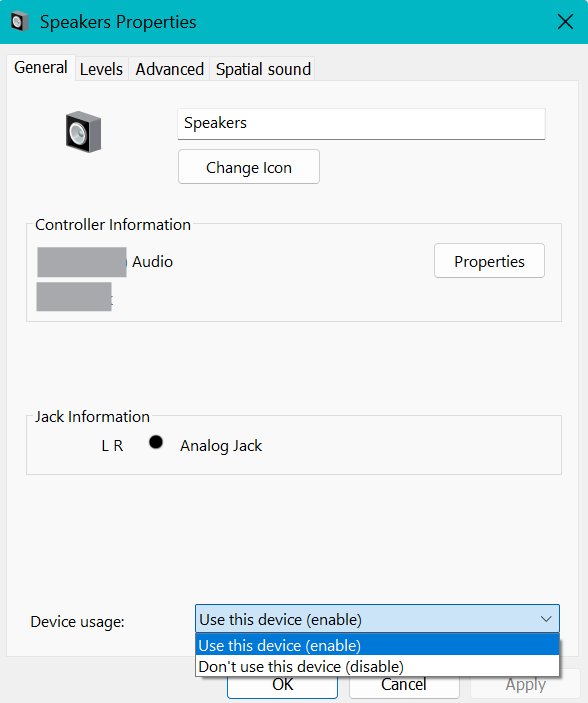
- Right-click the audio device and select Enable device if it is offered.
"No audio output device is installed"
The audio driver is missing or failed to load.
- Install the latest audio driver for Windows 11 from your HP model page.
- Run the audio troubleshooter in the Get Help app.
- Restart the PC from Start > Power > Restart.
Headphones are plugged in but sound still plays elsewhere
A loose plug, the wrong jack or a mute switch.
- Push the plug fully into the headphone jack, or try another USB port for USB headphones.
- Check the headset's own mute switch and volume.
- Open Settings > System > Sound and select the headphones under Output.
What to Do If HP Has No Windows 11 Audio Driver for Your Model
Older HP models may list audio drivers only for Windows 10. Windows 11 can still run the hardware through Windows Update or its generic driver.
- Check Windows Update > Advanced options > Optional updates for an audio driver.
- In Device Manager, right-click the audio device and select Update driver > Search automatically for drivers.
- If nothing works, select Update driver > Browse my computer for drivers > Let me pick from a list of available drivers on my computer.
- Choose High Definition Audio Device and select Next.
- Restart and test sound.
The generic driver plays sound but may lack HP's tuning or extra features. Check HP's page again later for a Windows 11 release.
How to Check Your Installed Audio Driver Version
- Open Device Manager and expand Sound, video and game controllers.
- Right-click your audio device and select Properties.
- Select the Driver tab and note the driver date and version.
- For Intel SST, expand System devices and open Intel Smart Sound Technology (Intel SST) Audio Controller the same way.
- Compare the version with the one on your model's HP driver page.
- Play a sound and confirm the right device shows under Settings > System > Sound > Output.
Clean Installation Tips for Stubborn Audio Driver Problems
When updates and a basic reinstall fail, remove every audio driver before installing HP's package. That stops old files mixing with the new ones.
- Download the Windows 11 audio driver for your model from HP first, while you still have a working setup.
- In Device Manager, uninstall every device under Sound, video and game controllers with Attempt to remove the driver for this device ticked.
- Restart the PC.
- Run HP's audio driver installer and follow its prompts.
- Restart again, then turn off Audio enhancements under Settings > Sound > your device > Advanced settings if sound is distorted.
- If sound broke after recent changes, restore the PC from a system restore point.
BIOS, Firmware, and HP Diagnostics
Some audio faults are not driver faults. HP PC Hardware Diagnostics can test the hardware both inside Windows and outside the operating system, and HP Support Assistant can install firmware updates along with drivers.
Run HP PC Hardware Diagnostics before replacing drivers a third time, and install BIOS or firmware updates only from HP Support Assistant or your model's HP page. A failed hardware test points to a repair rather than software, and HP's own tools are the only sources matched to your exact model.
Best Practices for Keeping HP Audio Stable
Let Windows Update and HP Support Assistant handle audio drivers, check Optional updates monthly, and keep downloads to your exact model's HP page. Both sources match drivers to your hardware, and Roll Back Driver gives you a quick way out if a new version misbehaves.
Frequently Asked Questions
Where do I download HP audio drivers for Windows 11?
Use Windows Update first, including Optional updates under Advanced options. If nothing newer appears, open HP Software and Drivers at support.hp.com, identify your model, choose Windows 11 and download the audio driver listed for it.
How do I reinstall the audio driver on an HP laptop?
Open Device Manager, expand Sound, video and game controllers, right-click the audio device and select Uninstall device. Tick Attempt to remove the driver for this device, select Uninstall and restart. Windows reinstalls the driver automatically.
Why is there no sound on my HP after a Windows 11 update?
An incompatible or partly installed audio driver is the usual cause. Roll the driver back in Device Manager, install any remaining Windows updates, and restart the Windows Audio service. If that fails, install the driver from your HP model page.
Do I need Realtek or Intel Smart Sound drivers on an HP PC?
Only the ones your hardware uses. Device Manager shows them: the codec under Sound, video and game controllers and Intel SST under System devices. Windows Update and your HP model page supply the correct versions.
Is HP Support Assistant safe to use for drivers?
Yes. It is HP's own app, included on new HP desktops and notebooks, and it can install driver and firmware updates automatically or notify you first. It is not supported on PCs with ARM processors.
How do I check which audio driver version I have?
Open Device Manager, right-click your audio device under Sound, video and game controllers, select Properties and open the Driver tab. It shows the driver date and version, which you can compare with HP's download page.
What if HP has no Windows 11 audio driver for my model?
Check Optional updates in Windows Update, then try Update driver in Device Manager. As a last resort, pick the built-in High Definition Audio Device driver through Browse my computer for drivers.