To open NVIDIA Control Panel on Windows 11, right-click an empty area of the desktop and select NVIDIA Control Panel, or press the Windows key, type NVIDIA Control Panel and press Enter.
This guide covers every working route, including the system tray, a pinned shortcut and opening it while a game runs, plus what to do when the app is missing or will not start.
How to open NVIDIA Control Panel on Windows 11
The desktop menu entry is switched on by default when the NVIDIA driver and Control Panel are installed, so this is the quickest route on most PCs.
- Press Windows + D to show the desktop, or minimise your open windows.
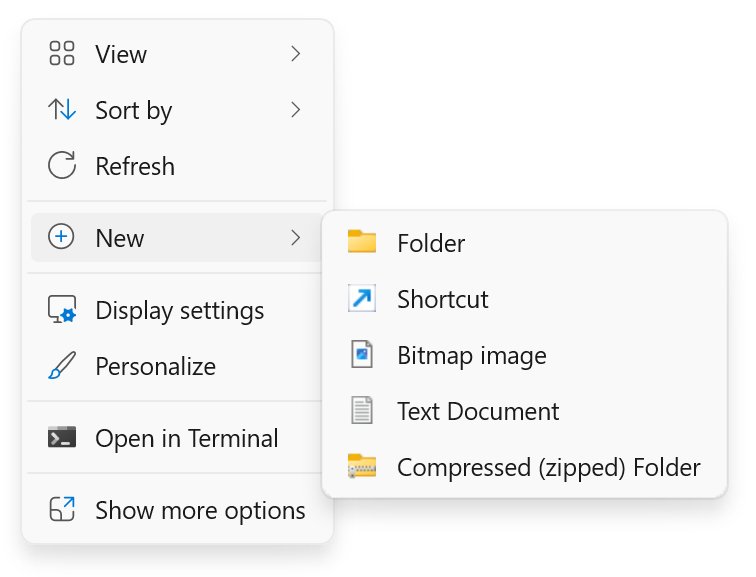
- Right-click an empty part of the desktop, away from any icon.
- Select NVIDIA Control Panel in the menu. If you only see a short menu, select Show more options first.
- Wait for the window to load. It reopens on the last page you visited, so you may land straight on Manage 3D settings or Change resolution.
If the entry is not in either menu, use the Start menu route below. The desktop item can be switched off inside the app, and the next sections show how to bring it back.
Tips for opening NVIDIA Control Panel on Windows 11
Every route opens the same app, so pick the one that suits what you are doing at that moment.
| Your situation | Route to use | Why it works |
|---|---|---|
| You are on the desktop | Right-click the desktop > NVIDIA Control Panel | One click when the context menu entry is on |
| The desktop menu has no NVIDIA entry | Start > type NVIDIA Control Panel > Enter | Search finds the installed app even when the menu item is off |
| You use it every day | Pin it to Start or the taskbar | Puts the app one click away from any window |
| The NVIDIA icon shows in the tray | Select the NVIDIA icon in the notification area | The tray icon gives quick access to key settings |
| A game is running full screen | Alt + Tab or the Windows key, then search | Returns you to the desktop without closing the game |
| Search finds nothing | Check the GPU and install the app from Microsoft Store | The app is separate from the driver on current PCs |
Before you start: make sure you have NVIDIA graphics
NVIDIA Control Panel only installs and opens on a PC with an NVIDIA graphics card and an NVIDIA display driver. Device Manager shows which graphics adapters Windows sees.
- Right-click the Start button and select Device Manager.
- Expand Display adapters.
- Look for an entry that starts with NVIDIA, such as NVIDIA GeForce RTX followed by a model number.
- If you only see Intel or AMD graphics, the PC has no NVIDIA GPU and NVIDIA Control Panel will not run on it.
- If you see Microsoft Basic Display Adapter, install the NVIDIA driver from nvidia.com/drivers before trying to open the app.
Laptops often list two adapters: an Intel or AMD integrated GPU and an NVIDIA GPU. Both being listed is normal.
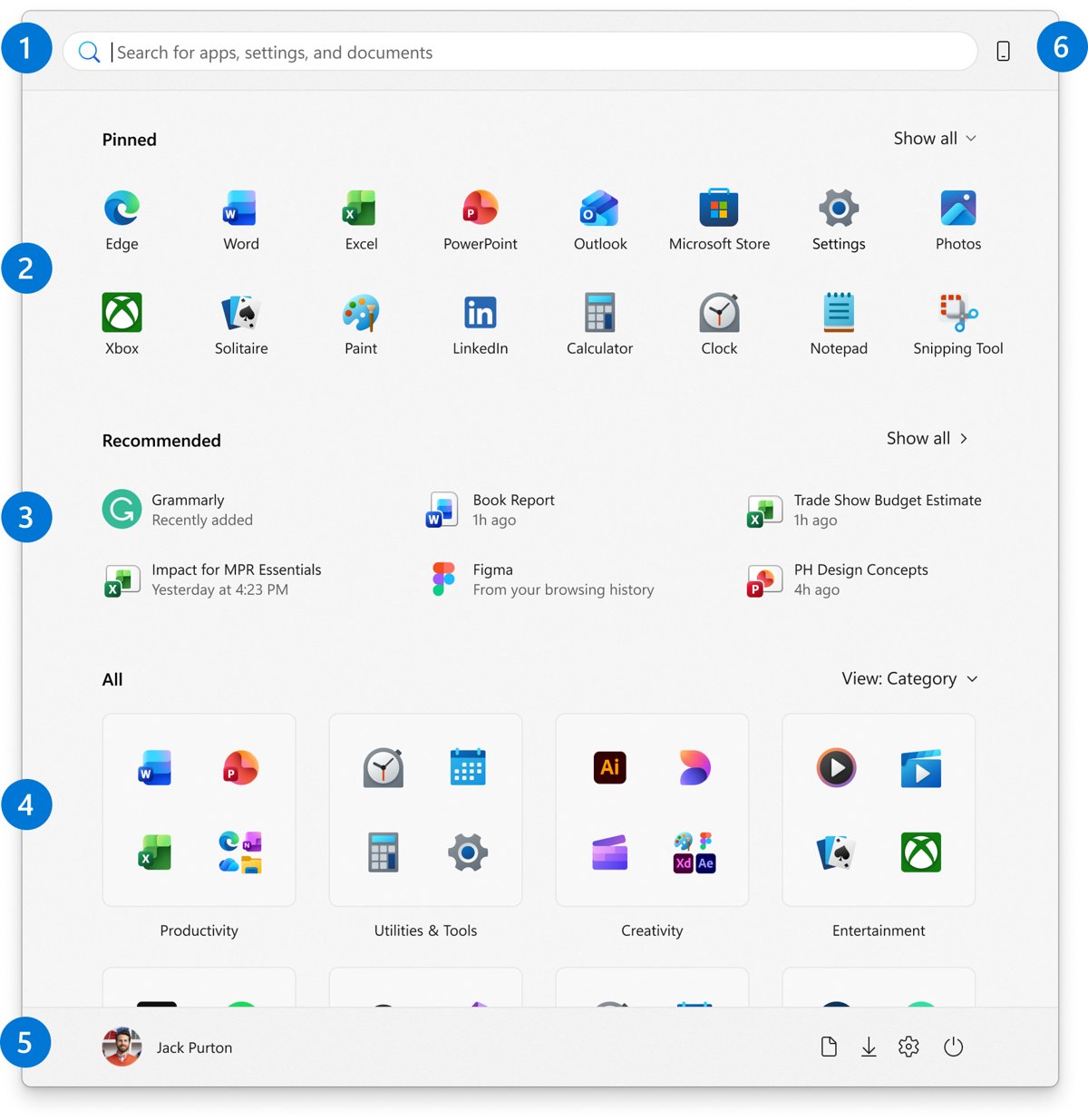
Open NVIDIA Control Panel from the Start menu
Search works whether or not the desktop entry is enabled, because it looks for the installed app itself.
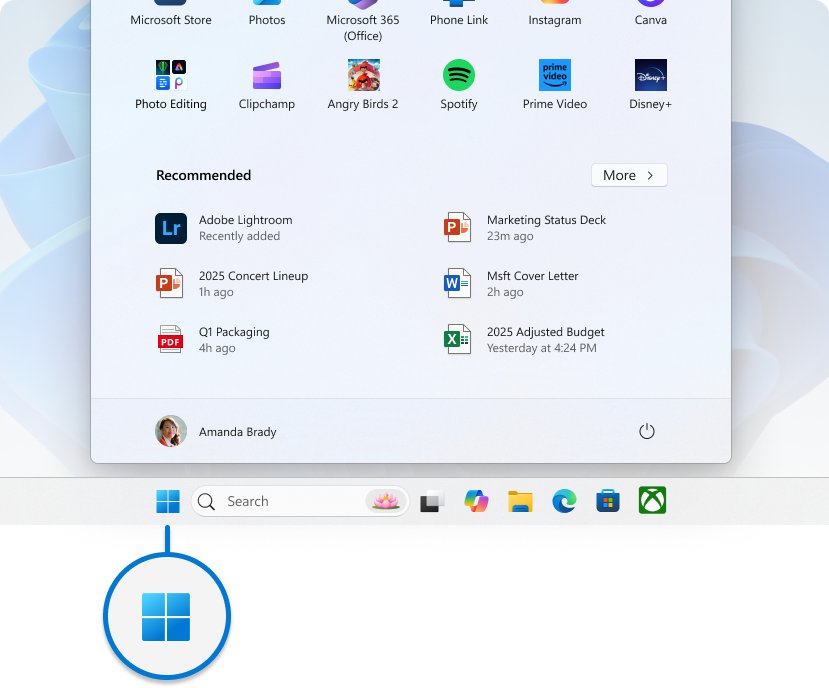
- Select Start on the taskbar, or press the Windows key.
- Type NVIDIA Control Panel.
- Select NVIDIA Control Panel in the results, or press Enter.
- To browse instead of search, select All in Start and scroll to the letter N, then select NVIDIA Control Panel.
Open NVIDIA Control Panel from the system tray
NVIDIA Control Panel can place an icon in the notification area of the taskbar. Selecting it offers a quick way to reach key settings.
- Look at the right end of the taskbar for the green NVIDIA icon.
- If it is not visible, select the up arrow (chevron) to open the overflow area.
- Select the NVIDIA icon and choose NVIDIA Control Panel.
- If there is no icon, open the app from Start, select the Desktop menu and turn on Show Notification Tray Icon.
- To keep the icon visible, right-click the taskbar, select Taskbar settings, expand Other system tray icons and turn on the NVIDIA entry, or drag the icon out of the overflow area.

How to open NVIDIA Control Panel with a keyboard shortcut
NVIDIA does not document a dedicated hotkey for NVIDIA Control Panel. Windows search gets you there in three keystrokes.
- Press Windows + S to open search.
- Type nvidia control panel.
- Press Enter to launch the top result.
- For a desktop icon you can double-click, open Start, select All, and drag NVIDIA Control Panel onto the desktop to create a shortcut.
How to open NVIDIA Control Panel in game
NVIDIA Control Panel is a desktop app, not an in-game overlay. Leave the game running and switch to the desktop to use it.
- Press Alt + Tab to switch away from the game, or press the Windows key to bring up Start over it.
- Type NVIDIA Control Panel and press Enter.
- Select Manage 3D settings under 3D Settings in the left pane.
- Change the setting you need and select Apply.
- Switch back to the game with Alt + Tab. If you changed the preferred graphics processor, close and restart the game so it picks up the change.
The NVIDIA app has its own in-game overlay. NVIDIA Control Panel does not.
How to open NVIDIA Control Panel on a laptop
Most laptops with NVIDIA graphics use NVIDIA's power-saving GPU technology (Optimus), where the integrated GPU drives the built-in screen. NVIDIA Control Panel opens the same way, but some pages change.
| What you see | What it means | What to do |
|---|---|---|
| App opens but Display pages are missing | The screen is driven by the integrated GPU | Use Manage 3D settings for games; use the Intel or AMD graphics app for screen settings |
| Message that you are not using a display attached to an NVIDIA GPU | The active display is on a non-NVIDIA adapter | Open the app with the laptop's own screen in use, or connect a monitor to a port wired to the NVIDIA GPU |
| You want to see which apps use the NVIDIA GPU | The GPU Activity icon is off | In the app, select Desktop > Display GPU Activity Icon in Notification Area |
| You want one program on the NVIDIA GPU | Windows picks the GPU per app | Turn on Desktop > Add "Run with graphics processor" Option, then right-click the program |
If your laptop uses Intel graphics for the screen, you can open Intel Graphics Command Center for display settings such as brightness and colour.
How to pin NVIDIA Control Panel for faster access
Pinning keeps the app one click away without relying on the desktop menu.
- Select Start and type NVIDIA Control Panel.
- Right-click NVIDIA Control Panel in the results.
- Select Pin to Start to add it to the pinned section of Start.
- Right-click it again and select Pin to taskbar to add an icon next to your other taskbar apps.
- To remove either pin later, right-click the pinned icon and select Unpin from Start or Unpin from taskbar.
How to add NVIDIA Control Panel back to the desktop context menu
The desktop entry is controlled by a setting inside NVIDIA Control Panel itself. It is on by default, so a missing entry usually means it was switched off.
- Open NVIDIA Control Panel from Start.
- Select the Desktop menu at the top of the window. It is the third item on the menu bar.
- Select Add Desktop Context Menu so a check mark appears next to it.
- Close the app and right-click an empty part of the desktop.
- Select Show more options if the short Windows 11 menu does not show NVIDIA Control Panel.
Recent versions of the NVIDIA app add a separate toggle for their own desktop right-click entry. That setting controls the NVIDIA app entry, not NVIDIA Control Panel.
How to open NVIDIA Control Panel settings pages
Once the app is open, the left pane (Select a task) lists every page available on your system. Select an item to open that page.
| What you want to change | Where it is in NVIDIA Control Panel |
|---|---|
| Graphics quality and performance for all games | 3D Settings > Manage 3D settings > Global Settings tab |
| Refresh rate | Display > Change resolution > Refresh rate list |
| G-SYNC | Display > Set up G-SYNC |
| Desktop menu and tray icon | Desktop menu on the menu bar |
| Driver and GPU details | Help > System Information, or the System Information link at the bottom left |
Pages vary by GPU and PC maker. A desktop GeForce card shows more Display pages than a laptop whose screen runs on integrated graphics.
Find your NVIDIA driver version in NVIDIA Control Panel System Information
System Information proves the app is talking to your NVIDIA GPU and shows the driver it runs on.
- Open NVIDIA Control Panel.
- Select System Information at the bottom left of the window, or select Help > System Information.
- Read the GPU name and the driver version listed for it.
- Compare the driver version with the latest one listed at nvidia.com/drivers for your GPU.
Why NVIDIA Control Panel may be missing in Windows 11
On current PCs NVIDIA Control Panel is a Microsoft Store app that sits on top of the NVIDIA DCH display driver, so it can be absent even when the driver works.
| Cause | How to spot it | Fix |
|---|---|---|
| No NVIDIA GPU in the PC | No NVIDIA entry under Display adapters | None. Use the Intel or AMD graphics app instead |
| Driver not installed | Microsoft Basic Display Adapter in Device Manager | Install the driver for your GPU from nvidia.com/drivers |
| Control Panel app not installed | Start search finds nothing | Install NVIDIA Control Panel from Microsoft Store (NVIDIA DCH driver, Windows 10 version 14393 or later, x64) |
| Desktop menu entry turned off | App opens from Start but not from the desktop | Desktop > Add Desktop Context Menu |
| Tray icon turned off | No green icon in the notification area | Desktop > Show Notification Tray Icon |
If the app is not on the PC at all, download NVIDIA Control Panel from Microsoft Store after the driver is in place.
How to fix NVIDIA Control Panel not opening
Work through the symptom that matches what happens when you select the app.
Nothing happens when you select NVIDIA Control Panel
The app process is stuck or its files are damaged.
- Press Ctrl + Shift + Esc to open Task Manager and end any NVIDIA Control Panel task.
- Restart the PC and try again from Start.
- Open Settings > Apps > Installed apps, select … next to NVIDIA Control Panel and choose Advanced options.
- Select Repair. If that does not help, select Reset.
Can't open NVIDIA Control Panel after a driver or Windows update
The Store app and the display driver are out of step.
- Open Microsoft Store and select Library.
- Select Get updates and let NVIDIA Control Panel update.
- Install the current driver for your GPU from nvidia.com/drivers or through the NVIDIA app.
- Restart the PC.
NVIDIA Control Panel opens with display settings unavailable
The display in use is connected to a non-NVIDIA adapter.
- On a desktop PC, plug the monitor into the graphics card's ports, not the motherboard's.
- On a laptop, use Manage 3D settings, which still works when the screen runs on integrated graphics.
- Reopen NVIDIA Control Panel.
An access denied error usually clears once you reinstall NVIDIA Control Panel and the display driver in the right order.
NVIDIA Control Panel vs. NVIDIA app: What is the difference?
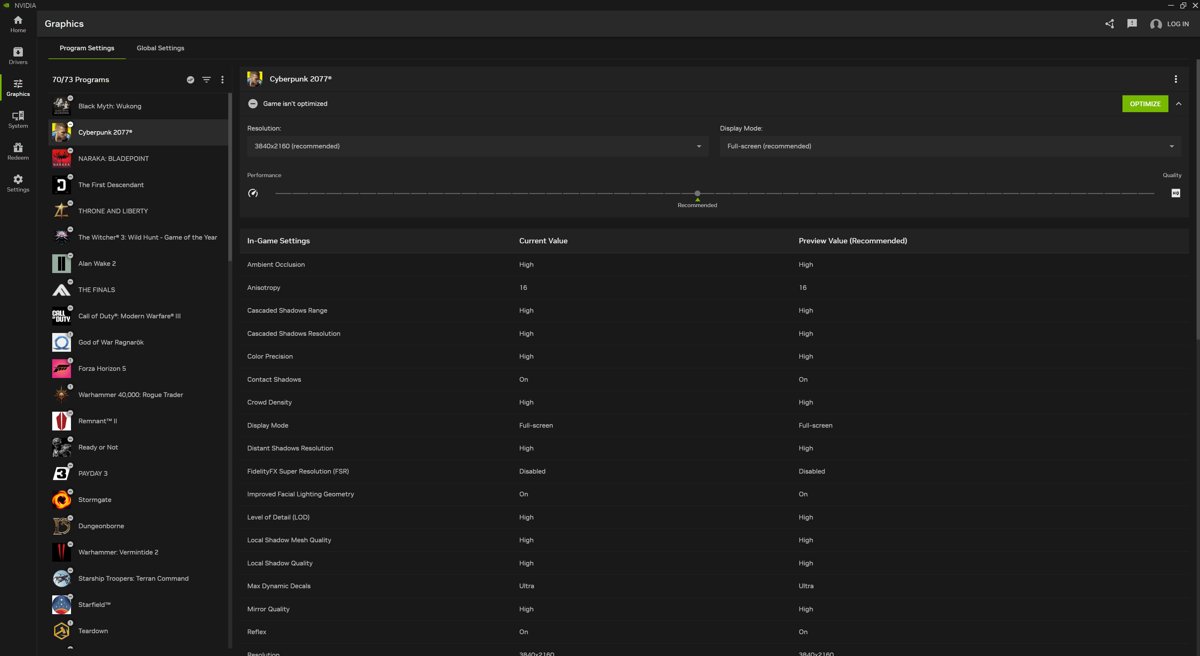
NVIDIA describes the NVIDIA app as the first step to unify NVIDIA Control Panel, GeForce Experience and RTX Experience. Settings are moving across in stages, so both apps still matter.
| NVIDIA Control Panel | NVIDIA app | |
|---|---|---|
| Where you get it | Microsoft Store, alongside the DCH driver | nvidia.com/software/nvidia-app |
| Driver updates | No | Yes, from the Drivers tab |
| 3D settings | Manage 3D settings | Migrated, including anisotropic filtering, antialiasing and background max frame rate |
| Display and G-SYNC settings | Display pages | System > Displays |
| Surround and CUDA System Fallback policy | Yes | Migrated in versions 11.0.5 and 11.0.9 |
| In-game overlay and recording | No | Yes |
| Sign-in | Not needed | Optional, for bundles and rewards |
If a setting you need is not in the NVIDIA app yet, NVIDIA Control Panel is still the place to change it.
Tips for using NVIDIA Control Panel safely
NVIDIA Control Panel changes how the driver renders every game, so a careless global change can hurt performance everywhere.
| Tip | Why it matters |
|---|---|
| Change per-game settings before global ones | A bad value then affects one game, not all of them |
| Change one setting at a time and select Apply | You can tell which change helped or hurt |
| Use Restore on the Global Settings tab to undo global changes | Returns 3D settings to NVIDIA's defaults |
| Use Restore Defaults at the top of Manage 3D settings to reset the whole page | Clears every 3D change in one step |
| Restart a game after changing its graphics processor | Running programs keep the GPU they started on |
| Get the app only from Microsoft Store or NVIDIA | Copies on download sites are not maintained by NVIDIA |
Open NVIDIA Control Panel on Windows 11 FAQ
Is there a shortcut to open NVIDIA Control Panel?
NVIDIA does not document a dedicated hotkey. Press Windows + S, type nvidia control panel and press Enter, or drag the app from Start > All onto the desktop to make a shortcut you can double-click.
How do I open NVIDIA Control Panel on Windows 10?
Right-click an empty area of the desktop and select NVIDIA Control Panel, or search for it from Start. Windows 10 shows the full desktop menu, so there is no Show more options step.
How do I open NVIDIA Control Panel on a laptop?
Use the same routes as a desktop PC: the desktop right-click menu or Start search. On laptops where integrated graphics drive the screen, some Display pages are missing, but Manage 3D settings still works.
Why can't I open NVIDIA Control Panel?
The usual causes are a missing NVIDIA driver, a missing Control Panel app, a damaged app install or a display connected to a non-NVIDIA adapter. Check Display adapters in Device Manager, then repair or reset the app in Installed apps.
How do I get NVIDIA Control Panel?
Install the NVIDIA display driver for your GPU, then get NVIDIA Control Panel from Microsoft Store. The Store listing needs an NVIDIA DCH driver, Windows 10 version 14393 or later and an x64 PC.
How do I open NVIDIA Control Panel settings?
Open the app and select a page in the Select a task pane on the left, such as Manage 3D settings or Change resolution. The app reopens on the last page you visited each time you start it.
How do I use NVIDIA Control Panel?
Pick a task in the left pane, change the value in the main pane and select Apply. On Manage 3D settings, the Restore button on the Global Settings tab returns 3D settings to their defaults.
How do I make NVIDIA Control Panel work after it stopped opening?
Update the app from Microsoft Store > Library > Get updates, install the latest NVIDIA driver and restart the PC. If it still fails, use Repair or Reset under the app's Advanced options in Settings.