An iPhone that reset itself out of nowhere either restarted, which keeps your data, or was erased by the Erase Data setting, a remote erase in Find My, or a Security Lockout reset.
This guide shows how to tell which one happened, how to restore your data from a backup, how to secure your Apple Account, and how to stop an iPhone that keeps restarting.
Why did my iPhone reset itself?
Start with what the screen shows now. A Lock Screen with your wallpaper means a restart, and a Hello screen means the iPhone was erased.
| What you see | What most likely happened | What to do |
|---|---|---|
| Your Lock Screen, and Face ID will not work until you type the passcode | The iPhone restarted. iOS always asks for the passcode after a restart | Enter the passcode. Your data is still there |
| Your apps and data are there, but it restarts again and again | A software or battery problem | Update iOS and apps, then check battery health |
| The Hello setup screen, and you had a passcode attempt problem | Erase Data wiped it after 10 failed passcode attempts | Restore from your latest backup |
| The Hello screen, and an erase email arrived from Apple | Someone erased it in Find My with your Apple Account, or as a family member | Secure your Apple Account, then restore |
| The Hello screen after someone used your phone while it was locked | A Security Lockout reset with your Apple Account password | Secure your Apple Account, then restore |
| It restarted overnight while charging | Automatic iOS update | Nothing to fix. Data and settings stay unchanged after an update |
Can an iPhone factory reset itself?
Not without a trigger. A full erase comes from a setting, a remote command, or someone entering the right details. Apple documents three ways an iPhone erases without you choosing Erase All Content and Settings: the Erase Data option after 10 consecutive failed passcodes, Erase This Device in Find My on iCloud.com, and a Security Lockout reset that needs your Apple Account password.
Each of these leaves a clue you can check, covered in the next sections. A restart, by contrast, never deletes data.
How to tell if your iPhone restarted or was erased
These checks take a minute and tell you whether you need a backup at all.
- Look at the screen. If it shows your Lock Screen, type your passcode and see whether your apps and photos are there.
- If the Hello screen appears instead, the iPhone was erased and needs to be set up again.
- Check the email inbox for your Apple Account. A remote erase in Find My sends a confirmation email to that address.
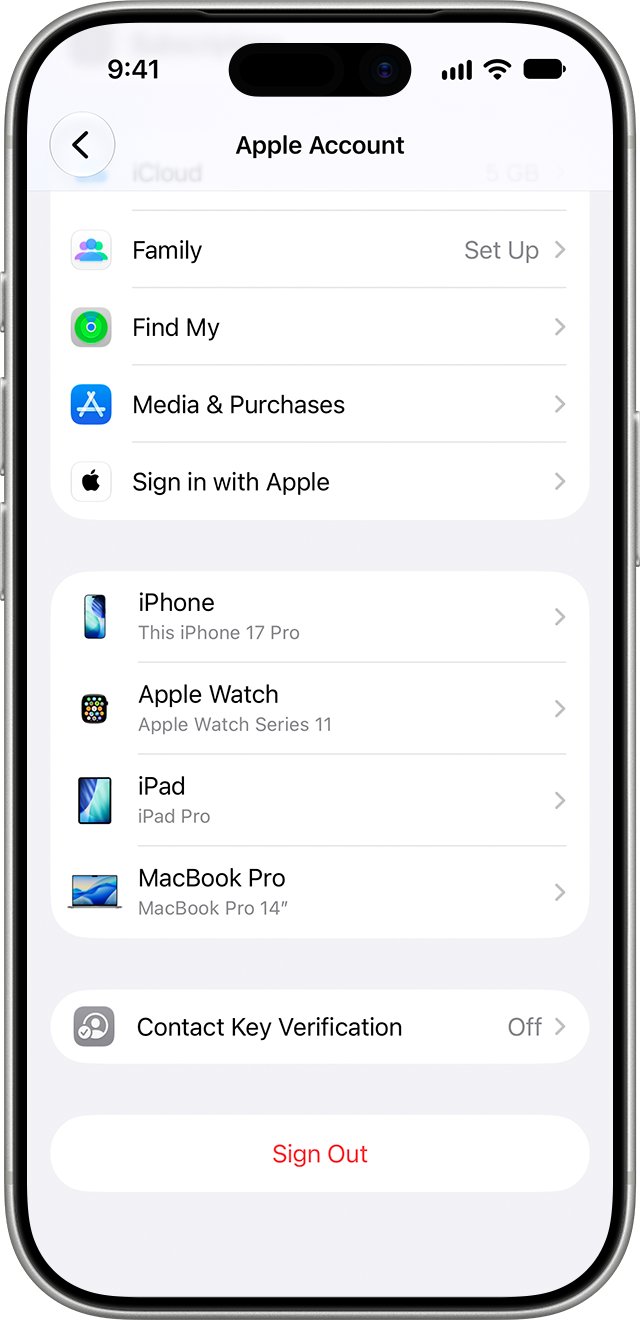
- On another Apple device signed in to the same account, open Settings, tap your name, and scroll down to the device list.
- Tap the iPhone in the list to view its information and confirm it is still linked to your account.
If the iPhone was erased by Find My, Activation Lock stays on, and setup asks for your Apple Account and password. That is a good sign: the phone is still protected by your account.
iPhone erased after 10 failed passcode attempts
The Erase Data option wipes all information, media and personal settings after 10 consecutive failed passcode attempts. A child playing with the phone, or a phone in a pocket, can use up those attempts.
- After you set the iPhone up again, open Settings.
- Tap Face ID & Passcode, or Touch ID & Passcode on an iPhone SE.
- Enter your passcode.
- Scroll to the bottom and find Erase Data.
- Turn Erase Data off if you would rather not have the iPhone wipe itself after 10 failed attempts.
- Leave it on if the phone holds sensitive data, and make sure backups are turned on.
Apple notes that once the data is erased you must restore from a backup, or set the iPhone up as new if you never made one.
iPhone erased remotely with Find My
Erase This Device in Find Devices on iCloud.com wipes an iPhone over the internet. It works for your own devices and for a family member's device, so check with your Family Sharing group as well.
- On a computer or another device, go to icloud.com/find and sign in to your Apple Account.
- Select the iPhone in the list of devices.
- If an erase is still pending because the iPhone was offline, select Stop Erase Request and enter your Apple Account password.
- Search your email for the erase confirmation that Find My sends to your Apple Account address.
- Ask anyone in your Family Sharing group whether they erased the device.
- If nobody you know did it, secure your Apple Account before you restore.
A remote erase only starts once the iPhone is online. An iPhone that was offline gets wiped the next time it connects, which can make the erase look random.
iPhone reset from the Security Lockout screen
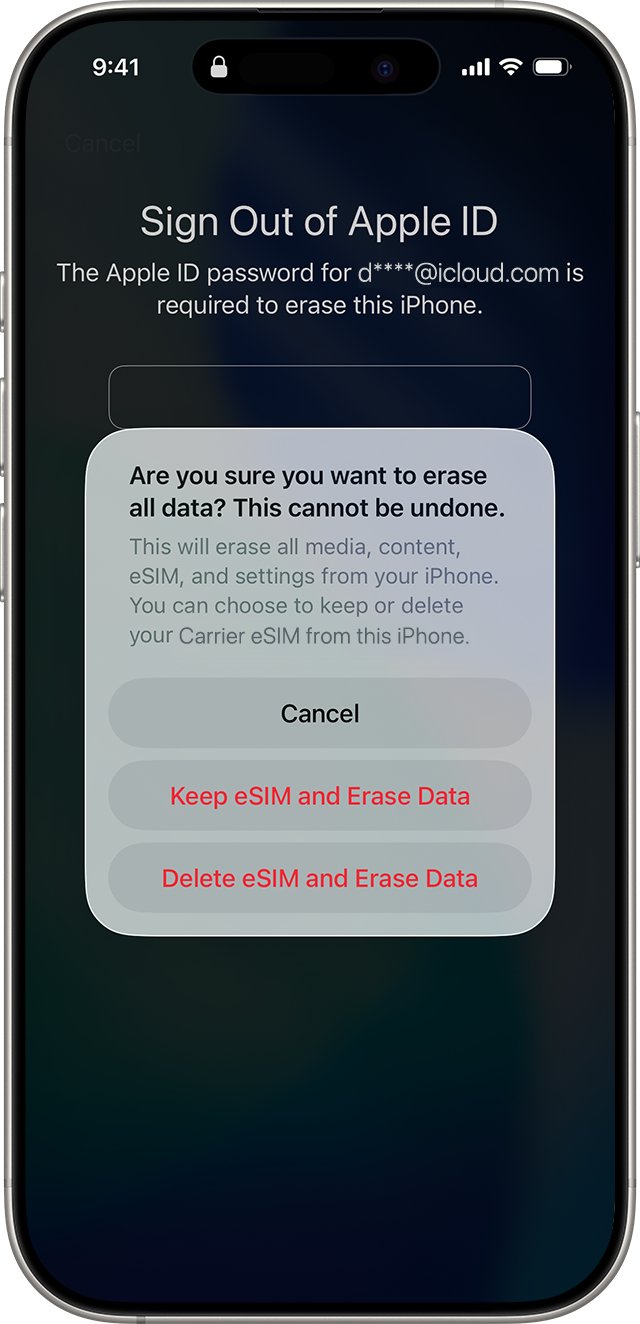
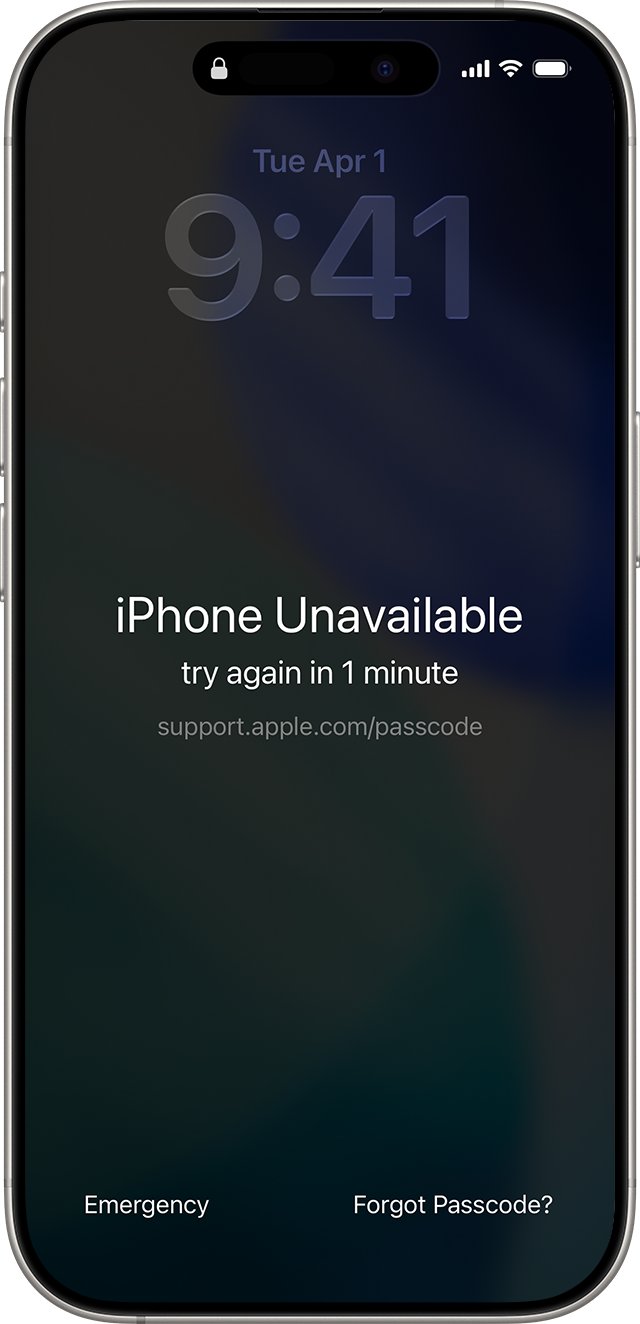
On iOS 15.2 and later, someone who fails the passcode enough times sees an iPhone Unavailable or Security Lockout screen. With Wi-Fi or cellular on and Find My turned on, that screen offers a reset.
- The reset starts with Forgot Passcode? on the iPhone Unavailable screen in iOS 17 and later.
- Next, Start iPhone Reset is tapped on the Security Lockout screen.
- The Apple Account password has to be entered to sign out of the account.
- Erase iPhone then deletes all data and settings.
- If you did not do this, someone knows your Apple Account password, so change it straight away.
On iOS 15.2 and iOS 16 the screen shows an Erase iPhone option instead of Forgot Passcode?. If you are locked out yourself, you can also reset a locked iPhone passcode the same way.
How to secure your Apple Account after an unexpected iPhone reset
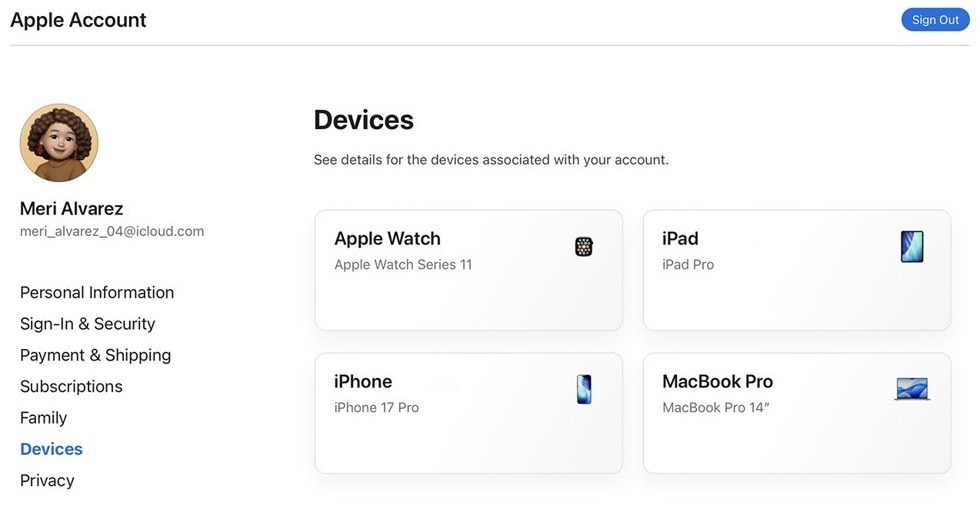
Apple lists a device that was locked or placed in Lost Mode by someone else, or a password that no longer works, as signs of a compromised account. An erase you did not start belongs in the same group.
- Change your Apple Account password to a strong, unique one.
- If someone already changed it, reset the Apple Account password, or start account recovery at iforgot.apple.com.
- Sign in at account.apple.com and correct any personal or security details you do not recognize.
- Select Devices and use Remove from Account on any device you do not recognize.
- Ask your carrier to confirm that SMS forwarding is not set up on the phone number linked to your account.
- Turn on two-factor authentication, and turn on Stolen Device Protection on the iPhone.
How to restore iPhone after reset
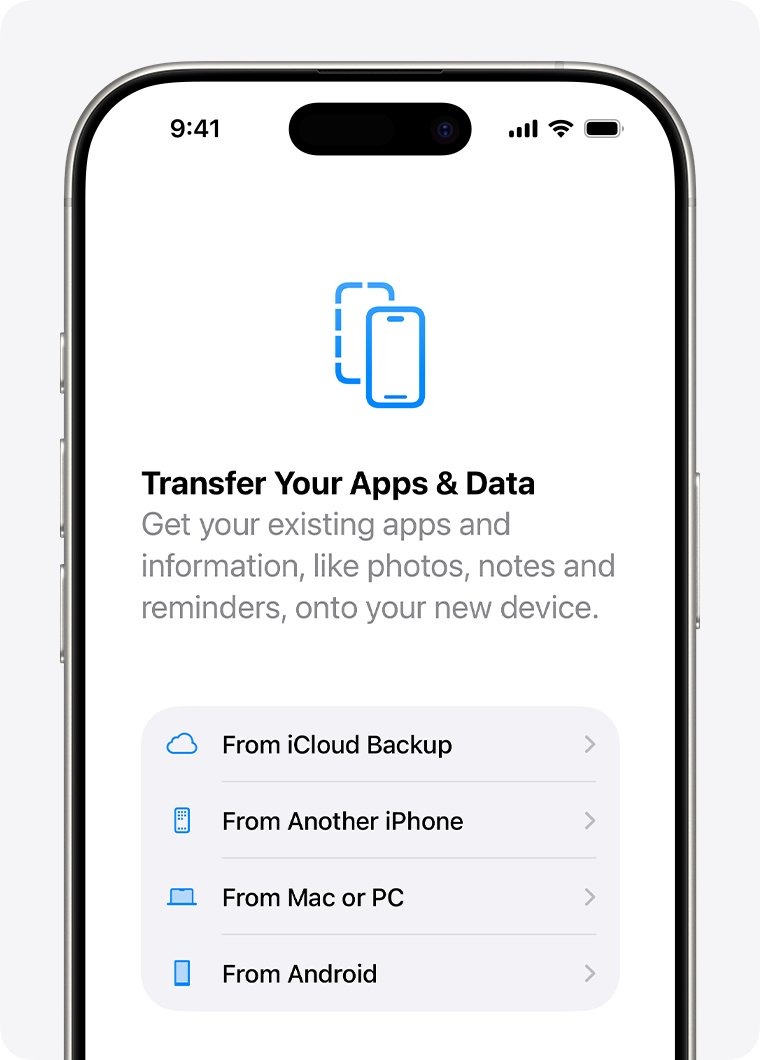
If the iPhone was erased, restore it from the newest backup. An iCloud backup needs only Wi-Fi and your Apple Account.
- Turn on the iPhone and wait for the Hello screen.
- Follow the setup steps until you reach Transfer Your Apps & Data.
- Tap From iCloud Backup and sign in to your Apple Account.
- Check the date and size of each backup, then choose the most recent one.
- Sign in again when asked, so your apps and purchases come back.
- Keep the iPhone on Wi-Fi and power until the progress bar finishes, then finish setup.
To use a computer backup instead, open the Finder on a Mac or the Apple Devices app on a Windows PC, select the iPhone, and click Restore Backup.
Photos, music and apps keep downloading from iCloud after setup, so leave the iPhone on Wi-Fi and power for a while.
What happens after you reset your iPhone
| After this | What changes | What stays |
|---|---|---|
| A restart or force restart | Face ID and Touch ID need the passcode once | All apps, data and settings |
| An iOS update | The iOS version | Data and settings remain unchanged |
| Erase Data after 10 failed passcodes | All information, media and personal settings are erased | Your iCloud or computer backup |
| Erase This Device in Find My | All data is erased, and a confirmation email is sent | Activation Lock, your Apple Account link and your backups |
| A Security Lockout reset | All data and settings are erased, and the Apple Account is signed out | Your backups. With an eSIM on iOS 17 or later, the eSIM can be kept |
Setting up as new and then letting it back up can replace your saved iCloud backup. Restore as soon as possible to avoid that. If you plan to sell the phone, know whether a factory reset deactivates Find My iPhone first.
iPhone keeps resetting itself
iPhone randomly restarts or shuts down
Outdated iOS or apps, or a worn battery.
- Open Settings > General > Software Update and install any available update.
- Update your apps in the App Store.
- On iPhone 15 models and later, open Settings > Battery > Battery Health and check whether a replacement is recommended.
- On iPhone 11 to 14 models, open Settings > Battery > Battery Health & Charging.
- If the battery is fine but restarts continue, book service with Apple.
iPhone stuck on the Apple logo or a spinning gear
A frozen restart or a failed update.
- Press and quickly release the volume up button.
- Press and quickly release the volume down button.
- Press and hold the side button until the Apple logo appears, which can take longer than 10 seconds.
- If it still will not start, charge the iPhone for an hour and try again.
iPhone restarted overnight on its own
Automatically Install downloads and installs iOS updates overnight while the iPhone is charging and on Wi-Fi.
- Open Settings > General > Software Update > Automatic Updates.
- Leave Automatically Install on if you want updates applied overnight.
- Turn it off and turn on Automatically Download instead to install updates yourself.
iPhone asks for the passcode instead of Face ID out of nowhere
iOS requires the passcode after a restart, after 48 hours without unlocking, or after five failed Face ID attempts.
- Enter your passcode once.
- Face ID works again for the next unlock.
- If this happens daily, check for the restart causes above.
iPhone was erased again after you restored it
A pending Find My erase request, or someone still has your Apple Account password.
- Go to icloud.com/find, select the iPhone and stop any pending erase request.
- Change your Apple Account password.
- Remove unknown devices from your account at account.apple.com.
iPhone reset itself FAQ
Why did my iPhone reset itself?
If your data is still there, the iPhone restarted, usually because of a software problem, a worn battery or an overnight update. If it shows the Hello screen, it was erased by Erase Data, a Find My remote erase, or a Security Lockout reset.
Why did my iPhone factory reset itself?
The usual causes are Erase Data after 10 failed passcode attempts, someone using Erase This Device in Find My, or a Security Lockout reset with your Apple Account password. Check your email for a Find My erase confirmation.
Can an iPhone factory reset itself?
Not without a trigger. An erase needs the Erase Data setting plus 10 failed passcodes, a remote Find My command, or someone entering your Apple Account password on the Security Lockout screen. A restart never deletes data.
Why does my iPhone keep resetting itself?
Repeated restarts usually point to outdated iOS or apps, or a battery that needs replacing. Update everything, then check Settings > Battery > Battery Health. If the battery is fine and restarts continue, the iPhone may need service.
What happens after I reset my iPhone?
A restart keeps everything and asks for your passcode once. An erase removes all data and settings, then shows the Hello screen, where you can restore from an iCloud or computer backup during setup.
Does an iPhone reset erase everything?
A restart or force restart erases nothing. An erase deletes all information, media and personal settings on the iPhone, but iCloud and computer backups are kept, so you can restore them during setup.
How do I restore my iPhone after a reset?
On the Hello screen, follow setup to Transfer Your Apps & Data, tap From iCloud Backup, sign in, and pick the newest backup. Keep the iPhone on Wi-Fi and power until the restore finishes.
Can I reset my iPhone without losing anything?
Yes. A restart or force restart keeps all your data, and an iOS update leaves data and settings unchanged. You can also reset an iPhone without losing data by backing it up first.
Why does my iPhone ask for my passcode after it restarted?
iOS always requires the passcode after the iPhone turns on or restarts. It also asks after 48 hours without an unlock and after five failed Face ID attempts. Face ID works again after you enter it.