Open https://vscode.dev in Chrome, Edge, Firefox or Safari to start coding in your browser today, because Microsoft retired the Visual Studio Online service in February 2021.
This guide covers the three browser options that replaced it (vscode.dev, github.dev and GitHub Codespaces), how to run a real app in the cloud, and what each one costs.
Start Coding Instantly With VS Code for the Web
VS Code for the Web is free, needs no install and runs entirely inside the browser tab. It is the closest thing to the old Visual Studio Online editor that still exists.
- Go to https://vscode.dev in the latest version of Edge, Chrome, Firefox or Safari.
- Press F1 to open the Command Palette, type New File and select File: New File.
- Save the file as
index.htmlon your computer when prompted, then type a few lines of HTML. - To work on a whole project, select Open Folder and allow the browser to access the folder. Folder access works in Edge and Chrome only; other browsers open single files.
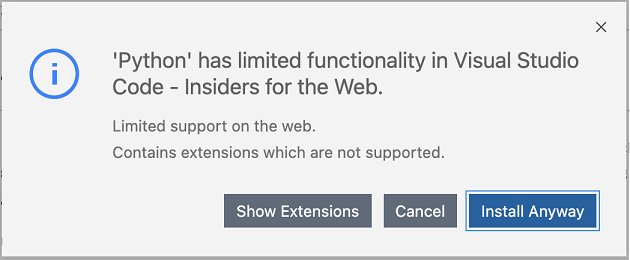
- Select the Extensions icon in the Activity Bar and install web-compatible extensions. Extensions that cannot run in the browser show a warning icon and a Learn Why link.
- Double-click the saved
index.htmlin File Explorer or Finder to view the page in your browser.
HTML, CSS, JSON and Markdown get near-desktop editing on vscode.dev. JavaScript, TypeScript and Python get rich single-file completions and syntax errors. There is no terminal or debugger, so nothing is compiled or run inside the tab.
What “Visual Studio Online” Means Today
Microsoft used the name Visual Studio Online for two different products. Neither exists under that name now, which is why old tutorials lead to dead links.
| Date | What happened | Where it lives now |
|---|---|---|
| 2013 | Microsoft launched Visual Studio Online as its hosted team service for source control, work items and builds. | Renamed Visual Studio Team Services (VSTS) |
| September 10, 2018 | VSTS became Azure DevOps. | Azure DevOps Services, including Azure Repos |
| November 2019 | Microsoft reused the Visual Studio Online name for a public preview of cloud-hosted dev environments with a browser editor. | See the next rows |
| April 30, 2020 | That browser environment was renamed Visual Studio Codespaces. | See the next rows |
| September 4, 2020 | Microsoft announced Visual Studio Codespaces would consolidate into GitHub Codespaces. | GitHub Codespaces |
| December 16, 2020 | Creation of new Visual Studio Codespaces plans and codespaces was disabled. | GitHub Codespaces |
| February 17, 2021 | The Visual Studio Codespaces portal was retired and remaining codespaces were deleted. | GitHub Codespaces, plus the free vscode.dev and github.dev editors |
Any tutorial that asks you to create a Visual Studio Codespaces plan in Azure describes a service that no longer runs. The full Windows IDE is a separate desktop product; see Download Microsoft Visual Studio for PC, Windows 11 if that is what you need.
Choose the Right Browser Coding Option
| Your situation | Use this | Why |
|---|---|---|
| Learning HTML, CSS or JavaScript, or editing a local file | vscode.dev | Free, no account needed, opens in seconds |
| Fixing a typo or reviewing code in a GitHub repository | github.dev (press . on the repo) | Free, commits straight to GitHub, no setup |
| Browsing or editing an Azure Repos repository | vscode.dev/azurerepos | Reads, searches and commits to Azure Repos |
| Running a server, tests or a build from a terminal | GitHub Codespaces | A real Linux VM with a terminal and debugger |
| A team that needs identical tools for every developer | GitHub Codespaces with a dev container | The environment is defined in the repository |
| Using your own PC or VM from any browser | vscode.dev with Remote – Tunnels | Brings your own compute to the browser editor |
What You Need Before You Start
| Requirement | vscode.dev | github.dev | GitHub Codespaces |
|---|---|---|---|
| Browser | Latest Chrome, Edge, Firefox or Safari | Same | Same |
| Account | None for local files | A GitHub account, signed in | A GitHub account, signed in |
| Open a local folder | Edge or Chrome (File System API) | Not applicable | Not applicable |
| Payment method | No | No | Only beyond the monthly free quota |
| Repository | Optional | Any repository you can view | A branch that is not empty, or a template |
Tablets such as iPads work with both vscode.dev and Codespaces, though smaller screens have some limits.
Open a GitHub Repository in the Browser
Three routes open the same editor. None of them clones the repository; files load through the GitHub API, and your edits sit in browser storage until you commit.
- Sign in at github.com and open any repository or pull request.
- Option 1: press the . (period) key to open it in github.dev in the same tab, or press > to open it in a new tab.
- Option 2: change
github.comtogithub.devin the address bar and press Enter. - Option 3: go to
https://vscode.dev/github/<owner>/<repo>, for examplehttps://vscode.dev/github/microsoft/vscode. - Open files from the Explorer and edit them as in desktop VS Code.
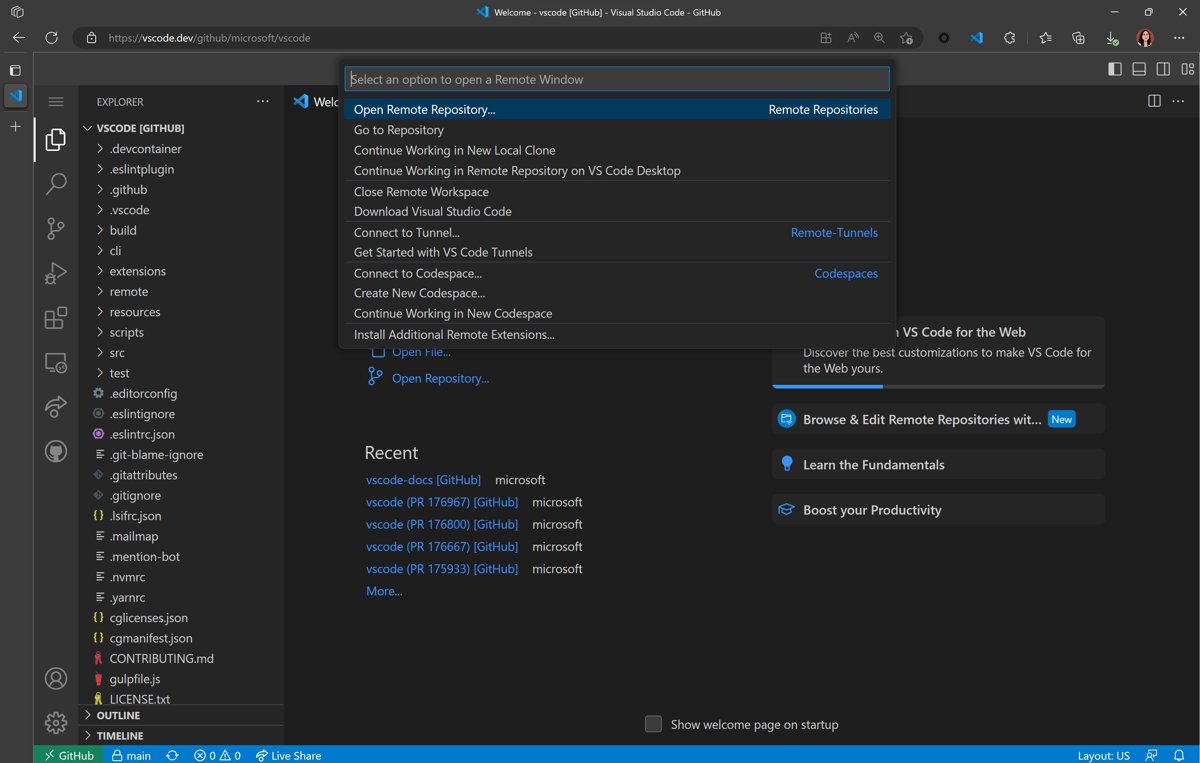
- To switch repositories, select the remote indicator at the lower left of the Status bar and choose Open Remote Repository….
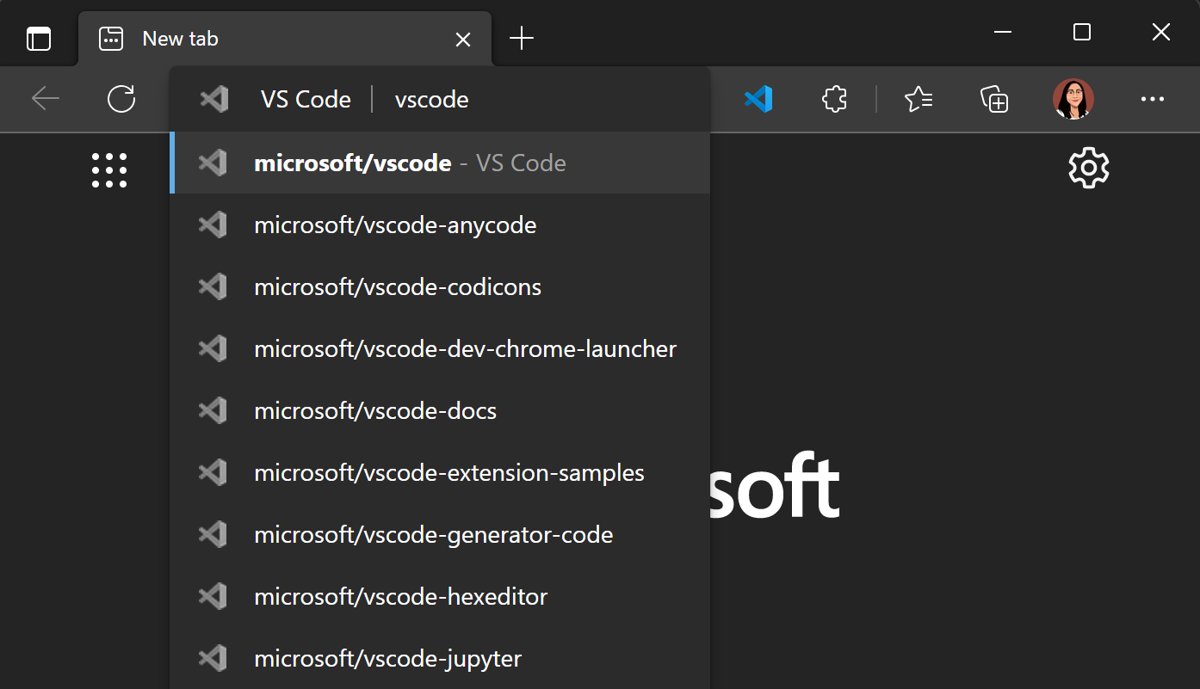
The vscode.dev extension for Chrome and Edge adds an address-bar shortcut: type code, then a repository name. It sits alongside the others in the complete list of Microsoft Edge browser extensions.
Create a Full Cloud Development Environment With GitHub Codespaces
A codespace is a Docker dev container on its own virtual machine. It opens in browser VS Code by default and gives you a real terminal.
- Open the repository's main page on GitHub.
- Select the branch dropdown under the repository name and pick the branch to work on.
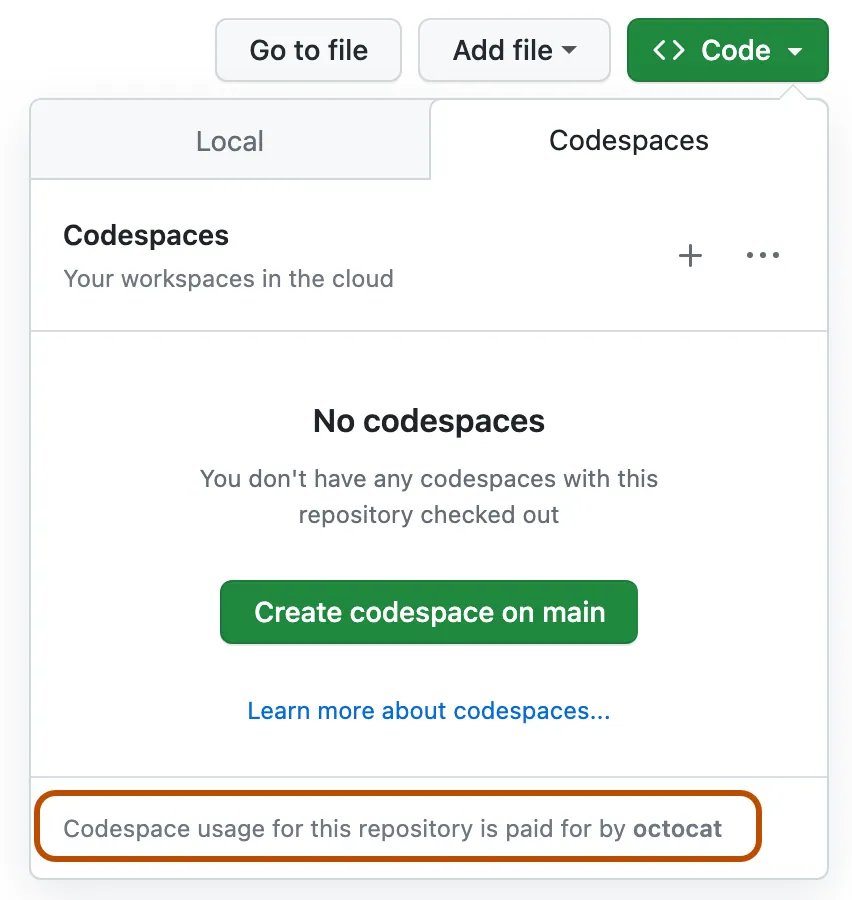
- Click the Code button, then the Codespaces tab. The note at the bottom shows who will pay for the codespace.
- Click the create button to use the default options, or open the menu at the top right and select New with options to choose a machine type or a specific devcontainer.json.
- Click Create codespace on the options page. Setup can take a few minutes while the VM is assigned and the repository is cloned.
- Explore the interface: Explorer for files, Source Control for Git, the TERMINAL and PORTS tabs at the bottom.
Starting a brand-new project? Open a template such as github/haikus-for-codespaces, click Use this template, then Open in a codespace. The address codespace.new jumps to the create page for any repository.
Build and Run a Simple App in Codespaces
The default codespace image already includes Node.js, Python, Java, Go, PHP, Ruby, C++ and .NET, so this small Node server runs with no installs.
- In the Explorer, create
server.jscontaining:const http = require('http'); http.createServer((req, res) => res.end('Hello from Codespaces')).listen(3000, () => console.log('Listening on http://localhost:3000')); - Create
package.jsoncontaining:{ "name": "hello-codespace", "scripts": { "start": "node server.js" } } - Open the TERMINAL tab and run
npm start. - When the terminal prints the localhost URL, the port is forwarded automatically. Click Open in Browser in the pop-up.
- Edit the message in
server.js, stop the server with Ctrl + C, runnpm startagain and refresh the app tab. - If you closed the app tab, open the PORTS tab, hover over the Local Address for port 3000 and click the Open in Browser icon.
Save Your Work With Git
In github.dev, uncommitted edits live only in browser storage. In a codespace, saved files persist while the codespace exists, but they reach GitHub only when you push.
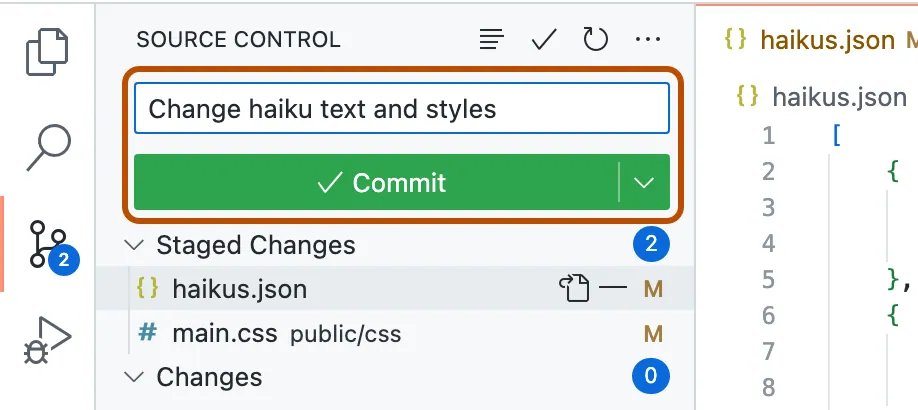
- Click the Source Control view in the Activity Bar.
- Click + next to a changed file, or next to Changes to stage everything.
- Type a commit message in the text box.
- In github.dev, click Commit & Push. In a codespace, click Commit, then Sync Changes or Publish Branch.
- For a codespace made from a template, pick Publish to GitHub private repository or Publish to GitHub public repository when asked.
- To start a branch, click the branch name in the Status bar, type a new name and select Create new branch. Uncommitted changes carry over.
- Open a pull request with the pull request icon at the top of the Source Control side bar.
Prefer typing? The codespace terminal accepts ordinary commands such as git add ., git commit -m "message" and git push. If you only have read access to a repository, a commit in a codespace creates a fork for you automatically.
Customize Your Cloud Environment With a Dev Container
A dev container configuration in .devcontainer/devcontainer.json tells Codespaces which image, tools, extensions and ports every new codespace gets. You need write access to the repository to add one.
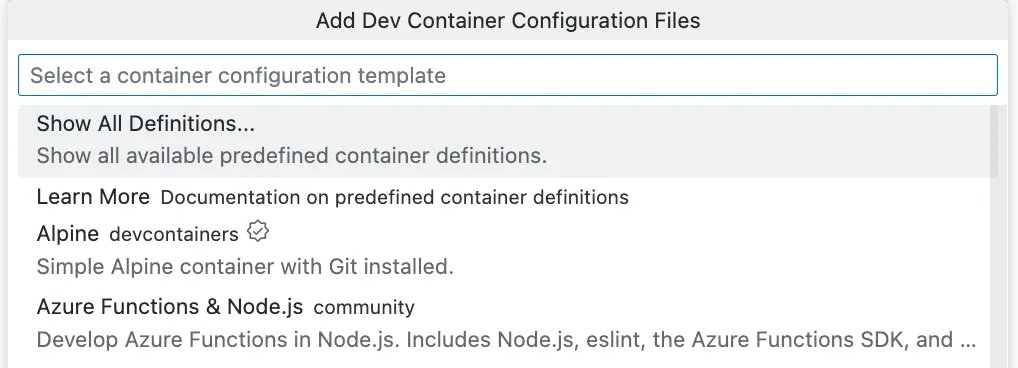
- Inside the codespace, press Ctrl + Shift + P (Shift + Command + P on a Mac) and type add dev.
- Select Codespaces: Add Dev Container Configuration Files.
- Click Create a new configuration, then Show All Definitions.
- Choose a predefined definition, such as Node.js or Python, and answer the prompts.
- Click OK, then Rebuild now in the pop-up at the bottom right.
- Commit and push the
.devcontainerfolder so every future codespace uses the same setup.
To use your own image, point the build.dockerfile property at a Dockerfile in the same folder, or set the image property directly. Keep personal themes out of devcontainer.json; use Settings Sync or dotfiles for those. If a config change breaks the container, the codespace starts in recovery mode until you fix and rebuild it.
Connect Browser Coding to Azure DevOps
Azure DevOps is the direct descendant of the first Visual Studio Online, and vscode.dev opens its Git repositories without any install.
- Sign in to Azure DevOps and open a repository or pull request in Repos.
- Press the . (period) key to open it in VS Code for the Web.
- Or add
vscode.dev/in front of the Azure Repos URL. Any repository, branch or tag works this way. - Or type
https://vscode.dev/azurerepos/<organization>/<project>/<repo>directly. - Edit files, then commit from the Source Control view. You can also fetch, pull, sync and view branches.
Azure Repos is free for up to five users with basic features and hosts unlimited private Git repositories.
Use Visual Studio Code Desktop With the Same Cloud Environment
The same codespace opens in desktop VS Code, which lifts browser keyboard-shortcut conflicts while the code still runs in the cloud.
- Install VS Code 1.51 or later on your computer, then install the GitHub Codespaces extension from the Extensions view.
- Click the Remote Explorer icon in the Activity Bar and pick GitHub Codespaces from the dropdown.
- Click Sign in to GitHub and then Authorize when prompted.
- Or go to https://github.com/codespaces, click the … next to a codespace, select Open in and choose Visual Studio Code.
- To make desktop the default, change the default editor in your GitHub Settings > Codespaces page.
- From vscode.dev or github.dev, run Continue Working On… from the Command Palette to clone locally, reopen on desktop or create a codespace.
Work Safely: Security, Privacy, and Permissions
| Area | What happens | What to do |
|---|---|---|
| vscode.dev and github.dev | Code runs in the browser sandbox and repositories are read through APIs, not cloned | Safe for exploring unfamiliar repositories |
| Local folders | The browser asks before granting access through its file system API | Grant access only to the project folder |
| Codespace isolation | Each codespace gets its own VM and network; inbound internet traffic is blocked | Open only repositories you trust |
| GitHub token | A new token with an expiry is issued on each start, scoped to your repository access | Stop codespaces you are not using |
| Forwarded ports | Private by default; Public ports need no sign-in | Make a port Public only for a short demo |
| Passwords and API keys | Development environment secrets appear as environment variables | Store keys as secrets, never in committed files |
Understand Pricing and Limits
vscode.dev and github.dev are free. GitHub Codespaces bills compute while a codespace runs and storage while it exists.
| Item | Free personal account | GitHub Pro | Paid rate after quota |
|---|---|---|---|
| Compute per month | 120 included hours | 180 included hours | $0.18 per hour on 2 cores, up to $2.88 on 32 cores |
| How hours are counted | Multiplied by core count (2-core uses 2 per hour) | Same | Same |
| Storage per month | 15 GB-month | 20 GB-month | $0.07 per GB-month |
| Idle timeout | 30 minutes by default, adjustable from 5 to 240 | Same | Running time is billed until timeout |
| When quota runs out | Usage is blocked without a payment method | Same | Alerts at 90% and 100% of included usage |
Organization plans include no free Codespaces quota. Closing the browser tab does not stop a codespace; stop it from the Codespaces page to end compute charges.
How to check it worked
- In vscode.dev, check the Language Status indicator in the Status bar to see the support level for the open file.
- In github.dev, open the repository on github.com after Commit & Push and confirm your commit appears in the history.
- In a codespace, confirm the PORTS tab lists port 3000 and the app tab shows your message.
- Visit https://github.com/codespaces and confirm the codespace, its machine type and its status are listed.
- After a dev container rebuild, confirm the codespace did not open in recovery mode.
Common Problems and Quick Fixes
Open Folder does nothing, or only single files open
Only Edge and Chrome support the File System API that folder access needs.
- Switch to the latest Edge or Chrome.
- Or open individual files instead of a folder.
Keyboard shortcuts open browser features instead of VS Code
The browser reserves some keys.
- Press F1 instead of Ctrl + Shift + P in Firefox.
- Use Ctrl + Alt + N for a new file, because Ctrl + N opens a browser window.
- Move to VS Code desktop for the full shortcut set.
No terminal, or code will not run, in vscode.dev
VS Code for the Web has no compute, terminal or debugger.
- Run Continue Working On… from the Command Palette.
- Choose a GitHub codespace or your desktop to get a terminal.
An extension will not install in the browser
Only web extensions run in the browser sandbox.
- Click Learn Why next to the warning icon in the Extensions view.
- Open the project in a codespace, which runs most Marketplace extensions.
The codespace does not open after creation
Creation may have succeeded but failed to report back.
- Reload the page.
- Check https://github.com/codespaces and open the codespace from there.
- Retry creation to rule out a transient failure.
Codespace creation fails or the Codespaces tab is missing
A cloud incident, a build over one hour, organization policy or an exhausted quota.
- Check the GitHub Status page for incidents.
- Delete the failed codespace and create a new one.
- Click View logs on the setup page and remove any script that waits for input.
- For organization repositories, ask an owner whether Codespaces is enabled for you.
- If your quota is used, add a payment method or wait for the monthly reset.
Best Uses for Browser-Based Microsoft Development
| Task | Best tool | Reason |
|---|---|---|
| Learning HTML and CSS in a classroom | vscode.dev or vscode.dev/edu | No install on shared or locked-down PCs |
| Reviewing a pull request | github.dev or vscode.dev on Azure Repos | Press . and read the full diff in an editor |
| Editing docs or config files | github.dev | Commit and push in one click |
| Onboarding a new developer | Codespaces with a dev container | Tools are ready when the codespace opens |
| Coding on a Chromebook or iPad | vscode.dev or Codespaces | Both run on tablets and low-power devices |
| Heavy builds or large test suites | Codespaces on a larger machine type | Pick 4 to 32 cores from New with options |
Tips for a Better Browser Coding Workflow
| Tip | How |
|---|---|
| Keep settings everywhere | Turn on Settings Sync so themes and extensions follow you across browsers, codespaces and desktop |
| Resume fast | Press , (comma) on a repository's Code tab to reopen your last codespace for that branch |
| Bookmark a codespace | Use https://CODESPACE-NAME.github.dev to open it straight in the browser |
| Cut idle charges | Lower the timeout under Settings > Codespaces > Default idle timeout |
| Allow pop-ups | Grant vscode.dev pop-up and clipboard permission in the browser's site permissions |
| Try a theme first | Open https://vscode.dev/editor/theme/<extensionId> to preview it without installing |
Quick Comparison: vscode.dev, github.dev, and Codespaces
| Feature | vscode.dev | github.dev | GitHub Codespaces |
|---|---|---|---|
| Cost | Free | Free | Free monthly quota, then per hour |
| Start time | Instant | Instant | A few minutes on first creation |
| Terminal and debugger | No | No | Yes |
| Run a web server | No | No | Yes, with port forwarding |
| Extensions | Web extensions only | Web extensions only | Most Marketplace extensions |
| Local files | Yes, in Edge or Chrome | No | No |
| Repositories | GitHub and Azure Repos | GitHub | GitHub |
Getting Started Checklist
| Step | Done when |
|---|---|
| Pick a tool from the decision table | You know whether you need a terminal |
| Update Edge, Chrome, Firefox or Safari | The browser is on its latest version |
| Sign in to GitHub or Azure DevOps | Repositories open with the . key |
| Create your first file or codespace | The editor shows your project in Explorer |
| Commit and push once | The commit appears on the repository page |
| Set the idle timeout and stop unused codespaces | Nothing on github.com/codespaces shows as running |
Frequently Asked Questions
Is Visual Studio Online still available?
No. The browser environment called Visual Studio Online was renamed Visual Studio Codespaces in April 2020 and retired on February 17, 2021. Its replacement is GitHub Codespaces, and the free vscode.dev and github.dev editors cover lightweight browser editing.
How do I start coding in HTML in the browser?
Go to vscode.dev, press F1, run File: New File and save it as index.html. HTML and CSS get near-desktop editing there. Double-click the saved file on your computer to see the page render in your browser.
How do I open HTML code in a browser?
Save the code as a file ending in .html, then double-click it or drag it into a browser window. For a page served from a codespace, run your server and click Open in Browser when the port is forwarded.
How do I open code in the browser from GitHub?
Press the period key on any GitHub repository or pull request, or change github.com to github.dev in the address bar. The code opens in VS Code for the Web, free, while you are signed in to GitHub.
How can I see a project's code in the browser without downloading it?
Open https://vscode.dev/github/owner/repo with the real owner and repository names. The editor reads files through the GitHub API instead of cloning, so nothing is downloaded to your computer.
How do I start coding on a computer without installing anything?
Open vscode.dev in a current browser. It needs no install and no account for local files. When you need to run code, create a GitHub codespace, which adds a Linux machine with a terminal in the same browser tab.
Where should beginners start coding?
Start with HTML, CSS and JavaScript in vscode.dev, because they need nothing but a browser. Microsoft's VS Code for Education landing page lives at vscode.dev/edu. Move to a codespace once you need Python scripts or a server.
How do I start to learn coding online for free?
Use vscode.dev or github.dev, which are both free, or the monthly GitHub Codespaces quota included with free personal accounts. That quota covers 120 included compute hours and 15 GB-month of storage each month.
Can vscode.dev run Python or Node.js code?
No. vscode.dev has no runtime, terminal or debugger, so it edits code but cannot execute it. Use Continue Working On to move the project into a GitHub codespace or desktop VS Code to run it.
Conclusion
Use vscode.dev for quick edits and learning, and create a GitHub codespace the moment you need a terminal. Visual Studio Online no longer exists. vscode.dev and github.dev are free and instant but cannot run code, while Codespaces runs real apps within a free monthly quota.