Set the screen and sleep timers under Settings > System > Power & battery > Screen, sleep, & hibernate timeouts in Windows 11, or Power & sleep in Windows 10, then choose when Windows asks you to sign in again under Settings > Accounts > Sign-in options.
This guide covers both versions, sensible staggered times, Microsoft's defaults, powercfg commands, automatic lock options and fixes for timers that do not behave.
Set the three controls in order
Work from the screen timer to the sleep timer, then the sign-in rule. These steps use the Windows 11 labels, and the Windows 10 labels follow in their own section.
- Select Start > Settings > System > Power & battery > Screen, sleep, & hibernate timeouts.
- Set Turn my screen off after for battery power and for plugged-in use.
- Set Make my device sleep after to a longer time for each, so the screen goes dark first.
- Open Settings > Accounts > Sign-in options.
- Under Additional settings, go to If you've been away, when should Windows require you to sign in again? and choose an option from the list.
- Leave the PC idle past the sleep time, wake it and look for the sign-in screen.
A sensible Windows lock-screen routine uses staggered timers
Staggered timers turn the screen off first, put the PC to sleep later and ask for a sign-in on the way back. Microsoft's security guidance calls 10 or 15 minutes of idle time a usually good interval for sleep, and tells you to pick what works for you.
| Your situation | Turn screen off after | Sleep after | Sign-in |
|---|---|---|---|
| Laptop on battery | 3 minutes | 10 minutes | Require on wake |
| Laptop or desktop plugged in | 5 minutes | 15 minutes | Require on wake |
| PC you read on for long stretches at home | 10 minutes | 30 minutes | Require on wake |
| PC in an office or shared room | 3 minutes | 10 minutes | Require on wake, and press Windows key + L when you stand up |
The first two rows match Microsoft's current defaults for S3 PCs, and the third matches its earlier plugged-in defaults for those PCs. Modern Standby PCs now default to the same time for screen and sleep, so raise the sleep value on those if you want a gap.
Windows 11 Power & battery separates screen-off time from Sleep
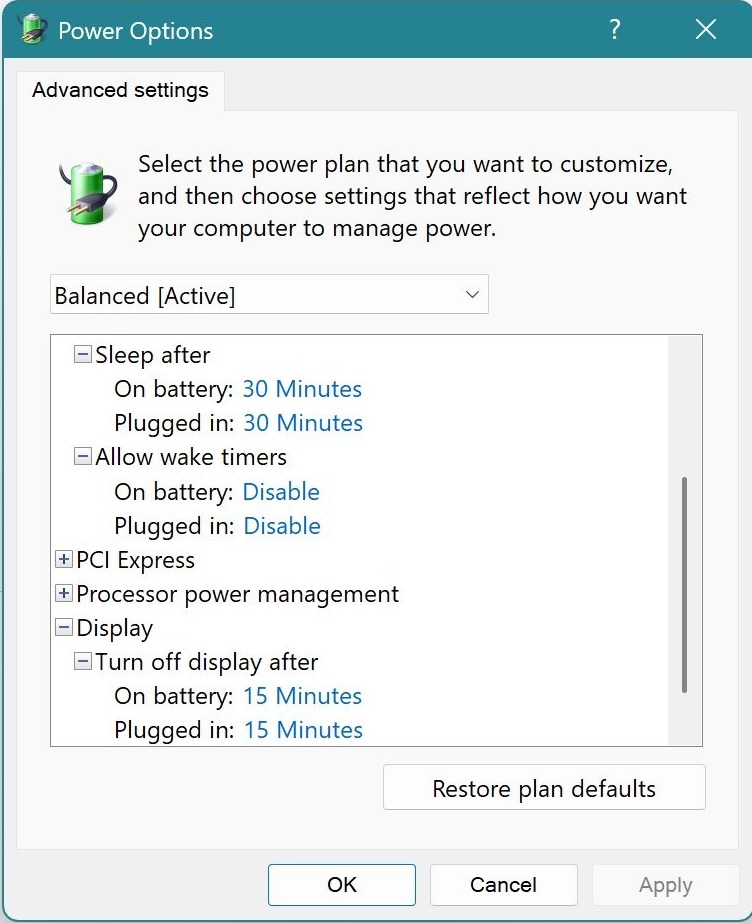
Windows 11 keeps one pair of timers for the display and another for the whole PC. Each pair has a battery value and a plugged-in value, so a laptop can save power on the road and stay awake longer at a desk.
- Select Start > Settings > System > Power & battery.
- Select Screen, sleep, & hibernate timeouts.
- Set On battery, turn my screen off after and When plugged in, turn my screen off after.
- Set On battery, make my device sleep after and When plugged in, make my device sleep after.
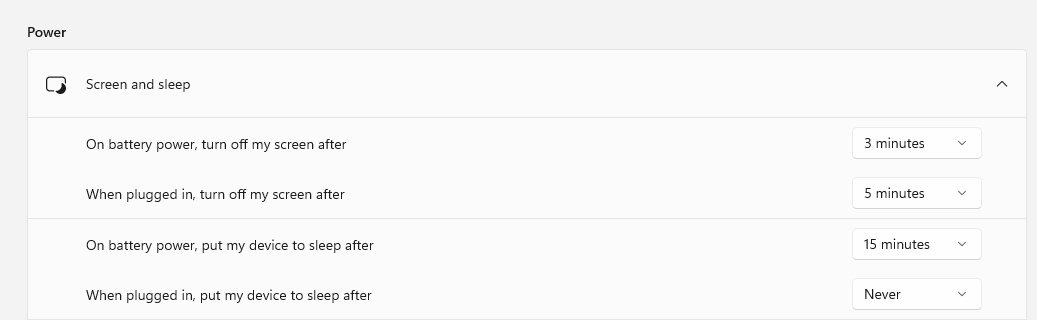
Some Windows 11 builds call this page Screen and sleep and label the battery lists On battery power, turn off my screen after and On battery power, put my device to sleep after. The timers do the same job under either name.
Windows 10 uses the older Power & sleep page
Windows 10 puts the screen and sleep lists on one Power & sleep page. The lid and power button actions sit one link further in, under Additional power settings.
- Select Start > Settings > System > Power & sleep.
- Under On battery power, turn off after, pick the screen time.
- Under On battery power, PC goes to sleep after, pick a longer time.
- Pick times in the matching plugged-in lists on the same page.
- To change the lid action on a laptop, select Additional power settings > Choose what closing the lid does, set When I close the lid to Sleep and save.
Sign-in options decide whether waking up means unlocking Windows
Screen and sleep timers decide when the PC goes idle, while Sign-in options decide what a returning person has to do. All Windows desktop editions have the password prompt on resume enabled by default, so this is often a setting to check rather than change.
- Select Start > Settings > Accounts > Sign-in options.
- On Windows 11, go to Additional settings > If you've been away, when should Windows require you to sign in again? and open the list.
- On Windows 10, select Require sign-in and open the list.
- Choose the option that requires sign-in when the PC wakes from sleep.
Microsoft notes that the availability of settings on this page varies with your device's configuration, so your list can differ from another PC's. Set up Windows Hello if typing a password after every wake is the annoyance, because a face, fingerprint or PIN can replace it.
Default screen and sleep timeout in Windows 11
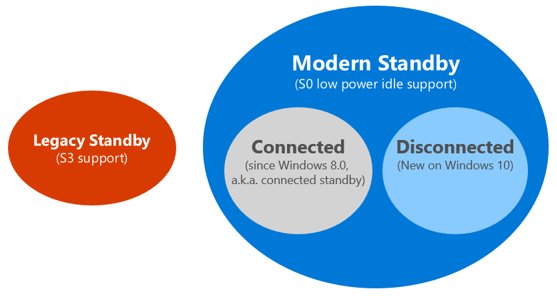
Microsoft publishes separate defaults for Modern Standby and S3 PCs. Run powercfg /a to report the sleep states your PC has: S3 points to the older model, and S0 points to Modern Standby, which stays in S0 during standby.
| Timer | Modern Standby PC | S3 PC |
|---|---|---|
| On battery, turn my screen off after | 3 minutes (was 4) | 3 minutes (was 5) |
| When plugged in, turn my screen off after | 5 minutes (was 10) | 5 minutes (was 10) |
| On battery, make my device sleep after | 3 minutes (was 4) | 10 minutes (was 15) |
| When plugged in, make my device sleep after | 5 minutes (was 10) | 15 minutes (was 30) |
Change Windows screen and sleep timeout with powercfg
Open Command Prompt as administrator and run these lines to set the same staggered times without opening Settings. Swap in your own values.
powercfg /change monitor-timeout-ac 5
powercfg /change monitor-timeout-dc 3
powercfg /change standby-timeout-ac 15
powercfg /change standby-timeout-dc 10
monitor-timeout is the screen timer and standby-timeout is the sleep timer. ac means plugged in, dc means battery, and every value is in minutes. The change applies to the current power scheme. hibernate-timeout-ac and hibernate-timeout-dc set the hibernate timer the same way.
You should see: the new times on the Screen, sleep, & hibernate timeouts or Power & sleep page when you next open it.
Require a password on wake with powercfg CONSOLELOCK
This is the command-line version of the sign-in rule, which suits scripts and remote sessions. Run it in an administrator Command Prompt.
powercfg /setacvalueindex SCHEME_CURRENT SUB_NONE CONSOLELOCK 1
powercfg /setdcvalueindex SCHEME_CURRENT SUB_NONE CONSOLELOCK 1
powercfg /setactive SCHEME_CURRENT
CONSOLELOCK is the prompt for password on resume setting. Index 1 returns the PC to the secure desktop and asks for a password after sleep, and index 0 returns straight to the desktop. /setacvalueindex covers plugged-in use and /setdcvalueindex covers battery.
You should see: the sign-in screen the next time the PC wakes from sleep.
Change the Windows lock screen timeout with VIDEOCONLOCK
A locked PC follows its own display timer, separate from the screen timer in Settings. By default Windows powers off the display after 60 seconds at a locked screen, and these commands change that time in seconds.
powercfg.exe /setacvalueindex SCHEME_CURRENT SUB_VIDEO VIDEOCONLOCK 300
powercfg.exe /setdcvalueindex SCHEME_CURRENT SUB_VIDEO VIDEOCONLOCK 300
powercfg.exe /setactive SCHEME_CURRENT
VIDEOCONLOCK applies at the locked screen, while VIDEOIDLE applies when the PC is unlocked. The example sets 300 seconds, which is 5 minutes, for plugged-in use and battery.
You should see: the locked screen staying on for the new time.
Power Options can also show this timer as a list, one of several lockscreen timeout settings you can change without typing seconds each time.
Lock Windows after idle time with a screen saver
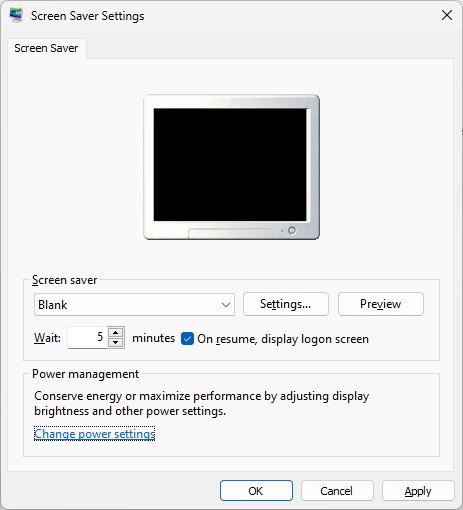
A screen saver gives you a separate lock timer that runs in minutes of inactivity. Microsoft still recommends sleep for saving energy, so treat this as a lock timer and keep your sleep timer.
- Select Start > Settings > Personalization > Lock screen.
- Under Related settings, select Screen saver.
- Choose a screen saver from the dropdown list in Screen Saver Settings.
- Set Wait to the number of idle minutes you want.
- Check On resume, display logon screen.
- Select OK to close the window.
Set a Windows inactivity lock timer with Group Policy
Interactive logon: Machine inactivity limit locks the session after a set number of idle seconds on Windows 11 and Windows 10. It needs the Local Group Policy Editor on your edition of Windows.
- Press Windows key + R, type
gpedit.mscand press Enter. - Go to Computer Configuration > Windows Settings > Security Settings > Local Policies > Security Options.
- Open Interactive logon: Machine inactivity limit.
- Enter the idle time in seconds under Machine will be locked after, up to 599,940.
- Restart the PC so the policy takes effect.
Once this policy is configured, the device also locks when the screen saver activates or when the display turns off because of power settings. A value of 0 or a blank box disables the limit.
Lock Windows when you walk away with Dynamic lock
Dynamic lock works alongside the timers by using a paired phone's Bluetooth signal instead of idle time.
- Pair your phone with the PC over Bluetooth.
- Select Start > Settings > Accounts > Sign-in options.
- Under Additional settings, turn Dynamic lock on.
- Take your phone with you when you leave, and Windows locks within a minute after you are out of Bluetooth range.
On Windows 11 PCs with a presence sensor, lock on leave competes with your screen timeout settings, and the more aggressive setting wins. With the screen timer at 1 minute and lock on leave at 2 minutes, the screen turns off in 1 minute whether you are present or not.
Windows sleep and sign-in Group Policy settings
Admins on Windows Pro, Enterprise and Education can set the same three controls by policy. These settings sit under Computer Configuration > Administrative Templates > System > Power Management.
| Control | Policy name | Folder |
|---|---|---|
| Screen off | Turn off the display (plugged in), Turn off the display (on battery) | Video and Display Settings |
| Sleep | Specify the system sleep timeout (plugged in), Specify the system sleep timeout (on battery) | Sleep Settings |
| Sign-in on wake | Require a password when a computer wakes (plugged in), Require a password when a computer wakes (on battery) | Sleep Settings |
If you enable or do not configure the password policies, Windows prompts for a password when the system resumes from sleep. If you disable them, it does not.
How to test Windows sleep timer and sign-in on wake
Microsoft's security guidance says only the screen needs to sleep for the lock to activate, with PC sleep saving more electricity. Run this short test, because it shows exactly what your PC does at each stage.
- Save any open work.
- Set the screen timer to 1 minute and the sleep timer to 5 minutes.
- Stop using the PC for a minute, and the screen should go dark.
- Press a key and note whether the sign-in screen or your desktop appears.
- Leave the PC idle past the sleep time.
- Wake it with the power button, or with a key, mouse button or lid opening if your PC supports those.
- Confirm that the sign-in screen appears, then put your normal times back.
How to restore default Windows 11 screen and sleep times
Microsoft's default values are a clean way back if your timers feel wrong after experimenting. There is no need to reinstall or reset anything.
- Run
powercfg /ato see whether your PC reports S0 or S3 sleep states. - Open Settings > System > Power & battery > Screen, sleep, & hibernate timeouts.
- Enter the four values from the matching column of the defaults table in this guide.
Windows 11 screen timeout and sleep not working
Screen turns off after 1 minute on the lock screen
This is by design. A locked PC powers off its display after 60 seconds, and the display setting in Power Options does not change that.
- Run the
VIDEOCONLOCKcommands with the number of seconds you want. - Lock the PC with Windows key + L and time the display.
PC does not go to sleep at the set time
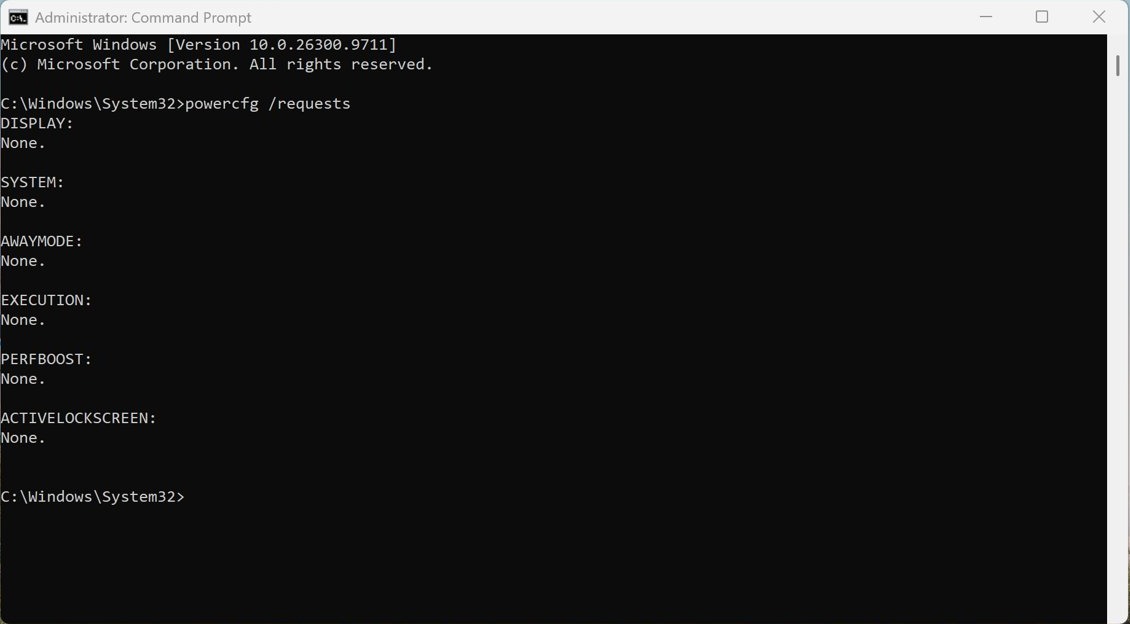
An app or driver can hold a power request, such as during a video or an ongoing call.
- Open Command Prompt as administrator and run
powercfg /requests. - Finish or close whatever the list names.
- Leave the PC idle past the sleep time and check again.
PC wakes from sleep by itself
A device or a wake timer can bring the PC out of sleep.
- Run
powercfg /lastwaketo see what woke the PC. - Run
powercfg /waketimersto list active wake timers. - If a device is responsible, run
powercfg /devicedisablewake "device name"with the name it reported.
Timers or sign-in choices are locked on a work PC
An organization can set these controls by policy, and it can also stop users changing power settings.
- Open Settings > Accounts > Access work or school to see whether an organization manages the PC.
- Ask your administrator to change the policy.
Monitors or printers do not work after waking from sleep
Connected devices sometimes fail to come back properly after sleep or hibernate.
- Disconnect and reconnect the device.
- Restart the PC if that does not help.
- Install the most current drivers for the device.
Windows screen, sleep and sign-in timer FAQ
What is the difference between screen timeout and sleep in Windows 11?
Screen timeout only turns the display off after the idle time you choose. Sleep puts the whole PC into a low power state after its own idle time, and it uses very little power while keeping you where you left off.
How long should a Windows PC wait before going to sleep?
Microsoft calls 10 or 15 minutes of idle time a usually good interval for sleep, and says to pick what works for you. Set the screen to turn off sooner than that, for example 3 or 5 minutes.
How do I make Windows 11 ask for a password after sleep?
Open Settings > Accounts > Sign-in options. Under Additional settings, go to If you've been away, when should Windows require you to sign in again? and choose an option that requires sign-in when the PC wakes from sleep.
How do I stop Windows asking for a password after sleep?
Open Settings > Accounts > Sign-in options and choose the option in the list that does not ask for sign-in. Do this only on a PC that stays somewhere private, because your open apps and files sit directly behind that prompt.
Why does my Windows lock screen go dark after one minute?
Windows waits 60 seconds of inactivity at a locked screen before powering off the display, by design. The display setting in Power Options does not affect this, but the powercfg VIDEOCONLOCK setting does.
Will I lose my work when Windows goes to sleep?
Sleep returns you to where you left off, and Windows automatically saves all your work and turns off the PC if the battery gets too low. Saving your files before a long break is still a sensible habit.
Should I use sleep or hibernate on a Windows laptop?
Use sleep for short breaks, because it resumes faster. Use hibernate when you will not use the laptop for an extended period and cannot charge it, because hibernate uses less power. Some PCs do not offer hibernate.
Can I set different screen and sleep timers on battery and plugged in?
Yes. Windows 11 lists separate battery and plugged-in values for both timers, and Windows 10 does the same on Power & sleep. In powercfg, the ac options set plugged-in values and the dc options set battery values.
Does closing a laptop lid follow the Windows sleep timer?
No. The lid has its own action, set in Control Panel under Choose what the power buttons do. Set When I close the lid to Sleep for On battery and Plugged in, then select Save changes.
What this means for you on Windows 11 and Windows 10
Turn the screen off first, put the PC to sleep later and keep sign-in on wake. Windows treats these as separate controls, so a short sleep timer does not tell you what happens when the PC wakes. Test all three once, then press Windows key + L whenever you leave the PC where others can reach it. If you want the PC off at a set time instead of asleep, create a sleep timer shutdown.