Apple Pay works by sending a device-specific number and a one-time security code instead of your real card number, and you can use it in stores with a contactless symbol, online, in apps and on transit.
This guide covers how a payment travels, where Apple Pay is accepted, how to set it up on each device, and what to do when a payment fails.
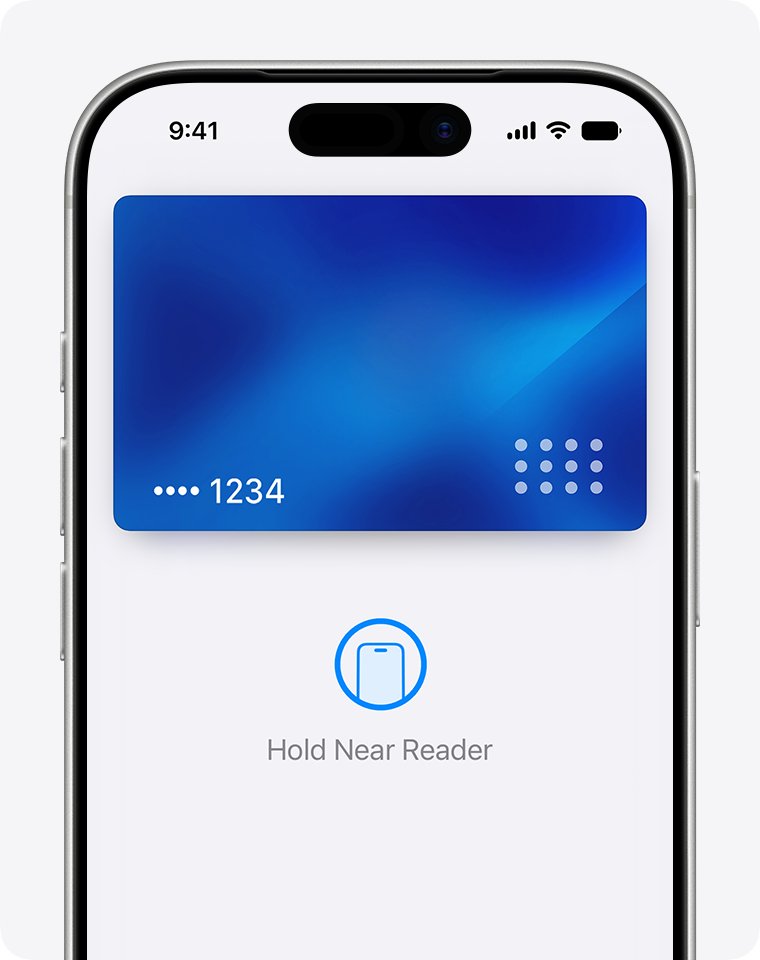
How to pay with Apple Pay on iPhone in stores
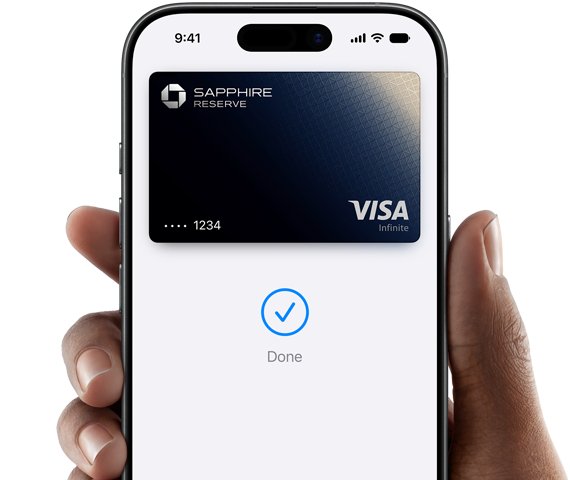
Look for the contactless symbol on the card reader. You can use Apple Pay this way in stores, restaurants, gas stations and taxis.
- Double-click the side button to bring up your default card.
- Authenticate with Face ID, Touch ID or your passcode if prompted.
- Tap your default card and pick another one if you want to pay with a different card, then authenticate again.
- Hold the top of your iPhone near the contactless reader.
- Wait until Done and a checkmark appear on the display.
Some stores also support Tap to Share. Hold your iPhone near the cashier's device at checkout, then follow the prompts on the screen.
What is Apple Pay and how does it work?
Apple Pay is a way to use your debit, credit or prepaid cards on an Apple device. Your bank still issues the card, and you keep the same rewards and fraud protections.
| Stage | What happens | Why it matters |
|---|---|---|
| You add a card | The card details are encrypted and sent to Apple, which passes them to your payment network or issuer. | Apple does not store the original card number. |
| Your bank approves it | The issuer creates a Device Account Number for that one device. | It is kept in the Secure Element chip and is never backed up to iCloud. |
| You authenticate | Face ID, Touch ID, Optic ID or a passcode confirms the payment. | Store payments need this step, except when you use Express Mode. |
| You tap a reader | Near Field Communication (NFC) sends the Device Account Number and a transaction-specific security code. | The store never receives your actual card number. |
| The bank checks it | Your bank, issuer or payment network confirms the code is unique and tied to your device. | The payment is approved only after that check passes. |
Apple charges no fee when you pay with Apple Pay in stores, online or in apps, and it does not limit how many transactions you can make. You can also keep Apple Pay secure against account hacks.
Where can I use Apple Pay?
Apple Pay works anywhere the checkout shows one of its symbols. Match where you are paying to the row below.
| Where you are paying | What to look for | What to use |
|---|---|---|
| Stores, restaurants, gas stations, taxis | Contactless symbol on the reader | iPhone or Apple Watch |
| Websites in Safari | Apple Pay button at checkout | iPhone, iPad, Mac or Apple Vision Pro |
| Apps | Apple Pay as a payment option | iPhone, iPad, Apple Watch, Mac or Apple Vision Pro |
| Other browsers on a Mac or PC | Apple Pay button that shows a code to scan | iPhone or iPad with iOS 18 or iPadOS 18 or later |
| Subway, bus or ferry | Contactless symbol on the transit reader | iPhone or Apple Watch, in supported cities |
| Some school campuses | Student ID in Wallet | iPhone or Apple Watch, at participating schools |
How to set up Apple Pay on iPhone
You need a compatible iPhone, a supported card, an Apple Account signed in on the device, and Face ID, Touch ID or a passcode. In most countries and regions you must also be at least 13.
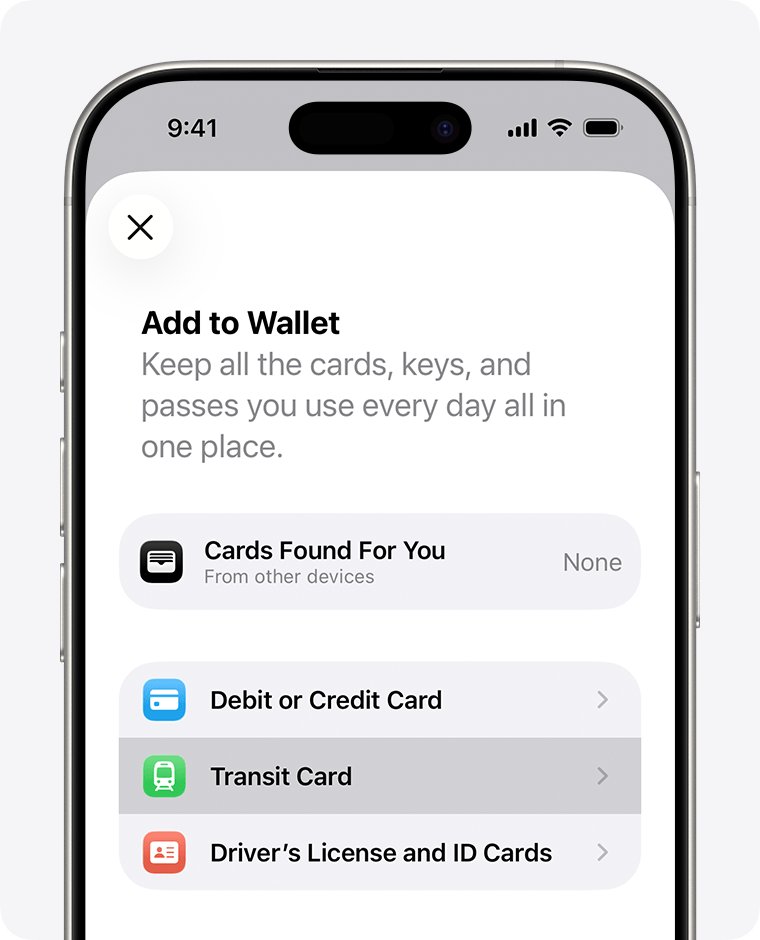
- Open the Wallet app and tap the Add Card button.
- Tap Debit or Credit Card to add a new card, or Cards Found For You to add one you used before.
- Tap Continue.
- Hold your card close to the iPhone, or tap Enter Card Details Manually and follow the prompts.
- Complete any extra check your bank asks for, which can include sending more information or installing its app.
To change the default card, touch and hold a card in Wallet and drag it to the front of the stack. You can update a card in Apple Pay in the same app when your bank details change.
How to add a card to Apple Pay on Apple Watch
Apple Watch Series 1 and later support Apple Pay, and the card is added from the paired iPhone.
- Open the Apple Watch app on your paired iPhone.
- In the My Watch tab, tap Wallet & Apple Pay.
- Tap Add Card, then choose Debit or Credit Card or Cards Found For You.
- Tap Continue.
- Hold the card close to the iPhone, scan it in the frame, or tap Enter Card Details Manually.
- Confirm any details your bank requests.
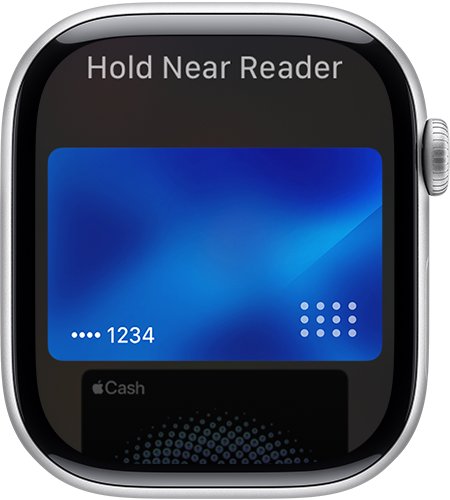
To pay, double-click the side button on the watch, then hold its display near the reader until you feel a gentle tap and hear a beep.
How to use Apple Pay on Mac and iPad
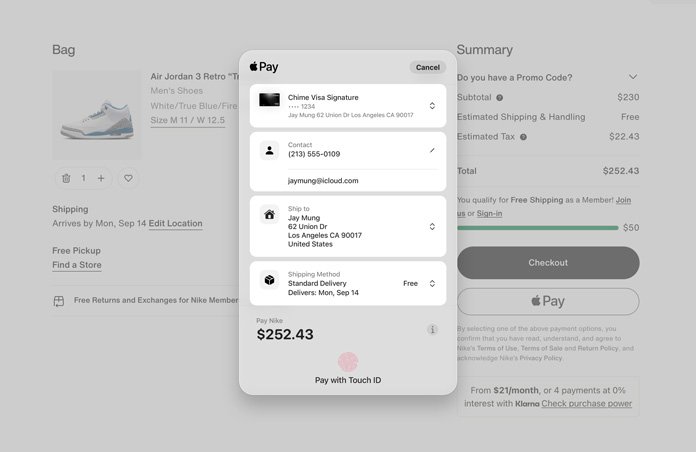
Mac and iPad pay online and in apps, not at store readers. A Mac without Touch ID can still pay by confirming on an iPhone or Apple Watch.
- On a Mac with Touch ID, go to System Settings and click Wallet & Apple Pay. On an iPad, go to Settings and tap Wallet & Apple Pay.
- Select Add Card and follow the steps on the screen.
- On a Mac without Touch ID, open Settings on your iPhone, tap Wallet & Apple Pay and turn on Allow Payments on Mac.
- Make sure the Mac and the confirming device are signed in to the same Apple Account.
How to use Apple Pay online and in apps
- Tap the Apple Pay button at checkout, or choose Apple Pay as the payment method.
- Tap Other Cards & Pay Later Options or Change Payment Method if you want a different card.
- Enter billing, shipping and contact details if they are requested.
- Confirm on your device: double-click the side button on iPhone, iPad or Apple Watch, place your finger on Touch ID on a Mac, or use Optic ID on Apple Vision Pro.
- Wait for Done and a checkmark on the screen.
How to use Apple Pay on a PC or in Chrome and other browsers
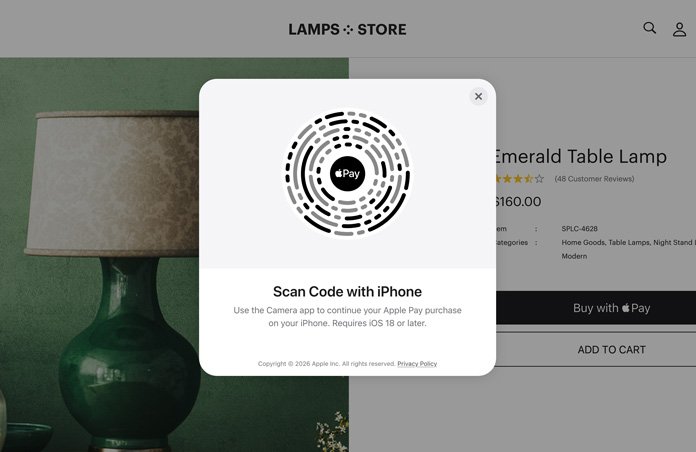
Third-party browsers on a Mac, PC or other device work by scanning a code with your iPhone or iPad. This needs iOS 18 or iPadOS 18 or later, a participating merchant and a supported market.
- Choose Apple Pay at checkout in the browser, and a code appears on the screen.
- Scan the code with the camera on your iPhone or iPad.
- Enter billing, shipping and contact details if they are requested.
- Double-click the side button on the iPhone or iPad, then use Face ID, Touch ID or your passcode.
- Wait for Done and a checkmark on the screen.
How to use Apple Pay for the subway, bus or ferry
Hundreds of markets accept Apple Pay for transit, either with a payment card or with a transit card from the local agency. Credit and debit cards in Wallet pay for full-fare trips only at most readers.
- Open the Wallet app and tap the Add button.
- Tap Transit Card to see the cards available to you, or use a payment card you already added.
- Add the card, and Express Mode turns on by default in regions that support it.
- Hold your iPhone or Apple Watch to the reader. With Express Mode you do not need to unlock the device or authenticate first.
Ask your transit agency which payment methods it accepts, because Express Mode runs only in select cities and systems.
How to tell if an Apple Pay payment went through
- On iPhone, look for Done and a checkmark on the display before you move the phone away.
- On Apple Watch, wait for the gentle tap and the beep.
- Open the Wallet app and tap the card you used to see recent transactions.
- Reconnect to the internet if you paid offline, because the purchase may not appear in your history until then.
Using Apple Pay with no data plan changes only when the record shows up, not whether the store payment works.
What devices work with Apple Pay?
| Device | Compatible models | Where it pays |
|---|---|---|
| iPhone | Models with Face ID, and models with Touch ID except iPhone 5s | Stores, web, apps, transit, student ID |
| Apple Watch | Series 1 and later | Stores, apps, transit, student ID |
| iPad | iPad Pro, iPad Air, iPad and iPad mini with Touch ID or Face ID | Web and apps |
| Mac | Models with Touch ID, Apple silicon Macs paired with a Magic Keyboard with Touch ID, and models from 2012 or later with an Apple Pay-enabled iPhone or Apple Watch | Web and apps |
| Apple Vision Pro | Apple Vision Pro | Safari and apps |
| PC or other device | Any device that shows a code to scan in a compatible browser | Web, confirmed on iPhone or iPad |
What countries does Apple Pay work in?
You can add a card from a participating bank in the regions below. Apple Pay also works abroad wherever contactless payments are accepted, though your bank may charge a fee for overseas use.
| Region | Countries and regions Apple lists |
|---|---|
| North America | Canada, United States and Puerto Rico |
| Asia-Pacific | Australia, China mainland, Hong Kong, Japan, Macao, Malaysia, Mongolia, New Zealand, Philippines, Singapore, South Korea, Taiwan, Vietnam |
| Middle East and India | Bahrain, India, Israel, Jordan, Kuwait, Oman, Palestine, Qatar, Saudi Arabia, United Arab Emirates |
| Latin America and the Caribbean | Argentina, Brazil, Chile, Colombia, Costa Rica, Dominican Republic, Ecuador, El Salvador, Guatemala, Honduras, Mexico, Panama, Paraguay, Peru, The Bahamas, Uruguay |
| Africa | Egypt, Mauritius, Morocco, South Africa |
| Europe | Albania, Andorra, Armenia, Austria, Azerbaijan, Belarus, Belgium, Bosnia & Herzegovina, Bulgaria, Croatia, Cyprus, Czechia, Denmark, Estonia, Faroe Islands, Finland, France, Georgia, Germany, Greece, Greenland, Guernsey, Hungary, Iceland, Ireland, Isle of Man, Italy, Jersey, Kazakhstan, Kosovo, Kyrgyzstan, Latvia, Liechtenstein, Lithuania, Luxembourg, Malta, Moldova, Monaco, Montenegro, Netherlands, North Macedonia, Norway, Poland, Portugal, Romania, Serbia, Slovakia, Slovenia, Spain, Sweden, Switzerland, Tajikistan, Ukraine, United Kingdom, Uzbekistan, Vatican City |
A country on this list does not guarantee your own card will work. Your card issuer confirms whether a specific card is compatible.
How does Apple Pay Pay Later work?
Pay Later plans come from your card issuer or an installment provider, not from Apple, and approval is up to them. Online and in-app plans need iOS 18 or iPadOS 18 or later, and in-store plans need an iPhone with iOS 26 or later.
- Tap the Apple Pay button at checkout and look for the Pay Later hint under your card.
- Tap Change Payment Method or Other Cards & Pay Later Options to use a different card.
- Tap Pay Later on the Payment Options screen.
- Select a payment plan and review its terms.
- Tap Agree & Continue, then confirm with Face ID, Touch ID or your passcode.
In a store, double-click the side button, tap your card, and tap Pay Later if the card is eligible. Lenders may report your loan activity to credit bureaus, which can affect your credit score.
Apple Pay vs Apple Wallet vs Apple Cash
| Name | What it is | Availability |
|---|---|---|
| Apple Pay | The payment method for purchases with cards stored on your device | Listed countries and regions, with supported cards |
| Apple Wallet | The app that holds cards, transit cards, IDs, keys, tickets and passes | Features vary by country or region |
| Apple Cash | A service for sending and receiving money, with a balance you can spend through Apple Pay | U.S. only, age 18 and up, provided by Green Dot Bank |
What to do if you lose your iPhone with Apple Pay on it
You can stop payments from a lost device without cancelling your physical cards.
- Use Find My to put the device in Lost Mode, which suspends Apple Pay until you turn it back on.
- Go to your Apple Account page and remove the ability to pay with the cards on that device if you need them gone straight away.
- Erase the device remotely with Find My if it is not coming back, which also removes its ability to pay.
- Call your bank or card issuer if you want it to suspend the card from Apple Pay.
- Add the cards again in Wallet if you recover the device after erasing it.
You can also remove Apple Pay from another phone when you have sold or replaced it.
Why is my Apple Pay not working?
Start with the symptom that matches yours. If it is not listed, try these fixes for failed Apple Pay payments next.
Apple Pay not working on iPhone at a store
The reader may not take contactless payments, or the top of the iPhone is not close enough to it.
- Check that the reader shows the contactless symbol.
- Hold the top of your iPhone near the reader until you see Done and a checkmark.
- Double-click the side button, tap your default card and try a different card.
- Ask the merchant or your card issuer about the decline if a second card also fails.
Apple Pay stopped working
Signing out of iCloud or removing your passcode removes all payment cards from that device.
- Sign in to your Apple Account again on the device.
- Set up Face ID, Touch ID or a passcode.
- Open Wallet and add the card again.
Why is my Apple Pay not working online
The site must offer Apple Pay, and a Mac without Touch ID depends on a nearby iPhone or Apple Watch.
- Confirm that Apple Pay appears as a payment option at checkout.
- Connect the Mac to your iPhone or Apple Watch over Bluetooth, signed in to the same Apple Account.
- Turn on Allow Payments on Mac under Wallet & Apple Pay in iPhone Settings.
- Update to iOS 18 or iPadOS 18 or later if the browser shows a code your device cannot use.
Apple Pay not working today
Apple publishes the current state of Apple Pay on its System Status page, so an outage is quick to rule out.
- Open Apple's System Status page at apple.com/support/systemstatus.
- Look at the Apple Pay entry, which shows available during normal service.
- Wait and try again if an outage is listed, or contact Apple Pay support if the service shows as available and the problem continues.
Why won't my Apple Pay work with a new card
Only supported cards from participating issuers can be added, and some banks need extra checks.
- Ask your card issuer whether the card works with Apple Pay.
- Complete any verification the bank asks for, including any step in its own app.
- Update the device to the latest version of its software, then try adding the card again.
How Apple Pay works FAQ
What is Apple Pay?
Apple Pay is Apple's service for paying with your debit, credit or prepaid cards on an iPhone, Apple Watch, iPad, Mac or Apple Vision Pro. It is not a bank. Your existing card issuer still provides the card and handles the account.
How does Apple Pay actually work?
Your device stores a Device Account Number in a secure chip instead of your real card number. When you authenticate and tap, it sends that number and a one-time security code. Your bank or payment network checks the code before approving the payment.
Does Apple Pay work without internet?
Yes, for in-store purchases on an iPhone or Apple Watch. The device talks to the store terminal over NFC, so it needs no Wi-Fi or cellular data. The purchase may not show in your transaction history until you reconnect.
Does Apple Pay work in India?
Yes, India appears on Apple's list of supported countries and regions, under the Middle East and India group. You still need a supported card from a participating issuer, so ask your bank whether your specific card can be added to Wallet.
Does Apple Pay work in China?
Yes, China mainland is a supported region, with limits. Web payments work in Safari only on a compatible iPhone or iPad, third-party browsers are not available, and paying within apps on a Mac is not available. Some international Mastercard and Visa cards can be added through the issuer's app.
How does Apple Pay work on phone?
Add a card in the Wallet app, then double-click the side button when you are ready to pay. Authenticate with Face ID, Touch ID or your passcode, and hold the top of the iPhone near the reader until Done and a checkmark appear.
How to pay using Apple Pay on an Apple Watch?
Double-click the side button on the watch, and your default card opens automatically. Scroll down if you want another card. Then hold the display near the contactless reader until you feel a gentle tap and hear a beep.
Why is my Apple Pay not working online?
The usual causes are a site that does not offer Apple Pay, a Mac that cannot reach your iPhone or Apple Watch, or a device below iOS 18 in a third-party browser. Confirm the Apple Pay option appears at checkout, then check the connection and software version.