To fix RPC server unavailable in Windows 11/10, confirm the target's name resolves to the correct IP address, then allow TCP 135 and the dynamic RPC ports 49152-65535 through every firewall between the two computers.
This guide covers the DNS checks, port tests, Windows Firewall and network firewall rules, fixed RPC port ranges, and the printer, WMI and sign-in forms of the error.
How to fix the RPC server is unavailable error in Windows 11
Run these from the computer that shows the error. Replace SERVER01 with the name in the error message. The same steps apply on Windows 10.
- Open PowerShell on the computer showing the error.
- Run
Resolve-DnsName SERVER01and compare the address with the IP address the target reports inipconfig. - If the address is wrong, correct the DNS record or Hosts entry, then run
ipconfig /flushdns. - Run
Test-NetConnection -ComputerName SERVER01 -Port 135and read TcpTestSucceeded. - If it is False, enable the matching inbound rule group in Windows Firewall on the target.
- If it is True, allow the dynamic range 49152-65535 from this computer to the target on any firewall between them.
- Retry the task that failed.
The most common cause is a client that reaches port 135 but cannot connect to the dynamic port it was given. Fix that path, not the RPC service, in most cases.
Separate a local RPC failure from a remote connection failure
RPC sits between the network transport and the application. The error usually reports a lower-layer connection failure, so where it appears tells you more than the message does.
| What you see | What it points to | Test first |
|---|---|---|
| The error names another computer | The connection path to that computer | Test-NetConnection to that name on port 135 |
| The same tool works against other targets | That target or the route to it | Name resolution and firewall rules on that target |
| Every target fails from one client | That client's RPC configuration | The ClientProtocols registry key on that client |
| A local WMI query fails with no remote target | The local WMI service or repository, not the network | winmgmt /verifyrepository in an elevated Command Prompt |
| Error 0x800706BA from a WMI tool | A connectivity failure before the WMI connection forms | Port tests, then the WMI firewall rule group |
| Error 0x80070005 access denied | A permissions problem, not RPC reachability | DCOM security on the target |
| Domain sign-in fails with the RPC message | DNS, time, or a stopped service on the PC | DNS settings and the time zone |
On the target, the Remote Procedure Call service and RPC Endpoint Mapper should show Running with an Automatic startup type in services.msc.
Verify the name resolves to the intended computer
DNS failures cause a large share of these errors. A stale record sends the client to the wrong machine, which then refuses or ignores the connection.
- Run
Resolve-DnsName SERVER01 -DnsOnlyto query DNS alone. - Run
Resolve-DnsName SERVER01 -NoHostsFileand compare the result. A different answer without the Hosts file means a local entry is overriding DNS. - Run
Resolve-DnsName SERVER01 -Server 10.0.0.1, using your DNS server's address, to query that server directly. - Run
ipconfig /allon the target and note its real IP address. - Run
ping -a 10.0.0.22, using the address DNS returned, to check that the host record points at the right machine. - Run
ipconfig /flushdnson the client after correcting a record, because the cache can hold the old answer. - Run
ipconfig /registerdnson the target if its own record is missing or stale.
Use ipconfig /displaydns to read the resolver cache, which includes entries preloaded from the local Hosts file.
Test RPC port 135 with Test-NetConnection
Test-NetConnection -ComputerName SERVER01 -Port 135 -InformationLevel DetailedAttempts a TCP connection from this computer to the endpoint mapper on the target. The detailed output also shows the address the name resolved to, under RemoteAddress and NameResolutionResults.
You should see: TcpTestSucceeded : True means port 135 is reachable. False means DNS, a firewall or the route is blocking the first stage of the RPC connection.
How to use PortQry to test the RPC endpoint mapper
PortQry is a free Microsoft command-line tool, and it shows what Test-NetConnection cannot: which dynamic ports the endpoint mapper hands out.
Portqry.exe -n 10.0.0.22 -e 135Connects to port 135 on the target and queries the endpoint mapper database. Replace the address with the target's IP address.
You should see: TCP port 135 (epmap service): LISTENING, followed by entries such as ncacn_ip_tcp:10.0.0.22[49664]. The number in square brackets is a dynamic port.
Test one of those dynamic ports with Test-NetConnection -ComputerName SERVER01 -Port 49664. A pass on 135 and a failure here confirms a blocked dynamic range.
Why opening TCP 135 alone does not fix RPC
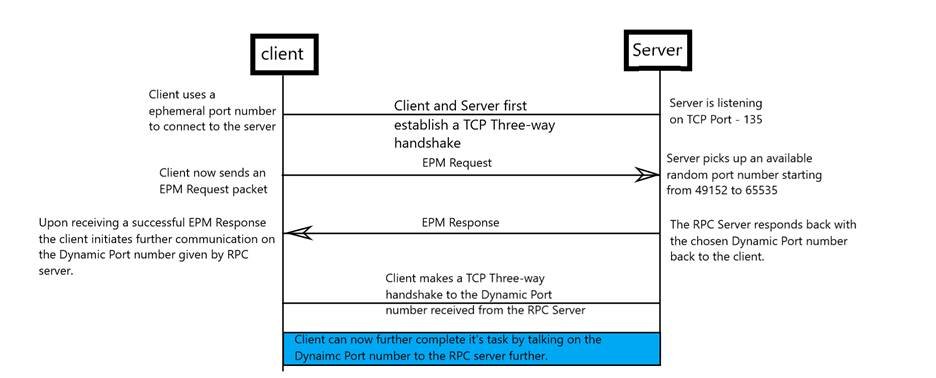
Port 135 only starts the conversation. The client asks the endpoint mapper where the service is listening, disconnects, then connects again on a dynamic port.
| Stage | What happens | Port | If it is blocked |
|---|---|---|---|
| 1. Name lookup | The client resolves the target's name to an address | DNS | The client reaches the wrong computer or none |
| 2. Endpoint mapper | The client contacts the target's endpoint mapper | TCP 135 | Test-NetConnection on 135 fails |
| 3. Port assignment | The endpoint mapper returns a dynamic port for the service | TCP 135 | PortQry shows no endpoint entries |
| 4. Service connection | The client disconnects and reconnects to the assigned port | TCP 49152-65535 by default | Port 135 passes, but the error still appears |
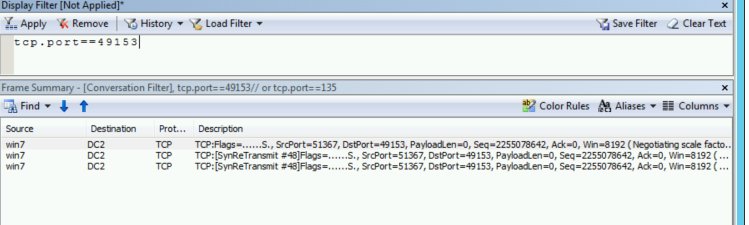
A network trace of stage 4 shows TCP SYN retransmits to the dynamic port. A firewall that supports UUID filtering can follow this exchange and allow only the assigned port.
How to allow RPC through Windows Firewall
Make the change on the target computer, because that is where the inbound connection has to be allowed. Leave Windows Firewall turned on, since Microsoft recommends against disabling it.
- Sign in to the target computer with an administrator account.
- Open Command Prompt as an administrator.
- For WMI, run
netsh advfirewall firewall set rule group="windows management instrumentation (wmi)" new enable=yes. - For another remote service, run
wf.msc, select Inbound Rules, and enable that service's predefined rule group. - Check the rule applies to the active profile: Domain, Private or Public.
- Open Event Viewer > Applications and Services Logs > Microsoft > Windows > Windows Firewall With Advanced Security > Firewall to look for blocked connections.
- Run
Test-NetConnection -ComputerName SERVER01 -Port 135again from the client.
To limit a rule to one subnet, create advanced firewall rules in Windows Firewall with a remote address scope rather than allowing any address.
Check the network firewall after checking Windows Firewall
When Windows Firewall is correct, a router, VPN or other device between the computers can still drop the dynamic ports. Comparing two test locations shows which side is at fault.
- Run the port 135 test from a computer on the same subnet as the target.
- Run the same test from the computer showing the error.
- If only the remote test fails, the device between the two networks is the likely block.
- Ask the network administrator to allow TCP 135 and TCP 49152-65535 from the client's subnet to the target.
- To prove the drop, run
netsh trace start scenario=netconnection capture=yes tracefile=c:\client_nettrace.etl maxsize=512 overwrite=yes report=yeson the client in an elevated window, and the same command withc:\server_nettrace.etlon the target. - Reproduce the error, then run
netsh trace stopin both windows. - Filter the traces for
tcp.port==135, note the dynamic port in the endpoint mapper's response, and filter for that port. SYN retransmits with no reply on the target mean the packets are dropped on the way.
If the target's trace shows the packets arriving but no response, look at the target instead: Windows Filtering Platform drops, network adapter drops and filter drivers can all discard them.
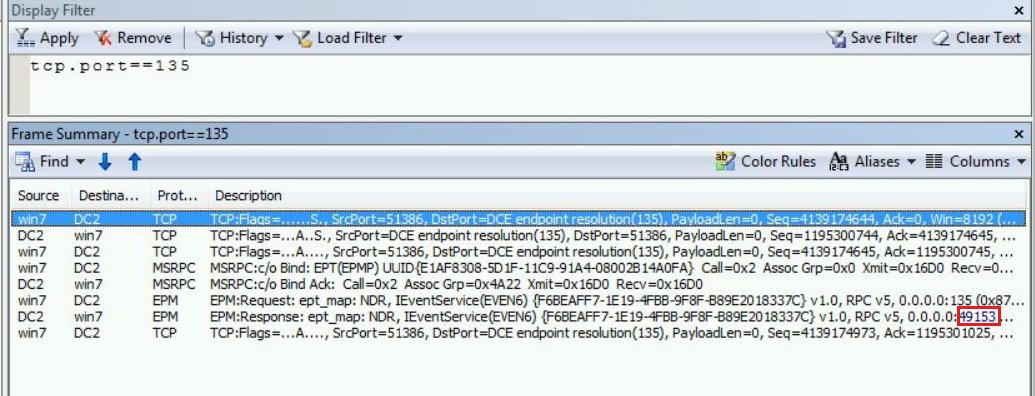
Show the RPC dynamic port range in Windows with netsh
netsh int ipv4 show dynamicport tcpShows the dynamic TCP port range on the target. Run it on a working computer too, and repeat with udp and ipv6 if the results differ.
You should see: Start Port 49152 and Number of Ports 16384 is the default, ending at 65535. A non-default or very small range can break RPC connections.
How to configure RPC dynamic port allocation to work with firewalls
If a firewall team will not open the full dynamic range, set a smaller range on the target and open only that. A wrong value here can stop Windows services from starting, so back up the registry first.
- Back up the registry on the target computer.
- Open Registry Editor and go to
HKEY_LOCAL_MACHINE\SOFTWARE\Microsoft\Rpc. - Create a key named Internet, because it does not exist by default.
- Add a Multi-String Value named Ports with a range such as
5000-6000. - Add a String Value named PortsInternetAvailable with the data
Y. - Add a String Value named UseInternetPorts with the data
Y. - Restart the computer, then allow the same range on the firewall.
Microsoft's example range is an illustration, not a sizing recommendation. Use ports above 5000 and at least 100 of them, because busy computers can run out when the range is tight.
Treat DCOM, printers, and remote services as separate layers
Once the ports pass, each product adds its own requirement on top of RPC. Work on the layer that belongs to the task that failed.
| Layer | Typical error | What to check |
|---|---|---|
| WMI and DCOM | 0x800706BA for connectivity, 0x80070005 for access | WMI firewall rule group on the target, then DCOMCNFG > COM Security permissions |
| RPC policy | The RPC server is unavailable (0x800706BA) | Restrict Unauthenticated RPC clients under Computer Configuration > Administrative Templates > System > Remote Procedure Call |
| Shared printers on Windows 11 22H2 or later | Failure adding or printing to a shared printer | RPC over TCP is the default, so the print server needs 135 and 49152-65535 open |
| Active Directory replication | Error 1722 (0x6ba) | DCDIAG /TEST:DNS, NLTEST /DSGETDC and the domain controller port list |
| Domain sign-in | The system cannot log you on | DNS, time and time zone, TCP/IP NetBIOS Helper and Remote Registry services |
DCOM Event ID 10016 is a separate permissions log entry, and you can fix DCOM Event ID 10016 on its own without touching RPC ports.
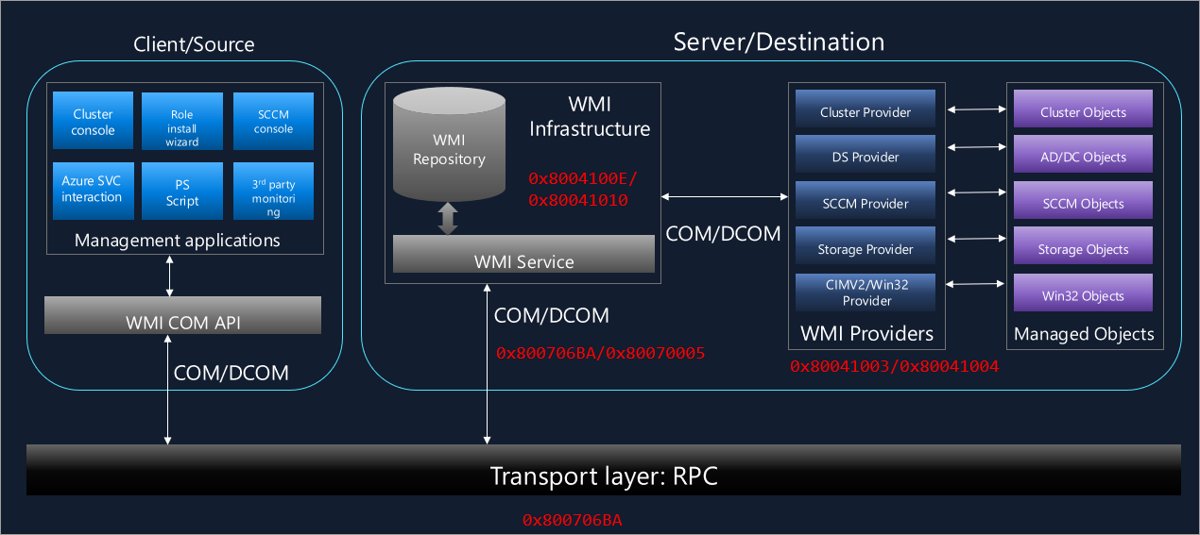
How to test a remote WMI connection with wbemtest
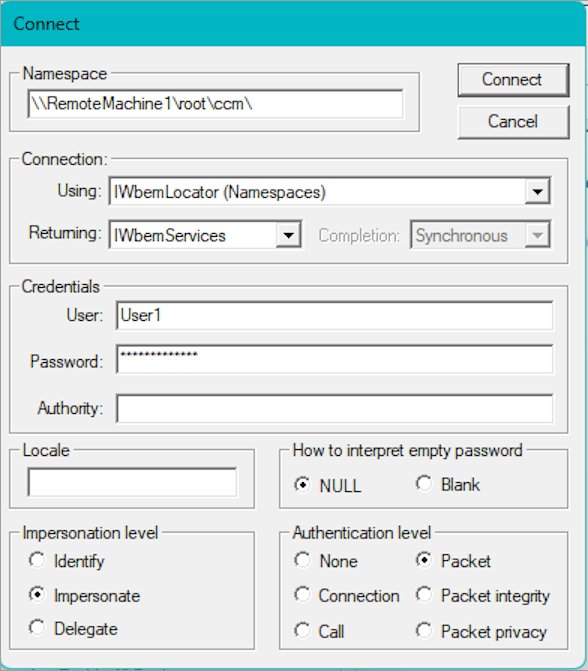
A passing port test does not prove the service works. wbemtest opens a real WMI connection across RPC and DCOM, so it tests the whole chain.
- Open wbemtest as an administrator on the client.
- Select Connect.
- Change the namespace to
\\SERVER01\Root\cimv2. - Select Connect again and enter credentials if prompted.
- A main window with the namespace connected means RPC and WMI are working on that path.
RPC server is unavailable on printers, WMI and domain sign-in
RPC server is unavailable when connecting to a shared printer on Windows 11
Windows 11 version 22H2 and later use RPC over TCP for print by default, and a firewall is the most common block.
- Confirm port 135 is not blocked on the print server.
- Open the high range 49152-65535 on the print server, or set a fixed port under Computer Configuration > Administrative Templates > Printers > Configure RPC over TCP port.
- Allow that port through the firewall if you set one.
- Try the printer connection again.
- Use Configure RPC connection settings with RpcOverNamedPipes only if RPC over TCP is not an option, because Microsoft does not recommend it.
Error 0x800706BA from a WMI query or management tool
The connection fails before it reaches WMI, in DCOM, RPC or the firewall.
- Enable the Windows Management Instrumentation (WMI) rule group on the target.
- Run
netsh int ipv4 show dynamicport tcpon the target and compare it with a working machine. - Review the Restrict Unauthenticated RPC clients policy, because it can cause this exact error.
- Check the Application and System logs on both computers for Microsoft-Windows-DistributedCOM errors.
- Test again with
wbemtest.
The system cannot log you on: the RPC server is unavailable
Incorrect DNS or time settings, or a stopped service on the PC, can produce this domain sign-in error.
- Check that the PC's DNS settings point to a server that can resolve the domain.
- Correct the time and time zone.
- Open
services.mscand set TCP/IP NetBIOS Helper to start automatically, then start it. - Do the same for Remote Registry.
- Restart the computer and sign in again.
Active Directory replication error 1722
A lower-layer protocol reported a connection failure between the domain controllers, and DNS is the leading cause.
- Run
DCDIAG /TEST:DNS /V /E /F:dnstest.logto check DNS health. - Run
NLTEST /DSGETDC:contoso.com, using your domain name, to test domain controller location. - Run
ping -awith the problem server's IP address to check its host record. - Run
portqry -n SERVER01 -e 135to test the endpoint mapper. - Check the domain controller port list on the firewall, and update the network adapter driver if the path is clean.
Every RPC connection fails from one computer
The client's default RPC protocol entries can be missing from the registry.
- Open Registry Editor and go to
HKEY_LOCAL_MACHINE\Software\Microsoft\Rpc\ClientProtocols. - Confirm these REG_SZ values exist with the data
rpcrt4.dll: ncacn_http, ncacn_ip_tcp, ncacn_np and ncacn_ip_udp. - Back up the registry, then import the key from a known good computer if any value is missing.
- Restart the computer and test again.
Windows services fail after setting a custom RPC port range
A configuration error returns error 87 (0x57), and too few ports can stop services that use dynamic endpoints, such as Netlogon, which logs event 5820.
- Open
HKEY_LOCAL_MACHINE\SOFTWARE\Microsoft\Rpc\Internetin Registry Editor. - Check that Ports contains only values from 0 to 65535, written like
5000-6000. - Widen the range, or delete the Internet key to return to the default behavior.
- Restart the computer.
Use the result to make the smallest safe repair
| Test result | Smallest repair | Why |
|---|---|---|
| The name resolves to the wrong address | Correct the DNS record or Hosts entry, then flush the cache | No firewall change can fix a connection aimed at the wrong computer |
| TCP 135 fails from every location | Enable the rule group on the target and check the RPC services | The block is on the target itself |
| TCP 135 fails only across networks | Add a network firewall rule for TCP 135 | The target is healthy, so its settings can stay as they are |
| TCP 135 passes, the dynamic port fails | Allow 49152-65535 from the client's subnet, or set a fixed range | This is the most common cause of the error |
| Both ports pass, the error persists | Check the DCOM, print or RPC policy layer | More open ports will not change the result |
| The error becomes access denied | Grant DCOM or WMI permissions on the target | The network path is already working |
Remove any broad test rule once the narrow one works. Turning Windows Firewall off removes other protections and does not tell you which rule was missing.
RPC server unavailable FAQ
What causes the RPC server is unavailable error?
RPC reports this error when a lower-layer connection fails. The most common cause is a client that cannot reach the dynamic port it was assigned. DNS failures, firewalls, routing problems, IPsec failures and a service that is not running can also produce it.
What ports does RPC use on Windows 11?
RPC uses TCP 135 for the endpoint mapper and then a dynamic port. The default dynamic range on Windows Vista, Windows Server 2008 and later versions, including Windows 11 and Windows 10, is 49152 through 65535. A firewall between the computers has to allow both.
Can a DNS problem cause RPC server unavailable?
Yes. Microsoft lists DNS lookup failures as a cause of a large number of error 1722 cases in replication. A stale or wrong record sends the client to the wrong computer, so check name resolution before changing any firewall.
What does error 0x800706BA mean?
Error 0x800706BA is the HRESULT form of RPC_S_SERVER_UNAVAILABLE. In WMI tools it marks a connectivity failure that happens before the WMI connection forms, in DCOM, RPC or the firewall. Check the WMI firewall rule group on the target first.
What does RPC error 1722 mean?
Error 1722, or 0x6ba, is the Win32 code for The RPC server is unavailable. It usually means a TCP connection attempt failed underneath RPC. On domain controllers it appears in REPADMIN and DCDIAG output when Active Directory replication cannot connect.
Should I turn off Windows Firewall to fix the RPC error?
No. Microsoft recommends against disabling Windows Firewall because you lose other protections. Enable the specific rule group on the target instead, and limit custom rules to the subnet that needs them. Turning it off would not reveal which rule was missing anyway.
Does this error mean the Remote Procedure Call service is stopped?
Usually not. RPC maps lower-layer failures to this message, so the service on your computer is often healthy and the connection path is the fault. Check the Remote Procedure Call and RPC Endpoint Mapper services on the target after DNS and port tests.
Why does ping work when RPC fails?
A ping test does not touch TCP 135 or the dynamic RPC ports, so a firewall can allow ping and still block RPC. Use Test-NetConnection with the Port parameter, because it tests the actual TCP connection and reports TcpTestSucceeded.
Can I restrict RPC to a fixed port range?
Yes. Add an Internet key under HKEY_LOCAL_MACHINE\SOFTWARE\Microsoft\Rpc with the Ports, PortsInternetAvailable and UseInternetPorts values, then restart. Use ports above 5000 and at least 100 of them, and open the same range on the firewall.