To daisy chain monitors, connect your PC's DisplayPort 1.2 (or newer), USB-C with DisplayPort Alt Mode, or Thunderbolt port to the first monitor, turn on MST in that monitor's menu, and run a second cable from its DisplayPort Out to the next monitor's input.
This guide covers the ports and cables each setup needs, the MST and DisplayPort 1.2 settings, the wiring order, arranging the screens in Windows and macOS, and what to do when a screen in the chain stays dark.
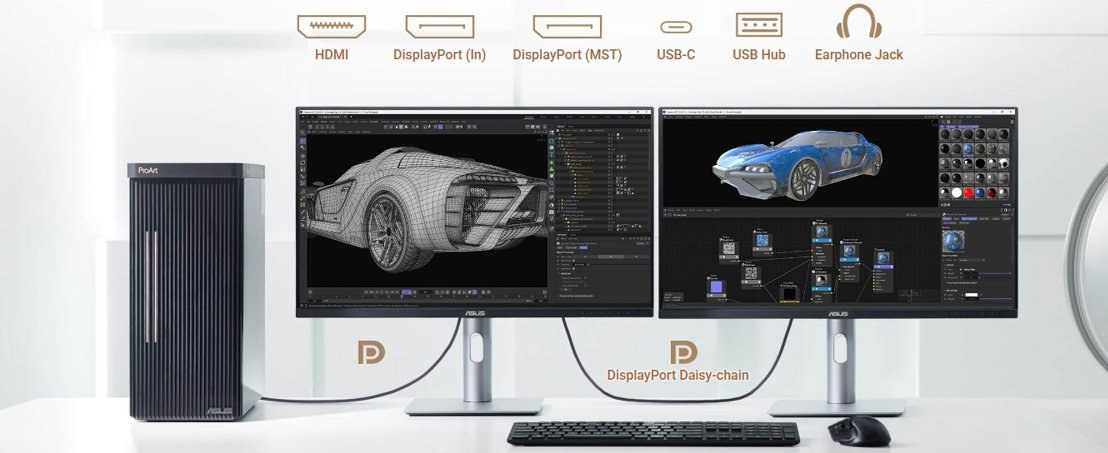
How to daisy chain monitors with DisplayPort
This is the whole job for a two-monitor chain on a Windows PC. The rest of the guide expands each step.
- Plug a power cable into each monitor. DisplayPort does not carry power, so every screen needs its own.
- Connect a DisplayPort cable from the PC's DisplayPort 1.2 (or newer) output to DP In on the first monitor.
- Open the first monitor's on-screen menu and turn on MST (some models label it DP 1.2 or DisplayPort 1.2).
- Connect a second DisplayPort cable from DP Out on the first monitor to DP In on the second monitor.
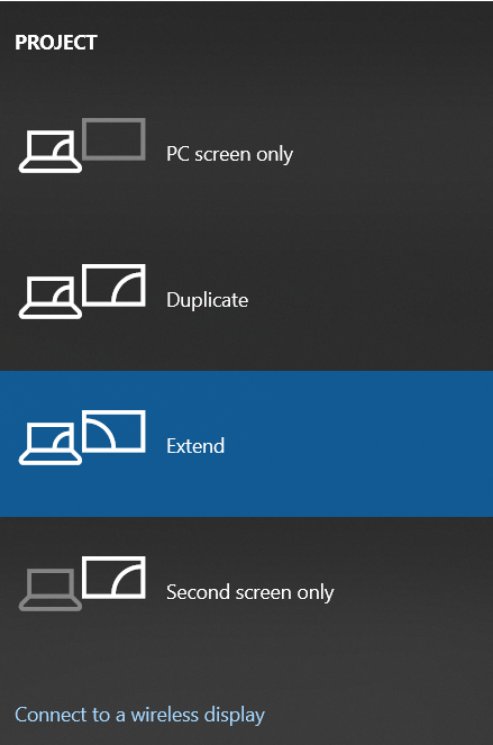
- On the PC, press Windows key + P and select Extend.
- Open Settings > System > Display, drag the numbered screens to match your desk, and select Apply.
Gather necessary tools
A daisy chain only works when the PC port, every monitor except the last, and the cables all support Multi-Stream Transport (MST). HDMI cannot carry a daisy chain at all.
Find the exact model of each screen first; you can find your monitor's model number in Windows and then look up its ports in the maker's user guide.
| Item | What it must support | Notes |
|---|---|---|
| PC video output | DisplayPort 1.2 or newer, USB-C with DisplayPort Alt Mode, or Thunderbolt 3 or newer | A USB-C port without DisplayPort Alt Mode or Thunderbolt cannot start a chain |
| First monitor (and any middle monitor) | DisplayPort 1.2 input plus a DisplayPort Out or Thunderbolt downstream port, with MST support | Only select monitor models have DP Out; check the user guide |
| Last monitor | A DisplayPort input (or USB-C/Thunderbolt input that accepts DisplayPort) | It does not need MST or an output port |
| Cables | One cable per link, rated for the port version (DP 1.4 cable for DP 1.4 ports) | The cables shipped in the monitor box match its ports |
| Power | A separate power cable for every monitor | DisplayPort does not power the next screen |
| Graphics driver | The latest driver from Intel, AMD, NVIDIA or your PC maker | Older drivers can ignore MST screens |
| Intel integrated graphics | 4th generation Intel Core or newer | Intel supports MST over DisplayPort to DisplayPort, up to three monitors |
Use the monitor with the highest resolution as the first one in the chain, as Dell recommends for its own MST monitors.
Enable MST settings
MST (Multi-Stream Transport) lets one DisplayPort cable carry separate video streams for several monitors. It is switched off by default on Dell monitors.
Menu names differ between models, so match the wording on your screen to the user guide for that model.
- Connect the PC to DP In on the first monitor and confirm a picture appears.
- Press the monitor's menu button (on the bottom edge, side or rear) to open the on-screen display.
- Open the display or input settings section and find the MST option.
- Set MST to On. On some models the option reads DP 1.2 or DisplayPort 1.2 instead.
- Exit the menu. The screen can blank for a moment while the monitor renegotiates the link.
- Repeat on every middle monitor if your chain has three or more screens. Leave the last monitor at its default.
If the first monitor turns black after you switch MST on, open its menu again with the buttons and switch MST back off. The PC's port or driver is not handling MST, so update the graphics driver before you try again.
Enable DisplayPort 1.2 (optional)
Some monitors default their input to an older DisplayPort 1.1 mode, which carries only one stream. On those models the MST toggle is really a DisplayPort version switch, and it has to read 1.2 or newer before a second screen can light up.
Skip this section if your monitor already has a separate MST option that you turned on.
- Open the first monitor's on-screen menu.
- Find the DisplayPort version setting (labels include DP 1.2, DisplayPort 1.2 or DP version).
- Select 1.2 or the highest version listed, such as 1.4.
- Save and exit the menu.
- Check that the PC's own DisplayPort output is version 1.2 or newer in the PC maker's specifications; a 1.1 port cannot run MST whatever the monitor is set to.
Daisy chain monitors
Wire the chain in one direction only: PC to monitor 1, monitor 1 to monitor 2, monitor 2 to monitor 3. Never loop a cable back to the PC.
- Turn off all the monitors and plug in their power cables.
- Connect the PC's DisplayPort, USB-C (DisplayPort Alt Mode) or Thunderbolt output to the input on monitor 1.
- Connect a cable from DP Out (or the Thunderbolt downstream port) on monitor 1 to the input on monitor 2.
- For a third screen, turn on MST on monitor 2 and connect its DP Out to the input on monitor 3.
- Turn on all the monitors, then the PC if it is off.
- Wait for Windows to detect each screen. Each new monitor appears as a numbered box in Settings > System > Display.
A display splitter is not a daisy chain. A splitter duplicates one signal, so it cannot give you an extended desktop across screens.
How to daisy chain monitors with USB-C or Thunderbolt
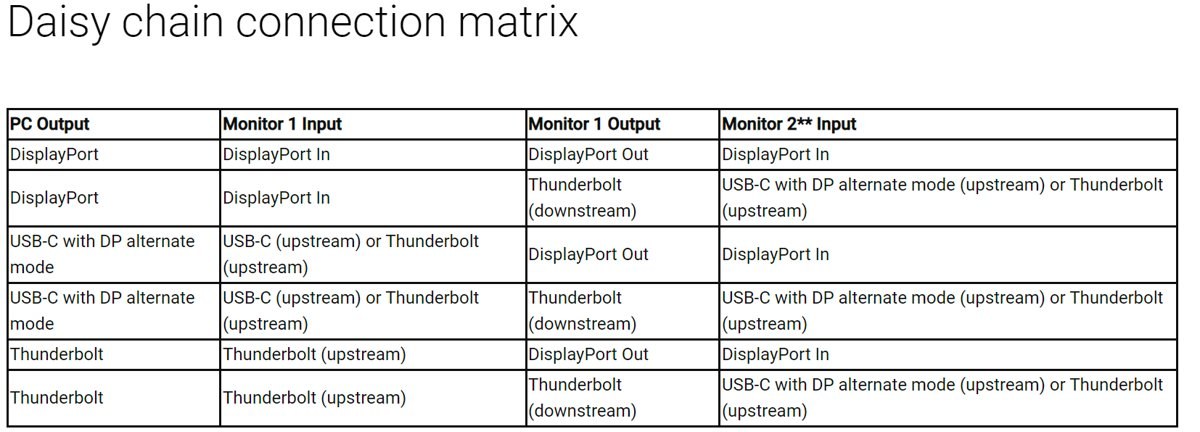
USB-C and Thunderbolt chains follow the same order as DisplayPort. The PC port must carry DisplayPort video, which means DisplayPort Alt Mode or Thunderbolt 3 or newer.
- Look for the DisplayPort or Thunderbolt logo next to the PC's USB-C port, or check the PC maker's specifications.
- Connect a USB-C or Thunderbolt cable from the PC to the monitor's USB-C or Thunderbolt upstream (input) port.
- Turn on MST in monitor 1's menu if the model has the option.
- Connect monitor 1's DP Out or Thunderbolt downstream port to monitor 2's input.
- Press Windows key + P and select Extend on Windows.
On monitors that route USB data over the same cable, a setting that prioritises USB data speed takes bandwidth away from video and can cut the number of screens the chain supports.
Position your monitors
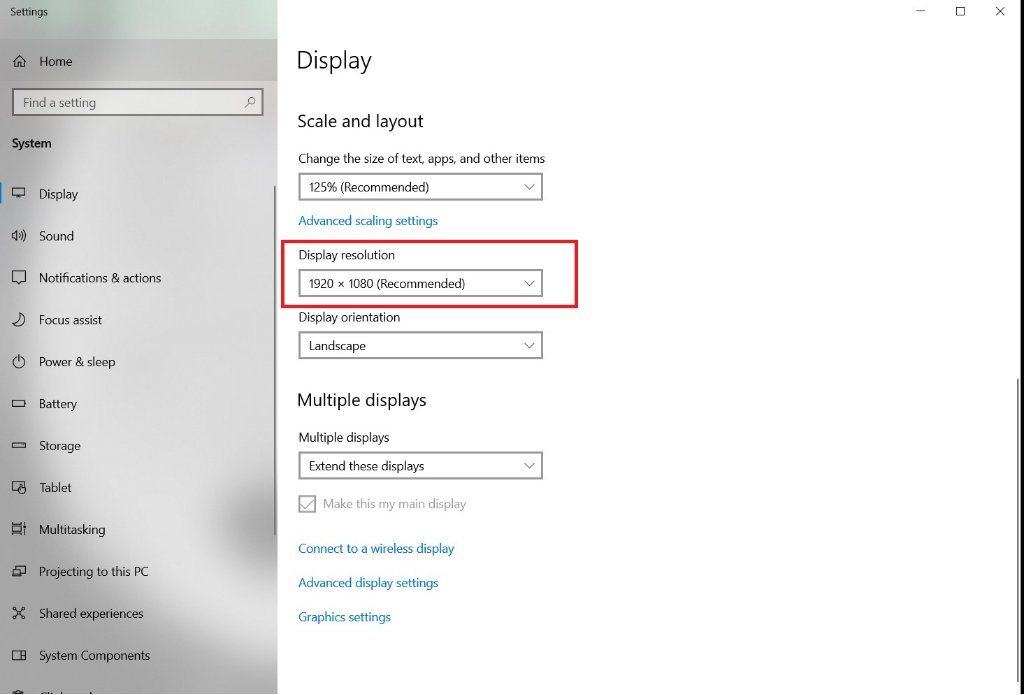
Windows numbers each detected screen. Arrange the numbered boxes to match the physical layout so the pointer moves across the screen edges you expect. The same settings apply when you set up multiple monitors on Windows 11 without a chain.
- Select Start > Settings > System > Display.
- Select Identify to show each screen's number on the screen itself.
- Drag each numbered box to match where the monitor sits on your desk, then select Apply.
- Press Windows key + P and choose Extend to spread the desktop across the screens, or Duplicate to mirror it.
- Select each numbered screen in turn and set its resolution on the same page.
- Open Multiple displays and tick Remember window locations based on monitor connection if you undock a laptop often.
- On a Mac, open the Apple menu > System Settings > Displays to arrange the screens.
Windows 10 uses the same Settings > System > Display page, so you can arrange dual monitors on Windows 10 with these steps too.
How many monitors can you daisy chain?
There is no fixed number. The total bandwidth of the PC's port is shared by every screen in the chain, so higher resolutions and refresh rates leave room for fewer monitors.
| Factor | Effect on the chain |
|---|---|
| DisplayPort version of the PC port | DisplayPort 1.2 is the minimum for MST; newer versions carry more bandwidth |
| Resolution and refresh rate | A 4K or high-refresh screen uses far more of the link than a 1080p 60 Hz screen |
| Color depth | Higher bit depth uses more bandwidth per screen |
| Graphics hardware | Intel 4th generation Core and newer support up to three monitors over MST; some PCs stop at two or three |
| Display Stream Compression (DSC) | When the PC and monitors support it, DSC raises the number of screens or the resolution the chain can carry |
| USB data priority on USB-C monitors | Giving USB data priority reduces the bandwidth left for video |
Lenovo puts the typical ceiling at up to four monitors with DisplayPort 1.2 or later, with fewer at high resolutions.
Can you daisy chain monitors on a Mac?
Yes, but only over Thunderbolt. macOS does not extend the desktop across a DisplayPort MST chain.
| Connection on the Mac | What macOS does |
|---|---|
| Thunderbolt to a monitor with Thunderbolt Out (Thunderbolt active cable) | Daisy chain works; extended mode on M1 Pro, M1 Max, M1 Ultra, M2 Pro, M2 Max, M2 Ultra, M3 Pro and M3 Max |
| DisplayPort or USB-C with DisplayPort Alt Mode | Duplicate (mirror) mode only |
| HDMI | Not supported for a daisy chain |
| Base M1 or M2 chip | One external display only, so a second screen in the chain stays dark |
That list of chips comes from Dell's daisy chain guide; check Apple's technical specifications page for your Mac model to see how many external displays it supports.
How to tell if daisy chained monitors are detected in Windows
- Select Start > Settings > System > Display.
- Count the numbered boxes at the top of the page. A two-monitor chain on a laptop shows three boxes: the built-in screen plus the two monitors.
- Select Identify and confirm each number lands on a different physical screen.
- Move a window from monitor 1 to monitor 2. If it moves, the chain is extending the desktop rather than mirroring it.
- If a screen is missing, open Multiple displays and select Detect.
Daisy chained monitors not working in Windows
If a monitor stays dark even when it is the only screen plugged straight into the PC, the fault is detection rather than the chain, so fix the second monitor not being detected before you rebuild the chain.
Second monitor in the chain shows no signal
MST is off on the first monitor, or the cable runs to DP In instead of DP Out.
- Open the first monitor's menu and set MST (or DP 1.2) to On.
- Check that the cable to monitor 2 leaves from DP Out on monitor 1.
- Restart the computer and all the monitors.
- Select Settings > System > Display > Multiple displays > Detect.
Both monitors show the same picture
Windows is set to Duplicate, or the PC is a Mac on a DisplayPort chain.
- Press Windows key + P and select Extend.
- On a Mac, move the chain to a Thunderbolt port and a Thunderbolt monitor; DisplayPort chains only mirror on macOS.
Third monitor will not light up
The chain has run out of bandwidth or the graphics hardware has reached its display limit.
- Lower the resolution or refresh rate on monitor 1 and monitor 2 in Display settings.
- Turn off the laptop's built-in screen if it counts against the limit.
- Check the graphics card maker's specifications for the number of displays it supports.
- Disconnect one monitor if the hardware limit is lower than the chain length.
Chain worked before and stopped after an update
The display driver changed or stopped responding.
- Press Windows key + Ctrl + Shift + B to reset the graphics driver.
- Restart the PC from Start > Power > Restart.
- Open Device Manager, expand Display adapters, right-click the adapter, select Properties > Driver > Roll Back Driver.
- If Roll Back Driver is greyed out, install the latest driver from the graphics or PC maker.
Screen flickers or drops out
A loose or under-rated cable.
- Reseat both ends of every cable in the chain.
- Swap in a cable rated for the port version, such as a DP 1.4 cable for DP 1.4 ports.
- Test the flickering monitor alone on the PC to rule out the monitor itself.
Daisy chain monitors FAQ
Can you daisy chain monitors with HDMI?
No. HDMI has no Multi-Stream Transport, so it cannot pass a separate picture to a second monitor. Use DisplayPort 1.2 or newer, USB-C with DisplayPort Alt Mode, or Thunderbolt 3 or newer for a daisy chain.
Does every monitor need to support daisy chaining?
No. Every monitor except the last one needs MST support and a DisplayPort Out port. The last monitor in the chain only needs a DisplayPort input, so an older screen without MST works fine at the end.
How many monitors can I daisy chain?
It depends on the PC's port bandwidth, the graphics hardware and each screen's resolution and refresh rate. Intel integrated graphics on 4th generation Core and newer supports up to three, and some PCs stop at two.
Does daisy chaining monitors reduce display quality?
Not when the chain has enough bandwidth for every screen. When it runs short, the extra monitor stays dark or you have to lower its resolution or refresh rate, because all screens share one link.
Can you daisy chain monitors on a MacBook?
Only over Thunderbolt with a monitor that has a Thunderbolt Out port. macOS mirrors a DisplayPort or USB-C Alt Mode chain instead of extending it, and base M1 and M2 Macs support only one external display.
Can you daisy chain monitors with USB-C?
Yes, if the PC's USB-C port supports DisplayPort Alt Mode or Thunderbolt. Connect the PC to the first monitor's USB-C input, then run DisplayPort Out from that monitor to the next one.
Is MST on by default?
No. Dell ships its monitors with MST switched off, and the setting must be turned on in the on-screen menu of every monitor except the last before the second screen receives its own picture.
Is a display splitter the same as daisy chaining?
No. A splitter copies one signal to several screens, so every screen shows the same image. A daisy chain sends a separate stream to each monitor, which lets Windows extend the desktop across them.