To manually install a driver on Windows, download it from the device maker's site, open Device Manager, right-click the device, select Update driver, then Browse my computer for drivers and point it at the folder.
This guide covers Device Manager, INF files, the PnPUtil command, unknown devices, graphics drivers, driver backups and the errors that stop an install.
How to manually update your drivers using Device Manager
This route works on Windows 11 and Windows 10 for any device that shows up in Device Manager. Get the driver from the manufacturer's official site and match it to your Windows version and architecture first.
- Download the driver from the device maker's site and extract it if it arrives compressed. Note the folder it lands in.
- Right-click the Start button and select Device Manager.
- Select the arrow next to the device category, for example Printers, to expand it.
- Right-click the device and select Update driver.
- Select Browse my computer for drivers.
- Select Browse…, pick the folder that holds the driver, and select OK.
- Check the path is correct and select Next. Windows installs the driver if it is newer than the current one.
- Select Close when the wizard finishes, then restart if Windows asks.
If the wizard says The best drivers for your device are already installed, the driver in your folder is not newer than the one in use. The INF and PnPUtil routes below handle that case.
What are drivers and what devices need to be updated?
A driver is the software that lets Windows talk to a piece of hardware. Most drivers arrive through Windows Update, which covers network adapters, printers, scanners and video cards.
| Device type | Usual driver source | When a manual install makes sense |
|---|---|---|
| Graphics card | Windows Update or the GPU maker | A new game or app needs a newer driver than Windows Update offers |
| Printer or scanner | Windows Update or the printer maker | The printer is missing features or must be added again by hand |
| Network or Wi-Fi adapter | Windows Update | The adapter has no driver after a clean install, so there is no internet |
| Bluetooth and audio | Windows Update or the PC maker | Sound or pairing broke after an update |
| Docks, USB adapters, lab or industrial gear | The device maker only | Windows has no matching driver at all |
If Bluetooth pairing broke, you can reinstall Bluetooth drivers the same way. Devices that already work rarely need an update. Update when something is broken, missing or needs a feature only a newer driver provides.
How to find drivers for unknown devices
A device with no driver shows The drivers for this device are not installed. (Code 28) in its properties. The hardware ID tells you exactly which chip it is, so you can find the right driver on the maker's site.
- Open Command Prompt as administrator.
- Run
pnputil /enum-devices /problem /deviceidsto list every device with a problem along with its hardware and compatible IDs. - Note the hardware ID of the device, for example a
PCI\VEN_...&DEV_...orUSB\VID_...&PID_...string. - Match the vendor part of the ID to the manufacturer, then open that manufacturer's support site or your PC maker's driver page for your model.
- Download the driver for your Windows version and install it with the Device Manager steps above.
Run pnputil /enum-devices /problem 28 to show only devices that are missing a driver. Avoid driver download portals; Microsoft advises getting drivers only from the manufacturer's official site.
Manual driver installation using an INF file on Windows
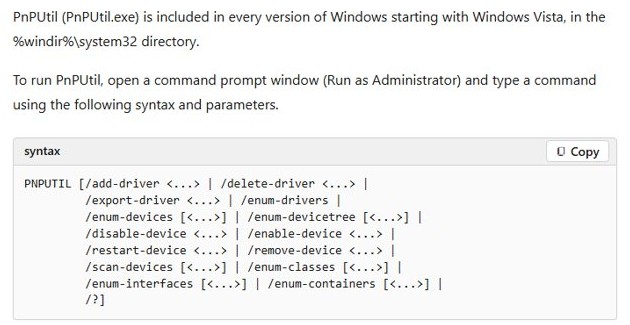
Driver packages that come as a folder rather than a setup program contain an .inf file. PnPUtil, built into Windows since Vista, adds that package to the driver store and installs it on any matching device.
Open Command Prompt or Terminal as administrator, then run the command with your own path.
pnputil /add-driver C:\Drivers\device.inf /install/add-driver adds the package to the driver store and /install installs or updates it on any device that matches. Use C:\Drivers\*.inf /subdirs /install to add every INF in a folder tree, and add /reboot to let Windows restart if the install needs it.
You should see: PnPUtil reports the package as added and installed. If the driver is not the highest-ranked match for the device, PnPUtil adds it to the store but does not force it onto the device.
Through Device Manager, the same INF can be picked by hand: select Update driver, Browse my computer for drivers, then Let me pick from a list of device drivers on my computer, and choose the device class and driver.
How to manually update your graphics driver
Graphics drivers usually ship as a full installer from AMD, Intel or NVIDIA, which is the simplest manual route. Laptops with switchable graphics often need the PC maker's driver instead.
- Right-click Start, select Device Manager and expand Display adapters to see the exact graphics model.
- Open the graphics maker's official driver page, or your laptop maker's support page for your model.
- Download the driver for your graphics model and Windows version.
- Run the installer, or extract it and use Update driver > Browse my computer for drivers in Device Manager.
- Restart the PC when setup finishes.
If the screen goes black or flickers after the update, roll the driver back with the steps further down.
Device driver automatic installation on Windows
When you plug in hardware, Windows looks for a matching driver in its driver store and on Windows Update and installs the highest-ranked match. A manual install is only needed when that search comes back empty or picks the wrong driver.
| What happened | What Windows did | What to do |
|---|---|---|
| Device works after plugging in | Found a matching driver automatically | Nothing |
| Device shows Code 28 | Found no driver | Find the hardware ID and install the maker's driver |
| Device works but lacks features | Installed a generic Microsoft driver | Install the maker's driver manually |
| Nothing appears in Device Manager | Has not detected the hardware | Run pnputil /scan-devices, then check the cable or port |
Set your PC to update device drivers automatically
Optional driver updates are not installed automatically, so check them when a device misbehaves.
- On Windows 11, open Settings > Windows Update > Advanced options.
- Turn on Receive updates for other Microsoft products.
- Under Additional options, select Optional updates.
- Select any driver updates listed, then select Download and install.
- On Windows 10, go to Settings > Update & Security > Windows Update, select Check for updates, then View optional updates if it appears.
- Restart the PC from Start > Shut down or sign out > Restart, even if no update asked for it.
How to export and import drivers in Windows
Exporting copies every third-party driver package from the driver store into a folder. That backup reinstalls drivers after a clean install of Windows, or moves them to an identical PC.
pnputil /export-driver * C:\DriverBackupThe * exports all third-party driver packages; replace it with a published name such as oem6.inf to export one. To import the backup later, run pnputil /add-driver C:\DriverBackup\*.inf /subdirs /install from an elevated prompt.
You should see: C:\DriverBackup fills with one subfolder per driver package, each holding its INF and files.
Run pnputil /enum-drivers to list the third-party packages and their oem#.inf published names before you pick one to export.
Check if a driver is installed in Device Manager
- Open Device Manager, right-click the device and select Properties.
- Read the Device status box in the Properties window. A working device shows no error code.
- Select the Driver tab to see the driver now in use.
- Run
pnputil /enum-devices /problemin an elevated prompt. The device should no longer appear in the list.
Roll back a driver in Windows 11 and Windows 10
You must be signed in with an administrator account to roll back a driver.
- Right-click Start and select Device Manager.
- Expand the category, right-click the device and select Properties.
- Select the Driver tab, then Roll Back Driver.
- Choose a reason when prompted and select Yes.
- Restart the PC if Windows asks.
To remove a package you added with PnPUtil, run pnputil /delete-driver oem#.inf /uninstall, using the published name from pnputil /enum-drivers.
Driver not installing on Windows 11 or 10
"The best drivers for your device are already installed"
The driver you pointed at is not newer than the one in use, or does not match the device.
- Confirm the download matches the exact device model and your Windows version and architecture.
- Use Let me pick from a list of device drivers on my computer to choose the driver by hand.
- Or run
pnputil /add-driver path\device.inf /installand check whether it reports the driver as installed.
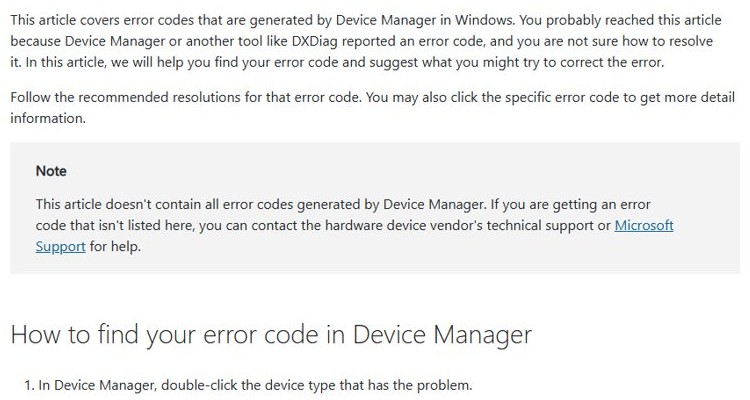
"Windows cannot verify the digital signature for the drivers required for this device. (Code 52)"
The driver package is unsigned or its signature does not match its files.
- Download the driver again from the manufacturer's official site.
- Install the version the maker lists for your Windows release.
- Contact the maker for a signed driver if the error returns. Do not turn off signature checks.
"Windows cannot load the device driver for this hardware. The driver may be corrupted or missing. (Code 39)"
The installed driver files are damaged or incomplete.
- Right-click the device in Device Manager and select Uninstall device, then Uninstall.
- Restart the PC so Windows tries to reinstall the driver.
- If it stays broken, install the maker's driver with the Device Manager steps above.
"This device cannot start. (Code 10)"
The driver loaded but the device failed to start with it.
- Roll back the driver if the error began after an update.
- Otherwise install the newest driver from the manufacturer.
- Restart the PC after each change.
Manual driver install FAQ
How do I manually install a driver in Windows 11?
Open Device Manager, right-click the device, select Update driver, then Browse my computer for drivers. Point the wizard at the folder holding the extracted driver and select Next. Windows installs it if it is newer than the current driver.
How do I install a driver from an INF file?
Run pnputil /add-driver followed by the INF path and /install from an elevated Command Prompt. PnPUtil adds the package to the driver store and installs it on matching devices. Device Manager's Browse my computer for drivers option also reads INF folders.
How do I find a driver for an unknown device?
Run pnputil /enum-devices /problem /deviceids as administrator to see the hardware ID of every device with a problem. The vendor part of the ID identifies the maker, whose support site carries the correct driver for your Windows version.
Does Windows install drivers automatically?
Yes. Windows Update installs drivers for most hardware, including network adapters, printers, scanners and video cards. Optional driver updates are not installed automatically, so check Windows Update > Advanced options > Optional updates when a device misbehaves.
How do I back up drivers before reinstalling Windows?
Run pnputil /export-driver * C:\DriverBackup from an elevated prompt. It copies every third-party driver package into that folder. After reinstalling, run pnputil /add-driver C:\DriverBackup\*.inf /subdirs /install to restore them.
Where should I download drivers from?
Download drivers only from the device manufacturer's official site or your PC maker's support page. Microsoft advises against driver files from any other website, because third-party portals can bundle outdated or unsafe packages.
How do I undo a driver update?
Open Device Manager, right-click the device, select Properties, then the Driver tab and Roll Back Driver. Choose a reason, confirm with Yes and restart. You need an administrator account to roll back a driver.