Manage camera permissions for apps in Windows 11 at Start > Settings > Privacy & security > Camera, and in Windows 10 at Start > Settings > Privacy > Camera.
This guide covers the device-wide switch, per-app control for Microsoft Store apps, the single switch for desktop apps, the exceptions Windows makes, and fixes for an app that cannot see the camera.
Manage camera permissions for apps in Windows 11/10
These steps are for Windows 11. Press Win + R, type ms-settings:privacy-webcam and press Enter to jump straight to the same page.
- Select Start > Settings.
- Select Privacy & security in the left pane.
- Under App permissions, select Camera.
- Turn on Camera access to allow camera use on the device at all.
- Turn on Let apps access your camera, then switch individual Microsoft Store apps on or off in the list below it.
- Turn on Let desktop apps access your camera if browsers, Teams or other desktop programs need the camera.
Close the app that needs the camera and open it again so it picks up the new permission.
How camera permissions work on Windows
Windows uses three layers of switches. A lower switch has no effect while the one above it is off.
| Switch (Windows 11 label) | What it controls | Per-app control? |
|---|---|---|
| Camera access | Whether any app or user on the device can use the camera | No, device-wide; greyed out means an administrator set it |
| Let apps access your camera | Microsoft Store apps as a group | Yes, each listed Store app has its own toggle |
| Let desktop apps access your camera | Desktop apps such as browsers, Teams and other .exe programs | No, one switch for all desktop apps |
| Website permission in the browser | Whether a specific site may use the camera | Yes, per site in the browser's own settings |
Store apps declare the capabilities they use, and Windows asks you before granting them. Desktop apps do not use Windows privacy prompts, so Windows treats them as one group.
Camera privacy settings in Windows 11 vs Windows 10
| Setting | Windows 11 | Windows 10 |
|---|---|---|
| Open the page | Settings > Privacy & security > Camera | Settings > Privacy > Camera |
| Device-wide switch | Camera access | Change under Allow access to the camera on this device, then Camera access for this device |
| Store apps switch | Let apps access your camera | Allow apps to access your camera |
| Desktop apps switch | Let desktop apps access your camera | Allow desktop apps to access your camera (version 1903 and later) |
| Turn off a camera entirely | Settings > Bluetooth & devices > Cameras > select camera > Disable | Device Manager > Cameras > right-click > Disable device |
Microsoft ended support for Windows 10 on October 14, 2025, so the Windows 10 page no longer receives fixes.
How to turn camera access on or off system-wide
Getting started with enabling camera access means setting the top switch first. Turning it off blocks every app and user on the device except Windows Hello sign-in.
- Open Settings > Privacy & security > Camera (Windows 10: Settings > Privacy > Camera).
- Windows 11: switch Camera access on or off.
- Windows 10: select Change under Allow access to the camera on this device, then switch Camera access for this device on or off.
- If the switch is greyed out, sign in with an administrator account or ask the device administrator to change it.
If the camera still does not appear anywhere after this, the hardware may be off at a physical switch; turn on the camera in Windows 11 first, then come back to permissions.
How to manage camera access for individual apps
Only apps installed from the Microsoft Store appear in this list, and each one gets its own toggle.
- Open the Camera privacy page in Settings.
- Make sure Camera access and Let apps access your camera are on.
- Scroll to the app list under Let apps access your camera.
- Switch on each app that should use the camera, such as Camera.
- Switch off each app that should not use it.
- Close and reopen any app you changed.
If an app is missing from the list, it is a desktop app and follows the desktop apps switch instead.
How to control camera access for desktop apps
Desktop apps cannot be switched individually. One toggle covers them all, and Windows lists below it the desktop apps it has detected using the camera.
- Open the Camera privacy page in Settings.
- Turn Let desktop apps access your camera on to allow browsers, Teams, other video conferencing apps and desktop programs.
- Turn it off to block all desktop apps that use supported Windows camera methods.
- To limit one desktop app, use that app's own camera settings or uninstall it, because Windows has no per-app toggle for desktop programs.
In a browser, the desktop switch only lets the browser reach the camera. Each website still needs its own permission among the Edge privacy and security settings: in Microsoft Edge, go to Settings and more > Settings > Privacy, search, and services > Site permissions > All sites, select the site and choose Block or Allow for Camera.
Why desktop apps don't appear in Windows camera permissions
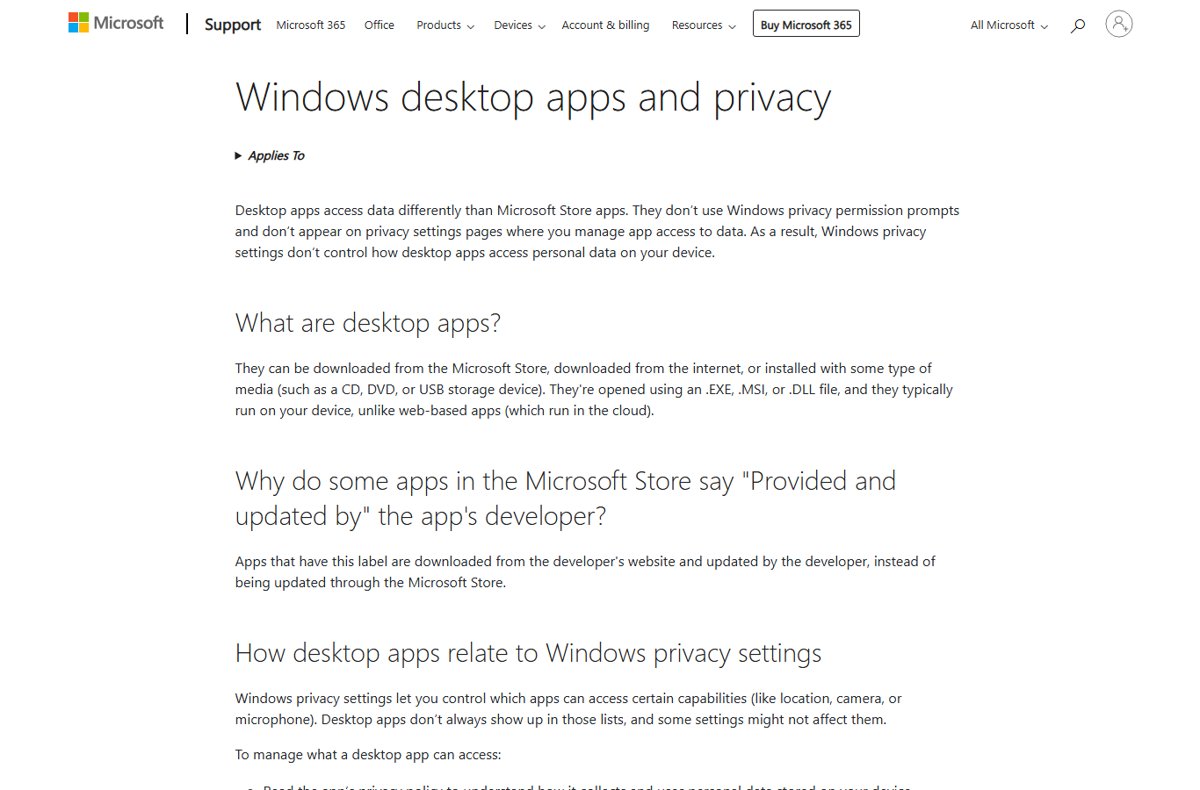
Desktop apps are the oddballs of Windows permissions. They are opened from .exe, .msi or .dll files, they skip Windows privacy prompts, and Microsoft says Windows privacy settings don't fully control how they access data.
| Behaviour | What it means for you |
|---|---|
| Desktop apps aren't visible in the Store app list | Search the list under Let desktop apps access your camera instead |
| Only detected apps are listed | A desktop app appears there after Windows sees it use the camera |
| An app that installs its own driver | It can talk to camera hardware directly and bypass the Windows switch, so it might be active even with the switch off |
| Store apps marked Provided and updated by the developer | They come from the developer's website and can behave like desktop apps |
For full protection against a desktop app you do not trust, Microsoft recommends disabling or disconnecting the camera rather than relying on the privacy switch.
Camera permission exceptions: Windows Hello, Camera app and implicit use
These quirks and caveats explain most cases where the camera works, or fails, against what the switches suggest. Microsoft documents each of them on its privacy pages.
| Exception | What happens |
|---|---|
| 1. Windows Hello | Windows Hello face sign-in uses the camera even when Camera access is off. If Windows Hello is turned off, it cannot access the camera. |
| 2. The Camera app's behavior | Some apps take photos or videos through the Camera app, so they do not appear in the list; the Camera app's own toggle controls them. It sends nothing back until you press the capture button. |
| 3. Desktop apps aren't visible but might be active | Desktop apps may be missing from the list and can still reach the camera if they use their own driver. |
| 4. Implicit camera use in other apps | When an app uses the camera indirectly through a Windows component, the component appears in the list instead of the app. |
How to check which apps recently used the camera
Windows shows camera use in two places: the hardware indicator and the desktop apps list on the Camera privacy page.
- Watch the camera light; on devices that have one, it turns on whenever the camera is active.
- On devices without a light, look for the Windows notification that appears when the camera turns on or off.
- Open Settings > Privacy & security > Camera.
- Scroll to Let desktop apps access your camera to see the desktop apps Windows has detected using the camera.
- Select an app in that list to see the specific file on your PC that accessed the camera.
How to test camera permissions after changing them
- Select Start and open the Camera app.
- Select Yes if Windows asks to allow camera access.
- Confirm the preview shows a live image and the camera light turns on.
- Open the app you changed, such as Teams or a browser, and start a video preview.
- If the Camera app works but the other app does not, the problem is that app's permission or its own app settings.
Tips for a privacy-focused camera setup
| Tip | How |
|---|---|
| Allow only the Store apps you use | Switch off every other app under Let apps access your camera |
| Block desktop apps when you don't need them | Turn off Let desktop apps access your camera, then turn it back on before a call |
| Restrict websites, not just the browser | Set Camera to Block per site in Edge Site permissions |
| Disable a camera you never use | Settings > Bluetooth & devices > Cameras > select it > Disable (administrator access needed) |
| Use the hardware control | Close the built-in shutter slider or use the camera key or switch if your laptop has one |
| Check permissions before installing | Read the app's permission list on its Microsoft Store page |
Additional tips: install apps only from sources you trust, and read a desktop app's privacy policy, since Windows switches may not limit it. When you install apps on a Windows PC, the Microsoft Store route shows each app's permissions up front.
What happens when camera settings are mismanaged
Mismanaged camera settings have real-world implications in both directions: blocked calls when switches are too tight, and unwanted access when they are too loose.
| Setting left this way | Real-world result |
|---|---|
| Camera access off | No app can use the camera; video calls show a blank tile, while Windows Hello still signs you in |
| Let desktop apps access your camera off | Edge, Chrome, Teams and other desktop apps cannot see the camera, and some Windows features that use it through components stop working |
| A Store app switched off | That app reports no camera or access denied (error 0x80070005) |
| Every switch on for every app | Any listed app can turn on the camera, and desktop apps you forgot about keep access |
Troubleshoot camera permission problems
An app can't access the camera in Windows
One of the three switches is off, or the app has its own camera setting.
- Open the Camera privacy page and confirm Camera access is on.
- For a Store app, turn on Let apps access your camera and the app's own toggle.
- For a browser or meeting app, turn on Let desktop apps access your camera.
- In a browser, allow the website in its site permissions.
- Restart the app.
Camera access is greyed out
An administrator or a work policy controls the setting (error 0xA00F4292 means camera access is restricted by policy).
- Sign in with an administrator account and change Camera access.
- On a work or school PC, ask the IT administrator, because the policy is set centrally.
Camera still not working after enabling permissions
Another app is holding the camera, a physical switch is off, or the driver is faulty.
- Close other apps that might be using the camera (error 0xA00F4243 means another app is using it).
- Check for a camera key, Fn-key shortcut, side switch or shutter slider and set it to on.
- Restart the PC from Start > Power > Restart; waking from sleep is not the same.
- Run Settings > System > Troubleshoot > Other troubleshooters and select Run next to Camera.
- Open Device Manager, expand Cameras and select Enable device if the camera is disabled.
- If the camera stopped after an update, open the camera's Properties > Driver tab and select Roll Back Driver.
Camera locked by security software (error 0xA00F4246)
Webcam protection in an antivirus or firewall suite is blocking the app.
- Open your security software's webcam or privacy protection settings.
- Add the app you trust to its allowed list rather than turning protection off.
- Restart the app and test again.
Windows camera permissions FAQ
Why can't an app access my camera in Windows?
Usually one of three switches is off: Camera access, Let apps access your camera for Store apps, or Let desktop apps access your camera for browsers and meeting apps. Turn on the one that matches the app, then restart it.
Is it safe to allow every app to use my camera?
It is safer to allow only the apps you use. Store apps can be switched individually, so leave unused ones off. Desktop apps share one switch, so install them only from sources you trust and check each app's own camera settings.
Can I disable the camera completely?
Yes. Turn off Camera access on the Camera privacy page, or disable the device in Settings > Bluetooth & devices > Cameras on Windows 11 or in Device Manager. Disabling the device also stops desktop apps that bypass the privacy switch.
Why do desktop applications not appear in the app list?
Desktop apps do not use Windows privacy prompts, so they never get per-app toggles. Windows lists the ones it detects under Let desktop apps access your camera, and that single switch controls them all.
Does changing camera permissions affect video calls?
Yes. Microsoft Teams, many other video conferencing apps and browser-based calls run as desktop apps, so turning off Let desktop apps access your camera blocks their video. Turning off Camera access blocks every call app on the device.
Can I change camera permissions at any time?
Yes. The switches take effect immediately, though an open app may need a restart to notice. The device-wide switch needs an administrator only when it is greyed out or controlled by policy.
Does Windows Hello still work if camera access is off?
Yes. Windows Hello face sign-in uses the camera even when the camera privacy switch is off. Turn off Windows Hello itself if you do not want it to use the camera.
How do I stop one website from using my camera in Edge?
Open Edge Settings, select Privacy, search, and services, then Site permissions and All sites. Select the website and choose Block from the Camera drop-down. The site may stop working for video features.
What is the shortcut to open camera privacy settings?
Press Win + R, type ms-settings:privacy-webcam and press Enter. That opens the Camera privacy page directly in Windows 11 and Windows 10.
Bottom line: camera privacy vs functionality in Windows
Leave Camera access on, allow only the Store apps you use, and keep Let desktop apps access your camera on only while you need meeting apps or browsers to see the camera. Microsoft's trade-off between privacy and functionality is that desktop apps share one switch and can bypass it with their own drivers, so per-app control exists only for Store apps and full privacy needs the camera disabled or covered.