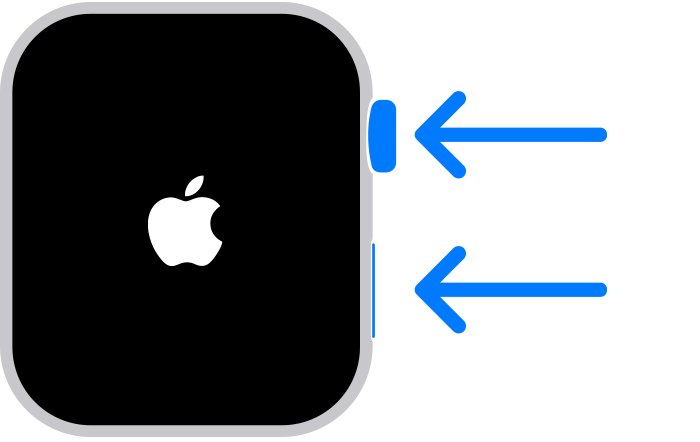
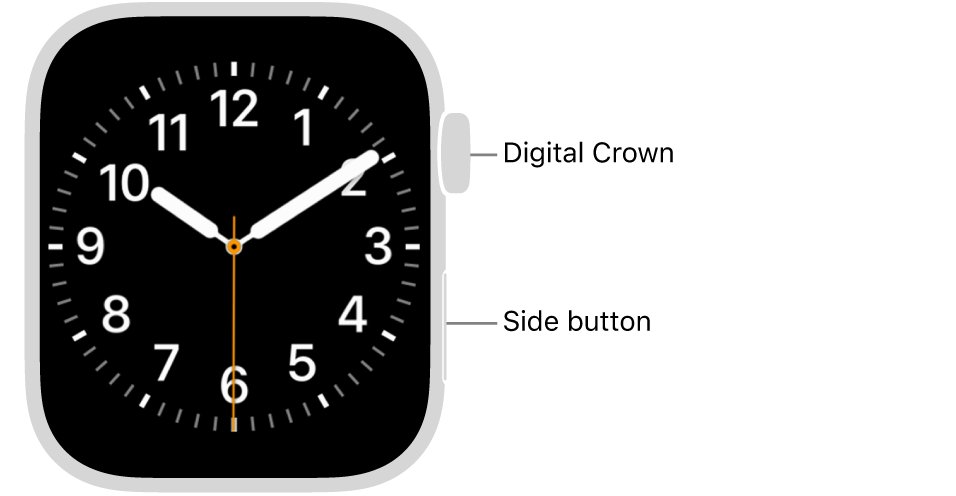
When an Apple Watch screen goes black, charge it for up to 30 minutes, then force restart it by holding the side button and the Digital Crown together for at least 10 seconds until the Apple logo appears.
If the watch is on but the display stays dark, the cause is usually a setting such as Screen Curtain, Theater Mode or Low Power Mode, and this guide covers each one plus when to get the screen repaired.
Fix a black Apple Watch screen fast
A watch that shows nothing at all is most often out of battery or frozen. These steps clear both.
- Place the watch on its magnetic charger, plugged all the way into a working power adapter and outlet.
- Leave it there for up to 30 minutes. A drained watch can take that long before the lightning bolt appears.
- Take the watch off the charger, because it cannot restart while it is charging.
- Press and hold the side button and the Digital Crown at the same time for at least 10 seconds.
- Release both buttons when the Apple logo appears, and wait for the watch face to load.
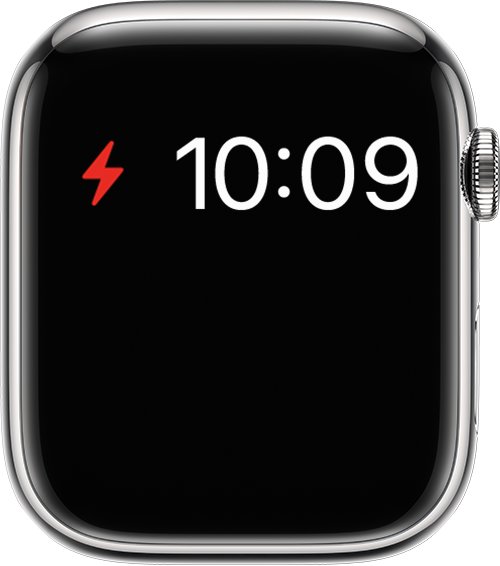
If a red lightning bolt shows instead of the time, the battery is too low to start. Keep the watch on the charger until it turns on by itself.
Why is my Apple Watch screen blank?
What the watch does when you touch it narrows the cause down quickly. Match what you see to a row.
| What you notice | Likely cause | Fix |
|---|---|---|
| Nothing at all, even when you press the side button | Battery fully drained or the watch is frozen | Charge for up to 30 minutes, then force restart |
| Red lightning bolt on the screen | Not enough battery power to turn on | Leave it on the charger until it starts |
| No lightning bolt when placed on the charger | Charger not aligned, dirty or faulty | Reposition the watch, clean the back, try another cable and adapter |
| Watch taps, vibrates or speaks, but the screen is dark | Screen Curtain is on with VoiceOver | Turn off VoiceOver from the iPhone or with Siri |
| Screen stays dark when you raise your wrist, but wakes on a tap | Theater Mode is on or Wake on Wrist Raise is off | Turn off Theater Mode or turn on Wake on Wrist Raise |
| Watch face disappears when your wrist is down | Always On is off or Low Power Mode is on | Turn on Always On or leave Low Power Mode |
| Black screen with the Apple logo flashing or stuck | Software problem during startup | Force restart, then unpair and pair again |
| Cracked, lifting or loose display | Physical damage | Get the watch serviced by Apple |
Apple Watch won't turn on or charge
If the screen never lights up, the next step is to make sure power is actually reaching the watch.
- Use the Apple Magnetic Charging Cable or USB-C Magnetic Fast Charging Cable that came with the watch.
- Push the cable fully into the USB power adapter and the adapter fully into the outlet.
- Remove any plastic wrap from both sides of the charger, and wipe the back of the watch and the charger clean.
- Reposition the back of the watch on the charger until the magnets line up.
- On a larger watch with a charging dock or MagSafe Duo, lay the charger flat. On Apple Watch Ultra, remove the band if it still will not connect.
- Try a different cable and adapter if nothing changes after 30 minutes.
If charging is the whole problem, the fixes for an Apple Watch that is not charging go further into cables and docks.
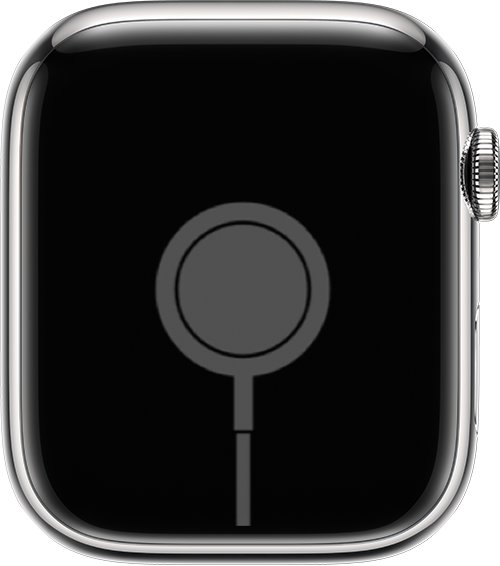
How to force restart Apple Watch with a black screen
A normal restart needs the screen to show the power slider, so a black screen calls for a force restart. Apple advises using it only when a normal restart is not possible.
- Take the watch off its charger.
- Press and hold the side button and the Digital Crown together.
- Keep holding for at least 10 seconds.
- Release both buttons when the Apple logo appears.
- If the screen lights up, restart the paired iPhone as well, since Apple recommends restarting both when something is not working.
Turn off Screen Curtain on Apple Watch
Screen Curtain is a VoiceOver feature that switches off the display for privacy. The watch keeps working and speaking, which makes it look like a dead screen.
Because you cannot see the watch settings, turn VoiceOver off from the iPhone or with Siri.
- Open the Apple Watch app on the paired iPhone.
- Tap My Watch, then tap Accessibility.
- Tap VoiceOver and turn it off.
- Or raise the watch and ask Siri, "Turn off VoiceOver."
- Once the display returns, go to Settings > Accessibility > VoiceOver on the watch and turn off Screen Curtain if you want to keep VoiceOver.
Apple Watch screen not turning on when raising wrist
If a tap or a turn of the Digital Crown wakes the screen but raising your wrist does not, a display setting is stopping it.
- Press the side button to open Control Center and turn off Theater Mode if it is highlighted.
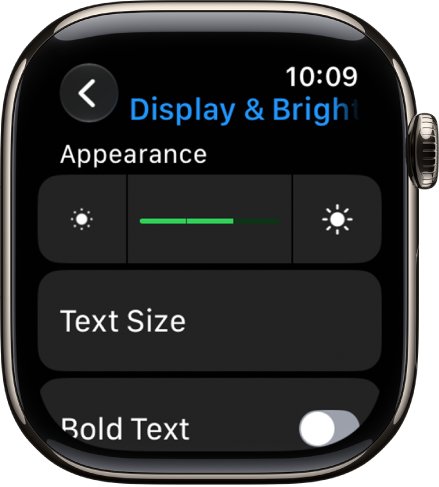
- Open Settings on the watch and tap Display & Brightness.
- Turn on Wake on Wrist Raise and Wake on Crown Rotation.
- Tap Wake Duration to keep the screen on longer after it wakes.
- Raise the brightness with the brightness buttons or the Digital Crown if the screen looks too dim to read.
- Check that the wrist and Digital Crown orientation in settings match how you wear the watch.
The same display options are in the iPhone Apple Watch app under My Watch > Display & Brightness.
Apple Watch screen goes black when wrist is down
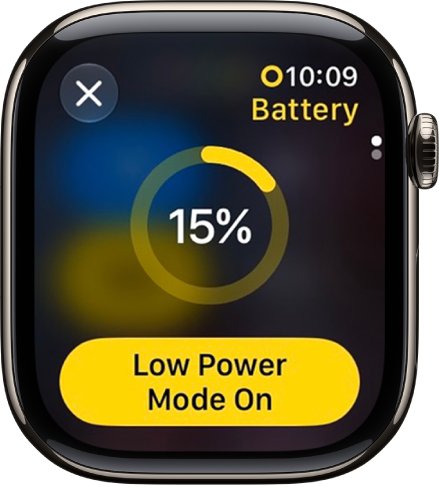
A screen that turns off when you lower your wrist is normal unless Always On is set up. Low Power Mode also turns Always On off.
| Setting | Where to find it | Effect on the screen |
|---|---|---|
| Always On | Settings > Display & Brightness > Always On | Shows the watch face and time with your wrist down |
| Low Power Mode | Control Center > battery percentage > Low Power Mode | Turns off Always On; tap the display to see the face |
| Theater Mode | Control Center | Stops the screen waking when you raise your wrist |
| Wake on Wrist Raise | Settings > Display & Brightness | Lets the screen wake when you lift your arm |
| Return to Clock | Settings > General > Return to Clock | Sets when an open app goes back to the watch face |
To leave Low Power Mode, press the side button, tap the battery percentage and turn Low Power Mode off. The watch also offers Low Power Mode when the battery drops to 10 percent.
Check that the Apple Watch display is working again
- Lower your wrist, then raise it, and confirm the watch face appears.
- Tap the display and turn the Digital Crown; each should wake the screen.
- Press the side button and check that Control Center shows the battery percentage climbing while charging.
- Wear the watch for an hour and confirm the screen still wakes normally.
Apple Watch screen still not working
Apple Watch stuck on Apple screen
The watch software is not finishing startup.
- Force restart with the side button and Digital Crown until the screen turns black and the Apple logo returns.
- If the logo stays, open the Apple Watch app on the iPhone, tap My Watch > All Watches, then tap the info button next to the watch.
- Tap Unpair Apple Watch; the iPhone backs up the watch first.
- Pair the watch again and tap Restore from Backup.
- Then go to My Watch > General > Software Update and install any update.
Apple Watch screen coming off or loose
The display has separated from the case, which is physical damage rather than a setting.
- Stop wearing and charging the watch.
- Do not press the screen back into place.
- Start a request on Apple's Service and Repair page or book an Apple Store visit.
Why did my Apple Watch stop working after a drop
Accidental damage can break the display or its connection even without visible cracks.
- Charge and force restart the watch once to rule out a drained battery.
- If the screen stays black, arrange service through Apple.
- Check your coverage first, because the Apple Limited Warranty does not cover accidental damage.
An iPhone with the same problem has its own steps for an iPhone screen that is black.
Apple Watch black screen FAQ
How do I fix my Apple Watch screen when it is black?
Charge the watch for up to 30 minutes, take it off the charger, then hold the side button and Digital Crown for at least 10 seconds until the Apple logo appears. If it then responds but stays dark, turn off VoiceOver Screen Curtain or Theater Mode.
Why is my Apple Watch screen blank?
The battery may be drained, the watch may be frozen, or a setting such as Screen Curtain, Theater Mode or Low Power Mode may be hiding the display. A watch that still vibrates or speaks is on, so check those settings first.
Why is my Apple Watch not displaying the time when my wrist is down?
The screen sleeps when you lower your wrist unless Always On is turned on in Settings > Display & Brightness. Low Power Mode turns Always On off, so tap the display to see the face while it is active.
Why has my Apple Watch stopped working?
Most watches that stop responding are out of battery or frozen. Charge for up to 30 minutes and force restart. If it stays on the Apple logo, unpair and pair it again from the iPhone, then install software updates.
How do I turn the Apple Watch screen off?
Lower your wrist and the screen sleeps unless Always On is turned on. To stop it waking on wrist raise, turn on Theater Mode in Control Center. Screen Curtain in VoiceOver settings keeps the display off entirely while VoiceOver runs.
Can I fix my Apple Watch screen myself?
Settings and charging problems you can fix yourself. A cracked, lifting or dead display needs Apple service rather than a home repair. Start on Apple's Service and Repair page to see repair options and estimated out-of-warranty fees for your model.
Where can I get my Apple Watch screen fixed?
Apple repairs watches through Apple Stores, Apple Authorized Service Providers and mail-in service with a prepaid shipping box. Apple's Service and Repair page for Apple Watch shows the options and the out-of-warranty fee for your model.
Is a black Apple Watch screen covered by warranty?
The Apple Limited Warranty covers manufacturing issues for one year from purchase. It does not cover accidental damage or normal battery wear. AppleCare coverage changes the cost, so check your coverage status before booking a repair.
Why does my Apple Watch keep going to the Apple screen?
A watch that keeps showing the Apple logo is failing to finish startup. Force restart it, then unpair and pair again from the Apple Watch app, restoring from the backup. Install any software update, and get service if it continues.