To clear cache on iPhone, go to Settings > Apps > Safari and tap Clear History and Website Data, then clear each other browser or app separately.
This guide covers Safari with and without your history, Chrome and Firefox, app caches, and what to do when the clear button is greyed out.
How to clear cache on iPhone browsers
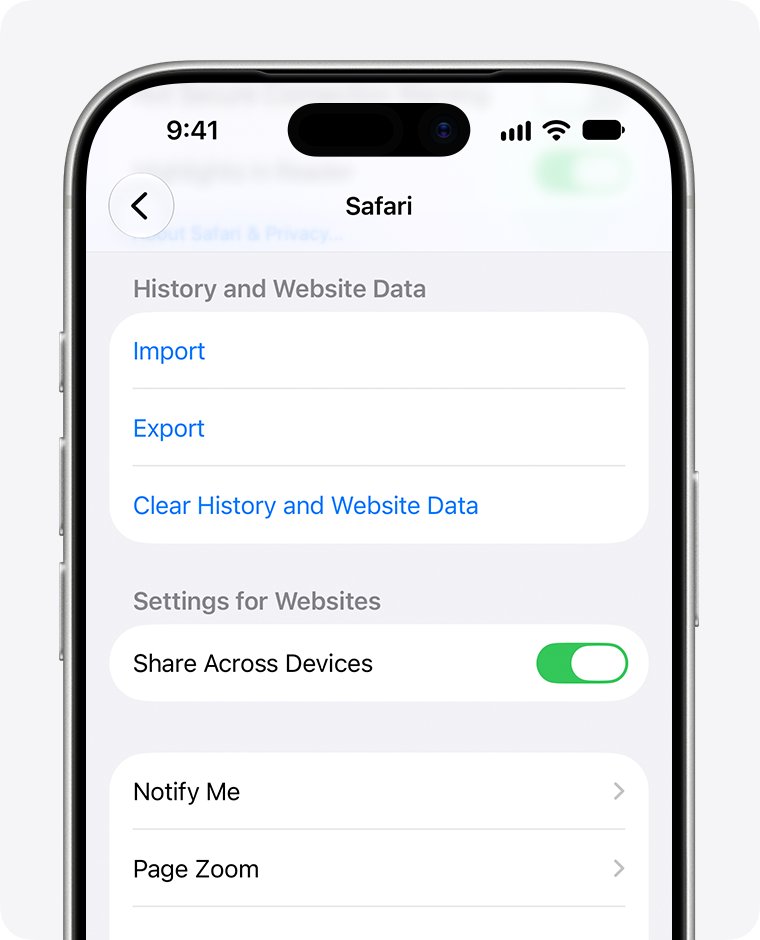
Safari is the browser most iPhone owners use, and its cache lives in the Settings app rather than inside Safari. These steps delete Safari's history, cookies and cache together.
- Open the Settings app.
- Tap Apps, then tap Safari.
- Scroll down and tap Clear History and Website Data.
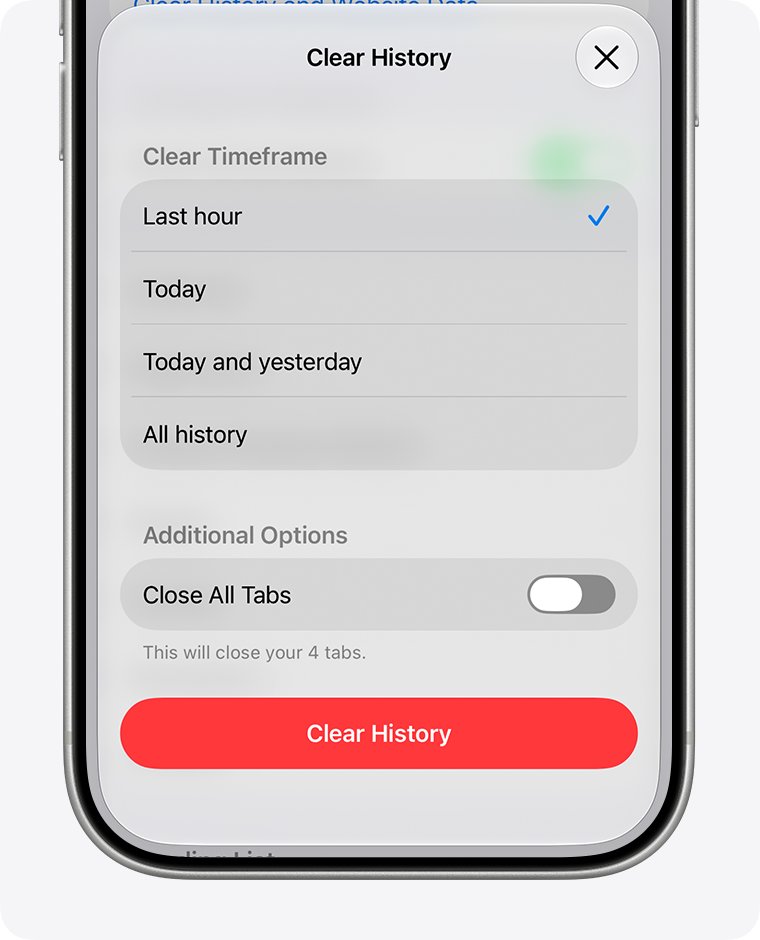
- Confirm the timeframe you want to clear.
- Tap Clear History.
Your AutoFill information is not changed. On older iOS versions without an Apps entry in Settings, Safari is listed directly in the main Settings list.
Clear history and website data vs remove all website data on iPhone
iPhone has no single button that empties every cache at once. Each browser and app keeps its own, so match your problem to a row.
| Your situation | Use this | What it removes |
|---|---|---|
| Websites in Safari load old pages or look broken | Settings > Apps > Safari > Clear History and Website Data | Safari history, cookies and cache for the timeframe you pick |
| You want Safari's cache gone but your history kept | Safari > Advanced > Website Data > Remove All Website Data | Cookies, cache and saved site data; history stays |
| Chrome is your browser | Chrome More > Delete Browsing Data | Only the data types you select in Chrome |
| Firefox is your browser | Firefox's own settings menu | Firefox data only, never Safari's |
| One app is slow, full or misbehaving | The app's own clear-cache option, or delete and reinstall it | That app's cache; deleting also removes its data |
| Storage is low and you want space back automatically | Offload Unused Apps in the App Store settings | Unused apps, while keeping their documents and data |
How to clear Safari cache on iPhone without deleting history
This route keeps your browsing history and removes the cookies and cached site data instead. It also clears the data websites use to keep you signed in.
- Open Settings, tap Apps, then tap Safari.
- Scroll down and tap Advanced.
- Tap Website Data.
- Tap Remove All Website Data.
- Tap Remove Now to confirm.
Expect to sign in to websites again afterward. To remove just a few sites from your history instead, open Safari's Start Page, tap the History button, tap More > Select Websites, pick the sites, and tap the Trash button.
How to clear Chrome and Firefox cache on iPhone
Third-party browsers keep their own cache, so clearing Safari does nothing for them. Chrome lets you pick a time range and the exact data types to delete.
- Open Chrome on your iPhone.
- Tap More, then tap Delete Browsing Data.
- Next to Time Range, pick a duration. The default is 15 minutes, so choose a longer range for an older problem.
- Tap Browsing Data and select the types you want to delete, such as cached images and files.
- Tap Confirm.
- Tap Delete Browsing Data.
If you are signed in to Chrome with sync on, synced data you delete is removed from your Google Account and your other devices too. Firefox for iPhone clears its cache from the privacy data options in its own Settings menu, opened from the Firefox menu button; Mozilla's Firefox for iOS help pages list the current labels.
If you also use Android, the Chrome cache steps on Android work the same way through Delete browsing data.
How to clear cache on iPhone apps
iOS has no clear-cache button for individual apps. Some apps, such as streaming and social apps, include one in their own settings, so check there first.
When an app has no such option, deleting and reinstalling it is the route that removes its cache, because deleting removes the app and its related data.
- Open Settings and tap General.
- Tap iPhone Storage and wait for the app list to load.
- Tap the app you want to clear.
- Tap Delete App, then confirm. This removes the app and its data, so make sure anything you need is backed up or synced to the app's account.
- Open the App Store, find the app, and download it again.
- Open the app and sign in.
The same screen offers Offload App, which frees the storage used by the app itself but keeps its documents and data. That makes offloading a safe way to free space, not a full cache clear. Mail stores its downloaded messages differently, so use the separate steps to reset the Mail cache on iPhone.
What is a cache? The silent speedster of computing
A cache is a store of temporary copies that lets something load faster the next time. Your iPhone creates cached files when you stream or view content, so it does not have to fetch them again.
| Type of iPhone data | What it holds | What happens when you clear it |
|---|---|---|
| Browser cache | Saved parts of web pages | Pages reload fresh copies, briefly slower |
| Cookies and website data | Data a site places on your iPhone to remember you, including sign-ins | You are signed out of websites |
| Browsing history | A list of sites you visited | Suggestions and the History list are emptied |
| App cache | Temporary files an app can download again | The app rebuilds them as you use it |
| Cached music, video and photos | Files saved while streaming or viewing | iPhone removes these itself when it needs space |
When you check storage on a Mac or PC, the Finder, Apple Devices app and iTunes list these cached media files as Other storage.
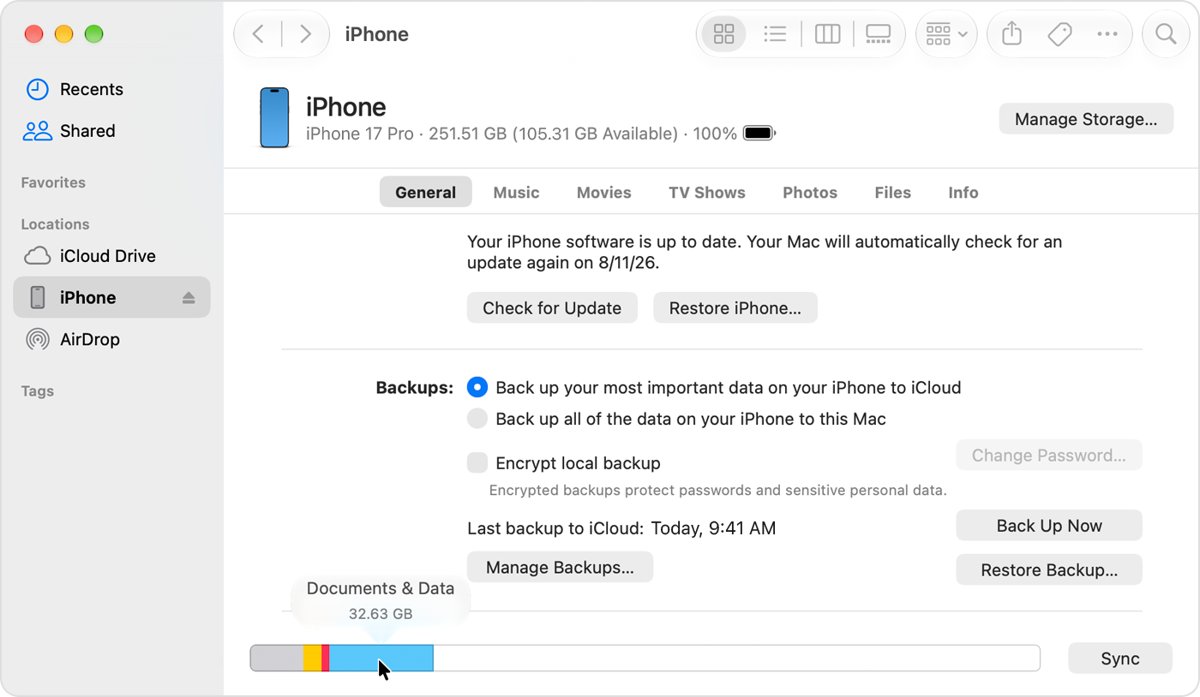
How is clearing your iPhone cache helpful?
Clear a browser or app cache when it shows old content, loads pages wrongly or fills your storage, not as a routine every week. A fresh cache fixes stale or broken pages and frees some storage space, but it also signs you out of websites and makes pages load slower until the cache rebuilds. Apple notes that iPhone already removes cached and temporary files on its own when storage runs low, so routine clearing gains little.
How to offload unused apps automatically on iPhone
When storage is low, iPhone can remove apps you do not use while keeping their data. The icon stays on your Home Screen with a cloud symbol, and tapping it reinstalls the app.
- Open the Settings app.
- Tap Apps, then tap App Store.
- Turn on Offload Unused Apps.
- To review other suggestions, open Settings > General > iPhone Storage and tap Show All under the recommendations.
- Tap Enable on a recommendation to turn it on, or tap it to review the items you can delete.
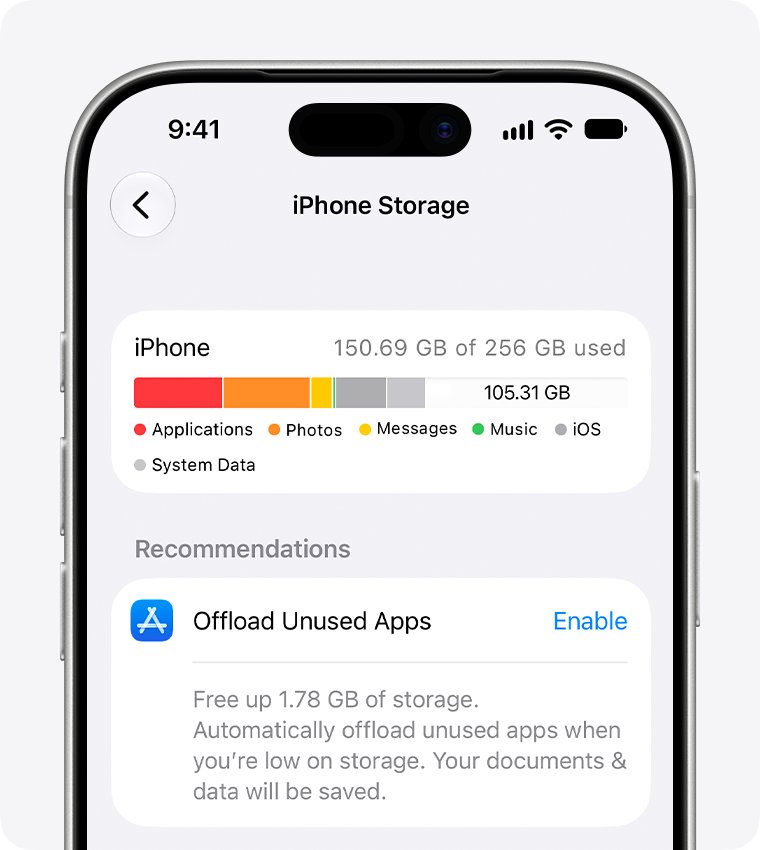
How to check iPhone storage after clearing cache
The iPhone Storage screen shows the space you got back. Apple notes that cached and temporary data might not count toward an app's usage, so the drop can be smaller than expected.
- Open Settings and tap General.
- Tap iPhone Storage.
- Read the available storage shown at the top of the screen.
- Tap an app's name to see how much space the app and its documents and data use.
- Compare the figures with what you saw before you cleared the cache.
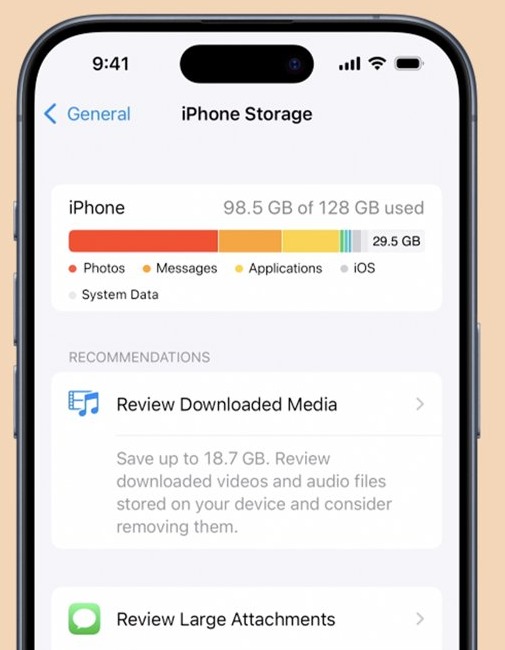
Clear History and Website Data greyed out on iPhone
Clear History and Website Data or Remove All Website Data is grey
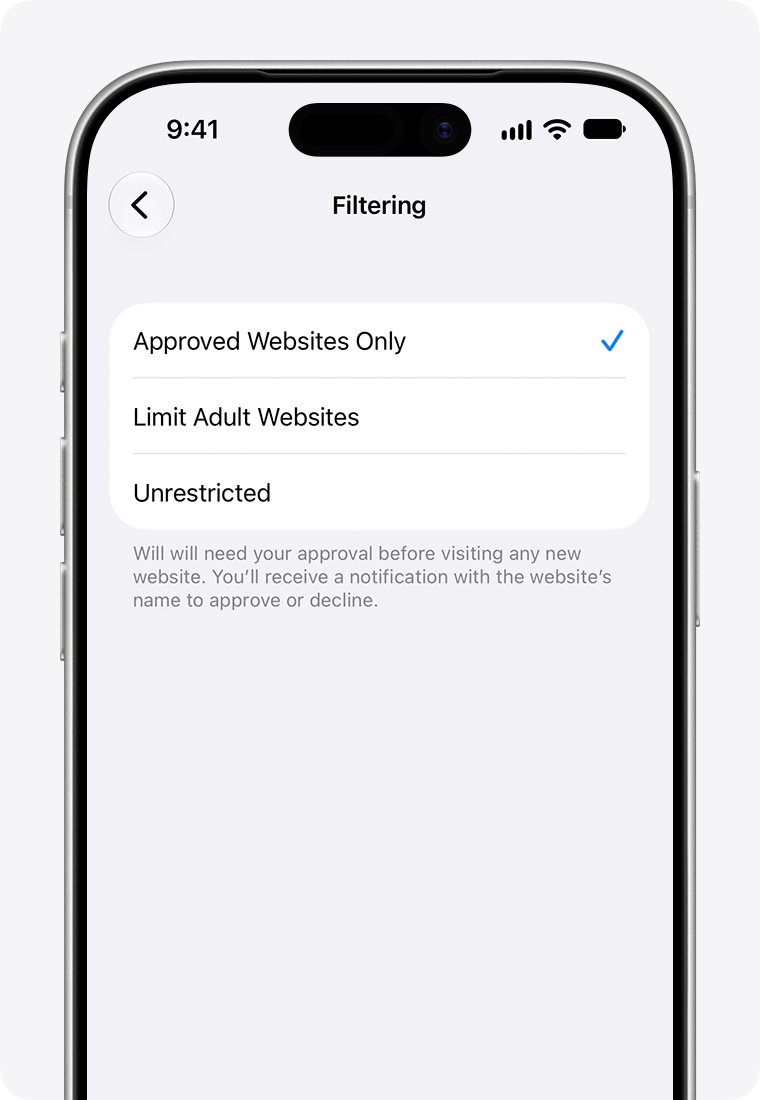
There is no data to clear, or Screen Time web content restrictions block the button.
- Browse to a few websites in Safari so there is data to clear, then try the button again.
- If it stays grey and a parent or organization manages this iPhone, ask them to change its Screen Time web content setting.
- Parents in iOS 27 open Settings > Family, tap the child's name, then tap Apps & Websites.
- Tap Restrictions, then tap Filtering under Websites to review the browsing setting.
- Go back to Settings > Apps > Safari and try the button again.
Websites sign you out after clearing the cache
Clearing website data removes the cookies sites use to remember your login.
- Sign in to each site again with your username and password.
- Next time, use Clear History and Website Data with a short timeframe, or delete single sites from Safari's History list.
- Leave Block All Cookies off, because blocked cookies stop many sites from signing you in.
An app still misbehaves after you clear its cache
The fault is in the app itself or iOS, not in its cached files.
- Press and quickly release volume up, then press and quickly release volume down.
- Press and hold the side button until the Apple logo appears, then release it.
- Update the app from the App Store if a newer version is available.
- Delete and reinstall the app if the problem continues.
Storage is still almost full after clearing cache
Photos, videos, messages and apps take far more space than any browser cache.
- Open Settings > General > iPhone Storage to find the largest categories.
- Back up photos and videos to iCloud, then remove them from the iPhone.
- Delete old message conversations and attachments you no longer need.
- Remove watched downloads from the TV app and other streaming apps.
iPhone cache FAQ
Does clearing cache on iPhone delete photos or messages?
No. Clearing Safari or Chrome cache removes browsing data only, and your photos, messages and apps stay. Deleting an app is different, because it removes the app's related data, so back up anything stored only inside that app first.
Is there a way to clear all cache on iPhone at once?
No. iOS has no single button for every cache. Safari is cleared in Settings, Chrome and Firefox inside each app, and other apps through their own settings or by deleting and reinstalling them. iPhone also removes cached files itself when storage runs low.
How do I clear cache on iPhone without losing data?
Use Safari's Advanced > Website Data > Remove All Website Data, which keeps your history. Your AutoFill information is not changed by Clear History and Website Data either. For apps, Offload App frees space while keeping the app's documents and data.
What is the difference between offloading and deleting an app?
Offloading frees the storage the app itself uses but keeps its documents and data, so reinstalling brings you back to where you were. Deleting removes the app and its related data, which also clears its cache. Both are in Settings > General > iPhone Storage.
Will clearing cache make my iPhone faster?
Only when a full cache or low storage is causing the slowdown. Pages and apps can load more slowly at first, because they have to download fresh copies. A restart and the latest iOS and app updates usually do more for a phone that feels slow.
Why is the Clear History button grey on my iPhone?
Apple says a grey Clear History and Website Data button means there is no data to clear, or Screen Time web content restrictions are on. Browse a few sites and try again, and if it stays grey, ask whoever manages Screen Time on the device to review its website filtering.
Does clearing Safari cache sign me out of websites?
Yes. Clearing website data removes cookies, which sites use to save login information, so you have to sign in again. Apple says Clear History and Website Data does not change your AutoFill information, so details AutoFill saved can still fill in sign-in forms.
How often should I clear cache on iPhone?
Only when a browser or app shows stale content, breaks pages or takes up too much space. There is no schedule to follow, because iPhone already removes cached and temporary files when it needs more room, and the cache rebuilds as you browse.