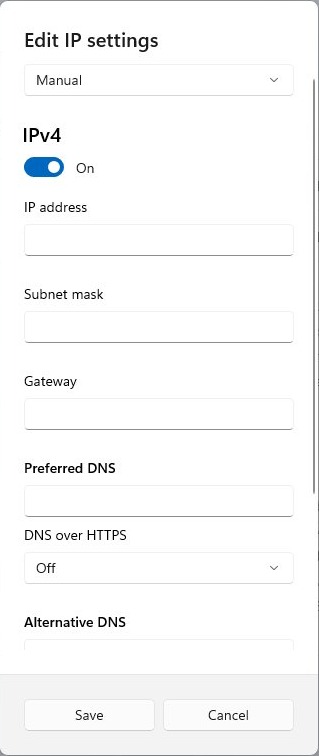
To change your IP address on Windows 11, open Settings > Network & internet, select your Wi-Fi or Ethernet network, select Edit next to IP assignment, choose Manual, turn on IPv4 and type the new address, subnet mask and gateway.
This guide also covers netsh in Command Prompt, PowerShell, renewing a DHCP address, router reservations, Windows 10, switching back to automatic and fixes when the connection drops.
How to change IP address on Windows 11
These steps set a static (manual) IPv4 address. Have the address, subnet mask, gateway and DNS servers ready before you start.
- Select Start > Settings > Network & internet.
- For Wi-Fi, select Wi-Fi > Manage known networks and choose your network. For a wired connection, select Ethernet, then select the network you are connected to.
- Next to IP assignment, select Edit.
- Under Edit IP settings, choose Manual, then turn on IPv4.
- Type the new address in IP address, then fill in Subnet mask and Gateway.
- Type DNS servers in Preferred DNS and Alternate DNS.
- Select Save.
Windows applies the new address straight away. Choose an address in the same range as your router, for example 192.168.1.50 when the gateway is 192.168.1.1, and make sure no other device uses it.
Types of IP address
| Type | What it is | Who sets it |
|---|---|---|
| Private (local) IP | The address your PC uses on your home or office network, such as 192.168.1.3 | Your router, or you in Windows |
| Public IP | The address websites see for your whole network | Your internet provider |
| Dynamic IP | An address handed out automatically by DHCP; it can differ each time the device connects | The router's DHCP server |
| Static IP | An address typed in manually that stays the same | You, in Windows Settings, netsh or PowerShell |
| Reserved IP | A DHCP address the router always gives the same device | You, in the router's admin page |
| IPv4 and IPv6 | Two address formats; Windows 11 has separate IPv4 and IPv6 switches under Manual | Router or you |
Why change your IP address on Windows?
| Reason | Best approach |
|---|---|
| A NAS, server or game setup needs a fixed address | A static IP in Windows or a reservation on the router |
| Port forwarding rules point at one address | A reserved or static IP so the rule keeps working |
| The PC picked up a wrong or duplicate address | Release and renew the DHCP lease |
| A static address no longer fits a new network | Switch IP assignment back to Automatic (DHCP) |
| You need a different public IP | Contact your internet provider; Windows settings only change the local address |
If a static address is for port forwarding, the same setup often fixes a strict console or PC NAT type on Windows.
How to change IP address in Windows 11 using CMD
netsh sets a static address in one line. Run it in Command Prompt opened as administrator.
- Select Start, type
cmd, right-click Command Prompt and select Run as administrator. - Run
netsh interface ipv4 show configand note the adapter name, such asWi-FiorEthernet. - Save the current settings first with
ipconfig /all >ipconfig.txt. - Set the address, mask and gateway:
netsh interface ipv4 set address name="Wi-Fi" source=static address=192.168.1.50 mask=255.255.255.0 gateway=192.168.1.1. - Set a DNS server:
netsh interface ipv4 set dnsservers name="Wi-Fi" source=static address=192.168.1.1. - Run
ipconfig /alland check that DHCP Enabled shows No and the new address is listed.
Replace the example values with your own. The set address command removes any previous static addresses and default gateways on that adapter before it adds the new one.
Change IP address in Windows 11 with PowerShell
- Select Start, type
PowerShell, right-click Windows PowerShell and select Run as administrator. - Run
Get-NetIPInterfaceand note the ifIndex number of your adapter. - Run
New-NetIPAddress -InterfaceIndex 12 -IPAddress 192.168.1.50 -PrefixLength 24 -DefaultGateway 192.168.1.1, using your own index and addresses. - Run
Set-DnsClientServerAddress -InterfaceIndex 12 -ServerAddresses 192.168.1.1to set DNS. - Run
Get-NetIPConfigurationto see the new settings.
PrefixLength 24 equals a subnet mask of 255.255.255.0. The default gateway must be in the same subnet as the new address, or the command fails.
Releasing DHCP lease and resetting your dynamic IP
When the PC gets its address automatically, releasing and renewing the lease asks the router for a fresh one. The router may hand back the same address.
- Open Command Prompt as administrator.
- Run
ipconfig /releaseto drop the current DHCP address on every adapter. - Run
ipconfig /renewto request a new address. - To renew one adapter only, add its name, for example
ipconfig /renew Wi-Fi. - Run
ipconfigand read the new IPv4 Address.
/renew only works on adapters set to get an address automatically. The other ipconfig release and renew switches target IPv6 or a single adapter.
Configuring your network router DHCP settings
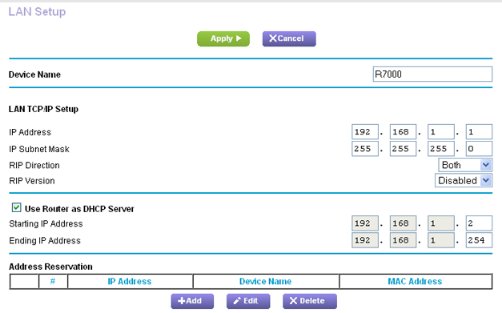
An address reservation makes the router give the same IP to your PC every time, while Windows stays on automatic. This suits laptops that also join other networks. The steps below are for NETGEAR routers; other brands use similar LAN or DHCP pages.
- Open a web browser on a device connected to the router and go to
http://www.routerlogin.net. - Sign in with the router user name and password.
- Select ADVANCED > Setup > LAN Setup (some models show Settings > Setup > LAN Setup).
- In the Address Reservation section, select Add.
- Type the IP address to assign, chosen from the router's LAN subnet, such as 192.168.1.x.
- Find the PC's MAC address and type it in, or copy it from the router's Attached Devices page.
- Select Apply, then restart the PC or release and renew its DHCP lease.
The reserved address only takes effect the next time the PC contacts the router's DHCP server.
Setting a static IP address on Windows 10
- Select Start > Settings > Network & Internet.
- For Wi-Fi, select Wi-Fi > Manage known networks and choose the network. For Ethernet, select Ethernet and then your network.
- Under IP assignment, select Edit.
- Choose Manual and turn on IPv4.
- Enter the IP address, Subnet mask, Gateway, Preferred DNS and Alternate DNS.
- Select Save.
The DNS over HTTPS options shown in Windows 11 are not available in Windows 10. The netsh and PowerShell commands above work the same on Windows 10.
Change IP address back to automatic (DHCP) in Windows 11
- Open Settings > Network & internet and select your Wi-Fi or Ethernet network.
- Next to IP assignment, select Edit.
- Choose Automatic (DHCP) and select Save.
- Or in an admin Command Prompt, run
netsh interface ipv4 set address name="Wi-Fi" source=dhcp. - Set DNS back to automatic with
netsh interface ipv4 set dnsservers name="Wi-Fi" source=dhcp.
With Automatic (DHCP), the router sets the IP address and DNS servers, so the PC works when you move it to another network.
How to find your IP address?
- Open Settings > Network & internet.
- Select Wi-Fi and then the network you are connected to, or select Ethernet.
- Read the address next to IPv4 address.
- Or open Command Prompt and run
ipconfig; the IPv4 Address line shows the current address. - Ping the router's gateway address to confirm the new address can reach the network.
Run ipconfig /all for the full picture: DHCP status, gateway and DNS servers. The public address websites see is different, and you can find your IP address on Windows for both kinds.
Tips for changing IP address on Windows 11
| Tip | Why it matters |
|---|---|
| Record the old settings first | ipconfig /all >ipconfig.txt saves them to a text file you can copy back |
| Stay in the router's subnet | An address outside the LAN range cannot reach the gateway |
| Avoid addresses the router hands out | A static IP inside the DHCP pool can clash with another device |
| Always fill in DNS in Manual mode | Without DNS servers, websites will not load even though the network connects |
| Prefer a router reservation on laptops | The PC keeps DHCP, so it still works on other networks |
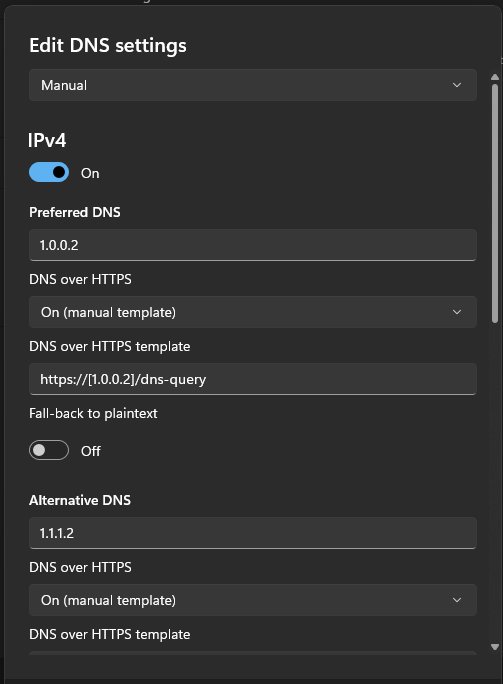
| Use DNS over HTTPS only with a supporting server | Windows 11 can encrypt DNS queries to servers you specify |
Windows 11 static IP address not working
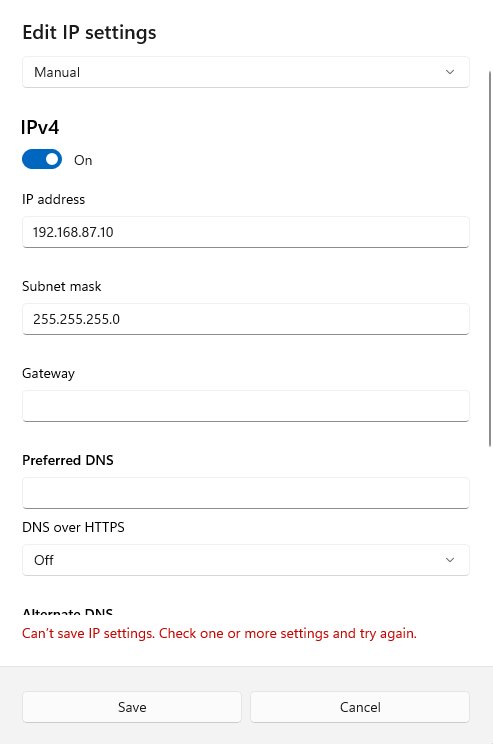
No internet after setting a static IP
The gateway or DNS servers are wrong, or the address is outside the router's subnet.
- Open Settings > Network & internet, select the network and select Edit next to IP assignment.
- Check that the Gateway is the router address and the IP address is in the same range.
- Add DNS servers in Preferred DNS, then select Save.
- If it still fails, choose Automatic (DHCP) to get back online.
Default gateway is blank or the address starts with 169.254
Old static settings left behind after a network driver reinstall stop the new values from saving. Microsoft documents this for Windows 7 SP1 and Server 2008 R2 SP1.
- Set the adapter to obtain an address automatically and save.
- Enter the static address, mask and gateway again and save.
- Repeat both steps once more, or run the same
netsh interface ipv4 set addresscommand twice; the first run may return "Object already exists".
Why is my IP address changing?
The PC uses DHCP, and the router may hand out a different address each time the device connects.
- Reserve an address for the PC on the router.
- Or set a static IP in Settings > Network & internet > IP assignment > Edit > Manual.
ipconfig /renew does nothing
Renew only works on adapters set to get an IP address automatically.
- Switch IP assignment to Automatic (DHCP) first.
- Run
ipconfig /release, thenipconfig /renewagain.
PowerShell returns an error about the default gateway
New-NetIPAddress needs the gateway in the same subnet as the new IPv4 address.
- Check the PrefixLength matches your subnet mask, such as 24 for 255.255.255.0.
- Use a gateway address inside that subnet and run the command again.
Change IP address Windows 11 FAQ
How do I change my IP address on Windows 11 with CMD?
Open Command Prompt as administrator and run netsh interface ipv4 set address name="Wi-Fi" source=static address=192.168.1.50 mask=255.255.255.0 gateway=192.168.1.1, using your adapter name and addresses. Then set DNS with netsh interface ipv4 set dnsservers.
How do I change the IP address on Windows 10?
Open Settings > Network & Internet, choose Wi-Fi > Manage known networks or Ethernet, select your network, select Edit under IP assignment and pick Manual. Turn on IPv4, enter the address, subnet mask, gateway and DNS, then select Save.
How do I change the IP address on Windows 7?
Windows 7 uses the Internet Protocol Version 4 (TCP/IPv4) Properties dialog for the adapter. Select Use the following IP address, type the address, subnet mask and default gateway, add DNS servers and select OK. The netsh command also works on Windows 7.
How do I change the IP address on Windows Server?
Use PowerShell: run Get-NetIPInterface to find the interface index, then New-NetIPAddress with the address, prefix length and default gateway. Set DNS with Set-DnsClientServerAddress. On Server Core, netsh interface ipv4 set address works too.
Why change IP address?
Common reasons are giving a NAS, server or printer a fixed address, keeping port forwarding rules working, fixing an address conflict, or moving a PC from a static address back to DHCP. A different public IP needs your internet provider, not Windows.
Does my computer IP address change?
Yes, if it uses DHCP. The router hands out addresses automatically, and a device may not get the same one each time it connects. A static IP in Windows or a reservation on the router keeps it fixed.
What does changing my IP address do?
Changing the local IP gives your PC a new address on your home or office network. Other devices and port forwarding rules must use the new address. It does not change the public IP that websites see for your connection.
Can I revert to my original IP address?
Yes. Set IP assignment back to Automatic (DHCP) to let the router assign an address again, or type the old values back in. Saving ipconfig /all output to a text file before you change anything makes this easy.
Is changing my IP address legal?
Yes. Setting the local IP address of your own PC is a normal network setting that Windows provides in Settings. On a work or school network, ask the administrator first, because a manual address can clash with their DHCP plan.
Step-by-step summary
Open Settings > Network & internet, select your network, select Edit next to IP assignment, choose Manual, turn on IPv4, enter the IP address, subnet mask, gateway and DNS, then select Save. The Settings route covers most home PCs. Use netsh or PowerShell for scripts and servers, a router reservation for laptops, and Automatic (DHCP) to undo the change.