Yes, you can leave AirPods in their case plugged in when you are not using them, because Apple tells owners to keep AirPods in the case and Optimized Battery Charging limits the time they sit at 100 percent.
This guide covers how Optimized Battery Charging and the AirPods Pro 3 charge limit work, how to turn them on, safe charging habits, long-term storage and fixes when the case stops charging.

Can you leave AirPods charging all the time?
Apple's own charging article says to put AirPods in the case whenever you are not using them. AirPods shut down and charge whenever they are in the case with the lid closed, and the case can charge with or without the earbuds inside.
- Put both AirPods in the charging case and close the lid.
- Connect the case to a USB charger or Mac with its Lightning or USB-C cable, or place it status light up on a MagSafe, Qi-certified or Apple Watch charger that your model supports.
- Put your AirPods in your ears so they connect to your iPhone or iPad.
- Open the Settings app, tap the name of your AirPods near the top, then tap Battery.
- Make sure Optimized Battery Charging is on (or Optimized Charge Limit on AirPods Pro 3).
- Put the AirPods back in the case, close the lid and leave the case on power.
Optimized Battery Charging is on by default once you set up AirPods with iOS or iPadOS 15 or later, so most owners only need to confirm the switch.
How AirPods Optimized Battery Charging works
Optimized Battery Charging reduces the time AirPods spend fully charged. AirPods and your iPhone or iPad learn your daily charging routine, then wait to finish the charge until just before you usually need them.
| AirPods model | Battery feature | What it does |
|---|---|---|
| AirPods 1 and AirPods 2 | No optimized charging setting | Charge to full in the case; there is no switch to change |
| AirPods 3, AirPods 4 and AirPods 5 | Optimized Battery Charging | Holds the charge below full until shortly before you usually use them |
| AirPods Pro 1 and AirPods Pro 2 | Optimized Battery Charging | Same delayed final charge, learned from your routine |
| AirPods Pro 3 | Optimized Battery Charging plus Optimized Charge Limit | Learns when to stop at an optimized limit and when to allow a full charge |
| AirPods Max | Smart Case ultralow power mode | Puts the headphones to sleep in the Smart Case to preserve charge |
Both features need an iPhone or iPad. The Optimized Charge Limit for AirPods Pro 3 is on by default on iOS or iPadOS 26 or later, and it shows a divided charge ring when you open the case lid.
How to turn on Optimized Battery Charging for AirPods
- Wear your AirPods and make sure they are paired with your iPhone or iPad.
- Open the Settings app.
- Tap the name of your AirPods near the top of the screen.
- Tap Battery.
- Turn on Optimized Battery Charging for AirPods 3, 4, 5, AirPods Pro 1 or AirPods Pro 2.
- On AirPods Pro 3, turn on Optimized Charge Limit instead.
Turn the same switch off only if you regularly need a full charge at an unpredictable time, such as before a long flight.
How to charge AirPods Pro 3 to 100 percent
With Optimized Charge Limit on, AirPods Pro 3 may stop short of full on purpose. Apple gives three ways to get a full charge when you need one.
- Wear your AirPods Pro 3 so they connect to your iPhone or iPad.
- Open Settings, tap the name of your AirPods, then tap Battery.
- Turn off Optimized Charge Limit.
- Tap Turn Off Until Tomorrow to charge fully once, or tap Turn Off to disable the limit entirely.
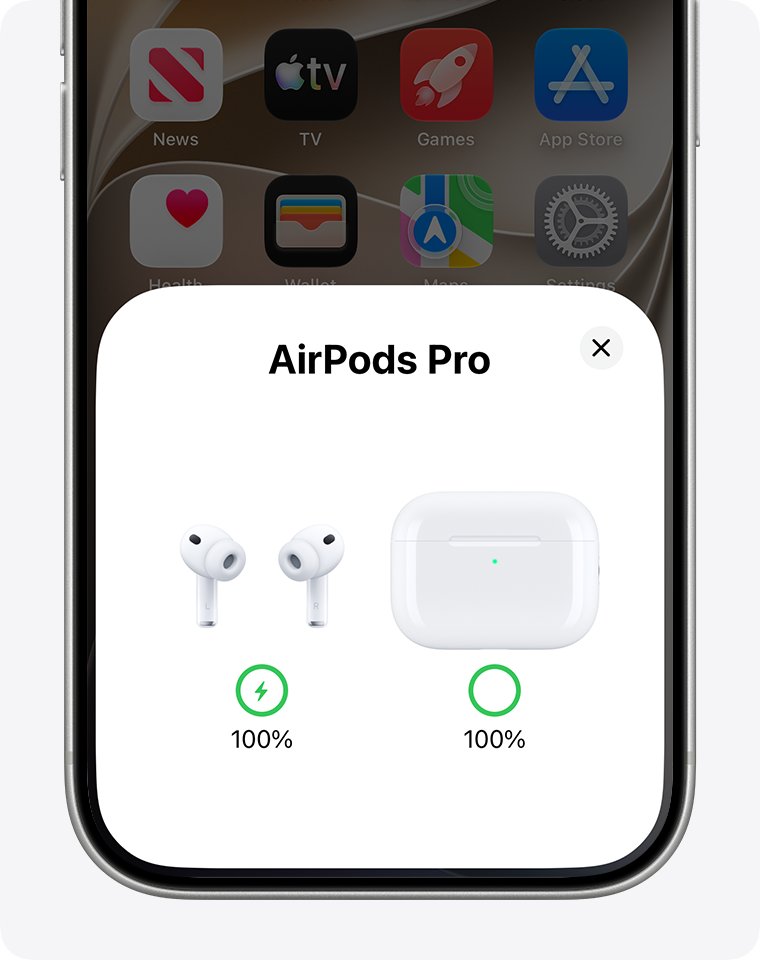
- Alternatively, open the case lid near your iPhone with the AirPods inside and tap Charge to Full Now on the battery card.
How to store AirPods Max in the Smart Case to save battery
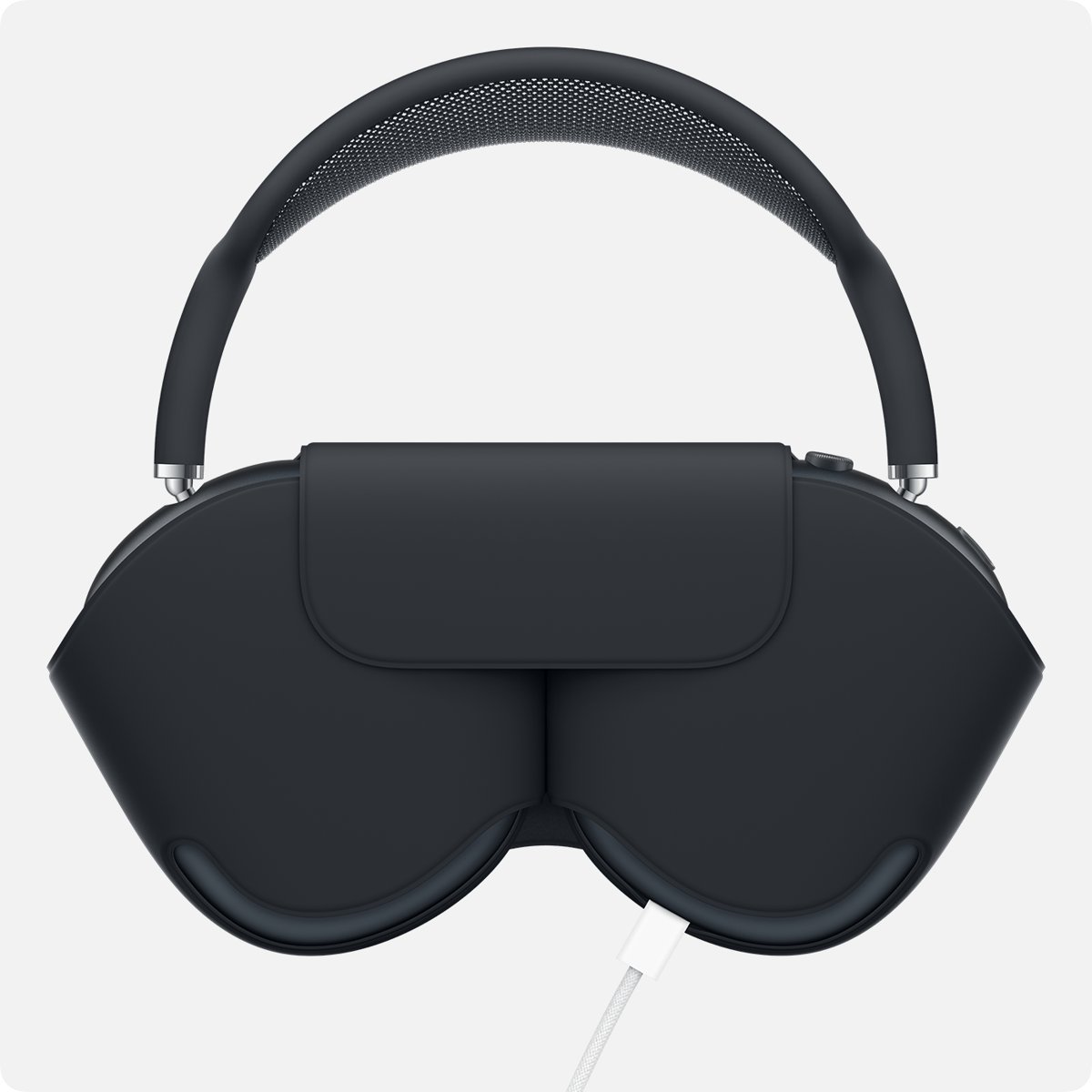
AirPods Max have no charging case, so the advice differs. Apple says to keep them in the Smart Case when you are not using them, which puts them into an ultralow power mode.
- Take the AirPods Max off and fold the ear cups flat.
- Slide them into the Smart Case.
- To charge inside the case, line up the cutout on the Smart Case with the Lightning or USB-C port on the right ear cup.
- Plug the cable that came with them into that port and into a USB charger.
- Leave them in the case; audio does not play while they sleep there.
How to check AirPods battery percentage on iPhone
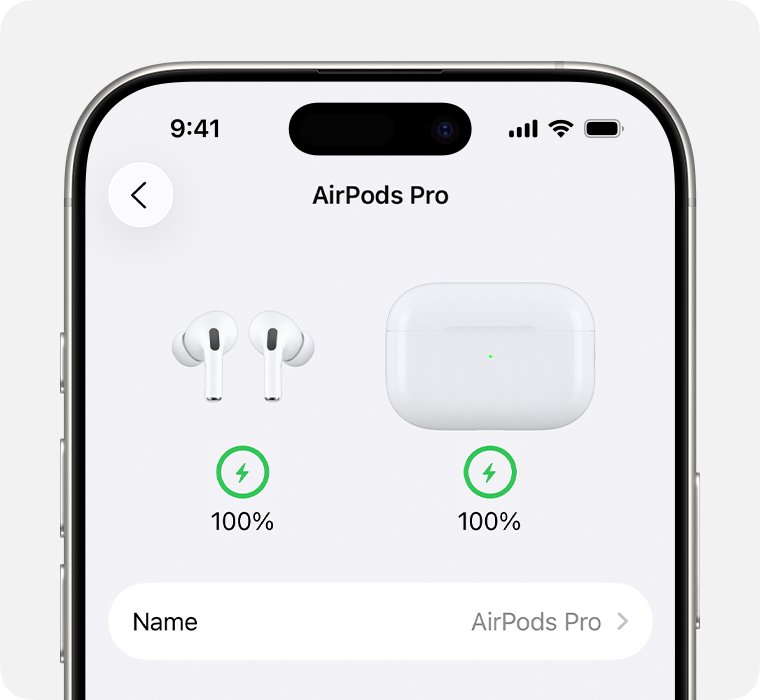
Checking the percentage after a night on the charger shows whether the charge limit is holding them below full or the case is not charging at all.
- Open the case lid with the AirPods inside, or take them out of the case.
- On your iPhone, open Settings and tap Bluetooth.
- Tap the Info button next to your AirPods to see the battery level of each earbud and the case.
- On a Mac, hold the AirPods near it, click Control Center in the menu bar, click Sound and choose your AirPods.
- For alerts instead of checks, go to Settings > your AirPods > Battery and turn on Charging Notifications on supported models.
Charging Notifications work on AirPods 4 (ANC), AirPods 5 with Wireless Charging Case, AirPods Pro 2, AirPods Pro 3 and AirPods Max 2, with the latest firmware and iOS or iPadOS 26 or later.
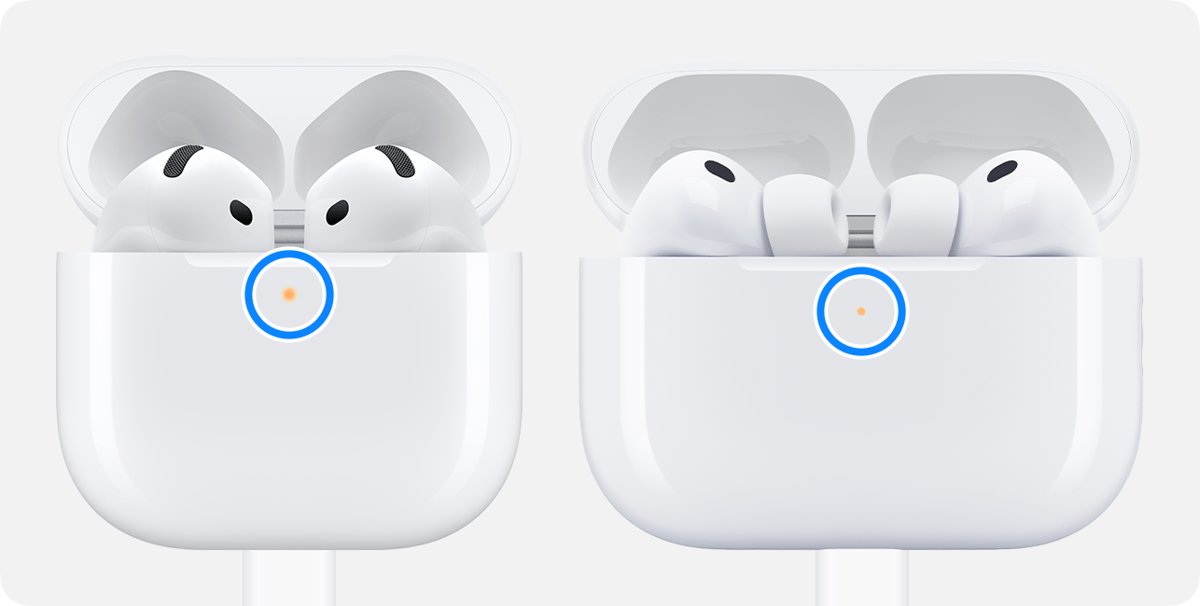
AirPods case light colors meaning
With the AirPods in the case and the lid open, the light shows the earbuds' charge. With the earbuds out, it shows the case's own charge.
| Status light | What it means | What to do |
|---|---|---|
| Green | Fully charged | Nothing; the case can stay on power |
| Amber | Less than one full charge remains | Leave the case connected to power |
| Brief amber pulse | AirPods or case below 95 percent (AirPods 4, 5, Pro 2, Pro 3 on current firmware) | Normal while charging |
| Brief amber flash | AirPods below 95 percent and case below 25 percent | Charge the case soon |
| No light | The AirPods may need to charge before you can use them | Charge the case for at least 15 minutes |
On wireless chargers, the light turns on for several seconds when the case is aligned, then turns off while it keeps charging.
Safety tips for AirPods charging
Constant charging is not the risk. Heat, damaged cables and poor adapters are, according to Apple's safety and handling information for AirPods.
| Habit | Why it matters |
|---|---|
| Use a power adapter that meets safety standards | Non-compliant adapters could pose a risk of death or injury |
| Replace damaged cables or chargers | They can cause fire, electric shock or damage to the case |
| Never charge when moisture is present | Wet ports risk shock and damage; let AirPods dry for at least two hours after cleaning |
| Keep keys, coins and jewelry off wireless chargers | Metal objects can get warm or interfere with charging |
| Do not cover a charging case with a pillow or blanket | Trapped heat can cause discomfort or injury |
| Keep the case out of hot places | Apple warns that heat above 95 F (35 C) can permanently reduce lithium-ion battery capacity |
The AirPods batteries carry a maximum temperature rating of 60 C, and Apple says only a trained technician should repair them.
Should I let my AirPods die before charging?
No. Apple says you can charge its lithium-ion batteries whenever you want, with no need to let them discharge to zero first.
Top AirPods up in the case whenever it suits you and never run them flat on purpose. Lithium-ion capacity drops slightly with each complete charge cycle, and a cycle counts total discharge across several days. Draining to zero adds no benefit, while a battery left fully discharged can fall into a deep discharge state.
Apple batteries fast charge to 80 percent, then switch to a slower trickle charge, which is part of why topping up often is harmless.
How to store AirPods long term
Apple's general battery advice for its devices covers storage of weeks or months, such as spare AirPods in a drawer. Unplugged storage differs from daily charging.
- Charge the AirPods and case to around 50 percent, not full and not empty.
- Put the AirPods in the case and close the lid so they shut down.
- Unplug the case.
- Store it somewhere cool and dry, below 90 F (32 C).
- If storage runs longer than six months, charge back to about 50 percent every six months.
How to clean the AirPods charging case
Debris in the case is a common reason AirPods stop charging while they sit plugged in. Apple's cleaning steps keep liquid away from the contacts.
- Remove debris from the charging port with a clean, dry, soft-bristled brush.
- Do not put anything into the charging ports, to avoid damaging the metal contacts.
- Wipe the case with a soft, dry, lint-free cloth.
- If needed, dampen the cloth slightly with isopropyl alcohol.
- Let the case dry fully before you put AirPods back in or connect power.
AirPods not charging in the case
AirPods stopped working after sitting in the case
The case battery ran out or the cable connection is loose.
- Put the AirPods in the case and close the lid.
- Plug the cable firmly into the case and a USB power adapter in a working outlet.
- Charge for at least 15 minutes.
- On a Qi charger, reposition the case status light up; if the light still does not turn on, use a cable instead.
Why does only one AirPod work?
One earbud is not charging, often because of debris in the case.
- Clean the charging port of the case.
- Place both AirPods in the case and let them charge for 30 seconds.
- Open the case near your iPhone and check that each AirPod shows as charging.
- Put the faulty AirPod in your ear, leave the other in the closed case and play audio to test it.
- If it still fails, reset your AirPods.
AirPods not working right after a full night on the charger
A pairing or firmware glitch, not the charging itself.
- Put the AirPods in the case, close the lid and wait 30 seconds.
- On your iPhone, go to Settings > Bluetooth, tap the More Info button next to your AirPods and tap Forget This Device.
- Open the lid. On AirPods 1, 2, 3, Pro 1 or Pro 2, hold the setup button on the back for about 15 seconds.
- On AirPods 4, AirPods 5 or AirPods Pro 3, double-tap the front of the case three times as the light changes.
- When the light flashes amber, then white, follow the onscreen steps to reconnect.
AirPods Pro 3 never reach 100 percent
Optimized Charge Limit is working as designed.
- Open Settings, tap your AirPods, then tap Battery.
- Turn off Optimized Charge Limit and tap Turn Off Until Tomorrow.
- Leave the case on power until the AirPods show full.
If the light never flashes white, close the lid for 20 seconds, open it and factory reset the AirPods again.
AirPods charging and battery FAQ
Should I let my AirPods die?
No. Apple lithium-ion batteries can be charged whenever you want, and there is no need to discharge them fully first. Letting them sit fully discharged for a long time can push the battery into a deep discharge state where it no longer holds a charge.
Should I let my AirPods rest out of the case?
No. Apple recommends putting AirPods in the case whenever you are not using them. In the case with the lid closed they shut down and charge, which keeps them ready and protects them from loss and damage.
How do you turn off AirPods?
There is no power button on AirPods. Put them in the charging case and close the lid, and they shut down and charge. AirPods Max go into an ultralow power sleep mode when you place them in the Smart Case.
Are AirPods safe to charge overnight?
Yes, when you use an undamaged cable and a power adapter that meets safety standards. Keep the case in the open, not under a pillow or blanket, and keep metal objects off a wireless charger while it charges.
Are AirPods harmful?
Apple's safety guidance flags loud volume, which can permanently damage hearing, magnets that might affect implanted medical devices, and skin irritation from dirty earbuds. Keep the AirPods and case more than 6 inches (15 cm) from a pacemaker or defibrillator unless your doctor advises otherwise.
How do I clean my AirPods?
Wipe the earbuds with a cloth slightly dampened with fresh water, then dry them with a lint-free cloth. Do not run them under water. Let them dry for at least two hours before you put them back in the case.
What should I do with old AirPods?
Recycle them. Apple's safety information says AirPods batteries should be recycled or disposed of separately from household waste, according to local rules. Apple's Reuse and Recycling Program takes old Apple devices for free.
How do I find my AirPods if I lose them?
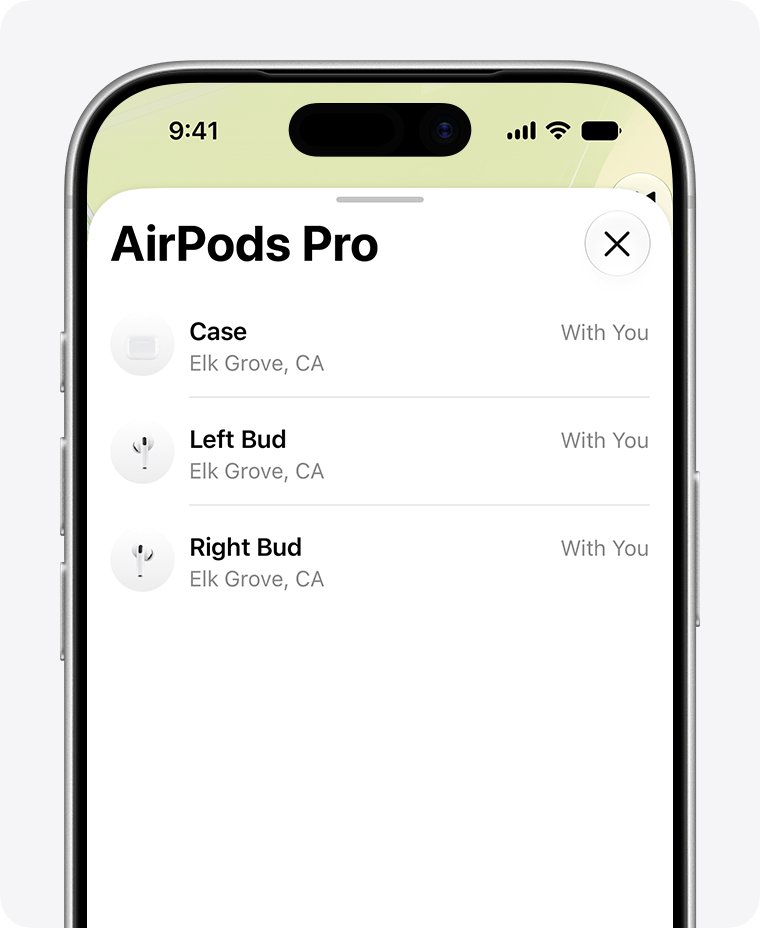
Once you add your AirPods to Find My, open the Find My app on your iPhone, tap Devices, then tap your AirPods. Tap Play Sound if they are nearby, or Get Directions if they are not. If they show Offline, they may need to charge, and you see the last known location instead.
Does the AirPods case charge without the AirPods inside?
Yes. Apple says you can charge the case with or without your AirPods inside. With the earbuds out, the status light shows the charge of the case itself, green for full and amber for less than one full charge.