HP Battery Alert 601 on startup means the laptop's own battery check found that the battery can now store very little charge, so the fix is to test the battery, calibrate it, and replace it if it fails.
This guide covers what the alert means, the HP and Windows tools that test the battery, firmware updates, the replacement route, and HP Support Assistant install problems.
Fix HP Battery Alert 601 on startup in Windows 11/10
The alert comes from the HP firmware, not from Windows. It appears before Windows loads, so reinstalling or resetting Windows 11 does not remove it.
- Connect the HP power adapter and let the laptop finish starting into Windows.
- Open HP Support Assistant from its taskbar icon, or press the Windows key and type HP Support Assistant.
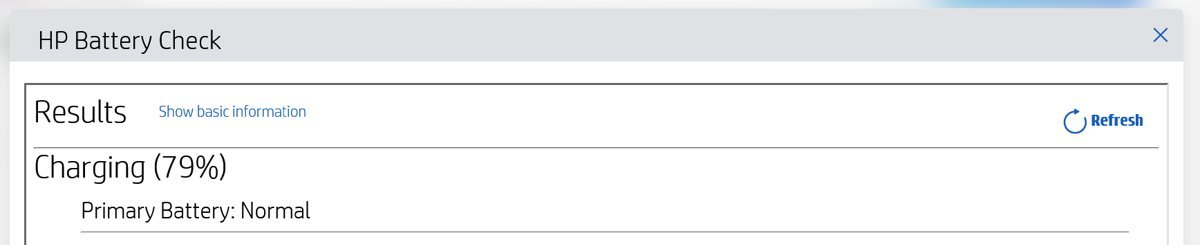
- Run HP Battery Check to test the battery.
- Calibrate the battery if the check offers calibration, and keep the adapter connected until it finishes.
- Install any firmware and BIOS updates HP Support Assistant lists, then restart.
- If the test reports a failure, write down the failure ID and arrange a battery replacement with HP.
A battery that tests as failed will keep raising the alert at every startup. Replacement is the only fix for real capacity loss.
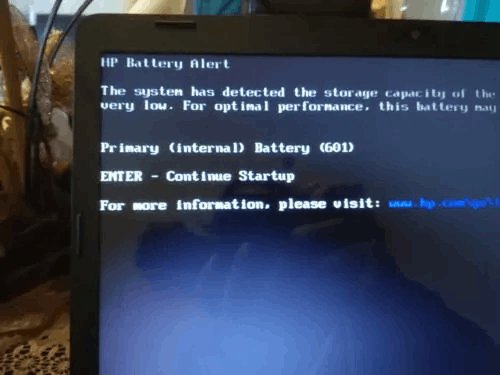
HP Battery Alert: The system has detected the storage capacity of the battery stated below to be very low
HP notebooks run a battery check every time they start. The check looks at the remaining capacity of the battery, the capacity of a secondary battery if one is installed, and other battery problems.
| Part of the alert | What it means | What to do |
|---|---|---|
| 601 | The battery's storage capacity is very low compared with when it was new | Test the battery, then replace it if it fails |
| 60X (602, 603 and similar codes) | The same family of battery-check alerts, raised for the battery the message names | Read which battery is listed and test that one |
| Primary or internal battery | The main battery that powers the laptop | Run HP Battery Check or HP PC Hardware Diagnostics |
| Secondary battery | An optional second battery on models that support one | Test it separately; the main battery may still be fine |
| Black screen before Windows | The firmware shows the alert during startup | Treat it as a hardware warning, not a Windows error |
HP Battery Check vs HP PC Hardware Diagnostics vs powercfg battery report
| Your situation | Use this | Why |
|---|---|---|
| Windows starts and HP Support Assistant is installed | HP Battery Check | Tests and calibrates the battery from inside Windows |
| You need a failure ID for an HP repair | HP PC Hardware Diagnostics | Failed tests produce a 24-digit failure ID that starts the repair |
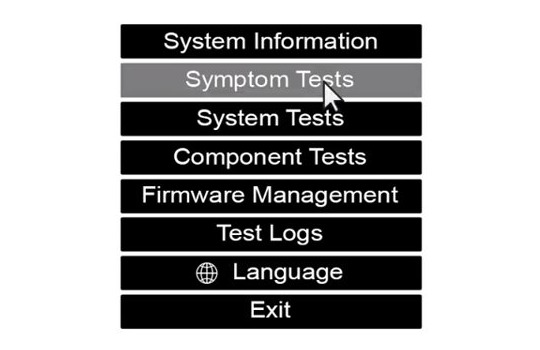
| The laptop will not boot into Windows | HP PC Hardware Diagnostics UEFI | Runs outside the operating system |
| You want capacity numbers over time | powercfg /batteryreport | Built into Windows 11 and Windows 10, no HP software needed |
| An HP business notebook | HP Battery Health Manager plus the tests above | HP offers it for commercial notebooks and mobile workstations |
How to check HP battery health with HP Support Assistant
HP Support Assistant comes preinstalled on new HP desktops and notebooks. Its HP Battery Check tests the battery and can calibrate it.
- Plug in the power adapter and charge the battery for a while before testing.
- Select the HP Support Assistant icon on the taskbar.
- Choose your HP notebook from the device list.
- Open the battery check and select HP Battery Check.
- Wait for the test to finish without unplugging the adapter.
- Read the result and follow the action HP Battery Check recommends for your battery.
Run HP PC Hardware Diagnostics for HP battery error 601
HP PC Hardware Diagnostics also ships preinstalled on new HP computers. The Windows version supports Windows 10 and Windows 11, and the UEFI version runs outside Windows when the laptop will not start.
- Connect the power adapter.
- Press the Windows key, type HP PC Hardware Diagnostics Windows, and open the app.
- Choose the component tests and select the battery test.
- Run the test and wait for the result.
- If the test fails, copy the 24-digit failure ID it shows.
- Use the UEFI version of HP PC Hardware Diagnostics instead if Windows will not boot.
Check battery capacity with the powercfg battery report
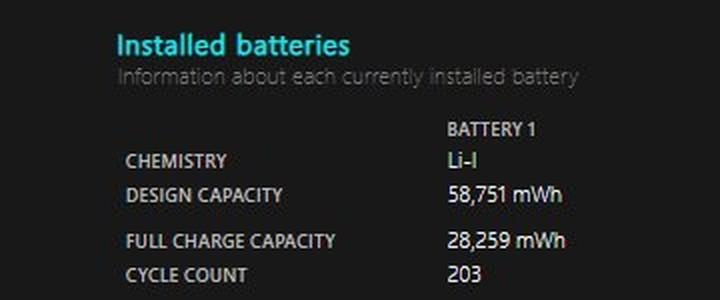
Windows can produce its own battery history without any HP software. The report shows how the battery's full charge capacity compares with its design capacity, which is the same loss the 601 alert reports.
powercfg /batteryreport /output "%USERPROFILE%\battery-report.html"Run it in Command Prompt. powercfg /batteryreport builds an HTML report of battery use over the lifetime of the PC, /output sets where the file is saved, and /duration followed by a number of days limits the period analysed.
You should see: Command Prompt prints the path of battery-report.html. Open it in a browser and compare DESIGN CAPACITY with FULL CHARGE CAPACITY under Installed batteries.
A full charge capacity far below the design capacity matches the 601 alert. More ways to fix laptop battery drain and charging problems help only when the battery itself still tests healthy.
How to calibrate an HP laptop battery
Battery capacity changes with age, and the Windows charge indicator can stop reaching 100%. HP recommends testing the battery first and calibrating it if necessary, which restores accurate charge levels.
- Connect the power adapter and close open apps.
- Open HP Support Assistant and start HP Battery Check.
- Select the calibration option when the check offers it.
- Leave the adapter connected and the laptop awake until calibration completes.
- Restart the laptop and watch whether the 601 alert still appears.
- Run HP Battery Check once more to see the new result.
Calibration corrects the charge reading. It does not restore capacity a worn battery has already lost.
Update HP BIOS and firmware with HP Support Assistant
HP Support Assistant can install firmware and driver updates automatically or notify you when they are ready. Install them when the battery tests healthy but the alert keeps coming back.
- Connect the power adapter before you start any BIOS update.
- Open HP Support Assistant and select your notebook.
- Open the updates area and check for new updates.
- Select the BIOS and firmware updates listed for your model and install them.
- Let the laptop restart on its own and do not turn it off during the update.
- Turn on automatic updates in HP Support Assistant so future firmware arrives without a manual check.
How to replace an HP laptop battery after error 601
A battery that fails the HP test needs replacing. HP's diagnostics page starts a repair from the failure ID, so keep that code.
- Run HP PC Hardware Diagnostics and copy the 24-digit failure ID from the failed battery test.
- Find the product number on the label of the laptop or in HP Support Assistant.
- Open the HP PC Hardware Diagnostics page on support.hp.com.
- Enter the failure ID, the product number and your country or region.
- Follow the repair or replacement options HP offers for your model.
- After the new battery is fitted, start the laptop and run HP Battery Check to confirm it passes.
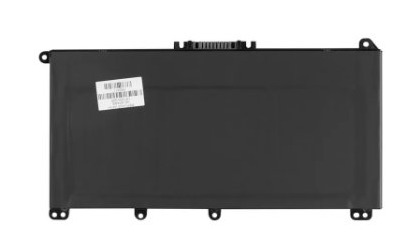
HP uses lithium-ion polymer batteries in its current notebooks. Order the battery listed for your exact product number rather than a generic one.
Cannot install HP Support Assistant on Windows 11 PC
HP Battery Check lives inside HP Support Assistant, so an install failure blocks the main battery test.
The installer says this Windows version is not supported
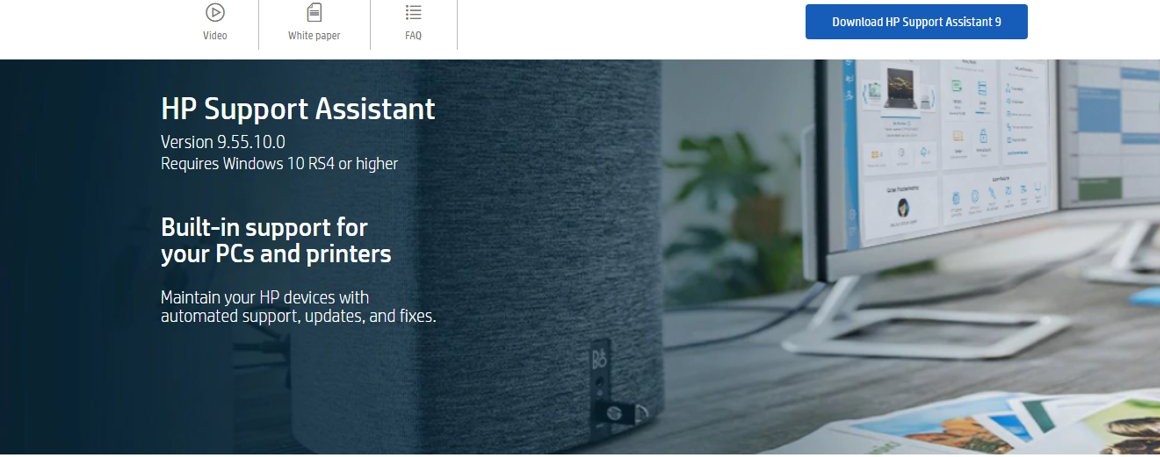
HP Support Assistant 9 requires Windows 10 RS4 or later.
- Press Windows + I and select Windows Update.
- Install all available updates and restart.
- Run the HP Support Assistant installer from the HP Support Assistant page on support.hp.com again.
HP Support Assistant will not install on an ARM-based laptop
HP does not support HP Support Assistant on ARM devices.
- Open the HP Support home page instead.
- Enter your product number to reach your model's support page.
- Use HP Software and Drivers for BIOS and firmware updates.
- Run HP PC Hardware Diagnostics to test the battery.
HP Support Assistant is missing from the taskbar on a new HP laptop
The app ships on new HP PCs but its taskbar icon may be hidden.
- Press the Windows key and type HP Support Assistant.
- Open it from the search results.
- Right-click its taskbar button and select Pin to taskbar to keep it there.
HP battery alert 601 FAQ
What does HP battery error 601 mean?
Error 601 means the HP startup battery check found that the battery's storage capacity is very low. The battery holds much less charge than it did when new, so runtime away from the power adapter is far shorter than before.
How do I disable the HP battery 601 error message on startup?
The alert is a hardware warning from the HP firmware, and it stops once the battery no longer reports very low capacity. Test the battery with HP Battery Check, calibrate it, install BIOS updates, and replace the battery if the test fails.
How to remove HP battery alert on startup BIOS?
Install the latest BIOS for your model through HP Support Assistant or HP Software and Drivers, then restart with the adapter connected. If the battery still fails HP's test after the update, a replacement battery is what removes the alert.
Can calibration fix HP battery error 601?
Calibration fixes an inaccurate charge reading, which can clear the alert when the battery itself is healthy. It cannot restore capacity a worn battery has lost, so a battery that fails HP Battery Check after calibration needs replacing.
Is HP primary battery 601 a Windows 11 problem?
No. The alert appears on a black screen before Windows loads, because the HP firmware runs the battery check at startup. Resetting or reinstalling Windows 11 leaves the alert unchanged.
What is the difference between primary and secondary battery 601 errors?
The primary battery is the laptop's main battery. A secondary battery is an optional second battery on models that support one. HP checks both at startup, so read which battery the alert names before you replace anything.
How do I check HP battery health without HP software?
Run powercfg /batteryreport in Command Prompt. Windows saves an HTML battery report that compares the battery's full charge capacity with its design capacity, which shows how much capacity has been lost.