To install a TWAIN driver on Windows 11, download the scanner software for your exact model from the scanner maker's support site, run the installer and restart the PC.
Windows 11 does not ship TWAIN drivers of its own, so this guide covers where the driver comes from, how to check it is installed, how to remove it, and the fixes for the errors TWAIN apps show.
How to install TWAIN driver on Windows 11
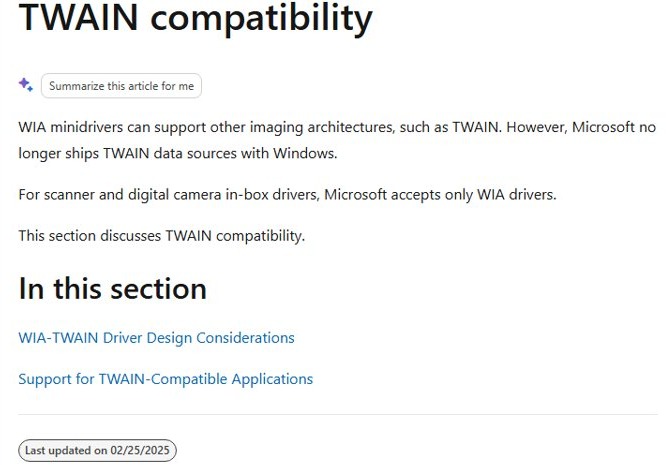
Microsoft no longer ships TWAIN data sources with Windows and accepts only WIA drivers for the scanner drivers built into Windows. The TWAIN part always comes from the company that made your scanner or all-in-one printer.
- Find the model number on the scanner's label or on your purchase receipt.
- Open the scanner maker's official website and go to its Support or Drivers section.
- Type the model number into the support search box and open that model's page.
- Select Windows 11 if the page asks for your operating system.
- Download the scanner software and driver package listed for that model.
- Right-click the downloaded file in your Downloads folder and select Open.
- Accept the license, choose the installation options that include the scanning software and connect the scanner when the installer asks for it.
- Restart Windows if the installer prompts you, then open your scanning app and pick the scanner from its source list.
If Windows has not added the scanner itself yet, connect the scanner to Windows 11 first, then run the maker's installer.
What is a TWAIN driver?
A TWAIN driver is the scanner maker's software that lets a TWAIN-compatible app, such as a document management or photo program, control the scanner and pull the image straight into that app.
In Windows it sits next to the WIA driver that Windows installs on its own. Each piece has a different source.
| Component | What it does | Where it comes from |
|---|---|---|
| TWAIN data source (the TWAIN driver) | Gives TWAIN apps the scanner's own controls and settings window | The scanner maker's software package |
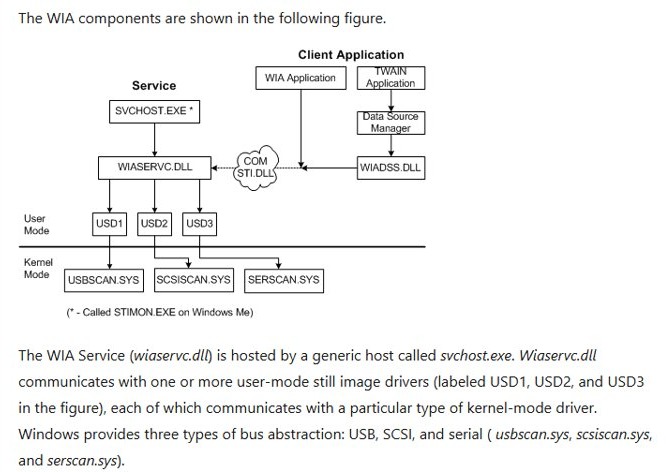
Data source manager (twain_32.dll) |
Receives every request a TWAIN app sends and passes it on | Part of the Windows imaging stack |
TWAIN compatibility layer (wiadss.dll) |
Translates TWAIN requests for a scanner that only has a WIA driver | Part of the Windows imaging stack |
| WIA driver | Lets Windows and WIA apps, including the Windows Scan app, talk to the scanner | Windows Update or the maker's package |
WIA service (wiaservc.dll) |
Runs inside svchost.exe and brokers every scanner connection |
Built into Windows |
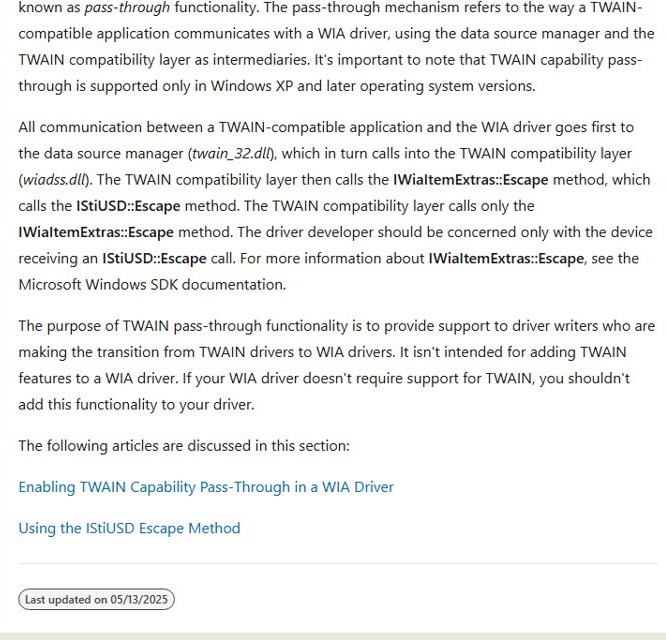
Microsoft's own scanner drivers in Windows are WIA only. A TWAIN app can still reach a WIA-only scanner through the compatibility layer, but the maker's TWAIN driver gives that app the full set of scanner options.
TWAIN vs WIA scanner driver in Windows 11
| Your situation | Driver you need | Why |
|---|---|---|
| You scan with the Windows Scan app | The WIA driver Windows installs | Windows Scan works once the scanner is listed in Printers & scanners |
| Your document or photo app lists only TWAIN sources | The maker's TWAIN driver | Windows itself does not ship TWAIN data sources |
| Your app offers both TWAIN and WIA | Either one | Each driver has its own settings window, so pick the one with the options you need |
| A business scanner lists TWAIN and ISIS drivers | The driver your capture software names | Epson, for example, ships both for its DS-series document scanners |
| You only need a PDF of a document | No TWAIN driver | The Windows Scan app saves the scan as a file you can convert |
To skip TWAIN altogether for everyday documents, scan documents to PDF with the Windows Scan app.
Install TWAIN driver from the disc or software that came with the scanner
A scanner bought with a setup disc carries a TWAIN driver on that disc. Microsoft warns that drivers on a disc are often out of date, so treat this as a fallback when the PC is offline.
- Insert the disc or open the folder the scanner's setup files came in.
- Follow the scanner's printed documentation to start the setup program.
- Choose the installation option that includes the scanning software, not the driver alone.
- Connect and switch on the scanner when setup asks for it.
- Restart the PC when setup finishes.
- Once the PC is online, install the current package from the maker's website over the top.
Install TWAIN driver on Windows 10
The maker's package installs the same way on Windows 10. Only the Settings page for adding the scanner has a different path.
- Plug the scanner into the PC with its USB cable and switch it on.
- Select Start > Settings > Devices > Printers & scanners.
- Select Add a printer or scanner under Add printers & scanners and wait for the search.
- Select your scanner in the list, then select Add device.
- Download the Windows 10 scanner package from the maker's support page and run it.
- Restart the PC and choose the scanner as the source in your TWAIN app.
How to check TWAIN driver is installed on Windows 11
- Select Start > Settings > Bluetooth & devices > Printers & scanners and check that the scanner is listed.
- For an all-in-one printer, select it and check that Scanner settings appears, which shows Windows detected the scan function.
- Open Settings > Apps > Installed apps and look for the scanner maker's scanning software.
- Open your TWAIN app and open its scanner or source list.
- Look for an entry with the maker's name and the model or series, which is the TWAIN data source.
If the scanner shows in Printers & scanners but no maker entry appears in the app's source list, the WIA driver is installed and the TWAIN driver is not.
How to uninstall TWAIN driver in Windows 11
Removing the maker's scanning software removes its TWAIN data source. Remove the device too if you want Windows to load a fresh driver.
- Select Start > Settings > Apps > Installed apps.
- Find the scanner maker's scanning software, select More (the three dots) and then Uninstall.
- Right-click Start and select Device Manager.
- Expand the imaging devices category, right-click the scanner and select Uninstall device.
- Select Uninstall in the Uninstall Device window.
- Restart the PC so Windows can reinstall its own driver for the scanner.
On older installers that do not appear under Installed apps, open Control Panel > Programs > Programs and Features, right-click the program and select Uninstall.
There is no TWAIN-compliant device installed
This message means the app found no TWAIN data source on the PC. Windows can see the scanner and the app still shows it, because the app looks only for a TWAIN driver.
The scanner works in Windows Scan but the app says no TWAIN device
Only the WIA driver from Windows is installed; Windows has no TWAIN data source of its own.
- Download the scanner software package for your model from the maker's support site.
- Run the installer and choose the option that includes the scanning software.
- Restart the PC, then reopen the app and select the scanner in its source list.
The scanner is not listed in Printers & scanners
Windows has not detected the scanner, so no driver can load.
- Check that the scanner is switched on and the USB cable is firmly seated at both ends.
- Move the cable to a different USB port on the PC.
- For a wireless model, check that the scanner and the PC use the same Wi-Fi network (SSID).
- Select Add device next to Add printer or scanner in Settings > Bluetooth & devices > Printers & scanners.
The error came back after a Windows update or a software change
The maker's scanning software or the device entry is damaged.
- Uninstall the maker's scanning software from Settings > Apps > Installed apps.
- Uninstall the scanner in Device Manager and restart the PC.
- Reinstall the latest scanner package from the maker's website.
TWAIN driver not working in Windows 11
The TWAIN app cannot open the scanner while another scan app is open
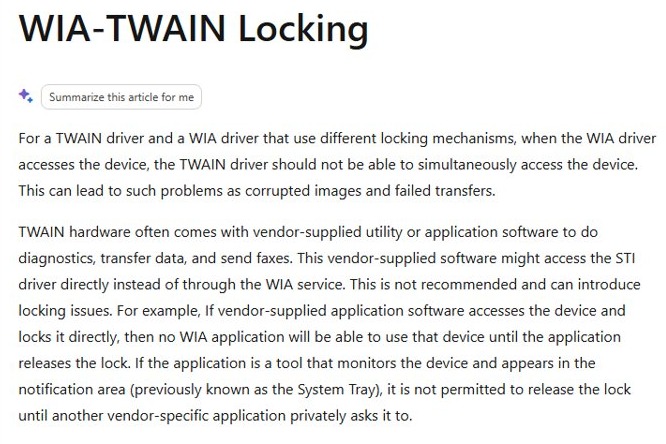
A TWAIN data source locks the device while it uses it, which blocks other apps from connecting until it lets go.
- Close every other scanning app, including the Windows Scan app.
- Quit scanner button or monitoring utilities in the notification area.
- Start the scan again from the TWAIN app.
The maker's installer fails on an Arm-based or Copilot+ PC
Microsoft reports that some Arm PCs cannot add all-in-one printers with the maker's installer.
- Open Settings > System > About and check whether System type says ARM-based processor.
- Add the device with Add device in Settings > Bluetooth & devices > Printers & scanners instead.
- Check the maker's support page for a package marked for Windows on Arm before installing TWAIN software.
The all-in-one printer scans but is not recognised by Windows any more
The print side of the device has a driver problem that also hides the scanner.
- Run the automated Printer troubleshooter in the Get Help app.
- Open Device Manager, right-click the device and select Update driver > Search automatically for updated driver software.
- If that finds nothing, install the latest printer driver from the maker, then reinstall the scanning software.
You have a driver folder from the maker but no installer
Some makers ship a bare driver package that Windows must be pointed at.
- In Device Manager, right-click the scanner and select Update driver.
- Select Browse my computer for drivers, then Browse…, and pick the extracted driver folder.
- Select OK and then Next, and restart the PC when it finishes.
For any other device that needs the same treatment, the steps to manually install a device driver work the same way.
Black screen after installing graphics driver in Windows 11 [fix]
A Windows 11 black screen right after a driver install usually points to the graphics driver rather than the scanner software. Microsoft's fixes run from a quick reset to a rollback.
The screen goes black but the PC is still running
The graphics driver stalled during or after the install.
- Press Windows + Ctrl + Shift + B to reset the graphics driver; a beep or a flicker means it worked.
- Press Windows + P, press P again and then Enter to cycle the display mode.
- Press and hold the power button for 20 seconds to force a restart if nothing changes.
Black screen with only a mouse cursor
A stalled Windows process or driver left the desktop unloaded.
- Press Ctrl + Shift + Esc to open Task Manager.
- Right-click Windows Explorer and select Restart.
- If it is not listed, select File > Run new task, type
explorer.exeand press Enter.
The screen stays black after every restart
The new graphics driver is incompatible with the PC.
- Hold the power button for 10 seconds to shut down, and repeat two or three times until Windows opens recovery.
- Select Troubleshoot > Advanced options > Startup Settings > Restart, then press F5 for Safe Mode with Networking.
- Open Device Manager, expand Display adapters and right-click the graphics card.
- Select Roll back driver, or use Troubleshoot > Advanced options > System Restore to return to a restore point from before the install.
TWAIN driver for Windows 11 FAQ
What is a TWAIN driver?
A TWAIN driver is the scanner maker's software that lets TWAIN-compatible apps control the scanner and receive the image directly. On Windows it works alongside the WIA driver, and it comes from the scanner maker rather than from Microsoft.
How do I install a TWAIN driver?
Download the scanner software package for your exact model from the maker's support site, select Windows 11 as the operating system, run the installer and restart the PC. Then pick the scanner in your app's source list.
How do I find the TWAIN driver for my scanner?
Go to the scanner maker's official support or drivers page and search for the model number printed on the scanner. The TWAIN driver is part of the scanner software package listed for that model and your version of Windows.
How do I check if a TWAIN driver is installed?
Open your TWAIN app and look at its scanner or source list. An entry with the maker's name and the model or series means the TWAIN driver is installed. The maker's scanning software also appears in Settings > Apps > Installed apps.
How do I uninstall a TWAIN driver in Windows 11?
Open Settings > Apps > Installed apps, find the scanner maker's scanning software, select More and then Uninstall. Uninstall the scanner in Device Manager as well if you want Windows to load a fresh driver, then restart.
Does Windows 11 come with a TWAIN driver?
No. Microsoft no longer ships TWAIN data sources with Windows, and the scanner drivers built into Windows are WIA drivers. Windows does include the TWAIN data source manager, so a TWAIN driver from the scanner maker plugs straight in.
Why does my app say no TWAIN driver is installed?
The app looks only for TWAIN data sources, and Windows installs only a WIA driver for most scanners. Install the scanner maker's software package for your model, restart the PC and select the scanner in the app again.