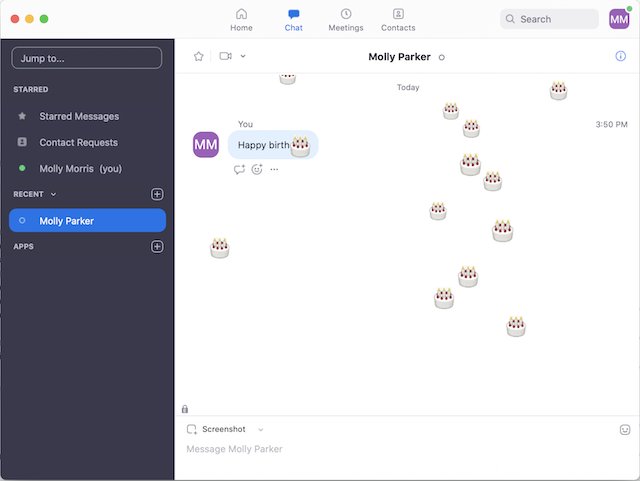
To use Zoom chat in a meeting, click Chat in the meeting controls toolbar, type in the compose box at the bottom of the panel, and press Enter; outside meetings, open the Chat tab in the Zoom Workplace app.
This guide covers both kinds of Zoom chat, private and group messages, formatting and files, how hosts turn chat on or off and save it, and fixes for the problems people hit most.
The fastest way to open chat in a Zoom meeting
These steps work in the Zoom desktop app for Windows, macOS and Linux, and in the Zoom Web App, as long as the host allows chat.
- Join the meeting.
- Click Chat in the meeting controls toolbar. The chat panel opens on the main meeting chat.
- Click the text compose box at the bottom of the panel and type your message.
- Press Enter or click the send icon. Everyone in the meeting sees the message.
If Chat is missing from the toolbar, the host or an admin has turned chat off. The troubleshooting section below covers that case.
Understanding Zoom Chat
Zoom has two chat experiences. In-meeting chat lives inside a meeting, while Zoom Chat (Team Chat) is the persistent messaging app in the Chat tab, available to free and paid users.
| Chat type | Where you find it | Who sees it | What happens after |
|---|---|---|---|
| Main meeting chat | Chat in the meeting toolbar | Everyone in the meeting | Kept under Meeting chats in the Chat sidebar, if settings allow |
| Private meeting message | New chat icon in the meeting chat panel | You and one participant; the host cannot see it | Left out of the transcript the host saves |
| Meeting sub-group chat | New chat icon, several names selected | Only the members you add | Separate thread from the main chat |
| 1:1 chat | Chat tab in the Zoom app | You and one contact | Stays searchable, even if the contact is later deactivated |
| Group chat | Chat tab, several contacts added | The members; any internal member can add or remove people | Cannot be named; found by searching member names |
| Channel | Chat tab, joined or created | Members; public channels are open to your whole account | Long-term space with a name, an owner and admins |
Which Zoom chat should you use?
| Your situation | Use this | Why |
|---|---|---|
| Quick question to the whole meeting | Main meeting chat | Everyone sees it without interrupting the speaker |
| Side note to one person during a meeting | Private meeting message | Only that person sees it, and it stays out of the host's saved transcript |
| Presenters coordinating during a meeting | Meeting sub-group chat | A side conversation without involving the whole meeting |
| Message a colleague outside a meeting | 1:1 chat in the Chat tab | The conversation stays available and searchable later |
| Short-term team discussion | Group chat | No setup, no name, no owner |
| Ongoing project, team or announcements | Channel | Has a name, admins, posting controls and public or private access |
When a small group needs to talk rather than type, Zoom breakout rooms split the meeting into separate sessions instead.
What you need to use Zoom chat features
| Feature | Requirement |
|---|---|
| In-meeting chat | Meeting chat turned on for the host's account, plus the desktop app, mobile app or Zoom Web App |
| Meeting sub-group chats | Zoom Workplace app 6.2.10 or higher for every member |
| Zoom Chat (Chat tab) | Allow users to chat with others enabled, which is the default |
| Rich text formatting in Zoom Chat | Desktop or mobile app 5.8.0 or higher |
| Markdown formatting in Zoom Chat | Desktop or mobile app 6.0.0 or higher |
| Global search | Desktop app 6.0.10 or higher, mobile app 6.7.0 or higher; English only |
| Chat tab in the Zoom Web App | Advanced chat encryption turned off for your account |
| Saving chat to the cloud | A licensed user with cloud recording enabled |
Getting started with Zoom Chat
Zoom Chat works outside meetings, in the same Zoom Workplace app you use to join calls. Your organization's members usually appear in your contacts automatically.
- Sign in to the Zoom desktop app.
- Click the Chat tab. If you do not see it, click More, then Chat.
- In the Chat sidebar, click the plus sign icon, then click Message.
- Enter the name or email address of the contact you want to message.
- Add more names to turn it into a group chat, if needed.
- Type your message and press Enter or click the send icon.
To message someone outside your organization, click the add icon in the top-right corner, click Invite a new contact, enter their email address and click Send. The chat starts once they accept.
To join a public channel instead, click the plus sign icon, click Join channel, search for it and click Join.
How to send a private or group message during a meeting
What you can send depends on the host's Participant can chat with setting. Private messages to the host are allowed under every setting except No one.
- Click Chat in the meeting controls toolbar.
- Click the new chat icon in the top-left corner of the chat panel.
- Search for the participant's name and click it. Click more names to build a group chat.
- Type your message in the compose box.
- Press Enter or click the send icon. The conversation opens as its own thread, separate from the main chat.
- Click the Main chat icon to return to the chat everyone can see.
A red counter next to a private chat shows how many replies you have not read yet.
How to reply, react and format messages
- Hover over a message and click the reply icon to answer it in a thread instead of posting a new message.
- Click the add reaction icon under a message, then pick a recent emoji or click the more icon for the full list.
- Click an emoji someone else already added to add your reaction to the count. Click your own reaction again to remove it.
- In Zoom Chat, type a colon followed by at least two letters, such as
:jo, to search for an emoji while typing. - Click Format below the compose box for bold, italics, colour, headings, lists and quotes.
- In Zoom Chat, use Ctrl + B (Cmd + B on a Mac) for bold, Ctrl + I for italics, Ctrl + Shift + X for strikethrough and Ctrl + Shift + 8 for a bulleted list.
- Click the send icon when rich formatting is on, because Enter only starts a new paragraph.
How to send files, screenshots and GIFs in Zoom Chat
Files up to 1 GB can be sent in Zoom Chat, although an admin can set a lower limit or block some file types.
- Open the Chat tab and select the contact, group chat or channel.
- Click the More icon below the compose box.
- Select Attach file, choose Your Computer or a connected file service, and pick the file. You can also drag a file into the compose box.
- For a screenshot, select Screenshot, drag around the area you want, add arrows or text, and click Capture.
- For an emoji or GIF, click Emoji and GIFs and choose one.
- Add any text you want with the attachment and press Enter.
In a meeting, the same File, Screenshot, Emoji and GIF icons sit below the chat compose box, unless the host's account has disabled them.

How to create a Zoom Chat channel
- Open the Chat tab in the Zoom desktop app.
- Click the down arrow next to Chat at the top of the panel, then click Create a Channel.
- Enter a Channel Name.
- Under Channel Type, choose Public so anyone in your organization can join, or Private so only invited people can.
- Under Add Members, search for people and click their names.
- Click Advanced Permissions to set who can add members, who can send messages and who can use @all.
- Click Create Channel.
Public channels hold up to 10,000 members. Private channels hold up to 5,000 members on paid accounts and 500 on free accounts. If Create a Channel is grayed out, your admin has blocked channel creation for your group.
How to customize Zoom Chat notifications
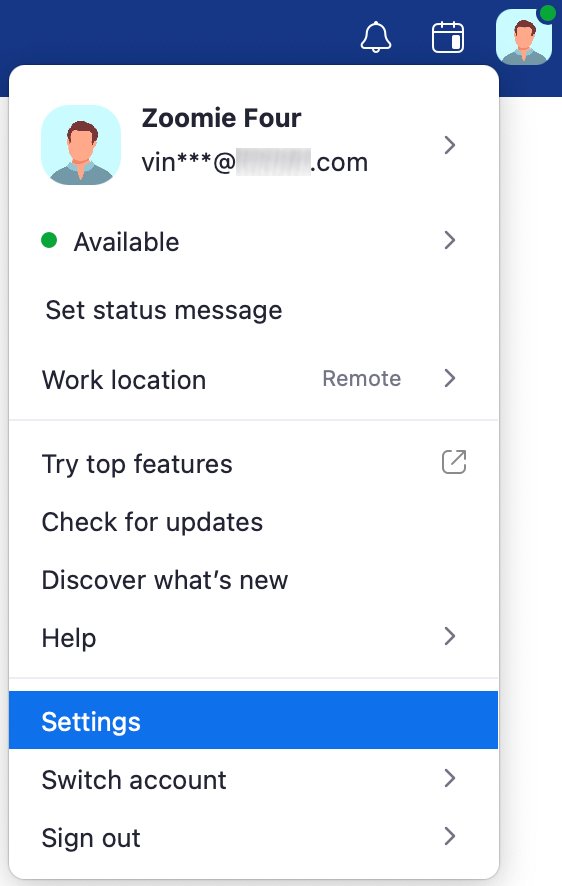
- Click your profile picture in the Zoom desktop app, then click Settings.
- Select the Chat tab to set defaults such as where unread messages open and whether Read receipts are on.
- Close Settings and open the Chat tab.
- Hover over a group chat or channel and click the ellipsis icon.
- Point to Notifications and choose All messages, Mentions and replies or Off.
- Set your status to Do not disturb from your profile picture to block chat pop-ups for 20 minutes up to 24 hours.
How to enable or disable chat in Zoom
Hosts control chat for their own meetings from the Zoom web portal. The change applies to meetings you host, not meetings you join.
- Sign in to the Zoom web portal.
- Click your profile picture or initials in the top-right corner, then click My account.
- Click Settings, then click Meeting.
- Under In Meeting (Basic), click the Meeting chat toggle and confirm with Enable or Disable if asked.
- In By default, allow participants to chat with, choose No one, Host and co-hosts, Everyone or Everyone and anyone directly.
- Select Allow users to copy or save chats from the meeting if participants should be able to save the transcript.
To change it during one meeting only, click Chat, click the More icon in the chat panel and pick an option under Participant can chat with. A grayed-out toggle in the web portal means an admin locked it at the group or account level.
How to save a Zoom meeting chat
Zoom does not save meeting chat to a file unless the host turns on auto-save or someone saves it manually. A local save includes public messages plus the private messages you sent or received.
- During the meeting, click Chat.
- Click the More icon (the ellipses) in the chat panel, then click Save chat. Saving is a desktop app option.
- Find the TXT file in your local recording folder, by default Documents > Zoom > a folder named after the meeting, date and time.
- To save chats automatically as host, turn on Meeting chat – Auto-save in the web portal under Settings > Meeting > In Meeting (Basic).
- To save chat to the cloud instead, select Save chat messages from the meeting / webinar under Settings > Recording > Cloud recording, then cloud record the meeting.
Auto-save only works for the host, who has to stay in the meeting, and it does not save if the meeting was started from the Zoom mobile app. Cloud saves only include messages sent to everyone while the cloud recording ran.
How to check your message was sent
- Look for your message at the bottom of the chat panel, under your name.
- For a private message in a meeting, confirm it sits in its own thread and not in the main chat.
- In Zoom Chat, check the read receipt, which shows who has seen the message in chats and channels with fewer than 20 members.
- Watch for the chat error icon next to a message, which means it, or its file or image, failed to send.
- After an edit, confirm (Edited) appears next to the time stamp for everyone in the chat.
Tips for effective communication in Zoom Chat
These habits keep a busy chat readable, and each one uses a built-in Zoom feature.
| Tip | How to do it in Zoom |
|---|---|
| Be clear and concise | One point per message; use Format for a bulleted list when you have several items |
| Use proper etiquette | Send side remarks as a private message instead of the main meeting chat; your admin's Chat Etiquette policy may warn or block some words |
| Take advantage of emojis and reactions | React to an announcement instead of replying "OK", so the thread stays short |
| Keep responses timely | Check the Mentions tab in the Chat sidebar first; it lists messages where you were @mentioned |
| Use threaded conversations | Click the reply icon so answers stay under the original message |
| Share relevant files wisely | Send one file with a line of context; files over 1 GB will not send |
| Keep important messages handy | Star a chat or channel, or bookmark a message, so it appears under Starred or Bookmarks |
| Leverage search | Click Search in the app header and use the Messages or Files tab to find an old conversation |
| Fix mistakes instead of reposting | Edit or delete your own message; recipients are not notified of a deletion |
Advanced features of Zoom Chat
| Feature | What it does | Where to find it |
|---|---|---|
| Integration with other tools | Opens Zoom Apps and third-party apps inside a chat, and attaches files from connected file services | Apps in the compose box, or Attach file |
| Bots and automation | Bots can read and write messages in chats and channels; AI agents can automate tasks or help with replies | Admins allow bots in Admin Center > Settings > Zoom Chat; Create AI agent in the compose box |
| Security features | Messages travel over TLS 1.2 with AES 256-bit encryption; advanced chat encryption keeps keys on users' devices only | Advanced chat encryption needs a paid account and a request to Zoom Support |
| Customizing notifications | All messages, mentions and replies only, or off, per chat or channel | Ellipsis on a chat > Notifications |
| Voice, video and code messages | Record a voice or video message, or send a code snippet | Record voice, Record video and Code in the compose box |
| Auto translate and Compose with AI | Translates incoming messages, or drafts a reply from the conversation's context | Compose box More menu |
| Mention groups | Tag up to 100 channel members with one @ name; up to 20 groups per channel | Channel More Actions > Mention Groups |
| Meet from a chat | Invites every member of a group chat or channel to a meeting | Video icon in the top-right corner of the chat > Meet |
Advanced chat encryption switches off several features, including GIFs, bookmarks, message translation and meeting chat before and after a meeting, and messages can become unrecoverable if the app is uninstalled.
Best practices for using Zoom Chat
These practices are for hosts, channel owners and admins who set chat up for other people.
| Practice | Setting to use |
|---|---|
| Keep large meetings on topic | Set Participant can chat with to Host and co-hosts or Everyone, so side chats between participants are off |
| Keep a record of every meeting chat | Turn on Meeting chat – Auto-save, and remember it only saves on the host's computer |
| Run an announcement channel | Set Who can send messages to Owner and admins only; everyone else can still react |
| Avoid noisy @all alerts | Set Who can use @all to Owner and admins only, or disable it for the channel |
| Share help with moderation | Assign up to 50 channel admins; they can remove any message in the channel |
| Check before sharing with outsiders | Look for the External label and the warning above the compose box before posting sensitive details |
| Limit who can save chats | Set Allow users to copy or save chats from the meeting to Host and co-hosts or Only users in your account |
Fix Zoom chat when it does not work
The Chat button is missing in a meeting
Meeting chat is turned off for the host's account, or the host set chat to No one.
- Ask the host to click Chat, click the More icon and choose a different Participant can chat with option.
- If you are the host, turn on Meeting chat in the web portal under Settings > Meeting > In Meeting (Basic).
- If the toggle is grayed out, ask your Zoom admin, because it is locked at the group or account level.
You cannot see or open the Chat tab in the Zoom app
The tab is hidden under More, chat is disabled by an admin, or advanced chat encryption blocks it in the Web App.
- Click More in the app's navigation bar, then click Chat.
- Sign in to the Zoom desktop app instead if you are using the Zoom Web App on an account with advanced chat encryption.
- Ask your admin to check that chat is enabled for your group.
You cannot send a private message to another participant
The host allows public messages only, or direct messages are off for the meeting.
- Send your message to the host instead, which is allowed under every setting except No one.
- Ask the host to switch Participant can chat with to Everyone and anyone directly.
You cannot add someone to a group chat in a meeting
Sub-group chats need Zoom Workplace app 6.2.10 or higher for every member.
- Update your Zoom app to the latest version.
- Ask the other participant to update too, or send them a private 1:1 message instead.
Zoom did not save the meeting chat
Zoom only saves the chat when auto-save is on, someone clicks Save Chat, or a cloud recording captures it.
- Open Meeting chats in the Chat sidebar, where in-meeting conversations stay after the meeting ends if settings allow.
- Check Documents > Zoom for a TXT file if the host had auto-save on.
- Check Recordings > Cloud Recordings in the web portal for a Chat file if the meeting was cloud recorded.
- Turn on Meeting chat – Auto-save before the next meeting.
Emojis, GIFs or file attachments are missing
An admin has disabled chat emojis, GIF search, file sharing or screenshots, or advanced chat encryption is on.
- Type a colon and two letters to search emojis in Zoom Chat, which still works when the emoji library is limited.
- Ask your admin to review the sharing settings under Admin Center > Settings > Zoom Chat.
Zoom chat FAQ
Does Zoom have a chat feature?
Yes. Zoom has in-meeting chat for messaging people during a meeting, and Zoom Chat, a persistent messaging app in the Chat tab for 1:1 chats, group chats and channels. Both are available to free and paid users unless an admin turns them off.
How do I access chat on Zoom?
In a meeting, click Chat in the meeting controls toolbar. Outside a meeting, open the Zoom desktop app and click the Chat tab; if it is hidden, click More and then Chat. The mobile app and Zoom Web App have the same Chat option.
How do I chat in a Zoom meeting?
Click Chat in the meeting toolbar, type in the compose box at the bottom of the chat panel, and press Enter to send to everyone. To message one person, click the new chat icon, pick their name, and type your message.
How do I enable chat in Zoom?
Sign in to the Zoom web portal, open My account, click Settings, then Meeting, and turn on Meeting chat under In Meeting (Basic). If the toggle is grayed out, your admin has locked the setting and has to change it for you.
How do I use emojis on Zoom chat?
Click the Emoji icon below the chat compose box and choose one, or click the add reaction icon under a message to react to it. In Zoom Chat you can also type a colon followed by two letters, such as :jo, to search emojis.
Does Zoom automatically save the chat?
Not to a file by default. The host has to turn on Meeting chat – Auto-save, save it manually with Save Chat, or cloud record with chat saving enabled. In-meeting conversations can also stay under Meeting chats in the Chat sidebar if the account allows it.
How do I view chat in Zoom after a meeting?
Open the Chat tab and look under Meeting chats in the sidebar, which keeps in-meeting conversations after the meeting ends when settings allow. A saved TXT transcript is in Documents > Zoom by default, or under Recordings in the web portal for cloud saves.
How do I manage chat in Zoom as a host?
Click Chat during the meeting, then click the More icon in the chat panel. From there you can save the chat and set Participant can chat with to No one, Host and co-hosts, Everyone, or Everyone and anyone directly.
Can the host see private messages in Zoom?
No. Hosts cannot see private chats between participants or group chats they are not part of, and those messages are left out of the chat transcript the host saves. Messages sent to the host directly are visible to the host.
How do I start a video chat from Zoom Chat?
Open the 1:1 chat, group chat or channel in the Chat tab, click the video icon in the top-right corner of the chat window, and click Meet. Zoom starts a meeting and invites every member of that chat.
Using Zoom chat: bottom line
Use the in-meeting Chat panel for anything tied to the call, and move ongoing conversations to a Zoom Chat channel or group chat so they stay searchable after the meeting ends. Meeting chat is only saved when the host sets it up, while Zoom Chat keeps history, threads, search and notifications in one place.