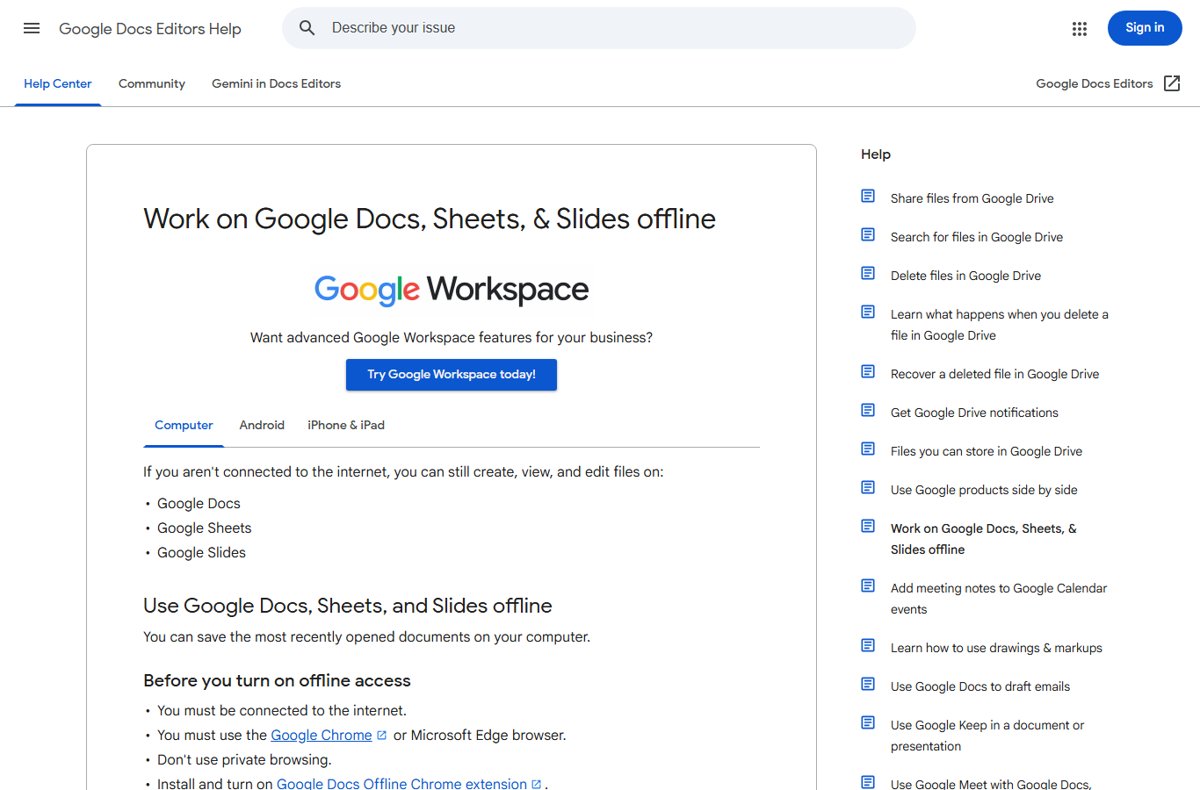
Yes, Google Docs works offline: while still online, open Google Drive in Chrome or Edge, select Settings > Settings, turn on Offline, and install the Google Docs Offline extension when prompted.
This guide covers setup on Windows laptops and PCs, Chrome and Edge, the Android and iPhone apps, choosing which files stay offline, syncing and the error messages that stop it working.
Step 3: Enabling Offline Mode in Google Docs
Do this while you still have internet access. Offline cannot be switched on once the connection is gone.
- Open Google Drive in Chrome or Microsoft Edge and sign in.
- At the top right, select Settings > Settings.
- Turn on the Offline setting.
- In Edge, add the Google Docs Offline extension from the Chrome Web Store when you are redirected.
- Open Google Docs; recent files are now saved on this computer.
Turning on offline for Docs also turns it on for Sheets, Slides and Drive. Another route: open any document, select See document status next to the title, then Turn on.
Which offline setup do you need?
| Your device | Do this | Why |
|---|---|---|
| Windows laptop or PC with Chrome | Drive settings > Offline, plus the Docs Offline extension | Docs runs in the browser even without internet |
| Windows PC with Microsoft Edge | Same, installing the extension from the Chrome Web Store | Edge is supported alongside Chrome |
| Android phone or tablet | Docs app > Menu > Settings > Make recent files available offline | The app stores files itself |
| iPhone or iPad | Docs app > Menu > Settings > Make recent files available offline | Same option as Android |
| Non-Google files such as PDFs or Word files | Google Drive for desktop | Mirrored or offline-marked files live on your disk |
Why Use Google Docs Offline?
| Situation | What offline mode gives you |
|---|---|
| Flights and trains without Wi-Fi | Create, view and edit documents as normal |
| Unreliable home or campus internet | No lost paragraphs when the connection drops |
| Travelling with mobile data limits | Work on files without downloading them each time |
| Sheets and Slides too | The same setting covers spreadsheets and presentations |
Prerequisites for Using Google Docs Offline
| Requirement | Details |
|---|---|
| Internet during setup | You must be online to turn offline access on |
| Browser | Google Chrome or Microsoft Edge; other browsers are not supported |
| Normal window | Private or incognito windows can't use offline access |
| Extension | Google Docs Offline installed and turned on |
| Storage | Enough free space on the device to save your files |
| One account per browser profile | Only one account in each Chrome or Edge profile can have offline turned on |
Step 1: Preparing Your Google Account for Offline Use
- Open Chrome or Edge in a normal window, not private browsing.
- Make sure you are in the browser profile for the account you want offline.
- Sign in to that Google Account at drive.google.com.
- If it is a work or school account, confirm your administrator allows offline sync.
Step 2: Installing Necessary Extensions (if required)
The extension is required on computers in both Chrome and Edge. ChromeOS users and people who installed Drive for desktop may find it already on.
- Open the Chrome Web Store in Chrome or Edge.
- Search for Google Docs Offline.
- Add the extension to the browser; in Edge, allow extensions from other stores if asked.
- Make sure the extension is turned on in your browser's extensions page.
Step 4: Accessing and Editing Your Documents Offline
- With no internet, open Chrome or Edge in the same profile.
- Go to docs.google.com or drive.google.com.
- Open a file that is available offline.
- Edit as usual; changes are saved to the device.
- Create new documents from the Docs home screen if you need them.
To see which files are ready before you lose the connection, go to drive.google.com, select Ready for offline at the top right, then Offline preview.
Step 5: Working Offline on Google Docs Mobile App
- Open the Google Docs app on your Android phone, iPhone or iPad.
- Tap Menu > Settings and turn on Make recent files available offline.
- For a specific file, tap More next to it, then Make available offline.
- To open saved files without internet, tap Menu > Offline and select the file.
Step 6: Managing Offline Files
Chrome and Edge keep some of your most recent files offline automatically when there is space. Mark important files yourself so they are always there.
- Open the Google Docs home screen.
- Select More on the file you want.
- Select Available offline; a check mark appears at the bottom left of the file.
- Or, inside an open document, select File > Make available offline.
- To stop all offline storage, open the Docs home screen, select Menu > Settings and turn off Offline.
Step 7: Syncing Changes When Back Online
Offline edits are applied when the device is back online. New changes overwrite previous ones, and earlier text stays in the file's version history.
- Reconnect to the internet and keep the document open for a moment.
- Select See document status next to the title to confirm the file is saved and synced.
- If text you typed offline seems missing, open the file's version history to recover it.
- Before going offline again, check the same status icon says the file is ready offline.
Tips for Optimizing Offline Usage
| Tip | Why |
|---|---|
| Mark files available offline the night before you travel | Recent-file caching may not include older files |
| Keep large documents split into smaller ones | Very large files can fail to sync |
| Leave some free disk space | Offline files need room on the device |
| Use one profile per account | Only one account per browser profile can be offline |
| Use Drive for desktop for PDFs and Office files | Docs Offline covers only Docs, Sheets and Slides |
Troubleshooting Common Issues
"Checking offline sync status. Please wait." never finishes
Stored site data for Docs is stuck.
- Reload the page and try again.
- In Chrome, go to
chrome://settings/cookies/detail?site=docs.google.comand select Remove all. - Turn offline access on again.
"Offline sync is disabled by your administrator."
Your work or school account doesn't allow offline use.
- Contact your administrator; the setting can't be changed by you.
"Another user has already enabled offline access on this computer."
Only one account per browser profile can be offline.
- Create a separate Chrome or Edge profile for the second account.
- Turn on offline access for that account in its own profile.
Offline setup failed
Setup was interrupted or site data is damaged.
- Turn offline access off, then on again.
- If it still fails, clear Docs site data as above and retry.
Could not sync document
No connection, or the file is too large.
- Check your internet connection.
- Turn offline access off and on.
- If errors continue, split the content into smaller documents.
Offline doesn't work in Edge or another browser
Only Chrome and Edge with the extension are supported, and private windows are excluded.
- Use Chrome or Edge in a normal window.
- Check the Google Docs Offline extension is installed and on, and update the browser.
Security and Privacy Considerations
| Consideration | What to do |
|---|---|
| Copies are stored on the device | Turn offline on only on computers you control |
| Shared or public computer | Leave offline off, or turn it off in Docs settings before you leave |
| Shared family PC | Give each person their own browser profile, since offline is per profile |
| Work or school data | Follow your administrator's policy; they can block offline sync |
| Lost laptop | Offline files are on its disk, so protect the device with a password or encryption |
Frequently Asked Questions
Can you use Google Docs offline?
Yes. On a computer, turn on Offline in Google Drive settings in Chrome or Edge with the Google Docs Offline extension. On Android, iPhone and iPad, use the Docs app's Make available offline options.
How do I use Google Docs offline on a laptop?
While online, open drive.google.com in Chrome or Edge, select Settings > Settings and turn on Offline. Afterwards, open docs.google.com in the same browser profile to work without internet.
How do I use Google Docs offline on Windows?
On Windows, Google Docs runs in Chrome or Edge. Turn on Offline in Google Drive settings, add the Google Docs Offline extension, and mark important files Available offline.
How do I use Google Docs offline in Edge?
Open Google Drive settings in Edge and turn on Offline. Edge sends you to the Chrome Web Store to add the Google Docs Offline extension; install it and offline access works the same as in Chrome.
Can I use Google Docs offline on a PC without the extension?
No. Chrome and Edge both need the Google Docs Offline extension installed and turned on for offline editing of Docs, Sheets and Slides.
Does Google Docs save offline changes automatically?
Yes. Changes made offline are stored on the device and applied when you are back online. New changes overwrite previous ones, and the file's version history keeps earlier edits.
Why can't I turn on Google Docs offline?
Common causes are using a private window, an unsupported browser, a missing extension, no internet during setup, or an administrator blocking offline sync on a work or school account.
Can I use Google Docs offline in incognito mode?
No. Offline access doesn't work in private or incognito windows. Use a normal window in the profile where you turned offline on.




How to indent on Google Docs: a step-by-step guide - Techdows
[…] The keyboard shortcut moves the whole paragraph in from the left margin. It works in any browser on a computer, and also when you use Google Docs offline. […]