To play Apple Music on Alexa, open the Amazon Alexa app, tap More > Music & More, choose Apple Music under Link New Services, sign in with your Apple Account, then say "Alexa, play [song or artist] on Apple Music."
This guide covers what you need first, how to make Apple Music the default service, voice requests that work, multi-room playback, unlinking, and what to check when Alexa will not play.
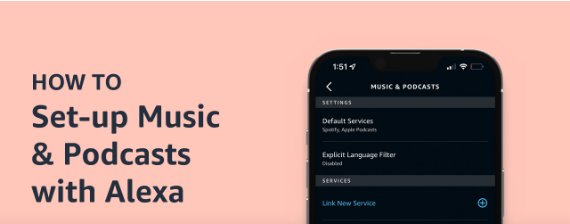
Step by step tutorial: How to play Apple Music on Alexa
Apple Music connects to Alexa as a linked music service. You set it up once in the Amazon Alexa app on your iPhone or Android phone, and your Alexa devices can then play it.
- Open the Amazon Alexa app on the iPhone, iPad or Android device you used to set up your Echo.
- Tap the More tab.
- Tap Music & More.
- Scroll to Link New Services, then tap Apple Music.
- Tap Enable To Use, then tap Settings.
- Tap Link Account.
- Sign in with your Apple Account and follow the prompts, including any two-factor authentication code.
- Say "Alexa, play [song, artist or playlist] on Apple Music" to your Echo.
Until you make Apple Music the default service, keep ending each request with "on Apple Music" so Alexa knows which service to use.
Can I play Apple Music on Alexa?
Yes, if you are an Apple Music subscriber in a supported country. Apple lists three requirements.
| Requirement | Details |
|---|---|
| Apple Music subscription | A paid Apple Music plan or Apple One bundle. Join on iPhone in Settings > Apps > Music > Join Apple Music, or on an Android device. |
| Alexa device | An Amazon Echo device, Amazon Fire TV, or Alexa-enabled Sonos speaker already set up with the Amazon Alexa app; if it is new, set up Alexa on the Echo first |
| Phone or tablet with the Alexa app | The iOS or Android device you set up Alexa with, running the latest iOS and the latest Amazon Alexa app from the App Store or Google Play; on a new Android phone, get started with Alexa on Android first |
| Supported country | Available in the United States, United Kingdom, Canada, Australia, India, Japan, Germany, France, Mexico, Brazil and many more; Apple's support page lists every country |

How to set Apple Music as default music service on Alexa
With Apple Music as the default, "Alexa, play some jazz" goes to Apple Music without the "on Apple Music" ending.
- Open the Amazon Alexa app and tap the More tab.
- Tap Settings.
- Scroll down and tap Music & Podcasts.
- Tap Default Services.
- Under Music, tap Apple Music.
Alexa Apple Music voice commands
Alexa can play songs, artists, albums and genres from the Apple Music catalog, playlists from Apple Music editors, and playlists in your iCloud Music Library.
| What you want | What to say |
|---|---|
| An artist | "Alexa, play Ariana Grande on Apple Music" |
| An Apple Music radio station | "Alexa, play Chill radio on Apple Music" |
| A song | "Alexa, play [song name] by [artist] on Apple Music" |
| An album | "Alexa, play the album [album name] on Apple Music" |
| A genre | "Alexa, play [genre] on Apple Music" |
| One of your own playlists | "Alexa, play my playlist on Apple Music" |
Drop the "on Apple Music" ending once Apple Music is your default music service.
Tips: Enhancing your Apple Music experience on Alexa
These settings come from Apple's own Alexa setup notes and make day-to-day listening smoother.
| If you want to | Do this | Why |
|---|---|---|
| Stop saying "on Apple Music" every time | Set Apple Music under Settings > Music & Podcasts > Default Services | Alexa sends every music request to Apple Music |
| Play Apple Music on 2 or more Echo devices at once | Create a Multi-Room Music group in the Alexa app, then ask Alexa to play on that group | Apple says this plays Apple Music on two or more Echo devices at the same time |
| Hear Apple Music in stereo | Create a Multi-Room Music group in the Alexa app | Apple names the same group feature for stereo listening |
| Play your own playlists | Make sure the playlists are in your iCloud Music Library | Alexa can reach library playlists as well as the Apple Music catalog |
| Avoid linking problems | Update iOS and the Amazon Alexa app before you link | Apple asks for the latest iOS and app versions |
| Share Apple Music with family | Share your Apple Music subscription through Family Sharing | Up to five other family members can use the subscription |

How to unlink Apple Music from Alexa
Unlinking removes Apple Music from Alexa without touching your subscription or library.
- Open the Amazon Alexa app and tap the More tab.
- Tap Settings.
- Scroll down and tap Music & Podcasts.
- Under Services, tap Apple Music.
- Tap Disable Skill.
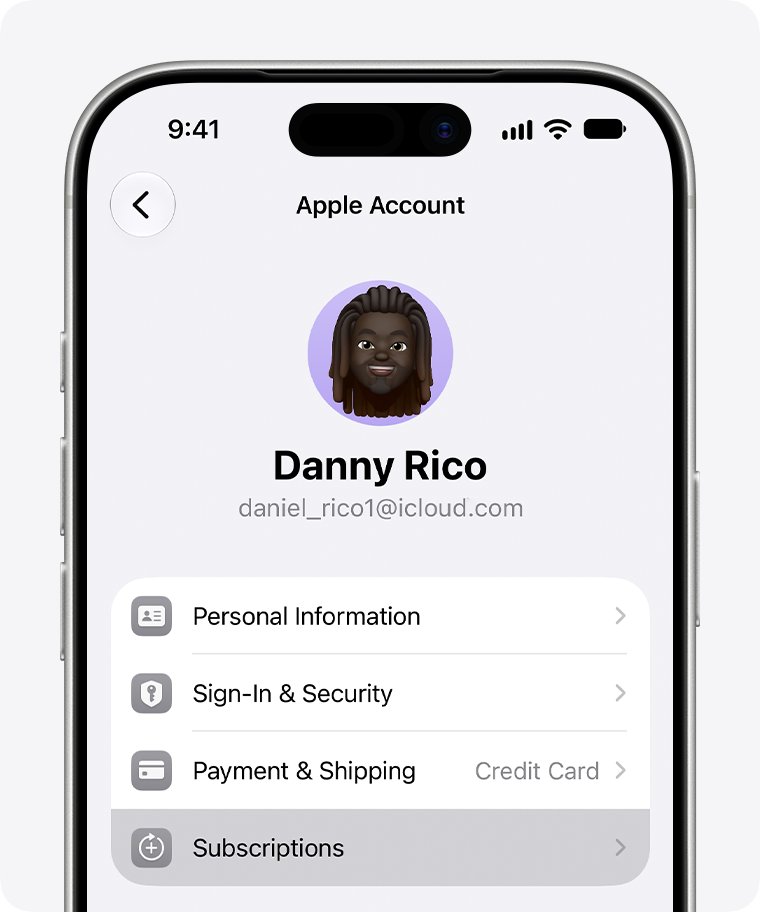
To stop paying for Apple Music as well, open the Music app on iPhone, tap your profile picture, tap your name, tap Subscriptions and follow the prompts.
Why won't Alexa play Apple Music?
Most failures come down to the subscription, the account link, or the default service setting. If Alexa cannot answer any request at all, connect Alexa to Wi-Fi again before you check Apple Music.
Alexa won't play songs from Apple Music
The Apple Music subscription has ended, the link to your Apple Account has dropped, or Apple Music is not offered in your country.
- Open the Music app on iPhone, tap your profile picture, tap your name, then tap Subscriptions and check that Apple Music is active.
- Check that your country is on the Apple Music for Alexa list on Apple's support page.
- Update the Amazon Alexa app and, on iPhone, update iOS.
- In the Alexa app, go to More > Settings > Music & Podcasts, tap Apple Music and tap Disable Skill.
- Link Apple Music again from More > Music & More > Link New Services > Apple Music > Enable To Use.
Alexa plays music from another service instead of Apple Music
Apple Music is linked but not set as the default music service.
- Add "on Apple Music" to the end of the request.
- To make it permanent, open More > Settings > Music & Podcasts > Default Services.
- Under Music, tap Apple Music.
Alexa can't find your own Apple Music playlist
Alexa reads playlists from your iCloud Music Library, so a playlist that is not in the library is not available.
- Open the Music app on the phone signed in to the same Apple Account you linked to Alexa.
- Check that the playlist is in your library.
- Ask again, using the playlist name exactly as it appears in Apple Music.
For problems with the Echo itself, Apple points you to Amazon's Alexa help, and to Sonos support for Sonos speakers.
Apple Music on Alexa FAQ
Can I play Apple Music on Alexa?
Yes. Apple Music subscribers can link Apple Music in the Amazon Alexa app under More > Music & More > Link New Services, then ask Alexa to play songs, artists, albums, genres and playlists. The service is available in the United States and many other countries.
Can I play Apple Music on any Alexa-enabled device?
Apple supports Amazon Echo devices, Amazon Fire TV and Alexa-enabled Sonos speakers that are already set up with the Amazon Alexa app. Once Apple Music is linked to your Amazon account, those devices can play it.
Is Apple Music free on Alexa?
No. Playing Apple Music on Alexa needs an active Apple Music subscription or an Apple One plan that includes it. New subscribers can start a trial in the Music app and cancel at any time.
How do I unlink my Apple Music account from Alexa?
In the Amazon Alexa app, tap More > Settings > Music & Podcasts. Under Services, tap Apple Music, then tap Disable Skill. Your Apple Music subscription keeps running until you cancel it separately.
Can I ask Alexa to play specific playlists from my Apple Music?
Yes. Alexa can play playlists made by Apple Music editors and playlists in your iCloud Music Library. Say the playlist name and add "on Apple Music" unless Apple Music is your default service.
Can I set Apple Music as my default music service?
Yes. In the Amazon Alexa app, tap More > Settings > Music & Podcasts > Default Services, then tap Apple Music under Music. After that you no longer need to say "on Apple Music" at the end of a request.
What if Alexa won't play songs from Apple Music?
Check that your Apple Music subscription is active, update the Amazon Alexa app and iOS, then disable the Apple Music skill under Music & Podcasts and link it again. Also confirm Apple Music for Alexa is offered in your country.
Can I play Apple Music on 2 devices simultaneously with Alexa?
Yes. Create a Multi-Room Music group in the Alexa app. After it is set up, you can listen to Apple Music on two or more Echo devices at the same time, or listen in stereo.
How do I play Apple Music on Sonos with Alexa?
Apple supports Alexa-enabled Sonos speakers. Set up the speaker with the Amazon Alexa app, link Apple Music in the Alexa app, then ask the speaker to play from Apple Music. For Sonos setup help, Apple refers you to Sonos.