You cannot fully power off an iPhone with no working screen, because every shutdown route Apple documents ends with a slider you drag. The closest button-only action is a force restart: press volume up, press volume down, then hold the side button until the Apple logo appears.
This guide covers the force restart, the shutdown routes that work when only part of the iPhone is broken, how to avoid an Emergency SOS call, and what to do about Find My before a repair.
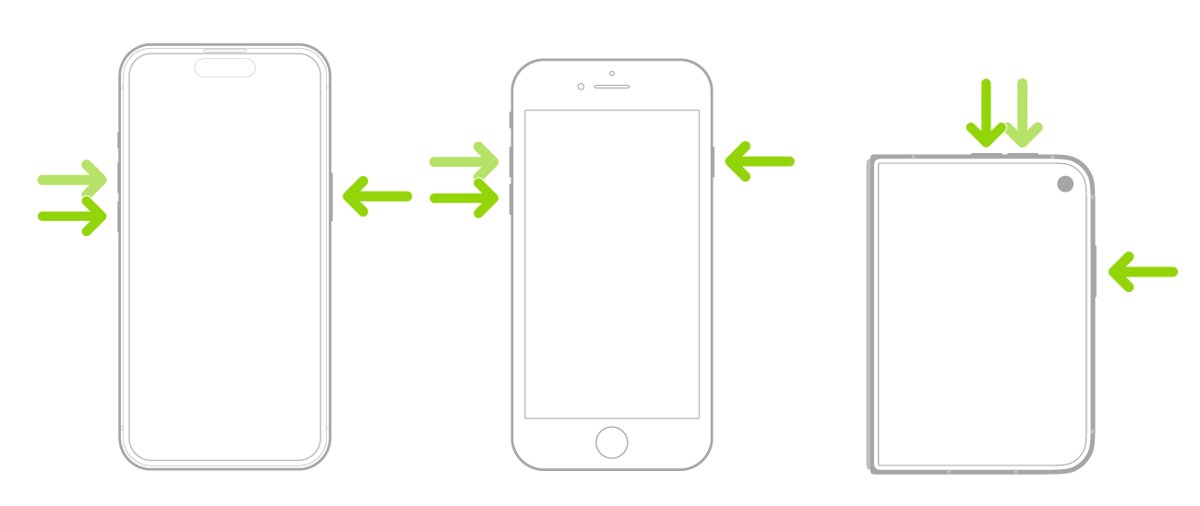
Step by step tutorial: How to turn off iPhone without screen
Use these steps when the screen is frozen, black or ignores touch. A force restart makes the iPhone turn off and start again, so it clears a frozen phone but does not leave it powered off.
- Press and quickly release the volume up button.
- Press and quickly release the volume down button.
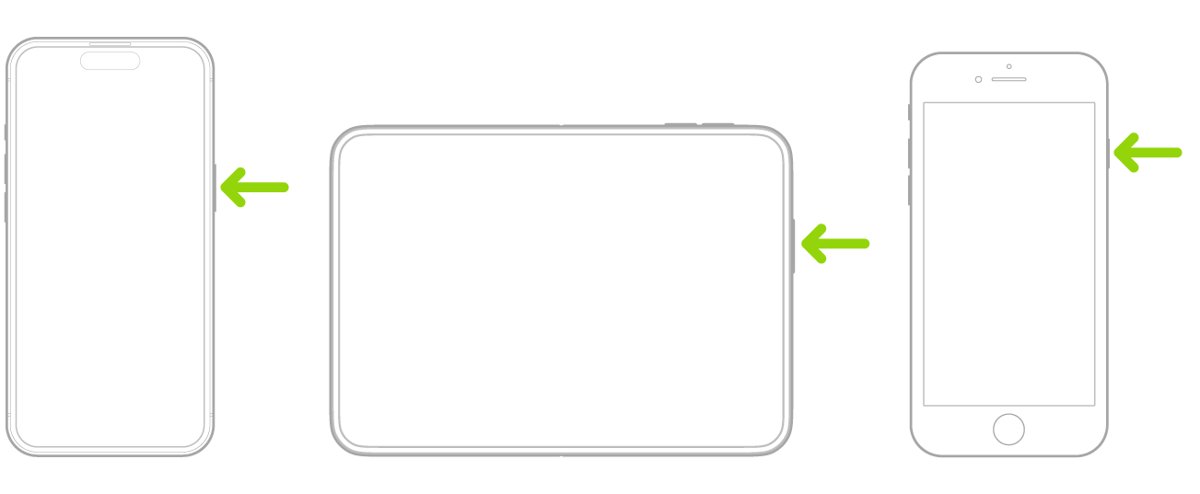
- Press and hold the side button. This might take longer than 10 seconds.
- Release the side button when the Apple logo appears.
These steps apply to iPhone models with Face ID and to the iPhone SE models in Apple's current guide. On iPhone 7 or earlier, force restart an older iPhone with that model's button combination.
Pressing the side button and a volume button together does not shut the iPhone down by itself. It only brings up the sliders, and holding too long starts Emergency SOS.
How to turn off iPhone without touch screen, sliding or buttons
The right route depends on which part still works. Match what is broken to a row.
| Your situation | Use this | What you get |
|---|---|---|
| Screen frozen, black or dead to touch | Force restart | A restart, not a shutdown |
| Screen shows an image, touch is dead | Wired mouse with AssistiveTouch | A shutdown, if the pointer can drag the slider |
| Touch works, side button is broken | Settings > General > Shut Down | A full shutdown |
| Touch works in places, sliding fails | Restart in the AssistiveTouch menu | A restart with taps instead of a slider |
| Screen is dead and the iPhone must stay off | Leave it unplugged until the battery runs out, or set up a repair | Off once the battery is empty |
| The iPhone is lost, or you need it ready for repair | icloud.com/find | No shutdown, but you can erase the iPhone or mark it for service |
Can I manually turn off an iPhone?
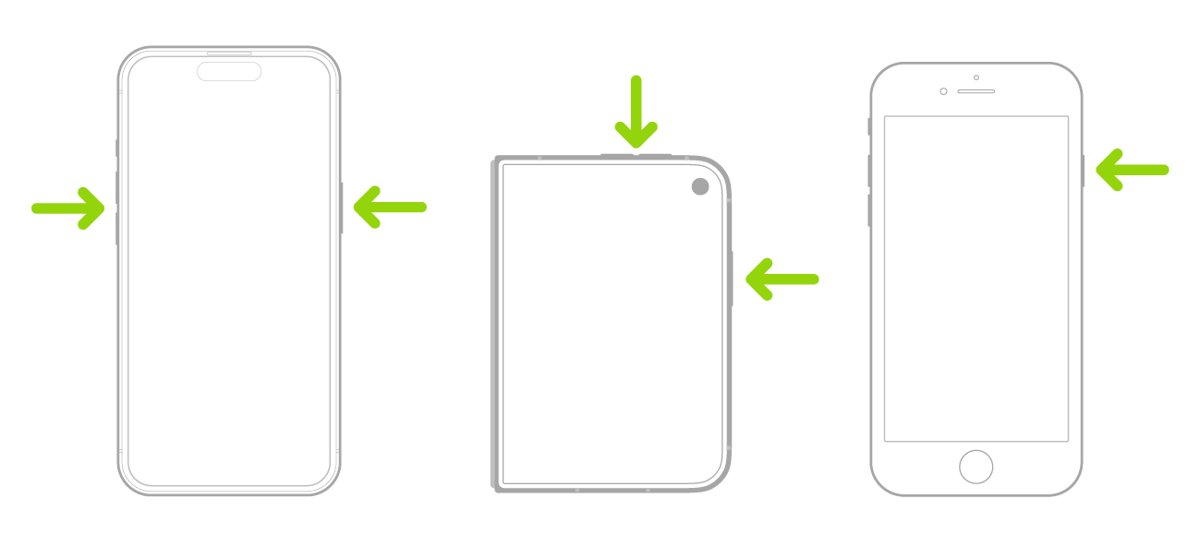
Yes, as long as you can see and drag the slider. Press the buttons for your model, drag the slider, then wait 30 seconds for the iPhone to turn off.
| iPhone | Press and hold | To turn it back on |
|---|---|---|
| iPhone X, 11, 12, 13 or later | Either volume button and the side button | Hold the side button until the Apple logo appears |
| iPhone 6, 7, 8 or SE (2nd or 3rd generation) | The side button | Hold the side button until the Apple logo appears |
| iPhone SE (1st generation), 5 or earlier | The top button | Hold the top button until the Apple logo appears |
Apple's button steps list no passcode, so this is the route to try on a locked iPhone. Settings and Control Center need a screen you can use.
How to turn off iPhone without power button
A broken side button does not stop a shutdown when the touch screen still works. Settings has its own Shut Down control.
- Open the Settings app.
- Tap General, then scroll down and tap Shut Down.
- Drag the slider to turn off the iPhone.
Control Center offers the same shutdown. Open Control Center, touch and hold the power control in the top-right corner, then drag the slider.
Apple's turn-on step uses the side button, so sort out the button before you rely on this. Remove any case or film that might block it, clean around it, and set up a repair if it still fails.
Turn off iPhone 13 or iPhone 11 without touch screen using a mouse
This workaround helps when the display still shows an image but touch does not respond. Apple documents pointer control through AssistiveTouch, not this exact shutdown, so a force restart remains the fallback.
Siri has to be turned on already. If it cannot act while the iPhone is locked, this route ends there.
- Plug a wired mouse or trackpad into the Lightning or USB-C port. USB-A devices need an adapter.
- Press and hold the side button to summon Siri, then say "Turn on AssistiveTouch." On an iPhone with a Home button, hold the Home button instead.
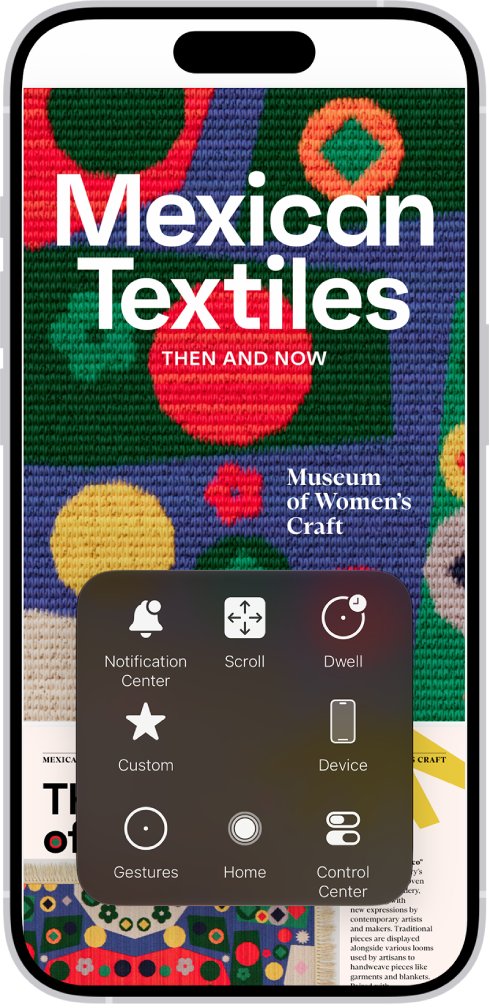
- Wait for the grey, circular pointer to appear, then move it with the mouse.
- Press and hold the side button and either volume button, and release them as soon as the sliders appear.
- Move the pointer onto the Power Off slider, hold the mouse button and drag the slider across.
How to turn iPhone off without button using AssistiveTouch
AssistiveTouch adds an onscreen menu that replaces the physical buttons. Its Restart action needs a screen that responds to at least some taps, and it restarts the iPhone instead of leaving it off.
- Go to Settings > Accessibility > Touch > AssistiveTouch, or ask Siri to "Turn on AssistiveTouch."
- Turn on AssistiveTouch so the menu button appears on the screen.
- Drag the menu button to an edge of the screen that still responds to touch.
- Tap the menu button and find Restart. The menu's extra actions sit under Device > More.
You can also set up the Accessibility Shortcut, then triple-click the side button or Home button to turn AssistiveTouch on or off.
How to turn off iPhone without calling 911
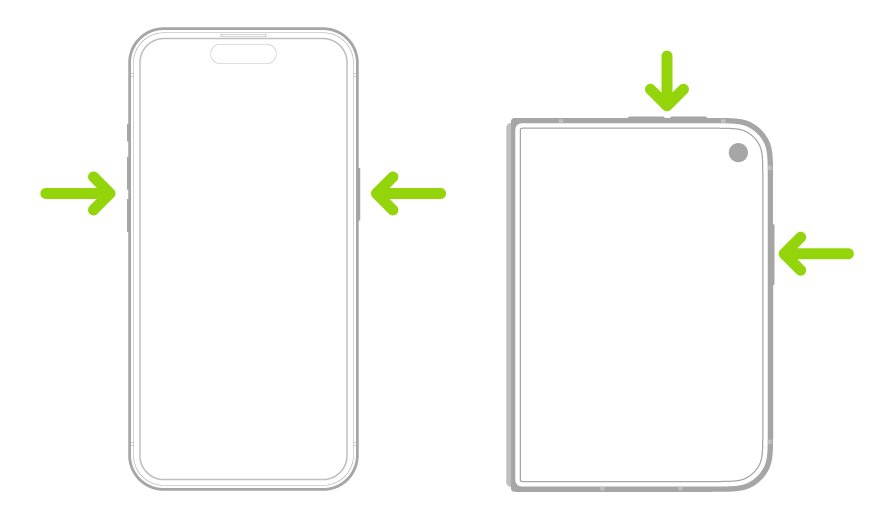
The side and volume button combination does two jobs. Keep holding after the sliders appear and iPhone runs a countdown, plays a warning sound and calls emergency services.
- Press and hold the side button and either volume button.
- Release both buttons the moment the sliders appear.
- Drag the Power Off slider if the screen allows it. Leave the Emergency SOS slider alone.
- If accidental calls keep happening, go to Settings > Emergency SOS and review Call with Hold and Release and Call with 5 Presses.
If an emergency call does connect by mistake, do not hang up. Apple says to wait until a responder answers, then explain that you do not need help.
How to tell if an iPhone is off when the screen is black
A black screen does not mean the iPhone is off. A broken display can sit dark over a phone that is still running.
- Call the iPhone from another phone. A ring or vibration means it is still on.
- Press and hold the side button until the Apple logo appears. The logo means it is starting up.
- If nothing happens, charge the iPhone for one hour and try again.
- If a low-charge battery shows, check the hardware and charge for 30 minutes or until it starts.
- If it still will not respond, set up service with Apple.
When the phone runs but the display stays dark, you can fix a black iPhone screen with the checks that come before a repair.
Turn off Find My iPhone without phone
Apple says to turn off Find My before you service a device. If the screen is too broken to reach Settings, use iCloud.com from another device.
On iOS 27 or later, Apple offers Repair or Trade-In to keep the iPhone secure and findable during a repair, so check that option with the service provider first.
- Go to icloud.com/find on another device and sign in to your Apple Account.
- Select the iPhone in the list of devices.
- Select Remove This Device.
- If the iPhone is online, it cannot be removed. Select Continue to mark it Ready for Repair or Trade In for the next 30 days.
- If the iPhone is offline, Activation Lock is removed immediately and the iPhone leaves Find My after 30 days.
Removing Activation Lock means someone else can activate the iPhone, so do this only for a phone you are handing over. To wipe a lost iPhone instead, select Erase This Device. Activation Lock stays on after that erase, and an offline iPhone erases the next time it goes online.
How to make iPhone not turn off
If the display keeps going dark while you use it, the iPhone is locking, not shutting down. Auto-Lock controls the delay.
- Open the Settings app.
- Tap Display & Brightness, then tap Auto-Lock.
- Choose a longer length of time.
Delaying or preventing Auto-Lock may increase power consumption.
iPhone not turning off
Why I cannot turn off my iPhone
The iPhone is frozen, so the sliders do not appear or will not move.
- Run the force restart at the top of this page.
- After the iPhone starts, press and hold the side button and either volume button.
- Drag the Power Off slider and wait 30 seconds.
iPhone doesn't turn off with the side button
A case, debris or a faulty button blocks the press.
- Remove any protective film or case.
- Clean around the button with a soft cloth.
- Use Settings > General > Shut Down in the meantime.
- Set up a repair if the button is damaged or works intermittently.
Screen responds only some of the time
Debris, water, an accessory or a screen protector can upset touch, and damage needs service.
- Restart the iPhone.
- Clean the screen so it is free of debris and water.
- Disconnect any Lightning or USB-C accessory, and try a different cable or charger if that helps.
- Remove any case or screen protector.
- Set up service if the screen still fails.
iPhone stays black after a force restart
The battery may be empty, or the iPhone may need service.
- Charge the iPhone for one hour.
- Repeat the force restart that did not work and keep holding the side button for longer than 10 seconds.
- Set up service if the Apple logo still does not appear.
Tips for how to turn off iPhone without screen
| Tip | Why it matters |
|---|---|
| Press the force restart buttons quickly, in order | Apple's sequence calls for a quick press and release on each volume button |
| Keep holding the side button past 10 seconds | Apple says the logo might take longer than that |
| Release the side and volume buttons as soon as the sliders appear | Holding on runs the Emergency SOS countdown |
| Back up before a broken screen gets worse | A working backup lets you restore to a repaired or new iPhone |
| Sort out Find My before you hand the iPhone over | Apple says to turn it off before service |
| Do not expect a force restart to fix a cracked or dead display | Apple's next step for a screen that still fails is service |
Turn off iPhone without screen: frequently asked questions
How do I turn off iPhone without sliding or swiping?
Apple documents no slider-free shutdown. Every power-off route ends with dragging a slider. To clear a frozen iPhone without touching the screen, force restart it instead. If some taps work, the AssistiveTouch menu also offers a Restart action.
How do I turn off iPhone without buttons?
Open Settings, tap General, scroll down, tap Shut Down, then drag the slider. You can also open Control Center, touch and hold the power control in the top-right corner, and drag the slider. Both routes need a working touch screen.
How do I turn off iPhone without unlocking it?
Press and hold the side button and either volume button until the sliders appear, then drag the Power Off slider. Apple's steps for this button method do not mention a passcode. The Settings route is different, because you have to be inside the Settings app.
How do I turn off iPhone completely?
Drag the Power Off slider and wait 30 seconds, as Apple's restart steps describe. Stay away from the force restart if you want the iPhone to remain off, since that sequence brings it straight back to the Apple logo.
What if my iPhone turns back on immediately after I try to shut it down?
If you used the force restart, that is what it is meant to do, because it restarts the iPhone. To keep it off, drag the Power Off slider instead and wait 30 seconds. With a dead screen, a repair is the reliable next step.
Can I still receive calls or messages after my iPhone is turned off?
No. A powered-off iPhone cannot ring or show new messages. It can only receive them after you turn it back on and it reconnects to a network. A force restart only interrupts calls and messages while the iPhone starts up again.
Will turning off my iPhone without the screen fix my screen issues?
It can help when touch is only intermittent, since restarting is Apple's first suggestion for that problem. It will not repair physical damage. If the screen still fails after a restart and basic cleaning, Apple says you might need to set up service.
Is it bad to turn off my iPhone this way often?
Apple publishes no warning against it, but it treats the force restart as the option for an iPhone that is not responding. Use the normal Power Off slider when the phone works, and get a repeatedly frozen iPhone checked by Apple Support.
Can I use this method to restart my iPhone?
Yes. The volume up, volume down and side button sequence is a restart, and Apple calls it a force restart. It suits an iPhone that is not responding. When the phone works normally, turn it off with the slider and turn it back on with the side button.
Can I turn off Find My iPhone without a password?
No. Turning off Find My in Settings asks for your Apple Account password, and iCloud.com needs you to sign in to your Apple Account. If you forgot the password, recover the account first with Apple's account recovery steps before you hand the iPhone over.