To turn off Chrome notifications on a computer, open More > Settings > Privacy and security > Site settings > Notifications and choose the option that stops sites from sending them.
This guide covers blocking all sites or just one, turning notifications back on, the Android, iPhone, Windows and Mac switches, and fixes for spam notifications.
Turn off (or on) all notifications in Chrome
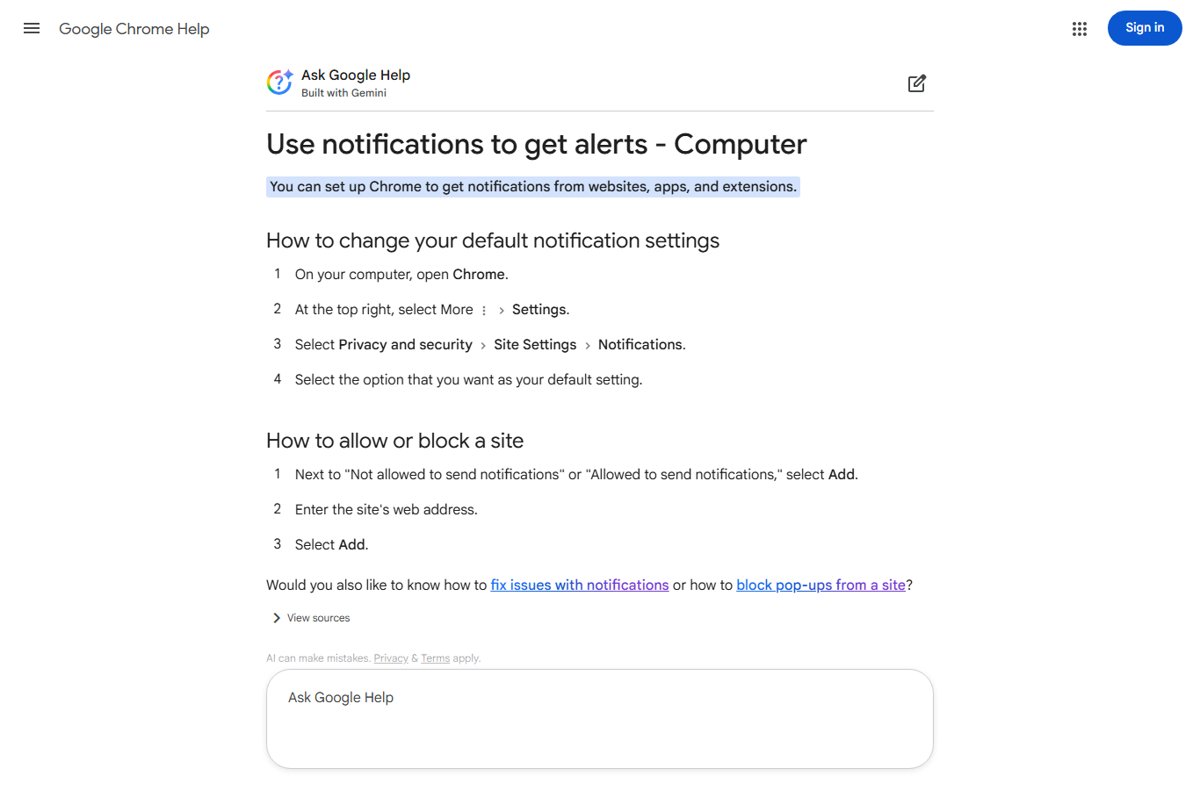
By default, Chrome asks you every time a website, app or extension wants to send notifications. Changing the default on the computer stops those requests for every site you have not already allowed. These steps change your default notifications settings in the desktop browser; the mobile switches are further down.
- Open Chrome on your computer.
- Select More (the three dots) at the top right, then Settings.
- Select Privacy and security, then Site settings.
- Select Notifications.
- Choose the default option that does not let sites send notifications.
- To turn notifications back on later, return to the same page and choose the option that lets sites ask to send notifications.
The new default does not touch sites you already allowed. Those stay under Allowed to send notifications until you block them one by one, as shown in the next sections.
Incognito windows never get site notifications, so a private window is also a quick way to browse without them.
How Chrome notifications work: browser, site and system permissions
A notification permission is the consent a website, app or extension needs before Chrome lets it show alerts such as meeting reminders or new mail. Chrome asks you by default, and it blocks sites it finds sending intrusive or misleading notifications.
Enabling notifications in Chrome settings does not work alone. An alert reaches your screen only when all three layers below allow it, and turning off any one of them silences it.
| Layer | Where you set it | What it controls |
|---|---|---|
| 1. Chrome browser-level default | Site settings > Notifications default option | Whether sites may ask at all; sites you allowed earlier keep their permission |
| 2. Specific websites | Allowed to send notifications and Not allowed to send notifications lists, or View site information | Which individual sites can send alerts |
| 3. System-level OS notifications | Windows Settings > System > Notifications, Mac System Settings > Notifications, iPhone Settings > Notifications > Chrome | Whether Chrome as an app may show anything on screen |
| Private browsing | Incognito window | No site notifications while you browse privately |
Before you change anything, run three fast checks: you are in a normal window rather than Incognito, Do not disturb is off on Windows, and Chrome is switched on in the system notification settings.
Chrome notification settings: which switch to use
Chrome notifications can be controlled in the browser, per site, or in the operating system. Pick the row that matches what you want to stop.
| What you want | Where to change it | What happens |
|---|---|---|
| Stop every new site from asking | Chrome Site settings > Notifications default | No more permission requests; allowed sites keep sending |
| Silence one site that already sends alerts | Not allowed to send notifications list, or the site's View site information icon | Only that site goes quiet |
| Keep alerts from Gmail or Calendar but block the rest | Block by default, then add sites under Allowed to send notifications | Only the listed sites can notify you |
| Keep requests but stop the pop-up prompt | Use quieter messaging | A bell icon replaces the pop-up next to the address |
| Silence Chrome at the system level | Windows Settings > System > Notifications, or Mac System Settings > Notifications | No Chrome alert appears on screen, whatever the site permissions |
| Phone or tablet | Android Chrome Site settings, or iPhone Settings > Notifications > Chrome | Covers mobile alerts only; desktop settings are separate |
Turn off individual website notifications in Chrome
Use this when one news site or shop keeps sending alerts and the rest are fine. Blocking a site in the settings list works even when you are not on the site.
- Open Chrome and select More > Settings.
- Select Privacy and security > Site settings > Notifications.
- Next to Not allowed to send notifications, select Add.
- Enter the site's web address, for example the domain shown in the notification.
- Select Add. The site moves to the blocked list and stops sending notifications.
To allow a site instead, select Add next to Allowed to send notifications, enter its web address and select Add. The same page works on Windows 11, Windows 10 and Mac, because these lists live in Chrome.
If the site already appears under Allowed to send notifications, change it from the site itself with the View site information icon, as shown next.
Adjust notification settings from a site
The fastest per-site route is the icon to the left of the web address. It opens that site's permissions without going through the settings menu.
- Go to the site whose notifications you want to change.
- Select View site information to the left of the web address.
- Select Site settings.
- Find Notifications and choose Block to stop them or Allow to receive them.
- Close the tab. Chrome saves the change automatically.
When a Reset permissions button appears in that panel, select it to return every permission for the site to your default settings.
Turn specific notifications off and on in Chrome
You can block notifications by default and still keep the few you rely on, such as meeting reminders. Chrome also has two softer options: quieter notification prompts and flash notifications.
- Open More > Settings > Privacy and security > Site settings > Notifications.
- To allow one site while others are blocked, select Add next to Allowed to send notifications, enter the address and select Add.
- To keep requests but stop pop-up prompts, choose the option that lets sites ask, then select Use quieter messaging.
- With quieter messaging on, select the bell icon next to a site's address when you want to allow that site.
- To make the screen flash when a notification arrives, open Settings > Accessibility > Audio and Captions and turn on Flash Notifications.
- Optionally pick a colour next to Flash screen color.
To audit what you have allowed, read through both lists on the same page every few months and block anything you no longer use. Chrome also reminds you from time to time to review your notification permission grants.
Chrome notification enterprise policy settings
On work or school computers, an administrator can set Chrome's notification behaviour with policies, applied without a browser restart at the Chrome profile level. These policies are part of the Notification settings atomic policy group.
| Policy | Values | Effect |
|---|---|---|
| DefaultNotificationsSetting | 1 = allow, 2 = do not allow any site, 3 = ask every time | Sets the default for all sites; unset means Chrome asks and users can change the setting |
| NotificationsBlockedForUrls | List of URL patterns, wildcards allowed, e.g. [*.]example.edu | Sites on the list can't display notifications |
| NotificationsAllowedForUrls | List of URL patterns | Sites on the list are allowed to display notifications |
On Windows, DefaultNotificationsSetting is a REG_DWORD under Software\Policies\Google\Chrome. On Mac and Linux it uses the same preference name, and Chrome for Android supports it from version 142.
Turn off Chrome notifications on Android
Chrome for Android has its own notification settings, separate from the desktop browser.
- Open Chrome on your Android phone or tablet.
- Tap More to the right of the address bar, then Settings.
- Tap Site settings > Notifications.
- Turn the switch at the top off to block all sites, or on to let sites ask again.
- To change one site, open it, tap Page info to the left of the address bar, then Permissions, and change Notifications.
Tap Use quieter messaging on the same page if you want requests to show as a message under the address bar instead of a pop-up.
Turn off Chrome notifications on iPhone and iPad
On iPhone and iPad, Chrome notifications are controlled by iOS, not by a setting inside Chrome.
- Open the Settings app on your iPhone or iPad.
- Tap Notifications.
- Scroll down and tap Chrome.
- Turn Allow Notifications off. Turn it on again to get Chrome alerts back.
Turn off Chrome notifications in Windows 11 and Windows 10
Windows can silence Chrome as an app, which stops banners from every site at once without changing Chrome's site list. This is also how you turn off notifications in Windows for any other app.
- Select Start > Settings > System > Notifications.
- Under Notifications from apps and other senders, find Google Chrome.
- Turn the switch next to Chrome off to silence it, or select Chrome to keep notifications but turn off Show notification banners or Play a sound.
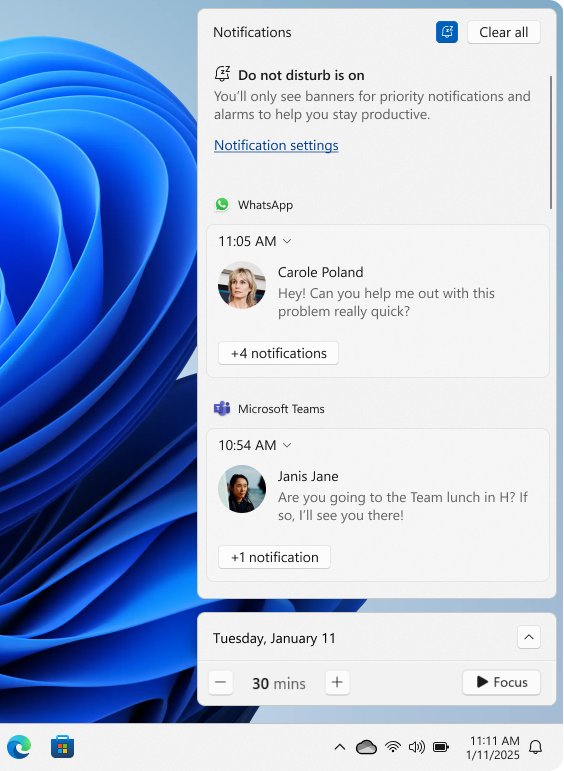
- To silence Chrome straight from an alert, open the notification center with Windows key + N, select the More button on a Chrome notification and select Turn off all notifications.
Turn the same switch back on to get Chrome alerts again. Sites you allowed in Chrome still need their own permission.
Turn off Chrome notifications on Mac
macOS lists Chrome as an app in its notification settings, separate from Chrome's own site permissions.
- Choose Apple menu > System Settings.
- Click Notifications in the sidebar. You may need to scroll down.
- Under Application Notifications, click Google Chrome.
- Turn Allow notifications off. Turn it back on when you want Chrome alerts again.
Chrome notification settings: Windows vs Mac, Android and iPhone
The key differences by operating system are where the main switch lives and whether Chrome keeps its own site list. Use this quick look to find the right place on each device.
| Device | Chrome site permissions | System switch for Chrome |
|---|---|---|
| Windows 11 and Windows 10 | Site settings > Notifications in Chrome | Settings > System > Notifications > Google Chrome |
| Mac | Site settings > Notifications in Chrome | System Settings > Notifications > Google Chrome > Allow notifications |
| Android | Chrome Settings > Site settings > Notifications, or Page info > Permissions per site | The top switch on Chrome's Notifications page blocks or allows all sites |
| iPhone and iPad | Controlled by iOS, not by a setting inside Chrome | Settings > Notifications > Chrome > Allow Notifications |
Turn Chrome notifications back on for a site Chrome removed
Chrome may remove notification permission from sites you have not visited in a while, and it blocks sites it marks as abusive or misleading. You get an alert when this happens, and you can restore the permission.
- Open Chrome and select More > Settings.
- Select Privacy and security on the left.
- Under Safety Check, select Go to Safety Check.
- Under Safety recommendations, open Permissions removed for [n] sites and restore the site you want.
- Or go to the site, select View site information and turn Notifications back on.
This is how you review removed notifications: the Safety Check list shows every site that lost its permission, so you can restore only the ones you still want.
If a site was blocked for disruptive notifications, Chrome shows a Notifications blocked message when you visit it, and you can re-enable notifications from there.
How to check Chrome notifications are off
- Open Settings > Privacy and security > Site settings > Notifications and confirm the default option is the blocking one.
- Check that the Allowed to send notifications list holds only sites you want to hear from.
- Visit a site that normally asks for notifications and confirm no prompt or bell icon appears.
- On Windows, press Windows key + N a few hours later and confirm no new Chrome alerts are listed.
- If you turned notifications back on, use this checklist instead: the site is under Allowed to send notifications, Chrome is on in the system notification settings, Do not disturb is off, and you are not in an Incognito window.
- Then wait for the next alert from that site, such as a new Gmail message, and confirm it appears on screen and in the notification center.
Chrome notifications spam, virus alerts and not working: fixes
When Chrome notifications still aren't working after you turn them on, the cause is almost always one of four things: the site is blocked, Chrome's default blocks it, the operating system has Chrome or alerts silenced, or Chrome removed the permission.
Chrome notifications spam keeps appearing after you block sites
The sites were allowed before you changed the default, so they stay on the allowed list.
- Open Site settings > Notifications.
- Look through Allowed to send notifications for sites you do not recognise.
- Block or remove each one.
- On Android, tap Unsubscribe on a spam warning, then Report spam to Chrome.
Chrome notifications say a virus was detected
A site you allowed sends fake security alerts, or unwanted software has changed Chrome.
- Do not click the alert. Block the sending site in Not allowed to send notifications.
- Uninstall programs you do not recognise from your computer.
- Run a Microsoft Defender full scan on Windows.
- If alerts continue, open Settings > Reset settings > Restore settings to their original defaults > Reset settings, then turn on only extensions you trust.
Chrome notifications not working on Windows 11 or Windows 10
Windows has Chrome turned off, Do not disturb is on, or the site lost its permission.
- Open Settings > System > Notifications and make sure Google Chrome is on.
- Open the notification center and turn off Do not disturb if the bell icon with zZ is active.
- Open the site, select View site information and turn on Notifications.
- Check Safety Check for Permissions removed and restore the site.
Gmail notifications in Chrome stopped
Gmail's site permission was blocked or removed after a period without visits.
- Open Gmail in Chrome.
- Select View site information to the left of the address.
- Set Notifications to Allow.
- Confirm the Gmail address appears under Allowed to send notifications in Site settings.
Chrome notifications FAQ
How do I turn off Chrome notifications?
Open Chrome, select More > Settings > Privacy and security > Site settings > Notifications and choose the option that blocks sites. Then block any site already listed under Allowed to send notifications, because the new default does not change sites you allowed earlier.
How do I disable Chrome notifications for one website?
Go to the website, select View site information to the left of the address, select Site settings and set Notifications to Block. You can also add the address under Not allowed to send notifications in Chrome's notification settings without visiting the site.
How do I stop Chrome notifications on Windows 11?
Block the sites inside Chrome, or silence Chrome as an app in Settings > System > Notifications by turning off Google Chrome. The Windows switch stops every Chrome banner at once but leaves Chrome's site permissions as they are.
How do I turn Chrome notifications back on?
Return to Site settings > Notifications and choose the option that lets sites ask to send notifications. For one site, add it under Allowed to send notifications, or open the site, select View site information and allow Notifications.
How do I see Google Chrome notifications I missed?
On Windows, Chrome alerts collect in the notification center, which opens with Windows key + N or by selecting the clock on the taskbar. On a Mac, open Notification Center. If nothing appears, check that Chrome is allowed in the system notification settings.
Why did Chrome stop notifications from a site I allowed?
Chrome removes notification permission from sites you have not visited in a while and blocks sites it marks as abusive or misleading. Open Privacy and security > Go to Safety Check to review removed permissions, or turn notifications back on from the site itself.
Are Chrome notifications a virus?
Chrome notifications are a normal browser feature, but some sites abuse them to show fake virus alerts. Block the sending site, remove unknown programs, run a malware scan and reset Chrome settings if the alerts continue. Never click the alert itself.
Do Chrome notifications work in Incognito mode?
No. Chrome does not show site notifications while you browse privately in an Incognito window. Notifications from sites you allowed still arrive in normal Chrome windows.
How do I stop the allow notifications pop-up in Chrome?
Turn on Use quieter messaging in Site settings > Notifications. Sites can still ask, but the request appears as a bell icon next to the address instead of a pop-up. Blocking notifications by default removes the requests completely.