The built-in video editor on Windows is Microsoft Clipchamp, and it opens by typing Clipchamp into the taskbar search box.
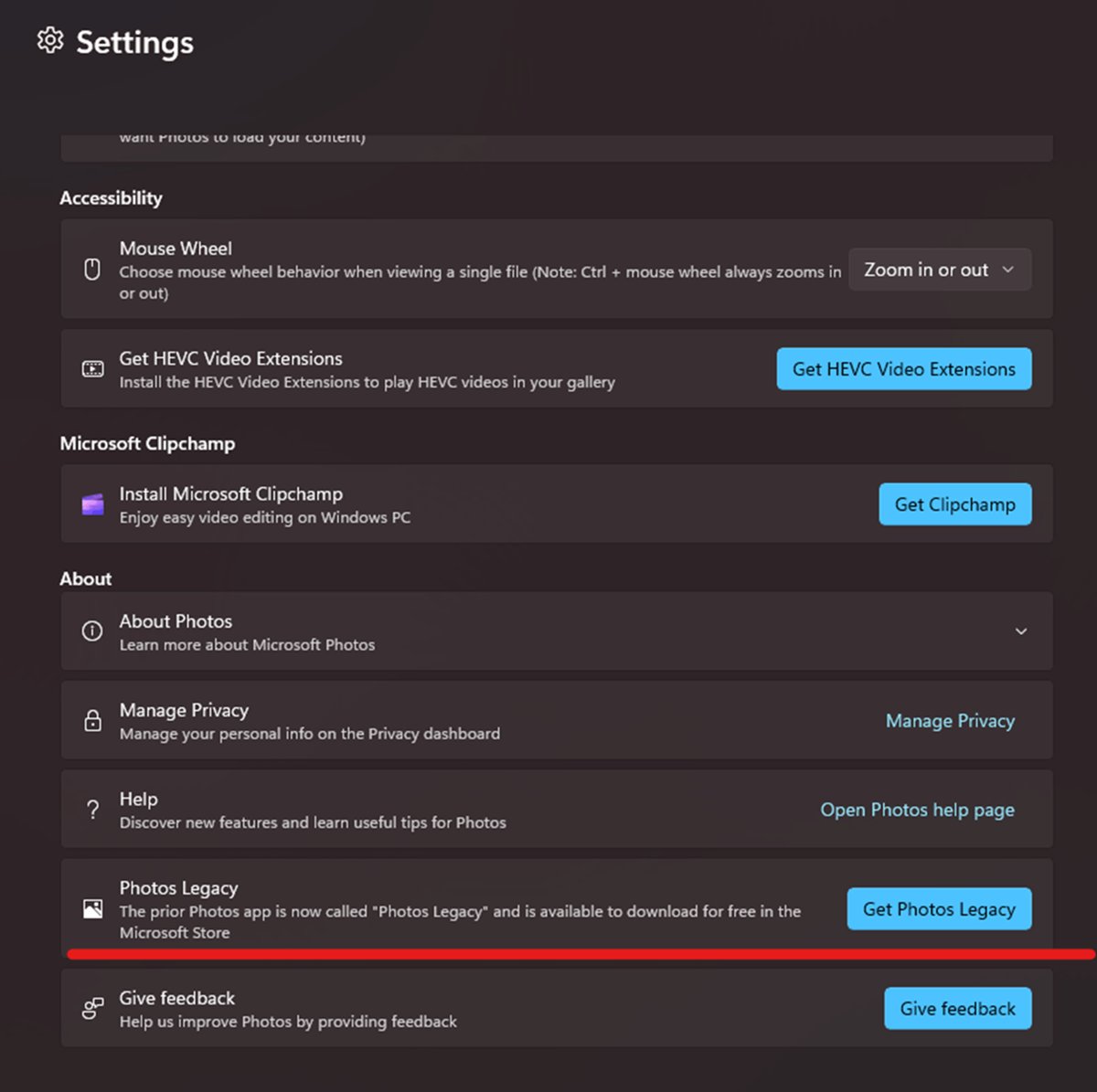
Clipchamp is preinstalled on Windows 11 and installs from Microsoft Store on Windows 10; the old Video Editor now lives only in the Photos Legacy app.
The fastest way to open the Windows video editor
On Windows 11 the app is already there. Nothing needs to be downloaded first.
- Select the search box on the taskbar and type Clipchamp.
- Select Clipchamp in the results to launch the editor.
- Select Create a new video on the editor homepage.
- If no result appears, select Start, then All apps, and scroll down to Clipchamp.
A browser route works on any PC: open https://app.clipchamp.com in Microsoft Edge or Google Chrome.
Understanding Windows Video Editor
Two different apps have carried the name. Knowing which one a tutorial means saves a long search through menus.
| App | Status on current Windows | What it does |
|---|---|---|
| Microsoft Clipchamp | The official Microsoft video editor, preinstalled on Windows 11 | Timeline editing, text, transitions, filters, stock music, screen and webcam recording, export up to 4K |
| Video Editor in Photos | Removed from the new Photos app | Replaced by Clipchamp; Photos now sends video editing jobs to Clipchamp |
| Photos Legacy | Still installable alongside the new Photos app | Carries the legacy Collections, Albums and Video Editor experience |
| Clipchamp for work or school | Managed by a Microsoft 365 administrator | Same editor, built on OneDrive and SharePoint, tied to a work account |
Clipchamp processes media on the computer rather than uploading it to a server for processing.
How to Access Windows Video Editor
Match the row to the machine in front of you.
| Your situation | Use this | Why |
|---|---|---|
| Windows 11 PC | Taskbar search box, type Clipchamp | Clipchamp comes preinstalled, so no install step |
| Windows 10 PC | Microsoft Store entry for Clipchamp | The app is not preinstalled on Windows 10 |
| Already in the Photos app | Settings > Open Clipchamp | Installs or opens the editor without leaving Photos |
| Starting from one file | Right-click the file in File Explorer and select Edit with Clipchamp | The clip loads straight into the media library and timeline |
| Locked-down or non-Windows machine | https://app.clipchamp.com in Edge or Chrome | The browser version needs no installation |
| You specifically want the old Video Editor | Photos app > Settings > Open Photos Legacy | Video Editor ships only in Photos Legacy now |
What you need before you start
| Requirement | Detail |
|---|---|
| Operating system | Windows 11 or Windows 10, 64-bit |
| Account | A personal or family Microsoft account for the personal version |
| Memory | 8 GB RAM minimum, 16 GB or higher recommended |
| Browser | The latest 64-bit Microsoft Edge or Google Chrome for the browser version |
| Free disk space | More than the combined size of the media files in the project |
| Graphics | A recent graphics card helps, since editing uses both the CPU and GPU |
| Cost | A free account covers the core tools; Microsoft 365 Personal and Family plans unlock the premium options |
Installing Windows Video Editor on Your PC
Windows 10 needs the install. Windows 11 usually needs only an update check.
- Select Start > Settings > Windows Update on Windows 11, or Start > Settings > Update & Security > Windows Update on Windows 10, then select Check for Windows updates.
- Install anything offered, then restart the PC if asked.
- Open Microsoft Store from the Start menu and select Check for Updates so the Photos app is current.
- Search the Store for Clipchamp and install the app from its Store entry.
- Alternatively, open the Photos app, select Settings, then select Open Clipchamp to install it from there.
- Launch Clipchamp and sign in with a personal Microsoft account.
How to Use Windows Video Editor: A Step-by-Step Tutorial
These steps run from an empty project to a finished MP4 file.
- Launch Clipchamp and select Create a new video, or select Create a video on a file in the Photos app.
- Import media: drag files from the PC into My media, or select Import media, or use the arrow button to pull files from OneDrive, Google Drive, Dropbox or Xbox.
- Arrange clips: drag each asset onto the timeline, or select the green + button, in the order the video should play.
- Trim a clip by selecting it on the timeline and dragging the green bars; to cut one in two, move the seeker and select the Split button.
- Add text: select the Text tab on the toolbar, then drag a title onto the timeline above the video asset.
- Apply effects: use the Property panel for fades, filters, colour adjustment, volume and speed, and the floating toolbar to crop, fill, rotate, flip or build a picture-in-picture shot.
- Add music: select the Content library tab, open the Audio category, drag a track onto the timeline, then set its level with the volume slider on the Audio tab.
- Add transitions: select the Transitions tab and drop a transition onto the timeline between two assets; add stickers, backgrounds, frames or GIFs from Content library > Visuals.
- Preview the result, and use the zoom buttons or zoom to fit on the editing toolbar to inspect the timeline.
- Select Export at the top right, choose a video quality, and let the file save as MP4 to the Downloads folder.
Editing progress saves automatically, so the project has no save button. Keep the original source files on the drive, because Clipchamp may ask to relink them.
How to get the legacy Video Editor back
Photos Legacy runs side by side with the new Photos app, so nothing has to be removed first.
- Type photos in the taskbar search box and select the Photos app.
- Select Settings inside Photos.
- Under the Photos Legacy section, select Open Photos Legacy.
- Use the Video Editor, slideshow and album tools inside Photos Legacy.
- To reopen it later, type photos in the search box and select Photos Legacy from the results.
How to check it worked
- Open Start > All apps and confirm Clipchamp appears in the list.
- Launch it and confirm the homepage offers Create a new video.
- Create a test project, drop one clip on the timeline, and confirm the preview plays.
- Select Export, choose 480p, and wait for the export to finish.
- Open the Downloads folder and confirm an MP4 file is there and plays.
Tips and Best Practices for Effective Video Editing with Windows Video Editor
| Practice | Why it matters |
|---|---|
| Keep the original media files where they are | Renaming, moving or deleting a source file breaks the link and forces a relink |
| Run Clipchamp in one tab, in the foreground | Editing is compute-intense, and background tabs lose processing resources |
| Close unused apps, tabs and windows before exporting | Frees memory for the export job |
| Leave free disk space larger than the project media | Temporary files are written during processing |
| Compress 4K source clips to 1080p when playback stutters | Smaller files load faster on modest hardware |
| Export a 480p draft before the final render | Catches a timing or text mistake before a long 4K export |
| Pick the smallest resolution that suits the destination | Higher resolutions take longer and create larger files |
| Turn on content backup for an important project | Protects the project if the original assets move |
Troubleshooting Common Issues
Video Editor not opening
The app or its cached project data is in a bad state, or an extension is blocking it.
- Press Ctrl + F5 in the editor to force a reload; this works in the desktop app as well.
- Go back to the projects page, refresh it, then open the project again.
- Confirm the internet connection is active, since projects save while you work.
- Disable translation, privacy and ad-blocking extensions in Edge or Chrome, then reload Clipchamp.
- Clear the browser cache for All time with Cached images and files selected, then type
edge://restartorchrome://restart.
Missing Video Editor in Photos app
The new Photos app dropped Video Editor, and Clipchamp replaced it.
- Open the Photos app and select Settings.
- Select Open Clipchamp to install or launch the replacement editor.
- For the older experience, select Open Photos Legacy under the Photos Legacy section instead.
- If neither appears, update the Photos app from Microsoft Store with Check for Updates.
Exported video quality is low
The export resolution was set below what the source and the destination need.
- Select Export and pick 1080p for streaming platforms and presentations rather than 480p or 720p.
- Choose 4K only for 4K source media; Microsoft 365 Personal and Family subscribers and Clipchamp premium subscribers can export at that resolution.
- Check that the source clips are not already low-resolution files, since an export cannot add detail.
- Avoid GIF, which suits clips of 15 seconds or less, and M4A, which is audio only.
Performance issues while editing
Editing uses the CPU and GPU together, so memory, disk space and other apps all matter.
- Close other applications and browser tabs, leaving Clipchamp in the foreground.
- Free up disk space until it exceeds the total size of the project media.
- Update Edge or Chrome to the latest version, or update the Clipchamp app from Microsoft Store.
- Replace 4K source clips with 1080p versions if playback is slow.
- Split a long project into shorter ones on a PC with 8 GB of memory.
Export gets stuck or fails near the end
The export ran out of disk space or resources, or a source file moved.
- Keep Clipchamp in the foreground and wait a few minutes on long, 4K or clip-heavy projects.
- Check free disk space, then retry the export.
- Export at a lower resolution, such as 720p or 1080p instead of 4K.
- Convert or compress very large source videos to MP4, replace them in the project, and retry.
- If the Windows app keeps failing, open the project at https://app.clipchamp.com in Edge or Chrome, and avoid InPrivate or incognito windows.
- If no file arrives, allow Clipchamp downloads and pop-ups in the browser, then export again.
Alternatives to Windows Video Editor
All of these come from Microsoft, so none involves a third-party download.
| Alternative | Where it runs | Best for |
|---|---|---|
| Clipchamp browser version | Edge or Chrome at https://app.clipchamp.com | A PC where apps cannot be installed, or a Mac, Linux or Chromebook |
| Photos Legacy Video Editor | Windows 10 and Windows 11 desktop | The older timeline, slideshow and album tools |
| Clipchamp for work or school | Provisioned by a Microsoft 365 administrator | Projects that live in OneDrive and SharePoint alongside Teams and Outlook |
| Clipchamp premium | Included with Microsoft 365 Personal and Family | 4K export and the full premium feature set |
| Photos app editing tools | Windows 11 Photos | A quick single-file edit with no project to manage |
Bottom line
Use Clipchamp as the Windows video editor, and open Photos Legacy only when a task needs the old Video Editor layout. Clipchamp is the editor Microsoft ships and updates on Windows 11 and Windows 10, and it covers timeline editing, text, transitions, audio and export in one app.
Frequently Asked Questions
How do you make a video on Windows?
Open Clipchamp from the taskbar search box, select Create a new video, import your clips into My media, drag them onto the timeline, then select Export and choose a video quality. The finished MP4 lands in the Downloads folder.
How do you enable video editing in Windows?
Nothing needs enabling on Windows 11, where Clipchamp is preinstalled. On Windows 10, install Clipchamp from its Microsoft Store entry, or open the Photos app, select Settings, then select Open Clipchamp.
How do you create a video on Windows without installing anything?
Open app.clipchamp.com in Microsoft Edge or Google Chrome and sign in with a personal Microsoft account. The browser version runs the same editor and needs no installation, so it also works on Mac, Linux and Chromebook.
How do you get video files onto your PC for editing?
Drag files from the PC into My media, or select Import media to browse for them. The arrow button beside it pulls clips from OneDrive, Google Drive, Dropbox and Xbox into the same media library.
How do you take video on Windows to edit?
Clipchamp records your screen and webcam inside the editor, and the recording lands in the project. Recorded clips sit in My media beside imported files, ready to trim, split and arrange on the timeline.
How do you open a video on Windows inside the editor?
Right-click the file in File Explorer and select Edit with Clipchamp. The clip opens in a new project, already loaded into the media library and placed on the timeline.
How do you start a video project again after closing it?
Select the video on the Clipchamp homepage. It reopens where you left it, because editing progress saves automatically and there is no save button. Keep the original source files in place so nothing needs relinking.
How do you download videos on Windows from Clipchamp?
Select Export at the top right and pick 480p, 720p, 1080p or 4K. Personal accounts save the MP4 to the Downloads folder automatically, while work accounts upload it to the project's exports folder in OneDrive.
How do you get your video working when a project will not load?
Press Ctrl + F5 to force a reload, then close other tabs and apps to free memory. If that fails, disable browser extensions, clear cached images and files for All time, and restart the browser.
How do you get the Windows version before installing the editor?
Right-click Start, choose Settings, select System, then pick About. Under Windows specifications, check the edition and version. Clipchamp needs a 64-bit installation of Windows 10 or Windows 11.
Does the Windows video editor cost anything?
A free Clipchamp account includes all the core tools needed to create videos. A Microsoft 365 Personal or Family plan enables the premium options, and a paid Clipchamp Premium subscription unlocks the full premium feature set.
Why is there no Video Editor in the Photos app anymore?
Microsoft replaced it with Clipchamp in the new Photos app. Photos points to Clipchamp under Settings, and the original Video Editor now ships only inside the separate Photos Legacy app.