To view Chrome passwords on a computer, open Chrome, select More > Passwords and autofill > Google Password Manager, pick a site and select Show password.
The steps below cover Windows, Mac, Android, iPhone, iPad and passwords.google.com, plus exporting, Password Checkup and what to do when a saved password will not appear.
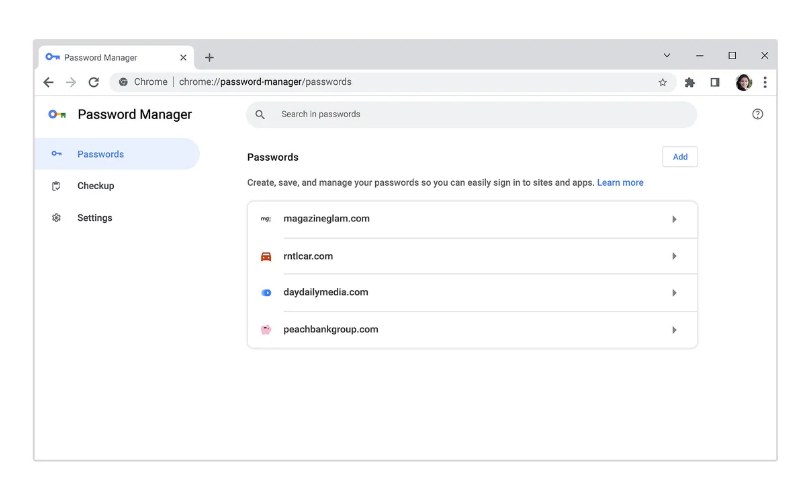
How to view Chrome passwords tutorial
Chrome keeps every saved login in Google Password Manager. The same page works on Windows, macOS, Linux and ChromeOS.
- Open Chrome on your computer.
- Select More (the three dots) at the top right.
- Select Passwords and autofill, then Google Password Manager.
- Under Passwords, select the site or app whose login you need.
- Select Show password to the right of the hidden password.
- Enter your computer password, PIN or fingerprint if Chrome asks you to verify it is you.
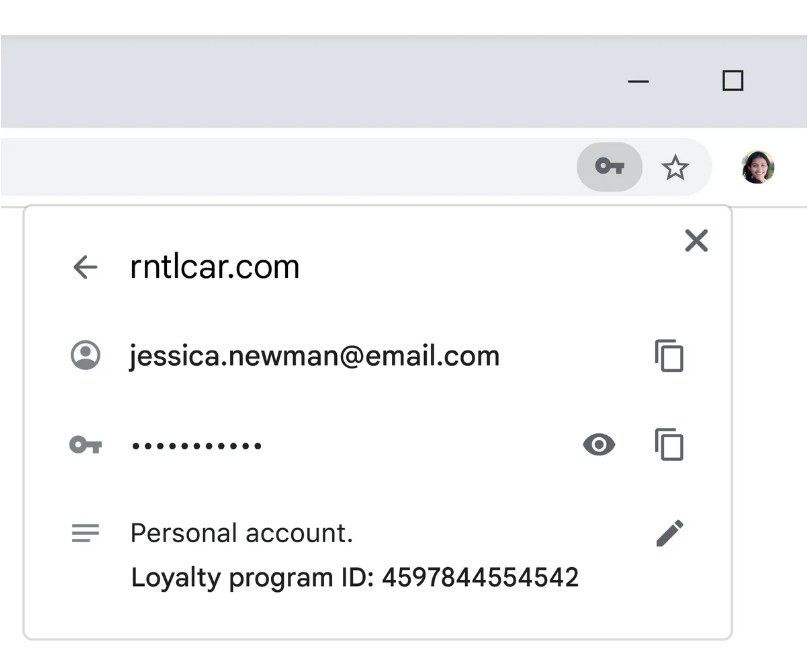
The username and password sit together on that entry, so you can read both before you type them into a login form.
View Google Chrome saved passwords on computer, phone and web
Every route opens the same Google Password Manager list when you are signed in to the same Google Account in Chrome. Pick the row that matches the device in front of you.
| Your device | Path to your saved passwords | Button that reveals the password |
|---|---|---|
| Windows, Mac, Linux or Chromebook | More > Passwords and autofill > Google Password Manager | Show password |
| Android phone or tablet | More > Settings > Autofill and passwords > Google Password Manager | Show password |
| iPhone or iPad | More > Settings > Autofill and passwords > Password Manager | Show password |
| Any browser, including Edge, Safari or Firefox | passwords.google.com, signed in to your Google Account | The show-password button on the entry |
| Passwords saved while signed out of Chrome | Only the device where you saved them | Show password on that device |
How to view saved passwords in Chrome on Android
Chrome for Android uses the same Google Password Manager list as the desktop browser.
- Open Chrome on your Android phone or tablet.
- Tap More (the three dots) at the top right.
- Tap Settings.
- Tap Autofill and passwords, then Google Password Manager.
- Tap the site or app whose password you need.
- Tap Show password. Unlock with your screen lock if Android asks.
To reach the list faster next time, tap the Settings icon at the bottom right of Google Password Manager, tap Add shortcut to your home screen, then touch and hold the shortcut to place it.
How to see passwords saved on Chrome on iPhone and iPad
- Open Chrome on your iPhone or iPad.
- Tap More (the three dots), then Settings.
- Tap Autofill and passwords.
- Tap Password Manager.
- Tap the saved login you want to read.
- Tap Show password. Confirm with Face ID, Touch ID or your passcode if iOS asks.
To fill those passwords in other iPhone apps, open the device Settings app, go to General > AutoFill & Passwords and turn on Chrome under AutoFill Passwords and Passkeys.
How to view Chrome passwords at passwords.google.com
This route works from any browser, so it helps when Chrome is not installed on the computer in front of you. It only lists passwords saved to your Google Account, not ones saved to a single device.
- Open any browser and go to
passwords.google.com. - Sign in with the Google Account you use in Chrome.
- Select Search and type the site or app name, or scroll the list.
- Select the entry to open it.
- Verify it is you with your Google Account password if Google asks.
- Select the show-password button next to the hidden password.
How to show password on Chrome with Windows Hello or Touch ID
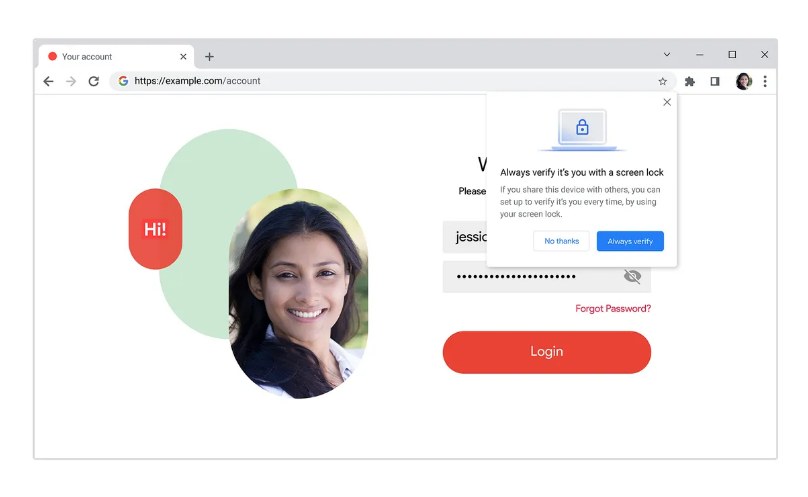
Chrome can ask for your system screen lock before it reveals, copies or edits a password. The option is off by default.
- Open Chrome on your computer.
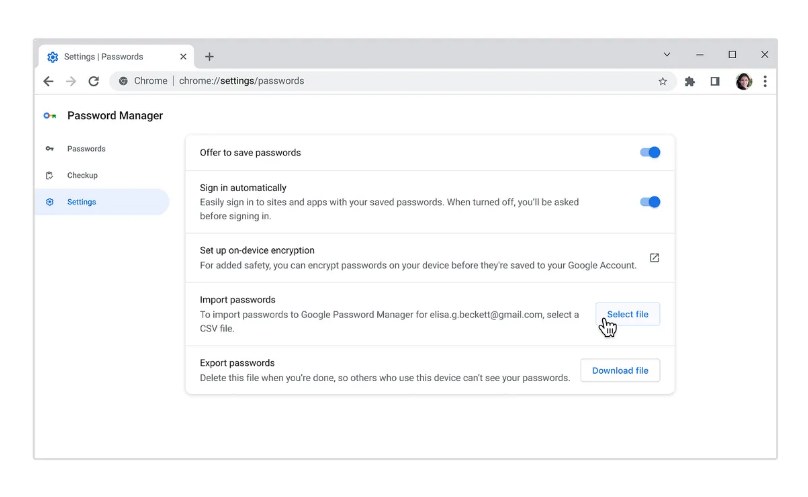
- Select More > Passwords and autofill > Google Password Manager.
- Select Settings on the left.
- On Windows, turn on Use Windows Hello when filling passwords.
- On a Mac, turn on Use your screen lock when filling passwords.
- Follow the on-screen prompt to confirm with your PIN, fingerprint, face or Mac password.
Turn this on if other people use your Windows or Mac account. Without it, anyone at your unlocked computer can open the password list.
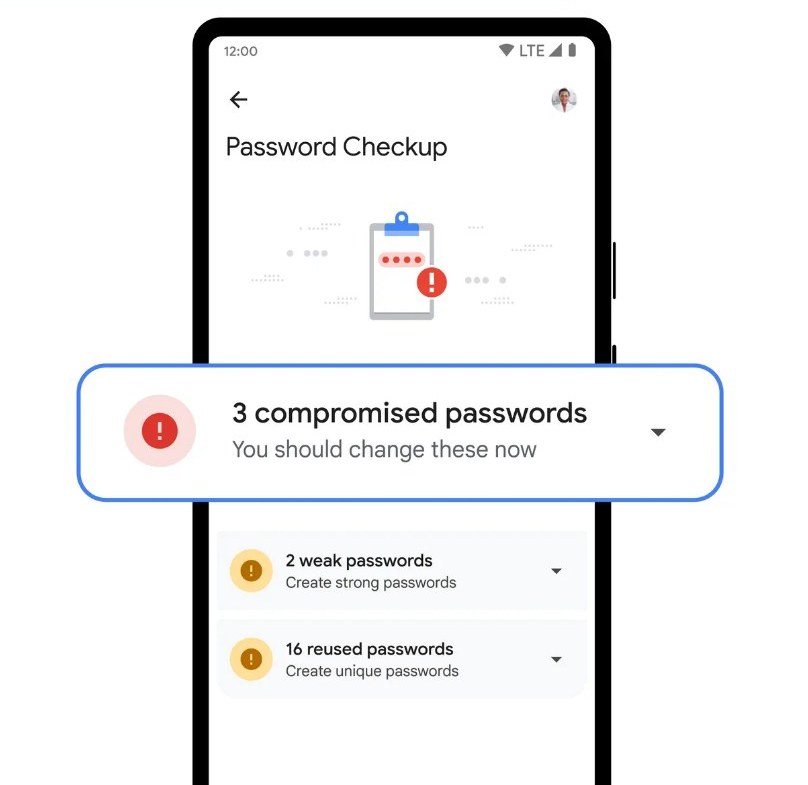
How to check Google Chrome passwords with Password Checkup
Password Checkup compares your saved logins against an encrypted list of known breached data. Google does not learn your usernames or passwords during the check.
- Open Chrome on your computer.
- Select More > Passwords and autofill > Google Password Manager.
- Select Checkup on the left.
- Read the list of flagged passwords and the sites they belong to.
- Change each flagged password on the site itself, then update the saved entry in Chrome.
- On Android, open Settings > Autofill and passwords > Google Password Manager > Checkup instead.
Breach warnings are on by default. The switch is Warn you if passwords are exposed in a data breach under Settings > Privacy and security > Security. Chrome first added a weak password check to this tool in 2020.
How to export Chrome passwords
Exporting writes every saved password into one file. Anyone who opens that file can read the passwords, so store it somewhere private and delete it when you finish.
- Open Chrome on your computer.
- Select More > Passwords and autofill > Google Password Manager.
- Select Settings on the left.
- Select Download file to the right of Export passwords.
- Confirm it is you when Chrome asks, then choose where to save the file.
- On Android, tap the Settings icon in Google Password Manager and tap Export passwords. On iPhone, tap Export data in Password Manager settings.
Where are Chrome passwords stored?
Where Chrome saves a password depends on whether you were signed in to Chrome when you saved it. That choice decides which devices can show it.
| Saved while | Stored in | Where you can view it |
|---|---|---|
| Signed in to Chrome | Your Google Account | Chrome on every signed-in device, Google Password Manager on Android, and passwords.google.com |
| Signed out of Chrome | That device only | Chrome on that one device |
| Signed out, then imported | Your Google Account after the import | Every signed-in device and passwords.google.com |
Chrome encrypts your username and password with a key known only to your device before an obscured copy reaches Google's servers. Google Password Manager also offers on-device encryption for an extra layer.
On Windows, Chrome is one of several places a login can hide. To search Edge, Credential Manager and Wi-Fi profiles as well, find every saved password on your PC.
Tips for managing Chrome passwords
All of these start from More > Passwords and autofill > Google Password Manager on a computer.
- To fix a wrong password, select the entry, select Edit, change it and select Save.
- To remove an old login, select the entry and select Delete.
- To record a security question or PIN with a login, select Edit, type it in the note field and select Save.
- To stop Chrome asking to save logins, select Settings and turn off Offer to save passwords and passkeys.
- To let Chrome save a site you once declined, select Settings and remove it from Declined sites and apps.
- To save a password Chrome missed, sign in on the site, select the Password icon to the right of the address bar, then Save.
Notes stay attached to the saved entry. The feature first arrived in 2022, when Chrome let you add notes to saved passwords.
Can't view passwords in Chrome? Fix missing saved passwords
The Google Password Manager list is empty or missing a site
The password was saved to another Google Account, or to a different device while you were signed out of Chrome.
- Select your profile picture at the top right of Chrome and check which Google Account is signed in.
- Switch to the profile you used when you saved the password.
- Open
passwords.google.comin that account and search for the site. - If the password is not there, open Chrome on the device where you first saved it and look in Google Password Manager.
You can't find a password you imported
Site and app names sometimes do not transfer to the correct entry during an import.
- Go to
passwords.google.com. - Select Search.
- Type the app or site name.
- Open the matching entry and select Show password or the show-password button.
Chrome doesn't offer to save your password
Saving is turned off, the site is on the declined list, or Chrome did not detect the login form.
- Open Google Password Manager > Settings and turn on Offer to save passwords and passkeys.
- Remove the site from Declined sites and apps if it is listed.
- Sign in on the site again.
- Select the Password icon to the right of the address bar, then Save.
- If the icon does not appear, delete the typed password and sign in again.
Chrome doesn't suggest your saved password on a login page
Chrome cannot always detect the login fields on a site.
- Click the password field to bring up the suggestion list.
- If no list appears, open Google Password Manager and search for the site.
- Select the entry and copy the username and password.
- Paste them into the login form by hand.
Chrome passwords frequently asked questions
Can I view saved passwords in Chrome?
Yes. Open More > Passwords and autofill > Google Password Manager, select a site and select Show password. On Android and iPhone the same list sits under Settings > Autofill and passwords in Chrome.
How do I show a password in Chrome?
Select the saved entry in Google Password Manager, then select Show password to the right of the dots. Chrome may ask for your computer password, PIN, fingerprint or phone screen lock before it displays the characters.
How do I look up passwords on Chrome for one website?
Open Google Password Manager and select the site under Passwords to see its username, password and any note. On any browser, go to passwords.google.com, select Search and type the site name to jump straight to that login.
How secure is it to save passwords in Chrome?
Chrome encrypts usernames and passwords with a key known only to your device before an obscured copy reaches Google. Password Checkup warns you about breached passwords, and you can require Windows Hello or your Mac screen lock before a password is revealed.
Can I export my Chrome passwords?
Yes. In Google Password Manager, select Settings, then Download file next to Export passwords. The file is readable by anyone who opens it, so keep it private and delete it after you import it into another password manager.
What should I do if I can't view my passwords?
Check that Chrome is signed in to the Google Account you used when saving them, then search for the site at passwords.google.com. Passwords saved while signed out of Chrome only appear on the device where they were saved.
Can I view my Chrome passwords on my phone?
Yes. In Chrome for Android or iPhone, tap More > Settings > Autofill and passwords, then open the password manager and tap Show password. Passwords saved to your Google Account appear on every phone signed in to it.
Can someone else see my Chrome passwords if they use my computer?
Yes, if they use your unlocked account and Chrome profile. Turn on Use Windows Hello when filling passwords on a PC, or Use your screen lock when filling passwords on a Mac, so revealing a password needs your PIN, fingerprint or password.
How do I find passwords on Google Chrome without opening Chrome?
Go to passwords.google.com in any browser and sign in with your Google Account. The site lists every password saved to that account. Passwords that Chrome stored only on one device do not appear there.