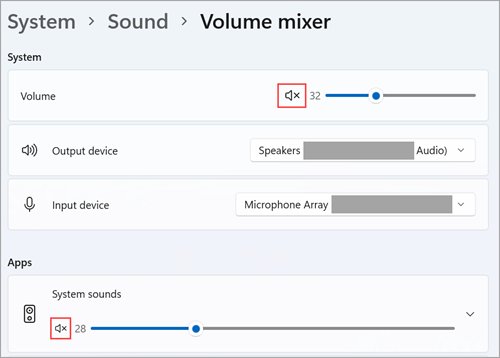
To give an app its own speaker in Windows 11, open Settings > System > Sound > Volume mixer and pick a device in that app's Output device list under Apps.
This guide also covers the default speaker and microphone, a separate device for calling apps, per-app choices inside Teams, the Windows 10 route and microphone noise fixes.
How to set up a different speaker & microphone for apps in Windows 11
Windows 11 keeps one default speaker and one default microphone in its sound settings, then lets you override the speaker per app in Volume mixer. Start playing audio in the app first so it is easy to spot in the Apps list.
- Open the app you want to route, and start playing something in it.
- Press Windows key + I to open Settings.
- Select System > Sound, then select Volume mixer.
- Under Apps, find the app and expand it.
- In Output device, choose the speaker or headset that app should use.
- Repeat for each app, leaving the rest on the default device.
You can also jump straight to the page: press Windows key + R, type ms-settings:apps-volume and press Enter. For the microphone, set the default input below, then pick a different one inside apps that have their own audio settings.
How to configure speaker (output device) on Windows 11
The default output device is what every app uses unless you override it in Volume mixer. Selecting a device under Output also makes it the default.
- Select Start > Settings > System > Sound.
- Under Output, expand Choose where to play sound.
- Select the speaker or headphones you want as the default.
- Raise the volume slider and make sure the device is not muted.
- For a quicker switch, select the speaker icon on the taskbar, then the arrow next to the volume slider (Select a sound output), and pick a device.
How to configure microphone (input device) on Windows 11
Every app that does not offer its own microphone choice records from the default input device set here.
- Select Start > Settings > System > Sound.
- Under Input, expand Choose a device for speaking or recording and select your microphone.
- Select the arrow (>) next to the microphone to open its properties.
- Check that Allow apps and Windows to use this device for audio is on.
- Under Input settings, select Start test, speak normally, then select Stop test and Play to hear the recording.
- Adjust the Input volume slider if the recording is too quiet or too loud.
For a Bluetooth microphone, select Add device under Input and follow the prompts first.
Set a default communication device for calls in Windows 11
Windows can send calls to one device and everything else to another. Use this to keep a headset for calling apps while music plays through desktop speakers.
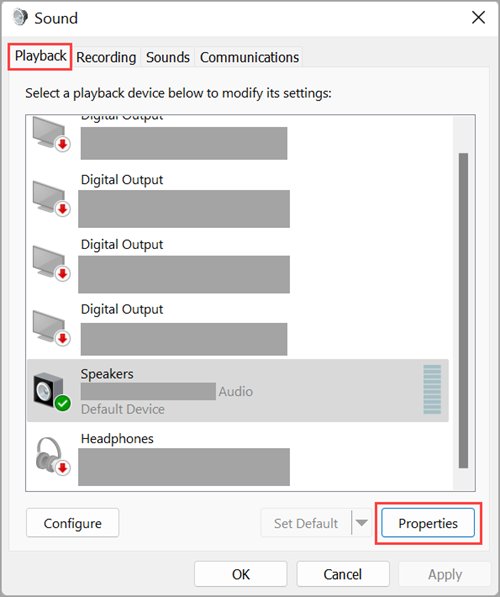
- Open Settings > System > Sound.
- Under Advanced, select More sound settings.
- On the Playback tab, select your headset and choose Set Default Communication Device.
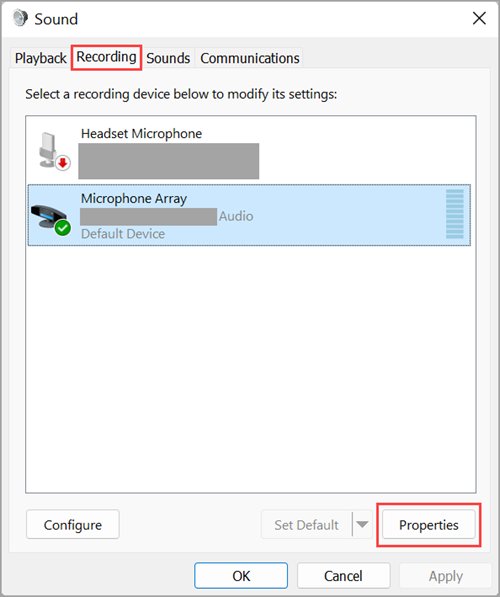
- Open the Recording tab, select the headset microphone and choose Set Default Communication Device.
- Select OK to save.
Choose speaker and microphone in Microsoft Teams settings
Apps with their own device menus override the Windows defaults for that app only. Teams is a common example, and most calling and recording apps work the same way.
- In Teams, select Settings and more > Settings.
- Select Devices.
- Under Audio settings, pick a device from the Speaker drop-down menu.
- Pick the microphone you want from the Microphone drop-down menu.
- Use Manage devices to connect or disconnect audio devices if yours is not listed.
Set up different speaker & microphone for apps in Windows 10
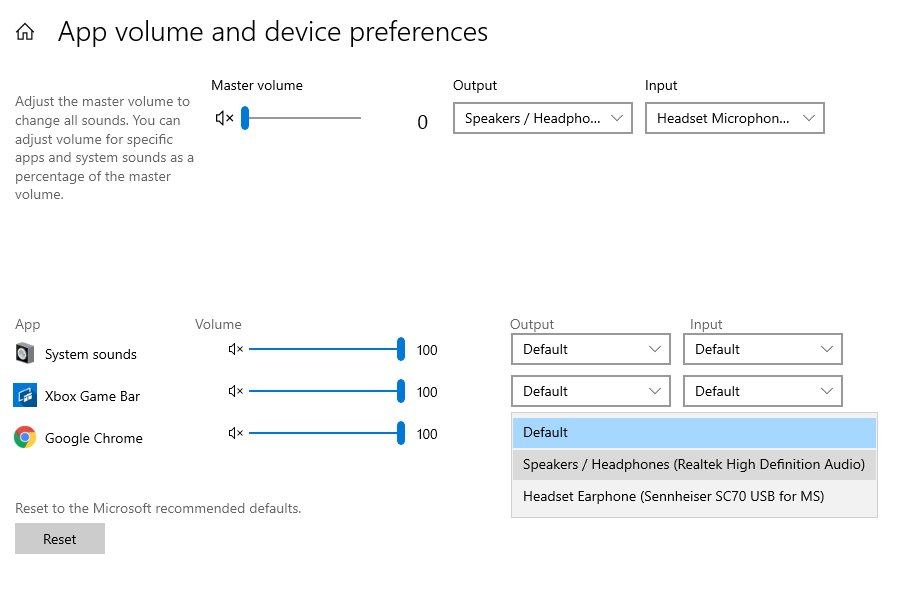
Windows 10 has the same per-app speaker choice on its app volume page. The default devices sit in the Sound Control Panel.
- Start playing audio in the app you want to route.
- Press Windows key + R, type
ms-settings:apps-volumeand press Enter. - Find the app in the list and choose a speaker in its output list.
- To change the default speaker, open Sound Control Panel under Related settings in Settings > System > Sound.
- On the Playback tab, select your device and select Set Default.
- On the Recording tab, select your microphone and select Set Default, then OK.
Right-click the volume icon and select Open Volume mixer to check which apps are playing and confirm each one uses the right device. Windows 10 support ended on October 14, 2025.
Allow apps to use your microphone in Windows 11
An app with no microphone permission records nothing, whichever device you pick for it.
- Select Start > Settings > Privacy & security > Microphone.
- Turn on Microphone access.
- Turn on Let apps access your microphone, then switch on each Store app that needs it.
- Turn on Let desktop apps access your microphone for programs such as Zoom, Discord or OBS.
- Restart the app so it picks up the change.
Desktop apps do not appear in the per-app list, and you cannot turn their access off one by one.
Test the speaker and microphone each app uses
- Play audio in each app you routed and listen for it on the device you chose.
- Open Volume mixer and check the Output device shown for each app under Apps.
- Open the microphone properties in Settings > System > Sound and run Start test.
- Watch the input level move when you speak, then play back the test recording.
- Make a test call in Teams or your calling app and confirm the far end hears you.
Clicking sound or popping noise from microphone on PC
Clicks, pops or crackle on the microphone
Audio enhancements or too much microphone boost on the input device.
- Open Settings > System > Sound and select your microphone under Input.
- Turn off Audio enhancements for that device.
- Select More sound settings and open the Recording tab.
- Select the microphone, choose Properties and open the Levels tab.
- Set Microphone to about 50 and lower Microphone Boost, then test again.
Popping only on one USB or Bluetooth headset
A loose connection or a weak USB port.
- Check the cable and plug for a loose fit.
- Connect the headset to a different USB port.
- Run Start test again to compare.
App plays sound on the wrong speaker in Windows 11
One app ignores the default speaker
A per-app override is set in Volume mixer.
- Open Settings > System > Sound > Volume mixer.
- Under Apps, expand the app and set Output device to the speaker you want.
No sound after choosing a new device
The device is disabled or muted.
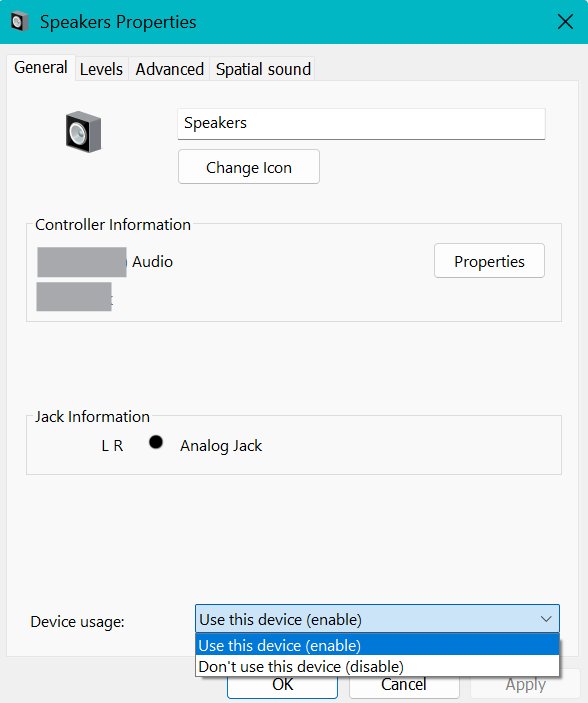
- Select More sound settings under Advanced in Sound settings.
- On the Playback or Recording tab, select the device and choose Properties.
- Next to Device usage, select Use this device (enable).
- Open Volume mixer and unmute any slider with an x next to it.
- If it is still silent, run the Audio troubleshooter from Settings > System > Troubleshoot > Other troubleshooters.
Calling app does not hear the microphone
Microphone access is off for the app.
- Open Settings > Privacy & security > Microphone.
- Turn on the app, or Let desktop apps access your microphone for desktop programs.
Per-app speaker and microphone FAQ
Can I use headphones and speakers at the same time in Windows 11?
Yes, for different apps. Keep the speakers as the default output and set a game or call app to the headphones in Volume mixer under Apps. Each app then plays through its own device at the same time.
How do I separate apps with sound in Windows 11?
Open Settings > System > Sound > Volume mixer. Under Apps, expand each app and pick its Output device. Apps you leave alone stay on the default speaker.
How do I set microphone settings in Windows 11?
Go to Settings > System > Sound, choose your microphone under Input and open its properties. There you can run Start test, change Input volume and turn Audio enhancements on or off.
How do I set a default microphone in Windows 11?
Select it under Input in Settings > System > Sound. Apps without their own microphone menu record from that device. For calls only, use Set Default Communication Device on the Recording tab instead.
How do I open Volume mixer quickly in Windows 11?
Select the speaker icon on the taskbar, then the settings icon next to the Volume mixer slider (More mixer settings). You can also press Windows key + R, type ms-settings:apps-volume and press Enter.
Do desktop apps need microphone permission in Windows 11?
Yes. Turn on Let desktop apps access your microphone in Settings > Privacy & security > Microphone. Desktop programs are not listed individually, so the switch covers all of them.
Does changing the speaker in Volume mixer change the Windows default?
No. A per-app Output device only affects that app. The default speaker you pick under Output in Sound settings still applies to every other app and to system sounds.