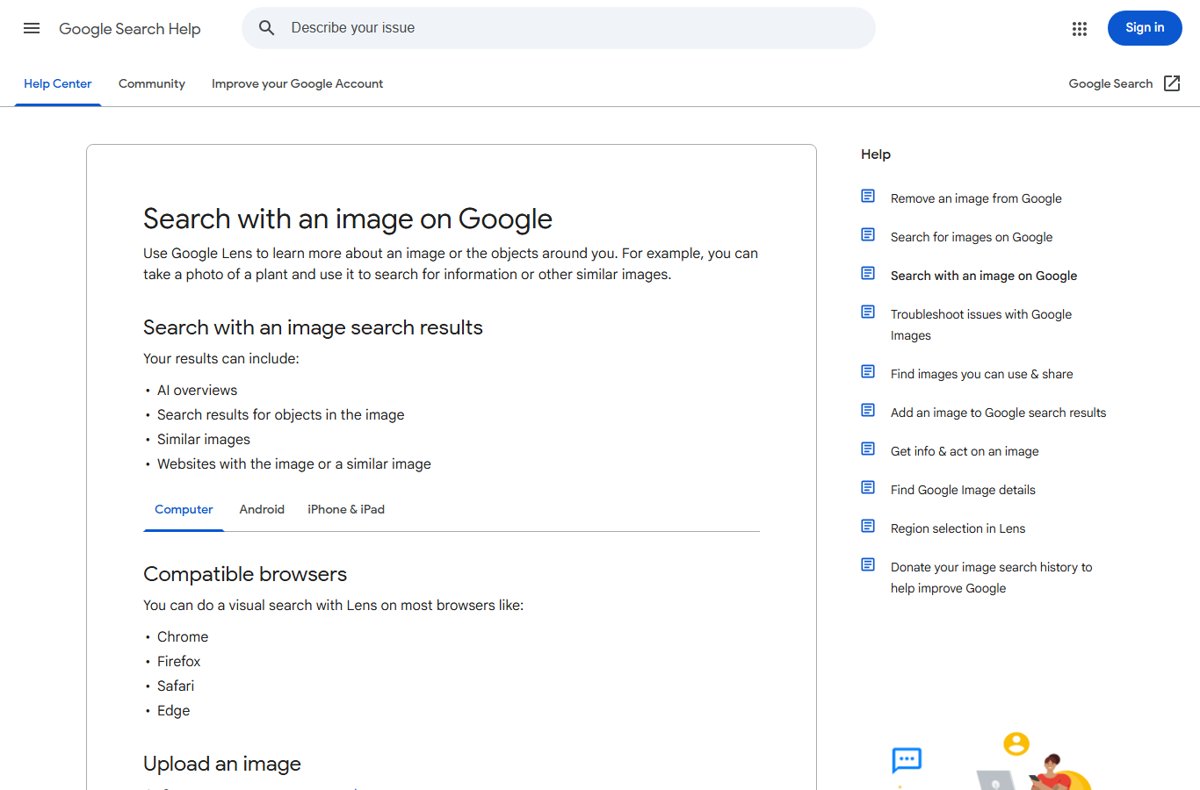
Google Lens image search starts on google.com: click Search by image, upload a photo, and Lens returns similar images, the websites carrying that image, and information about the objects in it.
The same Lens sits in Chrome, the Google app, Google Photos and Circle to Search, and each route, its results, its privacy controls and its fixes are below.
The fastest way to run a Google Lens image search
This works in most browsers, including Chrome, Firefox, Safari and Edge, with no app and no sign-in.
- On your computer, go to google.com.
- Click Search by image, then Upload a file.
- Select an image, then click Open or Choose.
- Scroll the results for similar images and the websites that carry your picture.
- Type a description of what you want into the Add to your search box to narrow the results.
Dragging the image file onto the Google search box runs the same search without the file picker.
What Google Lens Image Search Does
Lens matches a picture against Google's index and reads what is inside the frame.
| What you give Lens | What Lens does with it | Limits |
|---|---|---|
| A photo of an object, plant or animal | Identifies it and returns search results, similar images and the websites carrying that image | Works from a camera shot or a saved file |
| A photo containing text | Lets you select the text, copy it, or translate it | Translation covers every Google Translate language |
| A picture of a product | Returns shopping results with similar products and where to buy them | Shopping results run in the United States and around 35 countries |
| Part of a picture | Region selection searches only the area inside the box you drag | Region selection is on Android and iOS only |
| A whole browser tab | Search this tab with Google Lens searches the page you are reading | Chrome, with Google as the default search engine |
| A photographed homework question | The Homework option works on the problem in the shot | Android and iOS |
Where You Can Access Google Lens
| Where you are | How Lens opens there | What it needs |
|---|---|---|
| google.com in a browser | The Search by image button beside the search box | Chrome, Firefox, Safari or Edge |
| Google Chrome on desktop | More ▸ Search this tab with Google Lens, or right-click an image and pick Search with Google Lens | Google set as the default search engine |
| Google app on Android | The Google Lens icon in the search bar | The latest version of the Google app |
| Google app on iPhone and iPad | The Google Lens icon in the search bar | The latest version of the Google app |
| Chrome app on Android or iPhone | Touch and hold an image, then tap Search image with Google Lens | Google set as the default search engine |
| Google Photos | Open a photo, tap More, then Google Lens | The Google Photos app |
| Circle to Search on Android | Touch and hold the Home button or the navigation handle | Select Android models, including Pixel 6 and later |
| The Android camera app, including the Pixel camera | Circle to Search works inside the Camera app | Select Android models |
Google search results pages also carry Lens: tap an image result, then tap Google Lens at the bottom left.
Quick Reference: The Fastest Ways to Open Lens
| Your situation | Open Lens this way | Why this one |
|---|---|---|
| An image file saved on a computer | google.com ▸ Search by image ▸ Upload a file | No app, and it works in every major browser |
| An image already on screen in Chrome | Right-click it ▸ Search with Google Lens | Results open in the side panel and the page stays put |
| An object in front of you | Google app ▸ Google Lens ▸ point and tap Search | The camera feeds Lens directly |
| A screenshot on your phone | Google app ▸ Google Lens ▸ pick it under Screenshots | No saving and re-uploading |
| Something on your phone screen in any app | Touch and hold the Home button or navigation handle | Circle to Search never leaves the app you are in |
| A photo already in your library | Google Photos ▸ open it ▸ More ▸ Google Lens | Lens reads the copy you already have |
| Only a link to an image | google.com ▸ Search by image ▸ Paste image link | Nothing has to be downloaded first |
How to Use Google Lens Image Search Step by Step
On a phone the camera and the photo picker sit behind the same icon. Update the Google app first, because the Lens entry points need the current version.
- On your Android phone or tablet, open the Google app or the Chrome app.
- In the search bar, tap Google Lens.
- Point the camera at the object and tap Search, or pick a saved shot under Screenshots to search an existing image.
- Tap the image, then drag the corners of the box around the part you want searched.
- Scroll the results at the bottom of the screen.
- Tap Ask about this image and enter keywords to refine what comes back.
Holding the shutter button asks a question about the object with your voice, in English only.
Search an image from a website in Chrome
Chrome sends the picture to Lens without leaving the page. Google has to be the default search engine for the menu entry to appear.
- On your computer, open Chrome and go to the page with the image.
- Right-click the image.
- Click Search with Google Lens to show the results in a sidebar.
- To search the whole page instead, select More at the top right, then Search this tab with Google Lens.
- Click, highlight text, or drag a box over any part of the page to search that area.
- Enter a question in the Ask a follow up bar near the bottom of the side panel.
- Press Esc to close the side panel.
Selecting a region of a page has been in Chrome for years; techdows covered it when it arrived in Chrome's Google Lens region search.
On Android and iPhone the equivalent is a long press on the image, then Search image with Google Lens.
Search by image URL on a computer
Use this when the picture lives on a page you cannot or would rather not save.
- On your computer, go to the website with the image.
- Right-click the image and click Copy Image Address.
- Go to google.com and click Search by image.
- In Paste image link, paste the URL.
- Click Search.
Browsers do not save the image URLs you search into browsing history, though Google may store them to improve its products.
The right-click route goes back a long way in Chrome, as techdows noted when Google added Search by Image to the context menu.
Google Lens on iPhone: What Works and What’s Different
Lens runs in the Google app, the Chrome app and Safari on iPhone and iPad. The labels differ from Android, and camera search needs the Google app.
- On your iPhone or iPad, open the Google app, the Chrome app or Safari.
- In the search bar, tap Google Lens.
- Point the camera at an object and tap Search, or tap Photo picker and select a photo from your library.
- To search a picture on a web page, touch and hold it and tap Search image with Google Lens.
- Drag the corners of the box around your selection to search part of the image.
- Tap Add to your search and enter keywords to refine the results.
In the Chrome app the long-press command reads Search image with Google, and in the Google app it reads Search inside image; the refinement box Add to your search appears only in the Google app.
How to check your Lens search worked
- Confirm your own picture appears at the top of the results panel, not a different image.
- Check that the results list similar images and websites carrying the same picture.
- Read the object name Lens returns and compare it against what is actually in the shot.
- If the matches describe the background, drag the selection box tighter around the subject and search again.
Understanding Google Lens Results
Results arrive in blocks, and which blocks appear depends on what Lens found in the picture.
| Result block | What it shows | When it shows up |
|---|---|---|
| AI overview | A written summary generated for the image | Included among image search results |
| Results for objects in the image | Pages about the thing Lens identified | Photos of objects, plants, animals and landmarks |
| Similar images | Pictures that look like the one you searched | Most searches |
| Websites with the image | Pages that publish the same or a similar picture | The block to read when tracing a source |
| Shopping results | Similar products and where to buy them | United States plus around 35 other countries |
| Text and translation | Text you can select and copy, or translated wording | Use Select Text, then Translate |
| Homework | Work on a problem you photographed | The Homework option on Android and iOS |
Practical Examples for Beginners
| What you are looking at | What to do | What comes back |
|---|---|---|
| A plant or an animal you cannot name | Photograph it with Lens in the Google app | The species or breed |
| A product you saw online | Search the image, then open the shopping results | Similar products and where to buy them |
| A menu in another language | Open Lens and tap Translate | The menu text in your language |
| A business card | Open the photo in Google Photos and tap Google Lens | The phone number or address, ready to save to a contact |
| A barcode | Point Lens at it | Product information, including where to buy it |
| A book | Photograph the cover with Lens | A summary and reviews |
| A landmark or building | Photograph it with Lens | Historical facts or opening hours |
| An event flyer or a billboard | Photograph it with Lens | The event, ready to add to your calendar |
| A painting in a museum | Photograph it with Lens | Information about the artist |
To lift wording out of any of these, tap and select the words you want to copy.
Best Everyday Uses for Google Lens
| Everyday job | Best place to run it | Why that one wins |
|---|---|---|
| Copying text off a photo or a sign | Google Lens in the Google app | Select Text lifts the words straight out of the picture |
| Checking a price for something on screen | Circle to Search | It works over whatever app is open, with no switching |
| Tracing where a picture came from | Search by image on google.com | It lists the websites carrying the same picture |
| Reading a sign or a label abroad | Lens ▸ Translate | It covers every Google Translate language |
| Working out what is in an old photo | Google Photos ▸ More ▸ Google Lens | The picture is already in the app |
| Asking about the page you are reading | Search this tab with Google Lens in Chrome | Follow-up questions go in the same side panel |
How to Get Better Google Lens Results
Two things decide the quality of a Lens result: how clear the picture is, and how much of it you asked about.
- Use a clear, well-lit image; a dark or blurred shot gives Lens less to match.
- Tap the image and drag the corners of the box around a smaller area, because a tighter selection returns more specific results.
- Add keywords in Ask about this image on Android, or Add to your search on iPhone and desktop.
- Tap Select Text when the answer is wording inside the picture rather than the picture itself.
- Tap Translate when the text is in another language.
- Check your camera permission in your phone's app settings if Lens cannot open the camera.
Keyword operators still beat a picture for some jobs; advanced Google search covers those.
Privacy and Safety Basics
Lens searches are activity on your Google Account, and the images behind them are not saved unless you switch that on.
When Lens searches a page in Chrome, a screenshot of the page and page data go to Google. Google does not keep that data beyond temporary storage for the query, and neither the page nor the image is used for training.
- Open My Activity and go to the Lens page to review or delete Lens activity.
- Turn off Web & App Activity if you do not want Lens activity saved to your Google Account at all.
- Leave Include Visual Search History switched off to keep the images themselves out of your activity; it is off by default.
- On iPhone or iPad, open Settings, tap Apps ▸ Google ▸ Photos, and choose None, Limited access or Full access.
- Keep Circle to Search away from banking and medical apps, where it may not work anyway.
Troubleshooting: If Google Lens Is Not Working
"Search with Google Lens" is missing from Chrome's right-click menu
Lens in Chrome needs Google set as the default search engine.
- On your computer, open Chrome.
- At the top right, select More ▸ Settings.
- Select Search engine.
- Under "Search engine", select Change.
- Select Google, then reopen the page and right-click the image again.
The Google Lens icon is missing from the Google app search bar
The Lens entry points need the latest version of the Google app.
- Open the Play Store on Android or the App Store on iPhone and iPad.
- Search for Google and open the app listing.
- Tap Update if the button is offered.
- Reopen the Google app and check the search bar for the Google Lens icon.
- Use the Chrome app in the meantime: touch and hold an image and tap Search image with Google Lens.
Images do not load, or load slowly, at images.google.com
An extension, a stale cache or blocked JavaScript stops the image grid rendering.
- Open a private browsing window and repeat the image search.
- Clear your browser's cache and cookies.
- Turn off any toolbars and extensions.
- Turn on JavaScript.
- Run an image search after each step and stop as soon as it works.
Holding the Home button does not start Circle to Search
Circle to Search runs on select Android models, including Pixel 6 and later, and is blocked in some apps.
- Check that the phone is one of the supported Android models.
- Touch and hold the Home button or the navigation handle rather than tapping it.
- Wait for the Google search bar and the gradient glow before circling anything.
- Try it outside banking, medical and other confidential apps, where the feature may not work.
- Open the Google Lens icon in the Google app instead and search the screenshot.
Google Lens vs. Google Images Reverse Search
On google.com they are now one button: Search by image opens Lens. Lens has been the engine behind desktop image search since Chrome started testing it, which techdows reported in Chrome 94 tests Google Lens image search.
| Question | Google Lens | Classic reverse image search |
|---|---|---|
| Where it runs | google.com, Chrome, the Google app, Google Photos and Circle to Search | The Search by image button on google.com |
| What you feed it | A camera shot, a file, a screenshot, a page region or an image URL | A file or an image URL |
| What comes back | Similar images, websites with the image, object information, text, translation and shopping | Pages carrying the same or a similar picture |
| Part of a picture | Region selection, on Android and iOS | The whole image only |
| Follow-up questions | Add to your search and Ask about this image | None; you run a new search |
Final Tips for New Google Lens Users
Learn two entry points and stop there: the Google Lens icon in the Google app on your phone, and Search by image on google.com. Neither needs anything beyond apps already on the device, and Chrome's side panel, Google Photos and Circle to Search all reach the same Lens from a different starting point.
Frequently Asked Questions
These are the questions Bing autocompletes around accessing Google, answered for Lens, plus the reverse image search questions the pages ranking for this query answer.
How do I access Google Lens?
On a computer, go to google.com and click Search by image. On a phone, open the Google app and tap the Google Lens icon in the search bar. Chrome, Google Photos and Circle to Search open the same Lens.
How do I access Google Lens in the Google app?
Open the Google app on Android, iPhone or iPad and tap the Google Lens icon in the search bar. Point the camera at an object and tap Search, or pick an existing picture from Screenshots or the photo picker.
Do I need a Google account to use Google Lens?
No. Uploading a picture at google.com works without signing in. Signing in saves Lens searches to Web & App Activity, which lets you review or delete them later on the Lens page in My Activity.
How do I allow Google Lens access to my photos?
On iPhone or iPad, open Settings, tap Apps, then Google, then Photos, and choose Limited access or Full access. On Android, change the Google app's camera and photo permissions in your phone's app settings.
How do I reverse image search on a computer with Google Lens?
Go to google.com, click Search by image, then Upload a file, and pick the picture. The results list similar images and the websites publishing the same or a similar picture, which is what identifies a source.
Can I search Google with a picture's URL?
Yes. Right-click the picture on its page, click Copy Image Address, go to google.com, click Search by image, paste the address into Paste image link, and click Search. Nothing is downloaded.
Can I drag and drop an image into Google to search it?
Yes. Find the image file on your computer, click it, and drag it onto the Google search box. The search runs exactly as it would after using Search by image and Upload a file.
Does Google Lens work on iPhone?
Yes. Lens runs in the Google app, the Chrome app and Safari on iPhone and iPad. Camera search, voice questions and the Add to your search refinement box need the Google app rather than the browser.
Why is Google Lens not working in Chrome?
Lens in Chrome needs Google as the default search engine. Open Chrome, select More, then Settings, then Search engine, select Change under "Search engine", and pick Google. The right-click entry returns after that.
Does Google Lens save the images I search?
Only if you turn that on. The Include Visual Search History setting is off by default, so the pictures are not stored in your activity. Turning off Web & App Activity stops Lens activity being saved at all.
Can Google Lens translate text in a photo?
Yes. Open the picture in Lens and tap Translate. Lens translates into every language Google Translate supports, and Circle to Search can translate a whole phone screen from the button beside the search bar.




How to use Google Lens on desktop PC? - Techdows
[…] For a full tour of image search features, see the Google Lens image search guide. […]