Run System Diagnostics on Windows 11 or Windows 10 by pressing Win + R, typing perfmon /report and pressing Enter, which starts the System Diagnostics Data Collector Set and opens a report of the results.
This guide covers that report, the built-in tests for memory, drives and system files, the hardware and battery reports, and what to do when Windows freezes before you can run any of them.
How to run System Diagnostics on Windows 11
The System Diagnostics report is part of Performance Monitor and is built into Windows 11 and Windows 10. Nothing needs to be installed, and the steps are the same on both versions.
- Select Start, type
cmd, right-click Command Prompt and select Run as administrator. - Select Yes in the User Account Control prompt.
- Type
perfmon /reportand press Enter. - Leave the Performance Monitor window open while Windows collects data.
- Read the finished report in the same window when collection ends.
You can also type perfmon /report straight into the Run box. An elevated window avoids a failed collection on accounts without admin rights.
Which Windows diagnostic tool to run for each problem
The System Diagnostics report gives a broad health snapshot. For a specific symptom, a targeted tool gives a clearer answer.
| Your situation | Run this | What it checks |
|---|---|---|
| You want one overall health report | perfmon /report |
System Diagnostics Data Collector Set: configuration and resource use |
| Random crashes or blue screens | mdsched (Windows Memory Diagnostic) |
Physical RAM, tested after a restart |
| Slow drive, file errors, failed boots | chkdsk C: /scan or chkdsk C: /f |
File system and metadata errors on a volume |
| Windows features break or system files are missing | DISM /Online /Cleanup-image /Restorehealth, then sfc /scannow |
The Windows image and protected system files |
| You want a history of crashes and app failures | perfmon /rel (Reliability Monitor) |
Past application and Windows failures |
| Laptop battery drains fast | powercfg /batteryreport or powercfg /energy |
Battery use over time and energy-efficiency problems |
| You need the PC's exact specs | msinfo32 (System Information) |
Hardware, drivers, services and running processes |
| Audio, network, printer or Bluetooth fails | Get Help troubleshooters | The named feature, with automated fixes |
What is a System Diagnostics report?
A System Diagnostics report is the output of the System Diagnostics Data Collector Set in Performance Monitor. The perfmon command has four standalone modes, and /report is the one that builds it.
| Command | What opens | Use it for |
|---|---|---|
perfmon /report |
Starts the System Diagnostics Data Collector Set and displays a report of the results | A one-off health check of the whole PC |
perfmon /rel |
Reliability Monitor | A timeline of crashes, failed updates and app errors |
perfmon /res |
Resource View (Resource Monitor) | Live CPU, memory, disk and network use per process |
perfmon /sys |
Performance Monitor | Live performance counters and custom data collection |
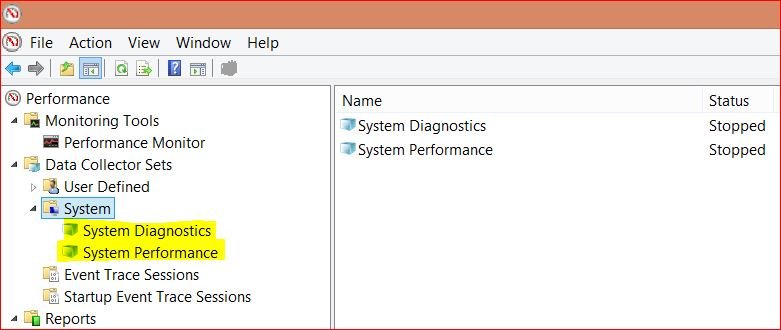
How to analyze the System Diagnostic report in Windows 11/10
The report is long, so read it from the top down and act only on items it flags. A clean report with no warnings means the snapshot found nothing to fix.
- Look for the warnings and errors first, because they name what needs attention.
- Expand any flagged item to see the cause and the suggested resolution Windows gives for it.
- Check the CPU, memory, disk and network resource sections for a component running near its limit.
- Note the name of any driver, device or service the report links to a problem.
- Run the targeted test from the table above for that component, such as
mdschedfor memory orchkdskfor a drive. - Run
perfmon /reportagain after a fix to confirm the warning has cleared.
To keep a copy, save the report from its window before you close it, so you can compare it with the next run.
Test your RAM with Windows Memory Diagnostic
Faulty memory causes crashes and stop errors that look like software faults. Windows Memory Diagnostic tests the RAM after a restart, so save your work first.
- Press Win + R, type
mdschedand select OK. - Select Yes if User Account Control asks for permission.
- Select Restart now and check for problems (recommended).
- Leave the PC alone while the Standard test runs. Press F1 during the test if you want to switch to the slower Extended test, then F10 to apply.
- Sign in after the automatic restart and wait for the result notification.
If the notification does not appear, open Event Viewer and look for the MemoryDiagnostics-Results entry. Event ID 2001 there means no memory errors were detected, and the Windows Memory Diagnostic test options let you pick a longer pass.
How do I run hardware diagnostics in Windows 11 using CMD?
Command Prompt reaches the drive check, system-file repair and memory test directly. Every command below needs an administrator window; on PowerShell, the same commands work once you run PowerShell as administrator.
chkdsk C: /scanRuns an online scan of the NTFS volume C: without taking it offline. Use chkdsk C: /f to fix errors, or chkdsk C: /r to also locate bad sectors and recover readable data. On the system drive, /f and /r ask to schedule the check for the next restart because the volume is in use; type Y and restart.
You should see: Exit code 0 means no errors were found and 1 means errors were found and fixed. A report of the volume's status prints when the check finishes.
Avoid repeated /r scans on an SSD. They are safe, but full-surface scans add write cycles that are unnecessary for occasional checks.
Repair corrupted system files with DISM and SFC
Run DISM first so the Windows image is healthy, then SFC to repair protected system files from it. Install pending Windows updates and restart before you start.
- Select Start, type
command prompt, right-click Command Prompt and select Run as administrator, then Yes. - Type
DISM.exe /Online /Cleanup-image /Restorehealthand press Enter. It can take a few minutes to start and finish. - Wait for The operation completed successfully.
- Type
sfc /scannowand press Enter. - Wait for Verification 100% complete, then type
exitand press Enter.
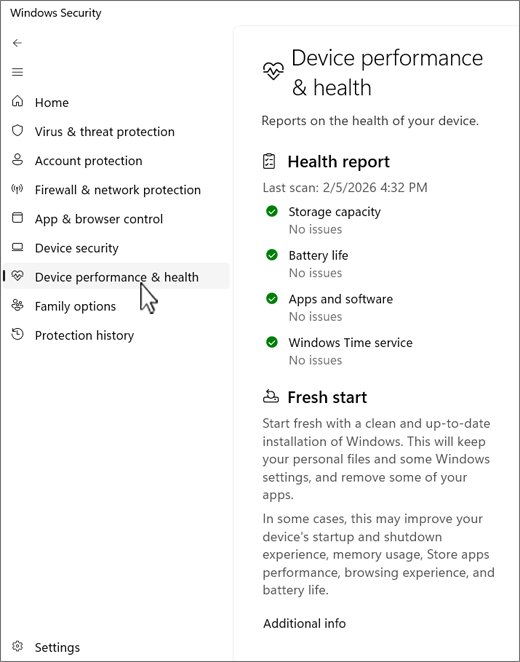
Check the Windows Security device performance and health report
Windows Security keeps a short health report that flags storage, battery, app and clock problems without running a separate test.
- Open Windows Security from the Start menu, or paste
windowsdefender://perfhealth/into the Run box. - Select Device performance & health.
- Check the Health report for Storage capacity, Battery life, Apps and software and Windows Time service.
- Select any item with a yellow mark to read its recommendation. A green check means that area is fine.
On a work or school PC, organisation policy can hide this page.
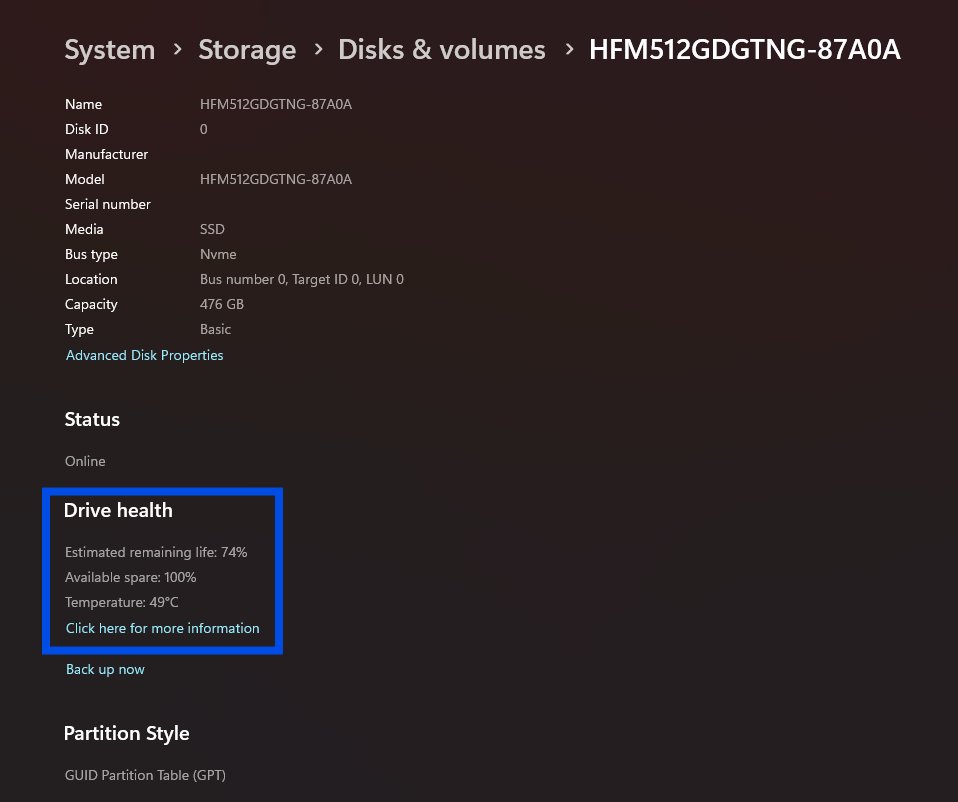
Where to check SSD health in Windows 11 and Windows 10
Windows shows drive health for NVMe SSDs only. SATA SSDs and hard drives do not show these values, so use chkdsk or the drive maker's tool for those.
| Windows version | Path | What you see |
|---|---|---|
| Windows 11 | Settings > System > Storage > Advanced storage settings > Disks & volumes > Properties on the drive | Estimated remaining life, Available spare, Temperature |
| Windows 10 | Settings > System > Storage > Manage disks and volumes > Properties on the drive | Estimated remaining life, Available spare, Temperature |
| Both, if Windows warns you | The same Properties page | Critical warnings: Spare capacity is low, Reliability is degraded, Drive is set to read-only |
Back up your data straight away if any of those critical warnings appear.
Generate a battery report and energy report with powercfg
Laptops have two extra diagnostics. Both write an HTML file to the folder the command runs in.
- Close open programs and documents, because
/energyshould run while the PC is idle. - Open Command Prompt as administrator.
- Type
powercfg /batteryreport /output "C:\battery-report.html"and press Enter for battery use over the life of the system. - Type
powercfg /energy /output "C:\energy-report.html"and press Enter. It observes the system for 60 seconds by default. - Open each HTML file in your browser and read the errors and warnings it lists.
Run Windows troubleshooters from the Get Help app
Troubleshooters diagnose one feature and apply fixes automatically. The Get Help app hosts them on current Windows builds.
- Open the Get Help app from the Start menu.
- Type the troubleshooter's name in the search bar, such as Audio, Network and internet, Printer, Bluetooth, Camera or Windows Update.
- Select Yes if the app asks for consent to run diagnostics.
- Wait a few moments for the scan, then follow the prompts it shows.
Other troubleshooters include Background Intelligent Transfer Service, Program compatibility, Video playback and Windows Media Player, and you can run any Windows troubleshooter the same way.
How do I check my specs on Windows 11?
System Information lists the hardware, drivers, services and running processes, which is what support staff ask for first. Run it as administrator, or some drivers can wrongly appear stopped.
- Select Start and type
msinfo32. - Right-click System Information and select Run as administrator.
- Read the summary for the processor, installed memory and Windows version.
- To save a full copy, open Command Prompt as administrator and run
msinfo32 /report C:\specs.txtfor a text file ormsinfo32 /nfo C:\specs.nfofor an .nfo file.
For graphics, sound and DirectX details, open dxdiag as well. System Information shows no hardware details in Safe Mode.
How to check chkdsk and diagnostic results in Event Viewer
Tests that run during a restart, such as a scheduled chkdsk or the memory test, write their results to Event Viewer instead of the screen.
- Press Win + R, type
eventvwr.mscand select OK. - Expand Windows Logs, right-click Application and select Filter Current Log.
- In Event sources, select Chkdsk and Wininit, then select OK to see the drive check results.
- For the memory test, find the MemoryDiagnostics-Results entry in the System log.
- Re-run
perfmon /reportand confirm the warnings you fixed no longer appear.
Windows 11 freezes on startup: how to run diagnostics anyway
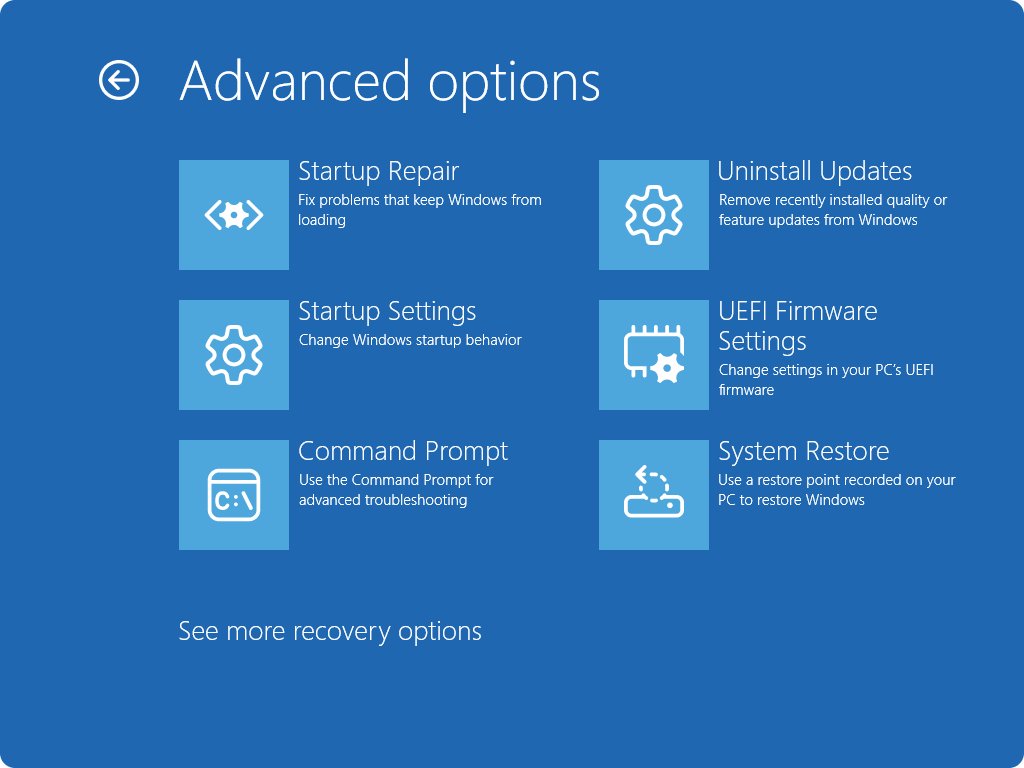
When Windows freezes before or right after sign-in, run the same tests from Safe Mode or the Windows Recovery Environment (Windows RE). Keep your BitLocker recovery key nearby if the drive is encrypted.
Windows 11 freezes on startup but reaches the sign-in screen sometimes
A driver, startup app or failing component hangs the normal boot.
- Hold Shift and select Power > Restart from the sign-in screen.
- In Windows RE, select Troubleshoot > Advanced options > Startup Settings > Restart.
- Press 4 or F4 for Enable Safe Mode, or 5 or F5 for Safe Mode with Networking.
- Run
chkdsk C: /scan, thenDISM.exe /Online /Cleanup-image /Restorehealthandsfc /scannowfrom an administrator Command Prompt. - Restart normally and run
perfmon /reportif Windows now loads.
Windows freezes on every start and never reaches the desktop
Disk corruption, damaged system files or a pending update action can stop Windows from starting.
- Interrupt the boot twice. Windows should open Windows RE on the third start.
- If Windows RE does not appear, boot from Windows installation media and select Repair your computer.
- Open Command Prompt, run
BCDEditand note the drive letter shown next toosdevice, for example D:. - Run
CHKDSK /f D:to check the system volume. - Run
SFC /scannow /offbootdir=D:\ /offwindir=D:\windowsto check system files offline. - Run
DISM /image:D:\ /cleanup-image /restorehealth, repeat the SFC command if DISM fixed anything, then close the window and select Reboot.
Windows system diagnostics FAQ
How do I run system diagnostics on Windows 10?
Press Win + R, type perfmon /report and press Enter. Windows 10 uses the same System Diagnostics Data Collector Set as Windows 11, and the report opens in a Performance Monitor window when collection ends.
How do I run a full system diagnostics test on Windows 11?
Windows has no single full test. Run perfmon /report for the overall report, mdsched for RAM, chkdsk for the drive, and DISM followed by sfc /scannow for system files. Together they cover memory, storage and the Windows installation.
How do I run a system diagnostic on my PC without extra software?
Every tool in this guide is built into Windows: Performance Monitor, Windows Memory Diagnostic, chkdsk, DISM, SFC, powercfg and System Information. None needs a download, and each runs from the Run box or an administrator Command Prompt.
What is the Windows diagnostic tool called?
There are several. Performance Monitor builds the System Diagnostics report, Windows Memory Diagnostic tests RAM, Reliability Monitor shows past failures, and the Get Help app runs feature troubleshooters for audio, network, printers and Windows Update.
How long does a Windows system diagnostics report take?
The report finishes once Performance Monitor has collected its data, so keep the window open until it appears. The memory test takes longer because it runs after a restart, and chkdsk /r on a large hard drive can take hours.
How do I run Windows hardware diagnostics from the command line?
Open Command Prompt as administrator and run chkdsk C: /scan for the drive and mdsched for memory. Run msinfo32 /report followed by a file path to export a full hardware inventory to a text file.
Can I run Windows diagnostics in Safe Mode?
Yes. chkdsk, DISM, SFC and Windows Memory Diagnostic all work in Safe Mode, which helps when Windows freezes on a normal start. System Information does not show hardware details in Safe Mode.
Where are Windows diagnostic results saved?
The System Diagnostics report opens in Performance Monitor. Results from tests that run during a restart, such as scheduled chkdsk and the memory test, go to Event Viewer. powercfg reports are saved as HTML files in the folder the command ran in.
Do Windows diagnostics fix problems automatically?
Some do. chkdsk /f, DISM and SFC repair what they find, and troubleshooters apply fixes. The System Diagnostics report, Reliability Monitor, powercfg reports and System Information only report problems, so you act on what they show.
Bottom line: which Windows diagnostic should you run first?
Start with perfmon /report for an overview, then run the one targeted test that matches your symptom: mdsched for crashes, chkdsk for drive errors, DISM and SFC for broken Windows features. The overall report points to the failing area quickly, and a targeted test gives a clear pass or fail for that component instead of a long list of unrelated readings.




![HDMI port not working in Windows 11 [Easy fixing]](https://techdows.com/wp-content/uploads/2026/10/HDMI-Port-Not-Working-in-Windows-11-Easy-Fixing-600x338.jpg)