To compress a video in Windows 11, open it in Clipchamp, the built-in video editor, select Export and save it at 720p or 480p instead of 1080p.
This guide covers lower-resolution exports, trimming in the Photos app, VLC and HandBrake conversions, ZIP folders, OneDrive links, and fixes for exports that come out larger than the original.
Method 1: Reduce video resolution to reduce its file size
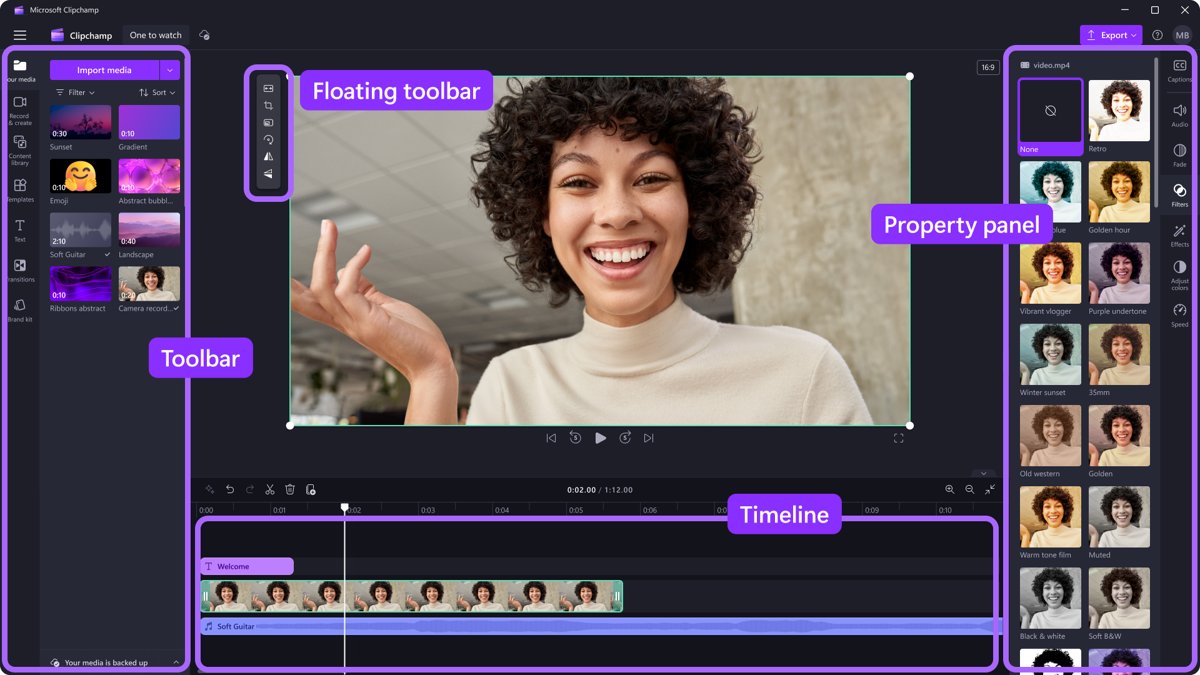
Clipchamp comes preinstalled on Windows 11 and always exports an MP4 file at 30 frames per second. A lower export resolution is the quickest way to get a smaller file without any extra software.
- Open File Explorer, right-click the video and select Edit with Clipchamp. The video opens on the Clipchamp timeline.
- If that option is missing, type Clipchamp in the taskbar search box, open it, select Create a new video, select Import media and add the file.
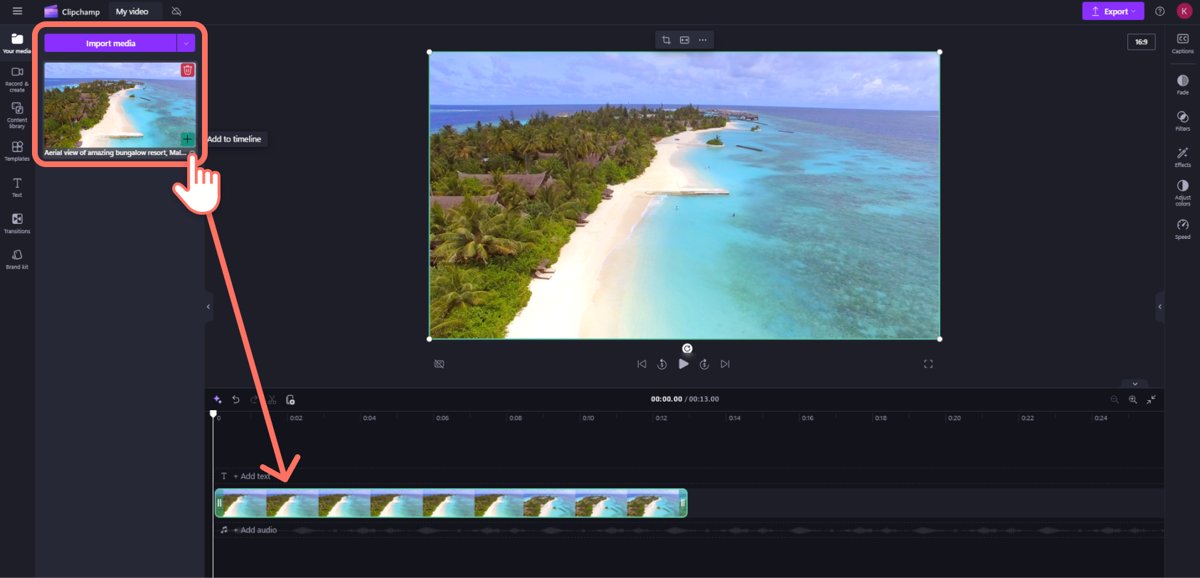
- Drag the video from My media onto the timeline, or select the green + button on it.
- Select Export in the top right corner of the editor.
- Choose 720p for a small file that still looks clear, or 480p for the smallest file.
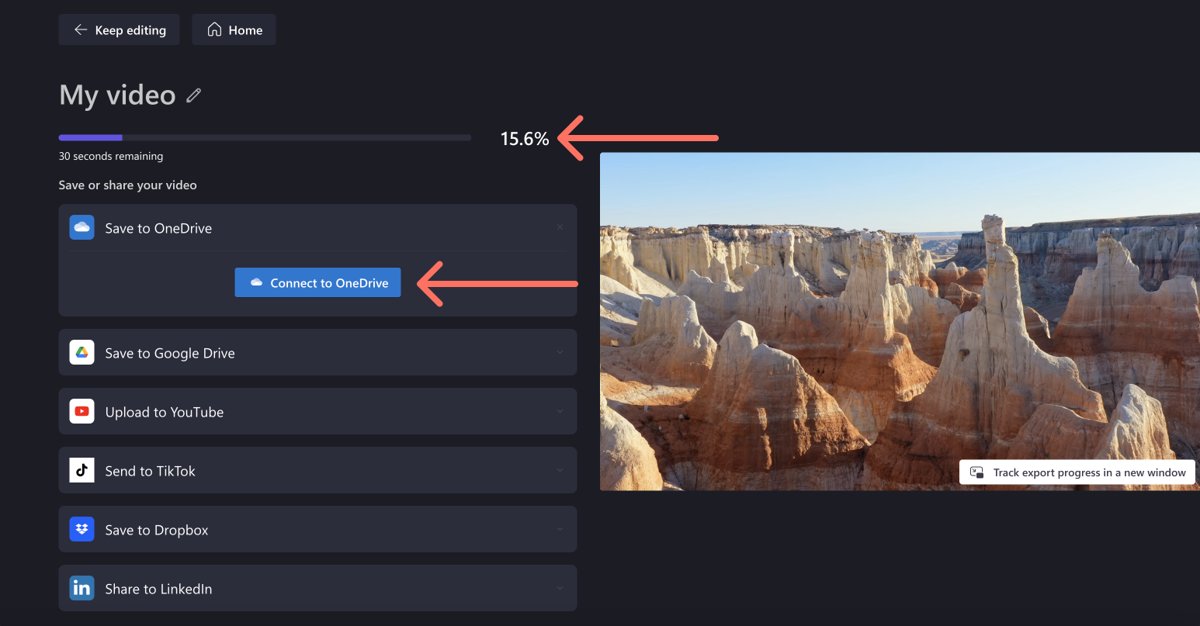
- Wait for the progress bar to reach 100%. Clipchamp saves the new MP4 file to your Downloads folder.
The original video stays untouched, so you can compare both files before you delete anything. If Clipchamp is not on your PC, you can get the Windows video editor from Microsoft Store.
Clipchamp export resolution: 480p vs 720p vs 1080p
Pick the lowest resolution that still suits where the video is going. Exporting above the source resolution never shrinks a file and usually makes it bigger.
| Where the video is going | Export at | Why |
|---|---|---|
| A draft sent for quick approval | 480p | The smallest option, fast to send and download |
| Instagram, TikTok or other social posts | 720p | Clear on phones with a much smaller file than 1080p |
| YouTube, Vimeo or a presentation on a big screen | 1080p | The largest free resolution, sharp on a TV or projector |
| 4K footage you want to keep in 4K | 4K | Needs Microsoft 365 Personal or Family, or Clipchamp Premium |
| A clip of 15 seconds or less for a chat | GIF | Clipchamp offers GIF only for short videos |
| A source video that is already 480p or 720p | The same resolution as the source | A higher export resolution adds size without adding detail |
Method 2: Trim video to remove unnecessary parts
A shorter video is a smaller video. The Photos app trims a clip in a few clicks, and Clipchamp can also cut sections out of the middle.
- Type Photos in the taskbar search box and open the Photos app.
- Open the video you want to shorten.
- Select Trim at the top of the screen, or press Ctrl + E.
- Drag the sliders at the bottom to the new start and end points.
- Select Save as Copy to keep the original, or open the drop-down next to it and select Save to overwrite the original.
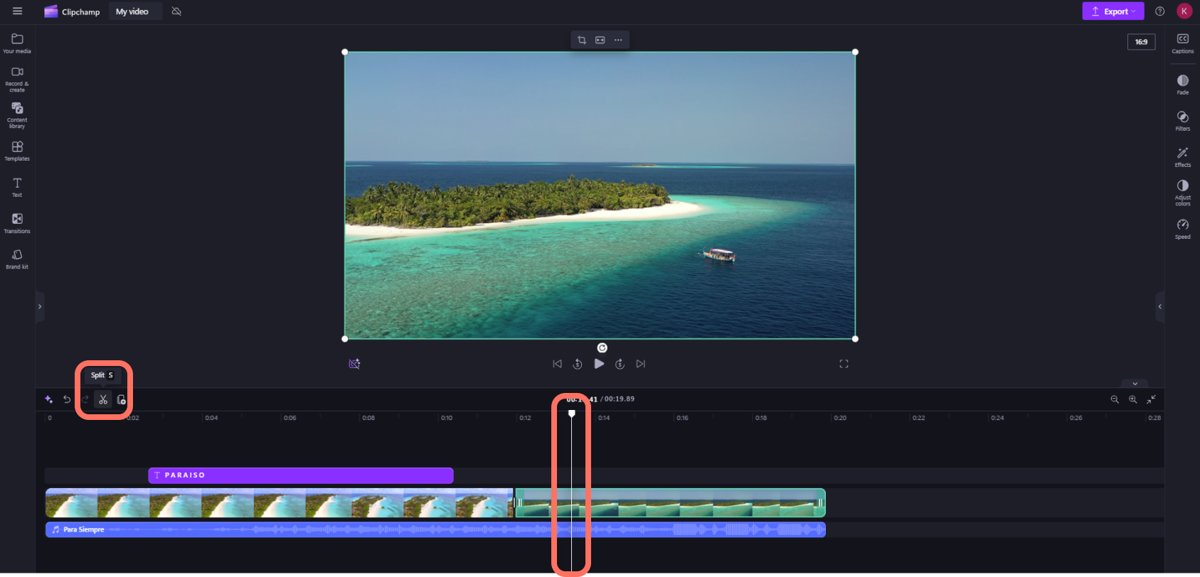
To remove a section from the middle, open the video in Clipchamp, move the seeker to the cut point and select the split button (scissors icon) or press S. Select the unwanted part and press Delete, then export at 720p or 480p to cut the size twice. The Photos app has more tools to edit photos and videos in Windows if you need them.
Compress video using Video Editor in Windows 11
The old Video Editor in Photos has been replaced by Clipchamp in the new Photos app. Clipchamp's timeline trim works on any clip you add, and the export step sets the final size.
- Open the video in the Photos app and select Edit in Clipchamp video editor.
- Select the clip on the timeline so it is highlighted.
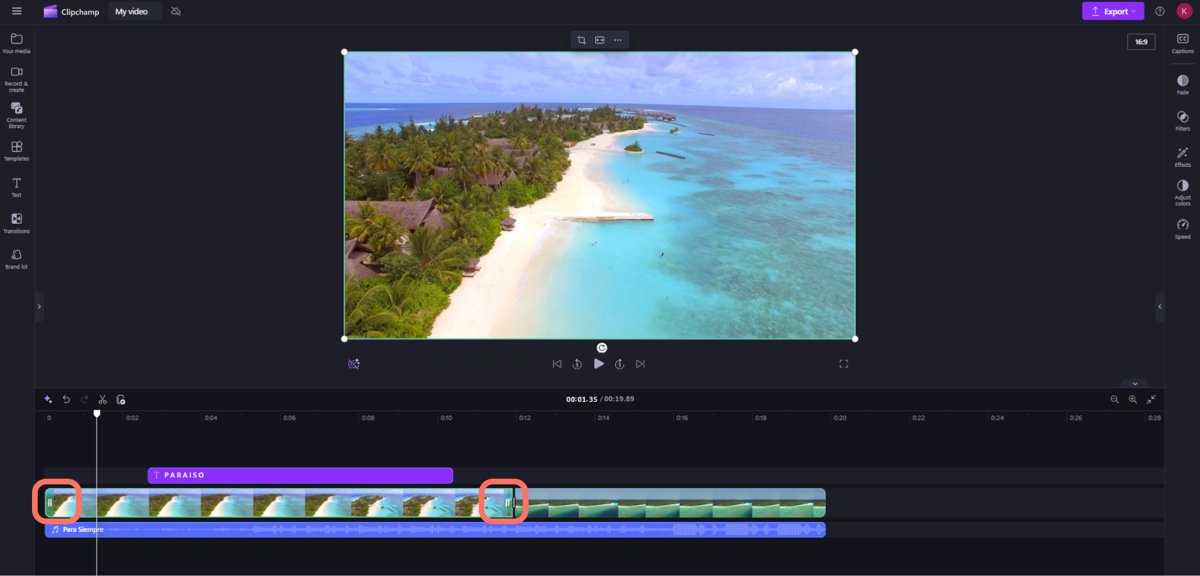
- Drag the handles on either end of the clip inward to remove the start or end.
- Hold Shift and select several clips to trim them together, then right-click a gap and select delete all visual gaps.
- Select Export and choose 720p or 480p.
Clipchamp saves your project automatically, so there is no save button to press before you export. Keep the original video on your PC, because Clipchamp may ask you to relink it later.
Compress video using VLC Player
VLC media player converts a video to a new file and leaves the original in place. You need enough free space for both files, and slower PCs take longer to convert.
- Open VLC and press Ctrl + R, or select Media > Convert / Save.
- Select Add, pick the video and select Open.
- Select Convert / Save at the bottom of the window.
- In Profile, choose a profile that uses H.264 video in an MP4 container.
- To shrink the file further, edit the profile and, on the Video codec tab, lower Bitrate (kb/s) or set Scale to 0.5.
- Select Browse next to the destination file, give the new video a name ending in .mp4 and save.
- Start the conversion and wait for the position slider to reach the end.
A Scale of 0.5 halves the width and height, so a 1920 x 1080 video becomes 960 x 540. Play the new file before you delete the original.
Compress a video with HandBrake on Windows 11
HandBrake is a free, open-source video converter from handbrake.fr. Microsoft's own Clipchamp help suggests it when a Clipchamp export is not small enough.
- Open HandBrake and select Open Source, or drag the video onto the HandBrake window.
- Open the preset list and choose Fast 720p30 for a smaller general-purpose file, or a Web > Social 25 MB preset that matches the video's length.
- On the Video tab, move the quality control a few steps to the left if you want an even smaller file.
- Type a new file name in Save As and select Browse next to To to choose a folder.
- Select Start on the toolbar.
- Wait for the notification that encoding has finished, then open the file from the folder you chose.
A 720p30 preset downscales a 1080p, 60 fps video to 720p at no more than 30 frames per second. Each Social 25 MB preset names its maximum length, such as 1 minute at 720p or 5 minutes at 360p, and aims for a file of 25 MB or less.
HandBrake RF values to reduce video size
HandBrake's presets use constant quality, measured as an RF number for the x264 and x265 encoders. A higher RF number gives a smaller file and lower quality.
| Video resolution | Recommended RF (x264 / x265) | Recommended RF (SVT-AV1) |
|---|---|---|
| 480p or 576p | 18-22 | 22-32 |
| 720p | 19-23 | 25-35 |
| 1080p | 20-24 | 25-35 |
| 2160p (4K) | 22-28 | 25-40 |
Change the value a few steps at a time. Values well past the top of a range shrink the file further but show a clear loss of detail.
Method 3: Compress a video file using ZIP
A ZIP folder bundles several videos into one file that is easy to attach or upload. MP4 and MOV videos are already compressed, much like the JPEG photos Microsoft uses as its example, so a ZIP folder ends up about the same size as the files inside it.
- Open File Explorer and find the video or the folder of videos.
- Right-click it and select Show more options > Send to > Compressed (zipped) folder.
- Right-click the new ZIP folder, select Rename and type a clear name.
- Drag more videos onto the ZIP folder to add them.
- Send the ZIP file. The recipient right-clicks it and selects Extract All to get the videos back.
Use ZIP to keep a set of clips together, and use Method 1 or HandBrake when the goal is a smaller size. The same steps also zip files and folders of any other type.
Tip: Send video via link instead of direct sending
A sharing link sends a full-quality video without compressing it at all. Outlook.com accepts OneDrive files of up to 2 GB this way.
- Move the video into your OneDrive folder in File Explorer and wait for it to sync.
- Right-click the video and select Share a OneDrive link. The link is copied to your clipboard.
- To change who can open it, sign in at onedrive.com, select the video's circle icon and select Share.
- Select the settings gear icon, choose who the link works for, and clear Allow editing if the recipient only needs to watch or download it.
- Paste the link into your email, chat or text message.
Links created from File Explorer have Edit permission by default, so check the setting before you send a link to a large group.
Video attachment size limit in Outlook and Gmail
Compress a video for email only when it must arrive as an attachment. Above these limits, send a link instead.
| Email service | Attachment limit | What happens with larger videos |
|---|---|---|
| Outlook.com on the web | 25 MB | Share the file from OneDrive, up to 2 GB |
| Outlook app with an Outlook.com or Gmail account | 20 MB including the message | Upload to a cloud service and paste the link |
| Outlook app with an Exchange work account | 10 MB by default | Save to OneDrive or SharePoint and share a link |
| Personal Gmail | 25 MB | Gmail replaces the attachment with a Google Drive link automatically |
| Gmail work or school account | Set by the Google Workspace admin | Ask the admin, or use a Drive link |
Why is my video file so big?
Six things decide a video's size. Change the ones you can live without.
| Factor | Effect on size | How to reduce it in Windows 11 |
|---|---|---|
| Resolution | 4K holds four times the pixels of 1080p | Export at 720p or 480p in Clipchamp, or set Scale in VLC |
| Duration | Every extra second adds data | Trim in Photos or split in Clipchamp |
| Bit rate | More data per second means a bigger file | Lower Bitrate in VLC, or move HandBrake's quality control left |
| Frame rate | 60 fps stores twice the frames of 30 fps | Clipchamp exports at 30 fps; HandBrake 30 fps presets cap it |
| Video codec | Some codecs store the same picture in less space | Pick an H.264 or H.265 preset in HandBrake |
| Extra layers | Music, titles and overlays add to the export | Remove elements you do not need before you export |
How to check video file size in Windows 11
- Open File Explorer and go to the folder with the original and the compressed video, such as Downloads.
- Select View > Details to show the Size column.
- Right-click an empty area and select Sort by > Size to list the largest files first.
- Compare the two sizes. A 720p export of a 1080p video should be clearly smaller.
- Play the new file from start to end before you delete the original.
Clipchamp exported video larger than the original
These problems come up most often when you compress with Clipchamp's export.
The exported file is bigger than the video you started with
The source is already compressed with a more efficient codec, is a lower resolution than the export, or runs at a lower frame rate or bit rate than Clipchamp's output.
- Check the source resolution and export at the same or a lower one.
- Remove extra music tracks, titles and overlays you do not need.
- Convert the source to MP4 with HandBrake and compare the new size.
- Use the HandBrake file as it is, or import it into Clipchamp and export again.
Clipchamp export is stuck at 0% or frozen
Clipchamp lost focus, or other apps are using the memory it needs.
- Keep Clipchamp in the foreground and do not switch windows during the export.
- Close other apps and browser tabs, then export again.
- Restart the Clipchamp app, or open app.clipchamp.com in Edge or Chrome and try there.
- In Clipchamp for personal accounts, go to Settings > Export and turn off hardware acceleration if exports keep failing.
The export fails near the end
Free disk space ran out, or one clip in the project cannot be processed.
- Free up disk space and export again.
- Export at 720p instead of 1080p or 4K.
- Split a long project into copies and export each one to find the failing section.
- Replace the clip in that section with a converted MP4 version.
The compressed video will not play or shows 0 KB
The export did not finish before the file was opened.
- Wait for the export to reach 100% before you open the file.
- Check the file size in File Explorer. If it is 0 KB, export again.
- Open the file in another player, such as VLC or the Media Player app.
There is no download prompt and the file is missing
The browser blocked the download, or the save folder is not the one you expected.
- Check your Downloads folder first.
- Allow downloads or pop-ups from Clipchamp in your browser and export again.
- For a work or school account, check the project's Exports folder in OneDrive or SharePoint.
Compress video in Windows 11 FAQ
Does Windows 11 have a built-in video compressor?
Windows 11 has no single compress button, but Clipchamp comes preinstalled. Exporting a video from Clipchamp at 720p or 480p instead of 1080p is the built-in way to make a video file smaller.
How do I compress a video in Windows 11 without losing quality?
Keep the export resolution equal to the source and trim unneeded parts instead. In HandBrake, stay inside the recommended RF range for the resolution, such as RF 20 to 24 for 1080p with x264. Every re-encode loses a little detail.
Does zipping a video make it smaller?
Only slightly, if at all. MP4 and MOV videos are already compressed, so a ZIP folder ends up close to the original size. ZIP is useful for bundling several videos into one file.
How do I compress a video for email in Windows 11?
Export it at 480p in Clipchamp or use a HandBrake Social 25 MB preset that matches its length. Outlook.com and Gmail cap attachments at 25 MB, and the Outlook app at 20 MB, so share a OneDrive link for longer videos.
Can I compress a video with the Photos app?
The Photos app can only trim a video, which shortens it and makes the file smaller. For a lower resolution, select Edit in Clipchamp video editor from the Photos app and export at 720p or 480p.
Can VLC compress a video on Windows 11?
Yes. Use Media > Convert / Save, choose an H.264 MP4 profile, and lower the bitrate or set the scale to 0.5 in the profile settings. VLC writes a new file and keeps the original.
Why is my Clipchamp video bigger after export?
Clipchamp exports MP4 at 30 fps, which can be larger than an efficiently compressed source, especially if you export above the source resolution or add music and titles. Export at the source resolution or lower, or convert with HandBrake.
Is 4K export free in Clipchamp?
No. Clipchamp exports 480p, 720p and 1080p free. A 4K export needs a Microsoft 365 Personal or Family subscription or the Clipchamp Premium plan.