Press Windows logo key + R, type regedit and press Enter to open Registry Editor in Windows 11, then approve the User Account Control prompt.
Registry Editor (regedit.exe) is the built-in Windows tool for viewing and changing the registry, the database that stores low-level settings for Windows and for apps that use it.
This guide covers every route to the editor, how to back up keys first, how to edit another user's settings and what to do when regedit will not open.
Open Registry Editor in Windows 11/10
The Run box is the fastest route, and it works the same way on Windows 10.
- Press Windows logo key + R to open the Run box.
- Type
regeditin the Open field. - Press Enter or select OK.
- Select Yes at the User Account Control prompt, or enter an administrator password if Windows asks for one.
- Expand a key such as HKEY_CURRENT_USER in the left pane to start browsing.
Which way to open regedit should you use?
| Your situation | Use this | Why |
|---|---|---|
| You want the editor now | Run box with regedit |
Two keystrokes and one word |
| You prefer the mouse | Start search for regedit |
No dialog box to remember |
| You already have a terminal open | Type regedit in Command Prompt or PowerShell |
Opens with that window's rights, including an elevated one |
| Explorer or Start is frozen | Task Manager File > Run new task | Task Manager still opens with Ctrl + Shift + Esc |
| You open it every day | A desktop shortcut or taskbar pin | One click from the desktop |
| You need another user's settings | File > Load Hive inside Registry Editor | Their hive is not loaded while they are signed out |
How to back up the Windows registry before editing
Microsoft's advice is to export the keys you plan to change before you edit them. A wrong edit can stop apps or Windows itself from working.
- Open Registry Editor with
regeditand approve the User Account Control prompt. - Select the key or subkey you plan to change in the left pane.
- Select File > Export.
- In the Export Registry File dialog box, pick a folder and type a name in the File name field.
- Select Save to write a .reg file with that key's contents.
To protect the whole registry rather than one key, create a system restore point or a full system backup before large changes.
Open Registry Editor from Windows search
- Select Start or press the Windows logo key.
- Type
regedit. - Select the Registry Editor result, or press Enter.
- Approve the User Account Control prompt.
Typing regedit.exe in full also works, and Microsoft's own backup steps use that form. On Windows 10, type regedit in the search box on the taskbar instead.
You can no longer start Registry Editor using Cortana: Microsoft retired Cortana as a standalone app in Windows in spring 2023, so Start search is the replacement.
How to access the Registry Editor from the Control Panel
Control Panel keeps Registry Editor in the Windows Tools folder on Windows 11 and the Administrative Tools folder on Windows 10, alongside other tools for advanced users.
- Type
control panelin Start search and open Control Panel. - Open Windows Tools on Windows 11, or Administrative Tools on Windows 10.
- Double-click Registry Editor.
- Approve the User Account Control prompt.
The tools in this folder vary by Windows edition, but Registry Editor sits next to Command Prompt, Run and Task Manager in the Windows 11 folder.
Open Registry Editor from File Explorer
Registry Editor is a normal program file, so you can run it from File Explorer like any other app.
- Press Windows logo key + E to open File Explorer.
- Go to
C:\Windows, the folder that%windir%points to on most PCs. - Scroll to regedit (regedit.exe) and double-click it.
- Select Yes at the User Account Control prompt.
Right-click regedit instead to pin it or create a shortcut from the same folder.
Open Registry Editor from Command Prompt or PowerShell
Typing the program name in a terminal starts the editor. When the terminal already runs as administrator, Registry Editor opens elevated without a second prompt.
To run regedit as admin from CMD, PowerShell or Windows Terminal, start the terminal elevated first: type cmd (or powershell) in Start search, right-click the result and select Run as administrator.
regeditStarts Registry Editor (regedit.exe) from Command Prompt, PowerShell or Windows Terminal. It inherits the rights of the window that launched it.
You should see: The Registry Editor window opens with the predefined keys, such as HKEY_LOCAL_MACHINE, in the left pane.
How to open Registry Editor as administrator from Task Manager
This route helps when the Start menu or taskbar is not responding, because Task Manager has its own Run dialog. You can also run any app as administrator from Start by right-clicking it.
- Press Ctrl + Shift + Esc to open Task Manager.
- Select File > Run new task.
- Type
regeditin the box. - Tick the option to create the task with administrative privileges.
- Select OK.
If Ctrl + Shift + Esc does nothing, there are other ways to open Task Manager, such as right-clicking the taskbar.
Where is Registry Editor located in Windows 11 and 10?
The program file sits in the Windows folder itself, not in System32. The registry data it shows lives in separate hive files.
| Item | Location | Notes |
|---|---|---|
| Registry Editor program | %windir%\regedit.exe (usually C:\Windows\regedit.exe) |
Same folder on Windows 11 and Windows 10 |
| System hives (SAM, SECURITY, SOFTWARE, SYSTEM, DEFAULT) | %SystemRoot%\System32\Config |
Loaded into memory at startup; do not copy or edit these files directly |
| Your own settings (HKEY_CURRENT_USER) | Ntuser.dat in your user profile folder |
A hidden file, loaded when you sign in |
| Other users' settings | Ntuser.dat in each profile under C:\Users |
Appear under HKEY_USERS while that user is signed in |
Create a Registry Editor desktop shortcut
- Open File Explorer and go to
C:\Windows. - Right-click regedit (regedit.exe).
- Select Show more options, then Create shortcut.
- Select Yes if Windows offers to place the shortcut on the desktop.
- Double-click the new shortcut on the desktop to open Registry Editor.
To pin it instead, search for regedit in Start, right-click the result, select Show more options if needed, then Pin to taskbar.
How to open a specific registry key directly
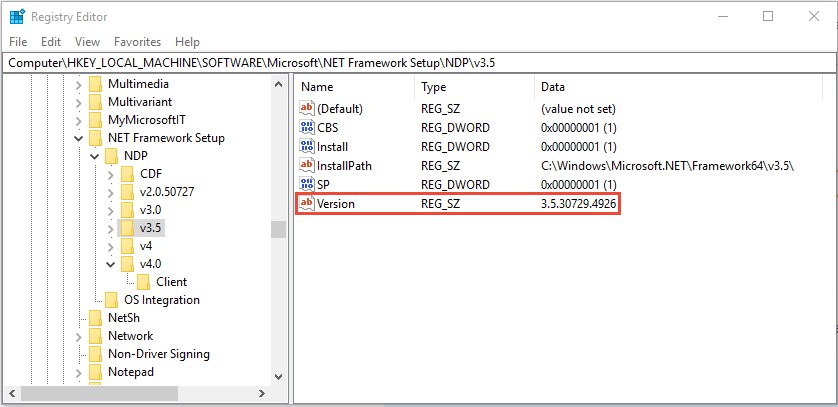
Registry paths read from left to right: the predefined key first, then each subkey. Open each level in that order, or search for the last part of the path.
- Open Registry Editor with
regedit. - Expand the first part of the path in the left pane, such as HKEY_CURRENT_USER.
- Expand each subkey in the path in turn, such as Software, then the vendor's key.
- Select the final key to show its values in the right pane.
- For a long or unknown path, select a parent key and use Registry Editor's Find command to search for the key name.
- On Windows 11 version 24H2 and later, limit the search to the selected key and its subkeys to get faster results.
How to edit registry for another user in Windows 11
Each user's settings are stored in that profile's Ntuser.dat file. While the user is signed out, load the file as a temporary hive from an administrator account, make the change, then unload it.
- Sign in with an administrator account and make sure the other user is signed out.
- Open Registry Editor with
regeditand select HKEY_USERS in the left pane. - Select File > Load Hive.
- Browse to
C:\Users\<username>\NTUSER.DATand select Open. - In the Load Hive dialog box, type a temporary name in the Key Name box, such as
OtherUser, and press Enter. - Make your changes under HKEY_USERS\OtherUser.
- Select HKEY_USERS\OtherUser, then select File > Unload Hive before you close the editor.
NTUSER.DAT is a hidden file. If you cannot see it in the dialog, type the full path into the File name box instead of browsing.
How to disable background processing of registry policy in Windows 11
This Group Policy setting stops Windows from reapplying registry-based policies in the background while the PC is in use. You need Windows 11 Pro, Enterprise or Education to open Local Group Policy Editor.
- Press Windows logo key + R, type
gpedit.mscand press Enter. - Go to Computer Configuration > Administrative Templates > System > Group Policy.
- Double-click Configure registry policy processing.
- Select Enabled.
- Tick Do not apply during periodic background processing.
- Select Apply, then OK.
With this option on, registry policy changes take effect only at the next sign-in or restart. The Process even if the Group Policy objects have not changed box reapplies policies that have not changed, which is useful if users keep altering a setting.
How to check Registry Editor opened with the right access
- Look for the Registry Editor window with folders in the left pane.
- Confirm the five predefined keys are listed: HKEY_CLASSES_ROOT, HKEY_CURRENT_USER, HKEY_LOCAL_MACHINE, HKEY_USERS and HKEY_CURRENT_CONFIG.
- Select a key under HKEY_LOCAL_MACHINE and check that its values appear in the right pane.
- Export a test key with File > Export to confirm you can save backups.
- If you only see HKEY_USERS and HKEY_LOCAL_MACHINE, you are connected to a remote computer's registry rather than this PC.
What is Registry Editor (regedit) used for?
Registry Editor lets you change settings that are not exposed in Settings or Control Panel, including system policies, installed apps and which programs open which file types. Microsoft recommends using the Windows interface first and following a documented article exactly when a registry edit is required.
| Predefined key | Short name | What it holds |
|---|---|---|
| HKEY_CURRENT_USER | HKCU | Settings for the user who is signed in, such as folders, screen colors and Control Panel settings |
| HKEY_LOCAL_MACHINE | HKLM | Configuration for the computer that applies to every user |
| HKEY_CLASSES_ROOT | HKCR | A merged view of file associations, so the right program opens each file type |
| HKEY_USERS | HKU | Every user profile that is currently loaded; HKEY_CURRENT_USER is one of its subkeys |
| HKEY_CURRENT_CONFIG | None | The hardware profile the computer used at startup |
Inside any key you can locate, add, change, rename or delete subkeys and values, such as when you add a DWORD to the registry. Common value types include String Value (REG_SZ), DWORD Value (REG_DWORD, a 32-bit number) and QWORD Value (REG_QWORD, a 64-bit number).
Hives, keys, and values in the Windows registry
The Windows registry stores the information Windows reads constantly while it runs: each user's profile, the installed apps and the document types they create, folder and icon settings, the hardware in the PC and the ports in use.
It is organised like folders. A key is a folder, a subkey is a folder inside it, and a value is a named piece of data inside a key. A hive is a group of keys, subkeys and values backed by its own set of files on disk.
| Hive you will see most often | Supporting files | Stored in |
|---|---|---|
| HKEY_LOCAL_MACHINE\SOFTWARE | Software, Software.log, Software.sav | %SystemRoot%\System32\Config |
| HKEY_LOCAL_MACHINE\SYSTEM | System, System.alt, System.log, System.sav | %SystemRoot%\System32\Config |
| HKEY_LOCAL_MACHINE\SAM and \SECURITY | Sam and Security, each with .log and .sav copies | %SystemRoot%\System32\Config |
| HKEY_USERS\DEFAULT | Default, Default.log, Default.sav | %SystemRoot%\System32\Config |
| HKEY_CURRENT_USER | Ntuser.dat | The signed-in user's profile folder |
A key name can be up to 255 characters long, and the total size of all values in one key is limited to 64 KB, which is why apps store large data in files instead.
Common registry value types
When you create a value, Registry Editor asks for its type. Use the type that the instructions you follow name.
| Name in Registry Editor | Data type | What it holds |
|---|---|---|
| String Value | REG_SZ | A fixed-length text string |
| Expandable String Value | REG_EXPAND_SZ | Text containing variables, such as %SystemRoot%, that are resolved when an app reads it |
| Multi-String Value | REG_MULTI_SZ | A list of several text entries |
| DWORD Value | REG_DWORD | A 32-bit number, used by many driver and service settings; shown in hexadecimal or decimal |
| QWORD Value | REG_QWORD | A 64-bit number |
| Binary Value | REG_BINARY | Raw binary data, such as hardware information, shown in hexadecimal |
Using Regedit 101: add, change, rename and delete values
What Regedit actually does is read and write the registry database: it can locate, add, change, rename and delete keys and values. Export the key first, as shown in the backup section above.
- Select the key you want to work in from the left pane.
- To add a value, select Edit > New and pick the type, such as DWORD (32-bit) Value, then type its name and press Enter. Pick Key in the same menu to add a subkey.
- To change a value, right-click it and select Modify.
- Type the new number or text in the Value data box; for a DWORD, choose Hexadecimal or Decimal under Base, then select OK.
- To rename or delete a key or value, right-click it and select Rename or Delete, then confirm.
- Restart the app, sign out or restart the PC if the instructions you follow say the change needs it.
Utility programs for modifying the registry
Registry Editor is one of several built-in ways to change the registry. Microsoft lists these for administrators:
| Tool | How you use it | Best for |
|---|---|---|
| Registry Editor (regedit.exe) | Browse and edit keys in a window | One-off changes and inspection |
| Console Registry Tool (reg.exe) | reg add, reg query, reg delete, reg export and reg import at a command prompt; type reg /? for help |
Scripts and repeatable changes |
| Registration Entries (.reg) file | Double-click the file, or run it from a logon script | Applying the same change on several PCs |
| Local Group Policy Editor (gpedit.msc) | Policy settings that write the registry for you | Pro, Enterprise and Education editions |
| Windows Script Host and WMI | VBScript or JScript methods that read, write and delete keys | Automation in managed environments |
When registry editing can help and when you should not edit the registry
| Situation | Edit the registry? | Why |
|---|---|---|
| A Microsoft or vendor article gives exact registry steps for your problem | Yes, follow them exactly | Microsoft says editing may be the best fix when a documented article calls for it |
| The setting exists in Settings, Control Panel or an MMC console | No | Those tools change the same data with safeguards in place |
| A Group Policy setting covers it on Pro or Enterprise | No, use gpedit.msc | Group Policy is the supported way to manage those settings |
| A tip online suggests a value without saying what it does | No | Wrong edits can damage Windows or force a reinstall |
| You want to speed up the PC with a registry cleaner | No | Windows needs no registry cleaning; use the built-in junk file cleaners instead |
A safe registry troubleshooting workflow
Microsoft's warning is blunt: serious problems can occur if you modify the registry incorrectly, and some need a reinstall of Windows. This workflow avoids the common mistakes.
- Check whether Settings, Control Panel or Group Policy offers the change, and use that instead if it does.
- Find an official article that names the exact key, value name, type and data.
- Create a restore point, then export the key you will change with File > Export.
- Change one value at a time, typed exactly as the article gives it, including the type and the hexadecimal or decimal base.
- Restart or sign out if the article says so, then test the result.
- If something breaks, import the .reg backup or roll back with the restore point.
Common mistakes to avoid: editing under HKEY_CLASSES_ROOT when you meant only your account (use HKEY_CURRENT_USER\Software\Classes), creating a value with the wrong type, deleting a whole key when only one value had to change, and skipping the backup.
Free registry cleaner, junk file cleaner and optimizers for Windows 11
Windows 11 includes free junk file cleaners, but it has no registry cleaner, and none is needed to keep the PC fast. Microsoft warns that incorrect registry changes can force a reinstall of Windows, so avoid tools that delete registry entries in bulk.
| Built-in tool | Where to find it | What it cleans or improves |
|---|---|---|
| Storage Sense | Settings > System > Storage > Storage Sense | Deletes temporary files automatically; Run Storage Sense now runs it at once |
| Temporary files | Settings > System > Storage > Temporary files | Removes the temporary file types you tick, then Remove files |
| Disk Cleanup | Search for Disk Cleanup in Start |
Clears junk files from the drive you select |
| Installed apps | Settings > Apps > Installed apps | Uninstalls apps you no longer use, which also frees space and background activity |
| DISM and System File Checker | Elevated Command Prompt | Repairs corrupted Windows system files, a real fix where a registry cleaner promises one |
How to restore a registry backup in Windows 11
- Open Registry Editor with
regeditand approve the User Account Control prompt. - Select File > Import.
- In the Import Registry File dialog box, go to the folder that holds your backup.
- Select the .reg file and select Open.
- Restart the PC if the setting you restored only applies at startup.
Double-clicking the exported .reg file in File Explorer merges it back into the registry as well.
How to fix Registry Editor not opening in Windows 11 or 10
A message says a policy setting prevents registry editing
The Prevent access to registry editing tools policy is enabled for your account, either locally or by your organization.
- On a work or school PC, ask your IT administrator; their policy overrides local changes.
- On your own Pro, Enterprise or Education PC, run
gpedit.mscfrom an administrator account. - Go to User Configuration > Administrative Templates > System.
- Double-click Prevent access to registry editing tools, select Not Configured or Disabled, then OK.
- Sign out and back in, then run
regeditagain.
Can't open Registry Editor from a standard account
Registry Editor asks for administrator approval, and a standard account cannot give it.
- Run
regeditand enter an administrator's password at the User Account Control prompt. - Ask the PC owner to sign in if you do not have administrator credentials.
- Use the Task Manager route with administrative privileges once you have them.
Registry Editor is not opening or won't open into a window
Damaged Windows system files can stop built-in tools from starting.
- Type
cmdin Start search, right-click Command Prompt and select Run as administrator. - Run
DISM.exe /Online /Cleanup-image /Restorehealthand wait for it to finish. - Run
sfc /scannowand keep the window open until verification reaches 100%. - Restart the PC and try
regeditfrom the Run box again.
If System File Checker reports files it could not repair, each SFC result message points to a different next step.
Registry Editor: frequently asked questions
How do I open Registry Editor in Windows 11?
Press Windows logo key + R, type regedit and press Enter, then select Yes at the User Account Control prompt. You can also type regedit in Start search and select Registry Editor from the results.
How do I open Registry Editor in Windows 10?
Use the same command as Windows 11: press Windows logo key + R, type regedit and press Enter. Typing regedit in the search box on the taskbar and pressing Enter also opens it after you approve the administrator prompt.
What is the command to open Registry Editor?
The command is regedit. Type it in the Run box, Command Prompt, PowerShell or Windows Terminal and press Enter. The full program name, regedit.exe, works in the same places.
How do I open Registry Editor from Run?
Press Windows logo key + R to open the Run box, type regedit in the Open field and select OK. Approve the User Account Control prompt, and Registry Editor opens with the predefined keys in the left pane.
How do I open Registry Editor in Windows Server?
Windows Server uses the same tool and command. Press Windows logo key + R, type regedit and press Enter, or run regedit from an elevated Command Prompt. Microsoft documents both Regedit.exe and Regedt32.exe for editing the registry on supported Windows Server versions.
How do I open Registry Editor in Windows 7 or Windows XP?
Select Start, then Run, type regedit and select OK. Both versions keep regedit.exe in the Windows folder. Microsoft no longer supports Windows 7 or Windows XP, so registry fixes written for Windows 11 may not apply to them.
How do I open Registry Editor in Windows 8.1?
Press Windows logo key + R, type regedit and press Enter. Microsoft's registry backup and restore steps list Windows 8.1 alongside Windows 10 and Windows 11, so the same Export and Import steps work there too.
Why can't I open Registry Editor in Windows 11?
The usual causes are the Prevent access to registry editing tools policy, a standard account without administrator credentials, or damaged system files. Check for a policy message first, then try an administrator account, then run DISM and sfc /scannow.
How do I use Registry Editor safely?
Export the key you plan to change with File > Export before editing, follow a Microsoft article's steps exactly, and change only the value it names. If something breaks, import the .reg backup with File > Import.
Is regedit the same as Registry Editor?
Yes. Regedit is the command and regedit.exe is the program file for Registry Editor. The file lives in the Windows folder, usually C:\Windows\regedit.exe.
Bottom line: the fastest way to open regedit in Windows 11
Use Windows logo key + R and regedit to open Registry Editor, and export the key you plan to change before you edit anything. The Run route works on Windows 11, Windows 10 and Windows Server in two steps, and a .reg export is the quickest way back if a change goes wrong.

![Find passwords stored on this computer [3 ways]](https://techdows.com/wp-content/uploads/2026/10/Find-passwords-stored-on-this-computer-3-ways.jpg)
![7 best open-source PDF editors [Windows, Mac, Linux]](https://techdows.com/wp-content/uploads/2026/10/7-best-open-source-PDF-editors-Windows-Mac-Linux.jpg)