Press Windows key + R, type the program's name, then press Ctrl + Shift + Enter instead of Enter, and Windows launches it as administrator after you approve the User Account Control prompt.
This guide covers the exact steps, Run commands worth knowing, faster routes for pinned apps and Windows Terminal, how to confirm a program is elevated, and when running as administrator is a bad idea.
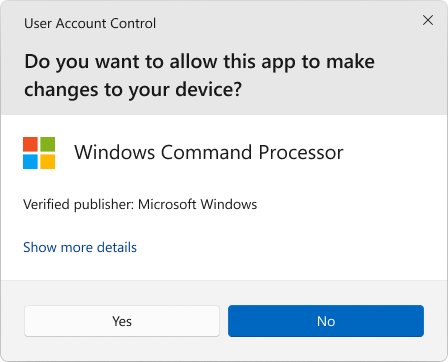
Launching Applications As Administrator
Microsoft added this to the Run dialog in Windows 10 Insider build 16362 in 2017: hold Ctrl + Shift and press Enter or select OK, and the task runs elevated.
- Press Windows key + R to open the Run dialog box.
- Type the program or command, for example
cmd. - Hold Ctrl + Shift and press Enter. Or hold Ctrl + Shift and select OK.
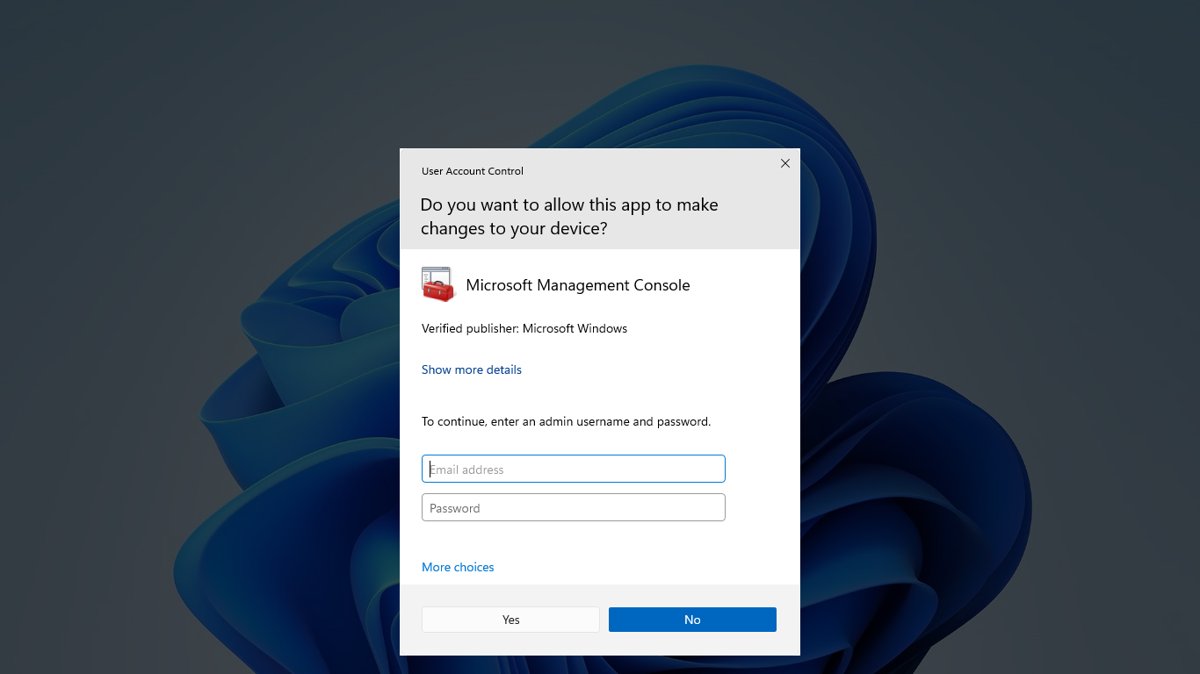
- Select Yes on the User Account Control prompt. A standard user enters an administrator's password instead.
- Work in the program; it now runs with the administrator access token.
Pressing Enter alone opens the same program with standard rights. The UAC prompt is the sign the shortcut worked.
The Magic of Windows Key + R
Windows key + R opens the Run dialog box, a single text box that starts any program, console or folder by name. These commands come from Microsoft's own Windows documentation.
| Type this in Run | It opens | Worth running as administrator? |
|---|---|---|
cmd |
Command Prompt | Yes, for system commands such as DISM or SFC |
powershell |
Windows PowerShell | Yes, for system cmdlets and feature changes |
regedit |
Registry Editor | It asks for administrator credentials anyway |
compmgmt.msc |
Computer Management | Yes, for disks, services and local users |
eventvwr.msc |
Event Viewer | Not usually; open it normally to read logs |
secpol.msc |
Local Security Policy | Yes, policy changes need it |
control |
Control Panel | No, items elevate on their own when needed |
SystemPropertiesAdvanced |
Advanced System Properties | Changes prompt when needed |
winver.exe |
About Windows (version and build) | No |
Understanding Administrator Rights
When an administrator signs in, Windows creates two access tokens. Programs start with the standard token unless you elevate them, and UAC asks for approval before the administrator token is used.
| Term | What it means |
|---|---|
| Standard user access token | Same identity, but administrative privileges and SIDs removed; used for everyday apps |
| Administrator access token | Full rights; used only after approval for tasks that change the system |
| Admin Approval Mode | How administrator accounts run by default: standard token first, elevation on approval |
| Consent prompt | The Yes/No prompt an administrator sees |
| Credential prompt | The prompt for an administrator's password that a standard user sees |
| Child processes | Inherit the parent's token, so tools started from an elevated Command Prompt are elevated too |
Microsoft recommends using a standard user account day to day and entering administrator credentials only when a task needs them.
Which elevation shortcut should you use?
| Your situation | Use this | Why |
|---|---|---|
| You know the program or command name | Windows key + R, then Ctrl + Shift + Enter | Works for any program on the PATH or with a full path |
| The app is pinned to the taskbar | Ctrl + Shift + click its taskbar icon | One click, no typing |
| The pinned app is in a known position | Windows key + Ctrl + Shift + number (1-9, 0) | Opens a new elevated instance from the keyboard |
| You always need an elevated terminal | Windows Terminal profile set to run as Administrator | Every launch of that profile is elevated |
| You only need to change one setting | Open the tool normally | Shield-marked buttons ask for elevation by themselves |
Open a pinned app as administrator from the taskbar
For tools you use every day, pin them once and skip typing. These taskbar shortcuts are listed in Microsoft's Windows keyboard shortcut reference.
- Pin the app to the taskbar if it is not there already.
- Hold Ctrl + Shift and select the app's taskbar icon to open it as administrator.
- Or count the app's position from the left of the pinned icons and press Windows key + Ctrl + Shift + that number.
- Select Yes on the UAC prompt.
Make Windows Terminal always open as administrator
Power users who live in the command line can set a Windows Terminal profile to start elevated every time.
- Open Windows Terminal and open its Settings.
- Select the profile you want, such as Command Prompt or Windows PowerShell.
- Turn on the profile's run-as-Administrator option, or add
"elevate": trueto the profile in settings.json. - Save, then open the profile; it starts in a new elevated window after the UAC prompt.
Elevated and non-elevated tabs cannot share one Terminal window, so an elevated profile always opens its own window when launched from a normal one.
How to check an app is running as administrator
- Right-click the taskbar and select Task Manager, or press Ctrl + Shift + Esc.
- Select the Details tab.
- If there is no Elevated column, right-click a column header, choose Select columns and tick Elevated.
- Find the program's .exe in the list. Yes in the Elevated column means it runs as administrator; No means standard rights.
Benefits of Using the Run Dialog
| Benefit | What it saves you |
|---|---|
| Speed and convenience | One shortcut, a short name and a key press replace searching Start and right-clicking |
| Works with no mouse | Every step is on the keyboard |
| Reaches tools with no Start entry | Consoles such as secpol.msc or compmgmt.msc open by name |
| Reduced clutter | No extra desktop shortcuts needed for occasional admin tools |
| Same trick for standard launches | Press Enter alone when you do not need elevation |
Potential Pitfalls of Running Apps As Administrator
| Risk | Why it matters | What to do |
|---|---|---|
| Security risks | UAC exists to stop malicious code from running with administrator privileges | Elevate only programs you trust and only for the task that needs it |
| System integrity | Elevated programs can change system files, services and the registry | Close the elevated window as soon as the task is done |
| Elevated children | Anything you start from an elevated window inherits its rights | Do not browse or open downloads from an elevated console |
| It does not bypass the UAC prompt | Ctrl + Shift + Enter requests elevation; it does not skip approval | Treat an unexpected UAC prompt as a warning, not an annoyance |
| UAC alterations | Microsoft does not recommend the Never notify (Disable UAC) level | Keep the default level or raise it to Always notify |
| Some apps do not support elevation | Microsoft notes OneDrive running elevated is not supported and loses File Explorer menu items | Run cloud sync and everyday apps normally |
Additional Tips for Effective Use
Customize User Account Control settings only to make prompts stricter. These steps show where the setting lives.
- Press Windows key + R, type
controland press Enter. - Select System and Security, then Change User Account Control settings.
- Keep the default, Notify me only when apps try to make changes to my computer, or move the slider up to Always notify.
- Select OK to save.
Use Task Manager for quick checks of what is elevated, and use a standard account for daily work so that every elevation is a deliberate choice.
Frequently asked questions
What is Windows key + R?
Windows key + R is the keyboard shortcut that opens the Run dialog box in Windows. You type a program, command, folder or website into it and press Enter to open it, or press Ctrl + Shift + Enter to open a program as administrator.
What does Windows key + R open?
It opens the Run dialog box, a small window with a single text field. Microsoft lists Windows key + R in its Windows keyboard shortcut reference as the shortcut that opens the Run dialog.
How do I press Windows key + R?
Hold down the Windows logo key, the key printed with the Windows symbol, then tap R and release both keys. The Run dialog box opens, ready for you to type a command.
What key is Win in Win + R?
Win is the Windows logo key, the key printed with the Windows symbol on Windows keyboards. Shortcut lists write it as Win, Windows key or show the Windows logo, so Win + R means that key plus R.
How do I run a command as administrator from the Run box?
Type the command in the Run box, then hold Ctrl + Shift and press Enter, or hold Ctrl + Shift and select OK. Approve the User Account Control prompt and the program opens with administrator rights.
Does Ctrl + Shift + Enter bypass User Account Control?
No. Ctrl + Shift + Enter asks Windows to elevate the program, and UAC still shows its prompt. An administrator selects Yes, while a standard user must type an administrator's password before the program starts.
How can I tell whether a program is running as administrator?
Open Task Manager, select the Details tab and add the Elevated column by right-clicking a column header and choosing Select columns. Yes in that column means the process runs as administrator.