Press F9 to refresh your Outlook inbox: in classic Outlook it runs Send/Receive All Folders, and in new Outlook and Outlook on the web it runs Sync from the View tab.
This guide covers ten methods across Windows, Mac, the web and mobile, explains why Outlook stops refreshing, and lists the deeper fixes for when no new mail arrives.
How to refresh Outlook desktop app (Windows)
Method 1 is the manual sync. It works in both Outlook apps on Windows, but the button sits in a different place in each.
Start with these quickest refresh checks before any deeper fix. The same Sync command also refreshes Outlook email in web mail.
- In classic Outlook, open the Send / Receive tab on the ribbon.
- In the Send & Receive group, select Send/Receive All Folders, or press F9.
- In new Outlook, select Mail in the navigation bar.
- Open the View tab and select Sync, or press F9.
- Watch the bottom of the message list in new Outlook for the sync status message.
To check just one account in classic Outlook, select Send/Receive Groups on the same tab, point to the account and select Inbox.
Outlook refresh comparison
| Method | Works in | Use it when |
|---|---|---|
| 1. F9, Send/Receive All Folders or Sync | Classic Outlook, new Outlook, Outlook on the web | You expect mail that has not appeared yet |
| 2. Shift+F9 for the current folder | Classic Outlook | One folder looks stale and you want full items, including attachments |
| 3. Turn off Work Offline | Classic Outlook, Outlook for Mac | The status bar says Working Offline |
| 4. Schedule automatic send/receive | Classic Outlook | Mail arrives only when you press F9 |
| 5. Restart Outlook | Every version | The status bar says Disconnected or Trying to connect |
| 6. Control+Command+K or Empty Cache | Outlook for Mac | Mac mail is late or an Exchange folder is out of date |
| 7. View > Sync or reload the page | Outlook on the web and Outlook.com | The browser tab has been open for a long time |
| 8. Force close, then Reset Account | Outlook for iOS and Android | The phone shows incomplete or incorrect data |
| 9. Repair the Outlook profile | Classic Outlook | Manual sync runs but no new mail ever arrives |
| 10. Rebuild the offline data file (.ost) | Classic Outlook with Exchange or Microsoft 365 | Folders stay out of date after a profile repair |
Refresh the current Outlook folder with Shift+F9
Method 2 targets a single folder in classic Outlook. It retrieves full items, including headers, message bodies and attachments.
- Select the folder that looks out of date, such as Inbox.
- Press Shift+F9.
- Wait for the progress indicator in the status bar to finish.
- Press Ctrl+M or F9 afterwards if you also want to check every other folder.
Check if Outlook is in Work Offline mode
Method 3 fixes the most common reason classic Outlook stops refreshing. While Work Offline is on, Outlook does not contact the mail server for any account.
- Look at the status bar at the bottom of classic Outlook for Working Offline.
- Open the Send / Receive tab.
- In the Preferences group, select Work Offline. A shaded button means offline; a clear button means online.
- Press F9 once the Working Offline label disappears.
- On a Mac, open the Outlook menu and make sure Work Offline is not checked.
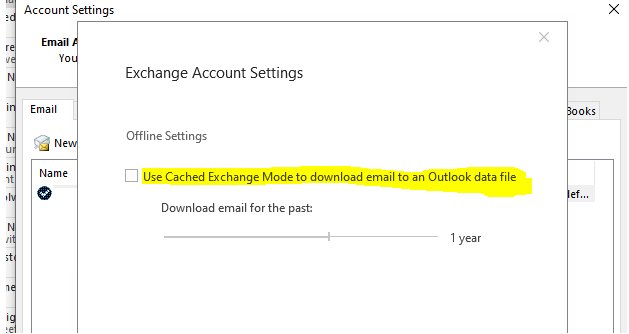
If the Work Offline button is missing, Cached Exchange Mode may be turned off. New Outlook has no Work Offline button; its offline access lives under Settings > General > Offline.
Set up automatic Send/Receive in classic Outlook
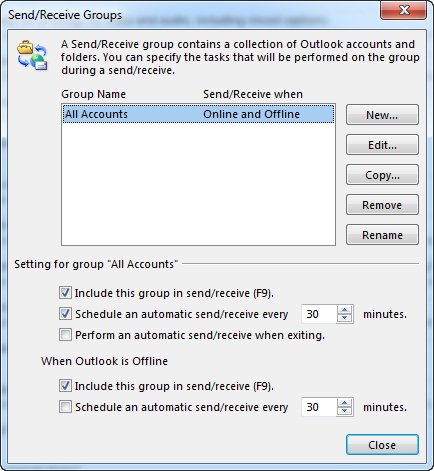
Method 4 makes classic Outlook refresh by itself. If the schedule box is cleared, new mail arrives only when you press F9.
- Open the Send / Receive tab.
- Select Send/Receive Groups > Define Send/Receive Groups.
- Select the group you want to change, usually All Accounts.
- Check the first Schedule an automatic send/receive every n minutes box and enter the number of minutes.
- If you often work offline, also check the second box with the same label so Outlook reconnects on that schedule.
These steps refresh Outlook automatically. The F9 steps in Method 1 refresh it manually whenever you want to check sooner.
Restart Outlook to reconnect to the mail server
Method 5 clears a stuck connection. The status bar shows Disconnected when Outlook cannot reach your mail server.
- Select File > Exit in classic Outlook, or close the new Outlook window.
- Open a browser and load microsoft.com or bing.com to confirm the internet works.
- Open Outlook again.
- Press F9 and check that the status bar no longer shows Disconnected.
If you can send and receive on your provider's website but not in Outlook, the problem is on your computer or in the account settings, not the server.
How to refresh Outlook on Mac
Method 6 covers Outlook for Mac. The keyboard shortcut sends the Outbox and receives new mail in one step.
- Press Control+Command+K to send all Outbox messages and receive all incoming messages.
- If mail still does not arrive, open the Outlook menu and confirm Work Offline is not checked.
- For an Exchange folder that stays out of date, Control-click or right-click the folder and choose Properties.
- On the General tab, select Empty Cache. Outlook re-downloads that folder's items from the server.
Empty Cache deletes anything in that folder not yet synced to the server, including contacts' mail certificates. Back up first and stay connected to the Exchange server while it runs.
How to refresh Outlook on the web (OWA)
Method 7 applies to Outlook on the web and Outlook.com. Both use the same Sync command as new Outlook for Windows.
- Select Mail in the navigation bar.
- Open the View tab and select Sync, or press F9.
- If nothing changes, reload the browser tab to check for new messages.
- Sign out and back in if the page still shows old mail.
How to refresh the Outlook mobile app
Method 8 is Microsoft's own fix for incomplete or incorrect data in Outlook for iOS and Android. Reset Account clears the data on the phone only, not the mailbox.
- Force close the Outlook app and reopen it.
- If mail is still missing, open Outlook and go to Settings.
- Select the email account that will not refresh.
- Select Reset Account and let the app download your mail again.
- On Android, you can also clear the app cache in Settings > Apps > Outlook > Storage > Clear cache; your data is kept.
On iPhone and iPad, an IMAP or POP account never syncs calendars and contacts. Add the account as Exchange ActiveSync if those need to refresh too.
Repair your Outlook profile
Method 9 rebuilds the account connection in classic Outlook when manual sync runs but no new mail appears.
- Select File > Account Settings > Account Settings.
- On the Email tab, select your account.
- Select Repair and follow the prompts.
- Restart Outlook when the wizard finishes, then press F9.
The Repair option is not available in Outlook 2016 connected to an Exchange account. In that case, create a new profile instead.
Repair the Outlook data file (PST/OST)
Method 10 forces a full download from the server. For Exchange and Microsoft 365 accounts, Outlook recreates a deleted .ost file the next time it opens.
- Select File > Account Settings > Account Settings.
- Open the Data Files tab and note the location of the account's .ost file.
- Close Outlook completely.
- Delete or rename that .ost file in File Explorer.
- Open Outlook and wait while it downloads your mailbox again.
- For a POP account that uses a .pst file, run SCANPST.EXE (the Inbox Repair tool) instead, select Browse, pick the .pst file, then select Start and Repair.
Never delete a .pst data file: it holds the only copy of POP mail. Only the .ost file of a server-based account is safe to rebuild.
Why Outlook stops refreshing
| Cause | What you see | Fix |
|---|---|---|
| Work Offline is on | Working Offline in the classic status bar | Method 3 |
| No connection to the mail server | Disconnected or Trying to connect | Check the internet, then Method 5 |
| Automatic send/receive is off | Mail arrives only after F9 | Method 4 |
| Password changed on the provider's site | A sign-in prompt, or no new mail | Enter the new password, or an app password if the provider asks for one |
| Microsoft cloud storage is full | Nothing sends or arrives | Free up mailbox space |
| Damaged profile or data file | Sync runs but folders stay stale | Methods 9 and 10 |
| Faulty add-in | Mail works only in safe mode | Disable the add-in |
Outlook refresh shortcuts
| Shortcut | App | What it does |
|---|---|---|
| F9 | Classic Outlook | Send/receive for every group set to include in Send/Receive |
| Ctrl+M | Classic Outlook | Check for new messages |
| Shift+F9 | Classic Outlook | Send/receive for the current folder, retrieving full items |
| Alt+J, S, G | Classic Outlook | Send/receive all folders from the keyboard ribbon path |
| F9 | New Outlook, Outlook on the web | Sync from the View tab |
| Control+Command+K | Outlook for Mac | Send all Outbox messages and receive all incoming messages |
| Shift+Command+K | Outlook for Mac | Send all Outbox messages without receiving |
Refresh behavior in classic Outlook vs. new Outlook
Both Windows apps use F9, but they name the command differently and report problems in different places.
| Task | Classic Outlook | New Outlook |
|---|---|---|
| Manual refresh | Send / Receive > Send/Receive All Folders (F9) | View > Sync (F9) |
| Where status appears | Status bar shows Working Offline or Disconnected | Sync status message at the bottom of the message list |
| Offline control | Work Offline button in the Preferences group | No Work Offline button; offline access is under Settings > General > Offline |
| Gmail, Yahoo and iCloud accounts | Checked with every send/receive group that includes them | Sync does not work; the provider's own sync cycle delivers mail |
How to check Outlook refreshed your inbox
- In classic Outlook, confirm the status bar shows neither Working Offline nor Disconnected.
- In new Outlook, watch for the sync status message at the bottom of the message list.
- Sign in to your mailbox on the web and compare the newest message with the one Outlook shows.
- Send yourself a test email, press F9 and confirm it lands in the inbox.
Still not refreshing? Deeper fixes
When the refresh button isn’t enough, match what you see to a symptom below and work through its fix.
Why won't my Outlook refresh automatically?
The automatic send/receive schedule is cleared, or Outlook is set to Work Offline.
- Select Send / Receive > Send/Receive Groups > Define Send/Receive Groups.
- Check Schedule an automatic send/receive every n minutes and set the interval.
- Make sure Work Offline in the Preferences group is not highlighted.
Outlook refreshes but no new emails appear
Mailbox storage is full, the password changed, or the account profile is damaged.
- Check your Microsoft cloud storage and free up space if it is full.
- Update the password in Outlook if you changed it on your provider's site.
- Repair the profile under File > Account Settings > Account Settings > Repair.
- If messages are filtered out of view rather than missing, fix the emails not showing in the inbox problem instead.
Sync in new Outlook does nothing for Gmail, Yahoo or iCloud
The Sync button does not work for third-party accounts.
- Wait for the provider's own sync cycle to run.
- Check the same mailbox on the provider's website.
- Close and reopen new Outlook if the website shows mail Outlook does not.
Classic Outlook status bar says Disconnected
Outlook cannot reach your mail server.
- Load microsoft.com or bing.com in a browser to test the internet connection.
- Check whether mail works on your provider's website.
- Restart Outlook, then repair the profile if it is still disconnected.
Mail only arrives in safe mode
An add-in is interfering with send and receive.
- Press the Windows key, type
outlook.exe /safeand press Enter. - If mail arrives in safe mode, an add-in is the likely cause, so disable add-ins one at a time.
- Restart Outlook normally after each change, then start Outlook in safe mode again to retest.
Antivirus email scanning blocks new mail
Some antivirus programs scan email as it arrives.
- Check your antivirus program's email scanning settings.
- Contact the antivirus vendor's help desk if mail stops arriving after an update.
- Keep the antivirus running while you troubleshoot.
Outlook shows an empty or outdated inbox
The local copy of the mailbox is out of date or damaged, while the server still holds the mail.
- Sign in to your mailbox on the web and confirm the messages are there.
- In classic Outlook with Exchange or Microsoft 365, close Outlook, rename the .ost file and reopen Outlook to download the mailbox again.
- In Outlook for Mac, open the folder's Properties and select Empty Cache on the General tab.
- On a phone, open Settings, select the account and choose Reset Account.
Prevent Outlook refresh problems from coming back
- Keep Schedule an automatic send/receive every n minutes checked in Define Send/Receive Groups in classic Outlook.
- Check that Work Offline in the Preferences group is not highlighted after you reconnect to a network.
- Keep your Microsoft cloud storage below its limit, because a full mailbox stops mail from sending and arriving.
- Enter your new password in Outlook each time you change it on your provider's site, or an app password if the provider asks for one.
- Disable any add-in that stops mail arriving outside safe mode.
When it’s not your fault: Outlook outages and server problems
| Situation | How to tell | What to do |
|---|---|---|
| Outlook.com or Microsoft 365 outage | Mail fails in Outlook and on the web at the same time | Check Microsoft's service status page and wait for the fix |
| Work or school mailbox issue | Colleagues on the same tenant have the same problem | Contact your Microsoft 365 admin or IT help desk |
| Provider-side delay on Gmail, Yahoo or iCloud | The provider's website is also missing the message | Wait, or contact the sender to confirm the message was sent |
| Known Outlook bug | The problem started right after an Outlook update | Check Microsoft's fixes and workarounds page for recent Outlook issues |
How to refresh Outlook FAQs
How do I refresh my Outlook inbox?
Press F9. In classic Outlook, F9 runs Send/Receive All Folders from the Send / Receive tab. In new Outlook and Outlook on the web, F9 runs Sync from the View tab and checks the server for new messages.
How do I refresh the new Outlook app on Windows?
Select Mail in the navigation bar, open the View tab and select Sync, or press F9. A status message appears at the bottom of the message list. Sync does not work for third-party accounts such as Gmail, Yahoo or iCloud.
How do I refresh classic Outlook?
Open the Send / Receive tab and select Send/Receive All Folders, or press F9. To refresh only the folder you are viewing, press Shift+F9. To check one account, use Send/Receive Groups and pick that account's Inbox.
Why won't my Outlook refresh automatically?
The automatic schedule is usually cleared or Work Offline is on. Open Send / Receive > Send/Receive Groups > Define Send/Receive Groups, check Schedule an automatic send/receive every n minutes, and make sure Work Offline is not highlighted.
Why won't Outlook refresh my inbox even after F9?
Check the status bar for Working Offline or Disconnected first. If Outlook is online, the mailbox may be full, your password may have changed, or the profile may be damaged. Repair the profile under File > Account Settings.
How do I refresh the Outlook app on my phone?
Force close the Outlook app and reopen it. If data is still incomplete, open Settings in the app, select the email account and choose Reset Account. The app clears its local copy and downloads your mail again.
How do I refresh my Outlook calendar?
Use the same command as for mail. Press F9 in classic Outlook to run Send/Receive All Folders, or select Sync on the View tab in new Outlook. On a phone, IMAP and POP accounts do not sync calendars at all.
Is there a refresh button in Outlook?
Yes. Classic Outlook has Send/Receive All Folders on the Send / Receive tab. New Outlook and Outlook on the web have a Sync button on the View tab. Outlook for Mac uses Control+Command+K to send and receive.
Does refreshing Outlook delete any emails?
No. F9, Sync and Send/Receive only download changes from the server. Empty Cache on a Mac and deleting an .ost file remove local copies of server items, so back up anything not yet synced before you use them.
Can I refresh Outlook on the web without reloading the page?
Yes. Select Mail, open the View tab and select Sync, or press F9. Reloading the browser tab also checks for new messages if Sync does not show the mail you expect.
Is refreshing Outlook really important?
Only when mail is late. Classic Outlook checks for mail on its automatic send/receive schedule, and new Outlook syncs on its own. A manual refresh with F9 matters when a message you expect has not arrived or automatic send/receive is turned off.
Summing up: What usually works best to refresh Outlook
Press F9 first, then turn off Work Offline and restart Outlook; repair the profile or rebuild the .ost file only when those fail. F9 and the Work Offline toggle fix most stale inboxes in seconds, while a profile repair or .ost rebuild takes longer and makes Outlook download the whole mailbox again.