To set up Roku, plug the player into your TV's HDMI port, connect power, select that HDMI input, set up the remote, join Wi-Fi, and activate the device with a free Roku account.
This guide covers Roku players, the Streaming Stick and Roku TVs, plus 4K settings, adding apps, and fixes for the problems that stop setup.
Step by step tutorial: how to set up Roku
These steps work for any Roku streaming player or Streaming Stick. Keep your Wi-Fi password and a phone or computer with your email nearby.
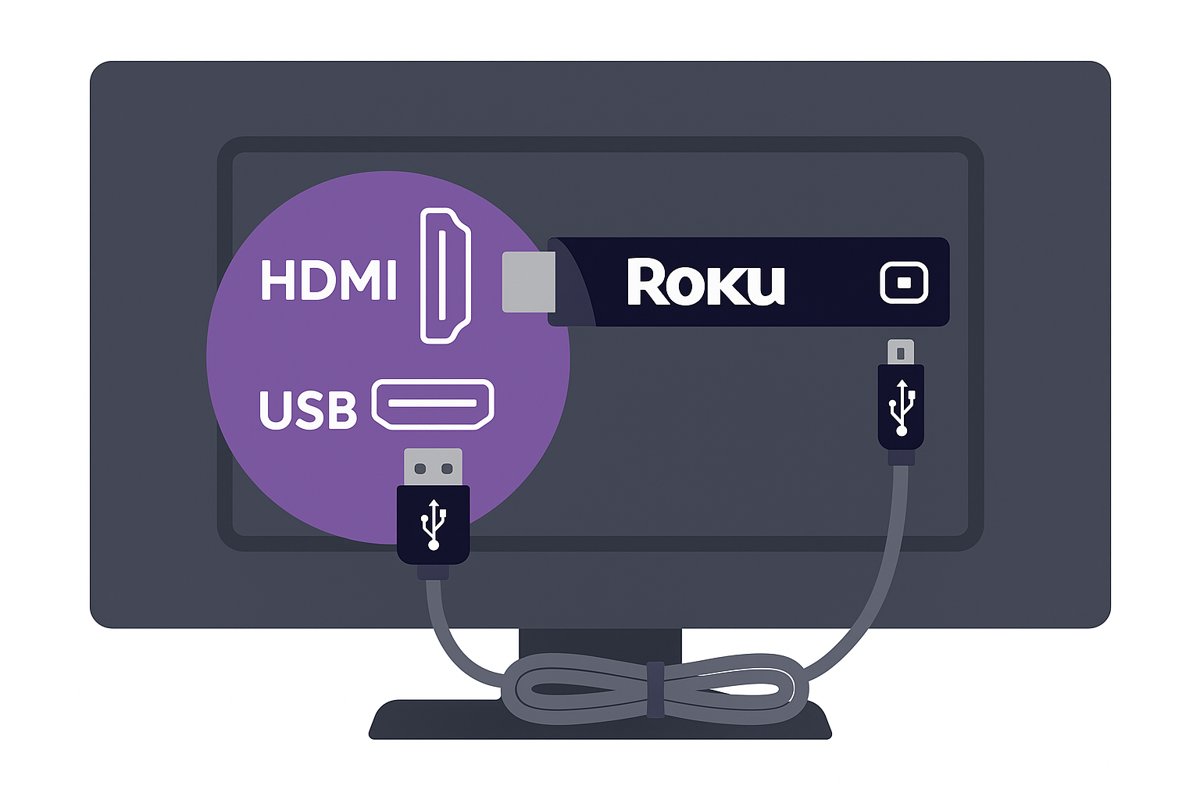
- Unbox your Roku and plug it into an HDMI port on your TV.
- Connect it to power with the cable that came in the box.
- Turn on the TV, press Input or Source on the TV remote, and choose the HDMI port you used.
- Set up the Roku remote: insert the batteries, then follow the on-screen pairing prompts if you have a voice remote.
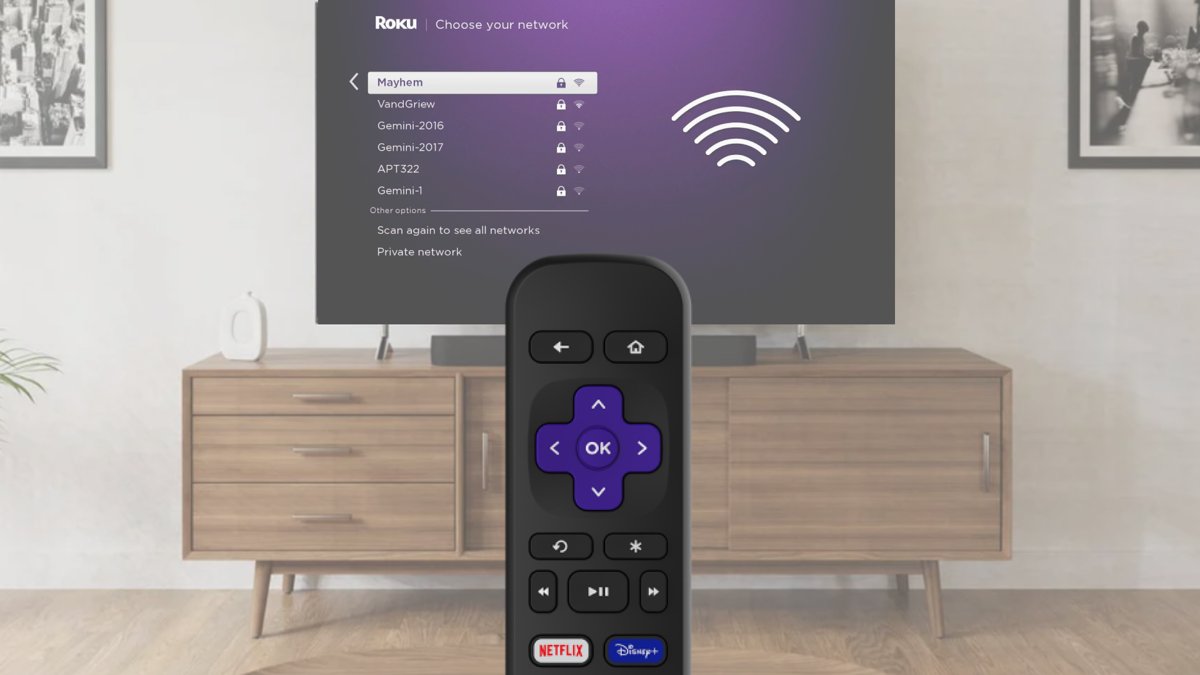
- Choose your language, select Wireless, pick your Wi-Fi network, enter the password, and select Connect.
- Wait for the software updates to finish installing.
- Enter your email address with the remote when the activation screen appears.
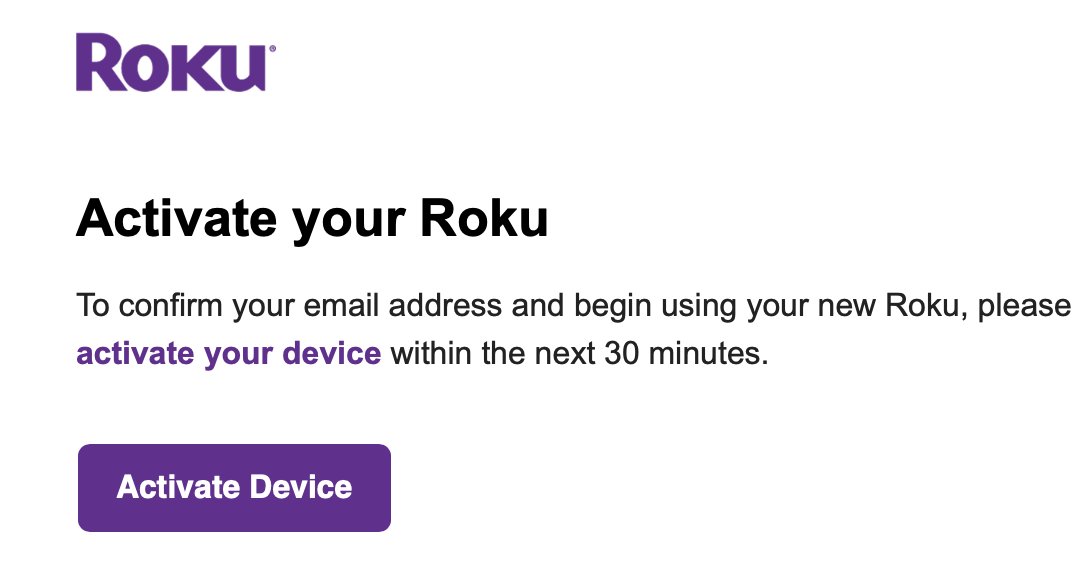
- Open the email from Roku on your phone or computer and click Activate Device.
- Sign in or create a free Roku account, then wait for your Roku to reach the Home screen.
Do you need a smart TV for Roku?
No. Roku players work with any TV that has an HDMI connection, so a smart TV is not required. A Roku TV has Roku built in and needs no separate player.
| Item | What Roku requires | Good to check |
|---|---|---|
| TV | Any TV with an HDMI connection | A Roku Streaming Stick plugs straight into the port and needs no HDMI cable |
| HDMI cable | The cable in the box, or High Speed HDMI for 720p and 1080p | Use Premium High Speed HDMI for a TV that supports 4K or HDR |
| Power | A wall outlet, or a USB port on the TV | Some TV USB ports do not supply enough power |
| Internet | A Wi-Fi network name and password, or Ethernet | Some models have an Ethernet port, and some players need a USB adapter |
| Phone or computer | Another device with access to your email | You use it to verify your email during activation |
| Roku account | A free account at my.roku.com, or one created during setup | Reuse an existing account if you already have one |
How to connect a Roku to a TV
Use these steps for a Roku player that connects with an HDMI cable. If you have a stick, skip to the next section.
- Plug one end of the HDMI cable into your Roku and the other into an HDMI port on your TV.
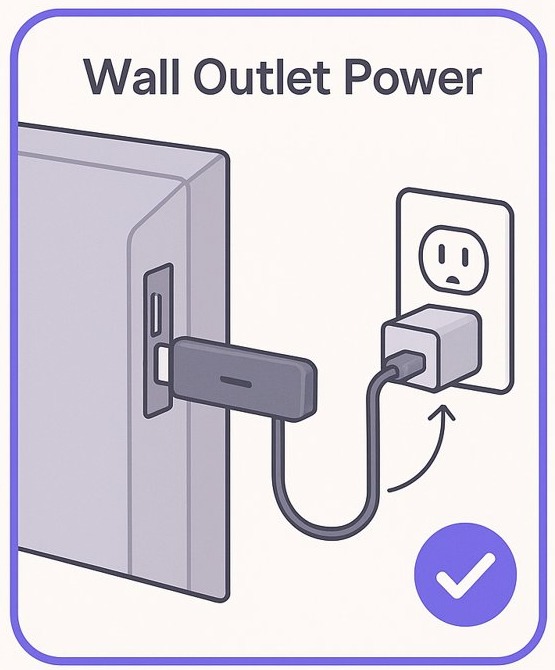
- Connect the power cable to a wall outlet with its adapter, or to a USB port on your TV.
- Check that the light on the Roku turns on or blinks, if your model has one.
- Turn on your TV and press Input or Source on the TV remote.
- Choose the port number your Roku uses, such as HDMI 1 or HDMI 2.
- Wait about 10 seconds for the TV to detect the Roku.
How to set up a Roku Streaming Stick
A Streaming Stick sits directly in the HDMI port and draws power over USB. All Roku Streaming Sticks support USB power, so a wall outlet is only a backup.
- Push the stick into an HDMI port on your TV.
- Connect the USB cable that came with the stick to a USB port on the TV.
- If an on-screen low power warning appears, use a 5V 1A USB power adapter connected to a wall outlet instead.
- Turn on the TV and select the input where you connected the stick.
- Follow the on-screen prompts to pair the remote and connect to the internet.
If the stick does not fit behind your TV, Roku offers a free HDMI extender cable through a request form on its support site. Use only the USB cable from the box, because another cable can stop the stick turning on.
How to pair a Roku remote during setup
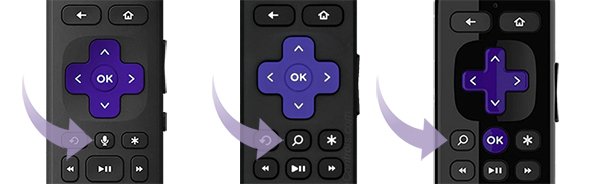
Look for a voice button near the purple directional pad, marked with a microphone or magnifying glass. No voice button means you have a simple remote, which needs no pairing.
- Insert fresh matching batteries, or remove the battery pull tab. A rechargeable remote is ready out of the box.
- With a simple remote, point it at the front of the Roku and start using it.
- With a voice remote, follow the on-screen pairing prompts.
- If no prompt appears, unplug the Roku, wait at least 5 seconds, plug it back in, and wait for the Home screen.
- Press and hold the pairing button for 5 seconds until the status light flashes. If there is no pairing button, hold Back and Home for 5 seconds.
- Wait for the pairing message on the screen.
You can pair a Roku voice remote again the same way whenever it stops responding.
How to connect Roku to Wi-Fi
Your Roku asks for a connection right after the remote is ready. A remote is required for this step, because Roku does not support joining Wi-Fi without one.
- Scroll through the language list and press OK on your choice.
- Select Wireless when asked.
- Pick your Wi-Fi network from the list. If it is missing, choose Scan again.
- Enter your Wi-Fi password, which is case-sensitive.
- Select Connect and follow the on-screen steps.
- Wait for the software updates to install.
For a wired connection, plug an Ethernet cable into your Roku and router, then choose Wired. With no Wi-Fi available, you can turn on your phone's hotspot and select it as a wireless network, though streaming and updates can use a lot of mobile data.
To change networks later, press Home and go to Settings > Network > Set up connection.
How to create a Roku account
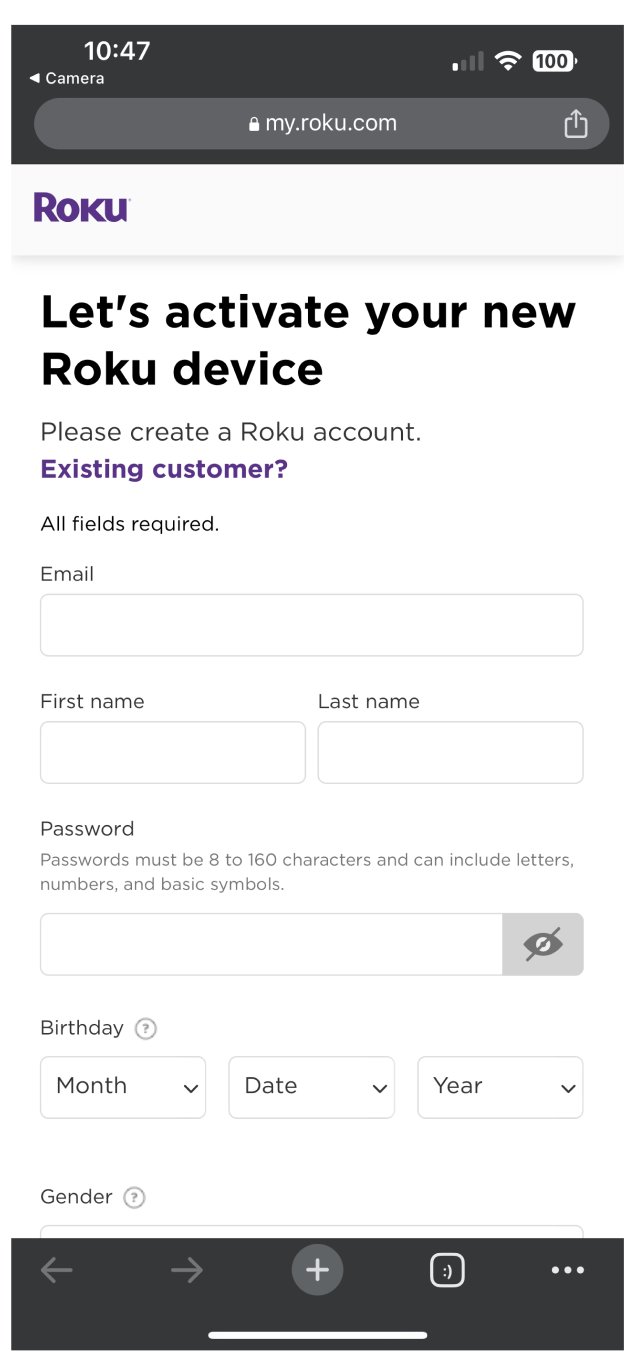
You need a Roku account to activate a device, and the account is free. You can create one during activation, or ahead of time on a computer with these steps.
- Go to my.roku.com/signup in a browser.
- Enter your personal information and a secure password, then select Continue.
- Select a PIN and choose your parental control settings.
- Add a payment method for free trials, subscriptions and purchases on your TV.
- Select Save and Continue.
The PIN controls what can be purchased and which apps can be added. If you forget it later, you can change your Roku PIN at my.roku.com.
How to activate a Roku device
Activation links your Roku to your account, and your TV must stay on the activation screen until it finishes. You also need a phone or computer with access to your email.
- Enter your email address on the TV using the Roku remote.
- On your phone or computer, open the email from Roku and click Activate Device.
- Select Existing Customer? if you already have a Roku account, or follow the steps to create one.
- Add a payment method if asked. Roku charges it only if you choose to buy something later.
- Wait for your Roku to go to the Home screen.
If the screen shows a QR code, open your phone camera, scan the code, and tap the link that appears.
How to set up a Roku TV
A Roku TV has Roku built in, so there is no player to connect. Guided Setup starts on its own and walks you through the same account and network steps.
- Attach the included stands or mount the TV, then plug in the power cord.
- Press the Power button on the Roku remote and wait for Guided Setup to begin.
- Prepare the remote by removing the pull tab or inserting batteries, and pair it if the screen asks.
- Use the directional pad to select your language, then press OK.
- Select your country, then select Set up for home use.
- Choose your wireless network and enter the password. The TV downloads updates and restarts.
- Sign in to your Roku account or create a free one when prompted.
- If prompted, connect a cable box, game console or sound system, and name each input.
You can add connected devices later at Settings > Remotes & Devices > Add Devices. To watch local TV channels on Roku with an antenna, connect it to the Live TV input, select the Live TV tile, and scan for channels.
How to set up Roku remote to control TV volume and power
A Roku voice remote can learn your TV's power and volume buttons. Some remote and TV combinations support volume only, and a Roku TV remote already has these buttons.
- Press Home on the remote.
- Go to Settings > Remotes & devices > Remotes.
- Select your voice remote, then choose Set up remote for TV control.
- Turn up the TV volume and point the remote directly at the TV.
- Follow the on-screen prompts while the TV plays test sounds, and confirm when you hear the music.
If the remote still cannot control the TV, turn on HDMI-CEC in your TV's settings. Brands name it differently, such as LG SIMPLINK or Samsung Anynet. Connect the player directly to the TV during this setup, not through a soundbar or receiver.
Roku 4K setup requirements
Every part of the chain must support 4K, or the picture drops to a lower resolution such as 720p or 1080p. After setup, go to Settings > Display type and choose Automatic to match your TV.
| Requirement | What Roku specifies |
|---|---|
| Roku player | A model that supports 4K |
| TV | A 4K-compatible TV with an HDMI 2.0 input |
| Copy protection | HDCP 2.2 on every device in the chain, and some TVs support it on only one HDMI input |
| HDMI cable | Premium High Speed HDMI, unless a compatible Streaming Stick plugs directly into the TV |
| Internet speed | A connection that can handle up to 25 Mbps |
| Streaming plan | A subscription tier that includes 4K |
How to add channels on Roku
Roku calls channels apps, and they come from the Streaming Store. An app you add goes to your account, so it appears on every Roku linked to that account.
- Press Home on your Roku remote.
- Select Streaming Store on the Home screen.
- Browse the categories or use Search, then select an app to learn more about it.
- Select Add app, and follow any steps to sign up for a subscription if the app requires one.
- Enter your Roku PIN if you set one.
- Find the new app at the bottom of the list on your Home screen.
You can also add apps at channelstore.roku.com or in the Roku mobile app, and the same store lets you get Peacock on Roku. If an app does not appear, go to Settings > System > System update > Check now.
How to check which account your Roku is linked to
A Roku that reaches the Home screen is activated, but it pays to confirm the account is yours. A scammer can activate a device with their own account and then demand money to unlock it.
- Press Home on the remote.
- Go to Settings > System > About.
- Read the email address shown for the account.
- If the email is not yours, perform a factory reset and set up the Roku again with your own account.
Does Roku charge an activation fee?
Fake activation sites buy ads and can appear at the top of search results for phrases like "roku activation" or "roku link". They may ask for your phone number, or claim your code failed and ask for payment.
No. Roku never charges for activation, account creation or customer support. Anyone asking for a setup fee, a support plan or remote access to your computer is running a scam, and a site that does not end in roku.com is not official.
Setup help is free online and from agents, so you can contact Roku support directly if you get stuck. If you already paid someone, contact your bank or card company and change your Roku and email passwords.
Tips for setting up Roku
| Tip | Why it helps |
|---|---|
| Use one Roku account for all your devices | Purchases, payment method, PIN and parental controls stay in one place, and apps stay in sync |
| Keep a simple remote's path clear | It uses infrared, so hiding the Roku behind the TV or in a cabinet blocks the signal |
| Keep the Roku close to your router | Roku's first fix for weak Wi-Fi and slow internet errors is moving the device closer |
| Install the Roku mobile app after setup | Your phone works as a spare remote once the app is connected to your Roku |
| Press the Star button four times on a Roku TV | This turns on the screen reader during setup, in English only |
| Use High Speed or Premium High Speed HDMI if you replace the cable | Roku recommends the supplied cable first, and these types match 1080p and 4K TVs |
| Make sure both the Roku and voice remote are in pairing mode together | Roku's first check for a failed pairing is that both sides are in pairing mode at once |
Roku setup not working: no picture, Wi-Fi and activation problems
Roku shows no picture on the TV
The TV is usually on the wrong input.
- Press Input, Source or Video on the TV remote.
- Pause 10 seconds on each input until the Roku screen appears.
- Plug the Roku into a different HDMI port, and connect it directly to the TV rather than through a soundbar or receiver.
- Disconnect and reconnect all cables, including the power cord.
Roku low power warning or flashing red light
The TV's USB port is not supplying enough power.
- Unplug the power cable from the TV's USB port.
- Plug the Roku into a wall outlet with the supplied cable and adapter.
Roku Streaming Stick will not turn on (error 022)
A USB cable other than the one in the box is connected.
- Swap back to the USB cable that came with the stick.
- Connect it to the TV's USB port, or to a wall outlet with an adapter if a low power warning appears.
Roku remote not pairing
The Roku and the remote must be in pairing mode at the same time.
- Unplug the Roku, wait 5 seconds, and plug it back in.
- Hold the pairing button, or Back and Home, for 5 seconds until the light flashes.
- Wait for the pairing message on the screen.
- With a Streaming Stick, request the free HDMI extender to reduce interference.
Roku will not connect to Wi-Fi
A wrong password shows as error 14.40, 14.41, 14 or 014, and a weak signal as 14.20, 14.62, 14.64, 016 or 017.
- Re-enter your Wi-Fi password, and try the same network on a phone or laptop.
- Unplug your router and modem, wait 10 seconds, and plug them back in.
- Unplug the Roku, wait 10 seconds, and plug it back in.
- Move the Roku closer to your router if the error points to a weak signal.
Roku activation email did not arrive
The message can take a few minutes, land in spam, or go to a mistyped address.
- Check your spam or junk folder and search your inbox for "Roku".
- Press the Star button on the remote.
- Choose Resend activation link, or Edit Roku email to fix the address.
Roku activation link expired
The link in the email is no longer valid.
- Press the Star button on the remote.
- Select Resend activation link.
- Open the new email and click the link.
Roku QR code will not scan
The phone camera cannot read the code from its current position.
- Move your phone closer or farther away, and angle it slightly.
- Clean your TV screen.
- Choose the option to enter a code instead.
"HDCP Error Detected" message or purple screen on Roku
The HDMI link to your TV, receiver or soundbar does not report HDCP support.
- Unplug both ends of the HDMI cable, and remove the power cords from the TV and Roku.
- Reconnect the HDMI cable firmly, then reconnect power and let both devices start.
- Try a different HDMI input, a different HDMI cable under 6 feet, or a direct connection to the TV.
Roku setup FAQ
Can I set up Roku without a credit card?
A credit card is not the only option. Roku accepts debit cards, Apple Pay, PayPal, Cash App Pay and eligible prepaid gift cards. Activation may ask for a payment method, and Roku charges it only if you choose to buy something later.
What if my TV doesn't have an HDMI port?
Roku lists HDMI as the connection for its streaming players, including Streaming Sticks and Streambars, and its requirements page names no other option. Without an HDMI port, a Roku player has no supported way to connect to that TV.
Can I use Roku on multiple TVs?
Yes. You can link many Roku devices to one account, and each device links to one account at a time. Apps you add appear on all linked devices. You can also plug a single player into another TV with an HDMI port.
What should I do if my Roku remote isn't pairing?
Restart the Roku by unplugging it for 5 seconds, then hold the pairing button, or Back and Home, for 5 seconds until the light flashes. Both devices must be in pairing mode together. A simple remote has no pairing mode and only needs batteries and a clear path.
How do I add channels to my Roku device?
Press Home, select Streaming Store, choose an app and select Add app. Some apps are free, while others need a subscription or a one-time charge. You can also add apps at channelstore.roku.com or in the Roku mobile app.
Can I set up Roku without a remote?
No. Roku says you need a Roku remote to connect a device to Wi-Fi, and replacements are sold in the Roku Accessories Store. After the Roku is online, the free Roku mobile app can act as a remote on your phone or tablet.
Do I need a Roku account to use Roku?
Yes. Roku requires an account to activate a streaming player or Roku TV, and the account is free. You can use the same account for all your devices, or a separate account with its own unique email address for each one.
Can I use Roku without internet?
Setup needs an internet connection, and streaming apps need one too. After setup, Roku says your device can be used offline only for HDMI, cable or over-the-air broadcasts. A phone hotspot can fill in if you have no Wi-Fi.
Do I need a 4K TV for a 4K Roku?
No. Every 4K Roku player works with any TV that has an HDMI connection. You only get 4K resolution with a compatible 4K TV, and HDR with a compatible HDR TV. The player falls back to a lower resolution otherwise.