Use a USB SD card reader: it plugs into a USB-A or USB-C port, and the card then opens on your laptop like any other removable drive.
Below you will also find when a hub or microSD adapter fits better, how to read the card through a camera or phone, and how to move files with Bluetooth or cloud storage instead.
What can I do if my laptop has no SD card slot?
A USB card reader solves this on any laptop with a free USB port, and you don't need to install anything extra.
- Look at your laptop's ports and note whether it has USB-A, USB-C or both.
- Get a USB SD card reader with a matching plug.
- Insert the SD card into the reader, then plug the reader into the laptop.
- Open File Explorer, select This PC and open the new drive.
- Copy the files you need to a folder on the laptop.
- Eject the reader before you unplug it, so that the copy finishes cleanly.
On Windows 10, you can open an SD card in File Explorer the same way, whether it sits in a reader or a built-in slot.
How to check if your laptop has an SD card slot
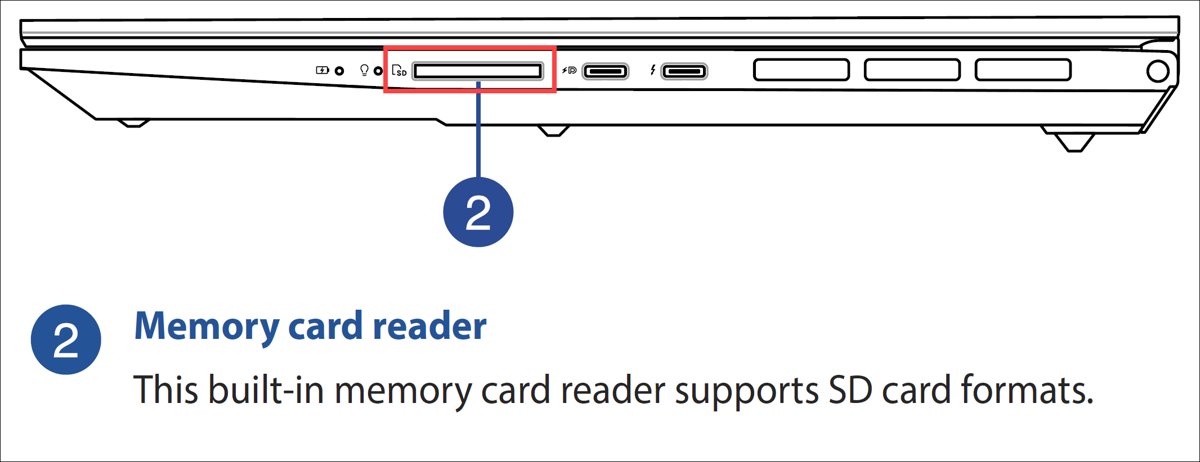
Some laptops have a small slot that is easy to miss, so check before you buy anything. Lenovo's advice for microSD support is the same for any brand: read the device's specifications.
- Look along both sides and the front edge of the laptop for a thin slot, often marked with an SD or card symbol.
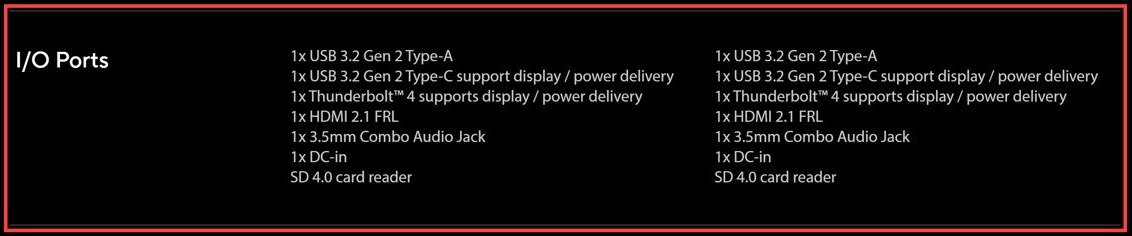
- Open the laptop's specification page on the maker's website, using its exact model name.
- Search that page for "SD", "microSD", "media reader" or "card reader".
- On a Microsoft Surface, identify the model first, because only some Surface devices have an SD or microSD reader.
- On a Mac, compare your model with the Apple list further down this page.
What are the different SD cards?
SD cards differ in physical size, capacity class and speed rating. Size decides whether a card fits, while the capacity class and speed rating decide whether your reader can use it fully.
| Card type | What sets it apart | What it means for a laptop |
|---|---|---|
| SD (full size) | The standard, largest format, used in many cameras | Fits a full-size slot or reader directly |
| MiniSD | An older, smaller format | Needs an adapter for a full-size slot |
| microSD | The smallest format, used in phones, tablets, action cameras and drones | Needs a microSD reader, or an adapter for a full-size slot |
| microSD capacity class | Typically up to 2GB | Older cards that hold very little |
| microSDHC capacity class | High Capacity, 4GB to 32GB | Moderate storage needs |
| microSDXC capacity class | eXtended Capacity, 64GB to 2TB | Large video and photo libraries |
| Speed labels | Class 10, UHS-I and UHS-II | A UHS-II card reaches its top speed only in a reader that supports UHS-II |
Regular and microSD cards work the same way apart from their size, so a microSD card in an adapter behaves like any other SD card.
Types of SD card slots in laptops
Laptops with a built-in reader use one of two slot sizes, and a card only fits one of them without help.
| Slot | Cards it accepts | What to watch for |
|---|---|---|
| SD card slot (full size) | Full-size SD cards directly, and MiniSD or microSD through an adapter | On a Mac, insert the card with its metal contacts facing down and pointing toward the computer. On other laptops, follow the marking beside the slot. |
| Micro SD card slot | microSD cards only | A full-size SD card can't go in, so a camera card still needs a USB reader. |
Why is SD card slot slowly disappearing in laptops?
Laptop makers rarely publish a reason for dropping a port, but the pressures are easy to see. Apple's own list shows the swing: MacBook Pro had a slot through 2015, the list skips the models that followed, and the slot returned on the 14-inch and 16-inch models in 2021.
| What changed | Effect on the SD card slot |
|---|---|
| Laptops got thinner | A card slot needs depth along one edge, and thin bodies have little room to spare. |
| Cloud storage became routine | OneDrive and Google Drive move many files that once travelled on a card. |
| Phones use wireless transfer | Tools such as Quick Share and Bluetooth remove the need to pull a card from a phone. |
| USB accessories cover the gap | A small reader or hub gives the slot back to the people who need it. |
Slots have not vanished, so check the spec sheet if a built-in reader matters for your next laptop.
USB SD card reader vs hub vs adapter for a laptop
| Your situation | Use this | Why |
|---|---|---|
| You only need to read camera or phone cards | USB SD card reader | It is small and does one job, so it costs the least effort to carry. |
| Your laptop has few ports and you also need HDMI or USB-A | USB-C hub with an SD slot | One plug adds the card slot and the other ports you are missing. |
| You use a microSD card and already own a full-size reader | microSD to SD adapter | The adapter lets the small card fit the larger slot. |
| The card is still inside a camera or phone | USB cable | You can copy the files without removing the card or buying anything. |
| The laptop is far away or has no free port | Bluetooth or cloud storage | Neither one needs a free port, though large files take longer. |
How to choose a USB SD card reader for a laptop
Readers differ in only a few ways that matter. Match the plug first, then the card.
| Check this | Choose | Why |
|---|---|---|
| Your laptop has only USB-C | A reader with a USB-C plug | It needs no extra adapter. |
| Your laptop has only USB-A | A reader with a USB-A plug | Most older laptops have this rectangular port. |
| You move cards between several computers | A reader with both plugs | It works on USB-A and USB-C machines. |
| You use both full-size and microSD cards | A reader with both card slots | You won't need a separate adapter. |
| You shoot on UHS-II cards | A reader that lists UHS-II support | Other readers can limit the card's speed. |
Skip any reader that doesn't list its supported card types. On a Mac, avoid cards thicker than 2.1mm in any slot, because Apple warns that they can damage it.
Use an SD card hub on a laptop
A hub suits laptops with only one or two USB-C ports. Not every hub includes a card slot, so read the product's port list first.
- Confirm that the hub's port list includes SD, microSD or both.
- Plug the hub into a USB-C port on your laptop.
- Insert the card into the hub's card slot.
- Open the card's drive in File Explorer and copy your files.
- Eject the card's drive before you remove it or unplug the hub.
How to use a microSD card on a laptop with an adapter
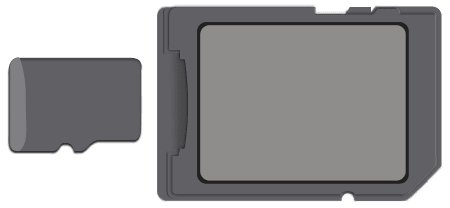
A microSD card needs help to fit a full-size slot or reader. Many microSD cards are sold with a suitable adapter, which looks like a full-size SD card with a small slot at one end.
- Slide the microSD card fully into the SD adapter.
- Check the adapter's lock tab and set it to the unlocked position.
- Insert the adapter into the laptop's SD slot or into a USB card reader.
- Open the new drive and copy your files.
- Eject the drive, remove the adapter, then take out the microSD card.
Connect your device to laptop USB port
You often don't need a reader at all. A phone or camera can hand over the files on its card through a USB cable, and the card stays where it is.
- Connect the device to the laptop with a USB cable that supports file transfer, then unlock it.
- On Android, tap the Charging this device via USB notification and choose File Transfer under Use USB for.
- On Windows, drag the files you need from the window that opens to a folder on your laptop.
- To import photos instead, select Start, open Photos, select Import and choose the connected device.
- On an iPhone, install the Apple Devices app from the Microsoft Store, then tap Trust or Allow on the phone before you import.
- Eject the device from Windows before you unplug the cable.
Many cameras support the same approach over USB. Check the camera's manual for the correct USB mode.
Connect your device to laptop via Bluetooth
Bluetooth suits a few photos or documents when you have no cable or reader. The sending device must already be paired with your PC, and it doesn't need to run Windows.
- On Windows 11, open Settings > Bluetooth & devices > Devices.
- Under Related settings, select Send or receive files via Bluetooth.
- Select Receive files in the Bluetooth File Transfer window.
- Start the transfer from the phone or other sending device.
- When the save screen appears, keep the location or browse to another folder, then select Finish.
A missing Send or receive files via Bluetooth option means that the PC may lack a Bluetooth adapter or its drivers.
Use cloud storage instead of an SD card on a laptop
Cloud storage works when the files are on a phone or another computer and both devices are online. Upload from one device, then open or download the files on the laptop.
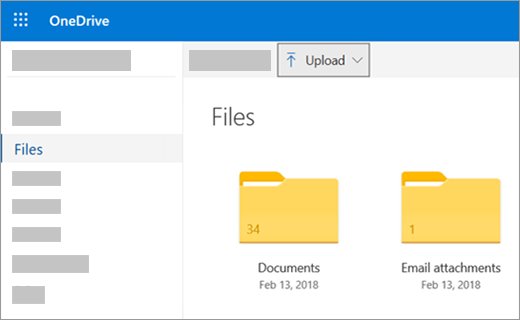
- For OneDrive, sign in at
onedrive.comon the device that holds the files. - Browse to the folder you want, select Upload, choose the files and select Open.
- For Google Drive, go to
drive.google.com, select New, then File Upload or Folder Upload, and choose your files. - On your laptop, sign in to the same service with the same account.
- Download the files, or open them directly from the website.
OneDrive's website accepts files up to 250GB, depending on your browser, and Microsoft recommends the desktop app for very large transfers. Uploads to Google Drive use up your Drive storage.
Cast your phone and transfer files to your laptop
Phone Link can show a Samsung phone's screen on your PC and let you drag files across. Android phones on Windows 11 can also appear directly in File Explorer.
| Tool | Works with | How to transfer | Limits |
|---|---|---|---|
| Phone Link Phone screen | Samsung phones with Link to Windows, on the same Wi-Fi network as the PC | Open Phone screen, long-press files in My Files or Gallery, then drag them to a PC folder | Up to 100 files at a time, 512MB per file, no folders; keep the window open |
| File Explorer link | Android 11 or later with Windows 11 | In Settings > Bluetooth & devices > Mobile devices, select Manage Devices and turn on Show mobile device in File Explorer | One phone at a time |
| Quick Share | Android phones and select Windows PCs | Install Quick Share for Windows, then share from the phone to the PC | PC support varies |
Which MacBook models have an SD card slot?
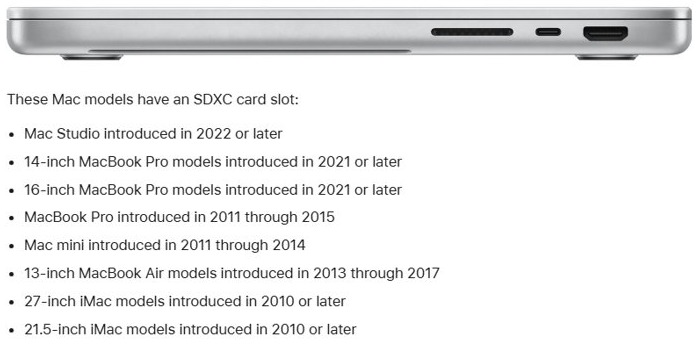
These are the Mac models Apple lists with an SDXC card slot. Any other Mac needs a USB-C reader or hub.
| Mac model | Years with an SDXC slot |
|---|---|
| 14-inch MacBook Pro | 2021 or later |
| 16-inch MacBook Pro | 2021 or later |
| MacBook Pro (older models) | 2011 through 2015 |
| 13-inch MacBook Air | 2013 through 2017 |
| Mac Studio | 2022 or later |
| Mac mini | 2011 through 2014 |
| 21.5-inch and 27-inch iMac | 2010 or later |
Mac slots read MMC, Default Speed, High Speed and UHS-I cards, and UHS-II on newer models. They do not support SDIO cards, and MiniSD or microSD cards need an adapter. You can also format an SD card on a Mac with Disk Utility once it is connected.
How to safely remove an SD card reader from a laptop
Pulling a card out while files are still being written can damage them. Ejecting first takes a few seconds.
- Close any files that are open from the card.
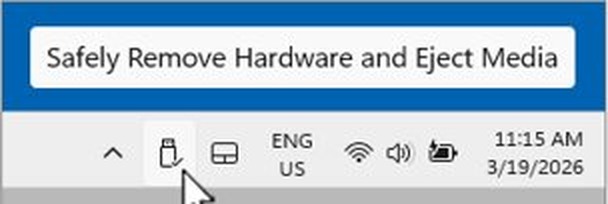
- In the Windows 11 system tray, right-click Safely Remove Hardware and Eject Media. Select Show hidden icons first if you don't see it.
- Select Eject for the card reader or drive.
- Wait for the Safe To Remove Hardware notification, then unplug the reader.
- On a Mac, drag the card's icon to the Trash and wait for it to disappear from the desktop before removing the card.
On a Mac, wake the computer before you eject. Apple warns that removing a card during sleep can lose data.
USB SD card reader not showing up on a laptop
The SD card doesn't appear after you insert it
The card can fail to mount if it was inserted too quickly or too slowly, or if the reader isn't fully seated.
- Remove the card and insert it again.
- Unplug the reader and plug it into a different USB port.
- Try the card in another device to find out whether the card or the reader is at fault.
The SD card says it can't be modified
The lock slider on the side of the card or adapter is probably on.
- Eject the card and take it out of the reader.
- Move the lock slider to the unlocked position.
- Insert the card again and retry the copy.
Windows asks you to format the SD card
The laptop can't read the card's file system, which can mean that the card came from another kind of device or has a problem.
- Close the prompt without formatting, because formatting erases everything on the card.
- Try the card in the camera or phone it came from, and copy your files off there.
- When the card holds nothing you need, format the SD card in Windows and use it again.
A microSD card won't fit the laptop's slot or reader
A full-size slot needs a microSD to SD adapter, and a microSD slot can't accept a full-size card.
- Put the microSD card into an SD adapter.
- Use a reader with a dedicated microSD slot if you don't have an adapter.
Laptop SD card slot FAQ
Can I add an SD card slot to a laptop?
Yes, as an external accessory. A USB SD card reader or a USB-C hub with a card slot gives you the same function as a built-in slot. Adding a permanent internal slot to a laptop is not a practical option for home users.
Do all laptops have an SD card slot?
No. Many current laptops have no card reader, and others have only a microSD slot. Apple, for example, includes a slot on 14-inch and 16-inch MacBook Pro models but not on every Mac. Check the model's specification page to be certain.
How do I put an SD card in a laptop without a slot?
Insert the card into a USB card reader or a hub, then plug that into a USB port on the laptop. The card then opens as a removable drive. Use a microSD adapter or a microSD reader if your card is the smaller size.
Can I use a microSD card on my computer?
Yes. Put the microSD card in an adapter and insert it into the computer's SD card slot, or use a USB card reader with a microSD slot. You can then transfer files in both directions, just as with a full-size card.
Can I transfer photos from an SD card to a laptop without a card reader?
Yes, if the card is in a phone or camera that can connect over USB. Connect the device with a USB cable, then copy the files or import them with the Photos app. Android phones must be set to File Transfer first.
Is a USB-C hub better than an SD card reader?
A hub is better when you also need extra ports such as HDMI or USB-A. A dedicated reader is the simpler buy when you only want to read cards. Check that the hub's port list actually includes a card slot before you buy it.
Which SD card reader do I need for a 128GB or larger card?
Cards from 64GB to 2TB are in the microSDXC or SDXC class, so choose a reader that lists SDXC support. A reader limited to older SD and SDHC cards may not read them. The product's specification page should name the supported types.