Double-click the .chm file, and Windows 11 opens it in its built-in HTML Help viewer, hh.exe, with no extra software.
If the pages show Navigation to the webpage was canceled, the file is blocked, and one check box in Properties fixes it. The sections below cover that fix, CHM files on network drives, converting CHM to HTML, and the security cost of each workaround.
The fastest way to open a CHM file in Windows 11
Most CHM files arrive as downloads, so the first open often shows an error instead of content. These steps cover both outcomes.
- Open File Explorer and go to the folder that holds the .chm file.
- Double-click the file. The HTML Help viewer opens with the contents on the left and a topic on the right.
- If the right pane says Navigation to the webpage was canceled or Action canceled, close the viewer.
- Right-click the .chm file and select Properties.
- On the General tab, select the Unblock check box, then select OK.
- Double-click the file again. The topics now display normally.
Unblock only the files whose source you trust. Windows marks downloads as coming from the Internet zone, and the block is the protection working as designed.
Which route to use for your CHM file
Where the file came from decides the fix. Match your case to a row.
| Your situation | Do this | Why |
|---|---|---|
| The file is on your PC and opens normally | Double-click it | hh.exe is the default handler for .chm files |
| You do not know where the file is | Type its name in taskbar search or the File Explorer search box, then open the result | Search returns the file itself, which then opens in HTML Help |
| Downloaded file shows Navigation to the webpage was canceled | Properties > General > Unblock | Removes the Internet-zone mark from that one file |
| A folder of downloaded CHM files | Unblock-File in PowerShell |
Unblocks many files in one command |
| The file sits on a network share or mapped drive | Copy it to a local folder, then open the copy | HTML Help blocks content served from outside the Local Machine zone |
| A program's Help menu opens a CHM on a server you manage | The MaxAllowedZone registry value, set to 1 |
Allows intranet CHM content for every user on the PC, so treat it as a last resort |
| Double-click opens the wrong app or nothing | Run hh.exe -register |
Re-registers HTML Help as the open command for .chm files |
| You need the pages outside the Help viewer | hh.exe -decompile |
Extracts the HTML topics and images into a folder |
Unblock several CHM files at once with PowerShell
Properties unblocks one file at a time. PowerShell's Unblock-File does the same operation as the Unblock check box, across as many files as you point it at.
Get-Item C:\Users\You\Downloads\*.chm -Stream Zone.Identifier -ErrorAction SilentlyContinue
Unblock-File -Path C:\Users\You\Downloads\manual.chm
dir C:\Users\You\Downloads\*.chm | Unblock-File
Line one lists the CHM files that still carry the Zone.Identifier stream, which is the block. Line two unblocks a single file. Line three unblocks every CHM in the folder, so run it only after checking each file's source. Replace You with your user folder name.
You should see: Unblock-File prints nothing. Run line one again and it returns no files, which proves the blocks are gone.
Make double-clicking a CHM file open HTML Help again
Another program can take over the .chm extension, and then double-click opens the wrong window. HTML Help carries its own switch to take the association back.
- Press Win + R to open the Run dialog.
- Type
hh.exe -registerand press Enter. - Open Settings > Apps > Default apps.
- Type
.chmin the search box on that page and select the result. - Confirm that Microsoft HTML Help is the app listed for the .chm type.
- Double-click a CHM file to confirm it opens in the Help viewer.
-register sets hh.exe as the shell-open command handler for .chm files. It is one of the switches Microsoft documents for the HTML Help executable.
Open a CHM file stored on a network drive
Since security update 896358, HTML Help refuses content served from outside the Local Machine zone. A CHM on a mapped drive or UNC path hits that restriction even after you unblock it.
Copying the file to your own disk is the fix with no security cost.
- Open the network folder in File Explorer and copy the .chm file.
- Paste it into a local folder such as Documents.
- Right-click the local copy and select Properties.
- If an Unblock check box appears on the General tab, select it and select OK.
- Double-click the local copy to open it in HTML Help.
When a program insists on loading its help from the server, the registry route in the troubleshooting section is the only documented alternative. Read the security table before using it.
How to check the CHM file is unblocked and working
- Double-click the file and confirm a real topic appears in the right pane, not a canceled-navigation message.
- Select an entry in the Contents list and confirm the right pane changes to that topic.
- Right-click the file, select Properties, and confirm the Unblock check box no longer appears on the General tab.
- For proof at the command line, run
Get-Item .\manual.chm -Stream Zone.Identifier -ErrorAction SilentlyContinuein PowerShell from the file's folder. No output means no zone mark remains.
To read a mark that is still there, run notepad manual.chm:Zone.Identifier. The ZoneId under [ZoneTransfer] maps 3 to Internet, 1 to Local intranet, and 0 to My Computer.
Understanding what a CHM file contains
CHM stands for Compiled HTML Help. It is a single compressed file built from a folder of web pages, so understanding that explains both the blocking and the conversion options.
| Question | Answer |
|---|---|
| Full name | Compiled help file, from Microsoft HTML Help |
| What is inside | HTML topic pages, images, a contents file (.hhc) and an index file (.hhk), compressed into one .chm |
| What builds it | The HTML Help compiler in HTML Help Workshop, from a project (.hhp) file |
| What opens it | hh.exe, which hosts the HTML Help ActiveX control inside the Help Viewer |
| Viewer layout | Topic pane on the right, Navigation pane on the left with contents, index, favorites and search tabs |
| Current version | HTML Help 1.4; HTML Help Workshop stops at 1.3 |
| Future | Microsoft states there are no plans to add new features to HTML Help |
Converting a CHM file to HTML and other formats
Windows can turn a CHM back into its source pages with the viewer you already have. The decompile switch is part of hh.exe, so HTML Help Workshop is not required.
The output is plain HTML, which opens in Microsoft Edge and can be printed from there.
mkdir C:\chm-html
hh.exe -decompile C:\chm-html C:\Users\You\Documents\manual.chm
-decompile takes the destination folder first and the .chm file second. The first line creates an empty destination folder. Use paths without spaces, as in this example.
You should see: C:\chm-html fills with the file's .htm topic pages and images. Double-click any .htm file to read that topic in your browser.
Microsoft documents no CHM-to-PDF or CHM-to-Word converter. The decompiled HTML is the starting point for any other format.
Create your own CHM file with HTML Help Workshop
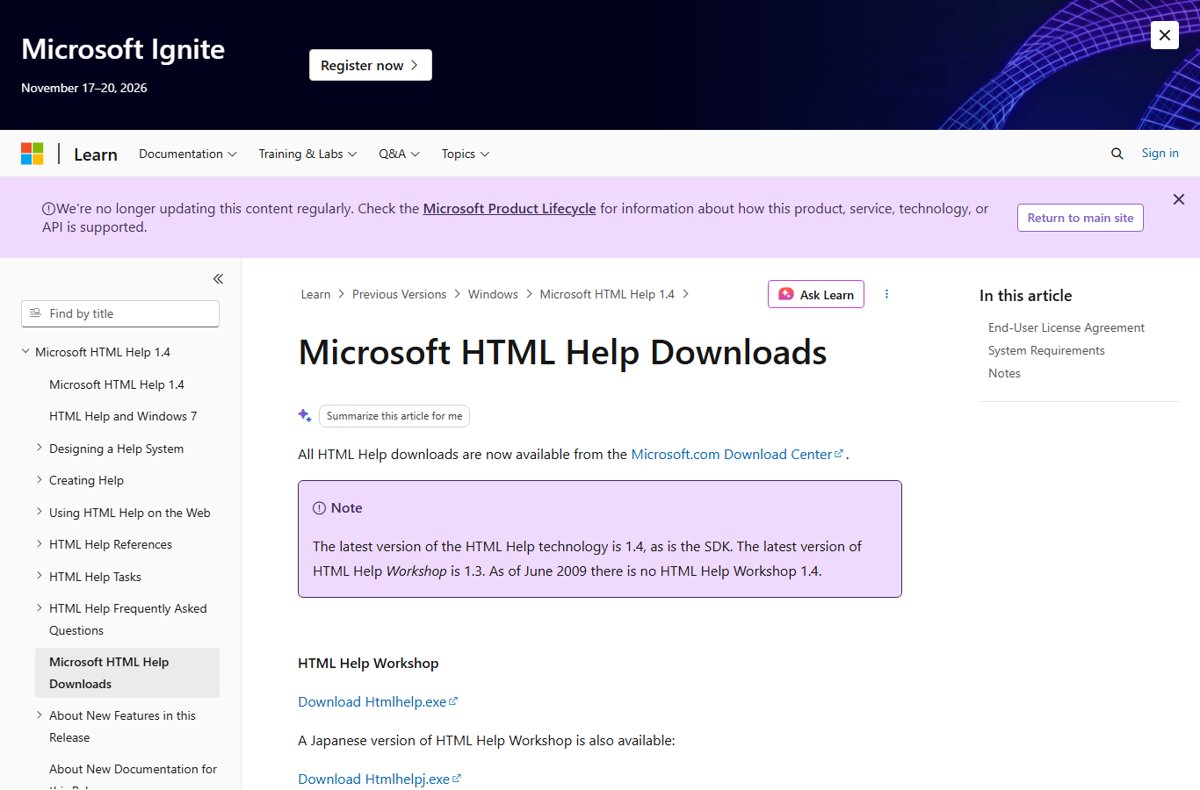
HTML Help Workshop 1.3 is Microsoft's authoring tool for CHM files, listed on the Microsoft HTML Help Downloads page on Microsoft Learn.
- Install HTML Help Workshop from the Microsoft HTML Help Downloads page.
- Open HTML Help Workshop and select File > New > Project.
- Follow the New Project Wizard to create the project (.hhp) file.
- Add your HTML topic files, then create a contents (.hhc) and an index (.hhk) file.
- Open the project file and select Compile HTML File.
- Double-click the new .chm file to test it in the Help Viewer.
To compile without the interface, type hhc followed by the project file name at a command prompt. Microsoft notes that hh.exe and hha.dll must be on your path.
How to undo the MaxAllowedZone registry change
Reverse the registry workaround once the file is copied locally or the program no longer needs remote help. Microsoft's most conservative setting is 0.
- Press Win + R, type
regedit, and press Enter. Select Yes at the User Account Control prompt. - Go to
HKEY_LOCAL_MACHINE\SOFTWARE\Microsoft\HTMLHelp\1.x\ItssRestrictions. - Double-click
MaxAllowedZone, set Value data to0, and select OK. - Delete any
UrlAllowListentry you added, or set it to an empty string. - Close Registry Editor and reopen the CHM to confirm remote content is blocked again.
Troubleshooting common issues related to opening CHM files
Match the symptom, then run only the fix under it.
The file opens, but pages say "Navigation to the webpage was canceled"
The file is flagged as downloaded from an untrusted source. Attachment Manager added a zone identifier, and HTML Help refuses to render the topics.
- Close the Help viewer.
- Right-click the .chm file and select Properties.
- On the General tab, select Unblock, then select OK.
- Double-click the file to reopen it.
There is no Unblock check box, or unblocking changes nothing
The file is on a network share. Microsoft notes the check box often does not appear there, and HTML Help blocks content from outside the Local Machine zone regardless.
- Copy the .chm file to a local folder such as Documents.
- Unblock the local copy if Properties shows the check box.
- Open the local copy.
- If a program must load help from the server, ask the PC's administrator to apply the registry fix below.
A CHM on the company network must open in place
Security update 896358 restricts the InfoTech protocol (ms-its, its, mk:@msitstore) to the Local Machine zone. The MaxAllowedZone value widens that limit for the whole PC.
- Sign in with an administrator account and read the security table below first.
- Press Win + R, type
regedit, and press Enter. - Go to
HKEY_LOCAL_MACHINE\SOFTWARE\Microsoft\HTMLHelp\1.x. Create theHTMLHelpand1.xkeys with Edit > New > Key if they do not exist. - Create a key named
ItssRestrictionsunder1.x. - Inside it, select Edit > New > DWORD (32-bit) Value and name it
MaxAllowedZone. - Set Value data to
1, which allows the Local intranet zone, and select OK. - Reopen the CHM from the network path.
Double-clicking a CHM opens the wrong app or does nothing
Another program registered itself for the .chm extension, or the association is damaged.
- Press Win + R, type
hh.exe -register, and press Enter. - Double-click the CHM file again.
- If it still fails, open Settings > Apps > Default apps, search
.chm, and set Microsoft HTML Help as the app.
The contents and index pane is missing
The Navigation pane is hidden. The viewer toolbar can show or hide it, and the help author decides which tabs exist.
- Select the toolbar button that displays the Navigation pane.
- Select the Contents or Index tab once the pane appears.
- If the toolbar has no such button, the author customized the viewer without one. Run
hh.exe -decompileand browse the extracted pages directly.
Security considerations when handling or unblocking CHM files
A CHM file is a bundle of HTML pages rendered by an old Windows component. Microsoft rated an HTML Help flaw critical in bulletin MS05-026, because a malicious help file could run code with your user rights.
Every fix on this page removes a protection. The table shows how much each one removes.
| Fix | What it opens up | Verdict |
|---|---|---|
| Copy the file to a local folder | Nothing beyond the file you chose | Use this first |
| Unblock one file | That one file loses its Internet-zone mark | Safe for files from a source you trust |
Unblock-File on a whole folder |
Every matching file loses its mark at once | Check each file's source before running it |
MaxAllowedZone = 1 |
Any CHM content from the Local intranet zone, for every user on the PC | Last resort, on managed networks only; set it back to 0 when finished |
MaxAllowedZone = 2 |
Content from every site in Trusted sites as well | Avoid unless an administrator controls that list |
MaxAllowedZone = 3 or higher |
CHM content served from the Internet | Never. Microsoft states this exposes your system to attack from the Internet |
UrlAllowList with MaxAllowedZone = 0 |
Only the one location you list | Narrower than raising the zone, for administrators |
Microsoft's own guidance is that the safest course is no registry workaround at all. Never download a CHM from an unknown site just to read documentation.
Frequently asked questions
How do I open a CHM file in Windows 10?
The steps match Windows 11. Double-click the file to open it in HTML Help. If the pages say Navigation to the webpage was canceled, right-click the file, select Properties, select Unblock on the General tab, then reopen it.
What is a CHM file?
A CHM file is a Compiled HTML Help file. It packs HTML topic pages, images, a table of contents and an index into one compressed file. Software makers ship CHM files as offline manuals, and Windows opens them with its HTML Help viewer, hh.exe.
What is the CHM file format?
The .chm format is the output of the Microsoft HTML Help compiler. It combines a project (.hhp), contents (.hhc), index (.hhk), HTML topics and images into one file that uses far less disk space than the originals. The latest HTML Help version is 1.4.
What is a Microsoft CHM file?
It is a help file made with Microsoft HTML Help, the format behind many Windows program manuals. Microsoft still ships the viewer in Windows 11, but states there are no plans to add new features to HTML Help. HTML Help Workshop remains at version 1.3.
How do I create a CHM file?
Install HTML Help Workshop from Microsoft, then select File > New > Project and follow the New Project Wizard. Add your HTML pages, contents and index files, open the project, and select Compile HTML File. The command hhc project.hhp compiles without the interface.
How do I read a CHM file without the Help viewer?
Extract its pages with hh.exe -decompile C:\chm-html manual.chm, replacing the folder and file names with your own. The folder fills with the file's HTML topics and images. Open any .htm file in Microsoft Edge or another browser to read it.
Why does my CHM file say "Navigation to the webpage was canceled"?
Windows flagged the file as downloaded from an untrusted source, so HTML Help refuses to show its pages. Right-click the file, select Properties, select Unblock on the General tab, and select OK. A file on a network share needs copying to a local folder instead.
Why is there no Unblock option in the CHM file's Properties?
Either the file carries no block, or it sits on a network share, where Microsoft notes the check box often does not appear. Copy the file to a local folder and check Properties again. Files on FAT32 drives never receive the block.
Does Windows 11 still support CHM files?
Yes. Windows 11 still opens CHM files with its built-in HTML Help viewer, hh.exe, so no extra software is needed. The format is no longer developed, and downloaded files open blocked until you unblock them.
Is it safe to open a CHM file?
Only from a source you trust. A CHM is a bundle of web pages, and Microsoft rated an HTML Help flaw critical in bulletin MS05-026. Unblock individual trusted files instead of raising MaxAllowedZone, and never set that value to 3 or higher.






How to open DMG files on Windows PC - Techdows
[…] VHD and VHDX. 7-Zip also unpacks CHM help files, though Windows opens those itself, as the guide on how to open a CHM file in Windows 11 […]
How to open aae files on Windows 11 - Techdows
[…] Turn on iCloud Photos on the iPhone, install iCloud for Windows, and let it deliver finished photos to File Explorer. Use icloud.com/photos when you need only a few files. Both routes give Windows the photo with your edits applied and no AAE files to sort. USB copying of the iPhone's folders is the route that produces AAE files and unedited originals. For other file types Windows opens with a built-in viewer, see how to open a CHM file in Windows 11. […]
How do I open an ODG file in Microsoft Office - Techdows
[…] same default-app setting helps with other formats Windows cannot open on its own, such as CHM help files and HEIC […]