An MHT file is a web page saved as a single MIME HTML (MHTML) file, and you open it by dragging it into Microsoft Edge or Google Chrome or pressing Ctrl + O in either browser.
This guide covers what an MHT file holds, how to open one on Windows and Mac, how to create one from a browser or Word, and what to do when the file will not open.
Open an MHT file in Microsoft Edge or Chrome
Edge and Chrome both read MHTML natively, so no extra software is needed on Windows 11, Windows 10 or macOS.
- Open Microsoft Edge or Google Chrome.
- Press Ctrl + O on Windows, or Command + O on a Mac.
- Browse to the folder that holds the .mht or .mhtml file.
- Select the file and choose Open.
- Read the page in the tab that opens, with its saved images and layout.
Dragging the file from File Explorer or Finder onto an open browser window does the same job in one move.
How to open an MHT file
The right app depends on the device and on how old the saved page is.
| Your situation | Open it with | Why |
|---|---|---|
| Windows 11 or 10, any modern page | Microsoft Edge | Built into Windows and reads MHTML in the normal Edge engine |
| You use Chrome on Windows, Mac or Linux | Google Chrome with Ctrl + O or Command + O | Chrome supports MHTML and opens it from the file system |
| An old intranet page built for Internet Explorer | Edge in Internet Explorer mode | IE mode renders legacy markup that the modern engine draws badly |
| The file came from Word as a Single File Web Page | Microsoft Edge or Chrome | Word writes the file in the same MIME HTML standard browsers read |
| The file is an email attachment or a web link | Save it to your PC first, then open it | Chrome only loads MHTML from the local file system |
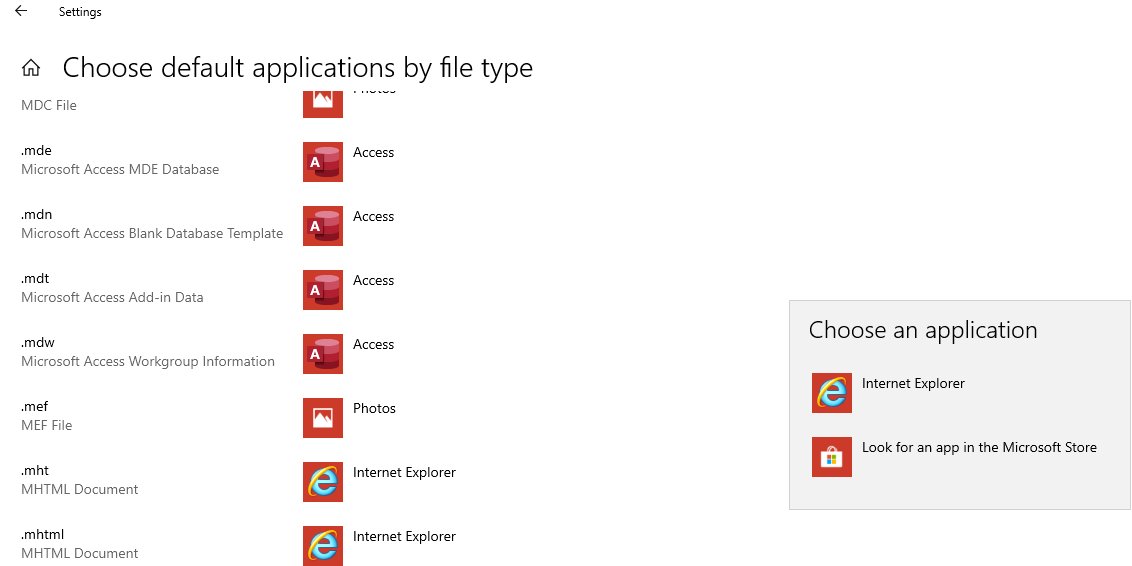
Set Microsoft Edge as the default app for MHT files
Once Edge is the default, a double-click on any .mht file opens it straight away.
- Right-click the .mht file in File Explorer.
- Select Open with > Choose another app.
- Pick Microsoft Edge from the list.
- Select Always so Windows remembers the choice.
- Double-click the file to confirm it now opens in Edge.
Repeat the same steps on a .mhtml file if your files use the longer extension, because Windows treats the two extensions separately.
Open an MHT file in Internet Explorer mode in Edge
Internet Explorer 11 is retired on Windows, and IE mode in Edge is Microsoft's replacement for pages that still need the old engine.
Microsoft documents a file association that adds a Microsoft Edge with IE mode entry to the Open with menu for .mht files. Work and school PCs usually get it from IT.
- Right-click the .mht file in File Explorer.
- Select Open with.
- Choose the Microsoft Edge entry marked for IE mode if your organization added it.
- If the entry is missing, open the file in normal Edge and ask IT whether IE mode is set up on your PC.
Two Edge policies control this. Allow local MHTML files to open automatically in Internet Explorer mode lets local .mht files open in Edge or IE mode based on their content. Automatically open downloaded MHT or MHTML files from the web in Internet Explorer mode does the same for downloaded files, and it is off unless an administrator turns it on.
What is an MHT file?
MHT and MHTML are two extensions for the same format, MIME HTML. A normal saved web page is an .html file plus a folder of images; an MHT file packs both into one file.
| Property | Detail |
|---|---|
| Full name | MIME HTML, also written MHTML |
| Extensions | .mht and .mhtml |
| What is inside | The page's HTML plus its resources, such as CSS files and images, in one file |
| Standard | The MIME HTML internet standard, the same encoding family used by email |
| Made by | Chrome and Edge when saving a page as a single file, Word's Single File Web Page option, and Chrome extensions that use the pageCapture API |
| Opened by | Microsoft Edge, Google Chrome and Edge in IE mode |
Because MHTML uses MIME encoding, it is a close cousin of the EML email file format, which stores one message the same way.
Create and open MHT files
You can make an MHT file from a browser or from Microsoft Word for PC. Microsoft describes Word's Single File Web Page (.mht) format as one file that includes all page elements, such as graphics.
| Starting point | Steps | Result |
|---|---|---|
| A web page in Chrome or Edge | Press Ctrl + S (Command + S on Mac), choose the single-file web page type in the save type list, then select Save | One .mhtml file with the page and its images |
| A Word document | Select File > Save As, set the type to Single File Web Page (.mht), then select Save | One .mht file that displays the document in a browser |
| A Chrome extension you build | Call the pageCapture.saveAsMHTML() method on a tab |
MHTML data for that tab |
Open the new file with Ctrl + O in Edge or Chrome to check that the images came through.
Check the MHT file opened correctly
- Look at the address bar: it shows a
file:///path to the .mht file, not a website address. - Confirm the images and page layout appear, not just plain text.
- Disconnect from the internet and reload the tab; a complete MHT file still shows its saved images.
- Scroll to the end of the page to confirm the whole page was captured.
What to do when an MHT file won’t open
The MHT file opens as raw code or text
Windows sends the file to a text editor or another app instead of a browser.
- Right-click the file and select Open with > Choose another app.
- Select Microsoft Edge, then Always.
- Open the file again.
An MHT link or attachment will not load in Chrome
Chrome only loads an MHTML file from the file system, never straight from a web address.
- Save the attachment or download to a local folder.
- Open Chrome and press Ctrl + O.
- Select the saved file and choose Open.
An old page looks broken or blank in Edge
The page was written for Internet Explorer's engine.
- Open the file in Edge's IE mode from the Open with menu if your PC has that entry.
- On a work PC without it, ask IT to enable IE mode for MHT files.
- Try Google Chrome as a second renderer.
The page opens but images are missing
The file was saved as HTML only, or the save did not finish.
- Check that the file extension is .mht or .mhtml, not .htm or .html.
- Go back to the original page if it still exists.
- Save it again as a single-file web page and wait for the save to complete.
MHT file FAQ
What is an MHT file?
An MHT file is a web page saved in MIME HTML format. It stores the page's HTML together with its resources, such as images and CSS files, in one file, so the page can be opened offline without a separate folder.
What is the difference between MHT and MHTML?
There is no difference in format. MHT and MHTML are two extensions for the same MIME HTML standard. Word uses .mht for its Single File Web Page option, while browsers often save the same format as .mhtml.
How do I open an MHT file in Windows 11?
Open Microsoft Edge, press Ctrl + O, select the .mht file and choose Open. You can also drag the file onto an Edge window, or set Edge as the default browser so a double-click opens it.
Can Google Chrome open MHT files?
Yes. Chrome supports MHTML and opens it with Ctrl + O on Windows or Command + O on a Mac. The file must be on your computer, because Chrome only loads MHTML from the local file system.
Can I open an MHT file without Internet Explorer?
Yes. Microsoft Edge and Google Chrome both open MHT files directly. Internet Explorer is retired, and Edge's IE mode covers old pages that still need the legacy engine.
How do I convert an MHT file to PDF?
Open the MHT file in Edge or Chrome, press Ctrl + P, choose a PDF printer as the destination, then select Save. The PDF keeps the page as it appears in the browser.
Is it safe to open an MHT file?
Treat an MHT file like any web page from an unknown source. Open files only from people you trust, keep your browser up to date, and save attachments locally before opening them so your browser handles them as files.