On an eligible Windows 10 PC, open Start > Settings > Update & Security > Windows Update, select Check for updates, then select Download and install when Windows 11 appears.
This guide covers the four official download routes, the requirements your PC has to clear, the clean-install steps, and what to do when the PC does not qualify.
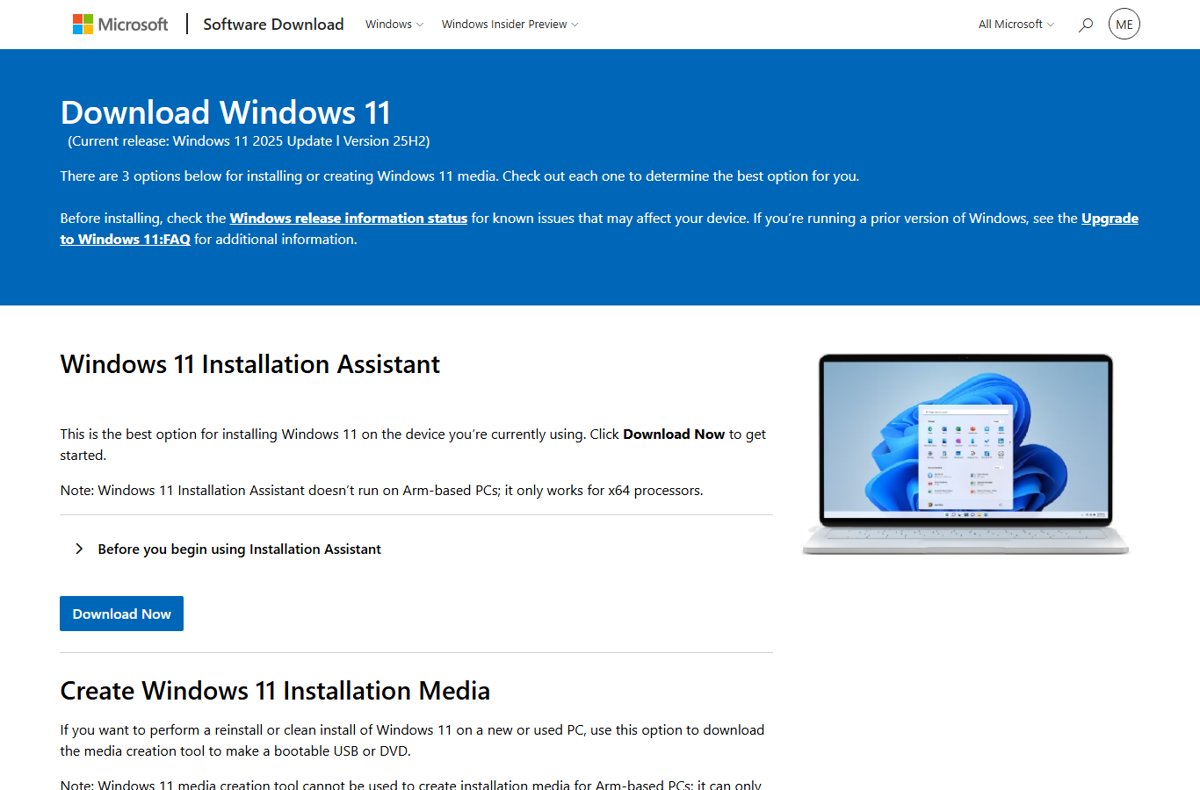
The fastest way to download Windows 11
Windows Update is the route Microsoft recommends, and it keeps your files, apps and settings in place.
The current release is the Windows 11 2025 Update, version 25H2. Upgrading from Windows 10 costs nothing.
- On the Windows 10 PC, open Start > Settings > Update & Security > Windows Update.
- Select Check for updates.
- When the Windows 11 upgrade is offered, select Download and install.
- Accept the licence terms.
- Restart the device when prompted, then leave it alone; setup restarts the PC again by itself.
I
f
t
h
e
u
p
g
r
a
d
e
i
s
n
e
v
e
r
o
f
f
e
r
e
d
,
t
h
e
P
C
e
i
t
h
e
r
f
a
i
l
s
a
r
e
q
u
i
r
e
m
e
n
t
o
r
t
h
e
r
o
l
l
o
u
t
h
a
s
n
o
t
r
e
a
c
h
e
d
i
t
y
e
t
.
T
h
e
I
n
s
t
a
l
l
a
t
i
o
n
A
s
s
i
s
t
a
n
t
b
e
l
o
w
h
a
n
d
l
e
s
t
h
e
s
e
c
o
n
d
c
a
s
e
.
Which download route should you use?
All four routes come from the same Microsoft download page and install the same build. They differ in what you end up holding.
| Your situation | Use this | Why |
|---|---|---|
| Windows 10 PC and Windows Update already offers the upgrade | Windows Update | Microsoft's recommended route; files, apps and settings survive |
| Eligible PC, but Windows Update has not offered it yet | Windows 11 Installation Assistant | Upgrades the PC you are sitting at; x64 processors only |
| Another PC to install on, or a reinstall from scratch | Media creation tool | Downloads Windows 11 and writes a bootable USB in one pass; x64 only |
| A virtual machine, or your own USB-writing tool | Windows 11 disk image (ISO) | A multi-edition file your product key or digital licence unlocks |
Understanding Windows 11: What You Need to Know
Seven facts decide how the download goes. Read the row that matches your PC before you start.
| What to know | Detail | Why it matters |
|---|---|---|
| Current release | Windows 11 2025 Update, version 25H2 | Every option on Microsoft's download page gives you this build |
| Cost | Upgrades to Windows 11 from Windows 10 are free | No purchase is needed; a metered connection may still cost you data |
| Windows 10 | Support for Windows 10 ended on 14 October 2025 | Staying put means running an unsupported release |
| Editions | The ISO is multi-edition | Your product key or digital licence unlocks Home, Pro or Pro for Workstations |
| S mode | Only the Home edition supports S mode on Windows 11 | Switch out of S mode first on any other edition; the switch cannot be reversed |
| Arm PCs | The Installation Assistant and the media creation tool are x64 only | Arm64 devices use the separate Arm64 ISO listed on the same page |
| First-run setup | Windows 11 Home needs an internet connection and a Microsoft account to finish setup | Arrange both before a clean install, not during it |
| Feature extras | Auto HDR needs an HDR monitor, DirectStorage needs an NVMe SSD, and three-column Snap layouts need a screen 1920 effective pixels wide or more | A PC can meet the minimum and still miss individual features |
Preparing for Windows 11 Download
Windows 11 refuses to install on hardware below these figures, and the check runs before the download starts.
The PC Health Check app reports pass or fail per item on a Windows 10 PC. It does not test the graphics card or display.
| Requirement | Minimum | How to check it |
|---|---|---|
| Processor | 1 GHz or faster, two or more cores, compatible 64-bit processor or SoC | PC Health Check app |
| Memory | 4 GB or more | PC Health Check app |
| Storage | 64 GB or more of free disk space | PC Health Check app |
| System firmware | UEFI, Secure Boot capable | PC Health Check app, then your PC maker's firmware documentation |
| TPM | Trusted Platform Module version 2.0 | PC Health Check app |
| Graphics card | DirectX 12 or later with a WDDM 2.0 driver | Not tested by PC Health Check; check the GPU model on the maker's site |
| Display | 720p or better, larger than 9 inches, 8 bits per colour channel | The display specification for your model |
| Current Windows version | Windows 10, version 2004 or later, with the 14 September 2021 security update or later installed | Start > Settings > Update & Security > Windows Update |
| Internet connection | Required for updates and for some features | Any working connection; avoid a metered one |
| USB flash drive | Blank, 8 GB or larger | Only for installation media; the tool erases everything on the drive |
| A backup | Documents, Pictures and Desktop folders copied somewhere else | Sync them with OneDrive or copy them to an external drive |
A
2
5
–
c
h
a
r
a
c
t
e
r
p
r
o
d
u
c
t
k
e
y
i
s
o
n
l
y
n
e
e
d
e
d
w
h
e
n
t
h
e
d
e
v
i
c
e
h
a
s
n
o
d
i
g
i
t
a
l
l
i
c
e
n
c
e
.
M
o
s
t
r
e
t
a
i
l
P
C
s
c
a
r
r
y
t
h
e
k
e
y
i
n
f
i
r
m
w
a
r
e
a
n
d
a
p
p
l
y
i
t
a
u
t
o
m
a
t
i
c
a
l
l
y
.
Downloading Windows 11 with the Installation Assistant
This is the best option for installing Windows 11 on the device you are currently using. It upgrades in place, so files and apps stay.
- Open the Microsoft Download Windows 11 page in a browser.
- Under Windows 11 Installation Assistant, select Download Now.
- Run the downloaded file and approve the administrator prompt.
- Let the tool run its compatibility check.
- Select Accept and install when it reports the device is eligible.
- Leave the download and installation to finish, then select Restart now.
T
h
e
I
n
s
t
a
l
l
a
t
i
o
n
A
s
s
i
s
t
a
n
t
d
o
e
s
n
o
t
r
u
n
o
n
A
r
m
–
b
a
s
e
d
P
C
s
.
O
n
a
n
A
r
m
6
4
d
e
v
i
c
e
,
u
s
e
t
h
e
A
r
m
6
4
I
S
O
l
i
n
k
e
d
f
r
o
m
t
h
e
s
a
m
e
d
o
w
n
l
o
a
d
p
a
g
e
.
Downloading the Windows 11 ISO File
Take the ISO when you want the raw file: for a virtual machine, for your own USB-writing tool, or to keep a copy of this release.
- Open the Microsoft Download Windows 11 page.
- Scroll to Download Windows 11 Disk Image (ISO) for x64 devices.
- Under Select Download, choose Windows 11 (multi-edition ISO for x64 devices).
- Select Confirm.
- Choose the product language and confirm it.
- Select the download link the page returns and save the .iso file.
T
h
e
f
i
l
e
i
s
a
m
u
l
t
i
–
e
d
i
t
i
o
n
i
m
a
g
e
,
s
o
t
h
e
s
a
m
e
d
o
w
n
l
o
a
d
c
o
v
e
r
s
H
o
m
e
a
n
d
P
r
o
.
A
t
t
a
c
h
i
t
t
o
a
v
i
r
t
u
a
l
m
a
c
h
i
n
e
,
o
r
w
r
i
t
e
i
t
t
o
a
U
S
B
f
l
a
s
h
d
r
i
v
e
o
r
D
V
D
t
o
c
r
e
a
t
e
b
o
o
t
a
b
l
e
m
e
d
i
a
.
Creating Bootable Windows 11 Installation Media
The media creation tool downloads Windows 11 and writes the bootable USB drive in one pass. Use it for a reinstall, a clean install, or a second PC.
Everything on the USB drive is deleted. Move anything you need off it first.
- Plug a blank USB flash drive of 8 GB or larger into a PC with a reliable internet connection.
- Open the Microsoft Download Windows 11 page.
- Under Create Windows 11 Installation Media, select Download Now to get MediaCreationTool.exe.
- Run the tool and accept the licence terms.
- Confirm the language and edition when the tool asks.
- Choose USB flash drive, select your drive, and continue.
- Wait for the download and the write to finish, then close the tool.
T
h
e
m
e
d
i
a
c
r
e
a
t
i
o
n
t
o
o
l
c
a
n
n
o
t
b
u
i
l
d
m
e
d
i
a
f
o
r
A
r
m
–
b
a
s
e
d
P
C
s
;
i
t
c
r
e
a
t
e
s
x
6
4
m
e
d
i
a
o
n
l
y
.
Installing Windows 11
Run setup from inside Windows when you want to keep what is already on the PC. This is the upgrade path, and it works from a USB drive or a mounted ISO.
- Start the PC into its current version of Windows and sign in.
- Connect the USB installation media.
- Open File Explorer, open the drive, and run setup.exe.
- Follow the prompts until setup asks what to keep.
- Choose Keep personal files and apps, files only, or nothing, to match what you want carried over.
- Enter your product key if setup asks for one.
- Select Install and let the PC restart as many times as it needs.
Clean installing Windows 11 from the USB drive
A clean install wipes the drive and starts Windows 11 from nothing. Back up your files before you begin, because this deletes files, apps and settings.
- Connect the installation media to the PC while it is switched off.
- Check your PC maker's documentation for the key that opens the boot menu or the firmware boot order, then start the PC from the media.
- Select your language and keyboard layout, then continue.
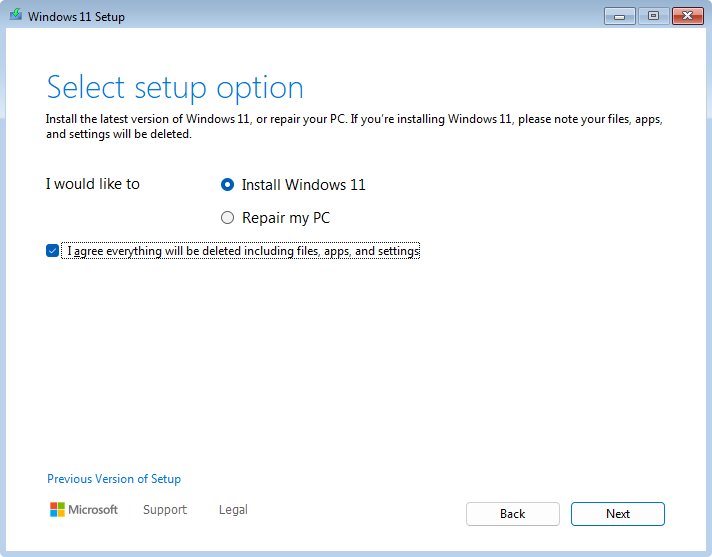
- Choose to install Windows 11 and confirm that everything will be deleted, including files, apps and settings.
- Select I don't have a product key if the PC has a digital licence, then pick the edition that matches your licence.
- Accept the licence terms.
- Delete every partition on Disk 0 that is not listed as Unallocated Space, one at a time.
- Select Disk 0 Unallocated Space and confirm to start the installation.
- Let the PC restart several times, then work through the first-run setup screens.
S
i
g
n
i
n
w
i
t
h
t
h
e
M
i
c
r
o
s
o
f
t
a
c
c
o
u
n
t
t
h
a
t
h
o
l
d
s
y
o
u
r
d
i
g
i
t
a
l
l
i
c
e
n
c
e
a
t
t
h
e
e
n
d
o
f
s
e
t
u
p
,
a
n
d
W
i
n
d
o
w
s
a
p
p
l
i
e
s
t
h
e
l
i
c
e
n
c
e
t
o
t
h
e
f
r
e
s
h
i
n
s
t
a
l
l
a
t
i
o
n
.
How to check the installation worked
Activation is the proof that matters. An unactivated install still runs, but it nags and locks personalisation.
- Open Start > Settings > System > Activation.
- Read the activation state. Windows is activated with a digital license linked to your Microsoft account is the result you want.
- If it reads Windows is not activated, select Change product key and enter your 25-character key.
- Open Start > Settings > Windows Update and select Check for updates to pull the first post-installation updates.
- Restart once more if any update asks for it.
Post-Installation Steps
Windows 11 installs generic drivers for most hardware. The maker's own drivers fix the gaps, usually graphics, audio, fingerprint readers and card readers.
- Open Start > Settings > Windows Update, select Check for updates, install everything offered and restart.
- Visit your PC maker's support site and install the chipset, graphics, audio and network drivers listed for your exact model.
- Reconnect printers and other peripherals and install their drivers, such as the DYMO drivers for Windows 11, so they work again after a clean install.
- Sign in to OneDrive to restore your Documents, Pictures and Desktop folders.
- Reinstall your apps and games from the Microsoft Store or the vendor's own site, including launchers such as the Minecraft Launcher.
- Right-click the taskbar, select Taskbar settings, expand Taskbar behaviors and set Taskbar alignment to move Start back to the left if you prefer it there.
Troubleshooting Common Issues
Windows Update never offers Windows 11
The PC fails one of the minimum requirements, or the phased rollout has not reached it.
- Run the PC Health Check app and read which item it marks as failed.
- Confirm the PC runs Windows 10, version 2004 or later with the 14 September 2021 security update or later installed.
- Open Start > Settings > Update & Security > Windows Update and select Check for updates again.
- If every requirement passes, use the Windows 11 Installation Assistant instead of waiting.
A message says the PC does not meet minimum system requirements
The TPM 2.0, Secure Boot or processor check failed.
- Open your PC maker's firmware documentation and check whether the board has TPM 2.0 and Secure Boot.
- Turn both on in firmware setup if the hardware supports them but they are switched off.
- Restart into Windows and run PC Health Check again.
- If the processor itself is the failing item, the device is not eligible; see the section below on unsupported PCs.
The download starts but never finishes
Not enough free space, a metered connection, or paused updates.
- Free up disk space until at least 64 GB is available.
- Turn off the metered-connection setting for the network you are on.
- Resume Windows updates if they are paused.
- Restart the PC and select Check for updates once more.
The ISO page will not produce a download link
The edition or the language was not confirmed, or the device needs the Arm64 image.
- Choose Windows 11 (multi-edition ISO for x64 devices) under Select Download.
- Select Confirm, then pick the product language and confirm that too.
- Use a different browser if the page still does not return a link.
- On an Arm-based PC, use the separate Arm64 ISO link on the same page; the x64 ISO will not install.
Installation fails part-way and rolls back
Free space ran out, or a connected device or driver blocked setup.
- Free up disk space and retry.
- Disconnect external drives, docks and card readers, leaving only the keyboard and mouse.
- Update the storage and chipset drivers from your PC maker's support site.
- Run setup.exe from the installation media again rather than through Windows Update.
Windows is not activated after the installation
The digital licence has not matched the hardware, or no key was entered.
- Open Start > Settings > Accounts > Your info and confirm you are signed in with the Microsoft account that holds the licence.
- Go to Start > Settings > System > Activation and select Add an account to link that account.
- Select Change product key and enter the 25-character key if you have one.
- Run the Windows activation troubleshooter from the same Activation page if the state still reads not activated.
What to do when your PC does not meet the requirements
Microsoft publishes the installation routes above for eligible devices only, and the requirements have not moved since launch.
Do not install Windows 11 on a device that fails the minimum system requirements; move the work to a device that passes, and use Windows Update on that one instead. Microsoft states that installing Windows 11 on a device below the minimum requirements is not recommended, that such a device is not guaranteed to receive updates including security updates, and that damage caused by the incompatibility is not covered by the manufacturer warranty. A watermark is added to the desktop and Settings shows a requirements warning. Microsoft's own advice for a PC already in that state is to go back to Windows 10.
How to go back to Windows 10
The rollback keeps personal files. It removes apps, drivers and settings changes made after the upgrade.
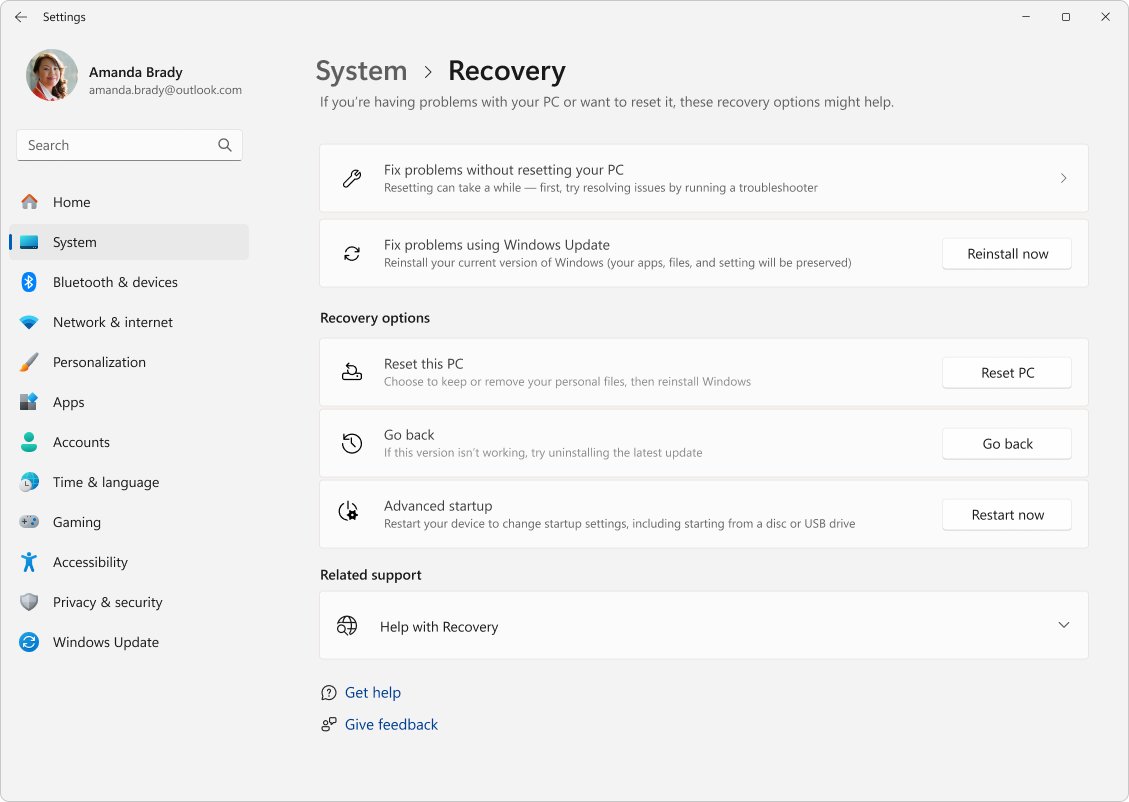
- Open Start > Settings > System > Recovery within 10 days of the upgrade.
- Select Go back.
- Answer the questions the wizard asks and confirm the rollback.
- Keep the PC plugged in until it restarts into Windows 10.
- Sign in and check that the user accounts and files you expect are present.
*
*
G
o
b
a
c
k
*
*
d
i
s
a
p
p
e
a
r
s
o
n
c
e
t
h
e
w
i
n
d
o
w
s
.
o
l
d
f
o
l
d
e
r
i
s
r
e
m
o
v
e
d
o
r
t
h
e
1
0
d
a
y
s
r
u
n
o
u
t
.
A
f
t
e
r
t
h
a
t
,
r
e
t
u
r
n
i
n
g
t
o
W
i
n
d
o
w
s
1
0
m
e
a
n
s
a
c
l
e
a
n
i
n
s
t
a
l
l
f
r
o
m
W
i
n
d
o
w
s
1
0
m
e
d
i
a
.
Frequently Asked Questions
Can I download Windows 11 for free?
Yes. Upgrades to Windows 11 from Windows 10 are free, and the Installation Assistant, media creation tool and ISO on Microsoft's download page cost nothing. A metered internet connection may still bill you for the data the download uses.
How do I download Windows 11 on Windows 10?
Open Start > Settings > Update & Security > Windows Update and select Check for updates. If the PC is eligible, Windows 11 appears there; select Download and install. If it does not appear, run the Windows 11 Installation Assistant from Microsoft's download page instead.
How do I download the Windows 11 ISO file?
Open Microsoft's Download Windows 11 page, scroll to Download Windows 11 Disk Image (ISO) for x64 devices, choose Windows 11 (multi-edition ISO for x64 devices) under Select Download, select Confirm, then pick the product language and confirm to get the link.
How do I download Windows 11 to a USB drive?
Use the media creation tool. Plug in a blank 8 GB or larger USB flash drive, download MediaCreationTool.exe from Microsoft's download page, run it, confirm the language and edition, then choose USB flash drive. Everything already on the drive is erased.
How do I download Windows 11 25H2?
Version 25H2, the Windows 11 2025 Update, is the current release on Microsoft's download page. Windows Update, the Installation Assistant, the media creation tool and the ISO all deliver it, so no separate 25H2 download exists.
How do I download Windows 11 Pro?
Download the multi-edition ISO or use the media creation tool; both contain Pro. The edition is decided by your licence, so enter a Windows 11 Pro product key during setup, or sign in with the Microsoft account holding the digital licence.
How do I download Windows 11 Home?
Use the same multi-edition ISO or media creation tool as Pro. Home is unlocked by a Home product key or digital licence. Home also requires an internet connection and a Microsoft account to finish first-run setup.
Why can't I download Windows 11 on my PC?
The usual cause is a failed requirement: TPM 2.0, Secure Boot, a supported 64-bit processor, 4 GB of memory or 64 GB of free storage. Run the PC Health Check app on Windows 10 to see exactly which item fails.
Why won't my laptop download Windows 11?
If the laptop is eligible but the download stalls, check free disk space, turn off the metered-connection setting for your network, and resume Windows updates if they are paused. Then select Check for updates again in Windows Update.
Why can't I download the Windows 11 ISO?
The page only returns a link after both the edition and the language are confirmed. Choose Windows 11 (multi-edition ISO for x64 devices), select Confirm, pick the language, then confirm. Arm64 devices need the separate Arm64 ISO link.
Is my computer downloading Windows 11?
Open Start > Settings > Update & Security > Windows Update on Windows 10. Any Windows 11 download in progress shows its status there. Nothing installs until you select Download and install and accept the licence terms.
Can I download Windows 11 on this computer?
Only if it meets the minimum requirements: a 1 GHz dual-core 64-bit processor, 4 GB of memory, 64 GB of storage, UEFI with Secure Boot, TPM 2.0 and a DirectX 12 graphics card. The PC Health Check app answers this in one click.
How do I download Windows 11 on an unsupported PC?
Microsoft does not support it. A device below the minimum requirements is not guaranteed to receive updates, gets a desktop watermark, and loses warranty cover for damage caused by the incompatibility. Use an eligible device instead.
Tips for a Smooth Transition
Run PC Health Check first, back up Documents, Pictures and Desktop, then take the Windows Update route and keep the 10-day rollback window free by leaving the windows.old folder alone. Windows Update is the only route that preserves files, apps and settings without extra steps, and the 10-day Go back option in Settings > System > Recovery is the fastest exit if a driver or app turns out to be a problem. Reserve the media creation tool and the ISO for second PCs, virtual machines and clean installs.



![How to Manage Power Management Settings in Windows 11/10 [Guide]](https://techdows.com/wp-content/uploads/2026/10/How-to-Manage-Power-Management-Settings-in-Windows-1110-Guide-600x338.jpg)


How to Install Windows 10: A Step-by-Step Guide for Easy Installation - Techdows
[…] For the Windows 11 route, follow How to Download Windows 11: A Complete Step-by-Step Installation Guide. […]
How to install VirtualBox Guest Additions on Windows 11 - Techdows
[…] need a guest operating system? Get official media first with the Windows 11 download options, install it in the VM, then return […]
How to install free Windows 11 - Techdows
[…] Installation media lets you upgrade in place or install a fresh copy. Create it with the Media Creation Tool, as covered in the guide to download Windows 11 installation media. […]
How to install Windows Hello Face on Windows 11 - Techdows
[…] Most Windows Hello driver problems are fixed by Windows Update. Camera drivers often arrive as optional updates, which Windows does not install on its own. This is also the first thing to check after a fresh Windows 11 installation. […]